
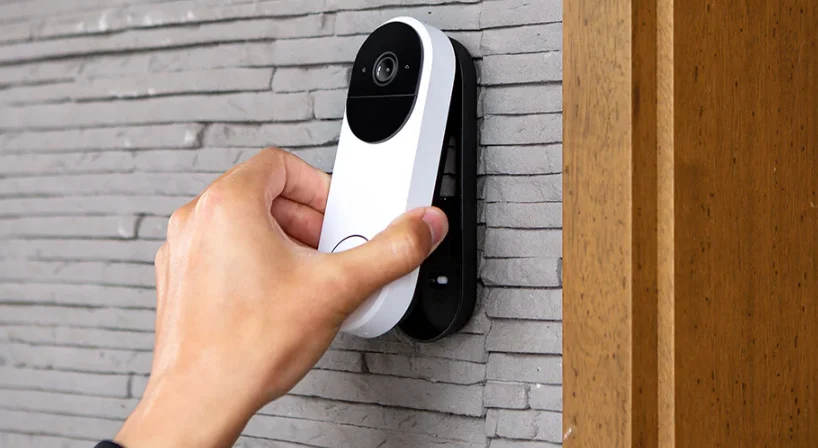

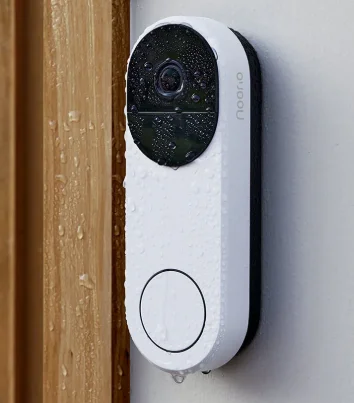
Noorio D110 AI Powered Video Doorbell
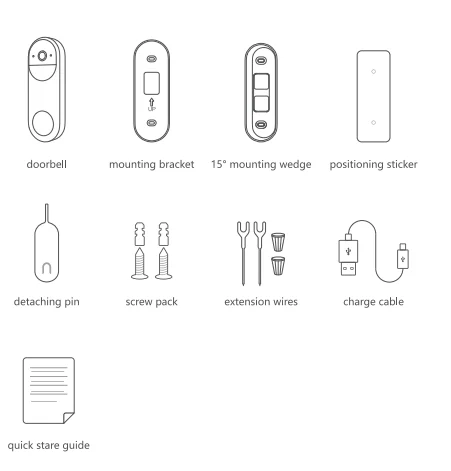
What’s Included
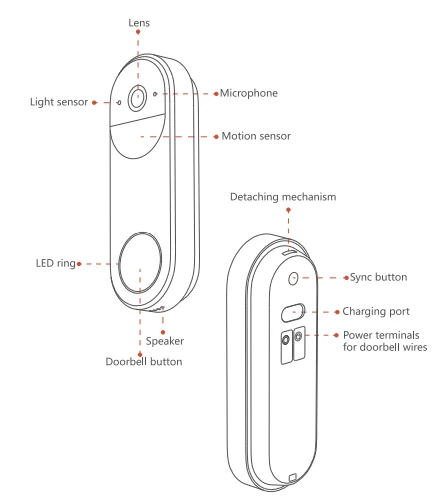
Product Overview
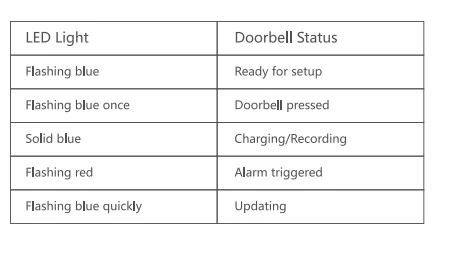
LED Indication
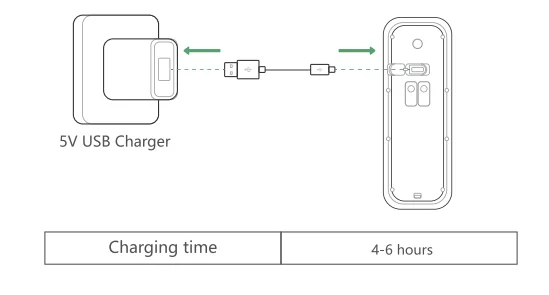
Charging Device
- Method 1: via USB

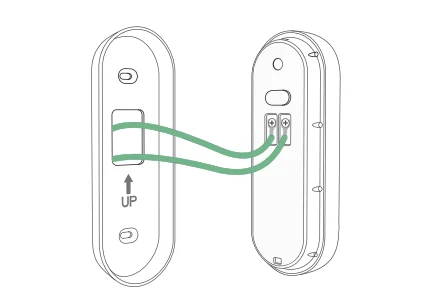
- Method 2 (Optional): via power terminals

Set Up Your Device
- Scan the code below to get the Noorio app.
- Tap “Set Up a Device” to add your camera.

For online help and support, visit https://support.nooriolife.com/.
Notice
FCC Statement
This device complies with Part 15 of the FCC Rules. Operation is subject to the following two conditions:
- This device may not cause harmful interference.
- This device must accept any interference received, including interference that may cause undesired operation.
Caution: Any changes or modifications not expressly approved by the party responsible for compliance could void the user’s authority to operate the equipment.
Note: This equipment has been tested and found to comply with the limits for a Class B digital device, pursuant to Part 15 of the FCC Rules. These limits are designed to provide reasonable protection against harmful interference in a residential installation. This equipment generates, uses, and can radiate radio frequency energy and, if not installed and used in accordance with the instructions, may cause harmful interference to radio communications.
However, there is no guarantee that interference will not occur in a particular installation. If this equipment does cause harmful interference to radio or television reception, which can be determined by turning the equipment off and on, the user is encouraged to try to correct the interference by one or more of the following measures:
- Reorient or relocate the receiving antenna.
- Increase the separation between the equipment and receiver.
- Connect the equipment into an outlet on a circuit different from that to which the receiver is connected.
- Consult the dealer or an experienced radio/TV technician for help.
Radio Frequency Exposure Statement
The device has been evaluated to meet general RF exposure requirements. The device can be used in fixed/mobile exposure conditions. The minimum separation distance is 20 cm.
This product complies with the radio interference requirements of the European Community.
Declaration of Conformity
 This product complies with the essential requirements and other relevant provisions of Directive 2014/53/EU. For the declaration of conformity, visit https://www.nooriolife.com/.
Battery Safety (Only for the products that have batteries)
Do not expose the device to fire, explosion, or other hazards. Do not use the device in an environment at too hot or too cold. Never expose the device to strong sunshine or too wet an environment. It is recommended to charge the device in an environment with normal room temperature and good ventilation.
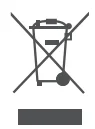 This symbol means the product must not be discarded as household waste and should be delivered to an appropriate collection facility for recycling. Proper disposal and recycling help protect natural resources, human health, and the environment. For more information on the disposal and recycling of this product, contact your local municipality, disposal service, or the shop where you bought this product.
IC Statement
This device complies with Industry Canada license-exempt RSS standard(s). Operation is subject to the following two conditions:
- This device may not cause interference, and
- This device must accept any interference, including interference that may cause undesired operation of the device.
Customer Service
Warranty
1-year limited warranty
Email Us
Customer Support: [email protected].
Noorio Innovations Limited
Office 216, 2nd Floor, Alpha House, 27-33 Nathan Road, Tsim Sha Tsui, Kowloon, Hong Kong
For More Manuals By Noorio, Visit ManualsLibraryy.
Noorio D110 AI Powered Video Doorbell-FAQs
How do I set up the Noorio D110 Video Doorbell?
Download and open the Noorio App on your smartphone. Follow the on-screen setup guide to connect the doorbell to your Wi-Fi. Once connected, you can view live video, adjust settings, and receive notifications.
How do I connect my Noorio D110 doorbell to Wi-Fi?
Make sure your Wi-Fi is 2.4GHz (not 5GHz). In the Noorio app, select Add Device, then follow the prompts to connect. If your router or doorbell is too far apart, try moving them closer during setup.
Why is my Noorio doorbell not connecting to Wi-Fi?
Check that your Wi-Fi password is correct, and your router is working properly. Noorio devices only support channels 1–11 on 2.4GHz networks. Restart your router or rename your Wi-Fi using English letters if connection fails.
How do I reset the Noorio D110 Video Doorbell?
Press and hold the Sync button until you hear “Device reset successfully.” The LED will flash blue, indicating the device is ready to reconnect through the Noorio App.
What should I do if my Noorio D110 goes offline?
Check your internet connection and router. Move the doorbell closer to the Wi-Fi source, ensure the battery is charged, and restart both your doorbell and router. Then reconnect the device in the app.
How do I know if my Noorio D110 is charging?
When charging, the LED light turns solid blue. Once the battery is fully charged, the LED will turn off. Use only the provided cable and a 5V/1A or 5V/2A charger for best results.
How long does it take to fully charge the Noorio D110?
It typically takes 4–6 hours with a 5V/2A charger or about 12 hours with a 5V/1A charger. You can also use a compatible solar charger for continuous power.
Can I use the Noorio D110 without Wi-Fi?
No, the Noorio D110 requires a Wi-Fi connection to stream video, send alerts, and enable AI features. Without Wi-Fi, it cannot connect to the app or cloud storage.
How do I connect the doorbell camera to my phone?
Once the D110 is added in the Noorio App and linked to Wi-Fi, you can view live video, receive motion alerts, and access playback directly from your phone anywhere with an internet connection.