
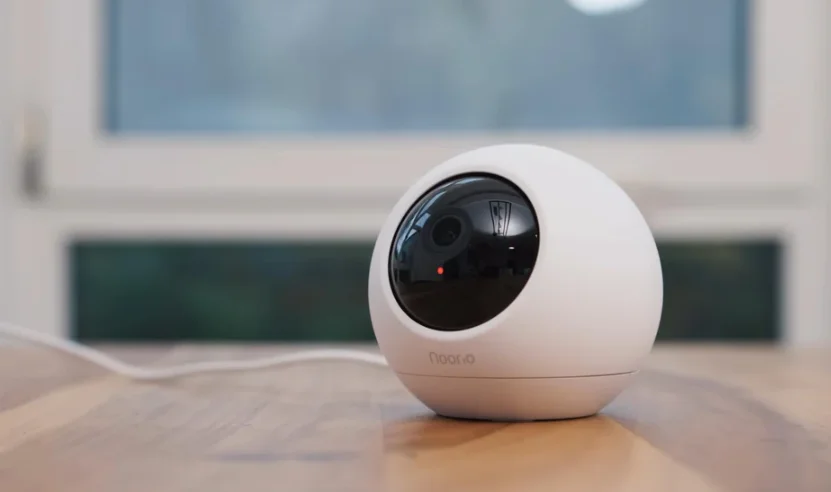

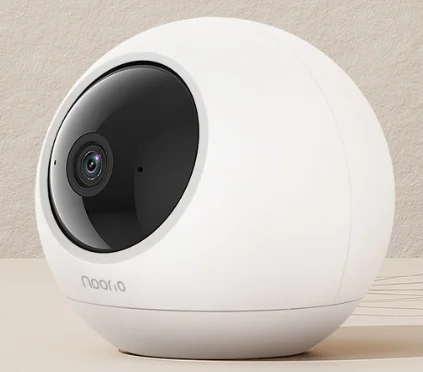
Noorio T120 4K Indoor Security Camera
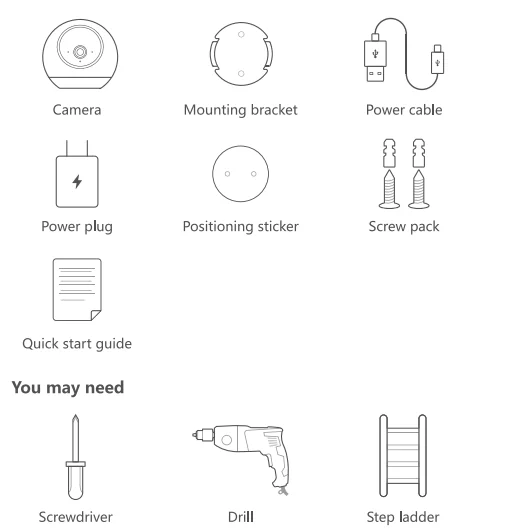
What’s Included
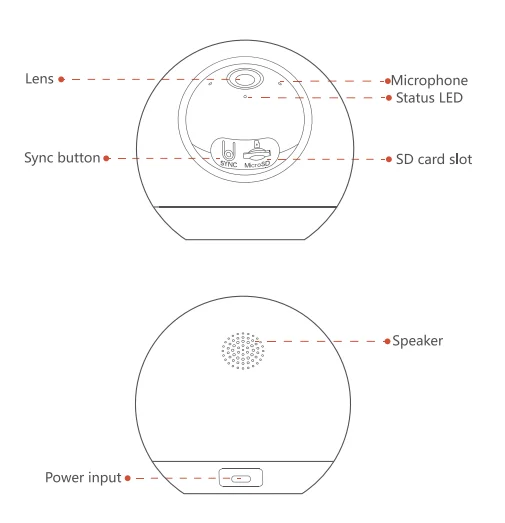
Product Overview
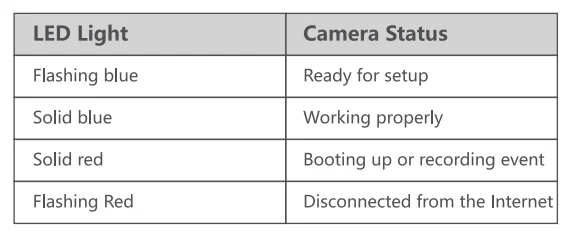
LED Indication
Setting Up
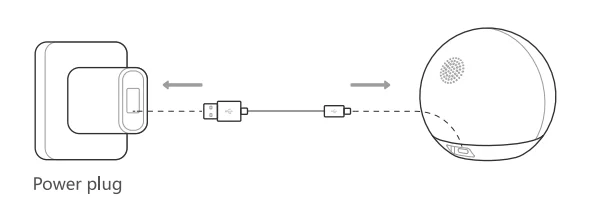
Set Up Your Device
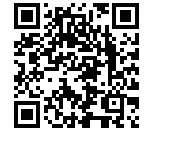
- Scan the code below to get the Noorio app.
- Tap “Set Up a Device” to add your camera.

For online help and support, visit https://support.nooriolife.com/.
Notice
FCC Statement
This device complies with Part 15 of the FCC Rules. Operation is subject to the following two conditions:
- This device may not cause harmful interference.
- This device must accept any interference received, including interference that may cause undesired operation.
Caution: Any changes or modifications not expressly approved by the party responsible for compliance could void the user’s authority to operate the equipment.
Note: This equipment has been tested and found to comply with the limits for a Class B digital device as specified in Part 15 of the FCC Rules. These limits are designed to protect reasonably against harmful interference in a residential installation. This equipment generates, uses, and can radiate radio frequency energy, and if not installed and used according to the instructions, may cause harmful interference to radio communications.
However, there is no guarantee that interference will not occur in a particular installation. Suppose this equipment does cause harmful interference to radio or television reception, which can be determined by turning the equipment off and on. In that case, the user is encouraged to try to correct the interference by one or more of the following measures:
- Reorient or relocate the receiving antenna.
- Increase the separation between the equipment and receiver.
- Connect the equipment to an outlet on a circuit different from the receiver’s.
- Consult the dealer or an experienced radio/TV technician for help.
Radio Frequency Exposure Statement
The device has been evaluated to meet general RF exposure requirements. The device can be used in fixed/mobile exposure conditions. The minimum separation distance is 20 cm.
 This product complies with the radio interference requirements of the European Community.
Declaration of Conformity
This product complies with the essential requirements and other relevant provisions of Directive 2014/53/EU. For the declaration of conformity, visit https://www.nooriolife.com/.
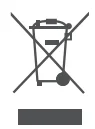 This symbol means the product must not be discarded as household waste and should be delivered to an appropriate collection facility for recycling. Proper disposal and recycling help protect natural resources, human health, and the environment. For more information on the disposal and recycling of this product, contact your local municipality, disposal service, or the shop where you bought this product.
Statement
This device complies with Innovation, Science, and Economic Development license-exempt RSS standard(s). Operation is subject to the following two conditions:
- This device may not cause interference, and
This device must accept any interference, including interference that may cause undesired operation of the device.
ISED RF Statement
When using the product, maintain a distance of 20 cm from the body to ensure compliance with RF exposure requirements.
For More Manuals By Noorio, Visit ManualsLibraryy.
Noorio T120 4K Indoor Security Camera-FAQs
How do I set up my Noorio T120 camera?
Plug in the camera and open the Noorio App on your phone. Follow the on-screen setup guide to connect the camera to your Wi-Fi network and finish pairing it with your account.
How do I reset the Noorio T120 to factory settings?
Press and hold the Sync button until you hear, “Device reset successfully.” The LED will flash blue, indicating it’s ready for a new setup through the Noorio App.
What is the Noorio Smart Hub, and do I need it for the T120?
The Noorio Smart Hub (H100) provides centralized video storage, connectivity, and alerts. While the T120 can work independently via Wi-Fi, using the hub enhances performance and automation across multiple Noorio devices.
How do I set up the Noorio Smart Hub?
Connect the hub to power using the provided adapter, then use an Ethernet cable to link it to your Wi-Fi router. Once powered, it will automatically search for compatible Noorio devices to pair with.
Can the Noorio T120 work without Wi-Fi?
Yes, it can record locally using an SD card even without Wi-Fi. However, you’ll lose cloud access, remote viewing, and instant alerts until the connection is restored.
Does the Noorio T120 have night vision?
Yes, the Noorio T120 includes advanced infrared night vision that provides clear video even in complete darkness.
How do I know if my Noorio T120 camera is charging?
When plugged in, the LED indicator turns solid blue while charging. The light turns off once the camera is fully charged.
How long does it take to charge the Noorio T120?
Charging typically takes 4–6 hours with a 5V/2A adapter. For best results, always use the included USB cable and a standard power source.
What should I do if my camera screen is black or not showing video?
Check that the camera is properly connected to power and Wi-Fi. Also, ensure no objects are blocking the lens. If the issue persists, restart or reset the camera.