
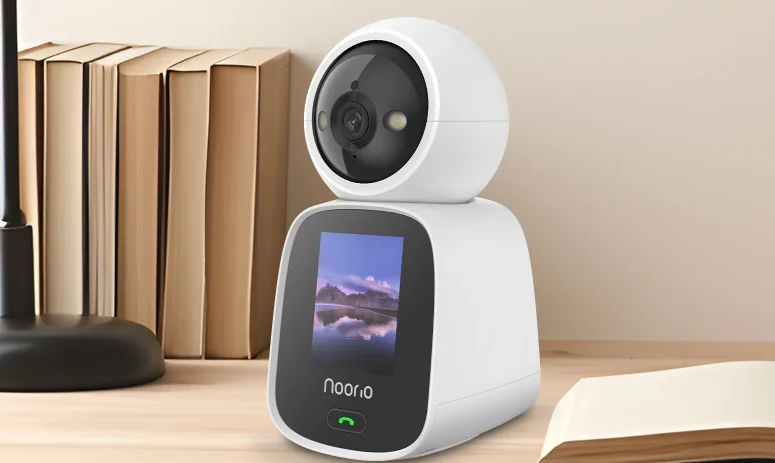

Noorio CL200 2K Indoor 2-Way Camera
Packing List
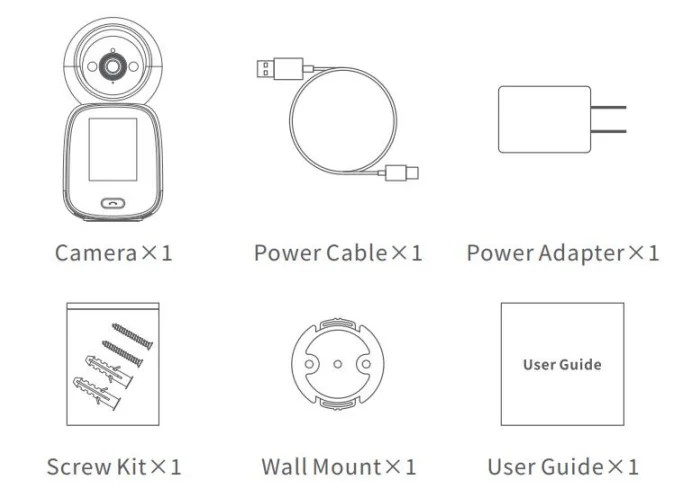
After opening the package, please verify that the main body of the camera is in good condition and that all accessories are complete.
Product Introduction
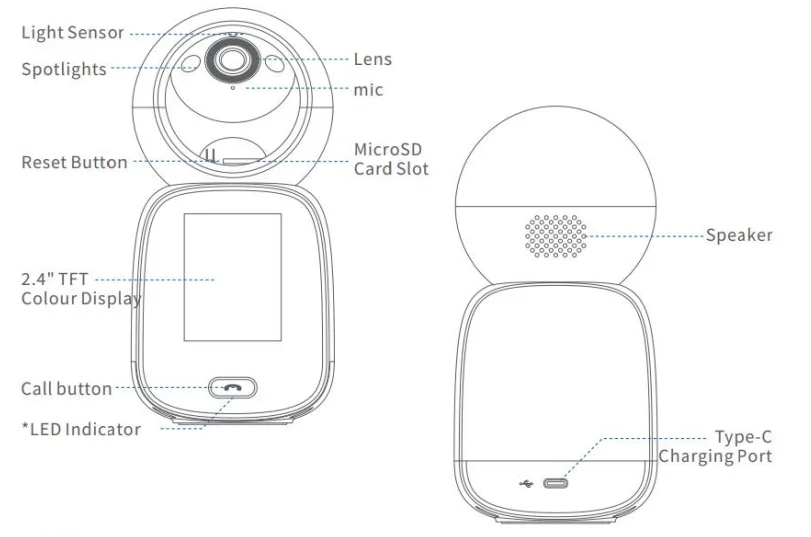
LED Indicator
- Device is booting up, not connected to the network – indicator light is blinking.
- Device is connected to the network – indicator light is on.
Power Connection
Connect the power cable to the power port on the back of the product. When the indicator light on the front of the product turns on or the device plays a voice prompt, it indicates that the camera is powered on.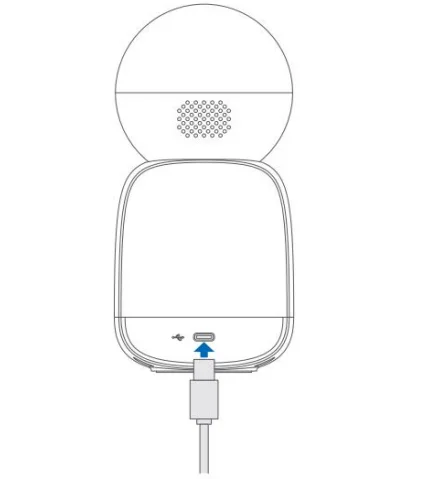
Quick Configuration
STEP 1 Download the APP
Scan the QR code below or search for “Noorio Plus” in major app markets, download and install.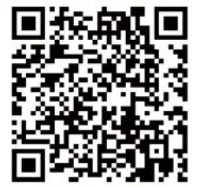
STEP 2 Register and Log In
Open the Noorio Plus app and register for an account. If you have already registered, please log in directly.
STEP 3 Add Device
Open the app and tap the “Add Device” button. You can also follow the on-screen instructions or refer to the “Add Device” flow. Due to app upgrades and updates, the actual operation may be slightly different from the above description. Please follow the instructions in the app to operate.
Wi-Fi Distribution Network Step 1
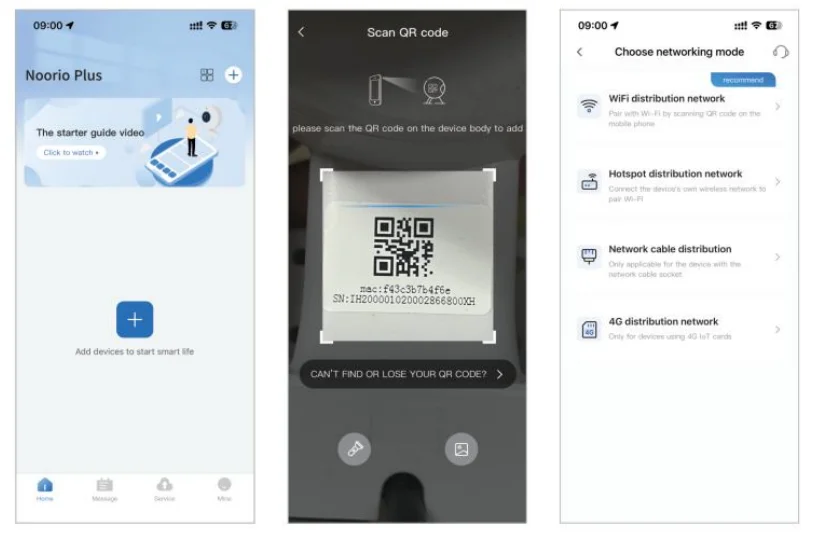
- Select the available 2.4G Wi-Fi hotspot on your cell phone, enter the homepage of the app, and click “+”.
- Scan the QR code on the device and select “Wi-Fi Distribution Network”.

Wi-Fi Distribution Network Step 2
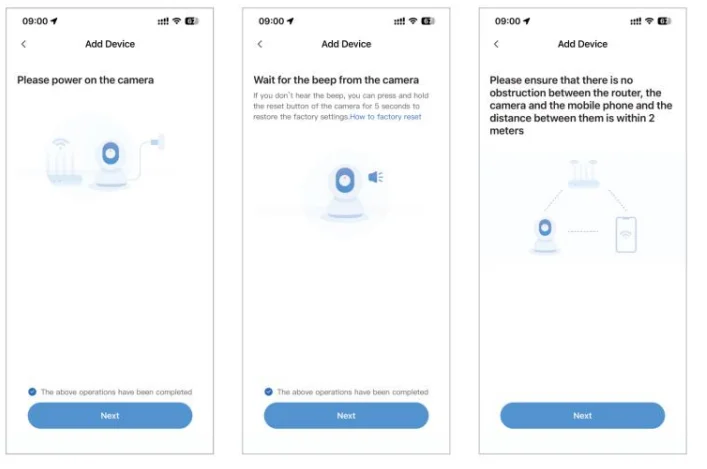
- On the “Boot Device” interface, check “The above operations have been completed” and click “Next”. On the “Start to Configure the Network” interface, check “The above operations have been completed” and click “Next”.
- Make sure there is no obstruction between the router, the camera, and the mobile phone, and the distance between them is within 2 meters. Then click “Next”.

Wi-Fi Distribution Network Step 3
- After entering the Wi-Fi password, click “Next”.
- Point the mobile phone screen directly in front of the camera lens, with an interval of 15–20 cm. Try not to let the mobile phone shake during the process. After hearing the device prompt tone or indicator light change, click “Hearing the prompt tone or indicator light flashing” and wait for the addition to succeed.

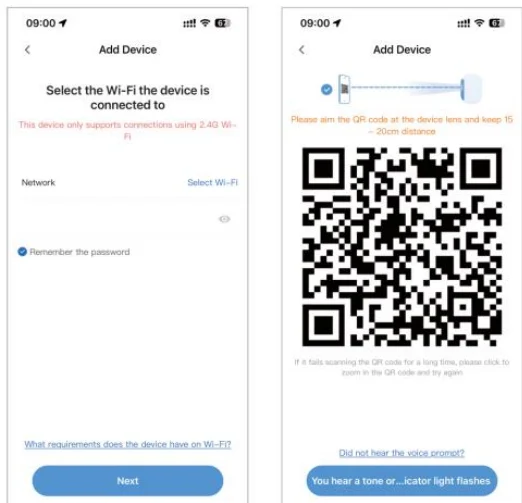
Hotspot Distribution Network
- Power up the camera and hear the device’s voice announcement or indicator light change.
- Open the app and click the “+” button. Then, scan the QR code on the device. Select “Hotspot Distribution Network” and follow the wizard to find the Wi-Fi network with the prefix “Cloud_xxxx”. Once the device is connected to the hotspot, click “Next”.
- Select the Wi-Fi network to be paired, enter the password, and click “OK”. Wait for the app to display “Addition Success” to complete device pairing.

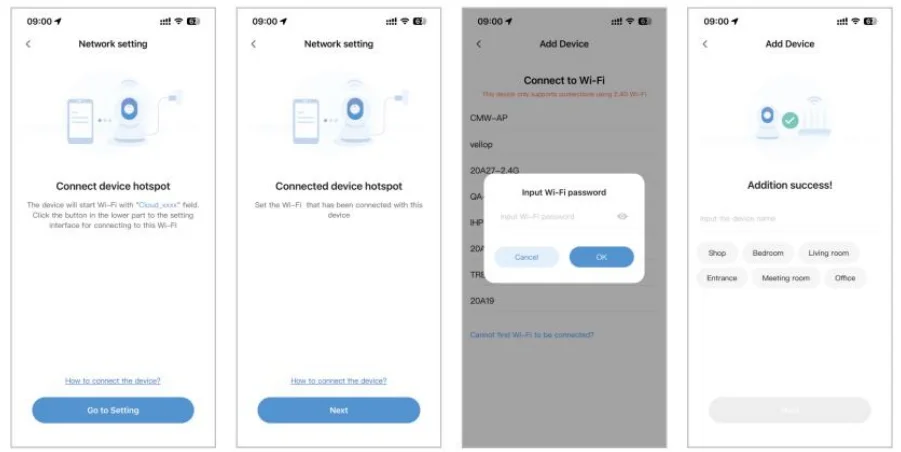
Installation Instructions (For Indoor Use Only)
- Cement wall: Use the wall mounting bracket to drill holes in the wall, insert the expansion screws, and then insert the screws to secure the wall mounting bracket.
- Wooden wall: Align the wall mounting bracket hole with the wall mounting bracket, and then insert the screws directly to secure it.
- Align the camera base with the wall mounting bracket buckle, and rotate the direction to secure the camera.

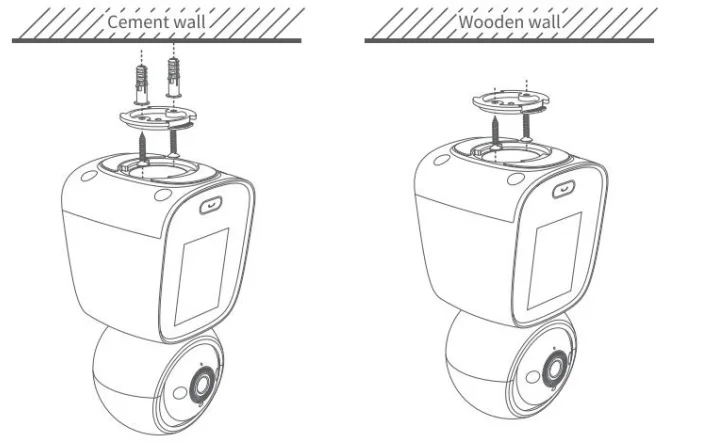
FAQ
Q: How to store video?
A: Cameras support two storage methods: local storage and cloud storage (requires a subscription).
- Local Storage: Store the video recorded by the camera on the Micro SD card.
- Cloud Storage: The video recorded by the camera is stored in the cloud. According to the storage time of the video, three types of recent 3 days, 7 days, and 30 days can be stored cyclically, and online viewing and downloading of historical videos are supported.
Q: Why can’t the camera connect to the Wi-Fi network?
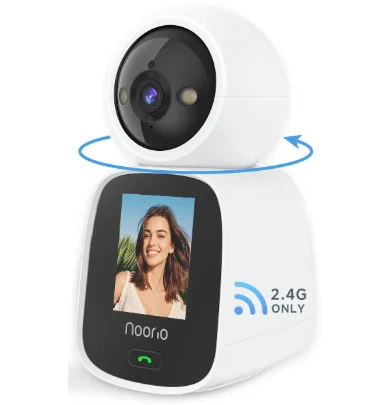
A: Currently, the camera supports 2.4G Wi-Fi with 802.11 b/g/n protocol, but does not support 5G Wi-Fi. Please make sure that the Wi-Fi signal of the wireless router connected to the camera is within the coverage.
Q: The camera is abnormally offline. How to check?
- Check whether the power supply and network are normal.
- Replug the power supply to restart the device.
- Reconfigure the camera.
Q: If I encounter an issue with the product or have trouble using it, who should I contact?
A: You can submit feedback within the app or send an email to [email protected]. Our professional team will handle it promptly for you.
List of Hazardous Substances
This table is compiled in accordance with the provisions of SJ/T 11364.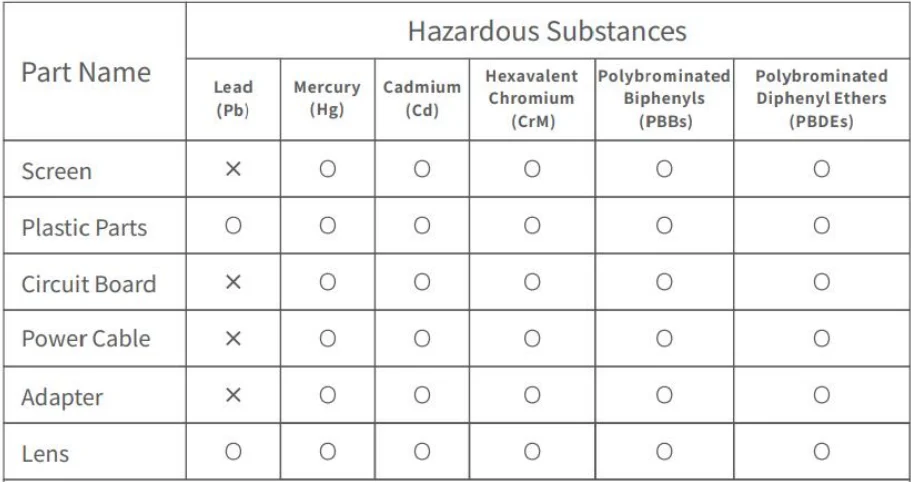
- “O” indicates that the content of the hazardous substance in all homogeneous materials of the part is below the limit requirement specified in GB/T 26572.
- “X” indicates that the content of the hazardous substance in at least one homogeneous material of the part exceeds the limit requirement specified in GB/T 26572, but all parts meet the EU RoHS requirements.
For More Manuals By Noorio, Visit ManualsLibraryy.
Noorio CL200 2K Indoor 2-Way Camera-FAQs
Can I use the camera without the internet?
Yes, the CL200 can record locally to its storage, but features like remote viewing or app notifications require an internet connection.
How do I factory reset the Noorio CL200?
Press and hold the sync button until you hear “Device reset successfully.” The LED will flash blue, and you can then set it up again via the Noorio app.
How can I reset the camera if it has no reset button?
Log in to the camera’s web interface, navigate to Settings → System → Restore/Default, and follow the prompts to reset.
How do I know if the camera is recording?
Most Noorio cameras show a red light when recording or motion is detected. Night vision may also activate this light.
Why isn’t my camera showing a picture?
Check all power and network connections. Loose cables, insufficient power, or weak Wi-Fi can cause video loss. Secure connections and ensure proper voltage.
Can I view the camera feed on my phone?
Yes, connect your smartphone to the camera via the Noorio app using Wi-Fi or by scanning the camera’s QR code. Some cameras also support local connections without internet.
How long is footage stored?
Local storage varies by memory capacity, but cloud storage may retain clips for up to 30 days depending on your plan.
How do I perform a hard reset on the camera?
Use the factory reset option in the app or press the physical reset button for 2–3 seconds. This restores all settings to default.