
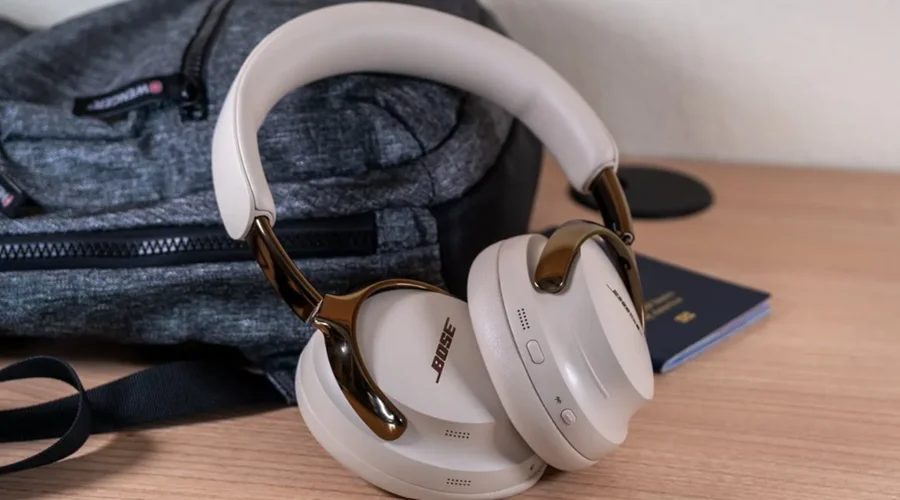

Bose QuietComfort Ultra 2nd Gen Bluetooth Headphones
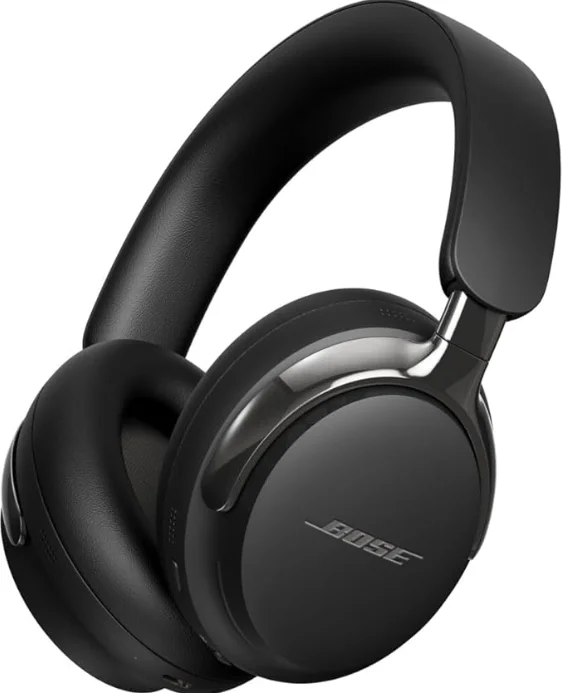
WHAT’S IN THE BOX
CONTENTS
Confirm that the following parts are included:
- Bose QuietComfort Ultra Headphones (2nd Gen)
- Carry case
- USB-C® to USB-C cable
- 3.5 mm to 2.5 mm audio cable
NOTE: If any part of your product appears to be missing or damaged, don’t use it. Visit support.Bose.com/qcu2 for troubleshooting articles, videos, and product repair or replacement.
BOSE APP
The Bose app lets you set up and control the headphones from any device, such as a smartphone or tablet. Using the app, you can manage Bluetooth connections, manage headphone settings, adjust the audio, choose your voice prompt language, and get any future updates and new features made available by Bose.
NOTE: If you’ve already downloaded the Bose app for another Bose product, you can add the headphones from the main screen.
DOWNLOAD THE BOSE APP
- On your device, download the Bose app.
- Follow the app instructions.
HEADPHONE CONTROLS
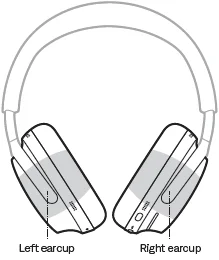
The headphone controls are located on the back of the right earcup.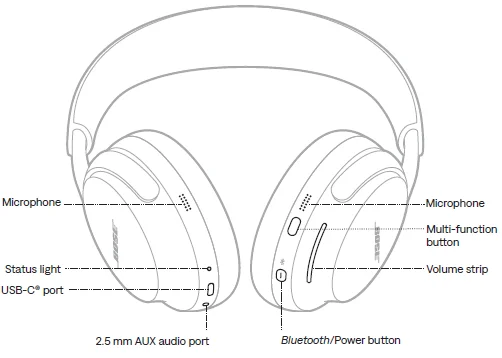
POWER ON
- Press and release the Bluetooth/Power button.
- After a few seconds, you hear a tone, and a voice prompt announces the battery level.
- The status light glows according to the current charge level (see page 38).
NOTES:
- When you power on the headphones and hear the tone, the audio is calibrated to your ears for the best audio performance.
- The headphones must be on your head for the tone and voice prompt to play.
POWER OFF
Press and hold the Bluetooth/Power button until you hear a tone and the status light blinks white twice.
NOTE: When the headphones are powered off, noise cancellation is disabled.
LAY FLAT TO DISCONNECT
The headphones disconnect from your devices after 3 seconds when they are removed from your head with the earcups laid flat or when they are stored in the case.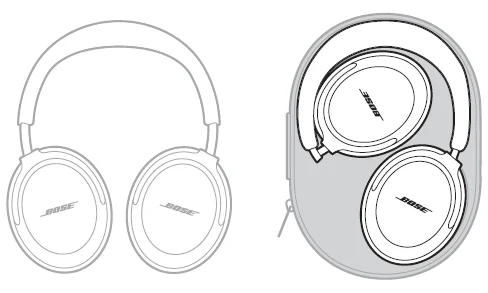
If they are removed from your head and left in any other orientation, they disconnect from your devices after 10 minutes. To reconnect the headphones, place them on your head. After the headphones are disconnected for 20 minutes with the earcups laid flat or 10 minutes in any other orientation, the headphones automatically sleep to conserve battery. To turn on the headphones, place them on your head or press and release the Bluetooth/Power button.
NOTES:
- If the headphones are powered off using the Bluetooth/Power button, press the Bluetooth/Power button to power on the headphones.
- If the battery is depleted, charge the headphones, then press the Bluetooth/Power button to power on the headphones.
MEDIA PLAYBACK AND VOLUME
The Multi-function button controls media playback. The volume strip controls the volume.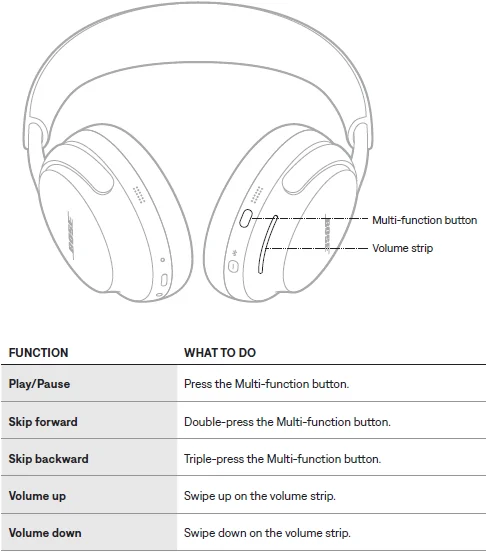
NOTE: To quickly increase or decrease the volume, use a long swipe on the volume strip.
PHONE CALLS
The Multi-function button controls phone calls. There are four microphones on the front of the headphones for phone calls — two on the left earcup and two on the right earcup.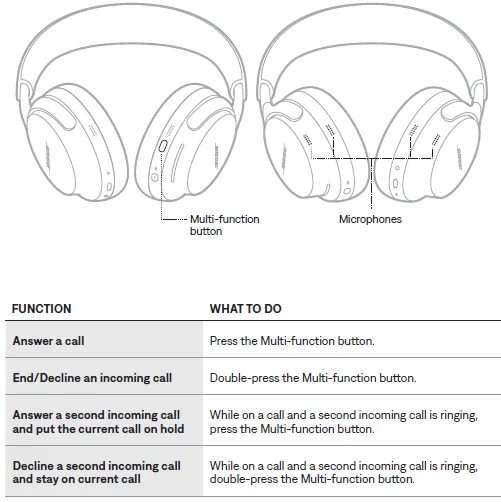
MODES
The Multi-function button allows you to quickly and easily switch between modes. For information about changing the mode, see page 26.
IMMERSIVE AUDIO SETTINGS
For information about changing the immersive audio setting, see page 24.
DEVICE VOICE CONTROL
You can set a shortcut to access your device’s voice control using the headphones. The microphones on the headphones act as an extension of the microphone on your device. For information about shortcuts, see page 20.
NOTE: You can’t access voice control while on a call.
SHORTCUTS
A shortcut enables you to quickly and easily access one of the following functions:
- Cycle through audio settings (see page 23)
- Play music from Spotify
- Use your device’s voice control (see page 19)
- Access battery level (see page 36)
ENABLE, DISABLE, OR CHANGE YOUR SHORTCUT
To enable, disable, or change your shortcut, use the Bose app. To access this option, tap Shortcut on the main screen.
USE YOUR SHORTCUT
Touch and hold the volume strip.
ON-HEAD DETECTION
On-head detection uses sensors to identify when you’re wearing the headphones. You can automatically play/pause audio and answer phone calls.
NOTE: To manage on-head detection features, use the Bose app. You can access this option from the Settings menu.
AUTO PLAY/PAUSE
When you lift the right earcup off your ear or remove the headphones, the audio pauses. To resume audio, replace the right earcup or put on the headphones.
AUTO ANSWER CALL
You can answer phone calls by putting on the headphones.
NOISE CANCELLATION
Noise cancellation reduces unwanted noise, providing a clearer, more lifelike audio performance. By default, the headphones power on in Quiet mode. Noise cancellation is fully enabled (see page 25).
CHANGE THE NOISE CANCELLATION SETTING
You can switch between preset noise cancellation settings by changing the mode. For information about modes, see page 25.
NOISE CANCELLATION WHILE ON A CALL
When you make or receive a call, the headphones remain at the current noise cancellation setting, and self-voice is activated. Self-voice helps you hear yourself speak more naturally. To adjust noise cancellation while on a call, change the mode (see page 26).
NOTE: To adjust self-voice, use the Bose app. You can access this option from the Settings menu.
USE NOISE CANCELLATION ONLY
You can use noise cancellation only, without audio or interruptions from phone calls. Do one of the following:
- Disconnect your device (see page 28).
- Turn the Bluetooth feature off on your device.
Press and hold the Multi-function button to change the mode (see page 26).
NOTE: To reconnect your device, select the headphones from the Bluetooth list on your device, connect using the Bose app (see page 12), or press and release the Bluetooth/Power button once for each previously-connected device (see page 30).
IMMERSIVE AUDIO
Immersive audio takes what you’re hearing out of your head and places it in front of you—like you’re always in the acoustic sweet spot. It feels like the sound is coming from outside the headphones, resulting in a more natural listening experience. Immersive audio works on any streaming content from any source, taking it to new heights with better sound clarity and richer sound quality.
NOTE: When you make or receive a phone call, immersive audio is temporarily set to Off. When you end the call, the headphones return to the previous immersive audio setting.
IMMERSIVE AUDIO SETTINGS
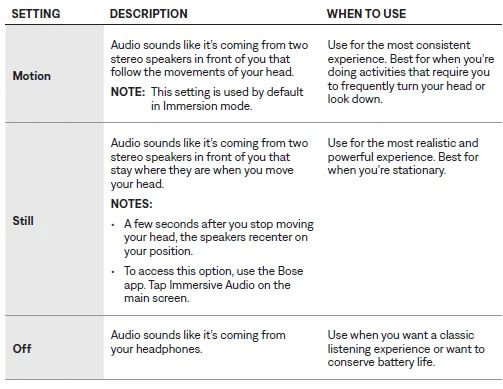
CHANGE THE IMMERSIVE AUDIO SETTING
You can change the immersive audio setting by changing the mode or using a shortcut to cycle through immersive audio settings.
TIP: You can also change the immersive audio setting using the Bose app. To access this option, tap Immersive Audio on the main screen.
Change the mode
To cycle through modes, press and hold the Multi-function button. For information about changing the mode, see page 26.
NOTES:
- Changing the mode changes both the immersive audio and noise cancellation settings.
- You can also create a custom mode with your preferred immersive audio and noise cancellation setting (see page 25).
Use your shortcut
You can use your shortcut to cycle through immersive audio settings without affecting your current mode’s noise cancellation setting. This temporarily customizes the current mode until you power the headphones off or change the mode.
NOTE: To change the immersive audio setting using the headphones, it must be set as a shortcut (see page 20).
- Touch and hold the volume strip. A voice prompt announces each immersive audio setting in a loop.
- When you hear the name of your preferred setting, release the volume strip.
LISTENING MODES
Listening modes are preset audio settings that you can switch between based on your listening preferences and environment. They consist of noise cancellation and immersive audio settings. You can choose between four pre-configured modes — Quiet, Aware, Immersion, or Cinema — or create up to seven of your own custom modes.
MODES
- Quiet
Full noise cancellation with Bose-optimized stereo audio. Allows you to block out distractions using the highest level of noise cancellation. - Aware
Full transparency with Bose-optimized stereo audio. Allows you to hear your surroundings while enjoying your audio in stereo. - Immersion
Full noise cancellation with immersive audio set to Motion. Allows you to block out distractions and immerse yourself in lifelike audio. - Cinema
Full noise cancellation with Immersive Audio set to Still. Allows you to experience your video content in a movie-like way by spatializing your audio and balancing background sounds and sound effects. - Custom
Custom noise control (noise cancellation or wind block) and immersive audio settings based on your listening preferences and environment.
NOTE: You can create up to seven custom modes using the Bose app. To access this option, tap Modes on the main screen.
NOTES:
- By default, the headphones power on in Quiet mode. To set the headphones to power on with the last mode used, use the Bose app. You can access this option from the Settings menu.
- For information about noise cancellation and immersive audio settings, see pages 22 and 23.
Aware mode with ActiveSense
The dynamic noise cancellation of Aware mode with ActiveSense technology allows you to hear your surroundings while reducing unwanted noise. Aware mode with ActiveSense allows the headphones to automatically increase noise cancellation when sudden or loud noises occur near you, so you can maintain awareness without intermittent noise interrupting your audio. Once the noise stops, noise cancellation automatically returns to the previous setting. To enable ActiveSense, use the Bose app. To access this option, on the main screen, tap Modes > Aware > •••.
CHANGE THE MODE
NOTE: To access a mode on the headphones, it must be set as a favourite in the Bose app. To set your favourite modes, tap Modes on the main screen.
By default, Quiet, Aware, Immersion, and Cinema modes are set as favourites.
- To cycle through modes, press and hold the Multi-function button. A voice prompt announces each mode in a loop.
- When you hear the name of your preferred mode, release the Multi-function button.
TIP: You can also change the mode using the Bose app. To access this option, tap Modes on the main screen.
Set favourites and add or remove custom modes from the headphones
To add or remove modes from the headphones, tap Modes on the main screen and customize which modes are set as your favourites.
BLUETOOTH CONNECTIONS
You can connect the headphones to your device using the Bose app, the Bluetooth menu on your device, or Fast Pair (Android devices only). You can store up to six devices in the headphone device list, and the headphones can be actively connected to up to two devices at a time (multi-point connection). You can play audio from only one device at a time.
NOTES:
- For the best experience, use the Bose app to set up and connect your device (see page 12).
- For information about connecting using Fast Pair, see page 31.
CONNECT USING THE BOSE APP
To connect the headphones and manage Bluetooth settings using the Bose app, see page 12.
CONNECT USING THE BLUETOOTH MENU ON YOUR DEVICE
- With the headphones powered on, press and hold the Bluetooth/Power button. You hear the power off tone, and the status light blinks white twice. Continue holding until you hear “Ready to connect,” and the status light blinks blue. NOTE: If a device is already connected, you hear “Ready to connect another device.”
- On your device, enable the Bluetooth feature. NOTE: The Bluetooth feature is usually found in the Settings menu.
- Select the headphones from the list of available products. NOTE: Look for the name you entered for your headphones in the Bose app. If you didn’t name your headphones, the default name appears.

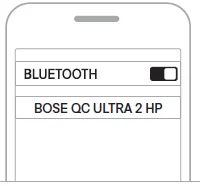
Once connected, the status light glows solid blue for 10 seconds.
NOTE: If a device is already connected, you hear “Connected to <device name>,” and then the status light glows solid blue for 10 seconds.
DISCONNECT A DEVICE
To disconnect a device, use the Bose app.
TIP: You can also use Bluetooth settings on your device to disconnect. Disabling the Bluetooth feature disconnects all other devices.
RECONNECT A DEVICE
When powered on, the headphones try to reconnect with the two most recently connected devices.
NOTES:
- The devices must be within range (30 ft or 9 m) and powered on.
- Make sure the Bluetooth feature is enabled on your device.
- If the multi-point connection feature is disabled, the headphones try to reconnect with the most recently connected device.
CARE AND MAINTENANCE
STORE THE HEADPHONES
The earcups rotate for easy, convenient storage. Place the headphones flat into the case.
- Place your hands around each earcup.

- Rotate both earcups inward, so they lie flat.
- Slide the earcups up into the headband.
- Fold the left earcup up toward the headband and place the headphones in the case.
UPDATE THE HEADPHONES
The headphones begin updating automatically when connected to the Bose app, and an update is available. Follow the app instructions. You can also update the headphones using the Bose updater website. On your computer, visit: btu.Bose.com and follow the on-screen instructions.
CLEAN THE HEADPHONES
The headphones may require periodic cleaning. If the headband or other exterior surfaces need to be cleaned, gently wipe with a slightly damp cloth.
- Use only a water-dampened cloth. Don’t use cleaning products. Don’t allow any moisture to enter the headphones through the ports or earcups.
- Don’t force any dirt or debris into the ports. Don’t blow air into or vacuum the ports or the interior of the earcups.
REPLACEMENT PARTS AND ACCESSORIES
Replacement parts and accessories can be ordered through Bose customer service.
Visit: support.Bose.com/qcu2
LIMITED WARRANTY
Your headphones are covered by a limited warranty. Visit our website at worldwide.Bose.com/Warranty for details of the limited warranty. To register your product, visit worldwide.Bose.com/ProductRegistration for instructions. Failure to register will not affect your limited warranty rights.
SERIAL NUMBER LOCATION
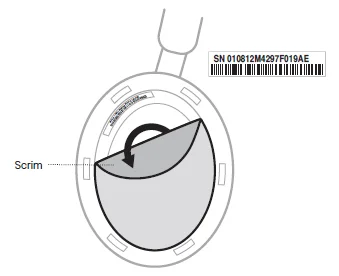
The serial number is located inside the left earcup under the scrim. The scrim is the inner screen that covers and protects the components inside the earcup.
- On the left earcup, gently pull one area of the cushion away from the earcup until all six tabs around the inside rim of the earcup release.
- Grab the scrim at the top edge and gently peel it away to view the serial number. CAUTION: Be careful not to press down on or remove any other components inside the earcup, as this could damage the headphones.

- Secure the scrim back in place.
- Align the six tabs on the cushion mounting flange with the six slots on the earcup, then press the cushion until all six tabs snap into each slot. You will hear and feel a snap when the cushion is properly in place.
CAUTION: To ensure proper audio performance, all six tabs must be secure on the cushion.
TROUBLESHOOTING
You can access troubleshooting articles, videos, and other resources at: support.Bose.com/qcu2-ogIf you are unable to resolve your issue, contact Bose customer service.
Visit: worldwide.Bose.com/contact
RESET THE HEADPHONES
If the headphones are unresponsive, you can reset them.
Resetting the headphones resets the product controls and reboots the headphones.
It doesn’t clear any device settings.
- Remove the headphones from the Bluetooth list on your device.
- Connect the USB-C cable to the USB-C port on the left earcup.
- Press and hold the Bluetooth/Power button while connecting the other end of the USB-C cable to a USB-C power source such as a computer or wall charger.
- Once the USB-C cable is connected to a USB-C power source, release the Bluetooth/Power button.
When the reset is complete, the status light blinks white for 3 seconds, then glows according to the current charge level (see page 38).
NOTE: If you’re unable to resolve your issue, additional troubleshooting and support are available at: support.Bose.com/qcu2
RESTORE THE HEADPHONES TO FACTORY SETTINGS
A restore to factory settings clears all settings and returns the headphones to their original out-of-box state. After that, the headphones can be configured as if they were being set up for the first time. Restoring to factory settings is only recommended if you are having issues with the headphones or if you have been instructed to do so by Bose customer service.
- Remove the headphones from the Bluetooth list on your device.
- Remove the headphones from your Bose account using the Bose app. NOTE: For more information about how to remove the headphones from your Bose account using the Bose app, visit: support.Bose.com/qcu2
- Press and hold the Bluetooth/Power button and the Multi-function button simultaneously.
The status light blinks amber for 5 seconds. Continue holding both buttons for 15 seconds in total until the status light glows solid white. When the restore is complete, the status light blinks blue. The headphones are now in their original out-of-the-box state.
NOTE: If you’re unable to resolve your issue, additional troubleshooting and support are available at: support.Bose.com/qcu2
For more Manuals by Bose, visit ManualsLibraryy
Bose QuietComfort Ultra 2nd Gen Bluetooth Headphones-FAQs
Which app works with Bose QuietComfort Ultra headphones?
Use the Bose Music app to customize settings, switch modes, update firmware, and adjust noise cancellation.
What functions does the Multi-function button support?
It controls playback, voice modes (Quiet, Aware, Immersion), phone calls, and switching between connected devices.
How do I turn on noise cancelling mode?
Use the Bose Music app or press and hold the Multi-function button to cycle through noise control modes.
How do I improve noise cancellation performance?
Increase the Noise Cancellation slider in the Bose Music app, ensure a proper fit, and keep the headphones updated.
How do I conserve battery life?
Enable Auto-off in the app, turn off the headphones when not in use, keep firmware updated, and reduce frequent device switching.
Is it safe to charge Bose QuietComfort Ultra overnight?
Yes. The battery has built-in protection to stop charging once it reaches full capacity.
What is the 60/60 listening rule?
Listen at no more than 60% volume for 60 minutes, then take a short break to protect your hearing.
What common issues do users face?
Typical problems include no audio in one ear, low volume, audio delays, sound imbalance, and connection issues. Most can be fixed via the app or reset.