
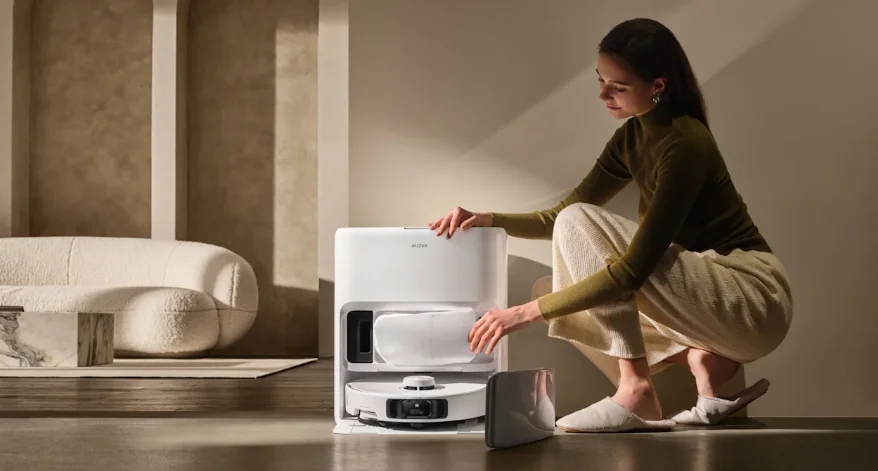

MOVA P50 Pro Ultra Robot Vacuum Cleaner
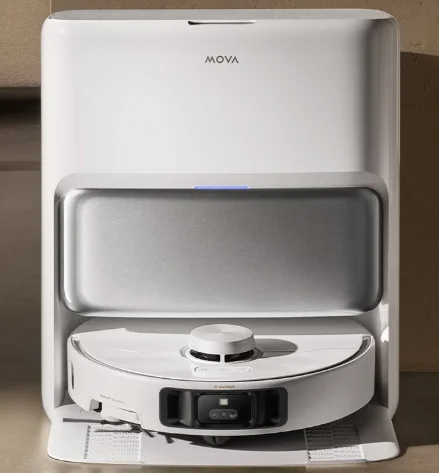
Product Overview
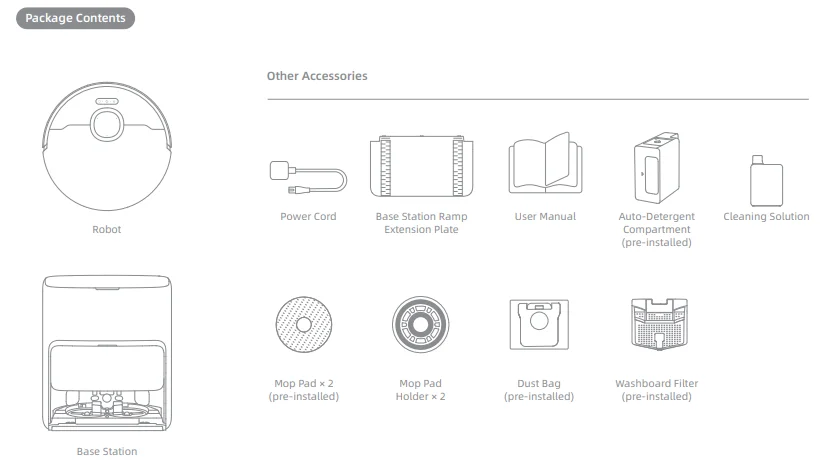
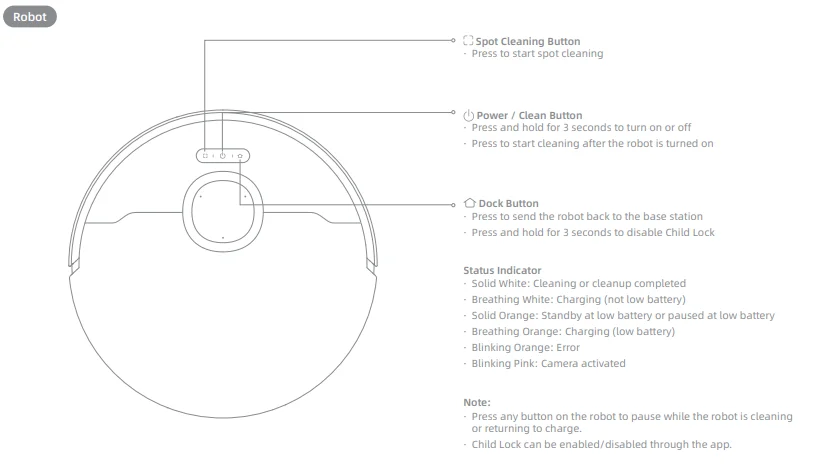
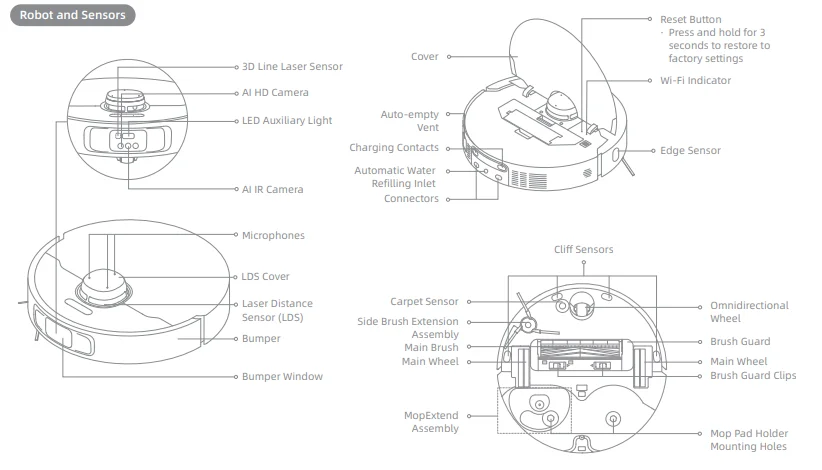
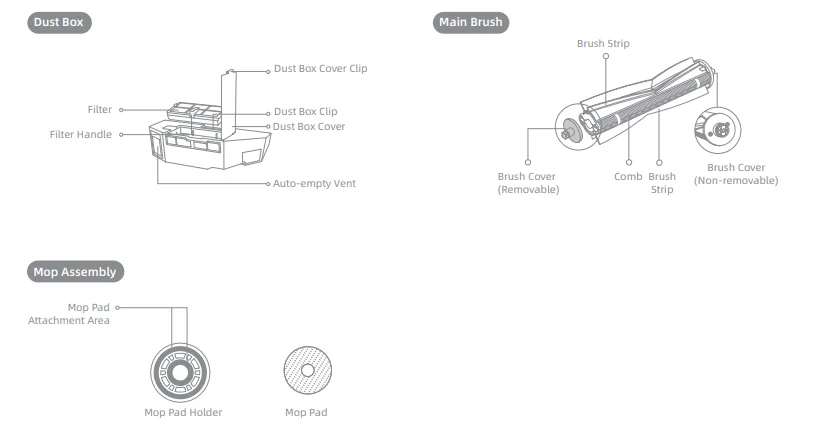
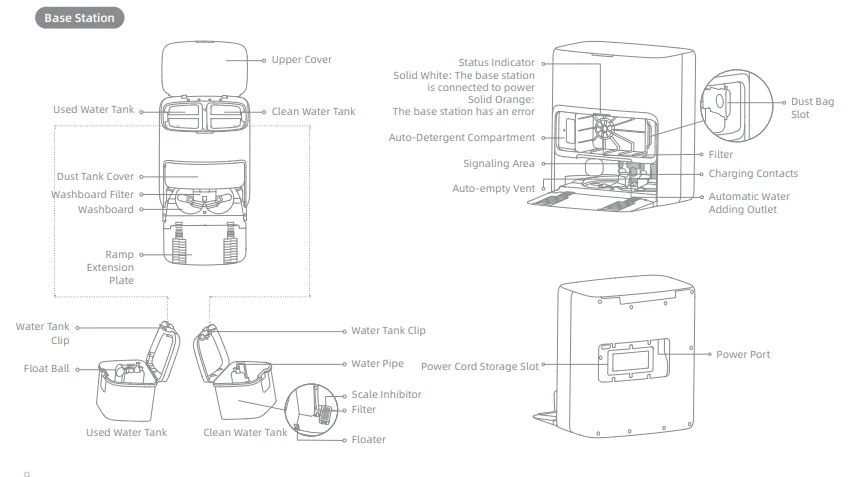
Preparing Your Home
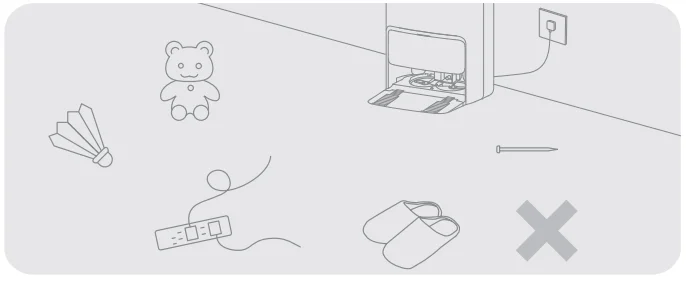
- Before cleaning, please move away unstable, fragile, valuable, or dangerous items, and clean up cables, cloths, toys, hard objects, and sharp objects on the ground to avoid being entangled, scratched, or knocked over by the robot and causing losses.

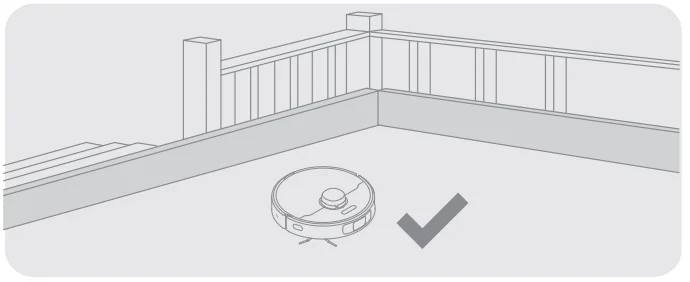
- Before cleaning, place a physical barrier at the edge of the stairs to ensure the secure and smooth operation of the robot.

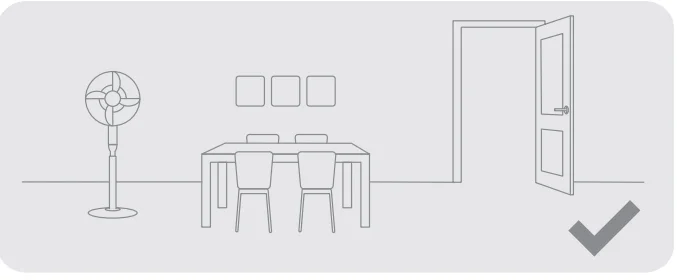
- Open the door of the room to be cleaned, and put the furniture in its proper place to leave more space.

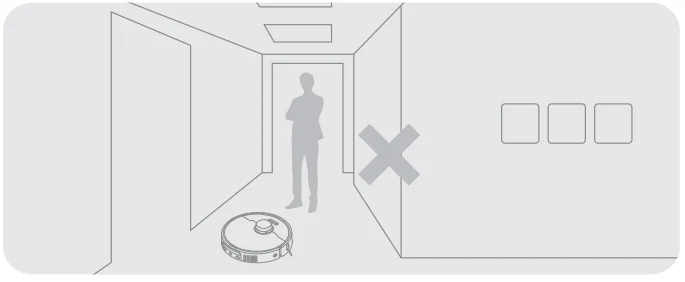
- To prevent the robot from not recognizing areas that need to be cleaned, do not stand in front of the robot, threshold, hallway, or narrow places.

Note:
- When operating the robot for the first time, follow it around while cleaning to remove any potential obstacles in time.
- The LED auxiliary light will provide auxiliary lighting in dimly lit environments.
- Do not vacuum hard objects like stones, steel balls, and toy parts, or sharp objects like construction waste, broken glass, and nails; otherwise, the ground may be scratched.
Before Use
1. Place the Base Station and Connect to an Electrical Outlet
Place the base station in a location that is as open as possible with a good Wi-Fi signal. Leave enough space as shown in the figure and remove any objects in the shaded area. Insert the power cord into the base station and plug it into the socket.
Note:
- Make sure that no objects might block the signaling area.
- To prevent water stains from wetting wood floors or carpets, placing the base station on tile floors or marble floors is recommended.
2. Install the Ramp Extension Plate
3. Remove Robot Protections and Install the Mop Assembly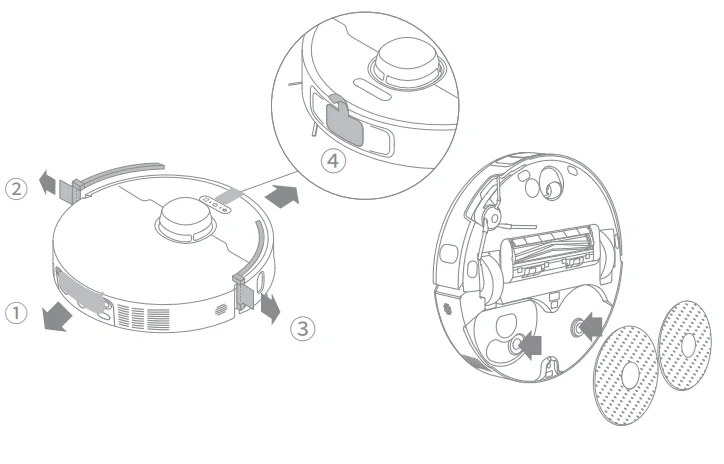
4. Connect the Robot to the Base Station
Press and hold the button on the robot for 3 seconds to turn it on. Place the robot onto the base station with the mop assembly facing toward the washboard. Then you will hear a voice notification when the robot successfully connects to the base station. After the robot is fully charged, the status indicators on the robot and the base station will remain lit for 10 minutes and then dim.
Note: It is recommended to fully charge the robot before its first use. When the robot cannot be turned on after the battery is depleted, manually connect the robot to the station to charge it.
5. Add the Cleaning Solution
- Remove the dust tank cover and pull out the auto-detergent compartment.
- Open the upper lid of the compartment and add the cleaning solution.
- Close the lid of the compartment, put it back into the base station, and then reinstall the dust tank cover. The cleaning solution will be added automatically while working.

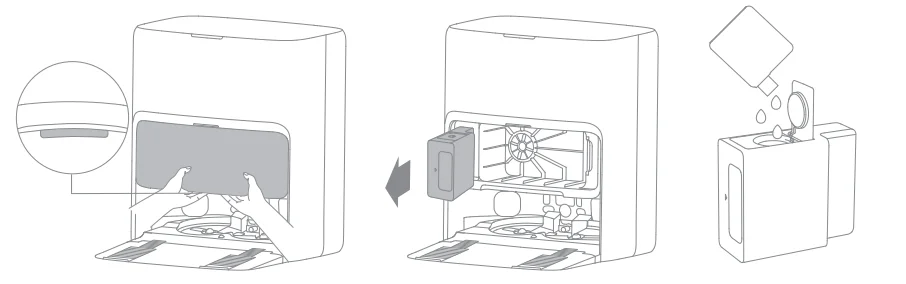
Note:
- The auto-detergent compartment can be filled with cleaning solution for use. Do not add any liquid other than the officially-approved cleaning solution to help prevent malfunction.
- Install the auto-detergent compartment until it clicks into place.
6. Add Water to the Clean Water Tank
Take out the clean water tank from the base station and fill up the tank with clean water. Then install it back into the base station. Note: Do not add hot water to the water tank, as this may cause the tank to become deformed.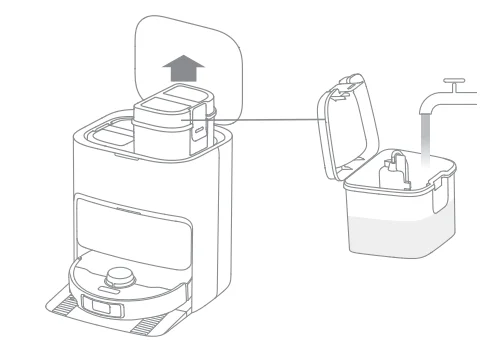
Connecting with the MOVAhome App
1. Download the MOVAhome App
Scan the QR code on the robot or search “MOVAhome” in the app store to download and install the app.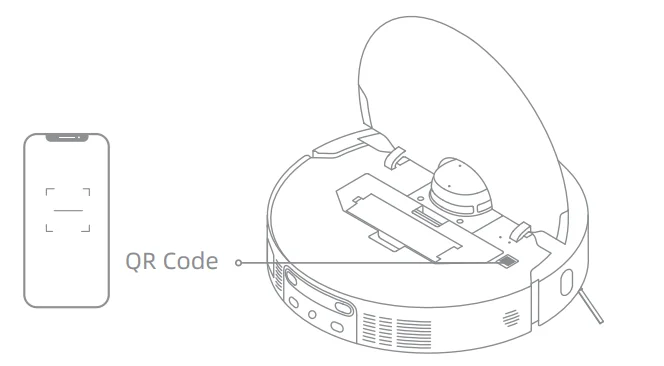
Note:
- Only 2.4 GHz Wi-Fi is supported.
- Due to upgrades in the app software, the actual operations may differ from the directions in this manual. Please follow the instructions based on the current app version.
2. Add Device
Open the MOVAhome App, tap “Scan QR code to connect”, and scan the same QR code on the robot again to add the device. Please follow the prompts to finish the Wi-Fi connection. Note: To reset Wi-Fi, repeat step 2 and then follow the prompts to finish the Wi-Fi connection.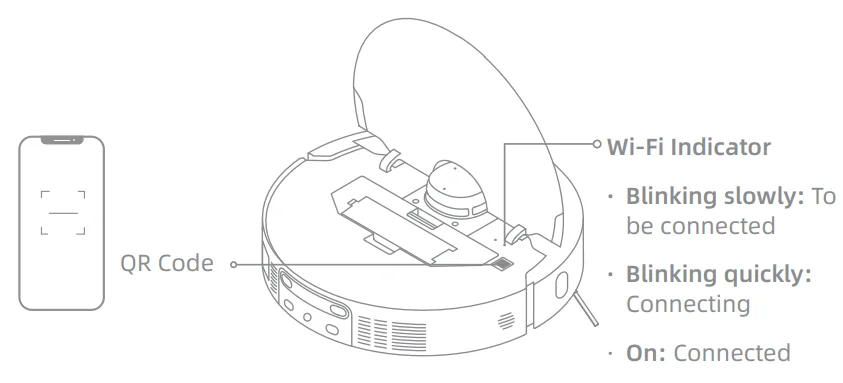
How to Use
Turn On/Off
Press and hold the button  for 3 seconds to turn on the robot. The power indicator should be illuminated. Place the robot onto the base station; the robot should turn on automatically and begin charging. To turn off the robot, move the robot away from the base station and press and hold the button for 3 seconds.
Fast Mapping
After configuring the network for the first time, follow the instructions in the app to quickly create a map. The robot will start mapping without cleaning. When the robot returns to the base station, the mapping process has been completed, and the map will be saved automatically.
Pause/Sleep
When the robot is running, press any button to pause it. If the robot is paused for more than 10 minutes, it automatically enters sleep mode. All indicators on the robot will turn off. Press any button on the robot or use the app to wake up the robot. Note: If the robot is paused and placed onto the base station, the current cleaning process will end.
Auto Resume Cleaning
If the battery is too low, the robot will automatically return to the base station to charge. After charging to the appropriate battery level, it will resume unfinished cleaning tasks. Note: To use this function, please enable it in the app.
Do Not Disturb (DND) Mode
When the robot is set to the Do Not Disturb (DND) mode, the robot will be prevented from resuming cleaning. The DND mode is disabled by default at the factory. You can use the app to enable the DND mode or modify the DND period. The DND period is 22:00–8:00 by default.
Note:
- The scheduled cleaning tasks will be performed as usual during the DND period.
- The robot will resume cleanup where it left off after the DND period expires.
Spot Cleaning
When the robot is on standby, briefly press the button  to enable the spot cleaning mode. In this mode, the robot cleans a square-shaped area of 1.5 × 1.5 meters around it and returns to its starting point once the spot cleaning is completed.
Robot Restarting
If the robot stops responding or cannot be turned off, press and hold the button for 10 seconds to forcefully turn it off. Then press and hold the button for 3 seconds to turn the robot on.
Vacuum and Mop
Note: When using the mop assembly for the first time, the robot performs the “Vacuum and Mop” task by default.
1. Start cleaning
Press the button on the robot or use the app to make the robot start from the base station. Then the robot will plan the optimal cleaning route and perform the cleaning task based on the created map.
Note:
- To ensure the robot easily returns to the base station after cleaning, it is recommended to make the robot start from the base station.
- The mop pads will be cleaned before the robot starts mopping; please wait patiently.
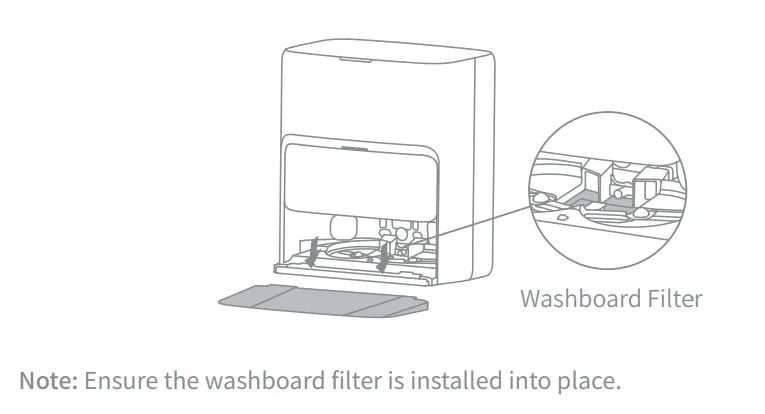
- Do not move the base station, the clean water tank, the used water tank, or the washboard filter during operation.
- Hot water cleaning can be enabled in the app for the mop pad, which applies to all modes. To prevent scalding, do not touch the water outlet when the function is on.
2. Auto mop washing
When cleaning, the robot will automatically return to the base station to wash mop pads based on the mop pad cleaning frequency specified in the app. The base station will automatically refill the robot’s water tank, and the robot will resume cleanup.
3. Automatically empty the dust box and wash and dry the mop pads
After the robot finishes a cleaning task and returns to the base station to charge, the base station will automatically start emptying the dust box. Then it will wash and dry the mop pads.
Note:
- If the auto-empty function is turned off in the app, the base station will not automatically empty the dust box.
- The base station will empty the dust box according to the setting in the app.
4. Clean the used water tank
After the robot has completed its task, please clean the used water tank to prevent any odor.
Mop after Vacuuming
Enable the mopping after vacuuming function in the app, and the robot will automatically remove the mop assembly from the base station to vacuum the floor. After vacuuming is completed, the robot will return to the base station to install the mop assembly, and the base station will automatically start emptying the dust box. Then the robot will start mopping after the main brush and side brush are raised.
Vacuum Only
Enable the vacuuming function in the app, and the robot will automatically remove the mop assembly from the base station and start vacuuming.
Mop Only
Enable the mopping function in the app, and the robot will automatically check if the mop assembly is installed on the base station. If not, the robot will install the mop assembly and start mopping after the main brush and side brush are raised.
Routine Maintenance
Parts
To keep the robot in good condition, it is recommended to refer to the accessory usage in the app or the following table for routine maintenance.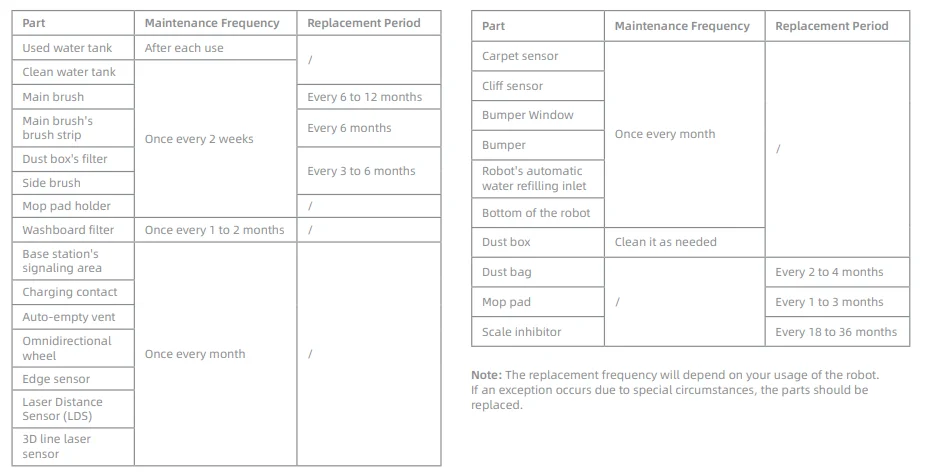
Washboard Filter
- Take out the robot and remove the washboard filter after the mop pad cleaning is complete.

- Rinse the washboard filter with clean water, wipe it clean, and then reinstall it in the washboard.

- Use the app or press the button
 to return the robot to the base station, or manually put the robot back.
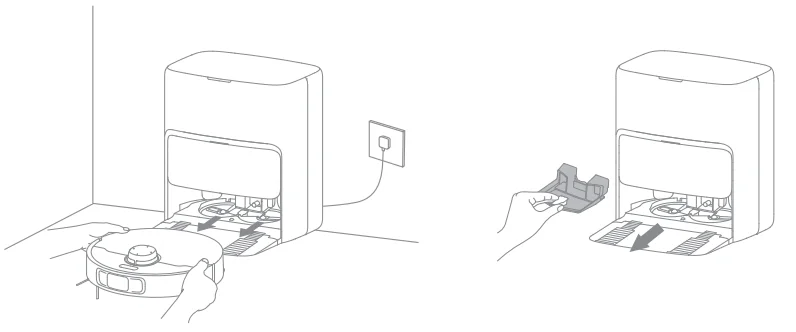

 to return the robot to the base station, or manually put the robot back.
Dust Bag
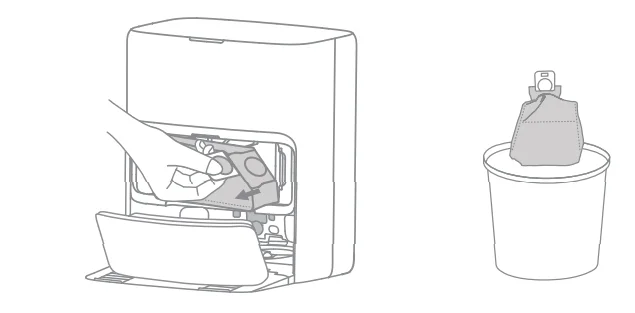
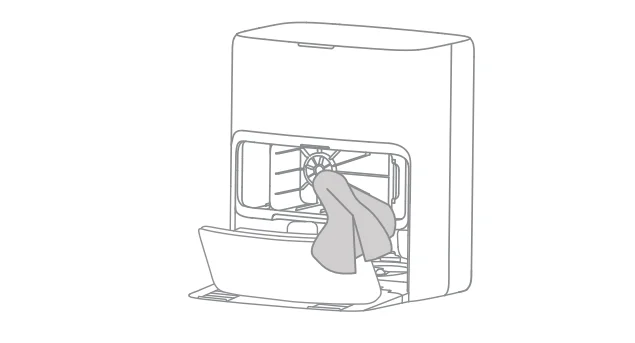
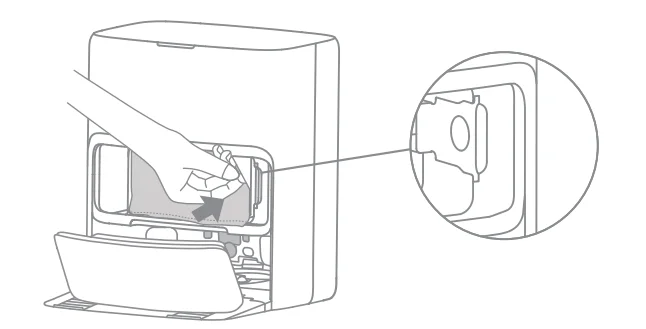
- Remove the dust tank cover and discard the dust bag. Note: Pulling upwards on the handle will seal the bag to prevent the dust and debris from accidentally falling out.

- Remove the dust and debris from the filter with a dry cloth.

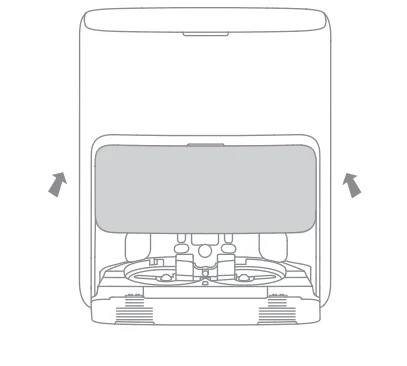
- Install a new dust bag.

- Reinstall the dust tank cover.

Dust Box and Filter
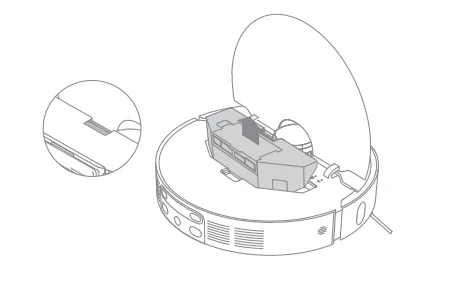
- Open the robot cover and press the dust box clip to remove the dust box.

- Open the dust box cover, remove the filter, and then empty the dust box as shown in the figure.

- Gently tap the basket of the filter to remove the dirt.

- Rinse the dust box and filter with water and dry them completely before reinstalling.

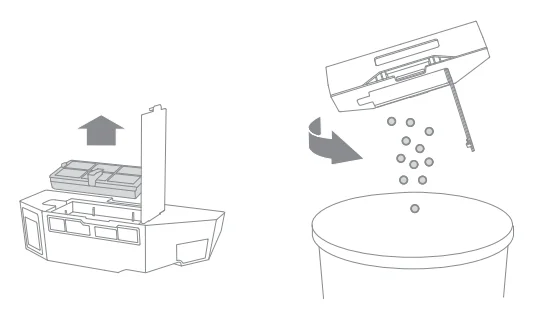
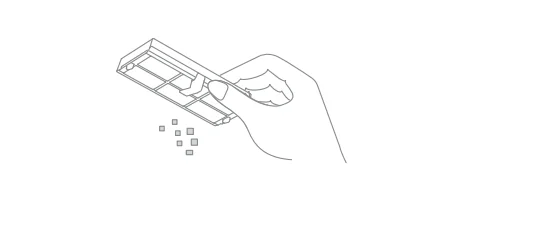
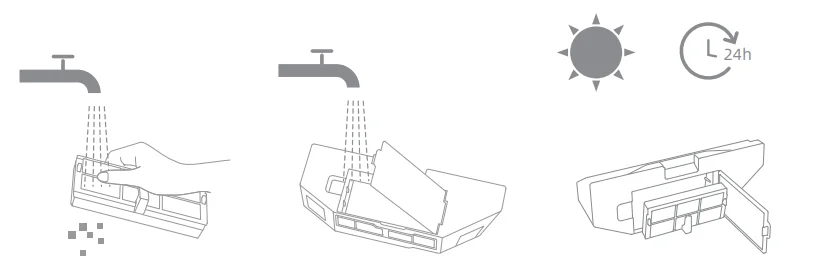
Note:
- Rinse the dust box and filter with clean water only. Do not use any detergent.
- Use the dust box and filter only when they are completely dry.
Main Brush
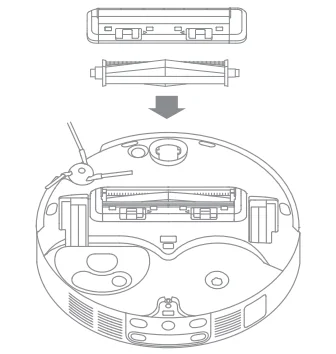
- Press the brush guard clips inwards to remove the brush guard and lift the brush out of the robot.

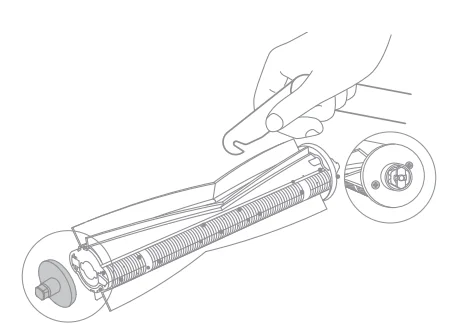
- Pull out the brush cover at the square end of the brush as shown in the figure. Use a proper tool to remove any foreign objects from the brush.

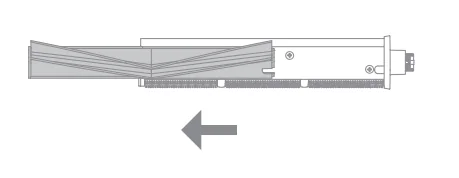
- Pull out and clean the brush strips as shown in the figure, and then use a proper tool to clean the comb.

- Reinstall the brush strips, brush cover, and brush in turn. Press on the brush guard to lock it in place.

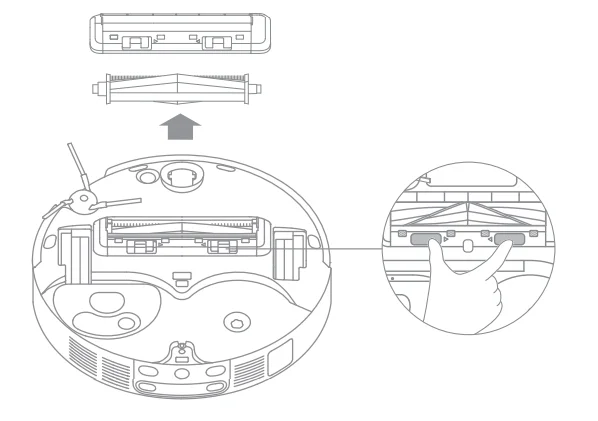
Notes:
- It is recommended to remove the brush strips separately for water cleaning, but do not wash the main brush.
- If the main brush is severely tangled, please check whether the robot’s dust box is full and cannot suck in hair. If so, please empty the dust box.
- Keep the main brush out of the reach of children and pets to avoid injuries.
- When pulling out the brush cover and removing/reinstalling the brush strips, please handle with care to avoid scratches.
Side Brush
Unscrew the side brush with a screwdriver, clean the hair from the brush, and then screw it back on.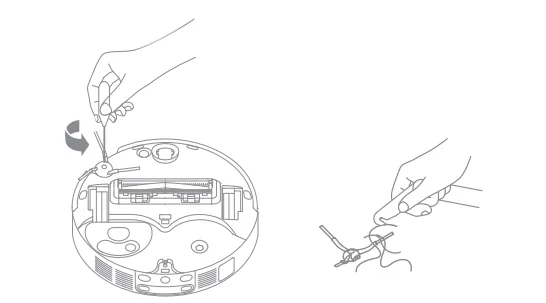
Omnidirectional Wheel
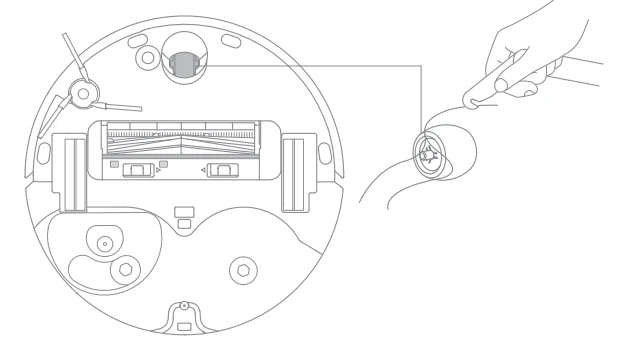
Note:
- Use a tool such as a small screwdriver to separate the axle and tire of the omnidirectional wheel. Do not use excessive force.
- Rinse the omnidirectional wheel under running water and put it back after drying it completely.
Used Water Tank
- Remove the used water tank, open its cover, and pour out the used water.

- Rinse the used water tank with clean water, and use a proper cleaning tool to clean the inner wall of the used water tank.

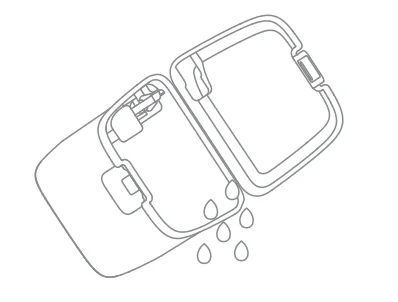
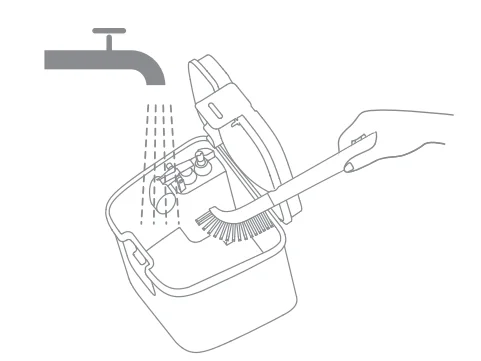
Note: The float ball in the used water tank is a movable part. Do not apply too much force when cleaning it to avoid damaging it.
Robot Sensors
Wipe the robot sensors by using a soft and dry cloth, as shown in the figure below.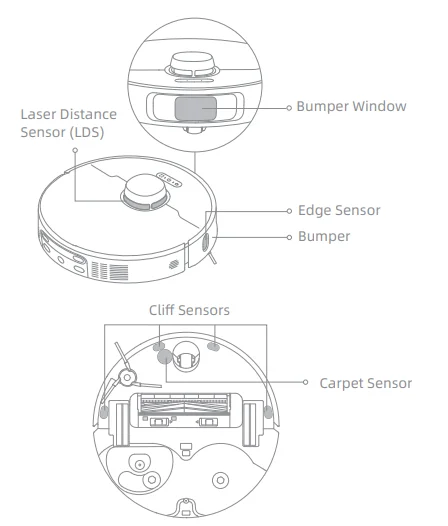
Note: A wet cloth can damage sensitive elements within the robot and the base station. Please use a dry cloth for cleaning.
Charging Contacts and Signaling Area
Clean the charging contacts and the signaling area with a soft and dry cloth.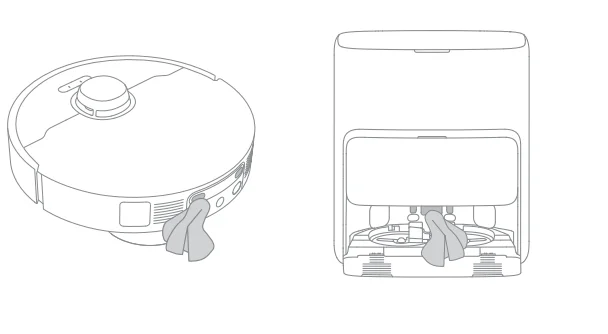
Auto-empty Vents
Clean the auto-empty vents of the robot and the base station with a soft and dry cloth.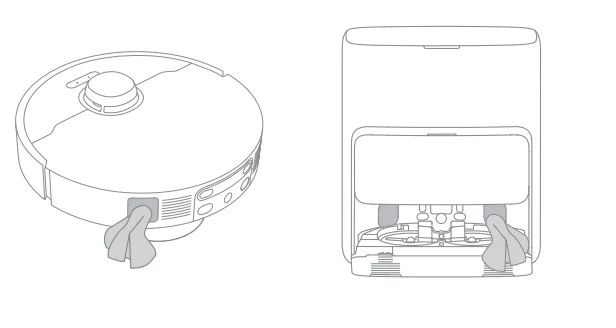
Mop Pad Holder
Remove and clean the mop pad holders.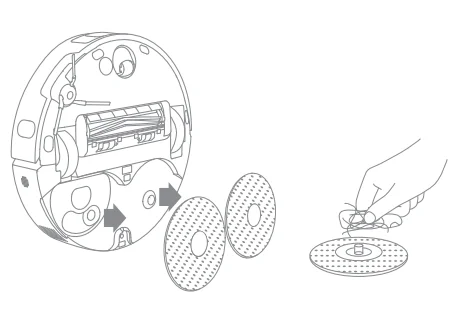
Mop Pad
Remove the mop pad from the mop pad holder to replace it.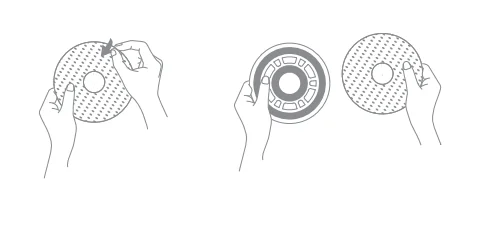
Battery
The robot contains a high-performance lithium-ion battery pack. Make sure that the battery remains well-charged for daily use to maintain optimal battery performance. If the robot is not used for an extended period of time, turn it off and put it away. To prevent damage from over-discharging, charge the robot at least once every three months.
Troubleshooting
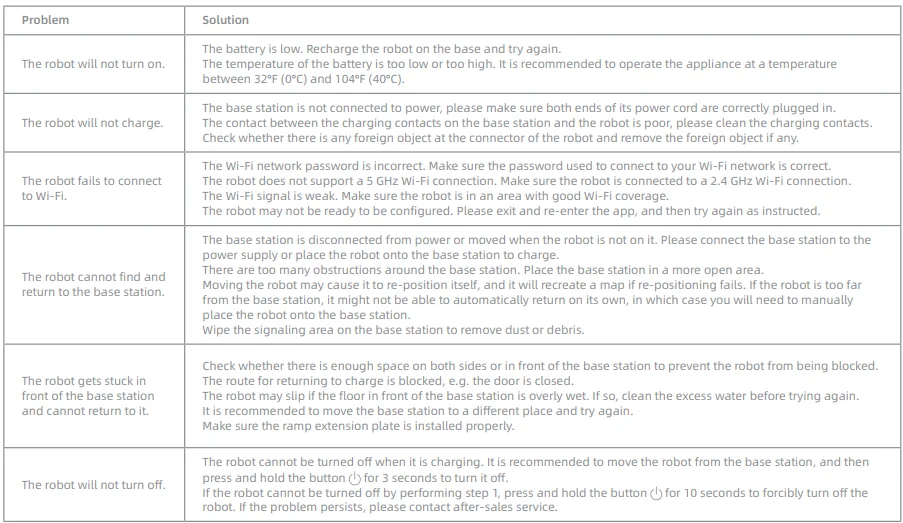
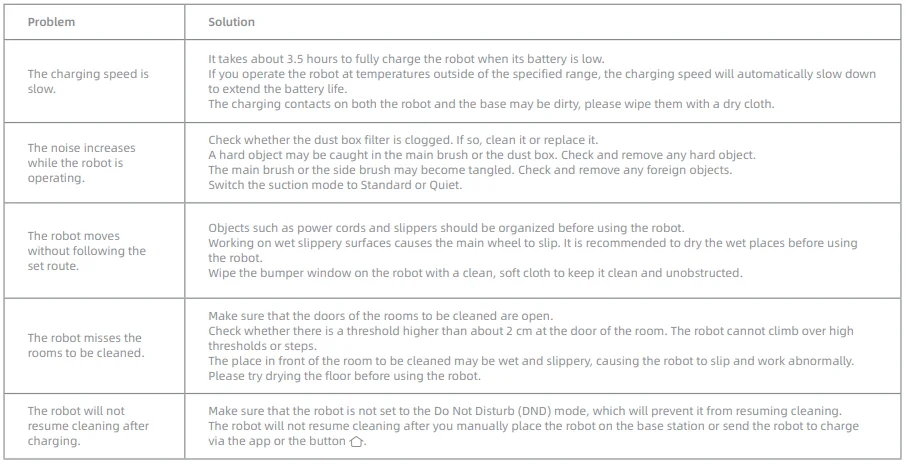
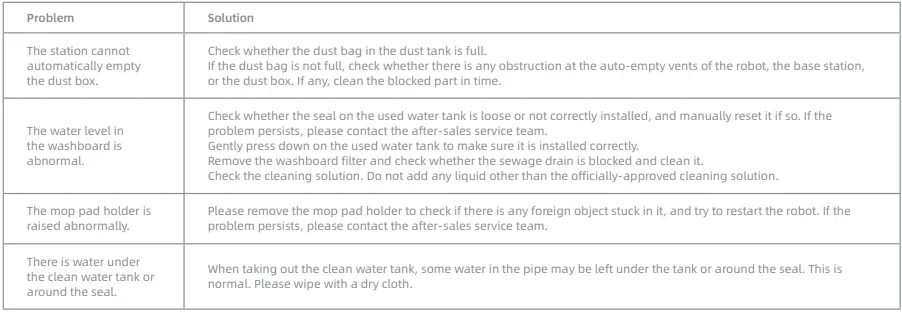
For more support, contact us via www.mova-tech.com.
Specifications
Under normal use conditions, this equipment should be kept at a separation distance of at least 20 cm between the antenna and the body of the user.
Note:
- Rated Power (during hot water cleaning) is determined by the power value during the representative period (water temperature 25°C).
- Rated Power (during charging and drying) is determined by the power value during the full load period.
For More Manuals By MOVA, Visit ManualsLibraryy
MOVA P50 Pro Ultra Robot Vacuum Cleaner -FAQS
What are common issues with robot vacuums?
Robots may get stuck, lose Wi-Fi connection, drain battery quickly, become noisy, or require frequent maintenance if not cleaned regularly.
Should I run my robot vacuum every day?
Daily cleaning is ideal for homes with pets or heavy dust. Otherwise, 2–3 times per week is usually enough.
How do I know if my Mova vacuum is charging?
The power indicator on the robot or base will light up. When placed on the dock, the vacuum automatically turns on and starts charging.
What are disadvantages of robot vacuums?
They can be costly, may miss corners, get stuck on cables, require maintenance, and clean slower than traditional vacuums.
Can I replace the battery in a robot vacuum?
Yes, most robot vacuums—including Mova—allow battery replacement when performance begins to drop.
Does a robot vacuum increase the electricity bill?
It uses small amounts of power. Running it daily may slightly increase usage, but generally the impact is minimal.
How do I set up the Mova robot vacuum for the first time?
Assemble the parts → place the base on a flat surface → charge the robot → install the app → connect to Wi-Fi → start mapping.
What destroys a robot vacuum?
Excessive moisture, clogged brushes, damaged sensors, dropping the unit, using harsh chemicals, or neglecting regular cleaning.
How long does a robot vacuum last?
On average, a good-quality robot vacuum lasts 5–7 years with proper care.