
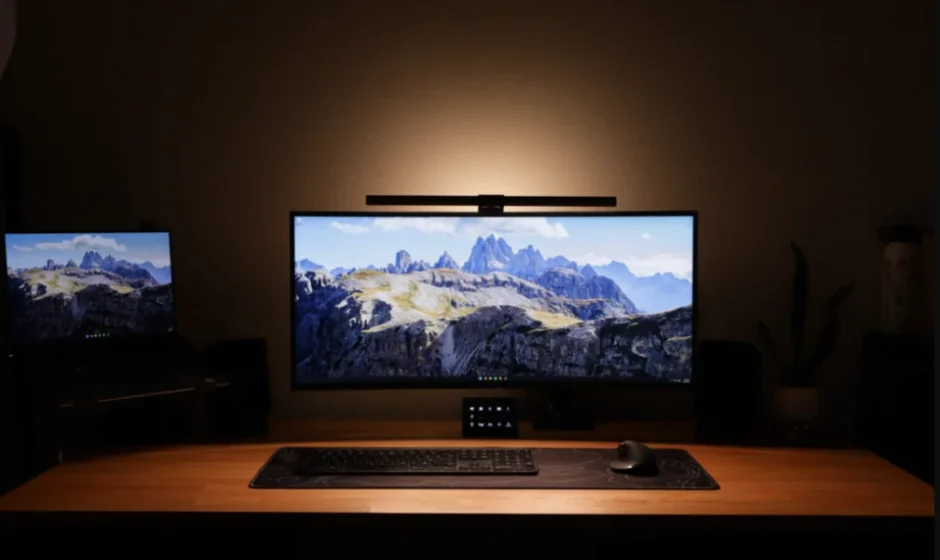

BenQ ScreenBar Halo 2 LED Monitor Light
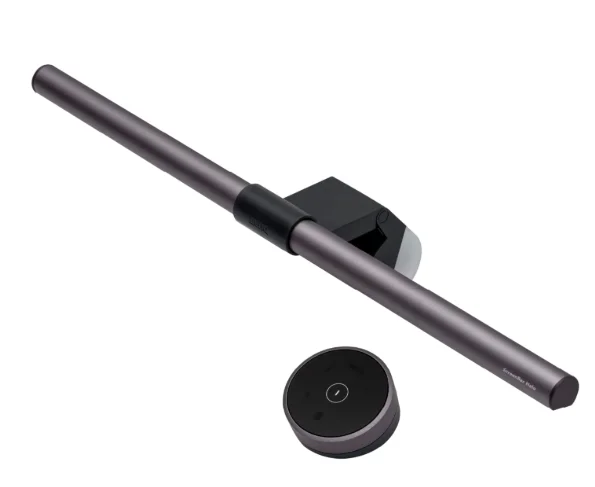
Package Contents
The package should include the following items. If anything is missing or damaged, please contact the place of purchase immediately.
- 1 x ScreenBar Halo lamp (with USB power cord)
- 1 x Accessory for curved monitors
- 1 x Wireless controller
- 3 x AAA battery
- 1 x Pad for Ultraslim Curved Monitor
Note: The illustrations in this guide are for your reference only and may look different from the actual product.
Safety Warnings
- Only use the provided USB power cord with this product and connect it to the USB port power supply (5V DC, 1.5A). Otherwise, this product will not work properly and may even cause a fire.
- Do not place or hang any objects on the product, so as to avoid malfunction of the product.
- Route the USB power cord so as to avoid it from being pinched by items placed upon it or against it.
- If the product will not be used for an extended period, please remove the USB power cord from the USB port.
 CAUTION:
- If you encounter the following situations, please remove the USB power cord from the USB port immediately, and seek support from an authorized service agent or qualified technician:
- When the casing of this product is damaged
- When this product emits an abnormal smell
- When the LED light source flickers abnormally
- When the power cord is damagedd,d or the wire inside is exposed
- Do not expose this product to humid environments (such as bathrooms, outdoors) to avoid short circuits and accidents.
- This product is only suitable for indoor use;e, do not use it outdoors.
- It is strictly prohibited to disassemble any part or component of this product. Otherwise, it may cause an accident and invalidate the product warranty.
Assembly
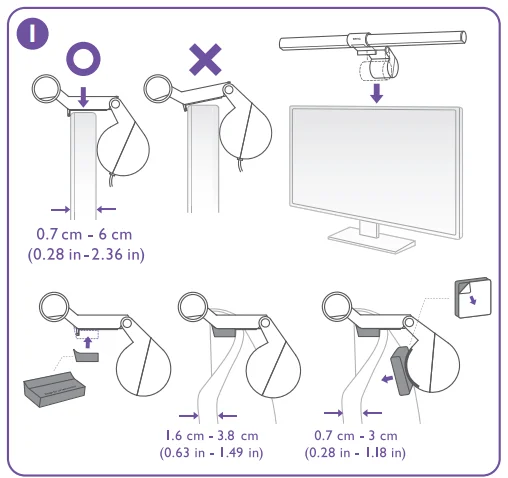
- Extend the counterweight and rest the clip on top of the monitor. For optimal performance, please ensure that the mounting arm is perpendicular to the monitor and make sure the front bezel of ScreenBar Halo does not press against the panel of your monitor. To mount ScreenBar Halo on a curved monitor, please use the accessory brick. In case it is still unstable, please use the pad with the brick.
 Note:
Note:- The thickness of the monitor frame must be within the range of 0.7 cm-6 cm (0.7 cm- 3.8 cm if the accessory for curved monitors is used).
- You can adjust the light to a suitable angle by rotating the lamp body.

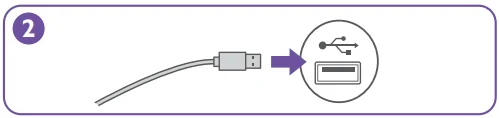
- Connect the USB power cord to the lamp and insert the USB Type A connector into the USB port.
 Note:
Note: - Do not use a USB extension cable. The use of a USB extension cable can cause lamp misoperation.
- Use a power supply with an output voltage of 5V and a current of 1.5A or above to ensure that the lamp can operate normally.
- Open the battery compartment cover at the bottom of the wireless controller and insert the three AAA batteries provided (please make sure that the batteries are inserted with the correct polarity), and then install the battery cover.
 Note:
Note: - Do not mix old and new batteries.
- Do not place the batteries under direct sunlight, at a high temperature, or near fire. Do not store the batteries in high humidity, nor submerge them in water.
- Do not disassemble, hit, or make modifications to the batteries, or they may short-circuit and pose a hazard.
- Do not attempt to recharge discarded non-chargeable batteries or expose them to fire.
- Remove the batteries if they are depleted or if the lamp will not be used for an extended period; otherwise, chemicals inside the batteries may leak and damage the product.
- To reduce adverse impact on the environment and prevent health hazards, please properly discard the batteries according to your local recycling regulations.
- It is recommended to use alkaline batteries to extend the life of the controller.
 Note:
Note: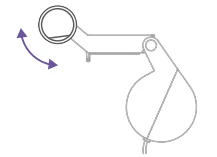
 Note:
Note: 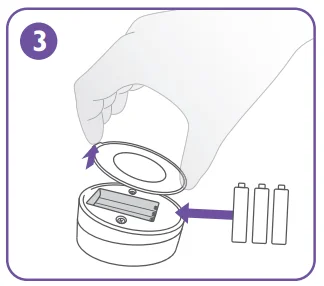 Note:
Note: How to Use
Turning On/Off the Lamp and Switching Light Modes
Power On/Off
- Tap the Power
 button to turn on the lamp. To turn off the lamp, tap the Power button again.
 button to turn on the lamp. To turn off the lamp, tap the Power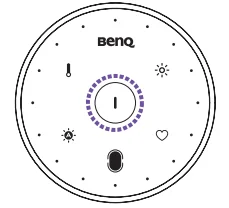
Note: When the remaining battery charge is low, the power indicator will flash to remind you to replace the batteries.
Light Mode Control
- Tap the Light Mode Switch button
 to cycle through the following three light modes:

 to cycle through the following three light modes: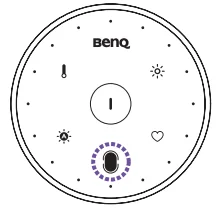

Auto Dimming Mode
- Tap the Auto Dimming Mode button
 to enter this mode. The indicator will light up when the mode is on. In the Auto Dimming Mode, the light mode (front light/ambient light/both) remains the same while the lamp automatically adjusts its brightness according to the surrounding lighting condition and sets the color temperature to 4000K.
 to enter this mode. The indicator will light up when the mode is on. In the Auto Dimming Mode, the light mode (front light/ambient light/both) remains the same while the lamp automatically adjusts its brightness according to the surrounding lighting condition and sets the color temperature to 4000K.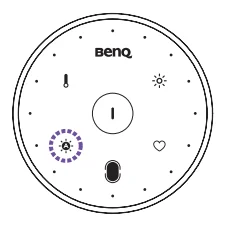
Note:
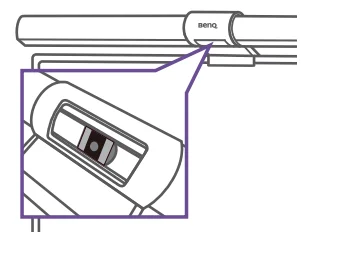
- Avoid blocking the light sensor located on the lamp to ensure that the Auto Dimming Mode works correctly.
- The Auto Dimming Mode will automatically turn off when you adjust the brightness, color temperature, or switch light modes. The Auto Dimming Indicator will turn off when the mode is off.

Adjusting Brightness and Color Temperature
Brightness Control
- Tap the Brightness Adjustment button
 to activate brightness control. The indicator will light up when the brightness control is on. Rotate the adjustment ring to adjust the brightness,s and the lights around the adjustment ring will change accordingly. Rotate the adjustment ring clockwise to increase the brightness, or counterclockwise to decrease the brightness.
 to activate brightness control. The indicator will light up when the brightness control is on. Rotate the adjustment ring to adjust the brightness,s and the lights around the adjustment ring will change accordingly. Rotate the adjustment ring clockwise to increase the brightness, or counterclockwise to decrease the brightness.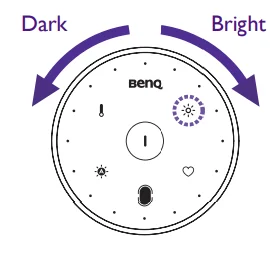
Color Temperature Control
- Tap the Color Temperature Adjustment button
 to activate color temperature control. The indicator will light up when the color temperature control is on. Rotate the adjustment ring to adjust the color temperature, re and the lights around the adjustment ring will change accordingly. Rotate the adjustment ring clockwise to increase the color temperature (the highest color temperature is 6500K), or counterclockwise to decrease the color temperature (the lowest color temperature is 2700K).
 to activate color temperature control. The indicator will light up when the color temperature control is on. Rotate the adjustment ring to adjust the color temperature, re and the lights around the adjustment ring will change accordingly. Rotate the adjustment ring clockwise to increase the color temperature (the highest color temperature is 6500K), or counterclockwise to decrease the color temperature (the lowest color temperature is 2700K).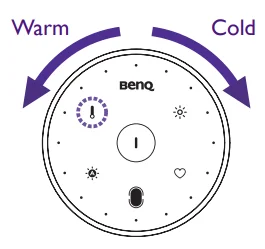
Note: If the power supply is suddenly interrupted, the lamp will automatically revert to its previous settings upon power restoration.
- If the lamp was on before the power outage, it will automatically turn on when power is restored, and memorize the brightness and color temperature before the power outage.
- If the lamp was off before the power outage, it will remain off when power is restored.
My Favorite Mode
Setting Up My Favorite Mode
- Adjust the brightness, color temperature, and light mode of the lamp.
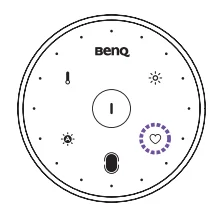
- Tap and hold the My Favorite Mode button
 for about 3 seconds. The brightness, the color temperature, and the auto dimming mode indicator will flash three times simultaneously to indicate that the settings are memorized successfully.
Using My Favorite Mode
Tap the My Favorite Mode button  to enter this mode.
Pairing and Connecting Multiple ScreenBar Halos
You can pair and connect a wireless controller with multiple lamps to operate at the same time. If the distance between the controller and these lights is within 1 meter, the settings of these lamps will change simultaneously.
- Unplug the lamp.
- Make sure that the power indicator is on (the wireless controller is activated), and the wireless controller is within 1 meter of the lamp.
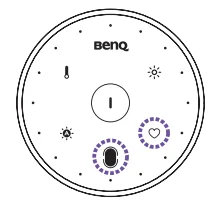
- While holding the Light Mode Switch button
 , tap and hold the My Favorite Mode button
  for about 5 seconds. You will see the function indicators on the wireless controller start flashing simultaneously.
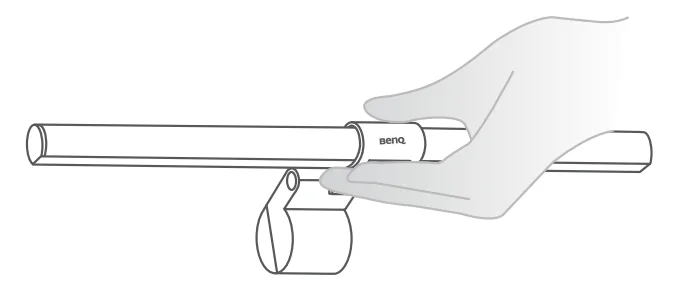
- After the indicators start flashing, cover the light sensor (on the reverse side of the light bar) of the lamp you wish to pair, then plug in the USB power cord within 15 seconds. If the controller and the lamps are successfully paired and connected, all the indicators will turn off,f and the controller will go into sleep mode.

Maintenance and Troubleshooting
- First, st turn off the lamp and unplug it from the USB port. When cleaning the lamp, wipe off any smears duststs using a soft, lint-free cloth lightly moistened with a mild detergent or solvent. Do not use alcohol or any other chemical solvents like kerosene, napht, ha and so on, as the lamp’s casing may become damaged.
- Do not rinse the lamp or any of its components directly with water.
- If the lamp does not turn on, check to make sure that there are no loose connections between the USB cable and USB port.
- The light flashes when the power supply of the lamp is insufficient (less than 5V). Connect the lamp to another USB port that provides 5V output voltage to solve this problem.
- If the problem persists, please contact the place of purchase for help.
Specifications
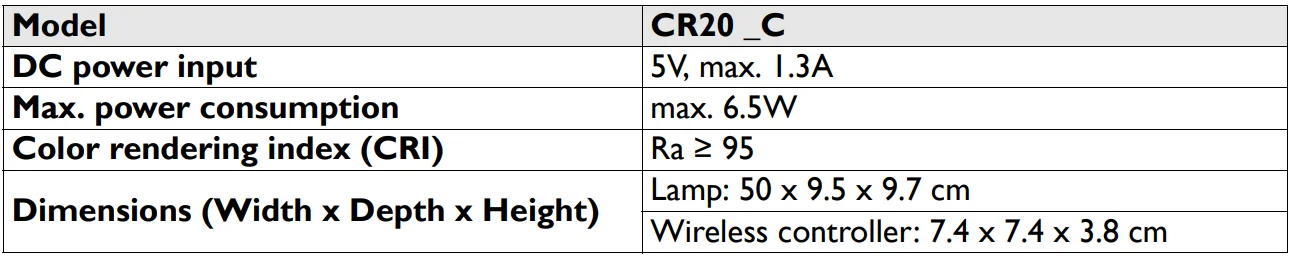
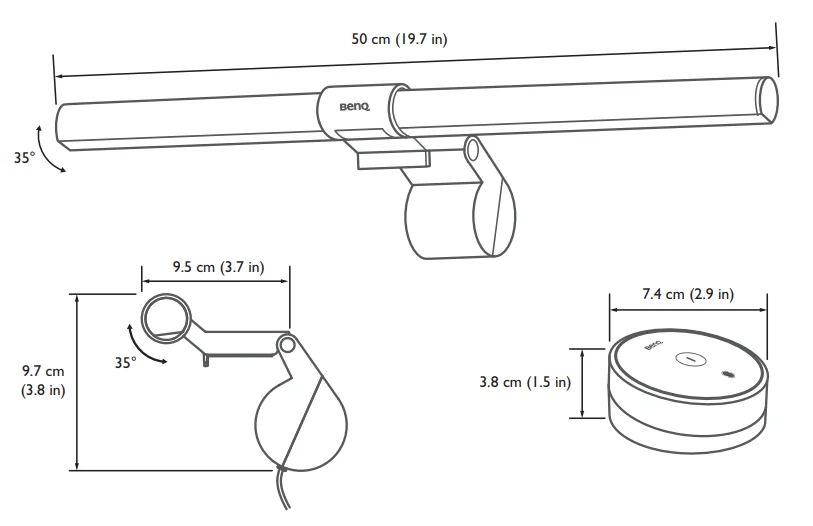
WEEE
Disposal of Waste Electrical and Electronic Equipment and/or Battery by users in private households in the European Union.


This symbol on the product or on the packaging indicates that this can not be disposed of as household waste. You must dispose of your waste equipment and/or battery by handing it over to the applicable take-back scheme for the recycling of electrical and electronic equipment and/or battery. For more information about the recycling of this equipment and/or battery, please contact your city office, the shop where you purchased the equipment, or your household waste disposal service. The recycling of materials will help to conserve natural resources and ensure that they are recycled in a manner that protects human health and the environment.
Recycling information: See https://www.benq.com/en-us/support/recycling/global-recycle.html for details.
CE DOC
DECLARATION OF CONFORMITY
The device complies with the requirements set out in the Council Directives on the Approximation of the Laws of the Member States relating Electromagnetic Compatibility (2004/108/EC) and Low Voltage Directive (2006/95/EC) and Radio and Telecommunications Terminal Equipment Directive (1999/5/EC), the Restriction of The Use of Certain Hazardous Substances in Electrical And Electronic Equipment Directive (2011/65/EU), Turkish EEE Directive; Turkish ErP (Decision 2010/643); the Commission Regulation (EC) No 1275/2008 implementing Directive 2005/32/EC of the European’ Parliament and of the Councilabouto eco-design requirements for standby and off mode electric power consumption of electrical and electronic household and office equipment, and the Commission Regulation (EC) No 1194/2012 implementing Directive 2009/125/EC of the European parliament and of the council establishing a framework for the setting of eco-design requirements for energy-related products.
FCC statement
Federal Communication Commission Interference Statement
This equipment has been tested and found to comply with the limits for a Class B digital device, pursuant to Part 15 of the FCC Rules. These limits are designed to provide reasonable protection against harmful interference in a residential installation. This equipment generates, uses, andcann radiate radio frequency energy and, if not installed and used in accordance with the instructions, may cause harmful interference to radio communications. However, there is no guarantee that interference will not occur in a particular installation. If this equipment does cause harmful interference to radio or television reception, which can be determined by turning the equipment off and on, the user is encouraged to try to correct the interference by one of the following measures:
- Reorient or relocate the receiving antenna.
- Increase the separation between the equipment and receiver.
- Connect the equipment into an outlet on a circuit different from that to which the receiver is connected.
- Consult the dealer or an experienced radio/TV technician for help.
FCC Caution
Any changes or modifications not expressly approved by the party responsible for compliance could void the use~s authority to operate this equipment. This device complies with Part 15 of the FCC Rules. Operation is subject to the following two conditions:
- This device may not cause harmful interference, and
- This device must accept any interference received, including interference that may cause undesired operation.
For more manuals by BenQ, visit ManualsLibraryy
BenQ ScreenBar Halo 2 LED Monitor Light- FAQs
What is the purpose of the BenQ ScreenBar Halo 2?
The BenQ ScreenBar Halo 2 is designed to provide even desk lighting without causing screen glare, helping reduce eye strain during long computer use.
What is a ScreenBar and how does it work?
A ScreenBar is a monitor-mounted light bar that shines light onto the desk instead of the screen. Its asymmetrical optical design prevents reflections on the monitor.
What makes the ScreenBar Halo 2 different from regular desk lamps?
Unlike desk lamps, the ScreenBar Halo 2 saves space, eliminates screen glare, and provides balanced front lighting along with ambient backlighting behind the monitor.
Does the BenQ ScreenBar Halo 2 include backlighting?
Yes. It features a built-in rear light that softly illuminates the wall behind the monitor, improving visual comfort and reducing contrast.
Which color temperature is best for eye comfort?
Warm light (2700K–3000K) is ideal for relaxing or night use, while neutral to cool light (4000K–5500K) is better for focus and productivity.
What color temperature range does the ScreenBar Halo 2 support?
It supports a wide range from 2700K (warm light) to 6500K (cool daylight).
Does the ScreenBar Halo 2 cause screen glare?
No. Its patented asymmetrical light design ensures zero reflective glare on the monitor screen.
Will the ScreenBar Halo 2 fit my monitor?
Yes. The patented clamp design fits most flat and curved monitors without damaging the screen.