

Amazon Echo Show 8 Smart Display
Introduction
The Amazon Echo Show 8 Smart Display is a versatile Alexa-powered device that blends a vibrant touchscreen with powerful voice control, making it ideal for kitchens, living rooms, bedside tables, or home offices. It features an 8-inch HD touch display that brings videos, recipes, news, and more to life with clear visuals and intuitive controls. With built-in Alexa, you can check your calendar, set reminders, control compatible smart home devices, and get weather or traffic updates using just your voice.
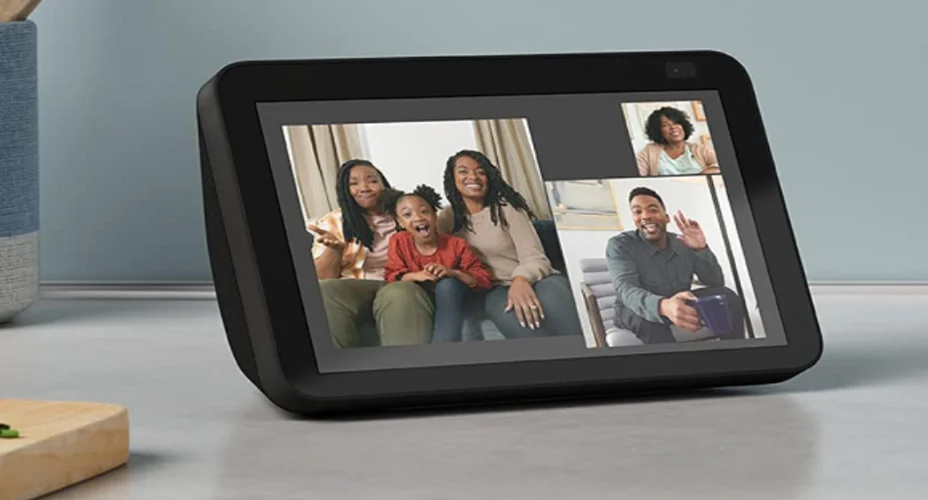
Equipped with a high-quality camera, the Echo Show 8 makes video calling friends and family easy and hands-free. It also functions as a central hub for your smart home, supporting connectivity standards like Zigbee, Matter, and Thread, so you can manage lights, cameras, and sensors from the screen or by voice.
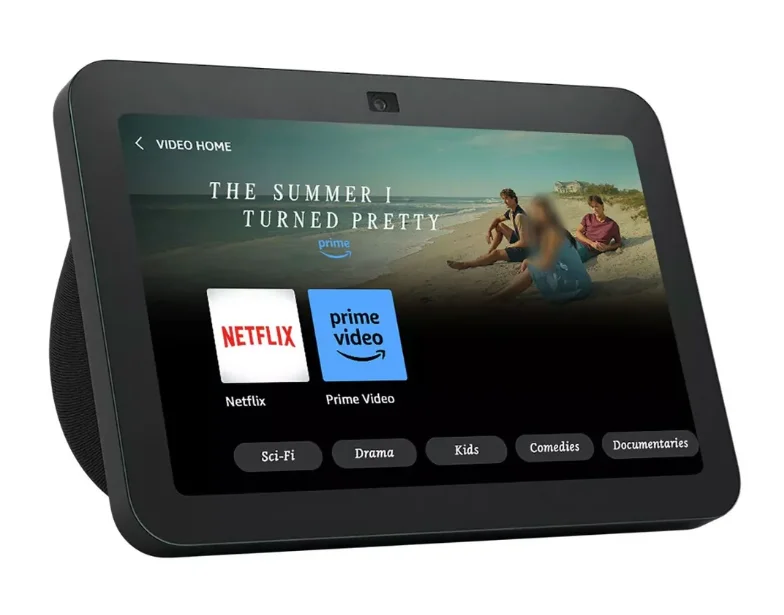
Entertainment is enhanced with rich stereo and spatial audio, allowing you to stream music from popular services, watch shows on Prime Video or Netflix, and enjoy a fuller sound experience without external speakers. Whether you’re following cooking instructions, making calls, or checking your to-do list, the Echo Show 8 combines convenience and connectivity in one sleek smart display.
MEET YOUR ECHO SHOW 8
Also included: Power adapter
SET UP YOUR ECHO SHOW 8
 Have your wifi and Amazon passwords ready
Prepare to connect to your wifi and sign in to your Amazon account. Create a new account if you don’t have one. Plug the Echo Show 8 into a power outlet
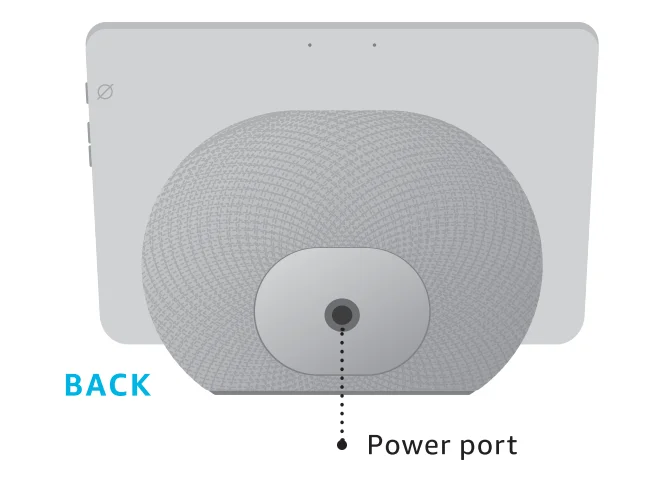
Use the included power adapter. In about a minute, the display will turn on, and Alexa will greet you. Scan the QR code on the screen
Using your phone, scan the QR code to open or download the Alexa app. Or continue on the device. Complete setup
Follow the instructions in the Alexa app or on your Echo Show 8 to complete setup.
 Have your wifi and Amazon passwords ready
 Plug the Echo Show 8 into a power outlet
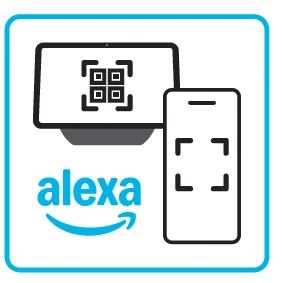 Scan the QR code on the screen
 Complete setup
Set up compatible smart home devices
You can easily connect and control compatible devices with the built-in smart home hub. To get started, open the Alexa app to add your device, or say, “Alexa, discover my devices.” Some features may require customization in the Alexa app, a separate subscription, or an additional compatible smart home device.
PRIVACY AND SUPPORT
 Privacy controls
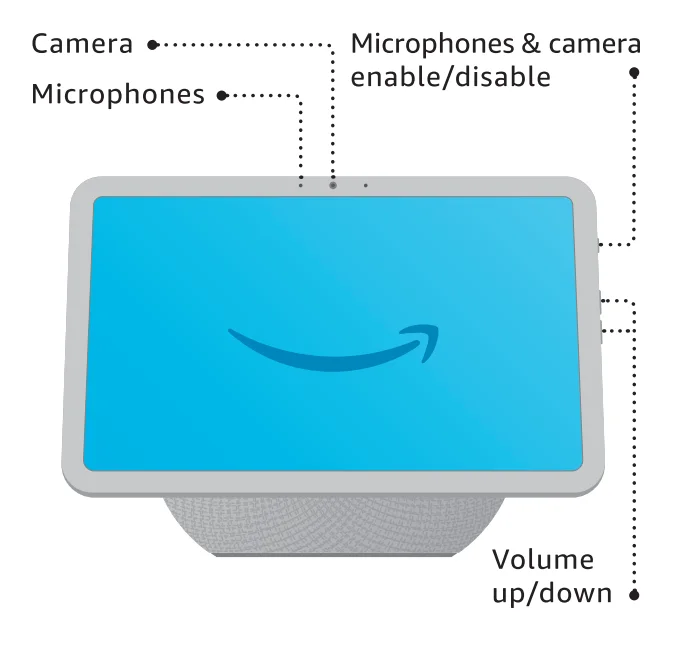
Disable the microphones and camera by pressing the microphones & camera enable/disable button. To disable only the camera, visit Device Settings on the device screen or in the Alexa app. See when Alexa is recording and sending your request to Amazon’s secure cloud via a blue indicator light. Manage your voice history
You can view, hear, and delete the voice recordings associated with your account in the Alexa app at any time. Customer support
For help and troubleshooting, go to Help & Feedback in the Alexa app, or visit amazon.com/devicesupport.
 Privacy controls
 Manage your voice history
 Customer support
You have control over your Alexa experience
Explore more at amazon.com/alexaprivacy or amazon.ca/alexaprivacy

Scan for more help
amazon.com/setup/echoshow8
For more manuals by Amazon basics, visit ManualsLibraryy
Amazon Echo Show 8 Smart Display-FAQs
What is the Amazon Echo Show 8?
The Echo Show 8 is a smart display with Alexa built in, featuring an HD touchscreen, speakers, and a camera for video calls, smart home control, and entertainment.
Is the Echo Show 8 a touchscreen device?
Yes. It comes with a responsive HD touchscreen that lets you tap, swipe, and interact easily.
Can I use the Echo Show 8 as a security camera?
Yes. By enabling Home Monitoring, you can use the built-in camera to view live footage remotely through the Alexa app.
Does the Echo Show 8 support Netflix?
Yes. Netflix is supported through voice commands and the touchscreen.
Can I watch videos on the Echo Show 8?
Yes. You can watch videos from supported streaming services and browsers.
Can the Echo Show 8 be used as a speaker?
Yes. It works as a powerful smart speaker for music, podcasts, audiobooks, and calls.
Can I make video calls on the Echo Show 8?
Yes. You can make video calls to other Echo devices or the Alexa app using the built-in camera.
Can someone drop in on my Echo Show without permission?
No. Drop-In requires prior approval. No one can access your device without your authorization.