
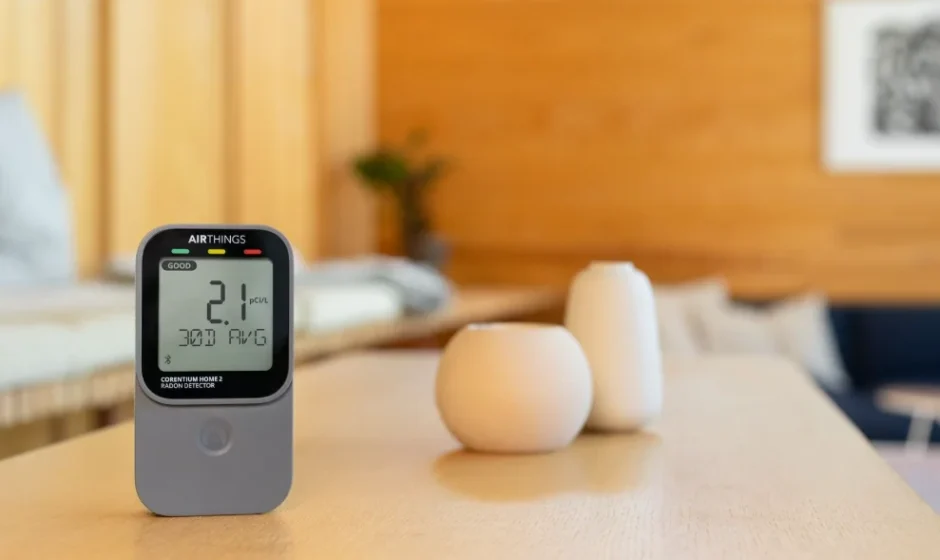

Airthings Corentium Home 2 Digital Radon Detector
What’s in the box
The box contains 1 Corentium Home 2, 2 AA alkaline batteries (already installed), Quick Start Guide, Regulatory information guide, and a silica bag.
About your Corentium Home 2
Learn about your device and how to use the information and features it offers.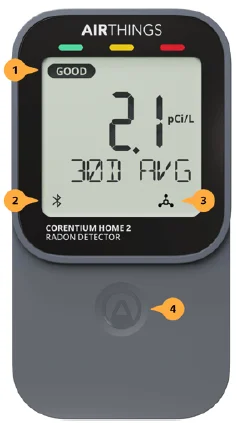
- Range indicator – Displays GOOD, FAIR, or POOR based on the radon average shown.
- Bluetooth icon – Blinks for up to 5 minutes if you press the Bluetooth button. Stops blinking once the device is added to an Airthings account.
- SmartLink icon – Shown if the device is connected to an Airthings hub device.
- Touch button – Click to step through the views of radon averages, temperature, and humidity.
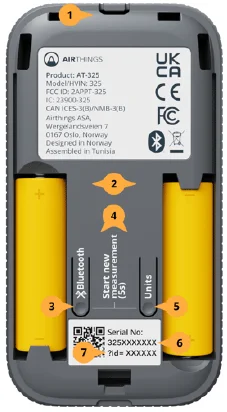
- Hang lock – Thread a string through this channel, then close the back cover to hang the detector.
- AA Batteries – (Included) Use non-rechargeable, alkaline batteries. Replacing the batteries resets the device and deletes all data stored on it. To save your data, connect your device to the Airthings app.
- Bluetooth – Press to emit the Bluetooth signal that makes the detector findable by the Airthings app for 5 minutes.
- Start new measurement (5s) – Press the Bluetooth and Units buttons simultaneously for 5 seconds to begin a new measurement. Do this when you move the detector to a new room or home.
- Units – Press this button to switch between pCi/L and Bq/m³ for radon and °F and °C for temperature.
- Serial number – This 10-digit number identifies your device and always begins with 325. Include this number when you contact Airthings support.
- ID number – The app requests that you enter this 6-digit number if the detector is paired to one Airthings account and you’re attempting to onboard it to a different Airthings account.
Sensors and threshold values
Corentium Home 2 measures radon and also temperature, and humidity. This table tells you how measurements are labeled Good, Fair, or Poor 2, as well as how often new measurements are taken. If you turn on notifications for a sensor in the Airthings app, they are sent when a red threshold is met.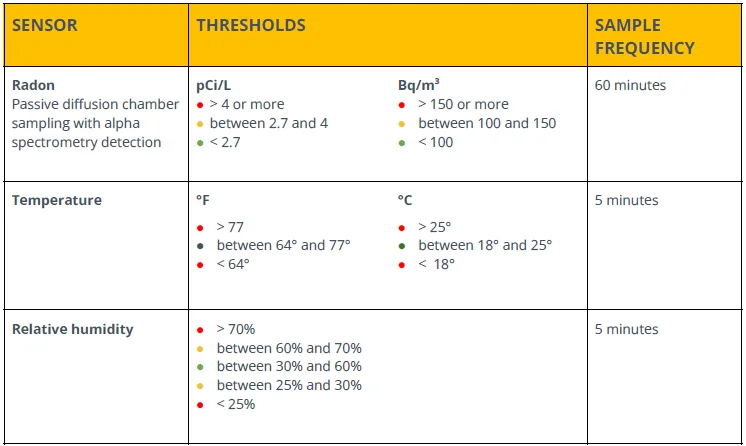
Setting up your Corentium Home 2
If you choose to use your Corentium Home 2 radon detector without the Airthings app, you only need to do Step 1 and Step 4, and you’re on your way. You’ll be able to connect to the app at any point in the future – you’ll only need to press the device’s Bluetooth button when you are ready to connect with the app.
Step 1 – Activate the detector
Pull the plastic battery tab to activate the detector. If you don’t see the tab, remove the back cover of the device to check inside the battery compartment.
The detector starts. Current temperature and humidity readings appear within just a few minutes. Your first 24h radon average will appear once 24 hours’ worth of samples have been collected. The device also starts emitting a Bluetooth signal, which will remain active for 60 minutes, giving you plenty of time to add the detector to your Airthings app account. To activate a signal after this, just press the Bluetooth button inside the back cover.
Step 2 – Get the Airthings app and create your account
Download the Airthings app to your smartphone or tablet. It takes just a minute to create your Airthings account. If you already have an account, you’re good to go.
Step 3 – Add the detector to your Airthings account
Follow the in-app instructions to add the detector to your account. Make sure Bluetooth is enabled on your smartphone!
Step 4 – (For Europe and Canada only) Change the units
This step is only necessary if you plan to use your detector on its own. Otherwise, your region’s customary units are applied automatically when you add it to your Airthings app account.
By default, the detector displays values in pCi/L for radon and °F for temperature, units customary in the United States. So to change the radon and temperature units to Bq/m³ and °C, press the Units button inside the battery case.
Where to place your radon detector
Radon is usually measured in basements or the lowest level of the home because that is where radon finds its way indoors. That said, you can measure radon in any of your home’s living areas where people spend time. Wherever you place it in your home, follow these guidelines:
- Never use it outdoors or in environments with more than 85% humidity.
- Place it at approximately breathing height for the room and near where people tend to be.
- Place it at least 3 ft (90 cm) from the nearest door, window, or air vent.
- Do not expose it to direct sunlight or moisture.
- Avoid moving it during measurement.
The first month (and beyond)
Current temperature and humidity values are measured every 5 minutes. For radon, the detector samples the air and produces a measurement hourly. Over time, it calculates and displays views on the screen that show the 24H, 7D, and 30D rolling averages. The cumulative view provides an all-time average and tells you how long it’s been since you began the measurement. When it reaches 365 days, it turns into your rolling 1-year average.
You may notice that the device defaults to the cumulative, or 1-year average, view after 5 min of inactivity. But why? Because this level is the best indication of your actual radon exposure.
Day 1
The detector offers current temperature and humidity readings within just a couple of minutes, and the first radon average appears in 24 hours. Why is that?
After 24 hours
The 24H radon average view becomes available. This is a rolling (or moving) average and is updated hourly. In addition, the first cumulative view displays the average count of hours since measurement started and offers you an all-time average.
After 48 hours
The cumulative average view starts reporting in days instead of hours. It updates with new data hourly.
From day 7 to day 29
A new 7D radon average view becomes available and is updated hourly with new data. The cumulative view continues to show an all-time, long-term average and is updated hourly.
From day 30
A 30-day rolling average appears on day 30 and will be updated once daily going forward. The cumulative average now begins to update just once daily (no longer hourly) and continues to keep a handy count of days since the measurement started.
After 365 days
The cumulative average turns into a 1-year rolling average updating once daily.
Using your Corentium Home 2
Connecting to the Airthings app
Corentium Home 2 is designed to work on its own or paired with the app. Either way, you can expect reliable, long-term measuring of radon in your home. However, with the Airthings app, you gain access to easy-to-use graphs that help you understand radon trends in your home and measure the impact of mitigation measures. Through the app, we help you to understand what your numbers mean and if and when you should consider contacting a radon professional for help.
Here’s how to do it
- Download the Airthings app from your app store and create an account.
- Activate the Bluetooth signal from the detector by pressing the Bluetooth button inside the back cover.
- Initial setup: When you pull the battery tab after unboxing your Corentium Home 2, the detector emits a Bluetooth signal for 60 minutes, so no need to press the Bluetooth button.
- At any other time: Press the Bluetooth button inside the detector’s back cover. This activates a signal for 5 minutes and displays a blinking Bluetooth icon on the display. Once connected, the icon stops blinking.
Connecting to an Airthings hub using SmartLink
If you have an Airthings Hub or a View series monitor 3, like View Plus, you can connect your Corentium Home 2 with it to enable anytime, anywhere access to your detector’s readings.
Here’s how to do it
When you first add your Corentium Home 2 to your Airthings app account, you are prompted in the app to switch to SmartLink. Choose this and follow the instructions in the app. That’s it!
If you are already connected to the app via Bluetooth, then you need to open the device Settings and tap Connectivity. Choose Switch to SmartLink, then follow the in-app instructions. When it’s connected, the SmartLink icon will appear on the device display.
Changing the measurement units
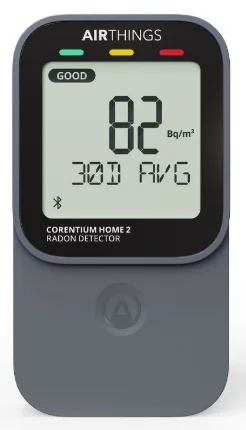
The default units are those customarily used in the USA: Picocuries per liter (pCi/L) for radon and Fahrenheit (°F) for temperature. When you link your Corentium Home 2 with your Airthings app account, the device will automatically apply your preferred units as defi ned in your User Settings. But of course, you can change your preferred units at any time.
Here’s how to do it
In the app: Your preferred units are managed in the User Settings menu.
Not connected: Remove the back cover and press the Units button. Different combinations of radon and temperature units will appear on the device display. Stop when you have the combination you want.
Measuring radon in a new location
Do this when you move the detector to a new room or home. You might move it to a different room in your home or lend it to a friend or family member. Any time you move the detector to a new location, you should start a new measurement to end the previous one and start fresh. Using the app, you will retain access to previous measurements.
Here’s how to do it
Simultaneously press and hold the Bluetooth and Units buttons located inside the back cover for 5 seconds to start a new measurement.
If you are using your Corentium Home 2 with the app, be sure to sync your data fully before doing this. Your complete history will be saved and available in the app.
However, if you are using your Corentium Home 2 without the app, doing this clears all previous data collected. To retain the history, first Connect to the Airthings app to sync the data from your detector before starting the new measurement.
Exporting your radon data
If you connect with the Airthings app, your radon, temperature, and humidity data are saved in the secure cloud, and you can export this data in a CSV file from the Airthings Dashboard.
Here’s how to do it
Read this help article for full instructions.
Generating a radon report
Just log in at dashboard.airthings.com and open the Devices list. Select your Corentium Home 2 device. At the top of the page, click Radon report to open a form where you enter some basic information about your home and the time period for which you want to generate the report.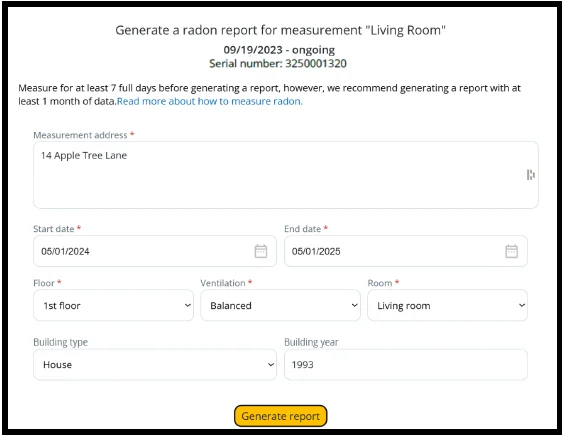
Click Generate report. You are presented with a link for downloading the PDF to your device. Here’s an example of what it looks like.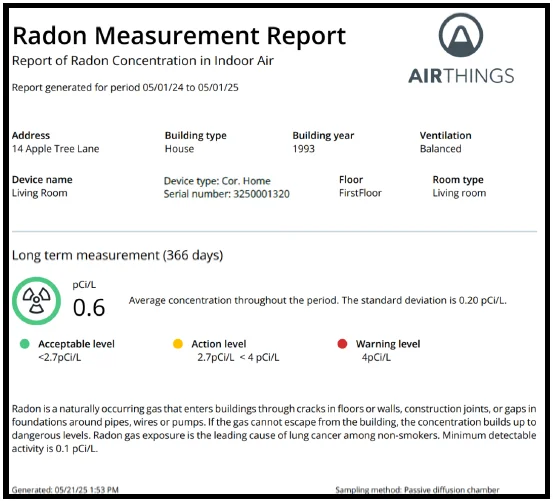
Understanding the numbers
The radon levels reported on your device are all rolling averages. But how should you react to them? What are they really telling you?
Risk is best evaluated using the long-term average level
Because radon levels can fluctuate significantly over short time periods, it’s essential to base your decisions on a long-term average level of one month or more. That’s why you should measure at least one month before deciding to take action, and the cumulative or 1-year average is the best indicator of how much radon you are being exposed to in your home.
Short-term averages are snapshots, while long-term averages give you a fuller picture of how much radon you are exposed to in the space you’re monitoring.
Don’t panic – radon does not pose an immediate risk
It’s natural to be concerned if you start monitoring radon and quickly see high levels. But remember that the risk radon poses if over a long time of frequent exposure to high levels. It’s worth the time it takes to build a more complete picture before you decide if action is needed.
Recent trends are shown in the short-term averages
The short-term averages of 24H and 7D are updated every hour with the data from the most recent sample. These averages can give you a picture of how radon levels have changed recently.
Testing a mitigation action? Because radon is measured in averages, changes are not reflected immediately in the 24-hour average level. Wait a full 24 hours from the time of taking a mitigation action to evaluate its impact.
Use the 24H and 7D radon averages to evaluate what impact actions, like opening windows or using a fan to increase ventilation, have on radon levels. You can also look at the 3H graph in the app to see the short-term impact.
How do I know it’s accurate?
Your Corentium Home 2 uses the same Airthings proprietary radon sensor – the same one in our professional devices trusted by thousands of radon professionals. Not only do our sensors have an extremely low failure rate, but testing has shown them to maintain reliability over years of use with almost imperceptible drift. That said, damage can occur, so here are some symptoms of a possibly malfunctioning sensor:
- Radon level stays at either 0 or 10000
- In the app, the radon graph is empty
- Wild (huge) variations from one day to the next (i.e., 2.1 pCi/L one day, then 120 pCi/L the next; or 77 Bq/m³ one day, then 4440 Bq/m 3 the next)
If you are experiencing any of these, contact [email protected].
Information about Bluetooth services
- Version: BLE network interface (v5.2)
- Device Information Service: Service providing basic information about the device’s identity, hardware, and software.
- Device Configuration Service: Service for reading and changing the device’s configuration, some of which is only allowed for authenticated parties.
- Firmware Update Service: Service for updating the firmware of the device.
For more Manuals by Airthings, visit ManualsLibraryy
Airthings Corentium Home 2 Digital Radon Detector-FAQs
How does the Airthings radon detector work?
The device detects radon by sensing alpha particles released during radon gas decay. Its internal sensor is precisely calibrated to measure these particles and calculate radon concentration.
How do I set up the Airthings Corentium Home 2?
Simply insert the batteries, place the device in the recommended location, and allow it to start measuring automatically. No Wi-Fi or app is required.
How do I read the radon levels on the display?
The screen shows both short-term and long-term average radon levels, helping you understand daily changes and overall exposure.
How often does the Airthings Corentium take readings?
The detector continuously samples radon data, updating average readings regularly to reflect changes in indoor radon levels.
Can I run AC or ventilation during a radon test?
Normal living conditions are fine, but avoid unusual ventilation or extended window opening during testing.
Should I open windows during a radon test?
No. Opening windows can falsely lower radon readings and give inaccurate results.
Where should you not place a radon detector?
Avoid kitchens, bathrooms, near windows, vents, fans, fireplaces, or areas with strong airflow or direct sunlight.
Where should I place the Airthings Corentium Home 2?
Place it at breathing height in the lowest lived-in level of your home, such as a basement bedroom or office, on a stable surface.