
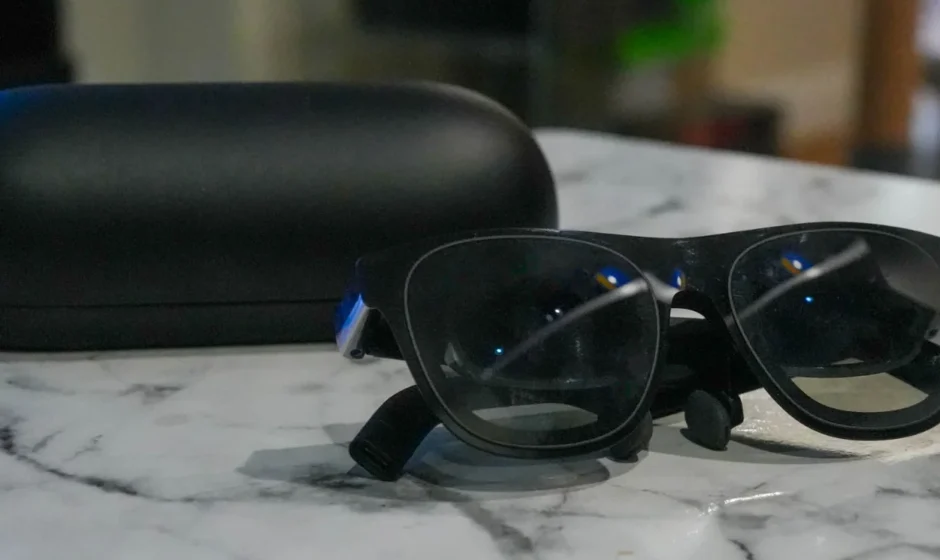

XREAL One AR Glasses
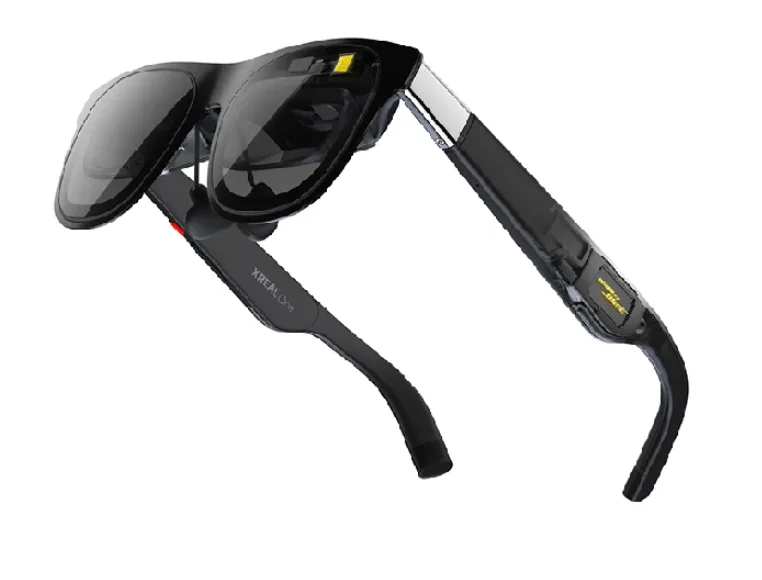
Description
XREAL One Glasses are a cutting-edge pair of augmented reality (AR) glasses that turn virtually any compatible device into a large immersive screen experience. Designed for entertainment, productivity, and mobile computing, these glasses connect via USB-C to devices like Android phones, iPhones, PCs, Macs, and handheld gaming consoles, instantly projecting your device’s display into a spacious virtual screen — up to the equivalent of a 147-inch viewing area with a 50° field of view.
Powered by XREAL’s custom X1 spatial computing chip, XREAL One delivers smooth visuals with a 120 Hz refresh rate, low latency (around 3 ms), and crisp 1080p resolution per eye on Sony Micro-OLED panels. The glasses also include adjustable interpupillary distance (IPD), electrochromic lens dimming, built-in stereo audio tuned by Bose engineers, and TÜV Rheinland certifications for low blue light and eye comfort, making long sessions more comfortable.
Lightweight and ergonomic, XREAL One is ideal for watching movies, gaming, working on documents, or experiencing ultrawide virtual screens on the go — all without bulky headsets or separate software. Its flexibility and high-quality visual performance make it a compelling wearable display solution in the growing AR glasses market.
In The Box
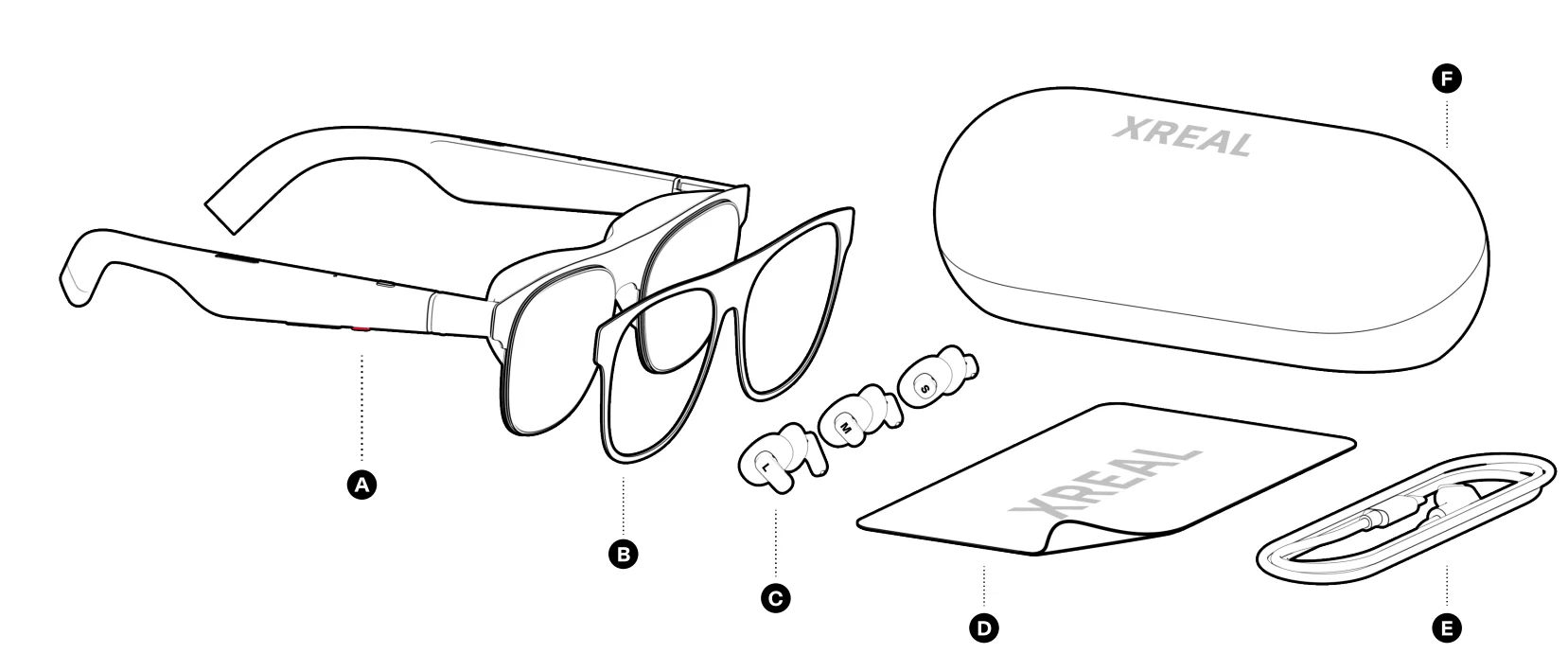
- A. XREAL One
- B. Detachable Frame
- C. Lens Frame
- D. Nose Pads-S/M/L
- E. Cloth
- F. USB·C Cabla
- G. Glasses Case
Compatibility
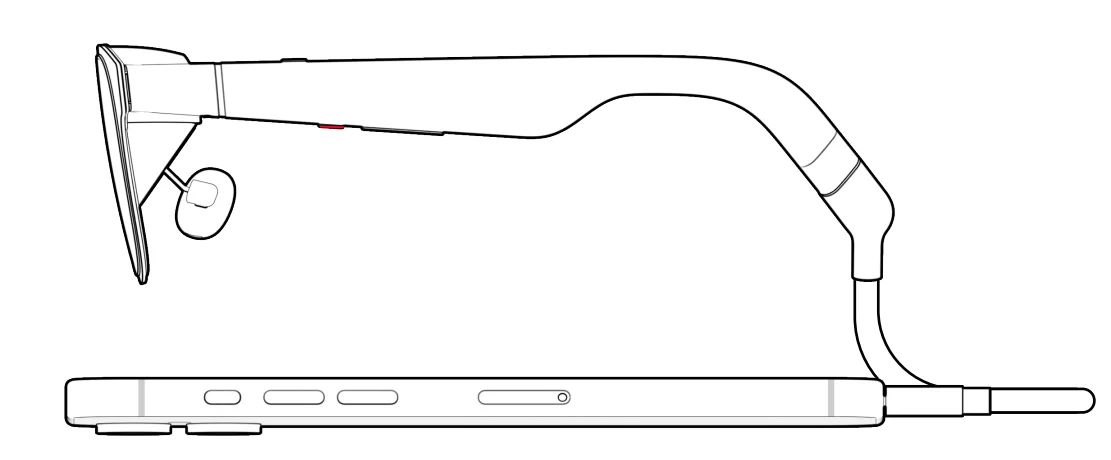
Connect a compatible device to use.
Prescription Lenses
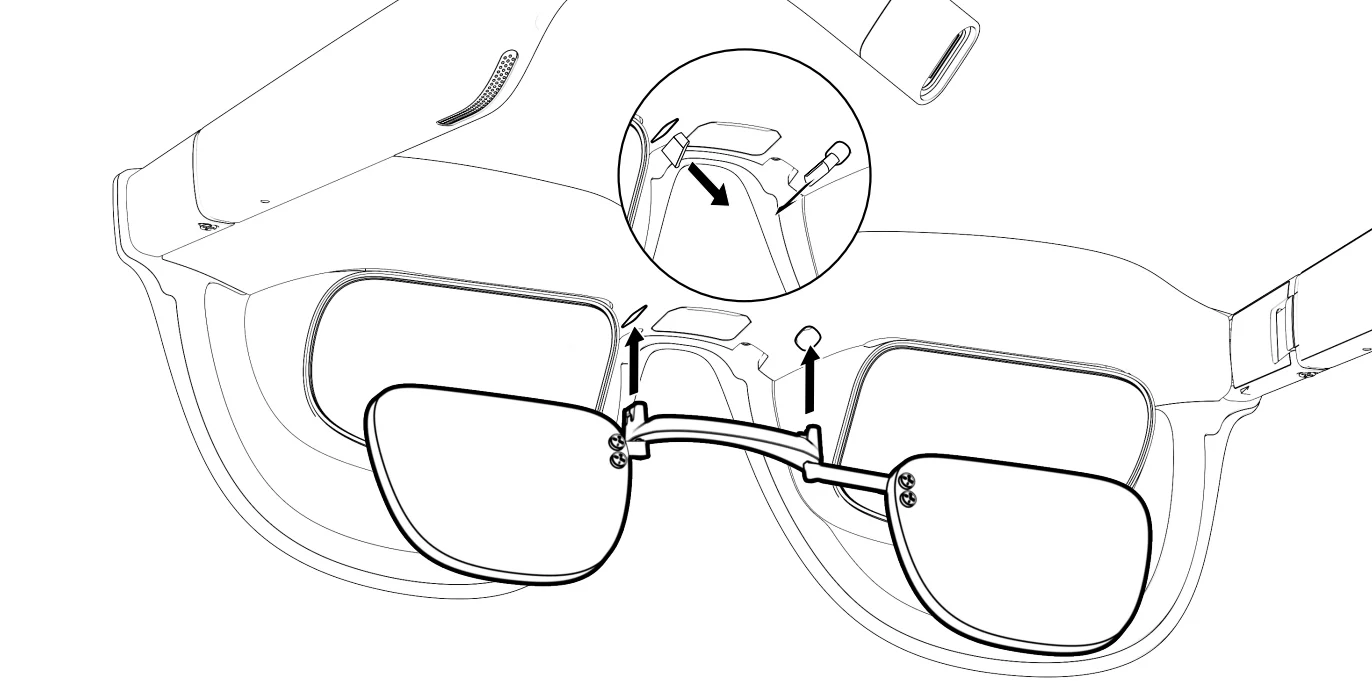
Prescription Lenses Installation
Contact the official partner to customize your prescription lenses.
Getting Started
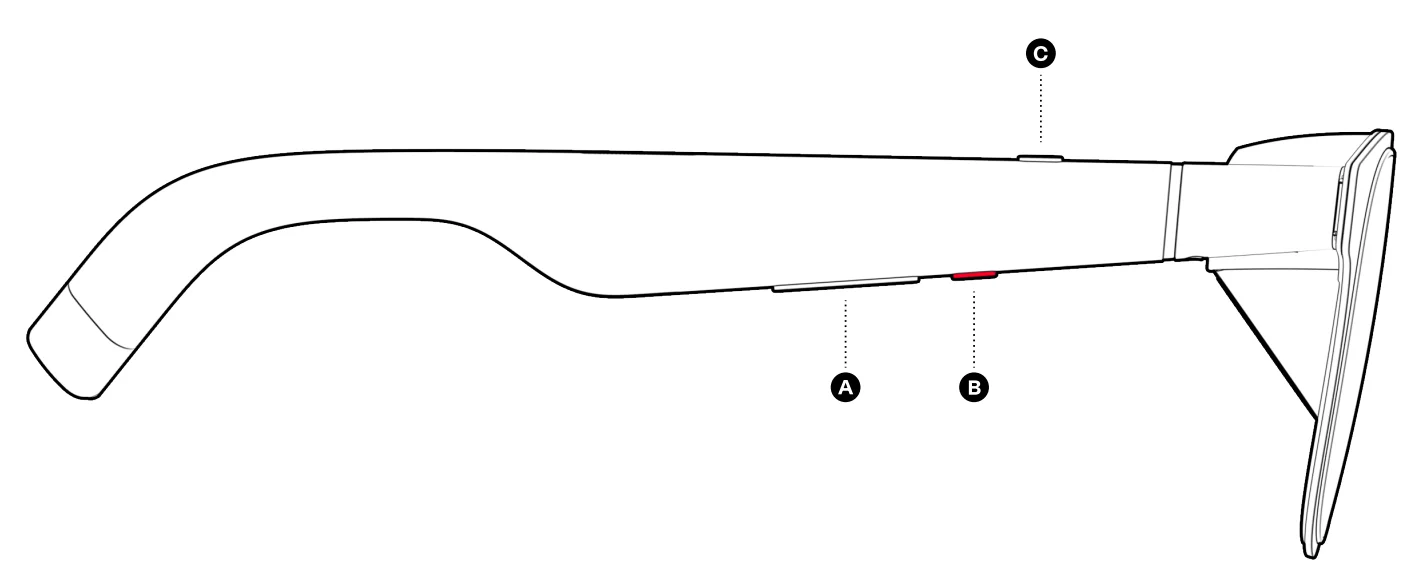
- A. +/- Button
- Click: Adjust Brightness. Hold: Switch tint level (3 levels).
- B. XButton
- Click: Mode switch.
- Double-click: Settings menu.
- Hold: Recenter.
- C. Quick Button
- Click: Customized function.
- Customize the Quick Button in the Settings menu.
Settings
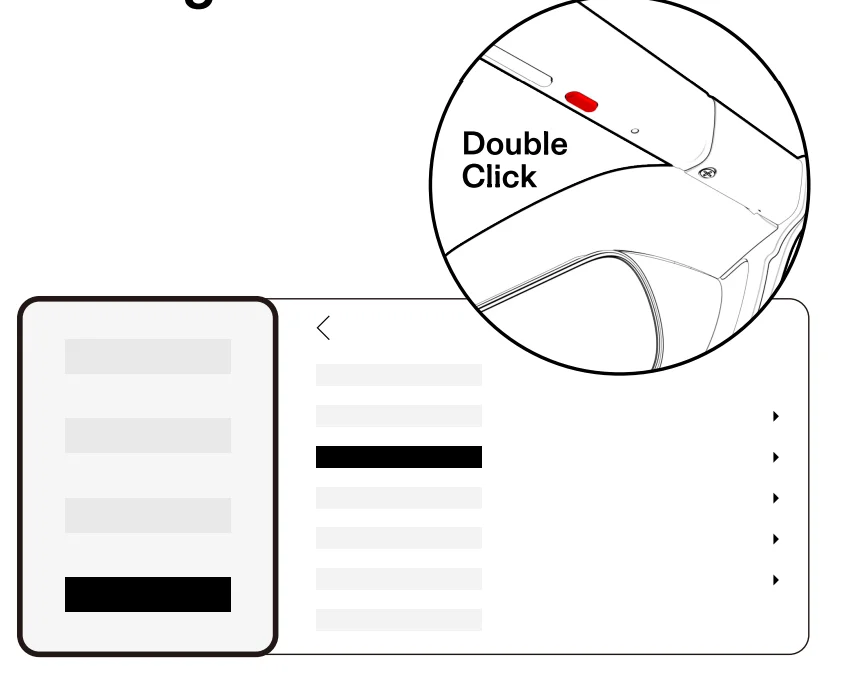
Settings Menu
Double-click the X button to open the settings menu for all options.
Overview
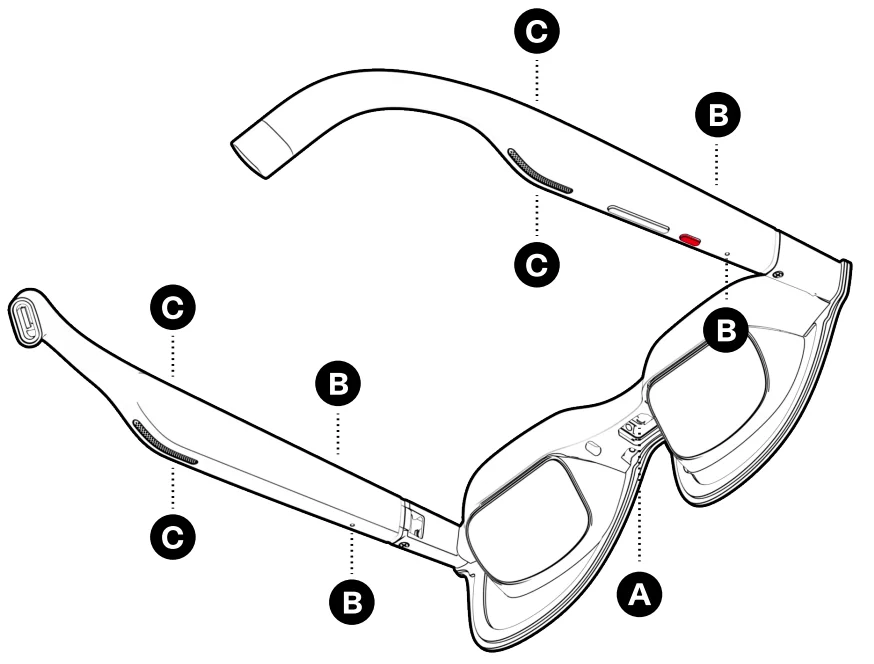
- A. Connector
- B. Microphones
- C. Speakers
Nose Pads Replacement

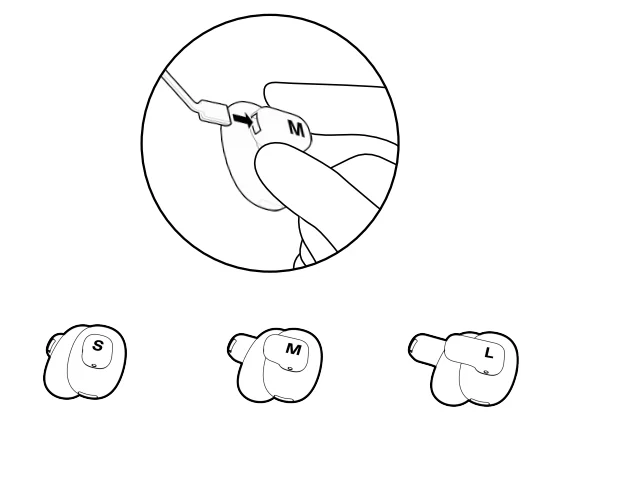
3 Sizes Nose Pads
Select nose pads to adjust to the display distance from your eyes.
Angle Adjustment
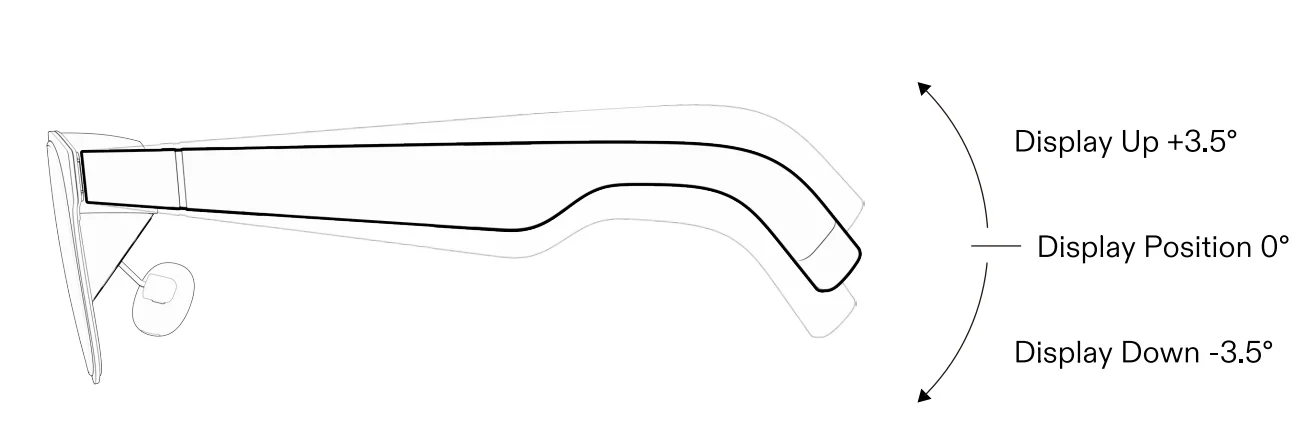
3 Adjustable Positions
Adjust the angle for a suitable display position.
Detachable Frame
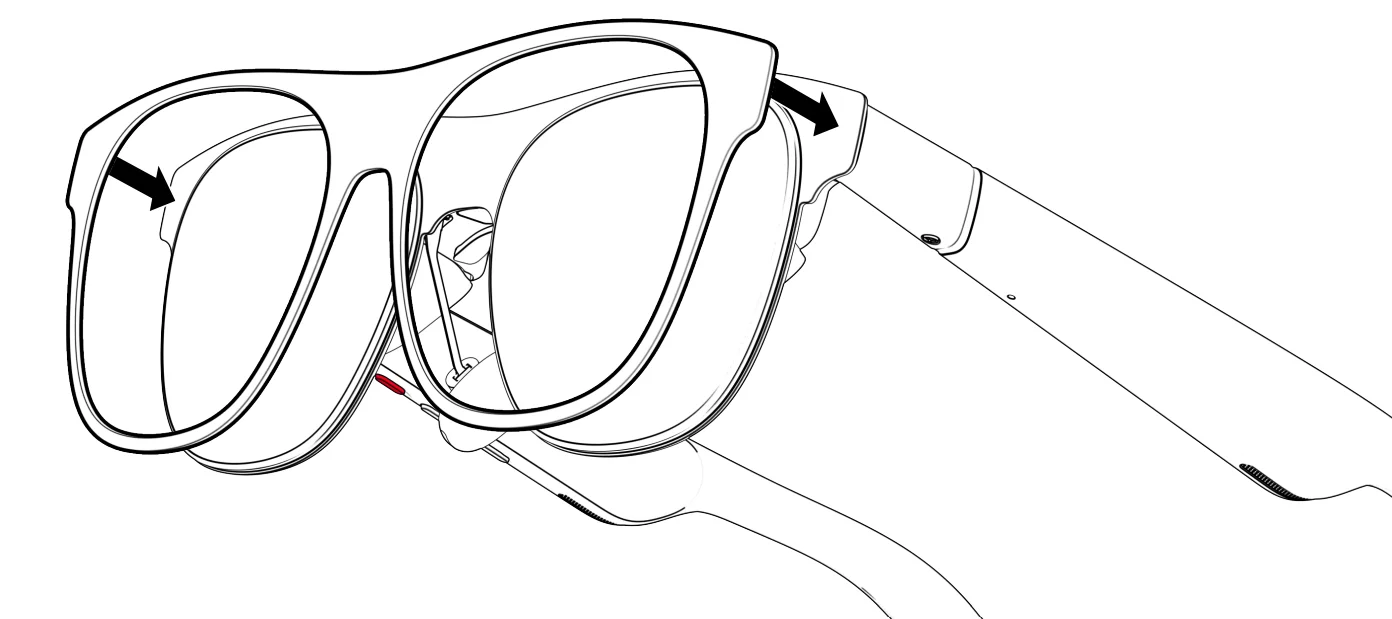
Detachable Frame
Slowly install and replace the detachable frame from the edges.
XREAL EYE
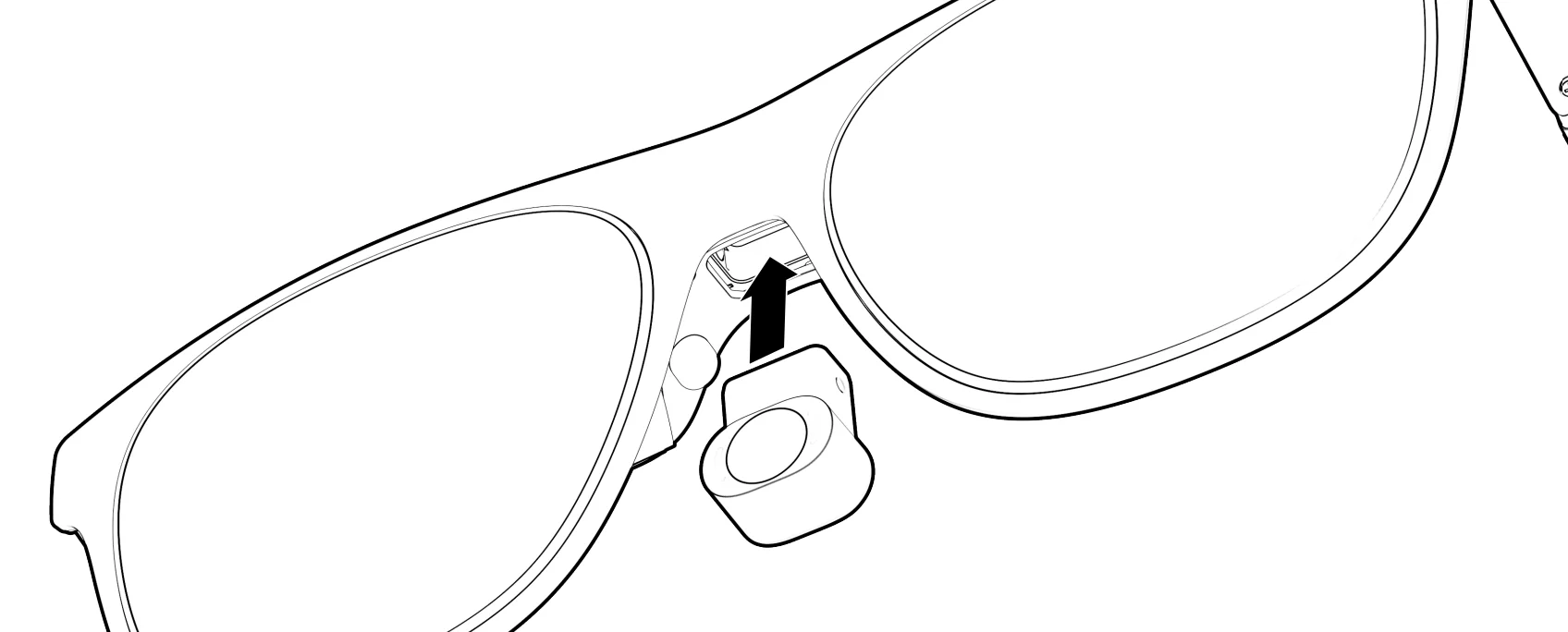
Connect XREAL Eye
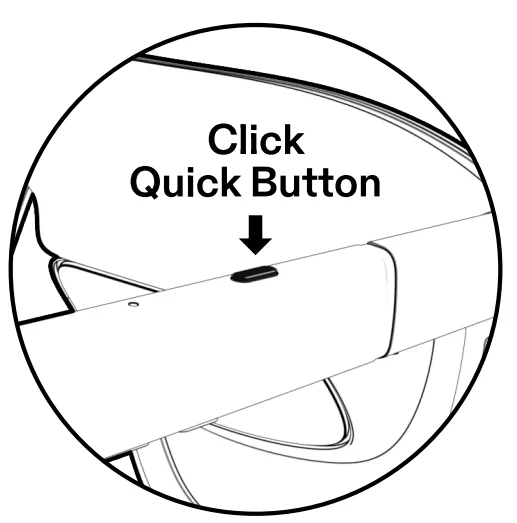
Use the Quick button to capture photos and videos.
*XREAL Eye sold separately
Safety Information


Avoid damage caused by overbending of the legs.
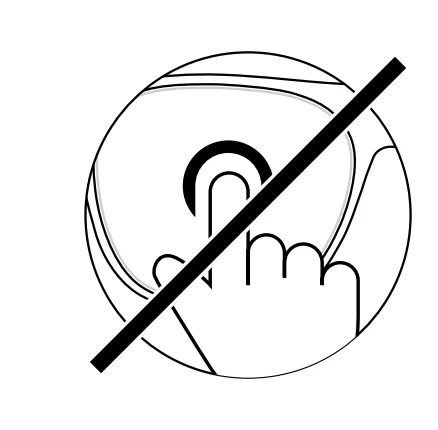
Avoid damage caused by hard-squeezing the optical components.
More Information

For more manuals by Xreal, visit ManualsLibraryy
XREAL One AR Glasses-FAQs
How do I set up XREAL One AR glasses?
Connect your XREAL One to a compatible device via USB-C. Power comes from your device, so no extra battery or adapter is needed. Follow the on-screen prompts to start.
What can I do with XREAL One?
You can watch movies, play games, view 3D content, multitask with Side View, and enjoy immersive spatial screens.
Are XREAL One glasses worth buying?
Yes. They offer a wide field of view, lightweight comfort, and high-quality video and audio at a competitive price.
How do I adjust IPD (interpupillary distance)?
Go to OSD → Display → IPD Adjustment. Adjust for clear vision; slight blurriness at edges may occur if left unadjusted.
Can XREAL One be used with iPhone or PC?
Yes. It supports iPhone, Android, Mac, PC, Steam Deck, and other devices with USB-C.
What kind of content can I view?
You can watch standard videos, 3D SBS (Side-by-Side) videos, and spatial videos using compatible players.
Is XREAL One good for gaming?
Absolutely. It supports immersive gaming, and the XReal 1S even converts games into 3D with ultrawide mode.
Can I use XREAL One with prescription lenses?
Yes. The XREAL ONE PRO inserts come pre-mounted with your prescription lenses—no extra fitting needed.
Are XREAL One glasses comfortable?
Yes. They are lightweight, battery-free, and designed like normal sunglasses for extended wear.
How do I adjust the screen size and distance?
Double-click the X Button → go to Display → Screen Size / Screen Distance. Use the +/- buttons to adjust and press X to confirm.