
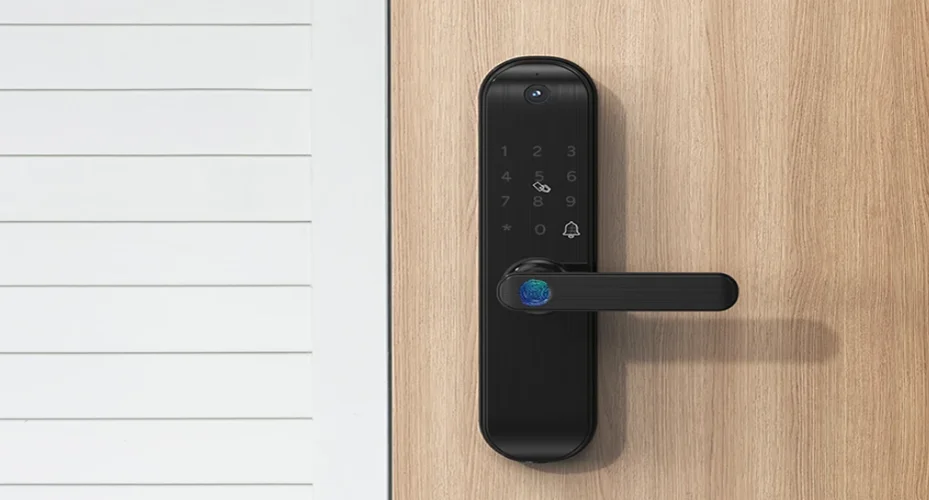

Kogan SmarterHome Wi-Fi Fingerprint Video Smart Lock
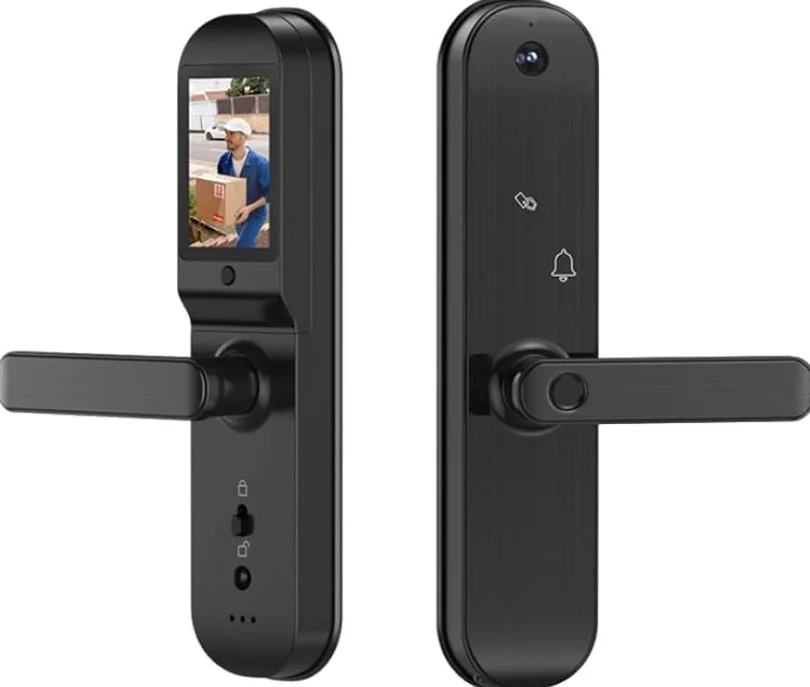
Safety & Warnings
- Ensure your fingers are clean before using the product.
- In its default settings, the lock can be unlocked with any fingerprint, any card, or the default passcode ‘1234567890’ followed by ‘#’.
- Unlocking the Lock:
- Use a registered fingerprint on the front handle sensor.
- Tap a registered card near the lock pad.
- Enter the registered passcode followed by ‘#’.
- If the batteries are low, an alarm will sound. You can unlock the door approximately 50 more times before the lock becomes unresponsive. Replace the batteries with six new ones promptly.
- When the batteries are completely drained, use a power bank connected via a Micro USB cable to the Emergency Power Port to unlock the door. The app and network functions will be unavailable in this mode.
- If the passcode, fingerprint, card, or app cannot unlock the door, use the physical key. Insert it into the keyhole, turn it, and press the front handle to open the door. Always keep the emergency key accessible or store it in a secure outdoor location.
- After long periods of inactivity, waking the lock may take approximately three seconds or longer.
- The product is designed for doors with a thickness of 35mm – 80 mm.
- The operating temperature range is -25°C to 55°C.
- Do not force the lock or handle, as this may damage the mechanism.
- Avoid using excessive pressure when registering fingerprints, as this could reduce sensor accuracy.
Installation and Maintenance:
- Ensure the lock is installed by a licensed trade professional if you are not confident in doing it yourself.
- Regularly inspect the lock and its components for any signs of wear, damage, or tampering.
- Replace the batteries as soon as the low-power alarm sounds to prevent lockout issues.
Electrical Safety:
- Use only the specified battery type and size for this product (6 AA alkaline batteries). Do not mix old and new batteries.
- Avoid exposing the lock to water or excessive moisture to prevent electrical damage.
Emergency Access:
- Always keep the emergency key in an easily accessible location outside the home for situations where electronic unlocking methods fail.
- Ensure all household members are familiar with the emergency unlocking procedure.
Privacy and Security:
- Change the default passcode immediately upon installation to enhance security.
- Avoid sharing your passcode or registering unauthorised fingerprints or cards.
- Regularly update the app and firmware to ensure the latest security features are applied.
Environmental Considerations:
- Do not install the lock in areas with extreme humidity, direct sunlight, or salty air, which may affect its performance.
- Dispose of used batteries responsibly, following local regulations.
Components
- Front lock panel
- Rear lock panel
- Lock body
- ID card (x2)
- Keys (x2)
- Fastener pack
- Square steel (x2)
- Buckle frame
- Buckle box
- Installation template
- User Guide
Tools Required:
- Phillips screwdriver
- Pincers / Pliers
- x6 AA alkaline batteries
Overview
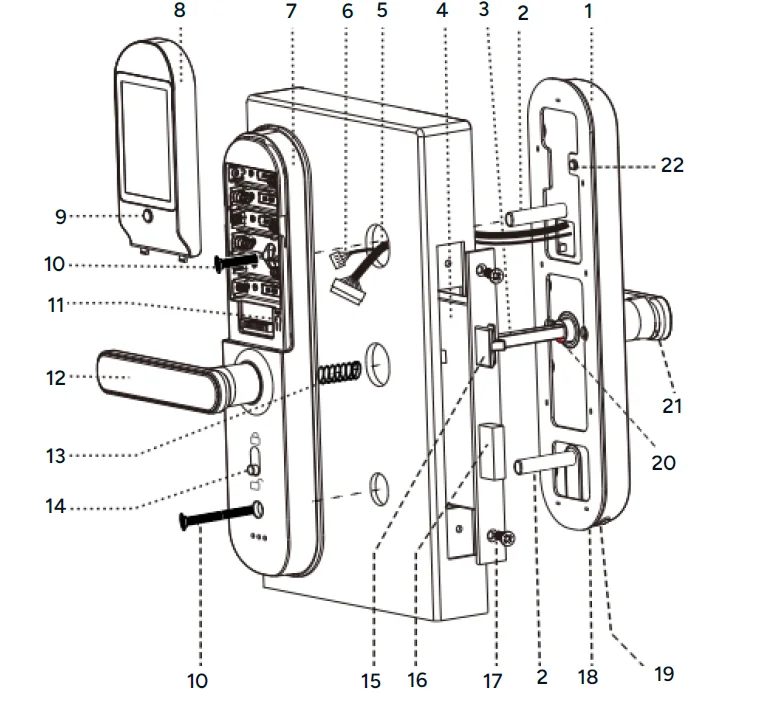
- Front Panel
- Connection Column
- Square Steel
- Lock Body (5085)
- Lock Connector
- Camera Connector
- Rear Panel
- Battery Cover and Display
- Display Button
- Connection Column Screw
- RESET Button
- Rear Handle
- Spring
- Lock Switch
- Latch-bolt
- Deadbolt
- Lock Body Screws
- Keyhole
- Emergency Power Port
- Square Steel Sleeve
- Front Handle
- Pickproof Alarm Button
Installation
Note: Ensure the lock is installed by a licensed trade professional if you are not confident in doing it yourself.
Installation Considerations:
- Ensure the door is in a half-open position during installation and debugging until all steps are completed.
- Select the lock type according to the door’s opening direction before beginning installation.
- When attaching the rear panel:
- Check the screw holes to ensure the connection wire does not obstruct the connection column hole.
- If the wire is blocking the hole, reposition the connection wire or enlarge the internal door hole to create enough space for proper placement.
- Once installation is complete, test the lock’s functionality by unlocking it using:
- A registered fingerprint.
- A registered card.
- The default passcode (1234567890#).
- The mobile app.
- The physical key.
- Confirm that both the front and rear handles lock and unlock properly.
- If the lock does not function correctly, check for installation errors or loose power connections.
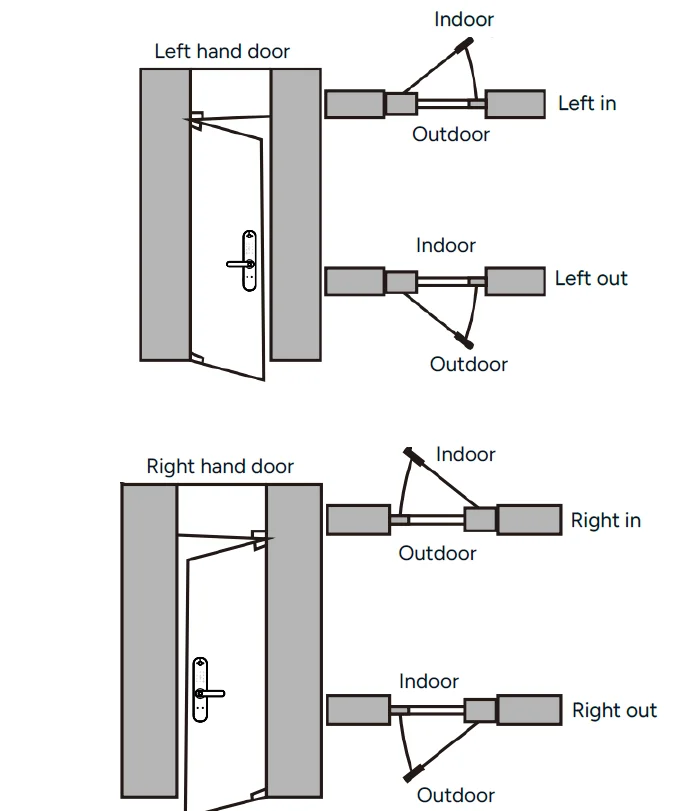
Confirm The Direction of The Door
This smart lock is suitable for 4 kinds of opening directions:
- Left Out
- Left In
- Right Out
- Right In
Handle Direction Adjustment
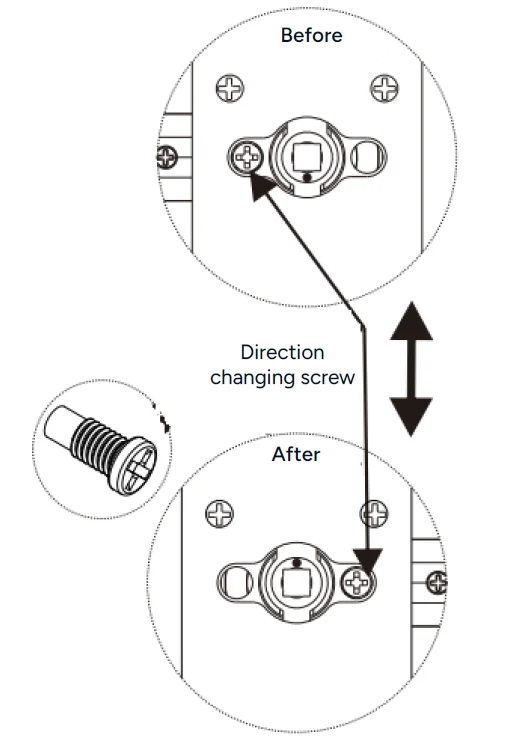
- Verify that the handle direction is appropriate for the door’s opening direction. If it is incorrect, adjust the handle direction as follows:
- Front Handle Adjustment:
- Remove the direction-changing screw.
- Carefully rotate the handle clockwise 180 degrees.
- Reattach and secure the direction-changing screw.
- Test the handle to ensure it moves freely without sticking.
- Repeat these steps for the rear handle adjustment
- Align and match the front and rear handles to confirm they are set in the correct direction.
Drilling Holes for Installation
- Use the provided installation template to mark the correct positions for the holes on the door.
- Ensure the template is aligned properly with the intended placement of the lock.
- Drill the holes following the markings on the template.
Note: Always double-check the measurements and template alignment before drilling or cutting into your door to avoid errors or damage.
Latch-Bolt Installation
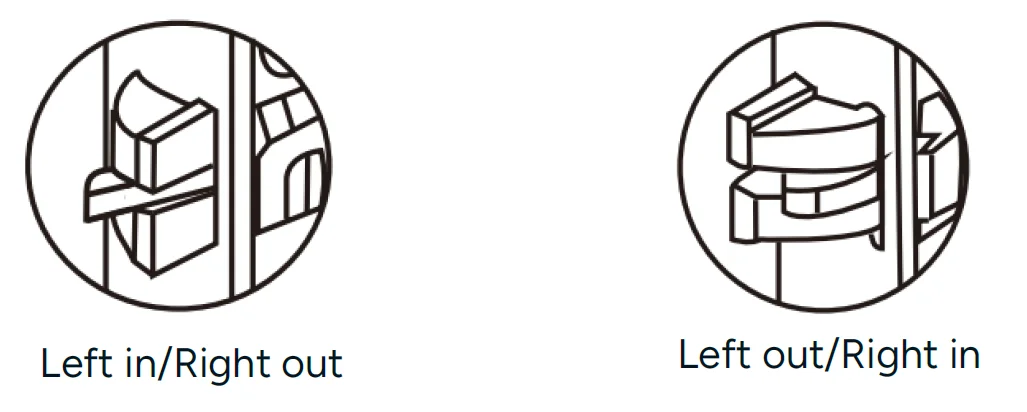
- Determine the Installation Direction:
- Select the latch-bolt direction based on the door’s opening direction.

- Select the latch-bolt direction based on the door’s opening direction.
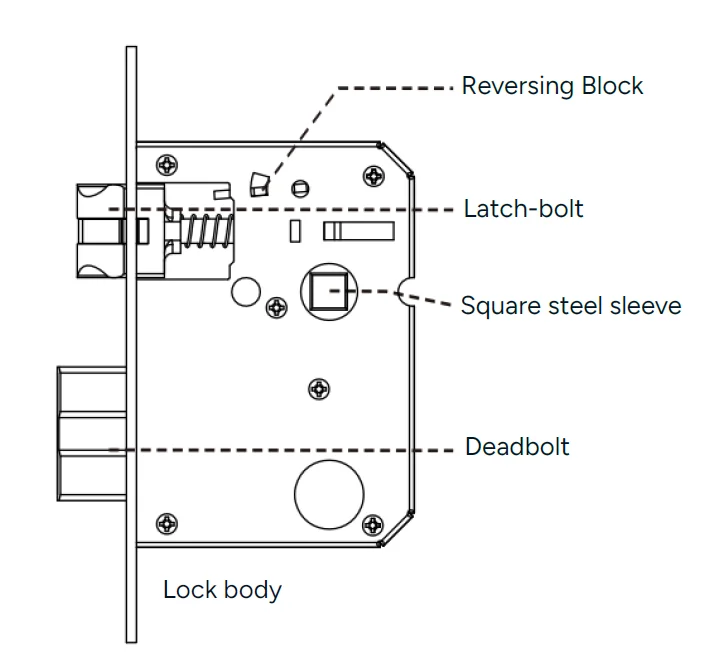
- Adjust the Lock Body Direction:
- Push the reversing block to the opposite side.
- Push the latch-bolt into the lock body and rotate it 180 degrees.
- Reinsert the reversing block, allowing the latch bolt to automatically pop back into position.
- Install the Lock Body:
- Insert the lock body into the door frame and secure it with the two fixing screws.

- Insert the lock body into the door frame and secure it with the two fixing screws.
Select the Appropriate Parts
Choose the correct parts based on your door’s thickness, as outlined in the table below:
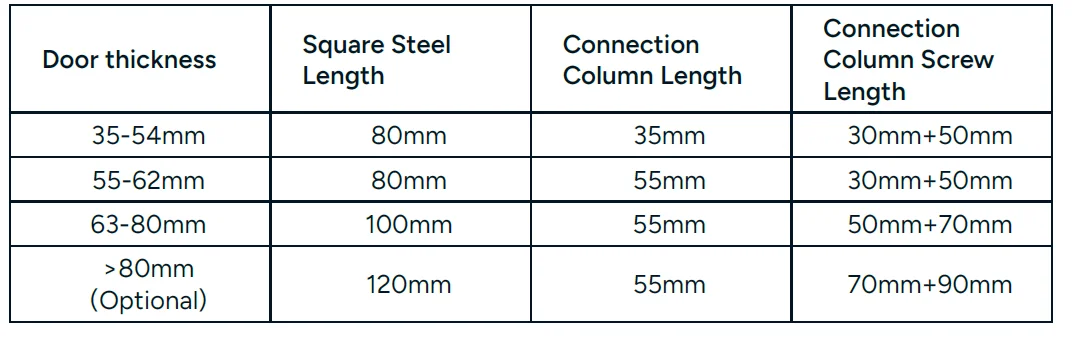
Note: If the door thickness is 35-36mm, the spring in the square steel hole of the rear panel needs to be cut in half or removed.
Installing the Lock
Front Panel:
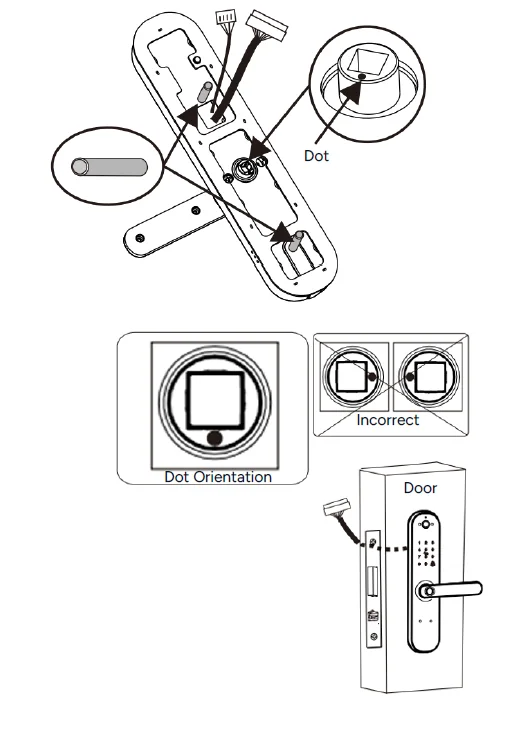
- Attach the two connection columns to the rear of the front panel.
- Adjust the square steel sleeve orientation based on the sticker on the rubber mat:
- For doors that open to the right, position the dot at the bottom.

- Insert the appropriate square steel into the lock body.
- Pass the connection wire through the door hole, ensuring it is not pinched or damaged.
- Align the square steel with the corresponding hole on the rear of the front panel. Secure the front panel onto the door and press the other end of the square steel into place.
- For doors that open to the right, position the dot at the bottom.
Rear Panel:
- Press the front panel firmly and connect the lock connection wire and camera connection wire (camera connection wire) to the corresponding interface on the rear panel. Insert any excess wire into the door hole to avoid obstruction.
- Align the square steel with the corresponding hole on the rear panel and secure the panel in place.
- Tighten the two connection column screws to fix the rear panel securely.
- Insert x6 AA batteries into the battery compartment and attach the battery cover.

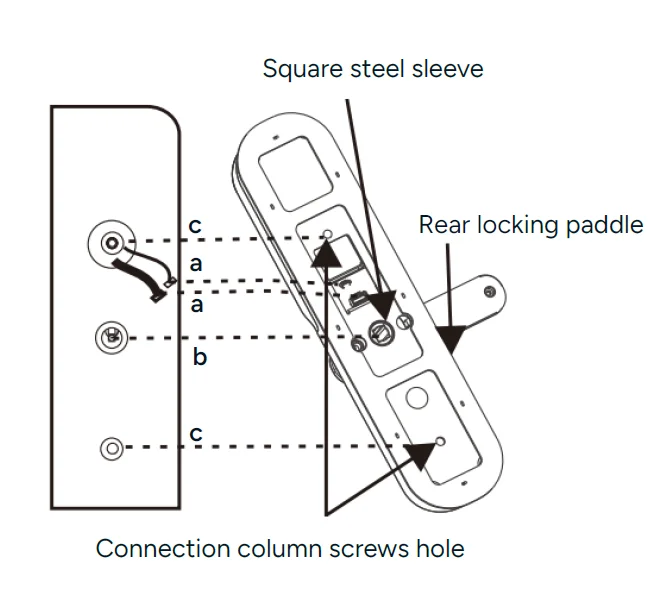
Note: During the installation of the rear lock, check through the screw hole to ensure that the connection wire does not obstruct the connection column hole. This will prevent damage to the connection wire when securing the screws.
Buckle Plate and Buckle Box
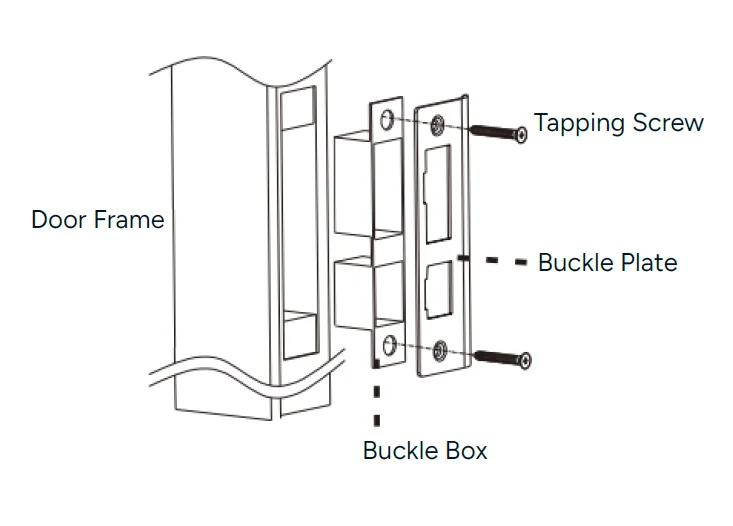
- Insert the buckle box into the designated hole in the door frame.
- Position the buckle plate over the buckle box, ensuring proper alignment.
- Secure the buckle plate and buckle box in place using the supplied Phillips head self-tapping screws.
- Check that the installation is firm and properly aligned with the lock mechanism for smooth operation.

Connect to the SmarterHome™ App
Install the App
Download the Kogan SmarterHome™ app from the Apple App Store (iOS) or the Google Play Store (Android).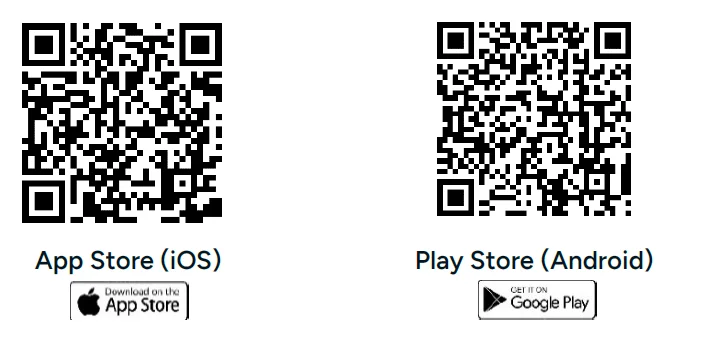
Log In or Sign Up
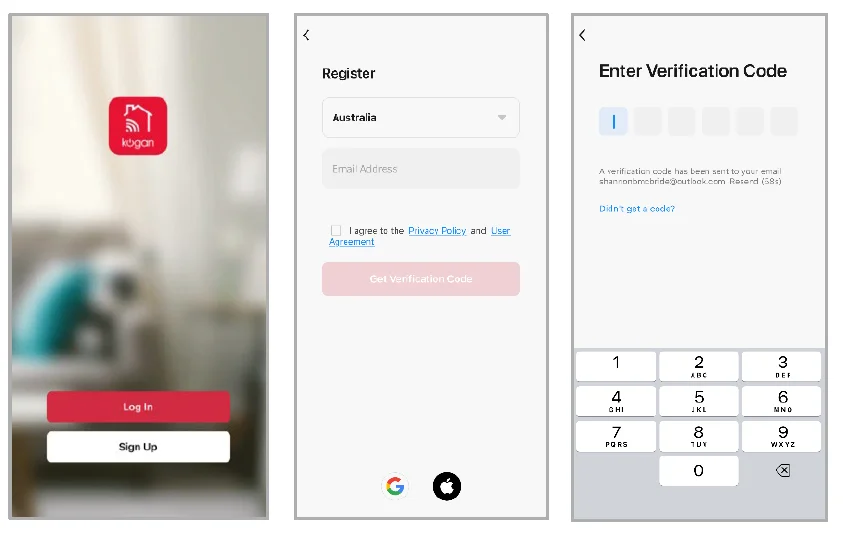
- If you already have a SmarterHome account, tap ‘Log In’. To register a new account, tap ‘Sign Up’.
- The app will automatically recognise your country. If needed, you can manually select your country from the drop-down menu. Enter your email address, agree to the Privacy Policy and User Agreement, and tap ‘Get Verification Code’ to continue.
- A 6-digit code will be sent to the submitted email address. Enter the code before the one-minute timer expires.

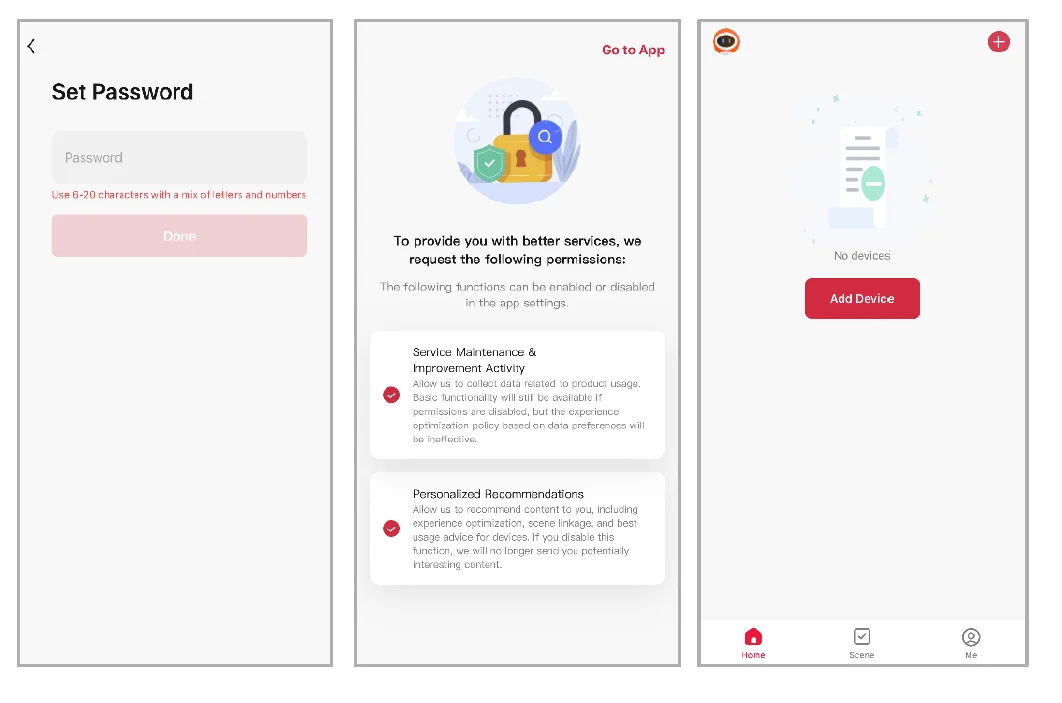
- Enter a password that uses 6-20 characters with a mix of letters and numbers and tap ‘Done’.
- Enable the permissions and tap ‘Go to App’.

EZ Mode
Set the Device in Pairing Mode
When the device is first turned on, it may automatically enter pairing mode (the LED indicator for ‘8’ will flash rapidly). If not automatically in pairing mode when powered on, you can manually set the device in pairing mode by pressing ‘3#’, verify as the administrator, and the indicator for ‘8’ will begin flashing rapidly.
Add the Device to the App
- Open the SmarterHome™ app.
- Tap the ‘+’ icon in the top right corner of the screen and then tap ‘Add Device’.
- Tap ‘Add’ when the device appears. Alternatively, select the product type from the list of options in the app (Home Security > Door Locks).
- Follow the prompts to add your device to the app.
Notes:
- The device and the app must use the same Wi-Fi network.
- The device is only compatible with 2.4Ghz networks.
- Ensure Bluetooth is enabled on your phone.
Connectivity Support
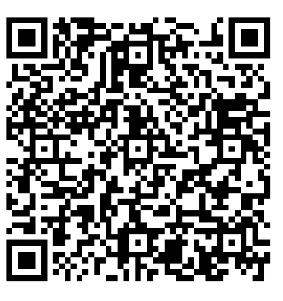
Scan the QR code below or go to https://help.kogan.com/s/article/Kogan-SmarterHome-App-Connectivity-Support and follow the pairing instructions for EZ mode.
Google Home
- Ensure you are logged into the Kogan SmarterHome™ app.
- Open the Google Home app.
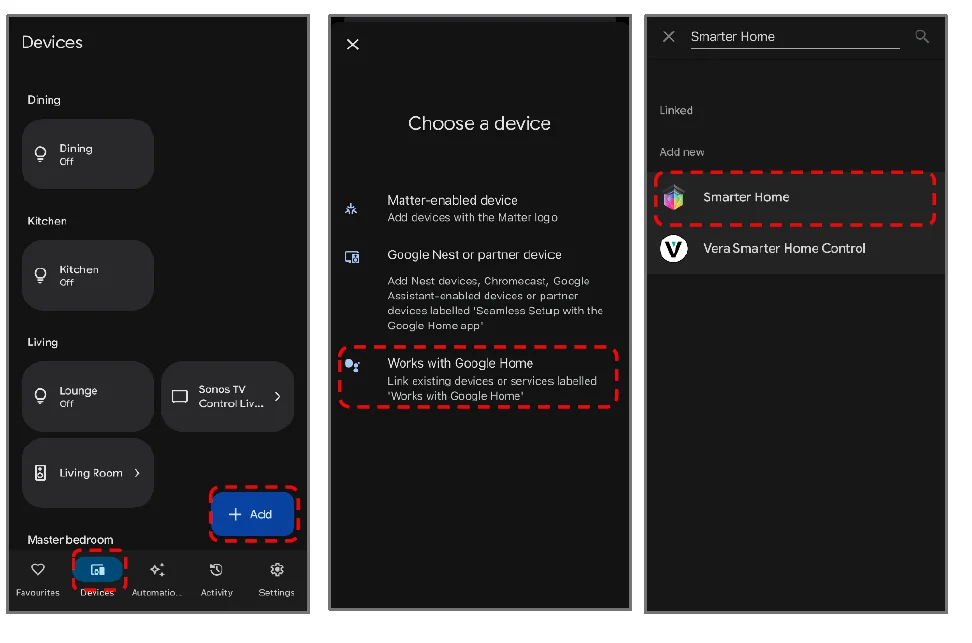
- Go to the devices tab and tap the ‘+ Add’ button in the lower right corner.
- Tap ‘Works with Google Home’.
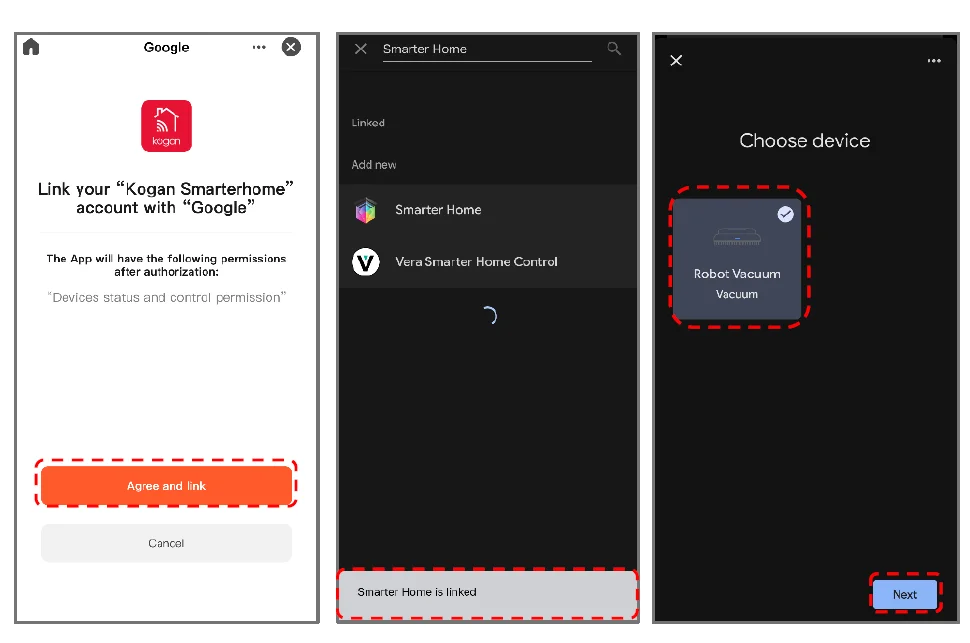
- Search for ‘Smarter Home’ in the search bar and select ‘Smarter Home’ from the results.

- Tap the ‘Agree and link’ button.
- Search for ‘Smarter Home’ in the search bar and select ‘Smarter Home’ from the results.
- Once linked, a ‘Smarter Home is linked’ pop-up will appear at the bottom of the screen.
- Tap your device and then tap the ‘Next’ button.

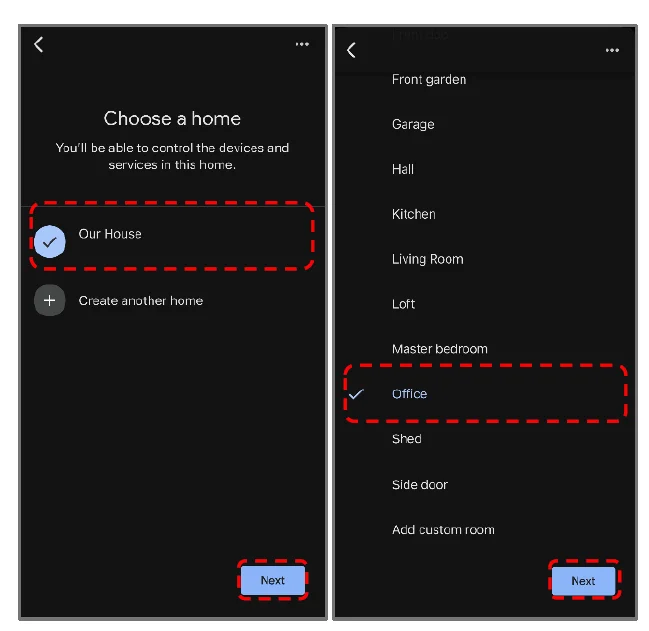
- Select the home you wish to add the device to and tap the ‘Next’ button.
- Select the room your device is in and tap the ‘Next’ button.

Amazon Alexa
- Ensure you are logged into the Kogan SmarterHome™ app.
- Open the Amazon Alexa app.
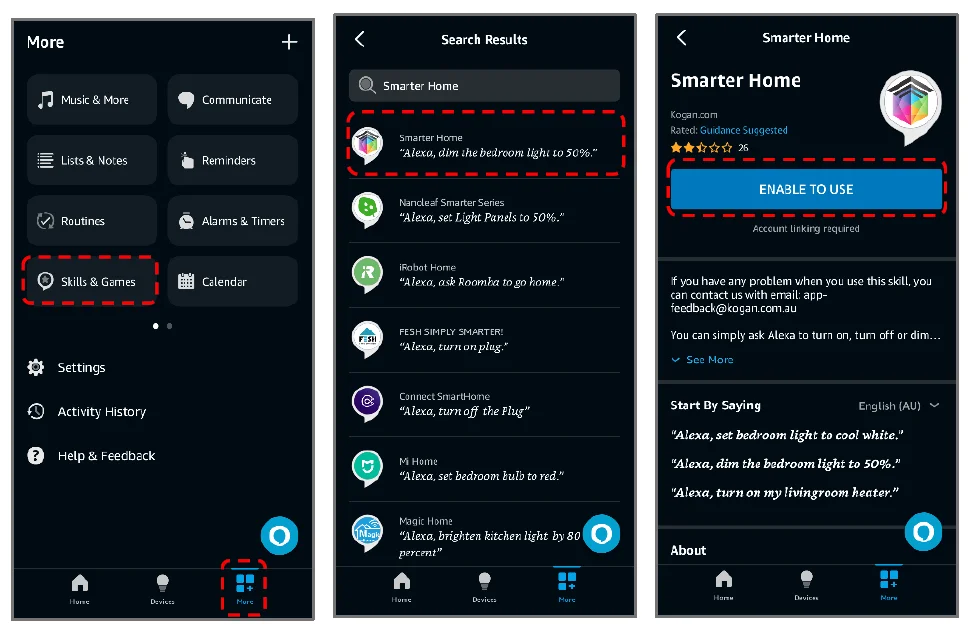
- Go to the ‘More’ tab and tap ‘Skills & Games’.
- Search for ‘Smarter Home’ in the search bar and select ‘Smarter Home’ from the results.
- Tap the ‘ENABLE TO USE’ button.

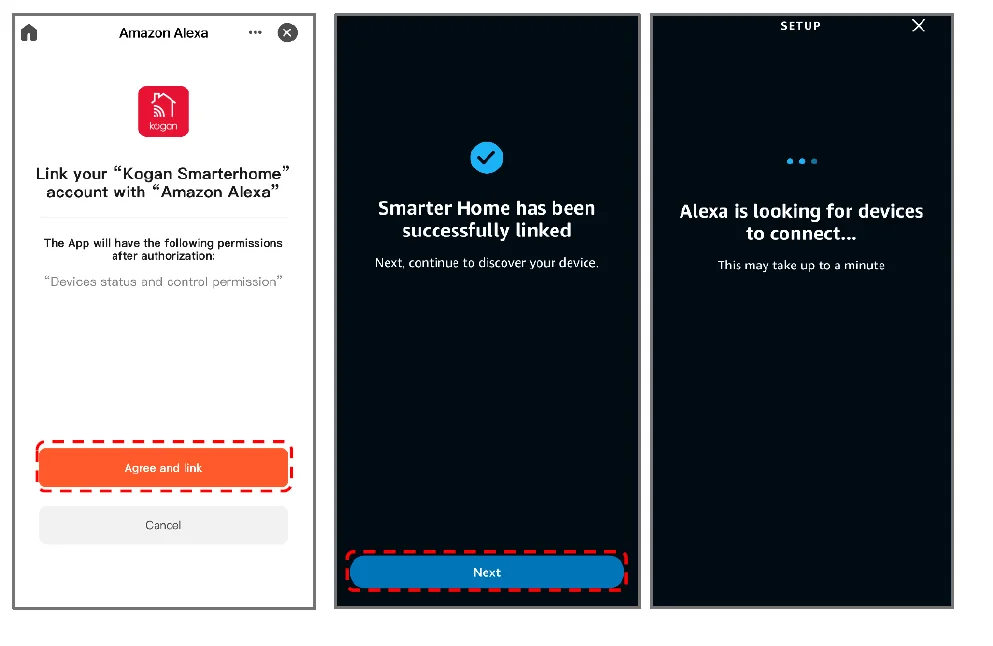
- Tap the ‘Agree and link’ button.
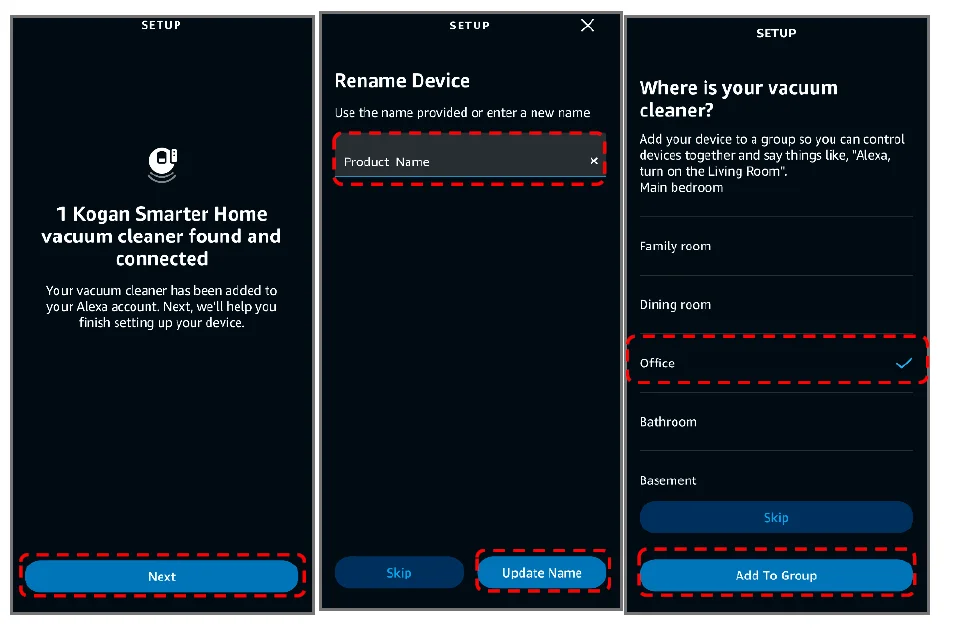
- Once linked, tap ‘Next’. Alexa will search for any compatible devices.

- Once your device has been found, tap ‘Next’.
- Rename the device to your desired name and tap ‘Update Name’.
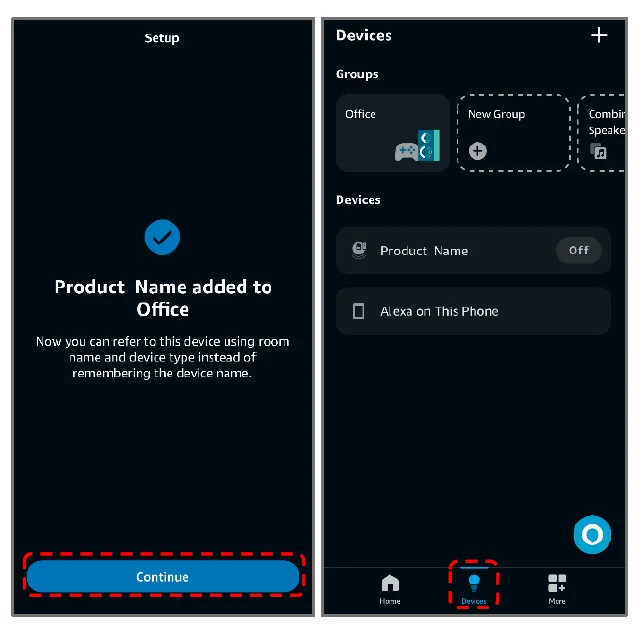
- Select the room your device is in and tap ‘Add To Group.’

- Once the device has been successfully added to your desired room, tap ‘Continue’.
- You can view and manage your device from the ‘Devices’ tab.

Operation
Debugging
- Always keep the door half-open during debugging to ensure safe operation.
- Verify that the following functions perform correctly:
- Press the front handle: The latch-bolt and deadbolt should remain locked.
- Press the front handle: The latch-bolt and deadbolt should retract when in the unlocked state.
- Lift the front handle: The deadbolt should extend regardless of the lock state.
- Press the rear handle: The latch bolt and deadbolt should retract regardless of the lock state.
- Lift the rear handle: The deadbolt should extend regardless of the lock state.
- Confirm that additional features function as expected, including:
- Self-locking
- Virtual passcode
- Reset button
- Doorbell
- Display
- Mobile app
Adding an Administrator
- Press and hold * until you hear the voice prompt: ‘Please enter a 6-8 digit admin passcode followed by #.’
- Enter the administrator passcode (6-8 digits) followed by #. Repeat the passcode to confirm. You will hear the voice prompt: ‘Add successfully.’
- To continue adding users, press 1, then press 1 again to add an administrator:
- Press 1 to add a passcode (6-8 digits) followed by #.
- Press 2 to add a fingerprint (scan the fingerprint 8 times).
- Press 3 to add a card or press * to exit the system menu.


Notes:
- *: Back or sign-out button
- #: Confirm button
- When registering a fingerprint, ensure you press different parts of the same finger until the fingerprint is fully collected. The lock keypad will light up digits 1–8 upon successful registration. Improper operation may require additional attempts to complete the process.
- The first registered user will be set as an administrator (up to a maximum of 3 administrators).
System Menu
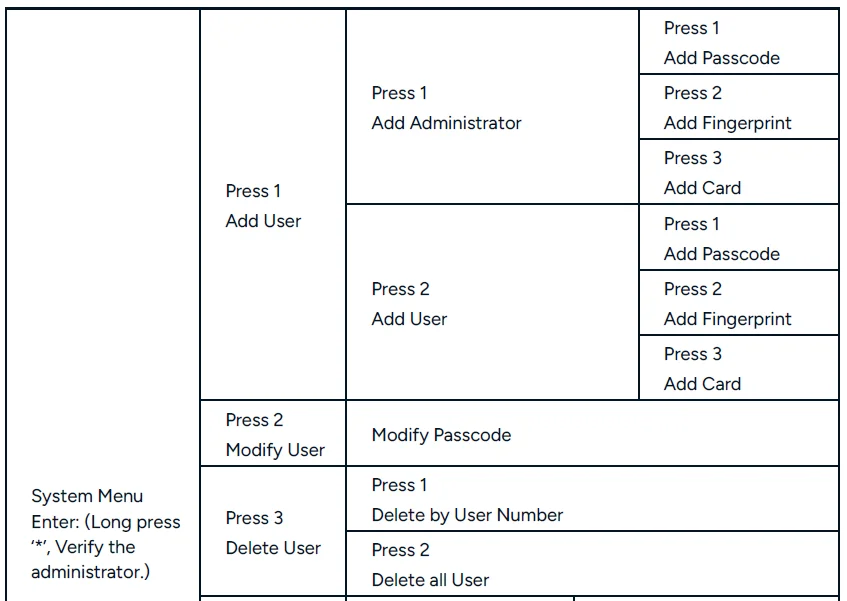
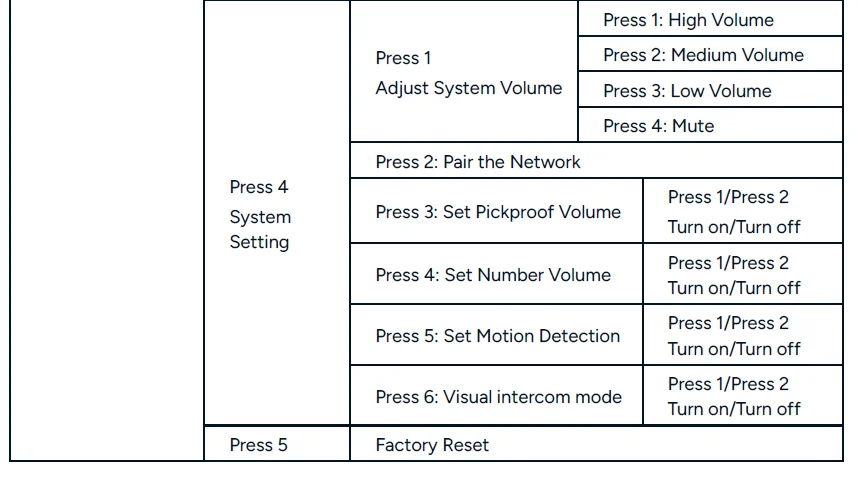
Note: The administrator can’t be removed by pressing 3(Delete User) or by APP. Only resetting will remove an administrator
Reset The Lock
- Remove the battery cover and press and hold the Reset button for 5 seconds. Verify that the administrator is to proceed.
- The system will restore to factory default settings.
Notes:
- After resetting, all user and administrator information will be deleted.
- The passcode will revert to the default: 1234567890.
- Add a new administrator immediately after resetting
Self-Locking
- If the passcode is entered incorrectly 5 times in a row, the system will lock for 3 minutes. The lock can be unlocked during this time using a registered fingerprint or card.
- If the fingerprint is entered incorrectly 5 times in a row, the system will lock for 3 minutes. The lock can be unlocked during this time using a registered card.
Low Power Warning
- When the battery power drops below 7.2V, the lock will prompt: “The battery is used up, please replace it.”
- Replace with six new AA LR6 batteries promptly to avoid lockout.
Virtual Passcode
You can enter additional digits (a virtual passcode) before or after the actual passcode to unlock the lock.
Lock Tampering Alert
- If the lock detects tampering or damage to the front lock (e.g., the pickproof alarm button is loosened), it will trigger an alert and notify the app.
- To deactivate the pickproof alarm: Unlock using a registered user (including administrators) or temporarily remove and reinstall the batteries.
Motion Detection and Stay Alarm
If a person remains within 80 cm of the lock for 20 seconds, the motion detection system will trigger a “Stay Alarm,” and the app will receive a notification along with captured images.
Doorbell
Press # while in standby or initial mode to initiate a video call with the app.
Lock Switch
- To Lock: Slide the button to the Locked position ‘
 ’. In this mode, only administrators can unlock.
 - To Cancel Lock: Slide the button to the Unlocked position
 . In this mode, all users (including administrators) can unlock. When unlocking and pressing the handle, the lock button will automatically slide back to the Unlocked position.
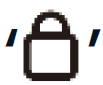 ’. In this mode, only administrators can unlock.
 . In this mode, all users (including administrators) can unlock. When unlocking and pressing the handle, the lock button will automatically slide back to the Unlocked position
Key Features Overview
- Initial Passcode: 1234567890
- Enter System Menu: Long press *
- Video Call and Remote Unlock: Press #(ensure visual intercom mode is on) or 4#
- Doorbell: Press #
- Volume Adjustment: Press 333#
- Pair the Network: Press 3#
- Modify Passcode: Press 7#
- Factory Reset: Long-press Reset
- Visual Intercom Mode: Press 666#
- Outdoor Privacy Lock: Press 999#
Specifications
- Fingerprint Sensor: Semiconductor
- PPI: 508
- Identify Time: 0.3S
- Unlock Way: Fingerprint, ID Card, Passcode, Key, and APP
- System Capacity: 100 (The fingerprint maximum capacity is 50)
- Supply Voltage: 9V
- Low Voltage Warning: 7.2V
Need more information?
We hope that this user guide has given you the assistance needed for a simple setup. For the most up-to-date guide for your product, as well as any additional assistance you may require, head online to help.Kogan.com.
For more manuals by Kogan, visit ManualsLibraryy
Kogan SmarterHome Wi-Fi Fingerprint Video Smart Lock-FAQs
How do I set up a fingerprint on the Kogan SmarterHome Smart Lock?
To add a fingerprint, open the Kogan SmarterHome app and make sure the lock is powered on and paired. Go to the lock settings, select Fingerprint Management, and follow the on-screen instructions. You’ll be asked to scan the same finger multiple times for accuracy. Once saved, the fingerprint can be used instantly to unlock the door without keys or codes.
Is the Kogan fingerprint smart lock safe to use?
Yes, the Kogan SmarterHome fingerprint lock uses encrypted biometric technology designed to store fingerprint data securely within the lock. It also includes backup access options like PIN codes, physical keys, and app control. This multi-layer security approach helps protect your home even if one access method fails.
Why is my fingerprint not working on the smart lock?
If your fingerprint isn’t being recognized, first clean the fingerprint sensor and ensure your finger is dry and clean. Check that the lock firmware is up to date in the app. If the issue continues, re-register the fingerprint or reset the lock and pair it again. Damaged, oily, or wet fingers can also affect recognition accuracy.
Do fingerprint smart locks need Wi-Fi to work?
Fingerprint access works without Wi-Fi because the biometric data is stored locally in the lock. However, Wi-Fi is required for remote features such as app notifications, video viewing, activity logs, and unlocking the door from your phone when you’re away from home.
Can a Kogan smart lock be hacked?
Like all smart devices, security depends on proper setup. Using strong Wi-Fi passwords, keeping the app and firmware updated, and enabling app security features significantly reduces risk. Kogan smart locks use encrypted communication, making unauthorized access difficult when configured correctly.
What happens if the smart lock battery runs out?
If the battery dies, you can still unlock the door using the physical backup key or an emergency power option (if supported). The app usually sends low-battery alerts in advance, so replacing batteries early helps avoid lockouts. Most users replace batteries every 6–12 months.
How often does a fingerprint door lock need maintenance?
Maintenance is minimal. Clean the fingerprint sensor regularly, replace batteries once or twice a year, and check for firmware updates through the app. Avoid exposing the lock to excessive moisture or dust to maintain long-term performance.
What are the disadvantages of fingerprint smart locks?
Fingerprint locks can be more expensive than traditional locks and rely on battery power. Fingerprint recognition may fail if fingers are wet, dirty, or injured. However, backup access options like PINs and keys help balance these limitations.
Can multiple people use the same Kogan smart lock?
Yes, the Kogan SmarterHome smart lock supports multiple fingerprints and user profiles. This makes it ideal for families, shared homes, or offices, allowing each user to have their own secure access without sharing keys or passwords.