
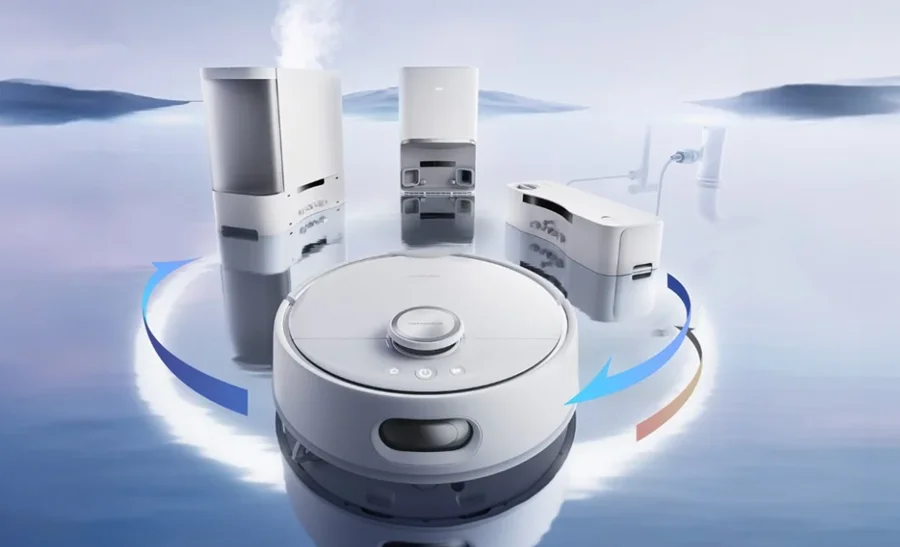

SwitchBot Floor Cleaning Robot S10
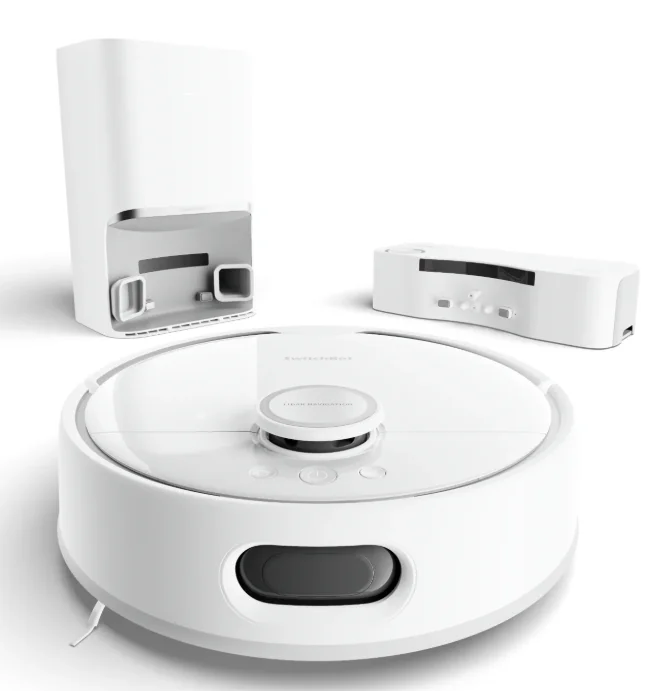
Product Overview
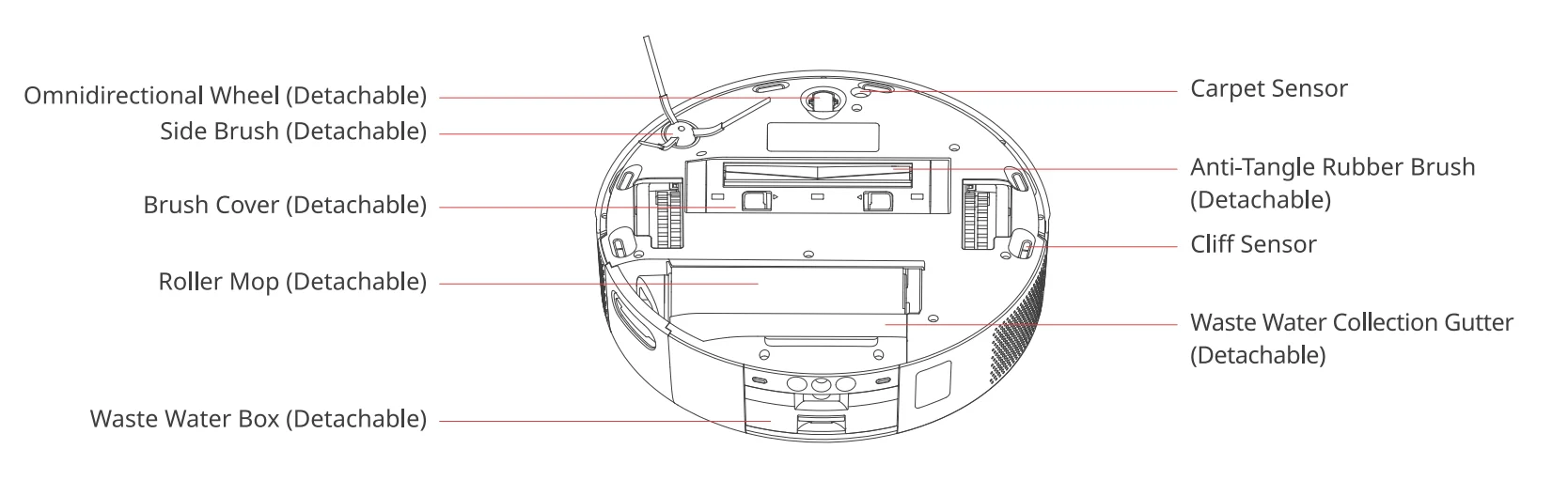
Robot Components
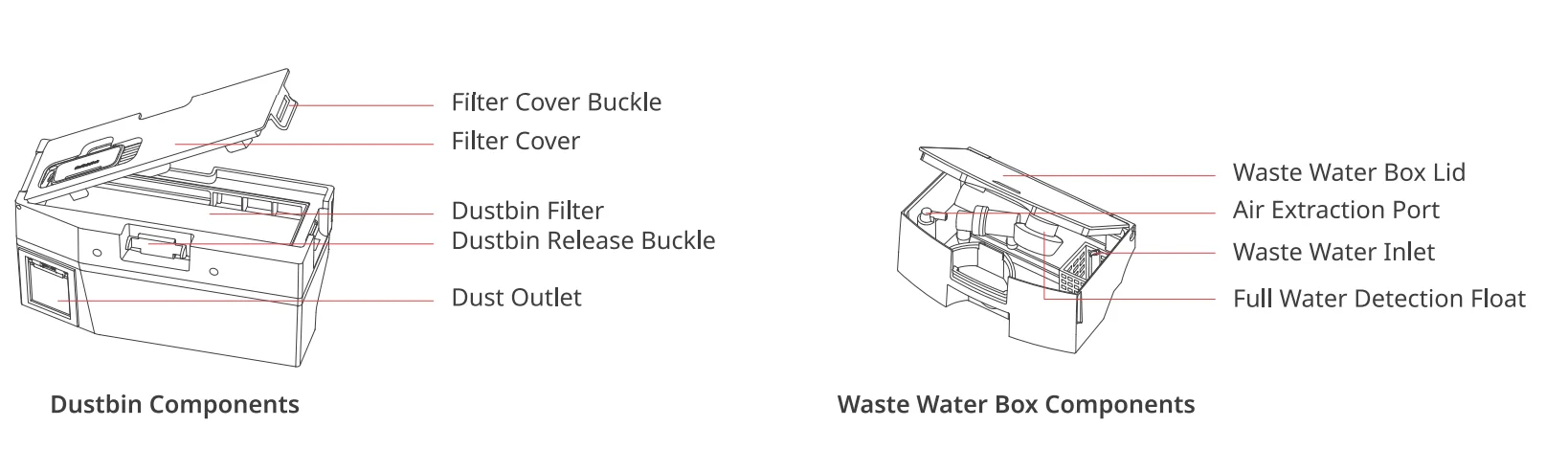
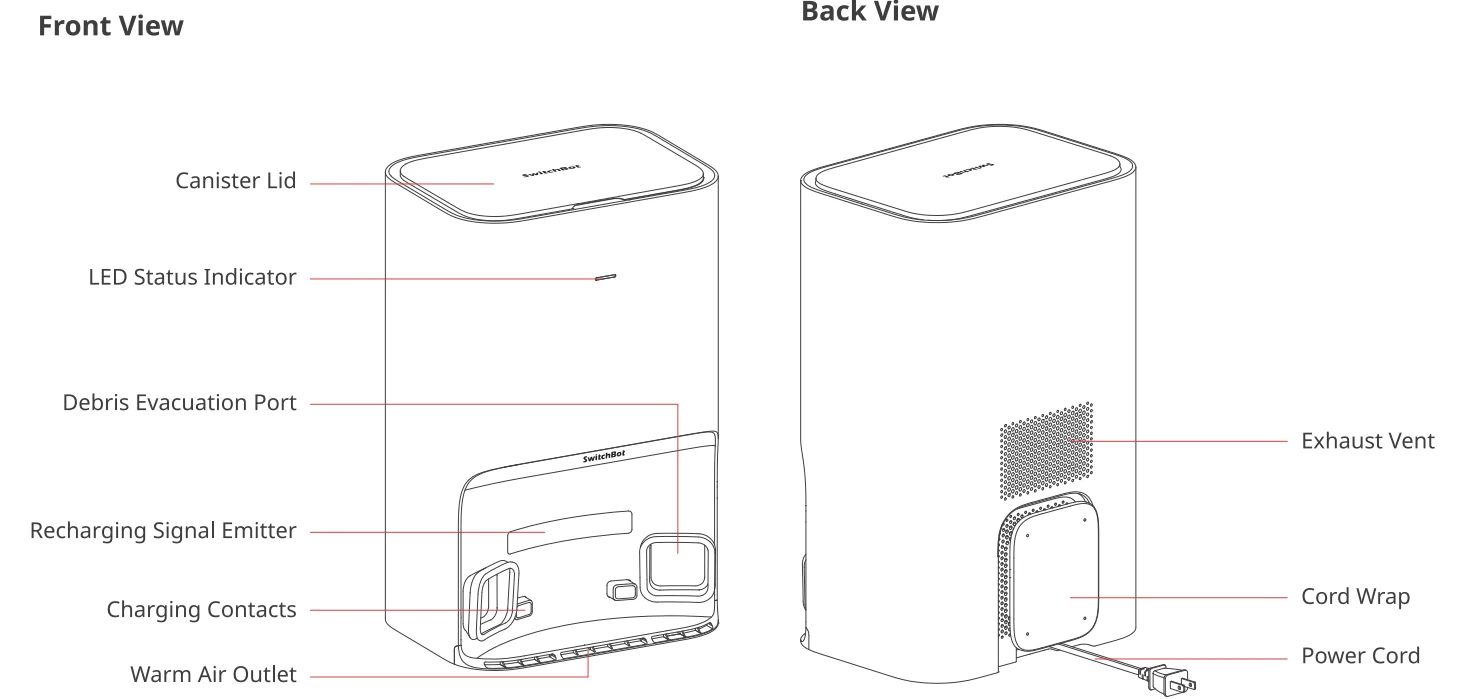
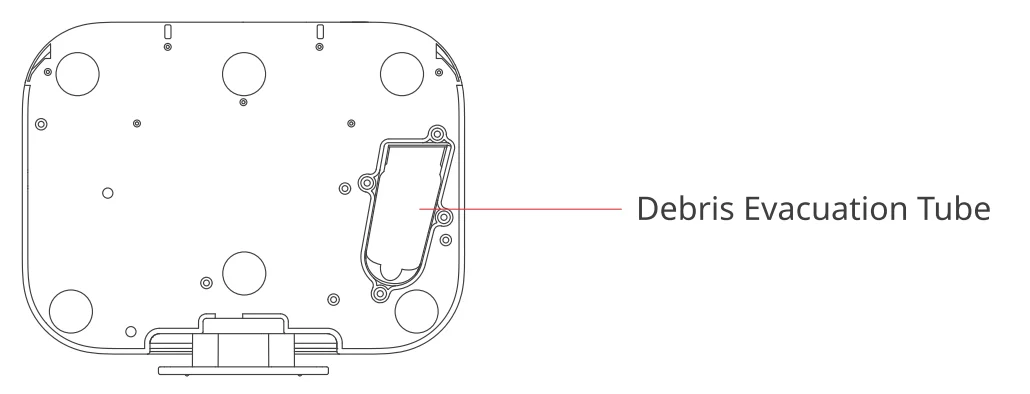
Auto-empty Station
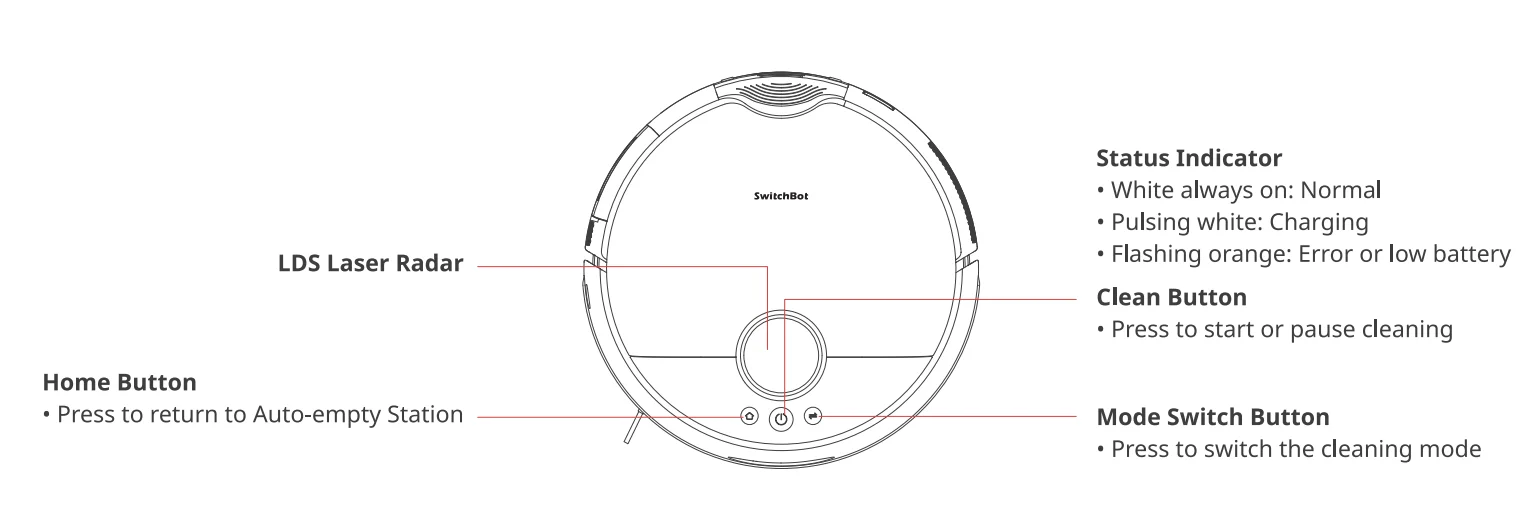
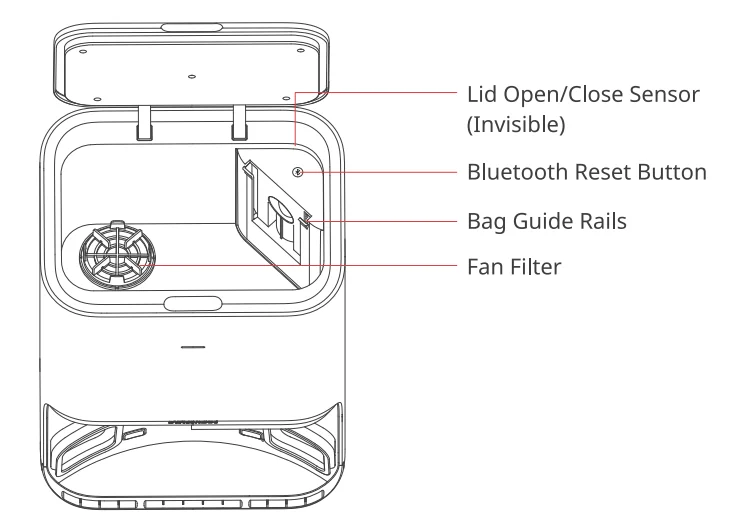
Top View
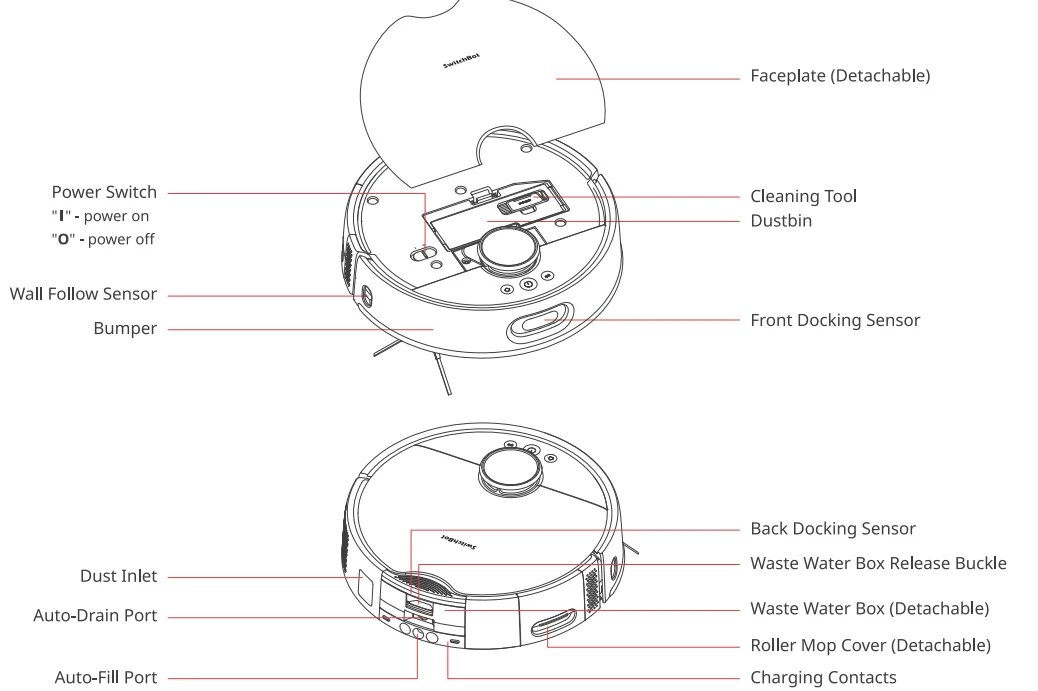
Bottom View
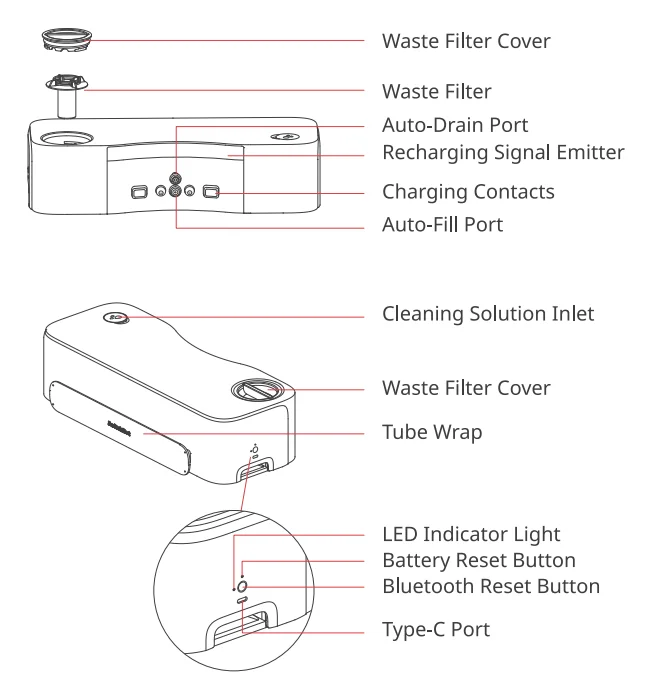
Water Station
Base
Preparing for Use
Tidying Up Your Home Environment
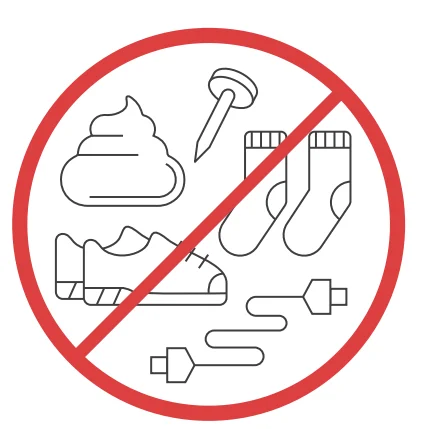
Before starting the robot, please check the floor and clean up any scattered items such as wires, socks, slippers, children’s toys, etc. to improve the efficiency of the robot. Clear the floor of hard or sharp objects (e.g., nails, glass), and move away items that are fragile, valuable, or potentially dangerous to avoid being caught, tangled, or knocked over by the robot, causing personal or property damage.
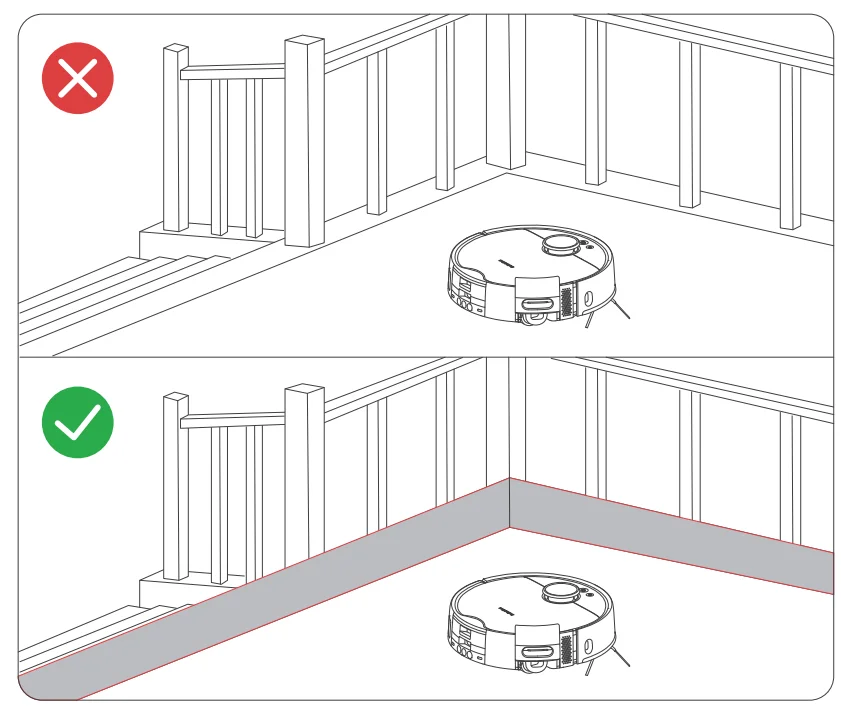
Before cleaning, please use a physical barrier to avoid areas that are hanging in the air or low, ensuring the safety and smooth operation of your robot.
Open the doors of the rooms to be cleaned, arrange the furniture neatly, and try to clear the largest cleaning space. Please avoid standing in front of your robot, doorways, or narrow passages in case your robot cannot detect the area to be cleaned.
Note:
- When using the robot for the first time, follow it throughout its whole cleaning route and watch for potential problems. This will help you identify and resolve minor issues, ensuring a more efficient cleaning process in the future.
- If the robot gets stuck under low furniture, you can try the following solutions:
- Block the bottom of the furniture.
- Set a virtual wall in the app to prevent the robot from entering.
- If possible, raise the furniture slightly.
Placing the Auto-Empty Station
- Place the Auto-empty Station on a hard, level surface (such as a floor or ceramic tile) against a wall, ensuring there is at least 1 meter of space in front and above, and 0.5 meters on both sides. Make sure the location has a good Wi-Fi signal to provide a better network connection and app user experience.
- Plug the Auto-empty Station into an outlet, ensure the indicator light turns on, and store any excess cable in the Cord Wrap.
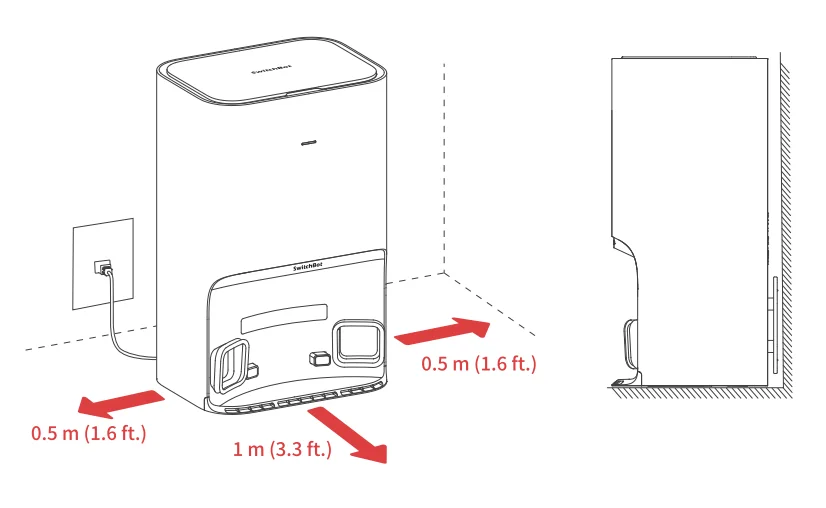
Note:
- The power cord may be dragged by the robot if hanging on the ground, causing the Auto-empty Station to move or disconnect from power.
- The indicator light on the Auto-empty Station will stay on when powered, and go off when the robot is charging.
- If there is an issue with the Auto-empty Station, the indicator light will turn red and stay on as a reminder.
- Make sure to place the Auto-empty Station on a level indoor surface, away from open flames, heat sources, water, narrow spaces, or areas that may cause the robot to hang in the air.
- Placing the Auto-empty Station on non-hard surfaces (such as carpets, mats, etc.) poses a risk of tipping over, and the robot may not be able to leave the Auto-empty station properly.
- Do not place the Auto-empty Station under direct sunlight or block its signal emitter area with any objects, as this may prevent the robot from returning automatically.
- Please maintain the Auto-empty Station according to the maintenance instructions and avoid using wet cloths or wipes for cleaning.
Preparing Your Robot
Removing the protective foam strips
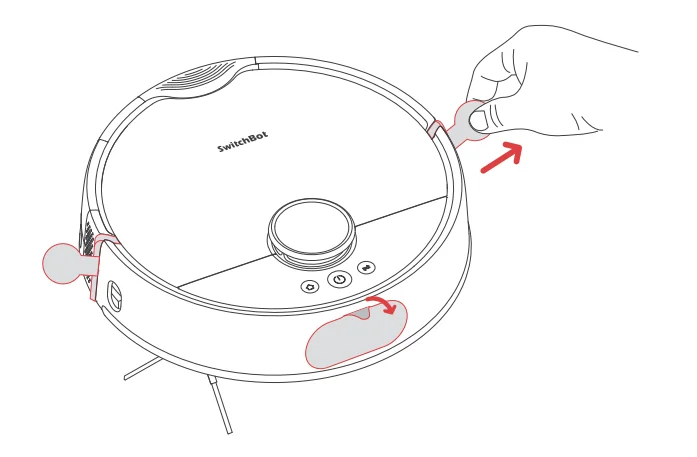
Installing the Side Brush
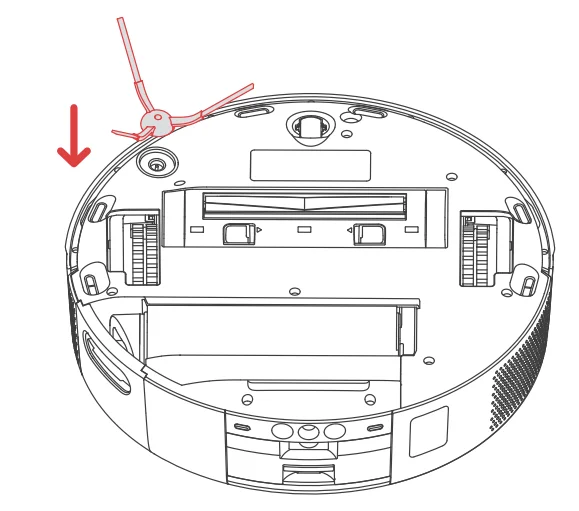
Tip: When you hear a clicking sound, it means the Side Brush has been properly installed.
Powering on and charging
- Remove the faceplate as shown in the picture, and turn on the Power Switch. “I” means powering on, and “O” means powering off.

- Wait for the indicator light on your robot to light up, then
- to charge, as shown in the picture. You will hear the voice prompt “Charging”.

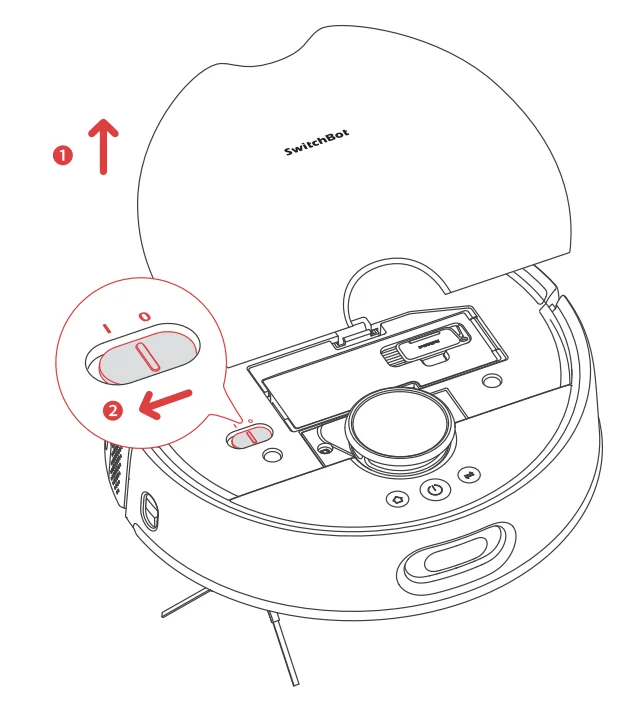
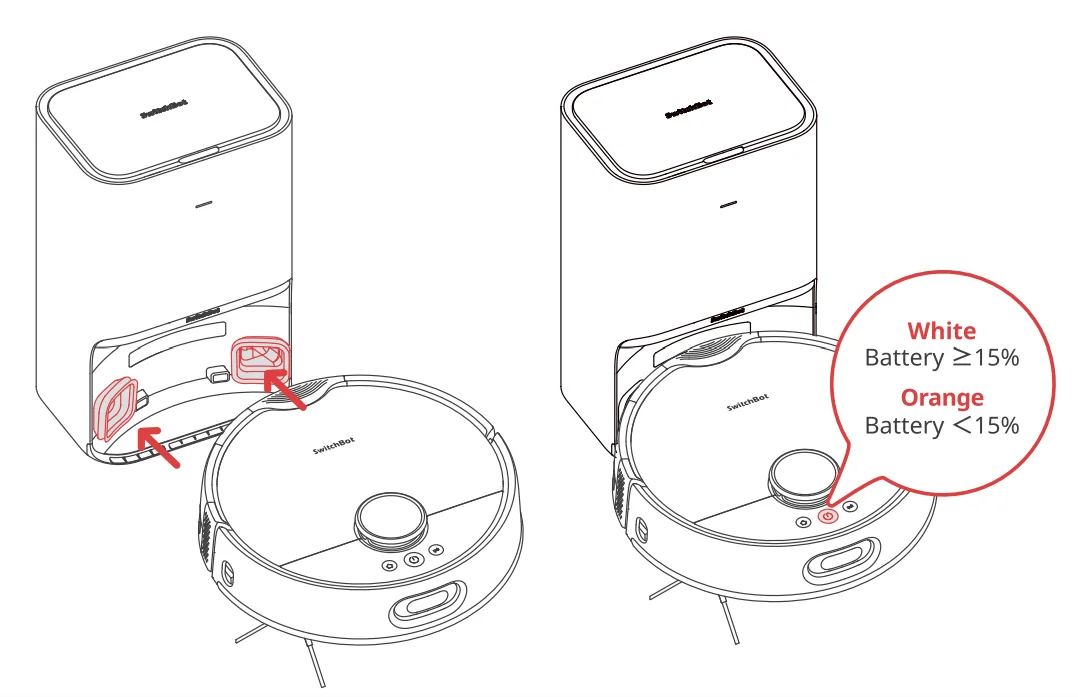
Note:
- To maintain battery performance, please keep the robot charged during daily use.
- Before using the robot for the first time, it is recommended to charge it for a while. If it cannot be turned on, it might be due to an insufficient battery. Please dock the robot directly to the Auto-Empty Station.
Water Station Activation
Please activate the Water Station before use: Press and hold the Bluetooth Reset Button for 2 seconds until the indicator light flashes white.
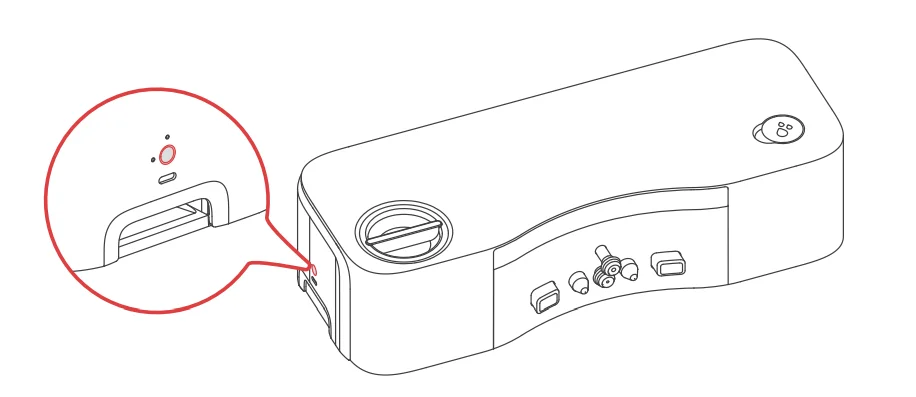
Please note: If activation fails, use a 5V 2A Type-C charger to charge the Water Station for 6 hours first.
Installing the Water Station
Please follow the User Manual of the Switch Bot Floor Cleaning Robot
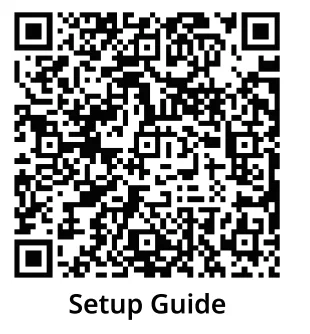
S10 Water Station to install your Water Station. support.switch-bot.com/hc/en-us/sections/18659086869911
Please note:
- The Water Station has two connected hoses on its back, one for water inlet and one for water draining. The inlet hose can be connected to your home’s water inlet system to provide clean water for mopping and washing the Roller Mop. The drain hose can be connected to your home’s drain system to discharge the wastewater.
- Water inlet requirements: water pressure should be between 0.1 MPa to 0.6 MPa, and water temperature should be below 40 °c.
- Please refrain from using old hose sets when setting up your appliance.
Instructions for Use
Connecting to Our App
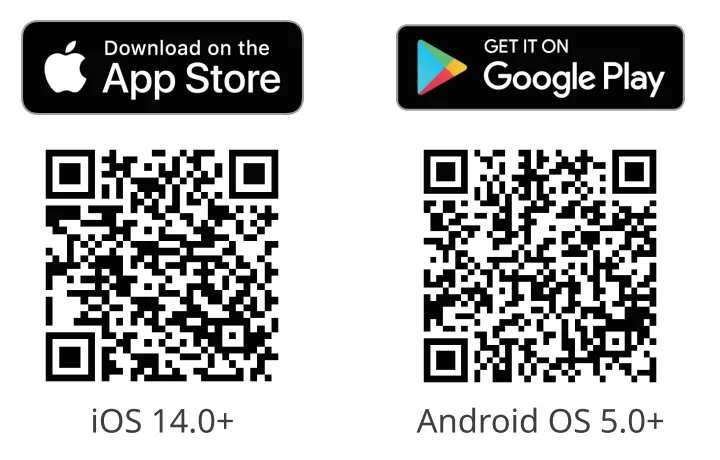
- Download the SwitchBot app to experience more personalized settings and a better user experience.
You will need:- A smartphone or tablet using Bluetooth 4.2 or later.
- The latest version of our app is downloadable via the Apple App Store or Google Play Store.
- A SwitchBot account, you can register via our app or sign in to your account directly if you already have one.

- Open our app, tap”+” located at the right-hand corner of the home page, select Add Device.
- Find the device icon and select it. Follow the instructions to add your device.
Mapping and Marking Water Station Position
- Before mapping, make sure your robot is docked to the Autoempty Station and is charged. Then follow the in-app instructions to start mapping. Your robot will automatically return to the Autoempty Station once mapping is complete, and will save its progress.
Tip: When using for the first-time, short-press the button, and your robot will start mapping while cleaning.
 - You will need to mark the position of the Water Station on your map once it is created. Please follow the in-app instructions to complete.
Please note:- If your robot failed to find the Water Station when marking, you can try the following: Manually dock your robot to the Water Station. When successfully docked, press thebutton, and your robot will leave the Water Station, relocate itself, then return to the Auto-empty Station.
- If you move the Water Station after marking its position, remember to update its position via the app.
- If your robot failed to find the Water Station when marking, you can try the following: Manually dock your robot to the Water Station. When successfully docked, press the
- After marking the Water Station position, control your robot via our app or press thebutton on the robot to start. Your robot will start cleaning from the Auto-empty Station.
Starting Your Robot
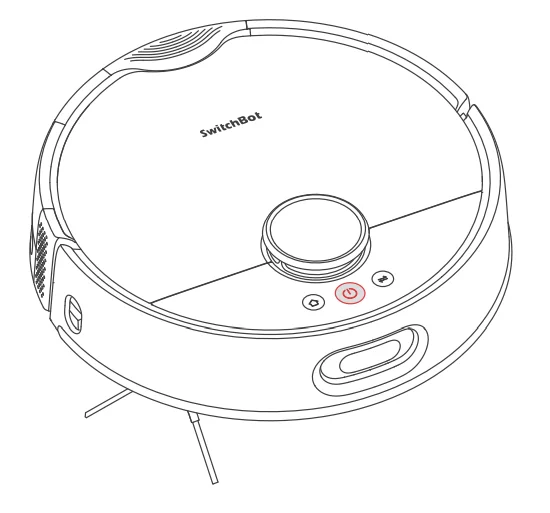
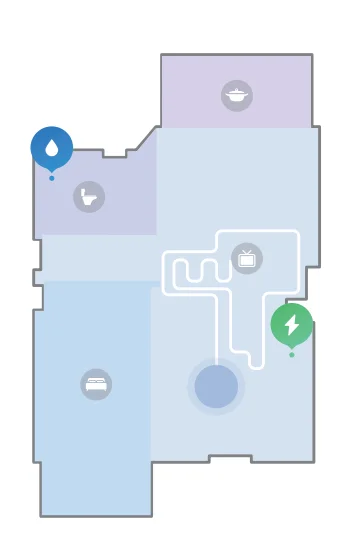
- Press thebutton on your robot, and your robot will plan the cleaning route dynamically based on the scanned map.

- Before mopping, your robot will go to the Water Station (marked) to add clean water first, then return to the task starting point to start.

Note: For first-time use, your robot will automatically work on the Vacuum mode. - During the cleaning process, your robot will determine the timing for exchanging water itself. It will automatically return to the Water Station, drain the waste water and replenish clean water to ensure good cleaning performance.
Note:
- To facilitate the normal water exchange of the robot, please do not move the Water Station during the cleaning and mopping process. If there is a door hiding the Water Station, please keep the door open.
- If the battery is low, please charge it before starting the cleaning task.
- If the battery is insufficient during the cleaning process, the robot will automatically return to the Auto-empty Station for charging.
- When the robot is set to clean carpets, it will automatically raise the Roller Mop when detected. You can choose to bypass carpets in our app.
- Before starting each mopping task, please make sure that the Roller Mop is correctly installed.
Switching Mode
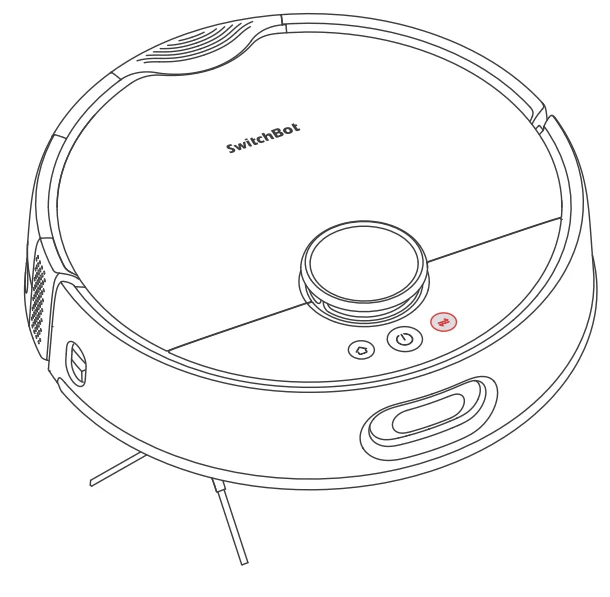
Press the button once to change the cleaning mode of your robot. You will hear a sound and a voice prompt when the mode switches successfully. It will be set to Vacuum mode by default.
Pausing Your Robot
Press any button on your robot to stop it while working. When paused, tap the button to resume the previous cleaning task, tap the
 button to finish the task, and your robot will go to the Water Station first to exchange water and then return to the Auto-empty Station to recharge.
Exchanging Water
- While vacuuming or mopping, your robot will automatically go to the Water Station to exchange water if needed, and then go back to its previous position to resume cleaning.
- After finishing a cleaning task, your robot will go to the Water Station first, have a deep cleaning and replenish clean water, then return to the Auto-empty Station to recharge.
Recharging
After finishing a cleaning task, your robot will automatically return to the Auto-Empty Station to recharge. To manually send it back to recharge, press the@ button on your robot. The indicator light
will be breathing when charging.
Note: If the robot does not find the Auto-empty Station, it will automatically return to the starting position. Please manually dock it to the Auto-empty Station for charging.
Hibernation
If your robot is not operated for more than 10 minutes, it will automatically enter hibernation. Press any button to wake it up.
Please note: The robot will not enter hibernation while charging.
Do Not Disturb Mode
The default setting for this mode is from 22:00 to 08:00, and you can modify or disable it via our app. During the Do Not Disturb period, device button lights will stay off, and your robot will not automatically resume cleaning or play voice prompts.
Child Lock
You can use the Child Lock function in our app to lock the robot buttons. You can unlock it via our app.
Restoring to Factory Settings
Press and hold the++button simultaneously for 6 seconds to restore the robot to factory settings. The voice prompt will say, “Restoring to factory settings.”
Care and Maintenance
To keep your robot running at peak performance, care and maintain your robot regularly as shown in the sheet below.
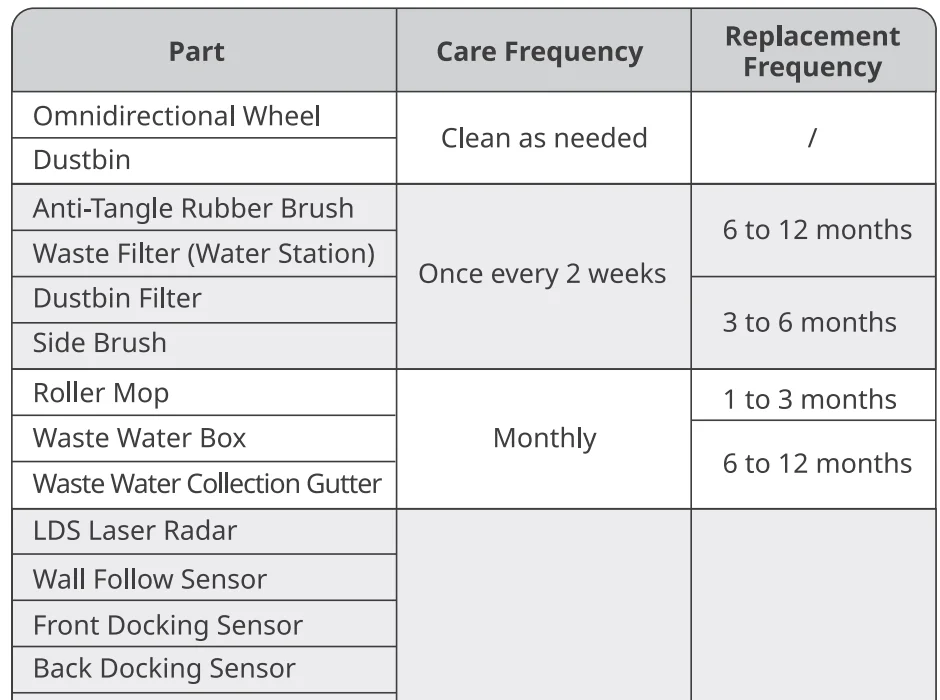
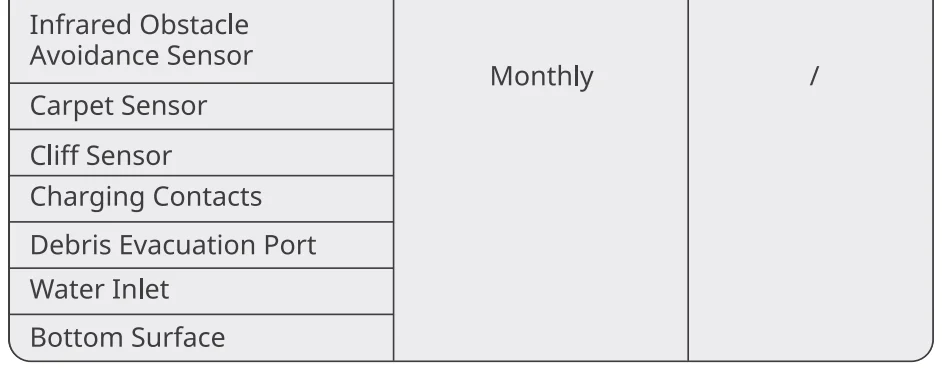
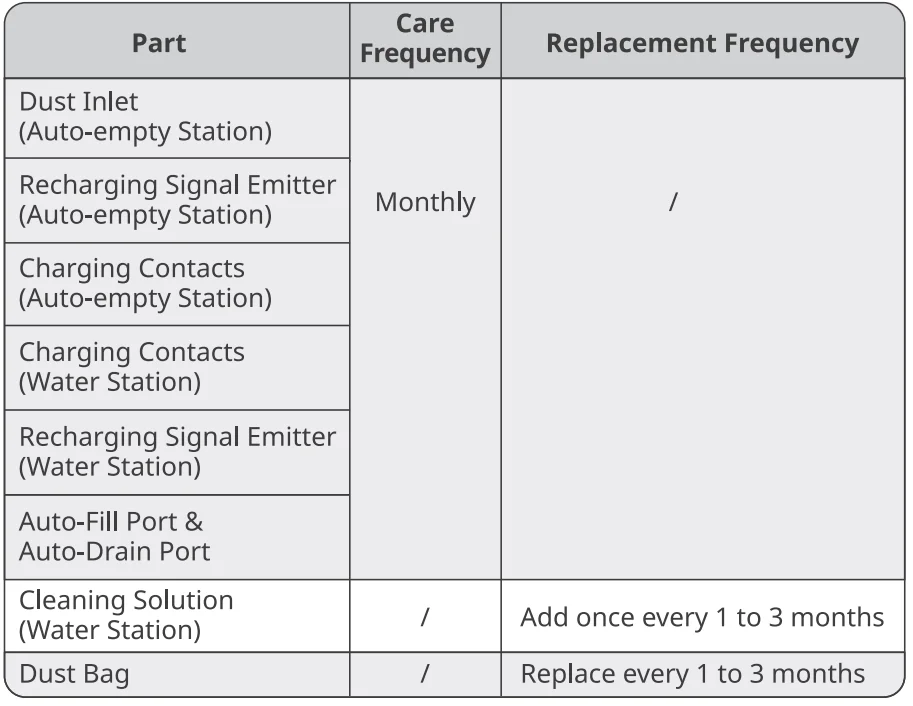 Replacement frequency may vary. Parts should be replaced if visible wear appears. For free replacement parts, please contact our customer support at [email protected]
If you need to purchase a refill of Switch Bot Floor Cleaning Solution, please visit the authorized channels or our official website www.switch-bot.com
Daily Maintenance (Robot)
Cleaning tools needed
Common Issues
Unable to power on
- The battery level is low. Put the robot on the charging station and charge it before use.
- The ambient temperature is too low or too high. Only use the robot within the range of 4°C to 40°C (39°F to 104°F).
Unable to charge
- The Auto-empty Station is not powered. Please make sure both ends of the power cord are plugged in properly.
- Poor contact, please clean the charging contacts on the Auto-empty Station and the robot.
Network connection failure
- Incorrect Wi-Fi password, please enter the correct Wi-Fi password.
- Switch to a 2.4GHz network for pairing, as 5GHz networks and enterprise routers are not supported.
- Keep the robot within a range with a good Wi-Fi signal strength. The robot may not be in the ready-to-configure state. Exit the app and re-enter, then follow the pairing steps to try again.
Unable to create a partition map in the app
- The robot needs to start mapping from the Auto-empty Station; it is recommended to use the Fast Mapping feature.
- Do not move the robot during the first mapping process to avoid locating failure.
- If the robot does not return to the Auto-empty Station after completing the first mapping task, check if it has returned properly and remove any obstacles on the ground obstructing it.
Cannot locate the Auto-empty Station, unable to return
- The Auto-empty Station lost power or the robot was moved while being outside.
- The charging route is blocked, such as a closed door.
- Too many obstacles near the Auto-empty Station, please place it in an open area.
- After moving the robot, it will relocate itself. If the location fails, it will generate a new map. If the Auto-empty Station is too far away, it may not be able to recharge. Please manually dock the robot back to the Auto-Empty Station to charge.
- Wipe the signal emission area of the Auto-empty Station in case there is dust or dirt.
- Gently wipe the front Obstacle Avoidance Sensor of the robot with a soft, dry cloth and keep the lens clean and unobstructed.
Slow charging speed
- The robot takes about 6 hours to charge from low to full battery.
- In high or low-temperature environments, the robot will automatically reduce charging speed to extend battery life.
- The charging contact area may be dirty; please wipe it with a dry cloth.
Abnormal behavior
- Please turn off and restart the robot.
The Side Brush fell off
- Please reinstall the Side Brush, making sure to hear a “click” to indicate it is in place.
- The Side Brush may have fallen off due to tangled wires. Please clear wires on the floor before use.
Ground not cleaned up
- The dustbin is full. Please empty it.
- The filter may be clogged with dust. Please check and clean as necessary.
- If the filter is not dry after cleaning. Please let it air dry before using.
Dust leaked while working
- Remove the Anti-Tangle Rubber Brush and dustbin, and clear any debris near the Anti-Tangle Rubber Brush.
Loud operating noise
- The dustbin is full. Please empty it.
- Hard objects may be tangled in the Anti-Tangle Rubber Brush and dustbin. Please check and clean as necessary.
- The Side Brush and Anti-Tangle Rubber Brush may be tangled with debris. Please check and clean as necessary.
- You can lower the suction power of the robot to Quiet or Low if necessary.
Abnormal sound emitted while moving
- Rotate and press the wheels to check for any debris tangled or stuck. Clean the debris or contact customer service if the issue persists.
Random movement path
- Loose wires, slippers, and other objects on the floor may affect the robot’s normal operation. Please tidy up before use.
- Working on wet and slippery floors may cause the wheels to slip. Please manually wipe or air-dry the floor before using.
Stopped due to being stuck
- The robot may be stuck under furniture of a similar height. Consider raising the furniture, manually blocking or using our app to set a virtual wall to avoid the area.
- Check the corresponding area for any wires, curtains, or carpet edges that may be tangled with or obstructing the robot. Manually remove any obstructions for smooth operation.
Missed cleaning some rooms
- Please ensure all room doors are fully opened.
- Check if there is a doorstep higher than 1.8 cm at the entrance of the room, as this product cannot overcome higher doorsteps.
- If the entrance is slippery, causing the robot to skid and malfunction, it is recommended to manually clean up the water on the floor.
- Check if there is a small mat or carpet at the entrance of the room. When in Mop mode, the robot will avoid carpets. You can disable the carpet detection feature in the app settings page.
Frequently entered No-go Zones or passed Virtual Walls
- Check the app to see if the current map is abnormal. You can restore the map in Map Management settings.
- When setting virtual walls or No-go Zones, adjust the boundaries according to the home environment, making sure to include areas prone to getting stuck (such as sunken steps, furniture bottoms, etc.).
Stopped the ongoing cleaning task suddenly
- When the robot’s battery is depleted, it will automatically shut down.
Note: If the robot cannot be charged by the Auto-empty Station, the possible cause is that the Auto-empty Station is not connected to power or there is poor contact between the robot and the Auto-empty Station. Please check if the power supply is connected properly.
Didn’t resume cleaning after being fully charged
- Make sure the robot is not in Do Not Disturb mode, as it will not resume cleaning in this mode.
- If the robot is manually carried to the Auto-empty Station or is sent to the Auto-empty Station by pressing the Home button, it will not resume cleaning after being fully charged.
Scheduled cleaning is not effective
- The cleaning will only start when the remaining battery is more than 20%.
Didn’t empty the dust after returning
- The robot will not empty dust during the Do Not Disturb time period.
- Please check if the dust bag is full. Replace the dust bag in a timely manner, preferably every 1 to 2 months.
- Ifthe dust bag is not full, check for blockages in the Debris Evacuation Port and the bottom Debris Evacuation Tube of the Auto-empty Station. Remove any blockages before using.
LED Indicator on the Auto-Empty Station stays orange
- The dust bag is not in position. Please check and install it correctly.
- The dust bag is full. Please check and replace with a new dust bag.
- The canister lid of the Auto-Empty Station is not closed. Please check and close it tightly.
How often should the cleaning solution be replaced?
- Enable the automatic cleaning solution refill feature in our app. You will be prompted when the cleaning solution level is low. Check and refill as needed.
If you need further assistance, please contact SwitchBot technical support experts at support.switch-bot.com
Specifications
SwitchBot Floor Cleaning Robot S10
- Name: Switch Bot Floor Cleaning Robot S10
- Battery: 21.6 V / 4000 mAh lithium-ion battery
- System Requirements: iOS 14.0+, Android OS 5.0+
- Network Connectivity: 2.4 GHz Wi-Fi, Bluetooth 4.2
- Rated Power: 85 W
- Charging Time: 6 h
Switch Bot Auto-empty Station
- Rated Input: 220 – 240 V 50/60 Hz
- Rated Power (Charging): 36 W
- Rated Power (Emptying Dust): 800 W
- Rated Power (Drying Mop and Charging): 200 W
- Rated Output: 24 V == 1.5 A
For more manuals by SwitchBot, visit ManualsLibraryy
SwitchBot Floor Cleaning Robot S10-FAQs
How do I reboot the SwitchBot Floor Cleaning Robot S10?
To reboot the S10, press and hold the Home, Mode Switch, and Clean buttons together for more than 6 seconds. The robot will restart automatically. Rebooting is useful if the device becomes unresponsive, disconnects from Wi-Fi, or shows minor software glitches. This process does not delete saved maps or cleaning schedules, making it a safe first troubleshooting step.
How do I factory reset the SwitchBot S10?
To perform a factory reset, press and hold the Home, Clean, and LiDAR sensor area simultaneously for about 6 seconds until you hear a confirmation tone. A factory reset erases Wi-Fi settings, saved maps, scheduled cleanings, and custom preferences. Only use this option if you’re troubleshooting serious issues or preparing the robot for a new owner.
What happens after resetting the S10?
After a factory reset, the S10 returns to its original factory settings. All saved maps, cleaning history, schedules, and Wi-Fi information will be permanently deleted. You’ll need to reconnect the robot to the SwitchBot app and complete the setup process again. Make sure to back up any important settings before performing a full reset.
How can I perform a soft reset (power cycle) on the S10?
For a soft reset, press and hold the Power/Clean button for about 3 seconds until the robot turns off. Wait 30–60 seconds, then press the button again to power it back on. A soft reset is helpful for minor issues like temporary freezing, navigation delays, or app connection problems without deleting stored data.
Why is my SwitchBot S10 not connecting to Wi-Fi?
If your S10 won’t connect, check that you’re using a 2.4 GHz Wi-Fi network, as many robot vacuums do not support 5 GHz bands. Restart your router and the robot, then try pairing again through the SwitchBot app. If problems persist, perform a reset and reconfigure Wi-Fi settings from scratch to restore connectivity.
How do I re-pair the SwitchBot S10 with the app?
Open the SwitchBot app and select “Add Device.” Put the robot into pairing mode by following the reset or Bluetooth pairing instructions in the app. Ensure Bluetooth is enabled on your phone and stay close to the robot during setup. After successful pairing, reconnect it to Wi-Fi and allow it to rebuild or restore mapping data.
Why is my SwitchBot S10 not cleaning properly?
Poor cleaning performance can result from a full dustbin, clogged filter, tangled brushes, or low battery power. Check and clean the main brush, side brushes, and filter regularly. Also ensure the water tank (if using mop mode) is properly filled and installed. Regular maintenance significantly improves suction power and overall cleaning efficiency.
How do I turn off the SwitchBot S10 manually?
To power off the robot, press and hold the Power/Clean button for 2–3 seconds until the lights turn off or you hear a shutdown sound. This fully powers down the device. Turning it off is useful when transporting the robot, storing it for long periods, or performing maintenance.
How do I troubleshoot if the robot is not charging?
If the S10 isn’t charging, ensure the charging dock is properly plugged in and positioned against a wall. Clean the charging contacts on both the robot and dock using a dry cloth. Remove any debris blocking alignment. If charging still fails, reboot the robot and check the battery status in the app before considering service support.