

SwitchBot Lock Pro
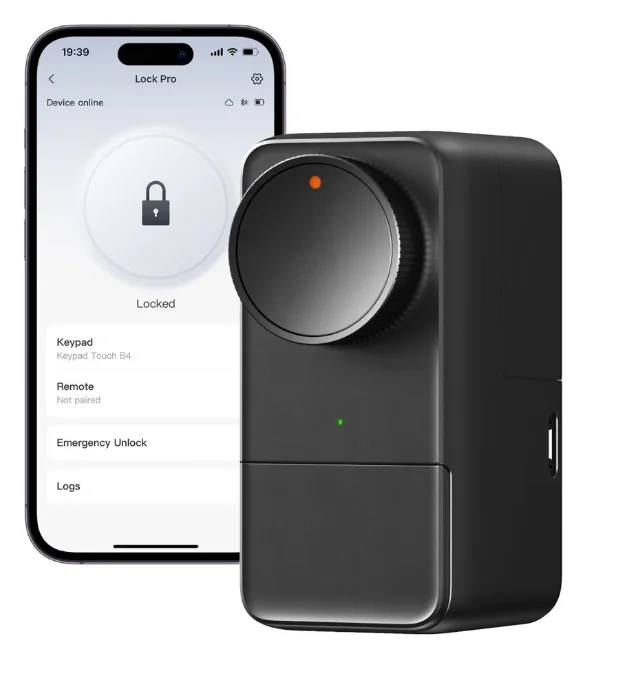
Package Contents
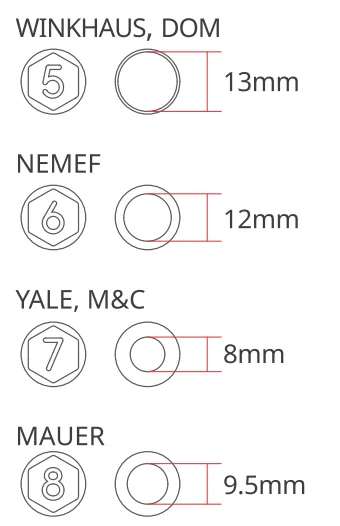
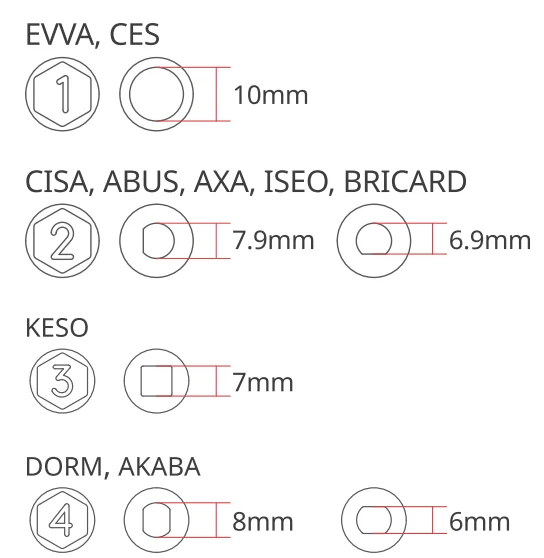
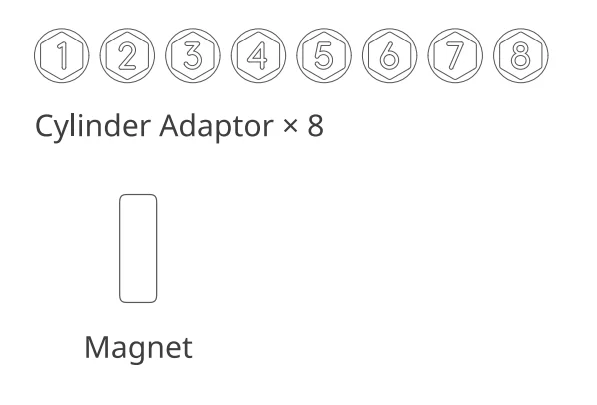
List of Components
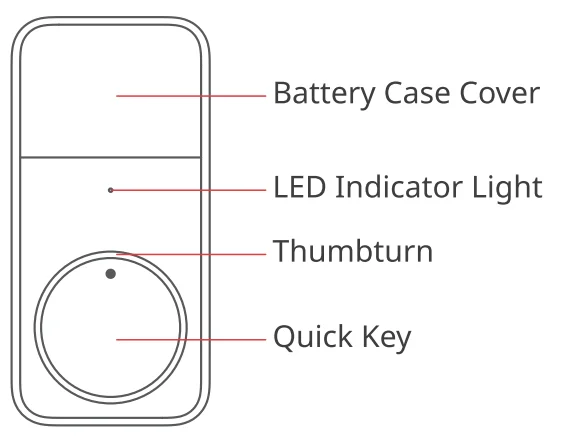
Preparation
You will need:
- A smartphone or tablet using Bluetooth 4.2 or later.
- The latest version of our app is downloadable via the Apple App Store or Google Play Store.
- A Switch Bot account, you can register via our app or sign in to your account directly if you already have one.
Please note: If you want to control your Lock remotely, receive notifications or use the third-party services, you will need a Switch Bot Hub (sold separately).
Safety Information
- Keep this product away from heat and humidity, and make sure it does not come into contact with fire or water.
- Do not touch or operate the product with wet hands.
- This product is a precision electronic product; please avoid physical damage.
- Do not attempt to disassemble, repair, or modify the product.
- Do not use the product where wireless devices are not allowed.
Installation
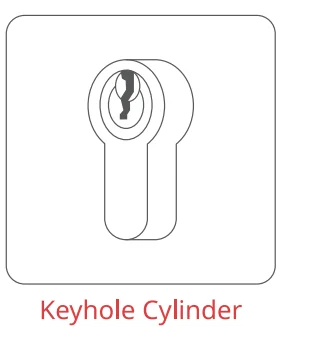
Step 1: Check your cylinder type
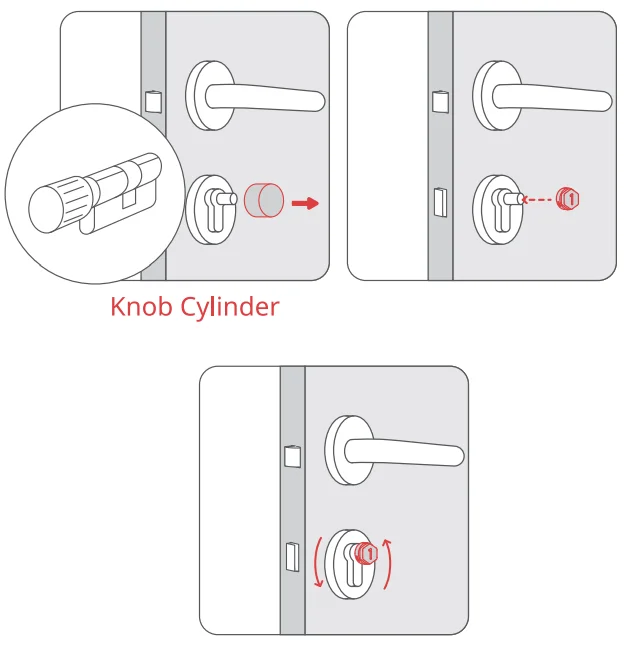
- If the interior side of your lock cylinder is a knob, please remove the knob first according to the cylinder user manual. Select a compatible cylinder adaptor in the package. Attach it to your cylinder and make sure it can turn the cylinder.

- If the interior side of your lock cylinder is a keyhole, please proceed to the next step directly.

Step 2: Select a suitable mounting bracket
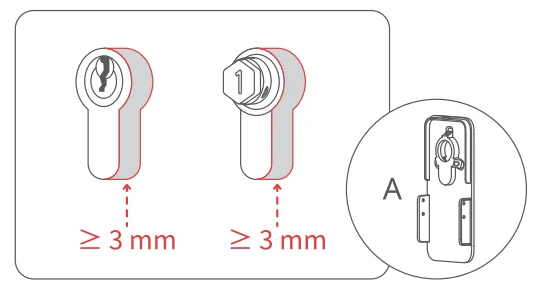
Measure the height of the part of your cylinder that stands out.
- If the height is≥3 mm, please use mounting bracket A.

Step 3: Install the mounting bracket
Mounting bracket A:
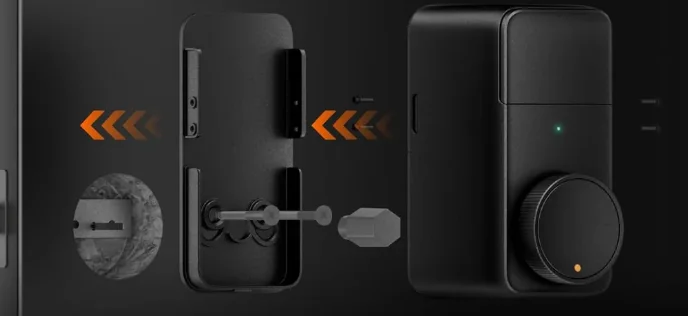
Align the hole on the mounting bracket with the cylinder, and attach the mounting bracket to your door lock. Use the small hex key to secure the three hex screws on the bracket.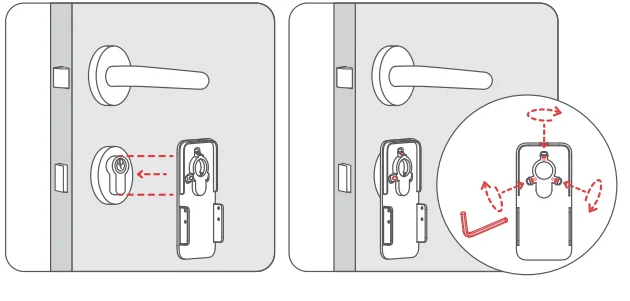
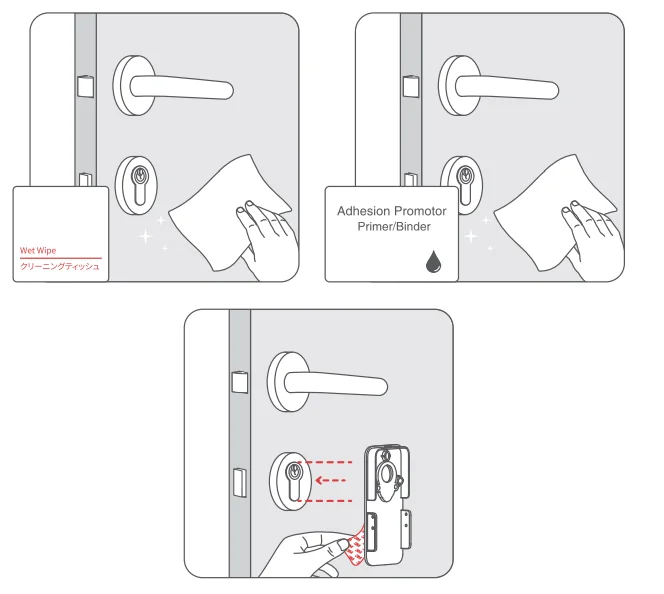
Mounting bracket B:
Clean the installation surface using the provided wet wipe first. Apply the adhesion promoter to the installation area. Peel off the 3M adhesive tape liner on the back of the mounting bracket, align the hole of the mounting bracket with your lock cylinder, then firmly attach it on your door. Press for at least 2 minutes to ensure a secure installation.
Tip: If the contact area is small or if you are concerned about the stickiness of the adhesive tape, you can use screws to secure the mounting bracket. Refer to the following pictures to operate.
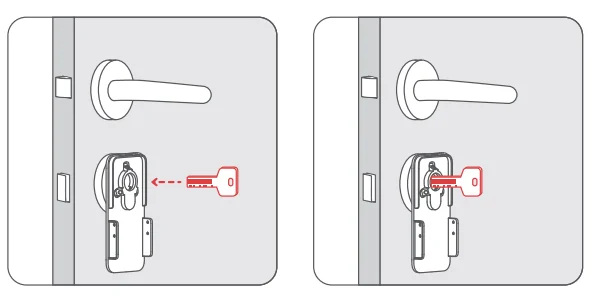
Step 4: Insert the key (Only applicable to keyhole cylinders)
Insert the key into the cylinder
Step S: Install your Lock Pro
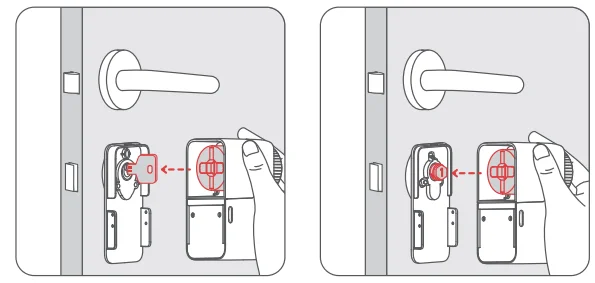
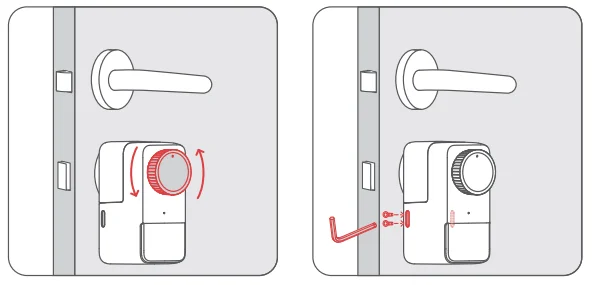
- Turn the thumbturn of Lock Pro to align the back groove with the key or the cylinder adaptor, and fit the key or the cylinder adaptor into the groove securely.

- Screw the four hex screws into the screw holes on the two sides of Lock Pro.

Step 6: Install the magnet
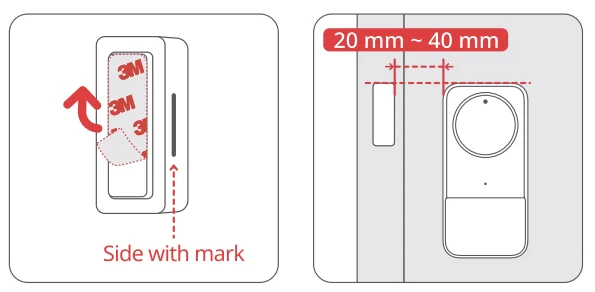
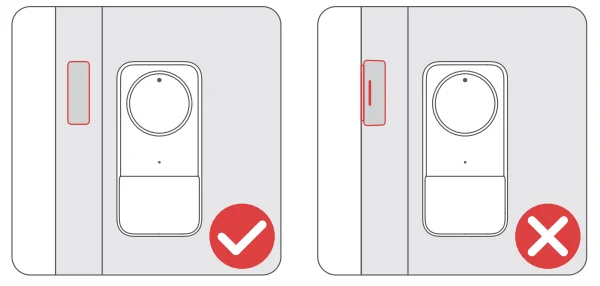
- Install the magnet based on the actual installation position of your Lock Pro. It’s recommended that the top of the Lock Pro thumbturn and the magnet are aligned horizontally, and the distance between them is in the range of 20 to 40 mm.
- Peel off the tape liner on the back of the magnet, stick it to your door frame, and press and hold for 60 seconds or more to finish.
Please note:
- Place your magnet with the marked side facing your Lock Pro thumbturn. Failure to do so will result in your device being unable to detect door opening and closing.
- If the tape at the back of the magnet lacks adhesion, stick the Additional Double-sided Tape on the side marked. Then stick the magnet onto your door frame.
Tip: After installing and calibrating with the magnet. You can view your door’s status and use features like Auto-Lock in our app.
Step 7: Add Lock Pro to the SwitchBot app and calibrate
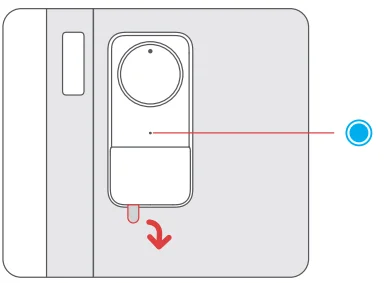
- Remove the battery isolation tab. Once Lock Pro is powered on, the LED indicator light on the front will flash blue slowly, indicating your device is in pairing mode.

- Open our app and tap the “+” icon located in the right-hand corner of the home page and select Add Device. Find the device icon and select it. Then follow the instructions to add Lock Pro and complete the calibration procedure.
Step 8: Apply Temporary Support Tape
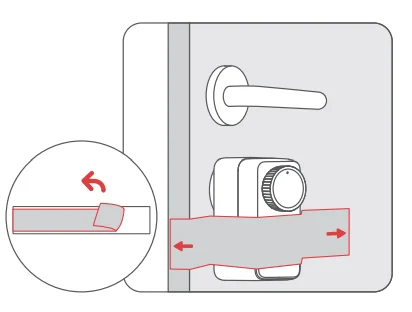
- If you selected mounting bracket B to install your Lock Pro, you need to apply the Temporary Support Tape as the final step. As shown in the picture below, choose an angle and apply the Temporary Support
Tape (blue) to your Lock Pro. Make sure the tape is pressing against Lock Pro and stays taut. - After 48 hours, hold your Lock Pro and gently remove the tape. Your Lock Pro can be used normally within the 48 hours.

Congratulations! You are ready to go.
Precautions
- This product will fail to lock/unlock your door if the batteries run out. Please regularly check the remaining battery via the app or the LED indicator light and replace it when needed. Please also bring a key when leaving home to avoid being locked out.
- This product is for indoor use only.
- If you notice any product malfunction, please stop using it immediately and contact our customer support team.
Quick Key
After Lock Pro is calibrated, you can lock or unlock your door by short-pressing the Quick Key. Other settings or disabling the button can be done via our app.
LED Indicator Light
Battery Replacement
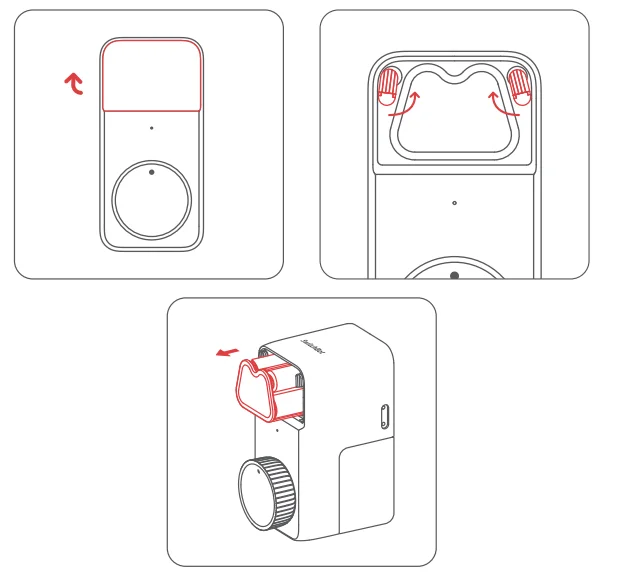
When your device battery level drops to less than 20%, Lock Pro will emit a sound and a red light every time you lock or unlock. When this happens, please replace the batteries as soon as possible. How to replace batteries: Open the battery case cover, turn the two clip buckles following the marks, remove the battery holder, and replace it with 4 new AA batteries.
Resetting Factory Settings
If you are not using Lock Pro, open our app, navigate to Lock Pro> Settings, and delete your device. Once deleted, all data related to your Lock Pro will be deleted and your device will be reset to factory settings. Please operate with caution.
Please visit support.switch-bot.com for more details.
Find Out More
Please visit https://support.switch-bot.com/hc/en-us/sections/4408365198103 for more details.
Specifications
- Color: Black
- Material: Aluminium-magnesium alloys, PC+ABS
- Size: 120 x 59 x 83.9 mm (4.7 x 2.3 x 3.3 in.)
- Weight: 435 g (15.3 oz.) (with batteries)
- Battery: 4 AA dry batteries (1.5 V 2900 mAh)
- Working Environment: Indoor only
- System Requirements: iOS 14.0+, Android OS 5.0+
- Connectivity: Bluetooth 4.2 or later
- Operating Temperature: -1 0 °C to 45 °C (14 °F to 113 °F)
- Operating Humidity: 10 % to 90 % RH
Troubleshooting
For more information regarding troubleshooting your device, please visit support.switch-bot.com/he/en-us/sections/4408365197079, or scan the QR code below.
Disclaimer
- This product is a precision device. We are not responsible for any damage or malfunction caused by improper handling, such as dropping or vibration during carrying or installation.
- This product is intended for lock control and is not intended to prevent theft. We are not responsible for any accidents or damages that occur after installing this product.
- Always carry a physical key when going out. as we are not responsible for the expenses of unlocking the door after being locked outside due to battery depletion or improper operation of the product.
- This product is designed for indoor use only. We are not responsible for any damage or malfunction caused by direct sunlight or exposure to wind and rain.
- We are not responsible for any damage to the door surface or peeling of paint when removing the product.
- We are not responsible for any issues arising from unauthorized repairs, adjustments, or modifications, or from using fake products for installation, repair, or modification.
- We are not responsible for any damages caused by natural disasters such as earthquakes, lightning, wind and water damage, fires that are not caused by the product, third-party actions, intentional or negligent misuse by the customer, or other abnormal usage conditions.
- We are not responsible for any incidental damages arising from using or inability to use this product (such as changes or loss of recorded content, loss of business profits, business interruption, theft of property, being locked out due to battery depletion).
- We are not responsible for any damages resulting from not following the content of this manual.
Warranty
We warrant to the original owner of the product that the product will be free from defects in materials and workmanship. Please note that this limited warranty does not cover:
- Products submitted beyond the original limited warranty period.
- Products on which repairs or modifications have been attempted.
- Products subjected to falls, extreme temperatures, water, or other operating conditions outside the product specifications.
- Damage due to natural disaster (including but not limited to lightning, flood, tornado, earthquake, or hurricane, etc.).
- Damage due to misuse, abuse, negligence or casualty (e.g. fire).
- Other damage that is not attributable to defects in the manufacture of product materials.
- Products purchased from unauthorized resellers.
- Consumable parts (including but not limited to batteries).
- Natural wear of the product.
Contact & Support
- Setup and Troubleshooting: support.switch-bot.com
- Support Email: [email protected]
- Feedback: If you have any concerns or problems when using our products, please send feedback via our app through the Profile > Help & Feedback page.
For more manuals by SwitchBot, visit ManualsLibraryy
SwitchBot Lock Pro-FAQs
How do I reset the SwitchBot Lock Pro?
To reset your SwitchBot Lock Pro, remove the batteries and reinsert them to restart the device. If you need a full factory reset, press and hold the reset button (located inside the battery compartment) until the indicator light flashes. This restores default settings and removes previous pairings. After resetting, reconnect the lock to the SwitchBot app and complete the setup process again.
Where is the magnet located on the SwitchBot Lock Pro?
Unlike earlier SwitchBot models, the Lock Pro’s magnetic sensing area is positioned at the bottom left of the dial knob. You can attach the magnet to either side of the main unit’s dial knob, depending on your door configuration. Proper magnet alignment ensures accurate door status detection, helping the app correctly show whether your door is open or closed.
How do I install the magnet for SwitchBot Lock Pro?
First, close your door fully and identify the sensing area on the lock (bottom-left of the dial). Place the magnet on the door frame so it aligns closely with the sensing area when the door is shut. Use the provided adhesive to secure it firmly. Make sure the gap between the magnet and lock body is minimal for reliable detection and consistent door status updates.
What are the dimensions of the SwitchBot Lock Pro?
The SwitchBot Lock Pro measures approximately 120 × 59 × 83.9 mm (4.7 × 2.3 × 3.3 inches). Its compact design allows it to fit most standard door locks without major modifications. Despite its small footprint, it houses a powerful motor and battery system designed for smooth, automatic locking and unlocking.
How long does the SwitchBot Lock Pro battery last?
Battery life typically lasts up to 9–12 months under normal daily use, depending on door usage frequency and environmental conditions. Colder temperatures may reduce battery performance slightly. The SwitchBot app notifies you when battery levels are low, giving you enough time to replace them before the lock stops functioning.
How can I check the battery level of my SwitchBot Lock Pro?
You can check the battery status directly within the SwitchBot app. Open the app, select your Lock Pro device, and view the battery percentage displayed on the dashboard. If the level is low, replace the batteries promptly to avoid interruptions. The lock may also show indicator light alerts when power is running low.
Why is the blue light blinking on my SwitchBot Lock Pro?
A blinking blue light usually indicates that the device is in pairing mode. This happens during initial setup or after a reset. If pairing is not completed within a short time, the light may stop blinking automatically. Simply remove and reinsert the batteries to re-enter pairing mode and reconnect the device to your smartphone.
Can I control SwitchBot Lock Pro remotely?
Yes, but remote control requires a SwitchBot Hub (such as Hub Mini or Hub 2). The lock itself connects via Bluetooth, but the hub enables Wi-Fi access for remote locking/unlocking and voice assistant integration. Once connected through a hub, you can control your door from anywhere using the SwitchBot app.
What happens if the battery dies in the SwitchBot Lock Pro?
If the batteries completely drain, the lock will stop responding electronically. However, you can still use your physical key to unlock the door manually. To prevent this situation, monitor battery alerts in the app and replace batteries promptly when notified.
What should I do if my SwitchBot Lock Pro is not working properly?
First, check the battery level and replace if necessary. Ensure the magnet is aligned correctly and that the lock is firmly mounted. Restart the device by reinserting the batteries. If issues persist, reset the lock and reconnect it through the app. For mechanical issues, confirm your door lock turns smoothly without excessive resistance.