

Urbanista Santiago Noise Cancelling Earphones
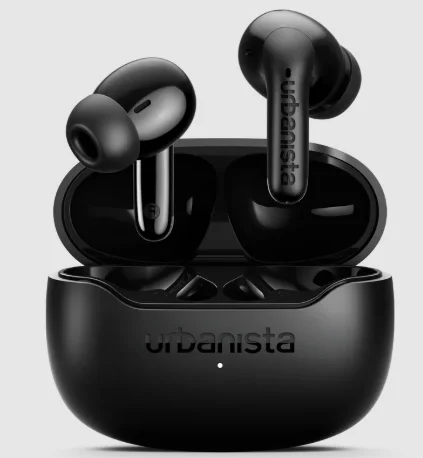
The Urbanista Santiago Noise-Cancelling Earphones are designed to deliver a rich and immersive listening experience wherever you go. Featuring advanced noise-cancelling technology, these earphones help reduce unwanted background noise so you can focus on your music, calls, or podcasts without distractions. The sleek and lightweight in-ear design provides a comfortable and secure fit, making them perfect for daily use, commuting, workouts, or travel.
With high-quality audio drivers, the earphones produce clear sound, balanced tones, and deep bass for an enjoyable listening experience. The built-in microphone also allows for smooth, hands-free calls, while the stylish and compact design makes them easy to carry anywhere. Combining comfort, performance, and modern style, the Urbanista Santiago Noise-Cancelling Earphones are a reliable choice for anyone who wants quality sound on the go.
WELCOME TO URBANISTA
Thank you for choosing Urbanista Santiago. This guide will help you get started and make the most of your new earphones.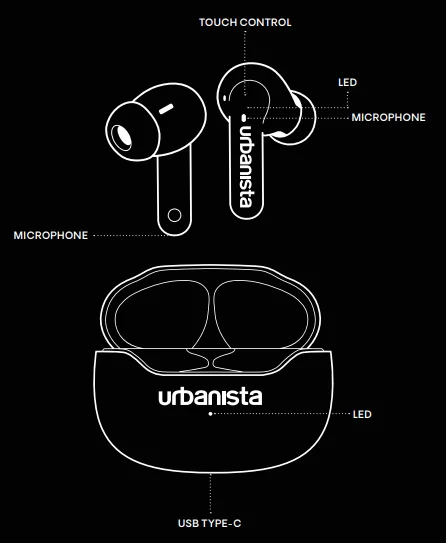
FIRST-TIME SETUP
To activate and connect your Urbanista Santiago earphones:
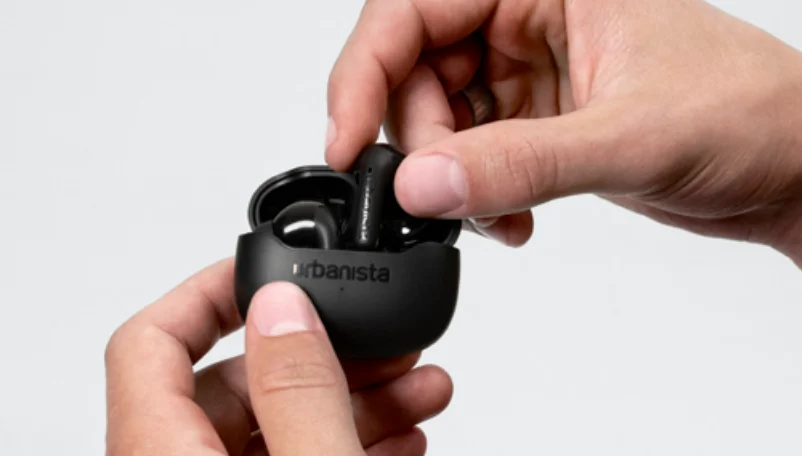
- Remove the earphones from the charging case and peel off the protective stickers.
- Place the earphones back into the case, then remove them again to activate pairing mode.
- Open Bluetooth settings on your device and select “Urbanista Santiago” to connect.
Your earphones are now connected and ready to use. They will automatically power off when placed back in the charging case or after five minutes of disconnection.
RECONNECTING OR PAIRING A NEW DEVICE
- To power on and reconnect to your last paired device, simply remove the earphones from the charging case.
- To connect to a new device, first disconnect the current device through its Bluetooth settings. Then select “Urbanista Santiago” from the new device’s Bluetooth settings.
BLUETOOTH MULTIPOINT CONNECTION
Urbanista Santiago supports Bluetooth multipoint, allowing you to stay connected to two devices simultaneously—seamlessly switching between, for example, your phone and computer. Note that audio from two devices cannot be played at the same time; pause playback on one device before switching.
To activate Bluetooth multipoint:
- Press and hold both the left and right earphones simultaneously. You will hear a tone to indicate that the earphones are activated to be paired with a second device.
- Go to Bluetooth settings on your second device and select “Urbanista Santiago” to connect.
- Your earphones will now automatically reconnect to both devices whenever powered on.
PRESET SOUND MODES
Choose from three different preset sound modes – Default, Bass Boost, and Voice – to match your sound preferences. Loop through them until you find your perfect beat.
TOUCH CONTROLS
Control your music, calls, and voice assistant with intuitive touch gestures:
- Play/Pause – Double-tap (left or right)
- Answer/Hang up calls – Double-tap (left or right)
- Reject a call – Long-press (left or right)
- Activate voice assistant – Single tap + Long-press (left)
- Next song – Triple-tap (right)
- Previous song – Triple-tap (left)
- Toggle Active Noise Cancelling – Long-press (right)
- Activate Bluetooth multipoint – Long-press both earphones simultaneously
- Factory reset – Remove both earphones from the charging case and tap each earphone five times independently.
CHARGING & BATTERY
Your Urbanista Santiago earphones charge automatically when placed in the charging case. A low battery alert notifies you at the 10% battery level. The earphones will power off when fully drained. To check the charging case battery level, open the charging case lid. The battery indication will be displayed for 3s before the LED turns off.
- 0-5%: LED rapidly flashing
- 5-25%: LED pulses
- 25-100%: LED solid
To charge the case and earphones:
- Use a certified USB-C cable and charging adapter.
- The charging case LED flashes while charging and turns solid when fully charged.
FACTORY RESET
If your earphones experience connectivity issues or become unresponsive, reset them as follows:
- Tap each earphone five times independently.
- Both earphones will start to flash to indicate that the factory reset has started.
- When the reset is fully done, the LED will start to flash synchronized to indicate pairing mode.
- Once reset, follow the setup instructions to reconnect.
NEED SUPPORT?
For FAQs and troubleshooting, visit www.support.urbanista.com. Enjoy your Urbanista Santiago earphones!
For More Manuals By Urbanista, Visit ManualsLibraryy.
Urbanista Santiago Noise Cancelling Earphones-FAQs
What are the main features of the Urbanista Santiago Noise-Cancelling Earphones?
Urbanista Santiago earphones are true wireless earbuds designed for everyday listening with active noise cancelling and modern connectivity features. They include Bluetooth connectivity, touch controls, and voice assistant support for convenient use with smartphones. The earbuds also feature preset sound modes and a built-in microphone for calls. With a dynamic 13 mm driver and a wide frequency range, they are designed to deliver balanced audio while reducing background noise for a more immersive listening experience.
How effective is the noise-cancelling on Urbanista Santiago earphones?
Urbanista Santiago earphones offer active noise cancelling that can reduce external noise by up to around 25 dB. This helps block out common background sounds like traffic, office chatter, or air conditioning noise, allowing users to focus more on music, podcasts, or calls. While they may not eliminate every sound, the ANC feature significantly improves listening clarity in noisy environments such as commuting, working in cafes, or traveling.
What is the battery life of the Urbanista Santiago earphones?
The Urbanista Santiago earphones provide approximately 6 hours of playback on the earbuds themselves, while the charging case extends the total listening time to about 18 hours. The earbuds automatically charge when placed inside the case, making it easy to keep them powered throughout the day. This battery setup is suitable for regular commuting, workouts, or extended listening sessions without frequent recharging.
Do Urbanista Santiago earphones support Bluetooth multipoint connection?
Yes, Urbanista Santiago earphones support Bluetooth multipoint connectivity, which allows them to stay connected to two devices at the same time. For example, you can connect them to both a smartphone and a laptop simultaneously. This makes it easy to switch between devices without disconnecting and reconnecting each time, which is especially useful when moving between work calls, music streaming, and video playback.
Are Urbanista Santiago earphones good for phone calls and voice assistants?
Urbanista Santiago earphones are designed with an integrated microphone and support for voice assistants, making them suitable for hands-free calling and voice commands. Users can answer calls, control music, or activate their device’s voice assistant through touch controls on the earbuds. This combination of microphones and controls allows users to manage calls and smart assistant features conveniently without needing to reach for their phone.
How do you control music and calls on Urbanista Santiago earphones?
The earphones use intuitive touch controls located on each earbud. Users can tap or press the earbuds to perform actions such as playing or pausing music, answering calls, skipping tracks, or activating the voice assistant. Long-press gestures can also toggle the active noise-cancelling feature. These touch gestures eliminate the need for physical buttons and allow quick control of audio and calls while listening.
How do you pair Urbanista Santiago earphones with a smartphone?
To pair Urbanista Santiago earphones, remove them from the charging case and enable Bluetooth on your smartphone or device. The earbuds automatically enter pairing mode, and you can select “Urbanista Santiago” from the Bluetooth device list. Once connected, they will automatically reconnect to the previously paired device whenever they are taken out of the charging case, making daily use simple and seamless.
What sound quality can you expect from Urbanista Santiago earphones?
Urbanista Santiago earphones feature 13 mm dynamic drivers that deliver a balanced audio profile with clear mids, decent bass, and crisp highs. The earbuds also support preset sound modes such as Default, Bass Boost, and Voice mode, allowing users to adjust the listening experience depending on whether they are listening to music, podcasts, or calls. This flexibility helps improve overall sound quality for different types of audio content.
How long does it take to charge Urbanista Santiago earphones?
The Urbanista Santiago earphones typically take about 1.5 hours to charge, while the charging case requires roughly 2 hours to reach a full charge. The earbuds charge automatically when placed in the case, and an LED indicator on the case helps users check the battery level. This quick charging setup allows users to get their earbuds ready for use without long waiting times.
What should you do if Urbanista Santiago earphones stop working or won’t connect?
If the Urbanista Santiago earphones become unresponsive or fail to connect properly, performing a factory reset can often resolve the issue. This process restores the earbuds to their default settings and clears previous connections. After resetting, the earphones return to pairing mode so they can be reconnected to your device. Resetting is commonly recommended for fixing connection glitches or syncing issues between the earbuds.