
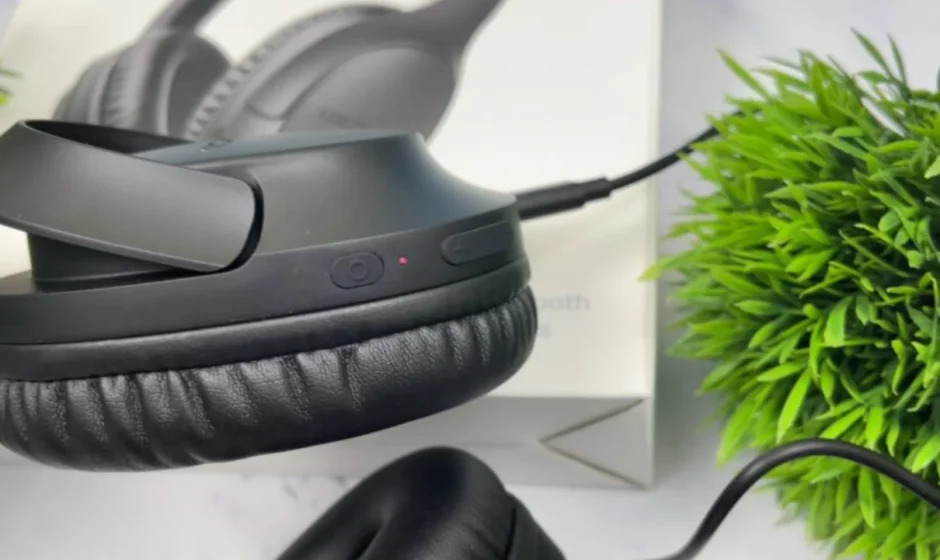

TOZO HA1 Wireless Headphones
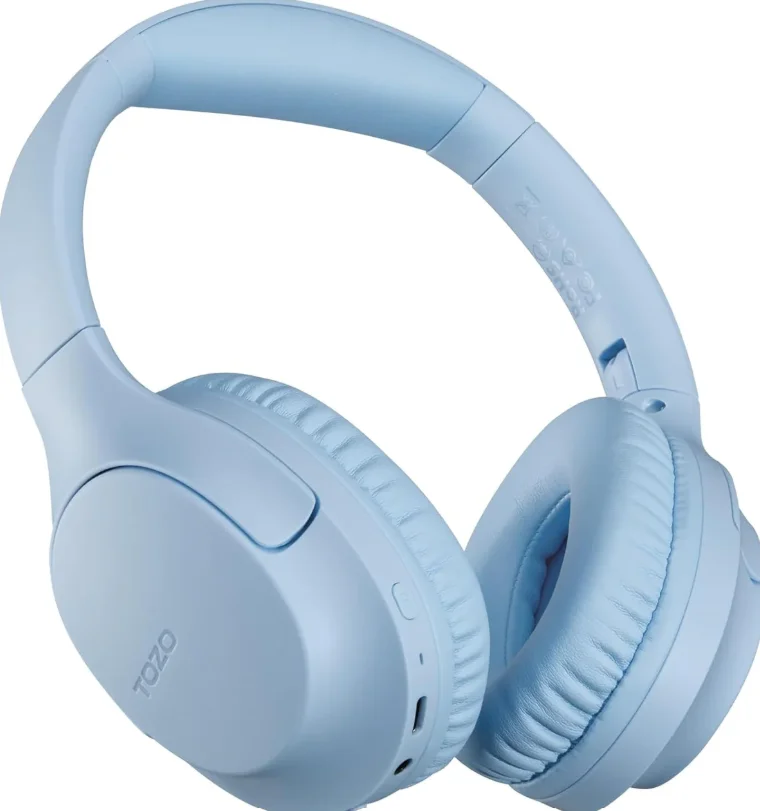
Product description
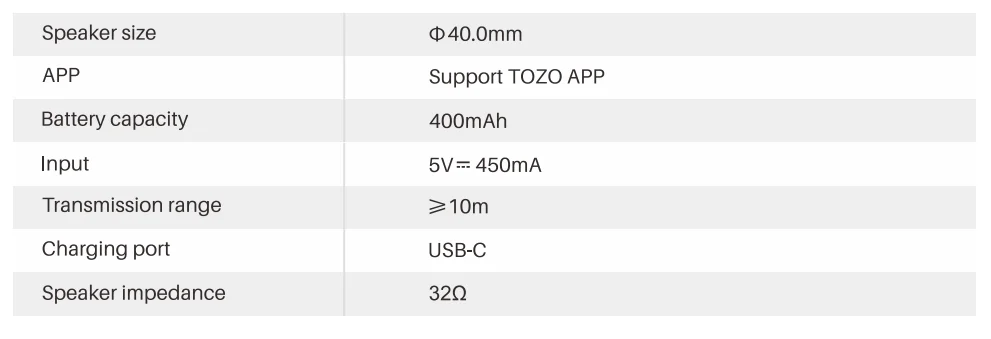
Specifications
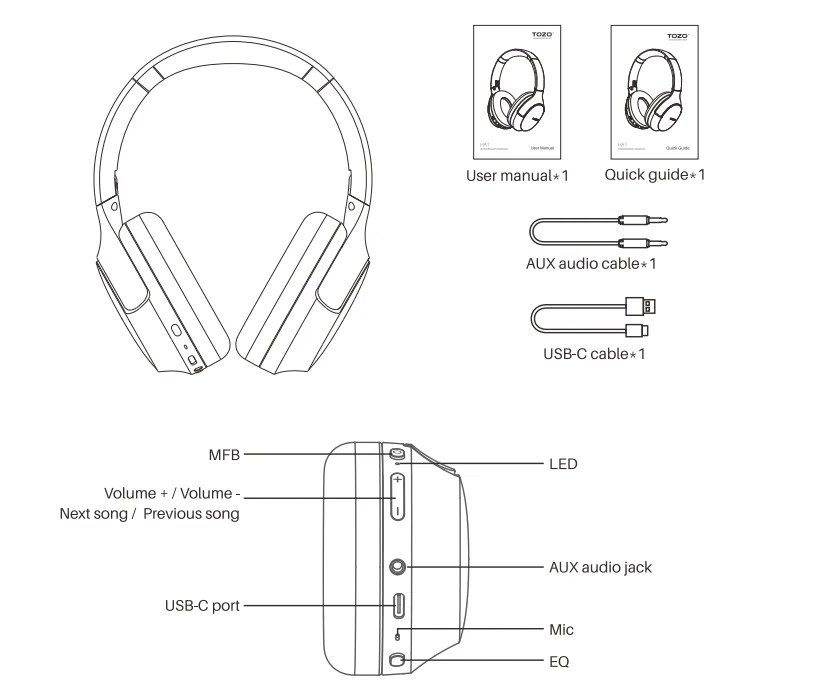
Key function guide
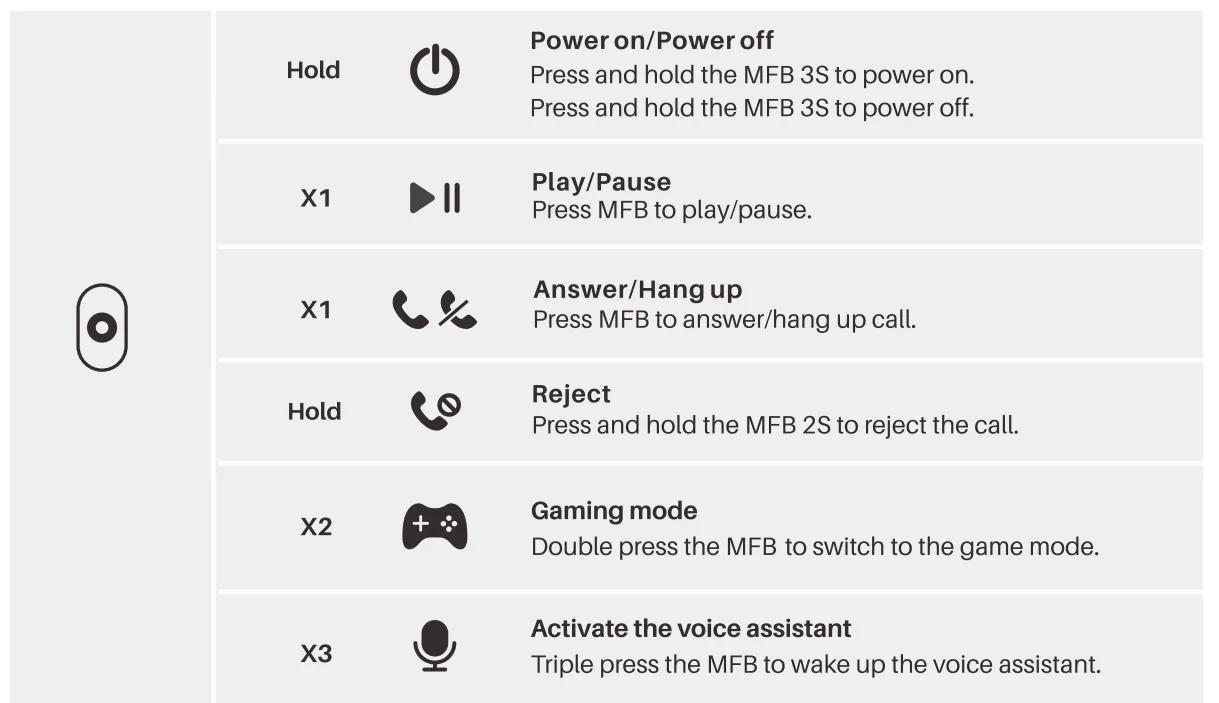
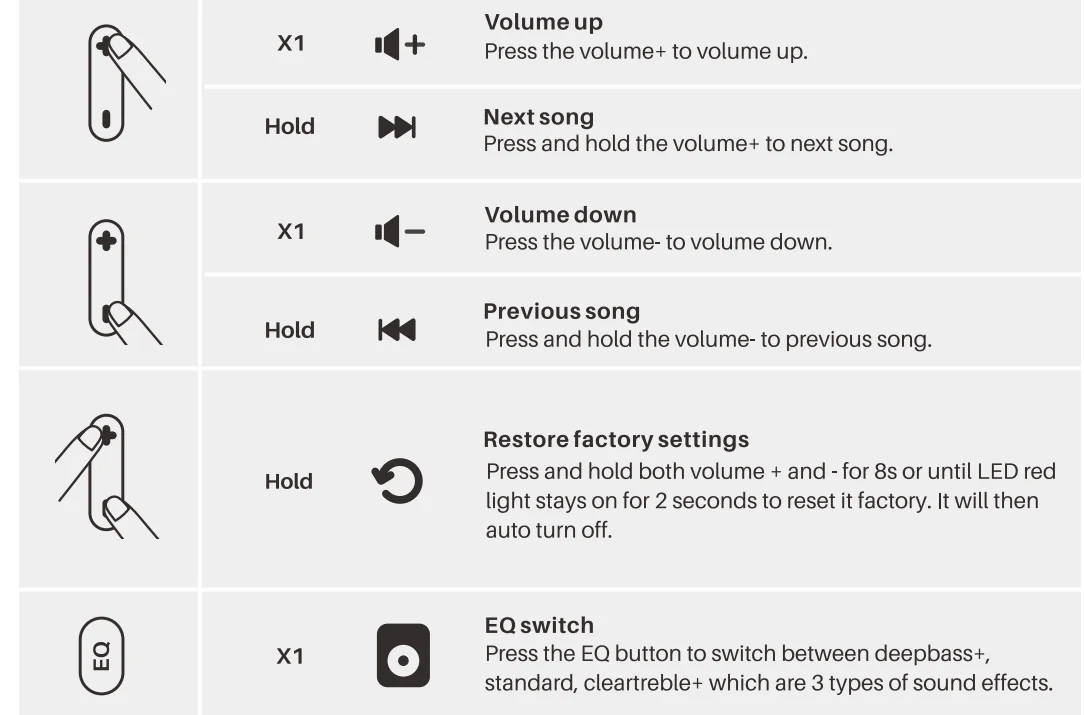
- X1:Pressonce
- X2:Press twice
- Hold: Press and hold
- X3: Press three times
TOZO app
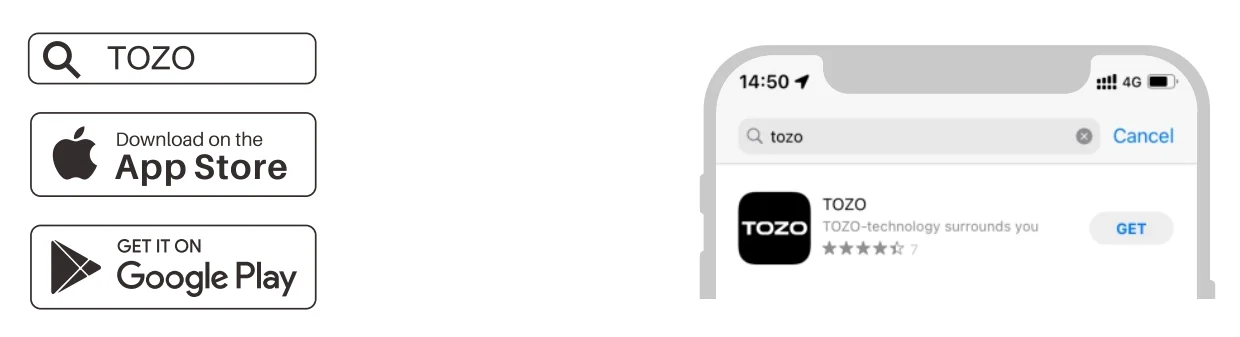
Download the TOZO App for EQ settings and more.
- EQ settings: There are lots of EQ settings you can choose in the App to optimize your experience while enjoying different music genres.
- Headphones firmware update: The earbuds’ firmware can be updated in the App. You will be informed once the new version of firmware is detected when you connect the headphones to the App.
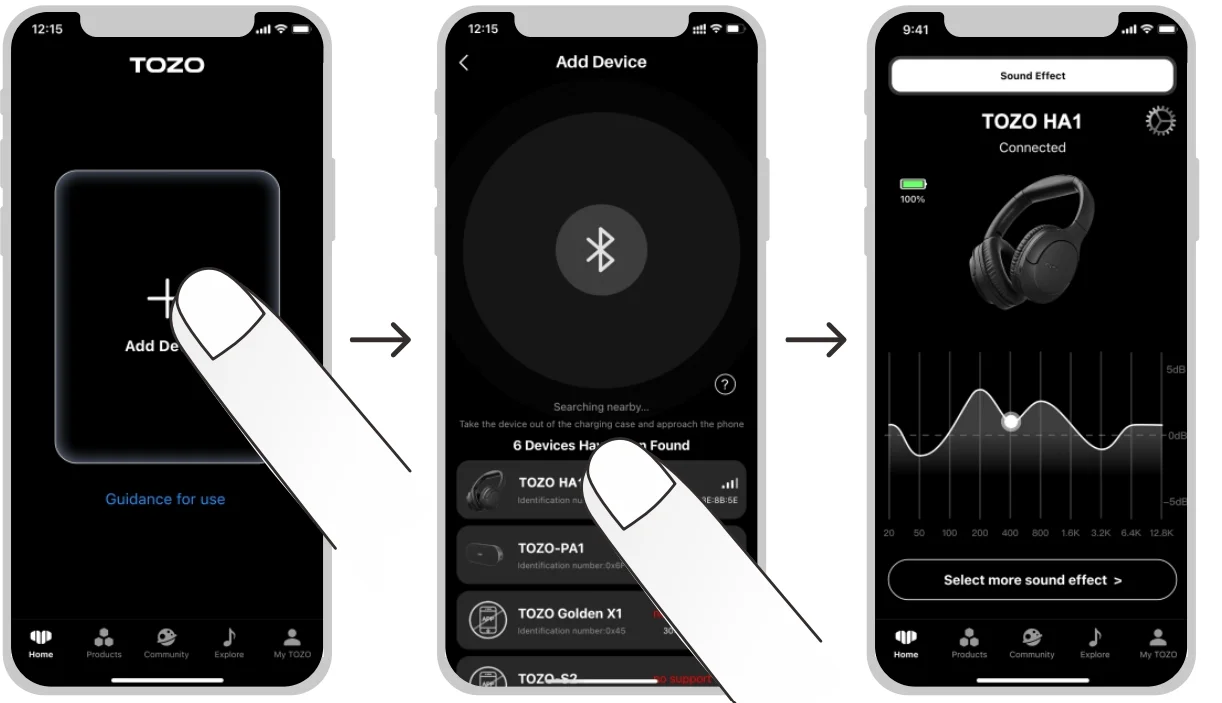
TOZO app pairing
- Step 1: The TOZO APP can be downloaded from the TOZO website, Google Play, and Apple APP Store.
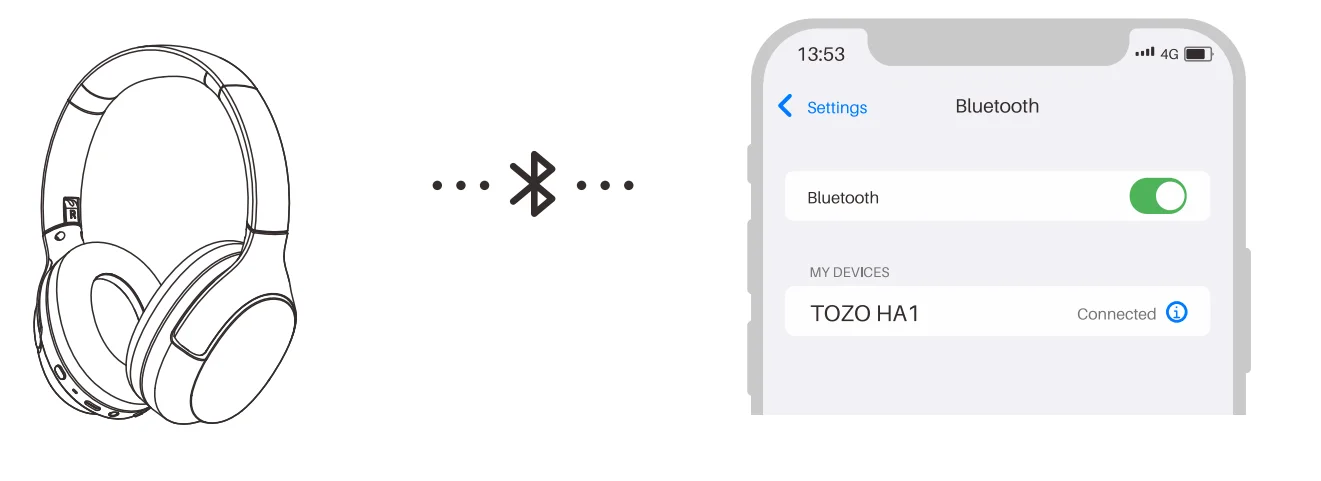
- Step 3: Open the TOZO APP and pair with your HA1.
Bluetooth multipoint feature
- Step 1: Connect the headset to Device A, then turn off its Bluetooth function, and the headset will automatically turn connectable (LED blinks red and white, please don’t turn off the headphones).
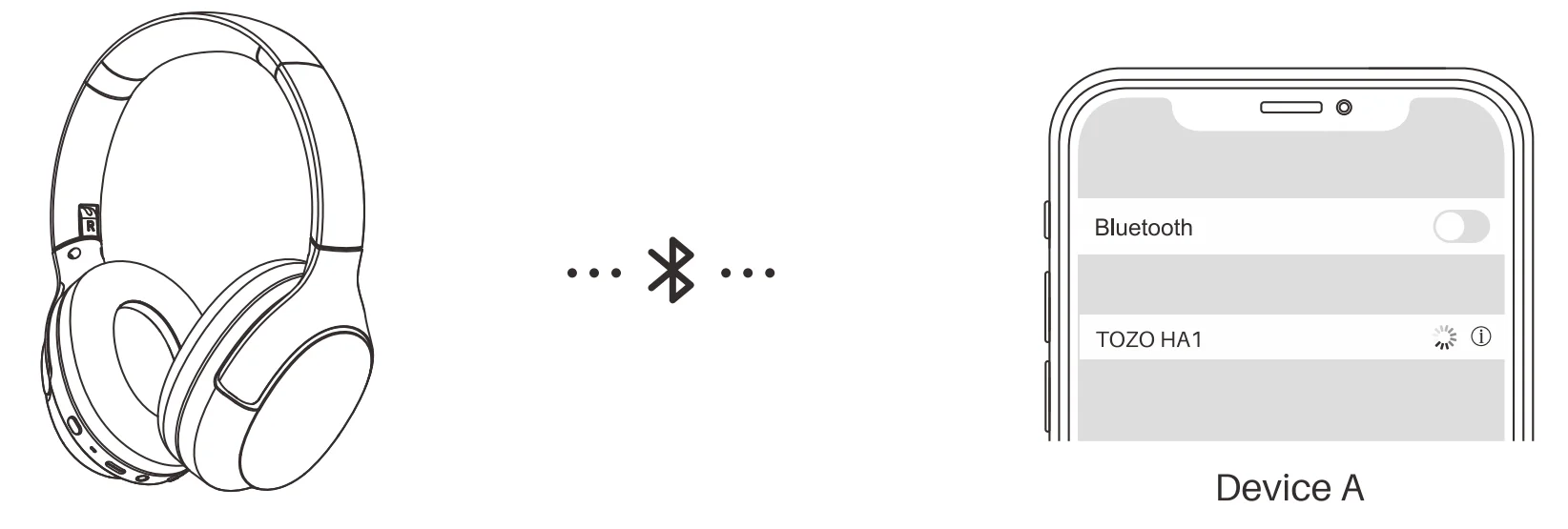
- Step 2: Turn on the Bluetooth on your Device B. Search for the “TOZO HA1” and connect the headphones to the second mobile phone.
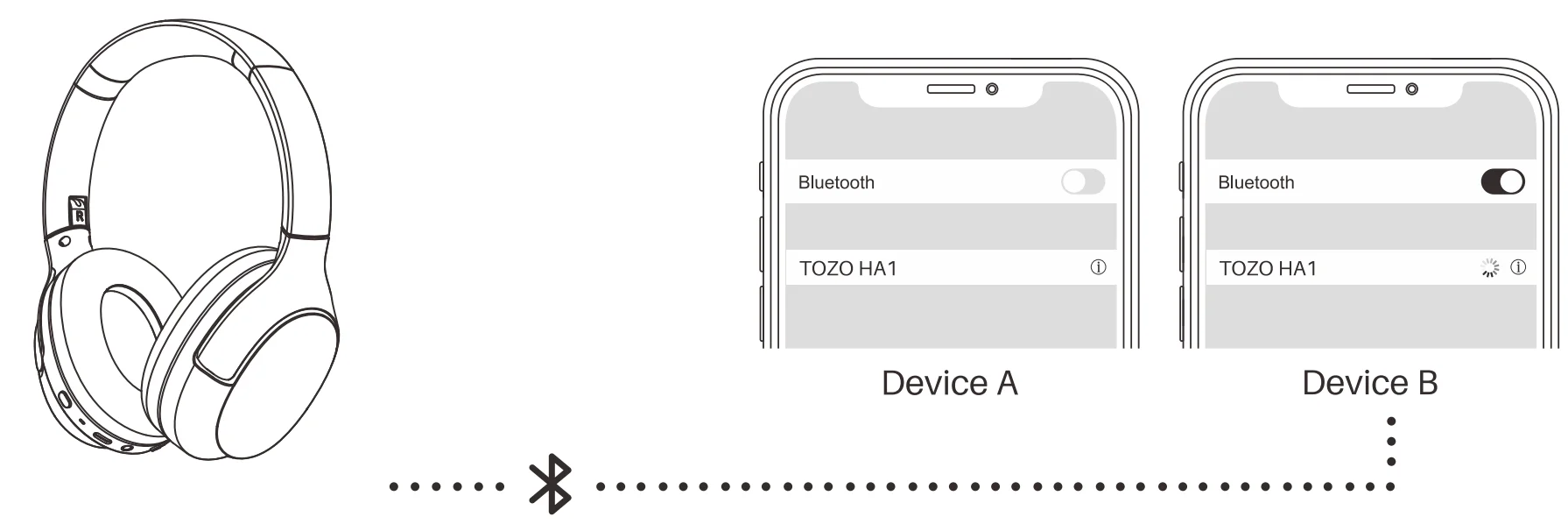
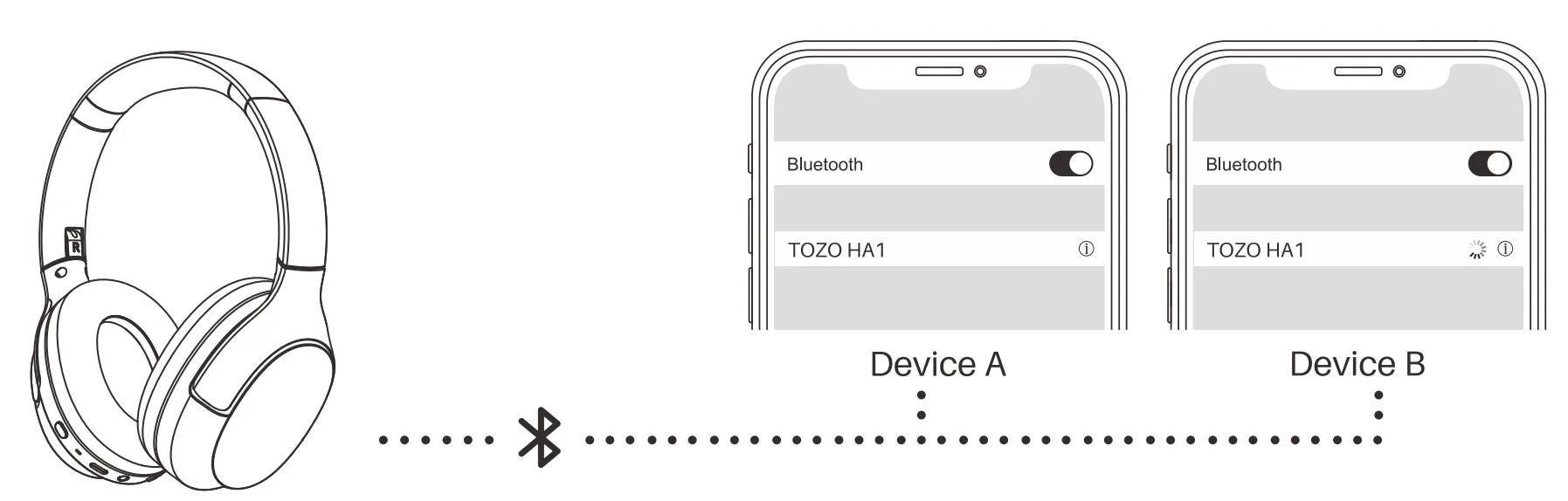
- Step 3: Turn on the Bluetooth on Device A. Click on the connection record for the headphones to achieve a simultaneous connection of the headphones to two devices.
LED
- Connected: LED white light always on
- BASS mode: LED glows solid white
- Charging: LED glows solid red
- Top-up: The red light turns to white and stays on for 5 seconds, then turns off
For more manuals by TOZO, visit ManualsLibraryy
TOZO HA1 Wireless Headphones-FAQs
How do I turn on and start using the TOZO HA1 headphones?
To turn on the TOZO HA1, press and hold the power button for a few seconds until the LED indicator lights up. Once powered on, the headphones automatically enter pairing mode if they are not connected to any device. You can then enable Bluetooth on your phone or laptop and select the headphones from the available device list to start using them.
How do I pair the TOZO HA1 with my phone or laptop?
First, make sure the headphones are turned on and in pairing mode (LED blinking). Open the Bluetooth settings on your device and search for available devices. Select “TOZO HA1” from the list to connect. Once paired, the headphones will reconnect automatically to the last device used when powered on, making future connections quick and hassle-free.
How do I activate noise cancellation on the TOZO HA1?
The TOZO HA1 includes an active noise cancellation (ANC) feature that can be controlled using the dedicated NC button. Press the button once to turn on noise cancellation. Press it again to switch between different modes such as transparency mode or turning ANC off. This allows you to adjust how much outside sound you want to hear while listening.
Does the TOZO HA1 have a built-in microphone for calls?
Yes, the TOZO HA1 comes with built-in microphones that allow you to take calls hands-free. The headphones use multiple microphones with environmental noise reduction to improve voice clarity during calls. This makes them suitable for online meetings, phone calls, and voice commands without needing to use your device directly.
How long does the battery last on the TOZO HA1?
The TOZO HA1 offers long battery life, providing up to around 70 hours of playback on a full charge, depending on usage and volume levels. Using features like active noise cancellation may reduce battery life slightly. This extended battery performance makes the headphones ideal for travel, work, and long listening sessions without frequent recharging.
How can I check if my TOZO HA1 is fully charged?
You can check the charging status using the LED indicator on the headphones. Typically, the light changes color or turns off when the battery is fully charged. Some devices also show battery percentage on your phone once connected via Bluetooth. It’s recommended to fully charge the headphones before first use for optimal battery performance.
Is the TOZO HA1 waterproof or sweat-resistant?
The TOZO HA1 offers a level of water resistance, making it suitable for light splashes or sweat during daily use. However, it is not designed for heavy water exposure like swimming or showering. To maintain durability, it’s best to keep the headphones dry and avoid exposing them to excessive moisture.
Can I connect the TOZO HA1 to multiple devices?
Yes, the TOZO HA1 supports connecting to more than one device, depending on the feature set (such as multipoint pairing). This allows you to switch between devices like a phone and laptop without disconnecting manually. For example, you can listen to music on your laptop and quickly answer a call on your phone.
How do I reset the TOZO HA1 headphones?
To reset the headphones, press and hold the power button (or a combination of buttons depending on the model) for several seconds until the LED flashes or the device restarts. Resetting helps fix common issues like connection problems or pairing errors. After resetting, you will need to pair the headphones again with your device.
What should I do if one side of the headphones is not working?
If you experience sound issues on one side, first check the battery level and ensure the headphones are fully charged. Try reconnecting or resetting the device to fix temporary glitches. Also, verify that the audio balance settings on your device are centered. If the problem persists, it may require cleaning or checking for hardware issues.