
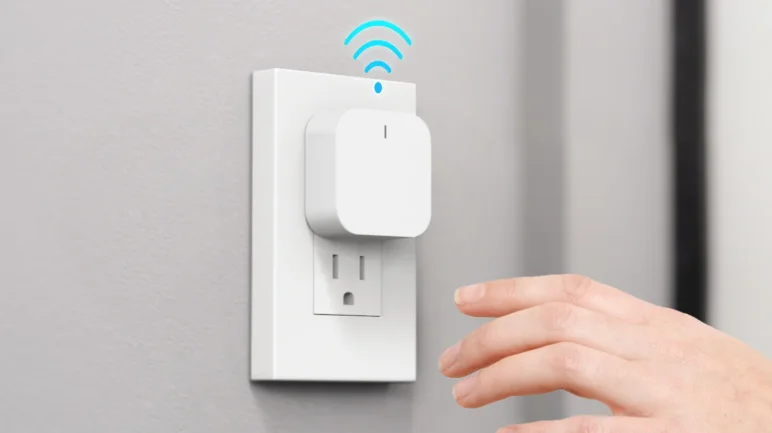

Treatlife Smart Hub
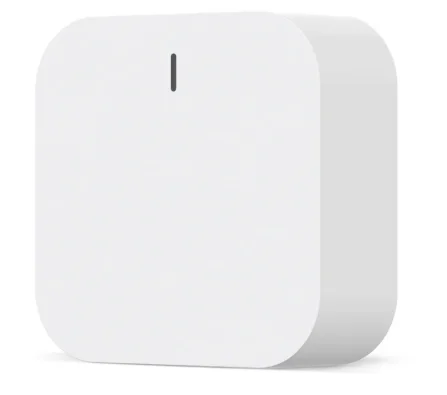
About the Smart Gateway
This smart gateway, adopting ultra-low power Zigbee technology, can work with kinds of smart sensors and smart home appliances to build a smart home system, and the gateway works as the central controller. Built-in Wi-Fi module supports direct connection to the user’s home Wi-Fi network.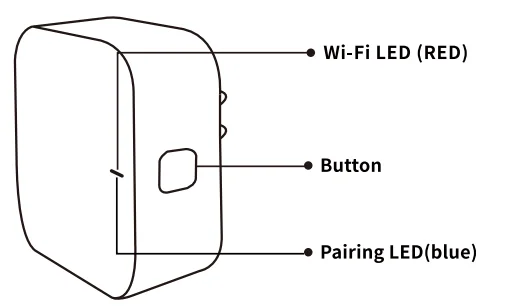
Wi-Fi LED (Red)
- Blinking: The gateway enters Wi-Fi configuration mode
- OFF: No network connection
- ON: Connected to the Wi-Fi network
Button
Reset or enter Wi-Fi configuration mode: Press and hold the button for 5 seconds until the red LED blinks; the gateway will enter Wi-Fi configuration mode.
Pairing LED (blue)
- Blinking: The gateway enters adding sub-device mode
- OFF: The gateway is configured
- ON: The gateway is not configured
Quick Installation Guide
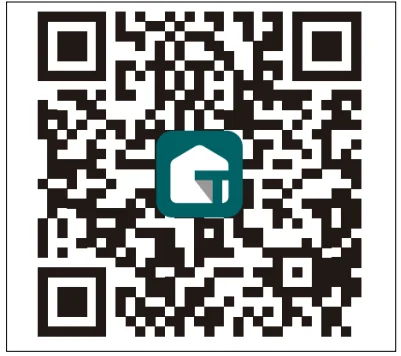
- (If you have installed the Treatlife APP on your mobile phone, please go to step 2.) Scan the QR code or search the Treatlife APP in the App Store or Google Play to install the APP (new users must register an account first).

- Connect your mobile phone to your 2.4GHz Wi-Fi router (with internet) and plug in the Smart Gateway to an outlet.
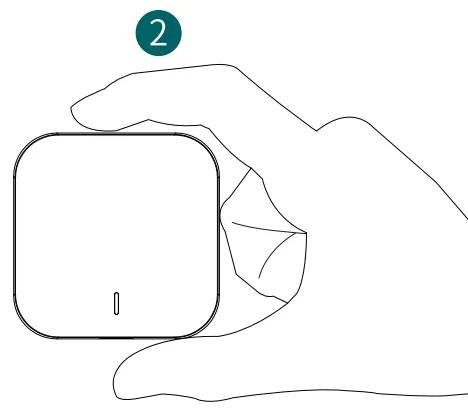
- (If the red LED is blinking, please go to step 4.) Press the button for 5 seconds until the red LED blinks.
 Run Smart Life APP, click “+” at the top right corner.
- Option ONE: It will be discovered automatically as below, click “Go to add” and follow the in-app instructions to connect the smart gateway to your network.

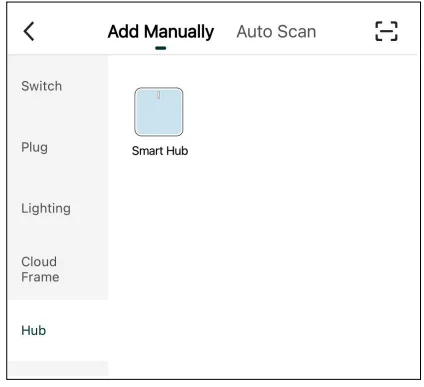
- Option TWO: If it can’t be discovered, please select Hub -> Smart Hub to add it manually. Then follow the in-app instructions to connect the smart Hub to your network.

- Option ONE: It will be discovered automatically as below, click “Go to add” and follow the in-app instructions to connect the smart gateway to your network.
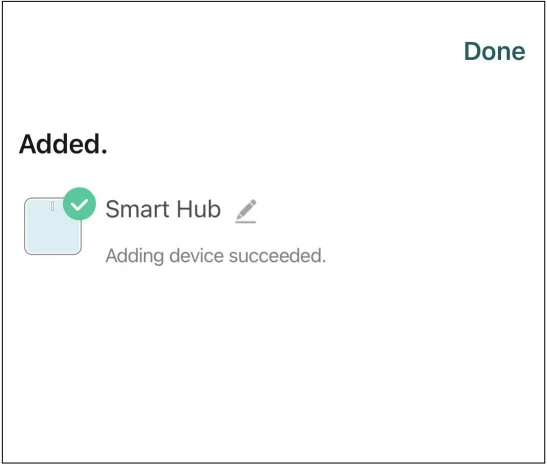
- Wait for a few seconds, and you can see the gateway is shown, and you can rename it.

- Press Done to finish the installation of the gateway.
 Run Smart Life APP, click “+” at the top right corner.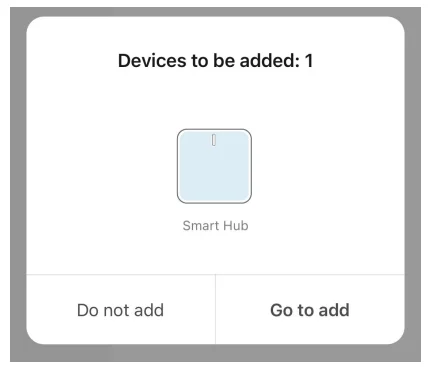
FCC Caution:
This device complies with part 15 of the FCC Rules. Operation is subject to the following two conditions:
- This device may not cause harmful interference, and
- This device must accept any interference received, including interference that may cause undesired operation.
Any Changes or modifications not expressly approved by the party responsible for compliance could void the user’s authority to operate the equipment.
Note: This equipment has been tested and found to comply with the limits for a Class B digital device, pursuant to part 15 of the FCC Rules. These limits are designed to provide reasonable protection against harmful interference in a residential installation. This equipment generates uses and can radiate radio frequency energy and, if not installed and used in accordance with the instructions, may cause harmful interference to radio communications.
However, there is no guarantee that interference will not occur in a particular installation. If this equipment does cause harmful interference to radio or television reception, which can be determined by turning the equipment off and on, the user is encouraged to try to correct the interference by one or more of the following measures:
- Reorient or relocate the receiving antenna.
- Increase the separation between the equipment and receiver.
- Connect the equipment into an outlet on a circuit different from that to which the receiver is connected.
- Consult the dealer or an experienced radio/TV technician for help.
This equipment complies with FCC radiation exposure limits set forth for an uncontrolled environment. This equipment should be installed and operated with a minimum distance of 20cm between the radiator & your body.
ISEDC Warning:
This device complies with Innovation, Science, and Economic Development Canada’s licence-exempt RSS standard(s). Operation is subject to the following two conditions:
- This device may not cause interference, and
- This device must accept any interference, including interference that may cause undesired operation of the device.
For More Manuals By Treatlife, Visit ManualsLibraryy.
Treatlife Smart Hub -FAQs
What is the Treatlife Smart Hub and what does it do?
The Treatlife Smart Hub is the central control unit for Treatlife Zigbee-based smart home devices. It connects sensors like door sensors, motion detectors, and switches to your WiFi network, allowing you to control them through the Treatlife app. Instead of each device connecting directly to WiFi, the hub manages communication, improving efficiency and enabling automation across your smart home.
Do you need a hub for Treatlife Zigbee devices?
Yes, a hub is required for all Treatlife Zigbee devices to function. Devices like door sensors or motion sensors cannot connect directly to WiFi or your phone without it. The hub acts as a bridge between Zigbee devices and your home network, enabling remote control, automation, and real-time notifications through the app.
How many devices can the Treatlife Smart Hub support?
The Treatlife Smart Hub can support up to 128 connected Zigbee devices simultaneously. This makes it suitable for scaling a smart home system over time, allowing you to add multiple sensors, switches, and accessories without needing additional hubs. It’s ideal for users planning a larger smart home setup.
Does the Treatlife Smart Hub work with Alexa or Google Assistant?
Yes, the hub is compatible with voice assistants like Amazon Alexa and Google Assistant. Once connected, you can control devices using voice commands or integrate them into routines such as “Good Morning” or “Good Night.” This adds convenience and allows hands-free control of your smart home devices.
What is the wireless range of the Treatlife Smart Hub?
The hub offers a coverage range of up to approximately 50 meters from the WiFi router, depending on environmental conditions. It also supports network expansion through Zigbee mesh capabilities, meaning connected devices can help extend coverage, improving reliability across larger homes.
Is the Treatlife Smart Hub easy to set up?
Yes, setup is generally quick and user-friendly. You simply power the hub, connect it to a 2.4GHz WiFi network, and add it through the Treatlife app. The app guides you through pairing devices and creating automations, making it accessible even for beginners entering smart home ecosystems.
Can the Treatlife Smart Hub work without internet?
No, the hub requires an active internet connection to function properly. It relies on cloud connectivity to communicate with the Treatlife app and enable remote control, notifications, and voice assistant integration. Without internet access, most smart features will be unavailable.
Does the Treatlife Smart Hub support all smart devices?
No, the hub is primarily designed for Treatlife or Tuya-compatible Zigbee devices. It does not support standard Wi-Fi-only smart devices or products from all other brands. Compatibility should always be checked before purchasing to ensure your devices will work within the same ecosystem.
What are the benefits of using a Zigbee hub instead of WiFi devices?
Zigbee hubs reduce WiFi congestion by connecting multiple devices through a single gateway. They also offer faster response times and lower power consumption for connected devices. This makes them more efficient and scalable for smart homes compared to managing many individual WiFi-connected devices.
Is the Treatlife Smart Hub worth buying?
The Treatlife Smart Hub is a good investment if you plan to use multiple Zigbee devices within the Treatlife ecosystem. It provides stable connectivity, supports large device networks, and enables automation features. However, if you prefer simple plug-and-play WiFi devices without extra setup, a hub-based system may feel slightly more complex.