
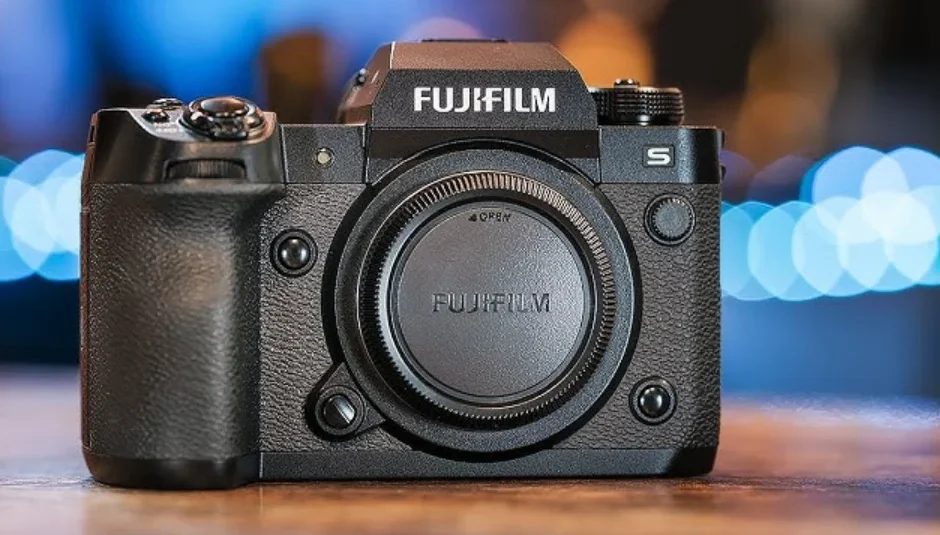

Fujifilm X-H2S Camera
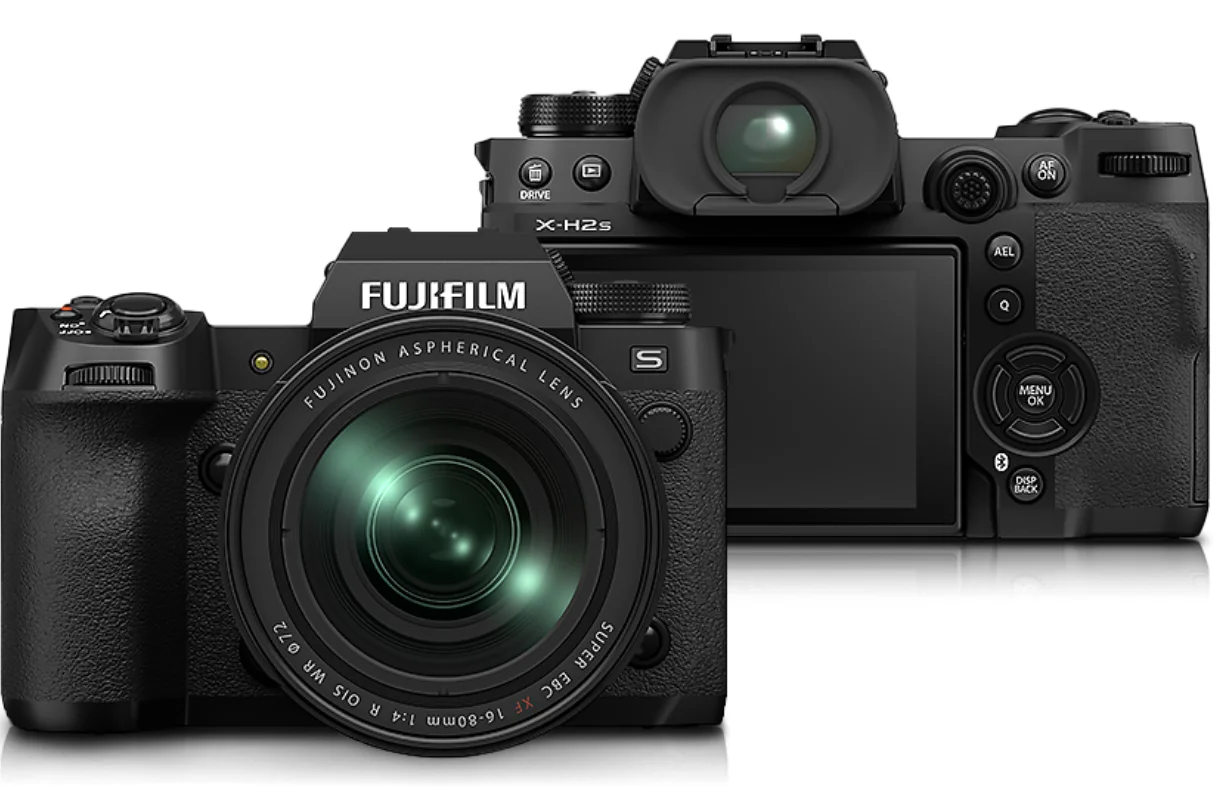
Before You Begin
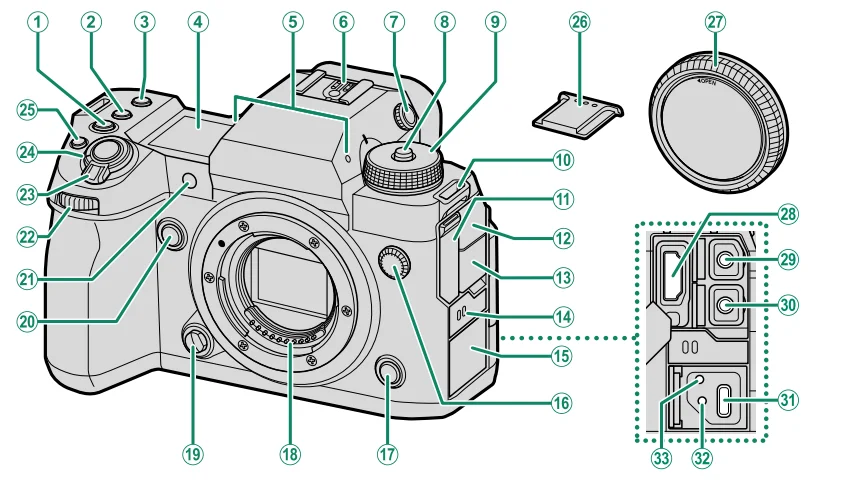
- ISO button
- WB button
- Fn1 button
- Secondary LCD monitor
- Microphone
- Hot shoe
- Diopter adjustment control
- Dial lock release
- Mode dial
- Strap eyelet
- HDMI connector cover
- Microphone jack cover
- Headphone jack cover
- Speaker
- USB connector cover
- Sync terminal
- Fn3 button
- Lens signal contacts
- Lens release button
- Fn2 button
- AF-assist illuminator
Self-timer lamp
Tally light - Front command dial
- ON/OFF switch
- Shutter button
- (movie recording) button
- Hot shoe cover
- Body cap
- HDMI connector (Type A)
- Microphone jack (⌀3.5mm)
- Headphone jack (⌀3.5mm)
- USB connector (Type-C)
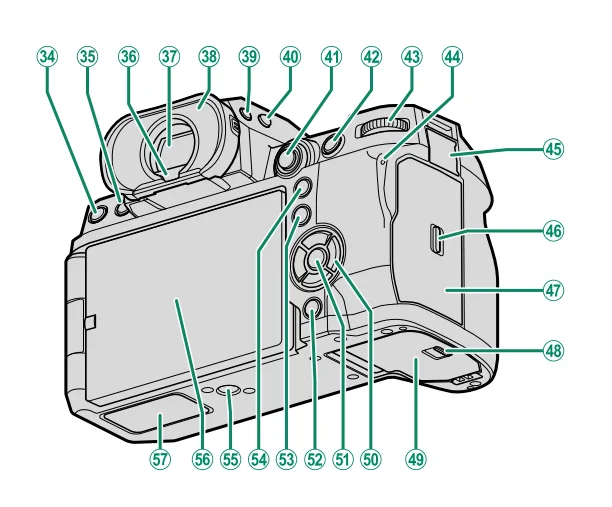
- Hole to screw the USB cable
- Hole to screw cable protector

- DRIVE button
(delete) button - (playback) button
- Eye sensor
- Electronic viewfinder (EVF)
- Eye cup (lockable)
- VIEW MODE button
- Secondary monitor backlight button
- Focus stick (focus lever)
- AFON button
- Rear command dial
- Indicator lamp
Tally light - Remote release connector cover
- Memory card slot cover latch
- Memory card slot cover (detachable)
- Battery-chamber cover latch
- Battery-chamber cover
- Selector buttons
- MENU/OK button
- DISP (display)/BACK button
(Bluetooth) button - Q (quick menu) button
- AEL (exposure lock) button
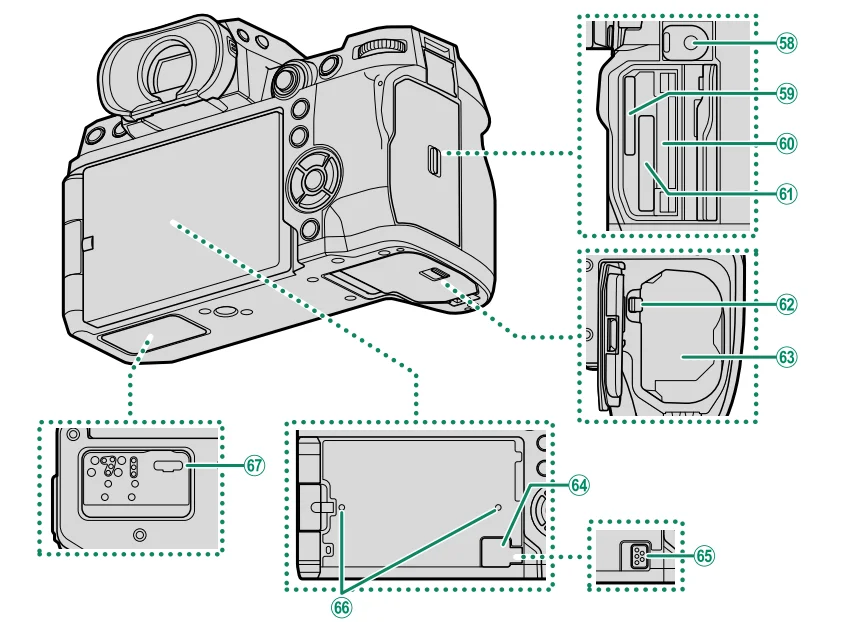
- Tripod mount
- LCD monitor
Touch screen
- File transmitter/vertical battery grip connector cover
- Remote release connector (⌀2.5mm)
- Memory card slot 2
(for SD memory cards) - Serial number plate
- Memory card slot 1
(for Type B CFexpress cards) - Battery latch
- Battery chamber
- Cooling fan connector cover
- Cooling fan connector
- Hole to screw the cooling fan
- File transmitter/vertical battery grip connector
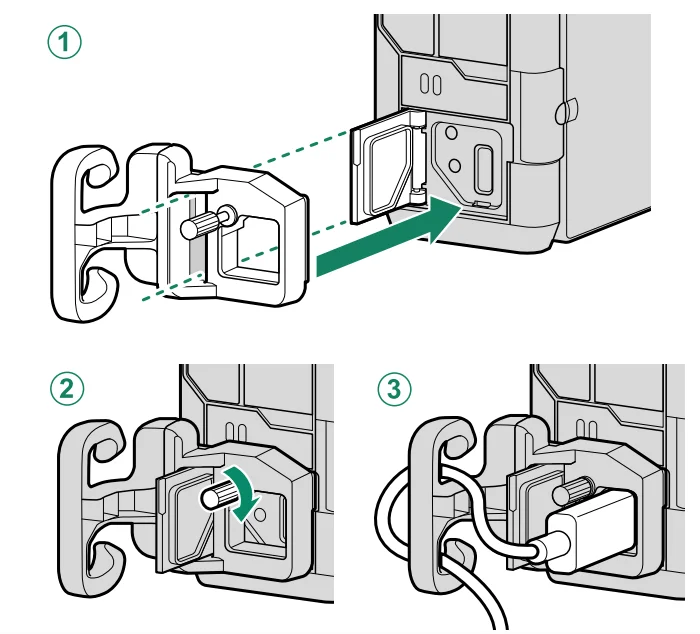
The Cable Protector
Attach the protector as shown to prevent accidental disconnection.
- Slide the protector over the USB connector cover so that the cover passes through the slot in the protector.
- Tighten the lock screw.
- Connect the cable and pass it through the protector as shown.
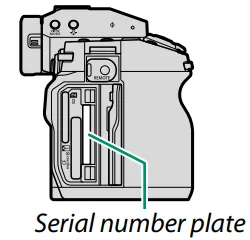
The Serial Number Plate
Do not remove the serial number plate, which provides the CMIIT ID, serial number, and other important information.
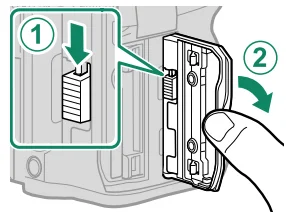
The Memory Card Slot Cover (Detachable)
The memory card slot cover can be removed by lowering the interior latch. Remove the cover for ease of access when a camera rig is attached or in other situations that make it difficult to open or
Close the cover.
Camera Displays
This section lists the indicators that may be displayed during shooting.
- For illustrative purposes, displays are shown with all indicators lit.
The Electronic Viewfinder
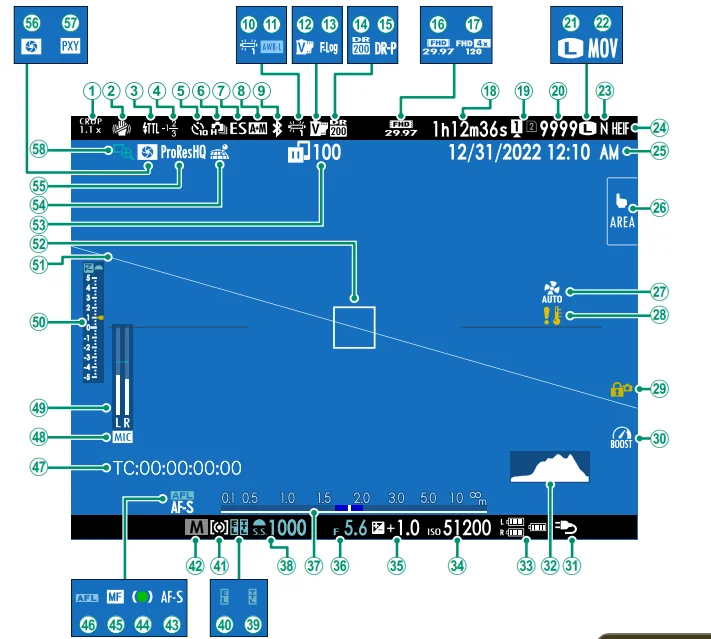
- Crop factor
- IS mode 2
- Flash (TTL) mode
- Flash compensation
- Self-timer indicator
- Continuous mode
- Shutter type
- AF+MF indicator 2
- Bluetooth ON/OFF
- J White balance
- AWB lock
- Film simulation
- F-Log/HLG recording
- Dynamic range
- D-range priority
- Movie mode
- High-speed recording indicator
- Recording time available/ elapsed recording time
- Card slot options
- Number of available frames 1
- Image size
- File format
- Image quality
- HEIF format
- Date and time
- Touch screen mode
- Cooling fan settings
- Temperature warning
- Control lock 3
- Boost mode
- Power supply
- Histogram
- Battery level
- Sensitivity
- Exposure compensation
- Aperture
- Distance indicator 2
- Shutter speed
- TTL lock
- AE lock
- Metering
- Shooting mode
- Focus mode 2
- Focus indicator 2
- Manual focus indicator 2
- AF lock
- Time code
- Microphone input channel
- Recording level 2
- Exposure indicator
- Virtual horizon
- Focus frame
- Image transfer status
- Location data download status
- Movie compression
- Depth-of-field preview
- Proxy setting (ProRes only)
- Focus check
- 1 Shows “9999” if there is space for over 9999 frames.
- 2 Not displayed when ON is selected for
 SCREEN SET-UP > LARGE INDICATORS MODE(EVF).
 - 3 Displayed when controls have been locked by pressing and holding the MENU/OK button. The control lock can be ended by pressing and holding the MENU/OK button again.
The LCD Monitor
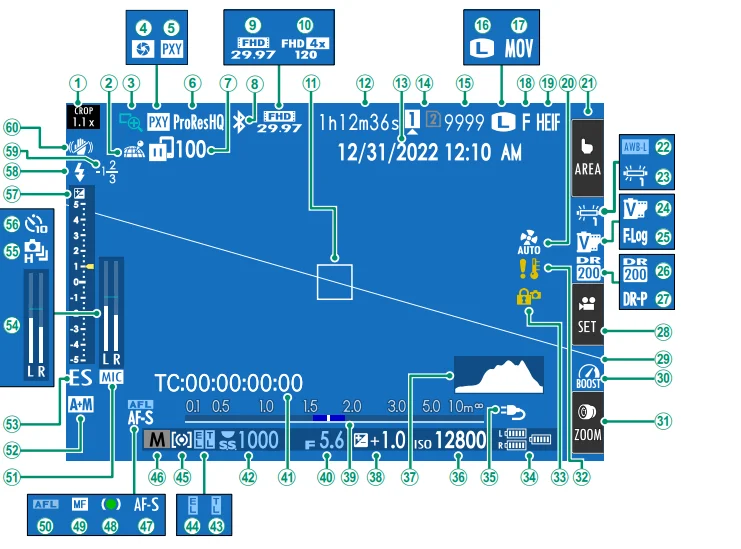
- Crop factor
- Location data download status
- Focus check
- Depth-of-field preview
- Proxy setting (ProRes only)
- Movie compression
- Image transfer status
- Bluetooth ON/OFF
- Movie mode
- High-speed recording indicator
- Focus frame
- Recording time available/ elapsed recording time
- Date and time
- Card slot options
- Number of available frames 1
- Image size
- File format
- Image quality
- HEIF format
- Cooling fan settings
- Touch screen mode 3
- AWB lock
- White balance
- Film simulation
- F-Log/HLG recording
- Dynamic range
- D-range priority
- Movie optimized control 3
- Virtual horizon
- Boost mode
- Touch Zoom 3
- Temperature warning
- Control lock 4
- Battery level
- Power supply
- Sensitivity
- Histogram
- Exposure compensation.
- Distance indicator 2
- Aperture
- Time code
- Shutter speed
- TTL lock
- AE lock
- Metering
- Shooting mode
- Focus mode 2
- Focus indicator 2
- Manual focus indicator 2
- AF lock
- Microphone input channel
- AF+MF indicator 2
- Shutter type
- Recording level 2
- Continuous mode
- Self-timer indicator
- Exposure indicator
- Flash (TTL) mode
- Flash compensation
- IS mode 2
- 1 Shows “9999” if there is space for over 9999 frames.
- 2 Not displayed when ON is selected forSCREEN SET-UP > LARGE INDICATORS MODE(LCD).
- 3 Camera functions can also be accessed via touch controls.
- 4 Displayed when controls have been locked by pressing and holding the MENU/OK button. The control lock can be ended by pressing and holding the MENU/OK button again.
First Steps
Attaching the Strap
Attach the strap.
Attach the strap to the two strap eyelets as shown below.
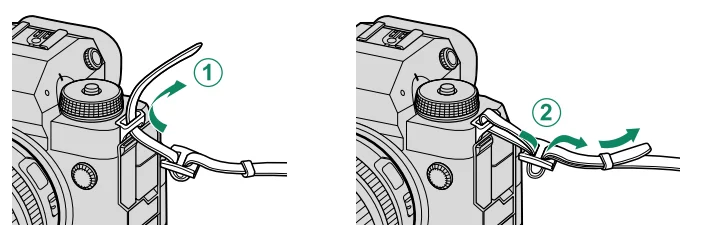
- To avoid dropping the camera, be sure the strap is correctly secured.
Attaching a Lens
The camera can be used with lenses for the FUJIFILM X-mount.
Remove the body cap from the camera and the rear cap from the lens. Place the lens on mount, keeping the marks on the lens and camera aligned (1), and then rotate the lens until it clicks into place (2).
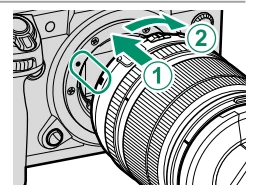
- When attaching lenses, ensure that dust or other foreign matter does not enter the camera.
- Be careful not to touch the camera’s internal parts.
- Rotate the lens until it clicks securely into place.
- Do not press the lens release button while attaching the lens.
Removing Lenses
To remove the lens, turn the camera off , then press the lens release button (1) and rotate the lens as shown (2).
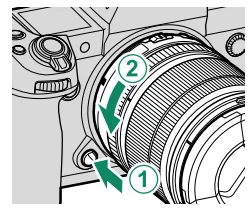
- To prevent dust accumulating on the lens or inside the camera, replace the lens caps and camera body cap when the lens is not attached.
Lenses and Other Optional Accessories
The camera can be used with lenses and accessories for the FUJIFILM
X-mount.
- Observe the following precautions when attaching or removing (exchanging) lenses.
- Check that the lenses are free of dust and other foreign matter.
- Do not change lenses in direct sunlight or under another bright light source. Light focused into the interior of the camera could cause it to malfunction.
- Attach the lens caps before exchanging lenses.
- See the manual provided with the lens for information on use.
Inserting the Battery
Insert the battery in the camera as described below.
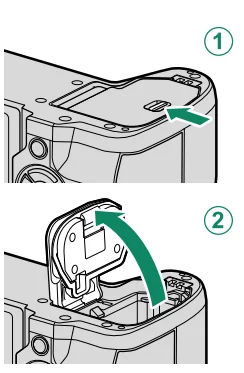
- Open the battery-chamber cover.
Slide the battery-chamber cover latch as shown and open the battery- chamber cover.- Do not open the battery-chamber cover when the camera is on. Failure to observe this precaution could damage image fi les or memory cards.
- Do not use excessive force when handling the battery-chamber cover.

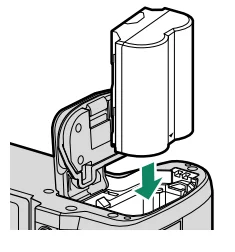
- Insert the battery as shown.
- Insert the battery in the orientation shown. Do not use force or attempt to insert the battery upside down or
backwards. - Confi rm that the battery is securely latched.

- Insert the battery in the orientation shown. Do not use force or attempt to insert the battery upside down or
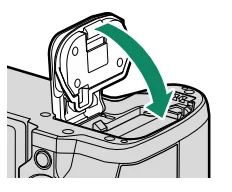
- Close the battery-chamber cover.
Close and latch the cover.- If the cover does not close, check that the battery is in the correct orientation. Do not attempt to force the cover shut.
Removing the Battery
Before removing the battery, turn the camera off and open the battery-chamber cover. To remove the battery, press the battery latch to the side, and slide the battery out of the camera as shown.
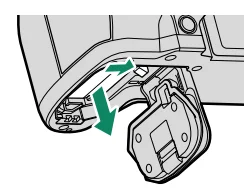
- The battery may become hot when used in high-temperature environments. Observe caution when removing the battery.
Inserting Memory Cards
Pictures are stored on memory cards (sold separately).
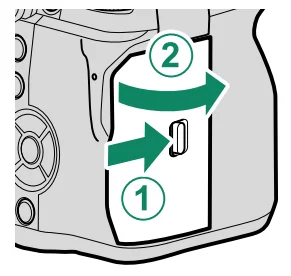
- Open the memory card slot cover.
Unlatch and open the cover.- Do not turn the camera off or remove the memory card while the memory card is being formatted or data are being recorded to or deleted from the card. Failure to observe this precaution could damage the card.

- Do not turn the camera off or remove the memory card while the memory card is being formatted or data are being recorded to or deleted from the card. Failure to observe this precaution could damage the card.
- Insert the memory card.
Holding the card in the orientation shown, slide it in until it clicks into place at the back of the slot. Close and latch the memory card slot cover.- Be sure card is in the correct orientation; do not insert at an angle or use force.
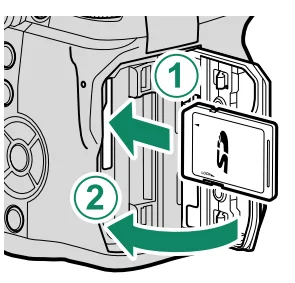
Compatible Memory Cards
- The camera can be used with SD, SDHC, SDXC, and CFexpress
Type B memory cards. Both the UHS-I and UHS-II bus interfaces
are supported. - CFexpress or UHS-II memory cards are recommended for highspeed burst photography.
- The types of memory cards suitable for movie recording vary
with the settings selected (P 68). - A list of supported memory cards is available on the Fujifi lm
website. For details, visit: https://fujifilm-x.com/support/compatibility/cameras/.- Do not turn the camera off or remove the memory card while the memory card is being formatted or data are being recorded to or deleted from the card. Failure to observe this precaution could damage the card.

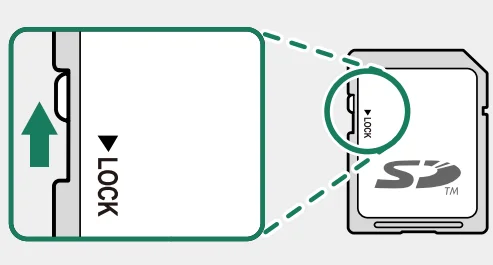
- Memory cards can be locked, making it impossible to format the card or to record or delete images. Before inserting a memory card, slide the write-protect switch to
the unlocked position. - Memory cards are small and can be swallowed; keep out of reach of children. If a child swallows a memory card, seek medical assistance immediately.
- miniSD or microSD adapters that are larger or smaller than memory cards may not eject normally; if the card does not eject, take the camera to an authorized service representative. Do not forcibly remove the card.
- Do not affi x labels or other objects to memory cards. Peeling labels can cause camera malfunction.
- Movie recording may be interrupted with some types of memory card.
- Formatting a memory card in the camera creates a folder in which pictures are stored. Do not rename or delete this folder or use a computer or other device to edit, delete, or rename image files. Always use the camera to delete pictures; before editing or renaming files, copy them to a computer and edit or rename the copies, not the originals. Renaming the fi les on the camera can cause problems
during playback.
- Do not turn the camera off or remove the memory card while the memory card is being formatted or data are being recorded to or deleted from the card. Failure to observe this precaution could damage the card.
Charging the Battery
For reasons of safety, the battery is not charged at shipment. The camera will not function if the battery is not charged; be sure to charge the battery before use. Before charging the battery, turn the camera off.
- An NP-W235 rechargeable battery is supplied with the camera.
- Charging takes about 180 minutes.

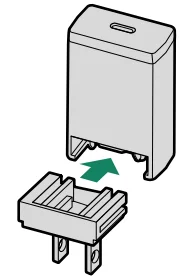
- Attach the plug adapter to the AC power adapter.
Attach the plug adapter as shown, making sure that it is fully inserted and clicks into place on the AC power adapter terminals.- The supplied plug adapter is for use exclusively with the AC-5VJ AC power adapter. Do not use it with other devices.
- The shape of the plug adapter varies with the country of sale.
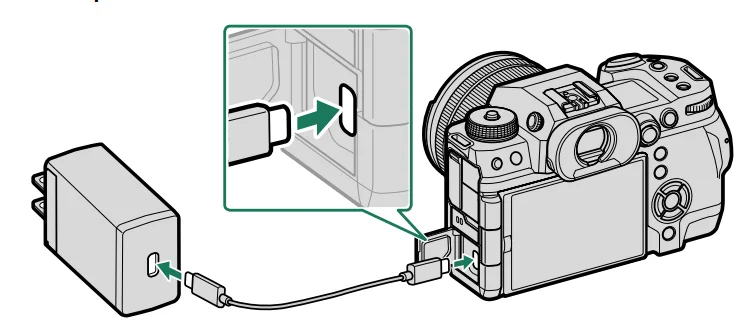
- Charge the battery.
Connect the camera to the supplied AC power adapter using the supplied USB cable. Then plug the AC power adapter into an indoor power outlet.
- Connect the cable to the camera’s USB connector (Type-C).
- Be sure the connectors are fully inserted.
- The supplied AC power adapter is compatible with power supplies of 100 to 240 V (a plug adapter may be needed for overseas use).
- Do not use the AC power adapter or USB cable with other devices, as this could cause malfunction.
- Do not affi x labels or other objects to the battery. Failure to observe this precaution could make it impossible to remove the battery from the camera.
- Do not short the battery terminals. The battery could overheat.
- Read the cautions in “The Battery and Power Supply”.
- Use only genuine Fujifi lm rechargeable batteries designated for use in this camera. Failure to observe this precaution could result in product malfunction.
- Do not remove the labels from the battery or attempt to split or peel the outer casing.
- The battery gradually loses its charge when not in use. Charge the battery one or two days before use.
- If the battery fails to hold a charge, it has reached the end of its charging life and must be replaced.
- Unplug the AC power adapter from the power outlet when it is not in use.
- If the battery is left for long periods without charging, you may find that its quality degrades or that it no longer holds a charge. Charge the battery regularly.
- Remove dirt from the battery terminals with a clean, dry cloth. Failure to observe this precaution could prevent the battery from charging.
- Note that charging times increase at low or high temperatures.
Selecting ON for Bluetooth/SMARTPHONE SETTING > Bluetooth ON/OFF in the network/USB settings menu increases the drain on the battery.
Basic Photography and Playback
Taking Photographs (Mode P)
This section describes how to take pictures using program AE (mode P). See pages 72–81 for information on S, A, and M modes.
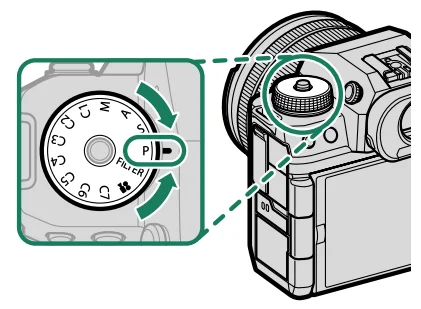
- Rotate the mode dial to P.
- Rotate the mode dial only after pressing the dial lock release to release the dial.

- Rotate the mode dial only after pressing the dial lock release to release the dial.
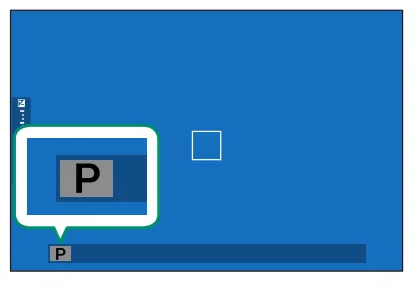
- Confirm that P appears in the display.

- Ready the camera.
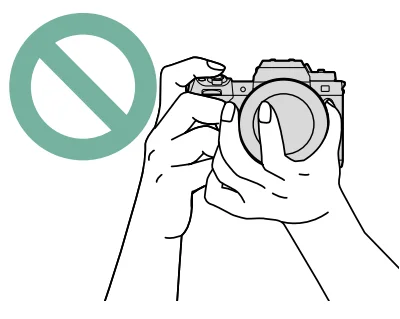
- Hold the camera steady with both hands and brace your elbows against your sides. Shaking or unsteady hands can blur your shots.

- To prevent pictures that are out of focus or too dark (underexposed), keep your fi ngers and other objects away from the lens and AF-assist illuminator.
- Hold the camera steady with both hands and brace your elbows against your sides. Shaking or unsteady hands can blur your shots.
- Frame the picture.
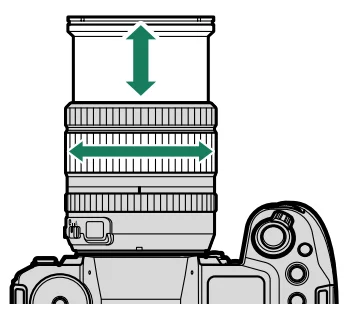
Lenses with Zoom Rings
Use the zoom ring to frame the picture in the display. Rotate the ring left to zoom out, right to zoom in.
- Focus.

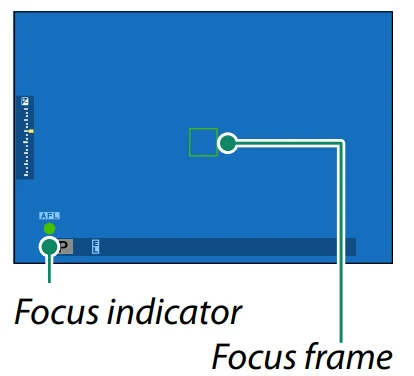
Press the shutter button halfway to set focus and exposure.- If the camera is able to focus, the focus frame and focus indicator will glow green.
- If the camera is unable to focus, the focus frame will turn red, s will be displayed, and the focus indicator will blink white.
- If the subject is poorly lit, the AF-assist illuminator may light to assist the focus operation.
- Focus and exposure will lock when the shutter button is pressed halfway. Focus and exposure remain locked while the button is kept in this position (AF/AE lock).
- The camera will focus on subjects at any distance in the macro and standard focus ranges for the lens.
- Shoot.
Smoothly press the shutter button the rest of the way down to take the picture.

Playback and the Playback Menu
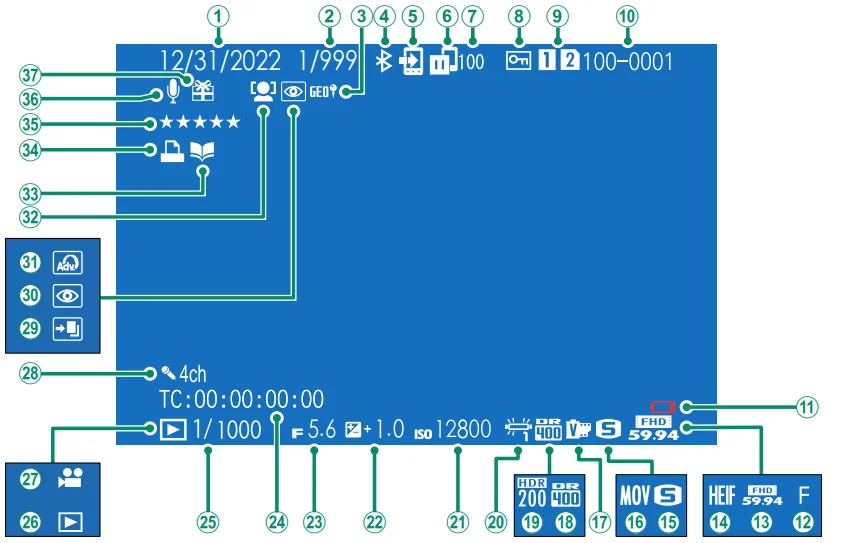
- Date and time
- Frame-number display
- Location data
- Bluetooth ON/OFF
- Image transfer order
- Image transfer status
- Number of frames selected for upload
- Protected image Card slot
- Frame number
- Low battery
- Image quality
- Movie mode
- HEIF
- Image size
- Film format
- Film simulation
- Dynamic range
- HDR
- White balance
- Sensitivity
- Exposure compensation
- Aperture
- Time code
- Shutter speed
- Playback mode indicator
- Movie icon
- Four-channel (quadrophonic) audio
- HDR image
- Red-eye removal indicator
- Filter
- Face detection indicator
- Photobook assist indicator
- DPOF print indicator
- Rating
- Voice memo
- Gift image
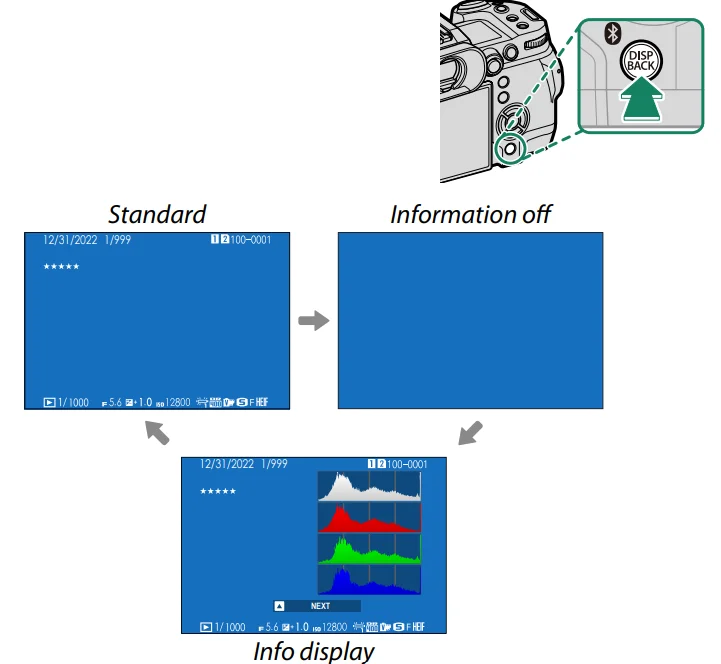
The DISP/BACK Button
The DISP/BACK button controls the display of indicators during playback.
RAW CONVERSION
Even if you don’t have a computer, you can use the camera to modify RAW pictures and save them in other formats. Saving RAW Pictures in Another Format
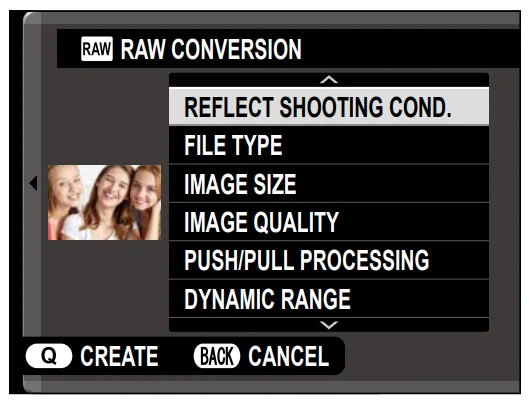
- Display a RAW picture.
- Highlight RAW CONVERSION in the playback menu.
- Press MENU/OK.
A list of settings will be displayed.
- Press the focus stick (focus lever) up or down to highlight a setting.
- Press the focus stick right to display options.
- Press the focus stick up or down to highlight the desired option.
- Press MENU/OK to select the highlighted option. The settings list shown in Step 3 will be displayed. Repeat Steps 4 to 7 to adjust additional settings.
- Press the Q button.
A preview of the copy will be displayed. - Press MENU/OK.
The copy will be saved.
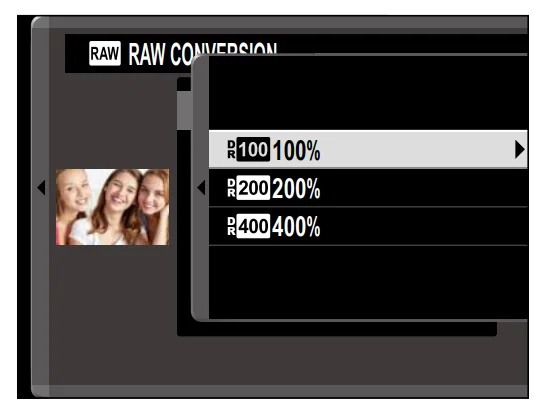
- RAW conversion options can also be displayed by pressing the Q button when a RAW pictures is displayed during playback.
The settings that can be adjusted when converting pictures from
RAW to another format are:
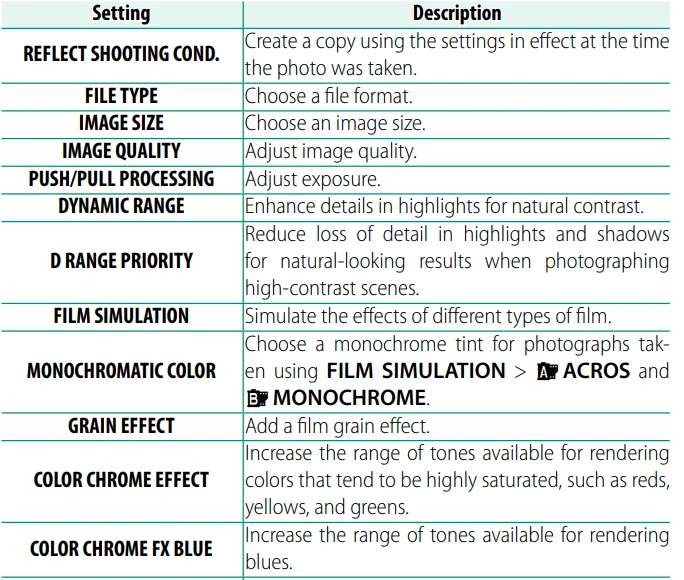
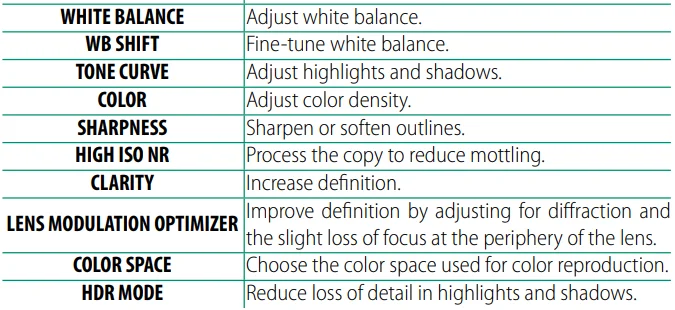
- OSome settings may be unavailable depending on the options chosen when the picture was taken.
Network/USB Setting Menus
Network/USB Setting Menus
Adjust camera network and USB settings.
For more information on the network/USB settings menu, visit: https://fujifilm-dsc.com/en/manual/x-h2s_connection/
The Setup Menus
USER SETTING
Adjust basic camera settings.
To access basic camera settings, press MENU/OK, select the (SET UP) tab, and choose USER SETTING.
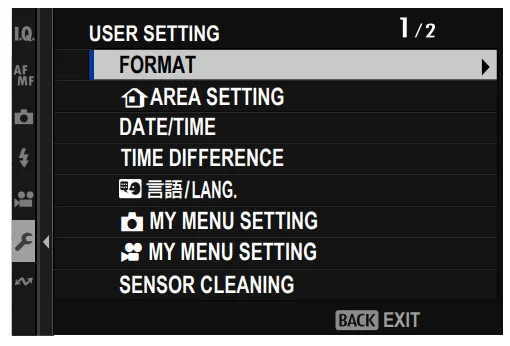
FORMAT
To format a memory card:
- SelectUSER SETTING > FORMAT in the(SET UP) tab.
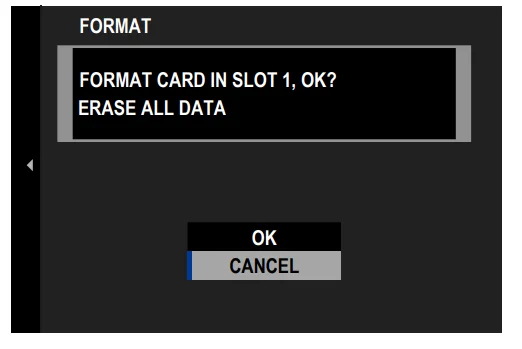
- Highlight the slot containing the card you wish to format and
press MENU/OK. - A confi rmation dialog will be displayed. To format the memory card, highlight OK and press MENU/OK.

- To exit without formatting the memory card, select CANCEL or press DISP/BACK.
- All data—including protected pictures—will be deleted from the memory card. Be sure important fi les have been copied to a computer or other storage device.
- Do not open the battery-chamber cover during formatting.
SAVE DATA SETTING
Make changes to fi le management settings. To access fi le management settings, press MENU/OK, select the(SET UP) tab, and choose SAVE DATA SET-UP.
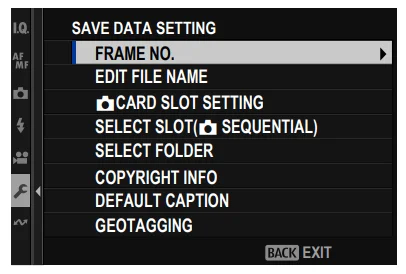
FRAME NO.
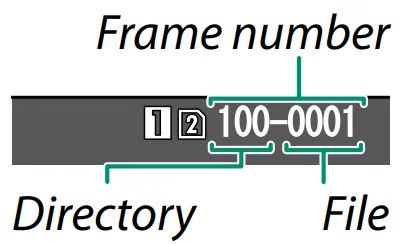
New pictures are stored in image fi les named using a four-digit fi le number assigned by adding one to the last file number used. The
fi le number is displayed during playback as shown. FRAME NO. controls whether fi le numbering is reset to 0001 when a new memory card is inserted or the current memory card is formatted.
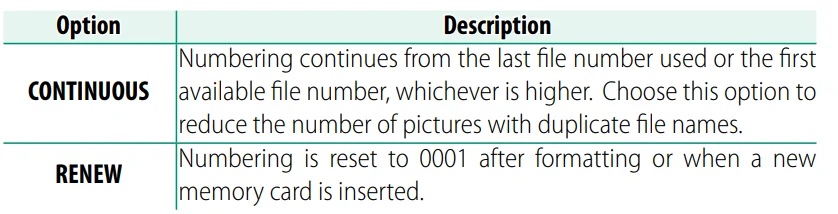
- If the frame number reaches 999-9999, the shutter release will be
disabled. Turn the camera off and insert a formatted memory card before resuming shooting. - SelectingUSER SETTING > RESET sets FRAME NO. to CONTINUOUS but does not reset the fi le number.
- Frame numbers for pictures taken with other cameras may differ.
Shortcuts
Shortcut Options
Customize camera controls to suit your style or situation.
Frequently-used options can be added to the Q menu or a custom “my” menu or assigned to a function button or touch-function gesture for direct access:
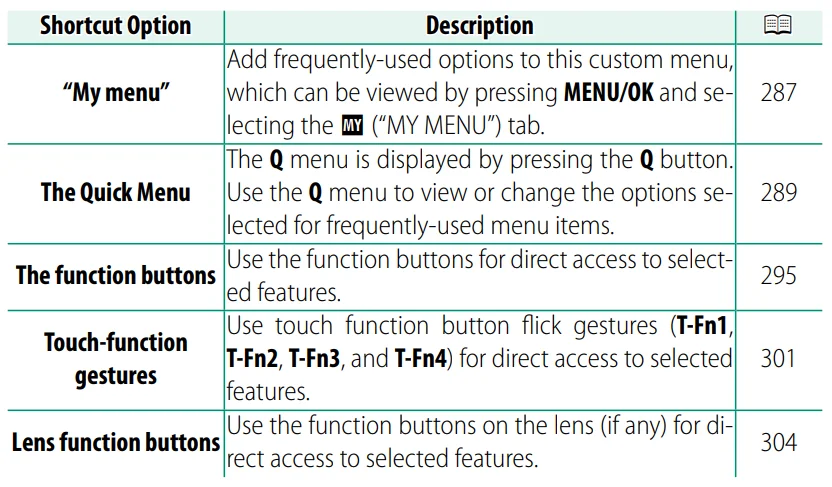
Function Controls
Assign a role to each function button or touch-function gesture for quick access to the selected feature.
The Function Buttons
Assign a role to the function buttons for quick access to the selected
feature.
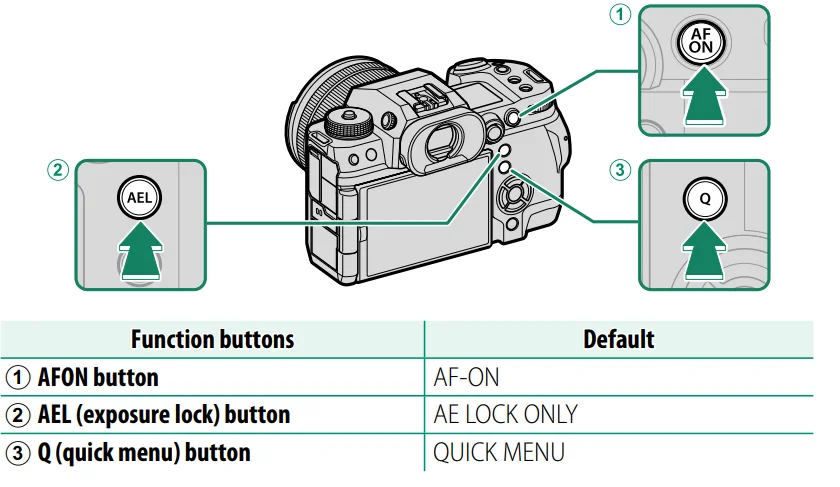
Function Button Defaults
The default assignments are:
Back-of-Camera Function Buttons
Peripherals and Optional Accessories
Lenses
The camera can be used with lenses for the FUJIFILM X-mount.
Lens Parts
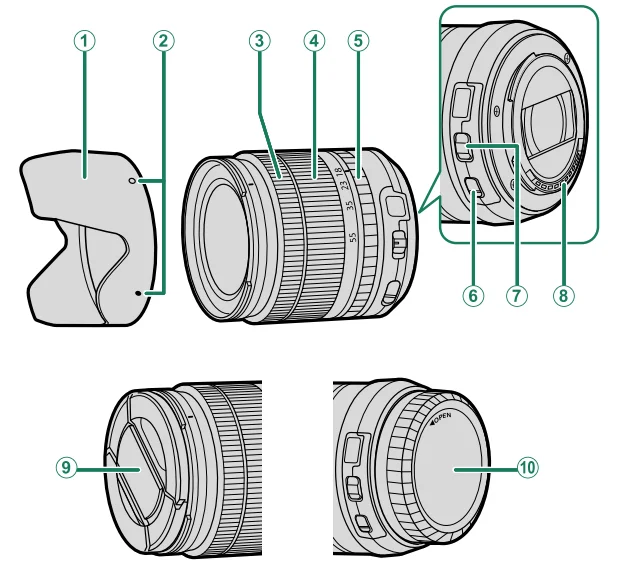
- Lens hood
- Mounting marks
- Focus ring
- Zoom ring
- Aperture ring
- O.I.S. switch
- Aperture mode switch
- Lens signal contacts
- Front lens cap
- Rear lens cap
- A XF18-55mmF2.8-4 R LM OIS lens is used here for illustrative purposes.
Lens Care
- Use a blower to remove dust, then gently wipe with a soft, dry cloth. Any remaining stains can be removed by wiping gently with a piece of Fujifi lm lens-cleaning paper to which a small amount of lens-cleaning fl uid has been applied.
- Replace the front and rear caps when the lens is not in use.
For more manuals by Fujifilm, visit ManualsLibraryy
Fujifilm X-H2S Camera-FAQs
How do you charge the Fujifilm X-H2S camera?
To charge the Fujifilm X-H2S, connect the camera to the supplied AC adapter using a USB Type-C cable. Plug the adapter into a power outlet and ensure the cable is securely inserted. The camera can charge internally without removing the battery. For faster charging, it’s recommended to keep the camera powered off during the process.
How can you check if the Fujifilm X-H2S battery is fully charged?
You can monitor the battery status using the on-screen battery icon. When fully charged, the icon will display a full battery indicator. If charging externally, many chargers show a steady light when charging is complete. Always confirm full charge before long shoots to avoid interruptions.
What type of photography is the Fujifilm X-H2S best suited for?
The Fujifilm X-H2S is ideal for action, sports, wildlife, and video shooting. Its fast burst rate, advanced autofocus, and stacked sensor make it perfect for capturing moving subjects. It’s also a great option for hybrid creators who need both high-quality photos and professional video capabilities in one camera.
Is the Fujifilm X-H2S a good camera for beginners?
While the Fujifilm X-H2S is a powerful professional camera, beginners can still use it if they are willing to learn. It offers automatic modes and intuitive controls, but its advanced features may feel overwhelming at first. It’s better suited for enthusiasts or users looking to grow into professional-level photography and videography.
What is the battery life of the Fujifilm X-H2S?
The battery life depends on usage, but it typically lasts around 90 minutes for video recording or several hundred photos per charge. Continuous shooting, high-resolution video, and screen brightness can affect performance. Carrying spare batteries is recommended for extended sessions or professional work.
Can you use the Fujifilm X-H2S while it is charging?
Yes, the camera can be used while connected to a power source via USB-C. However, in this case, it draws power directly instead of charging the battery. This is useful for long video recordings or studio work, but the battery level may slowly decrease during heavy usage.
How do you use manual mode on the Fujifilm X-H2S?
To use manual mode, set both the shutter speed and aperture manually instead of leaving them on automatic settings. Adjust the shutter speed dial and lens aperture ring to control exposure. This gives full creative control over brightness, motion blur, and depth of field, making it ideal for advanced photography.
What ISO settings are recommended for the Fujifilm X-H2S?
For most situations, ISO values between 200 and 6400 provide a good balance of image quality and brightness. Lower ISO works best in bright conditions, while higher ISO is useful in low light. The camera also offers auto ISO settings, which adjust sensitivity automatically based on lighting conditions.
What lenses are compatible with the Fujifilm X-H2S?
The Fujifilm X-H2S uses the X-mount system, meaning it supports a wide range of Fujifilm X-series lenses. You can also use third-party lenses designed for the same mount. This flexibility allows photographers to choose lenses for portraits, landscapes, sports, or macro photography depending on their needs.
What are the key features of the Fujifilm X-H2S?
The Fujifilm X-H2S includes a stacked sensor, fast continuous shooting up to 40 fps, advanced autofocus, and strong in-body image stabilization. It also supports high-quality video recording up to 6.2K. These features make it a versatile camera for both professional photographers and content creators.