
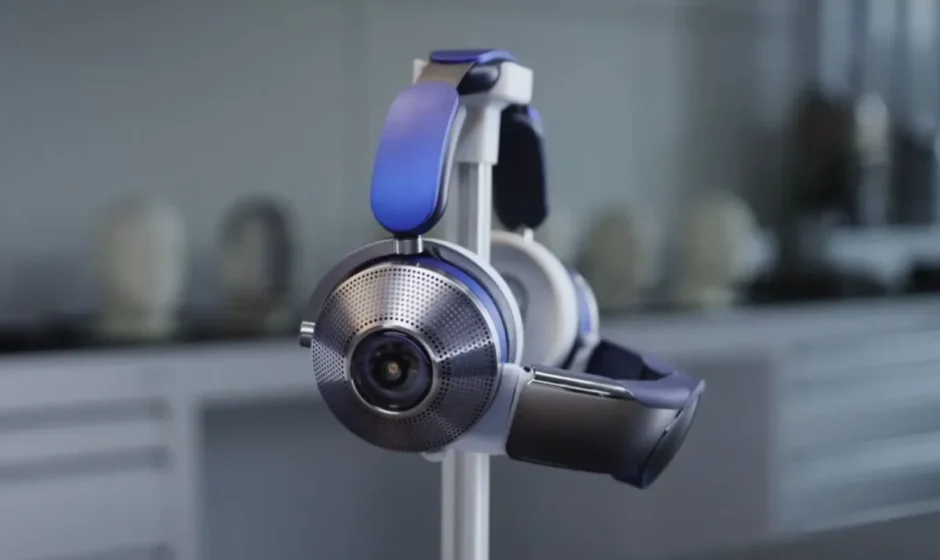

Dyson Zone Noise-Cancelling Headphones
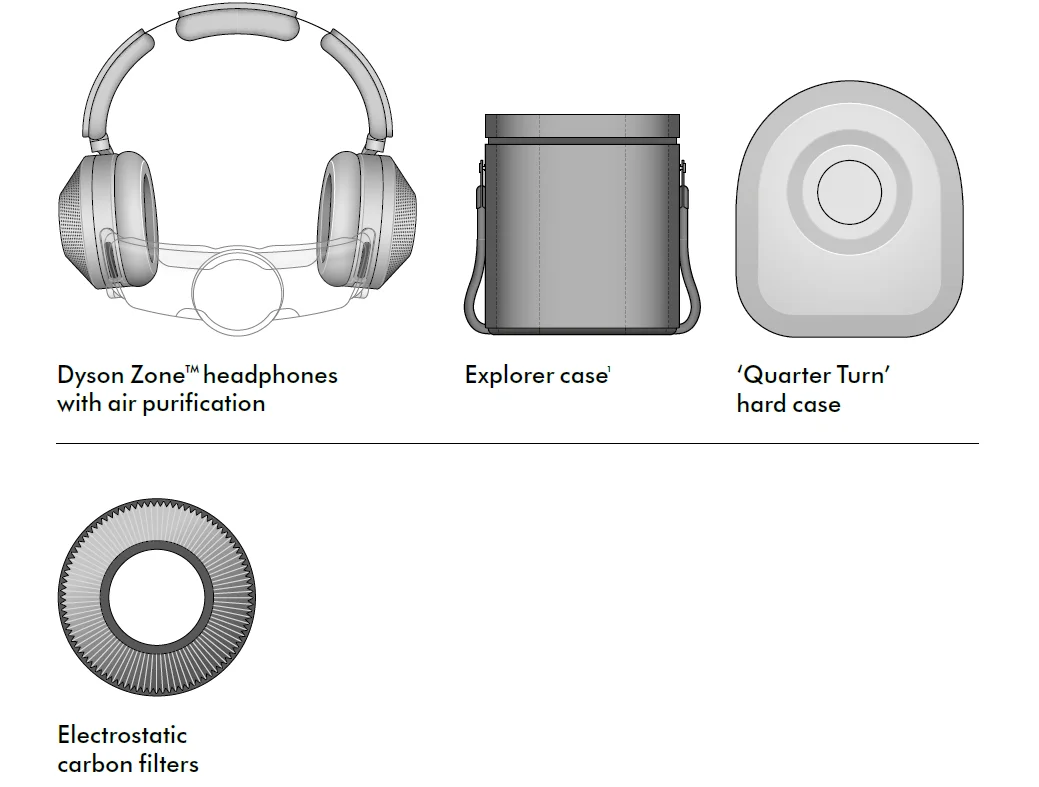
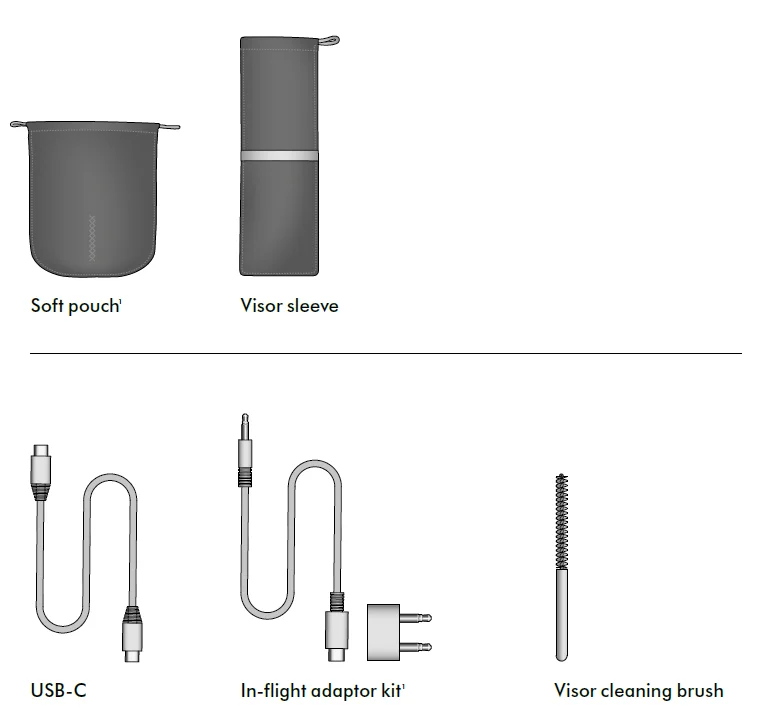
In the box
Some accessories may not be included. You can buy additional accessories at www.dyson.com
Download the MyDyson app
An essential part of your experience, the MyDyson app lets you control your Dyson Zone headphones with air purification – wherever you are. If you haven’t already, download the app now for extra features and the latest updates. Download the MyDyson app from the App Store or Google Play. Open the app and follow the on-screen instructions to create a new account.
Apple and the Apple logo are trademarks of Apple Inc., registered in the U.S. and other countries. App Store is a service mark of Apple Inc., registered in the U.S. and other countries. Google Play and the Google Play logo are trademarks of Google Inc.
Getting started
Audio joystick
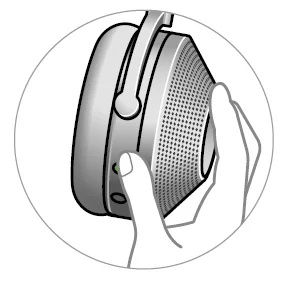
Lets you control music, adjust volume, and access your voice assistant on the back of your right ear cup.
Download the MyDyson app
Control your environment – wherever you are. Access live reporting on air quality and noise, check the status of your battery, filter life and more.
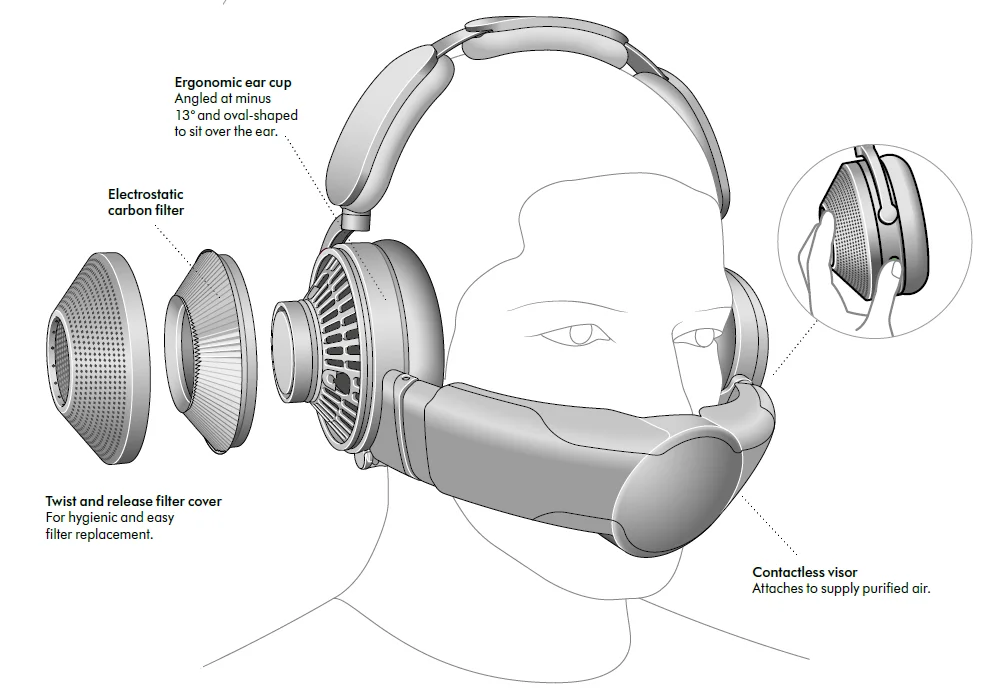
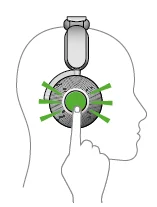
Transparency mode
To switch to Transparency mode, double-tap either ear cup. Surrounding sounds are amplified.
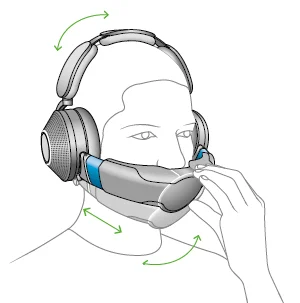
Slide adjustor
Adapts to different face shapes and sizes.
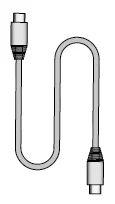
USB-C charger
Charge your headphones using the USB-C cable.
Assembling your headphones
- Insert your filters
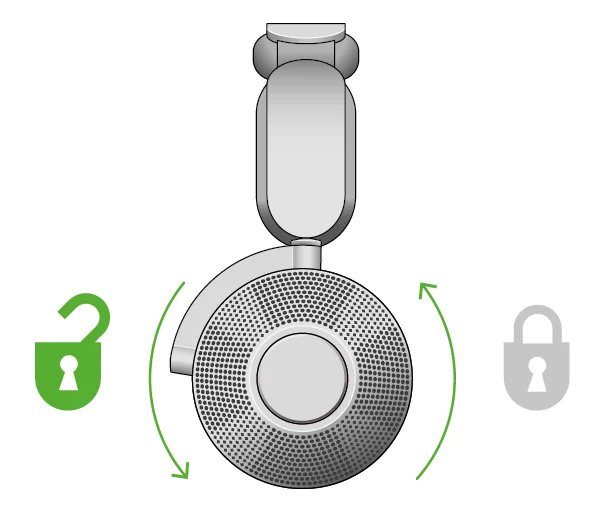
Twist off both ear cup covers, anti-clockwise. - Hold the filters on the plastic edges and secure them in the ear cups.
- Replace the covers and twist them clockwise to secure them in position.
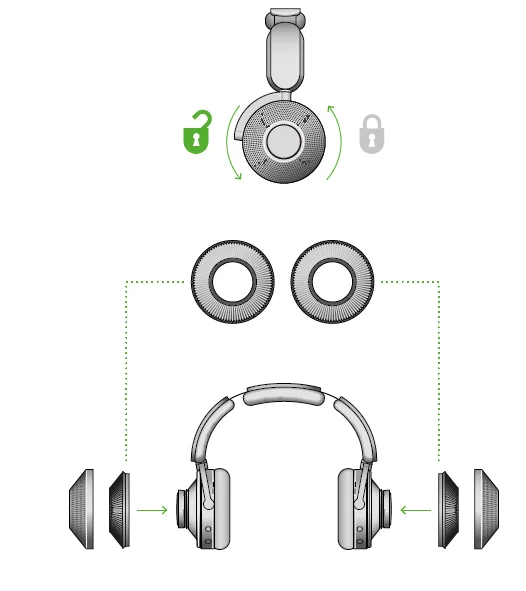
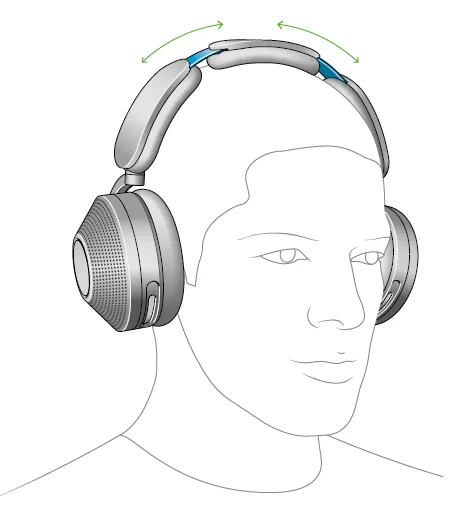
- Adjust your headphones
Put your headphones on. - Adjust the headband, sliding both sides until you have a comfortable fit.
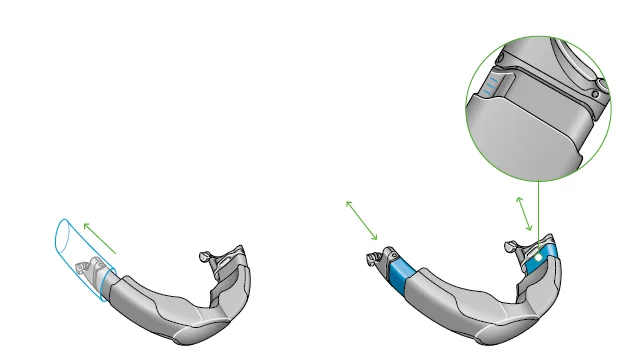
- Attach visor
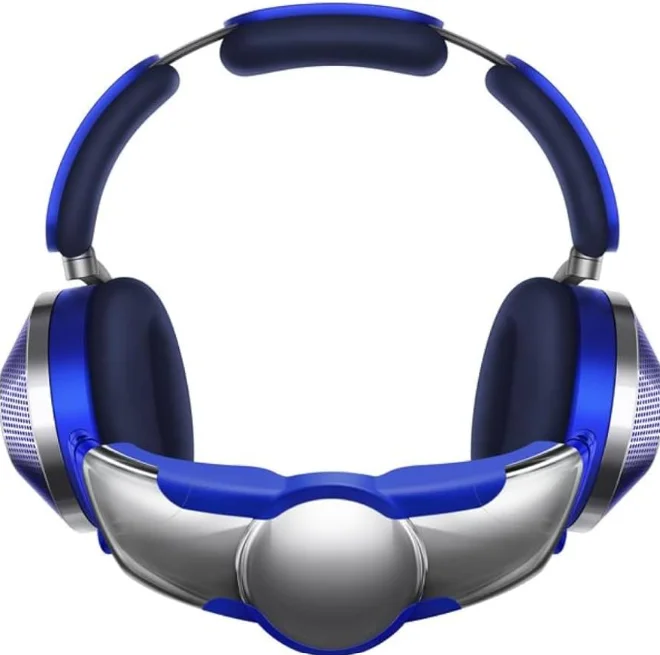
Remove any packaging from the visor and fully extend the visor arms.
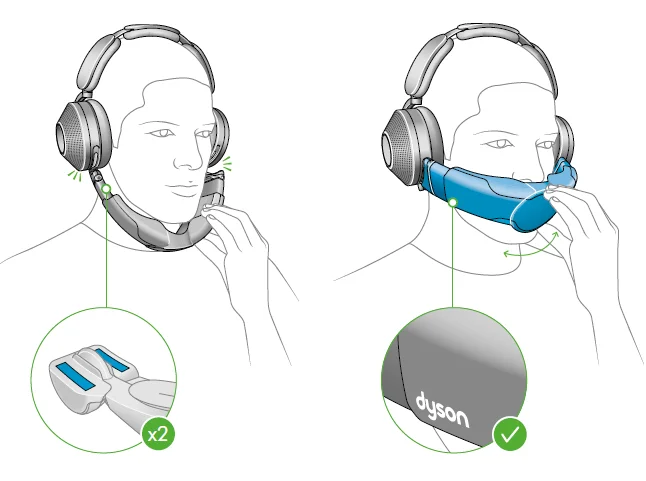
- With the visor positioned below your mouth, attach it to each ear cup with the magnetic connectors. Push the visor up to cover your nose and mouth.
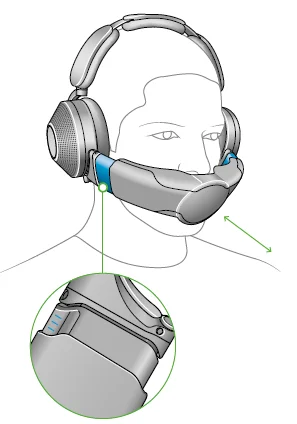
- Adjust visor
Adjust the visor until it’s in a comfortable position, close to – but not touching – your face. The airflow will start automatically.
Pairing your headphones
- Connecting to the MyDyson app
Download the MyDyson app from the App Store or Google Play. Open the app and follow the on-screen instructions to create a new account. If you already have an account, select ‘Add machine’ and follow the instructions.
Apple and the Apple logo are trademarks of Apple Inc., registered in the U.S. and other countries. App Store is a service mark of Apple Inc., registered in the U.S. and other countries. Google Play and the Google Play logo are trademarks of Google Inc.
- Turn on your headphones
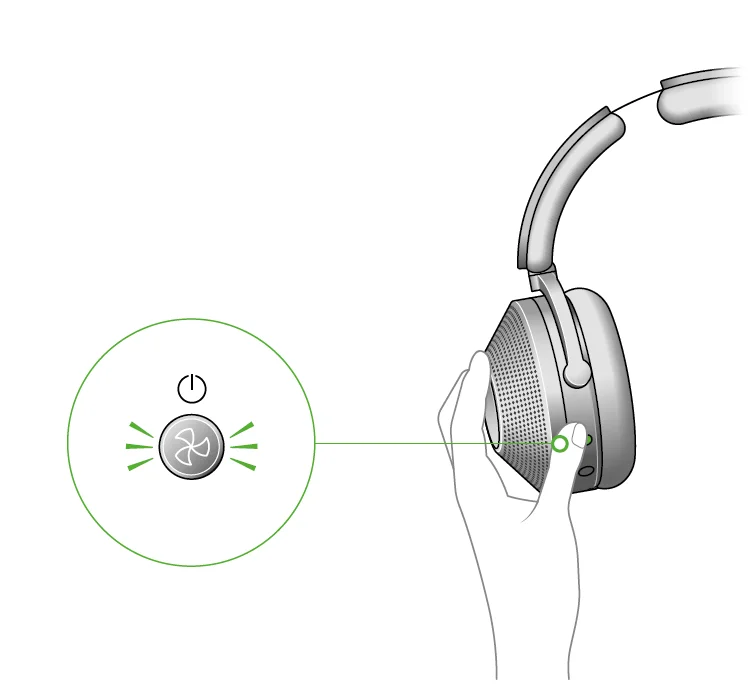
Press and hold the Airflow button on your left ear cup to turn on the power. The LED light will turn white. You can turn them off by holding down the airflow button for 5 seconds when you are not using them. - Holding it down for a further 5-10 seconds will reset your headphones.
- Pair your headphones
Press and hold the airflow button until the LED light starts to pulse blue. Your MyDyson app will alert you when pairing is complete.
- Connect audio using Bluetooth
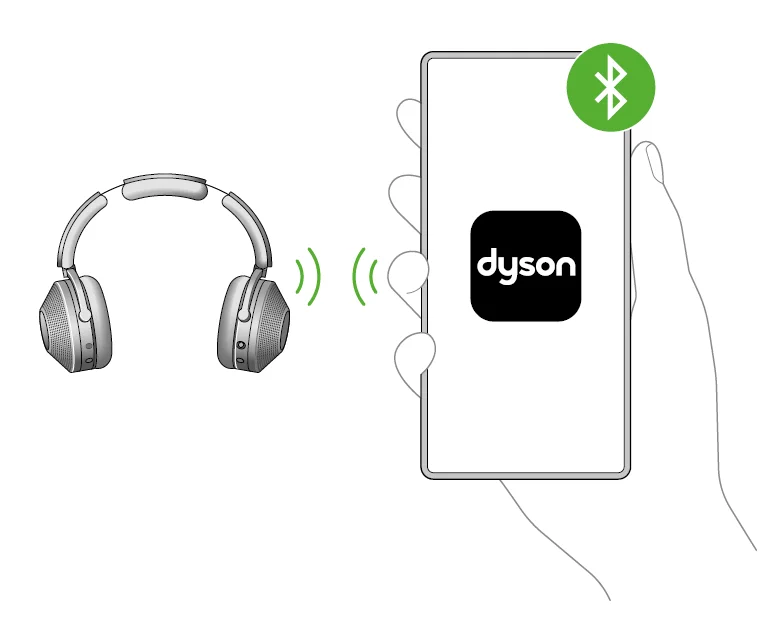
Open Bluetooth in your mobile device’s settings menu. Check that Bluetooth is turned on and select your Dyson Zone headphones. When your device has connected to your headphones, return to the MyDyson app.
Charging your headphones
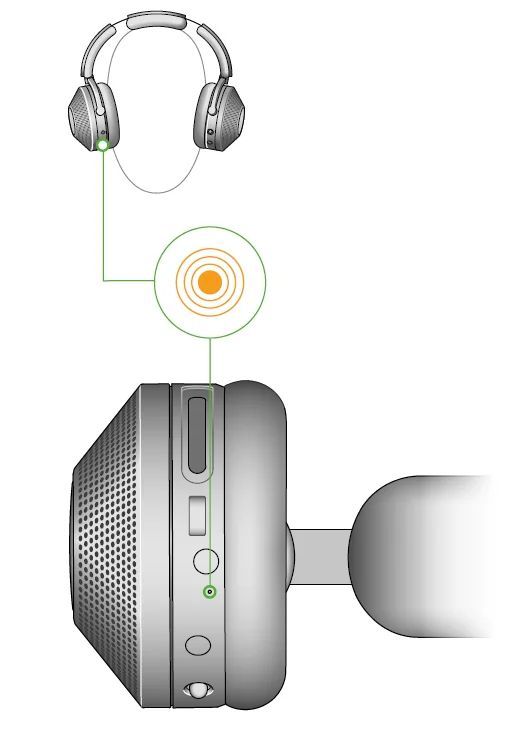
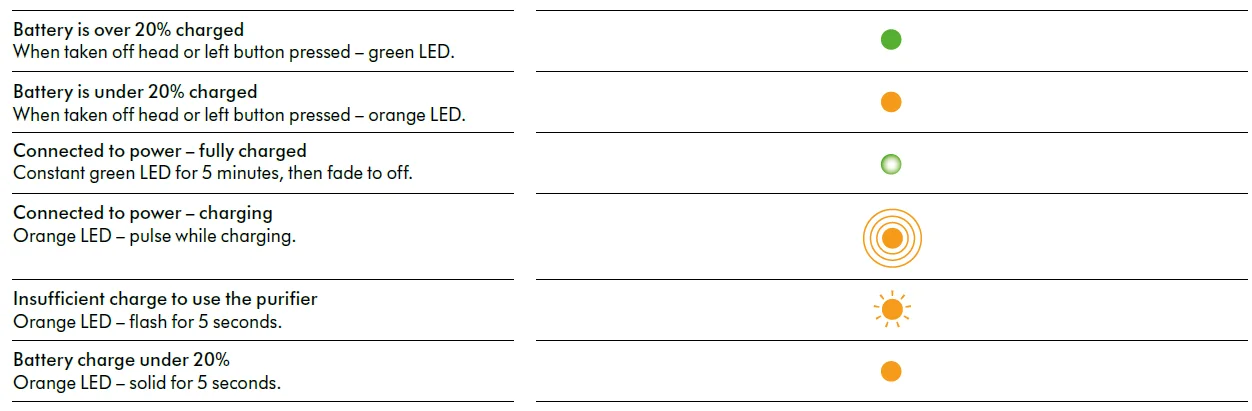
Your headphones will need to have more than 20% charge to run purification. You can check the charge level by pressing the airflow button.
Battery life
The battery life of your headphones with air purification will improve with use. Allow at least 5 hours of initial use to achieve the best runtime performance.
Action and LED behaviour
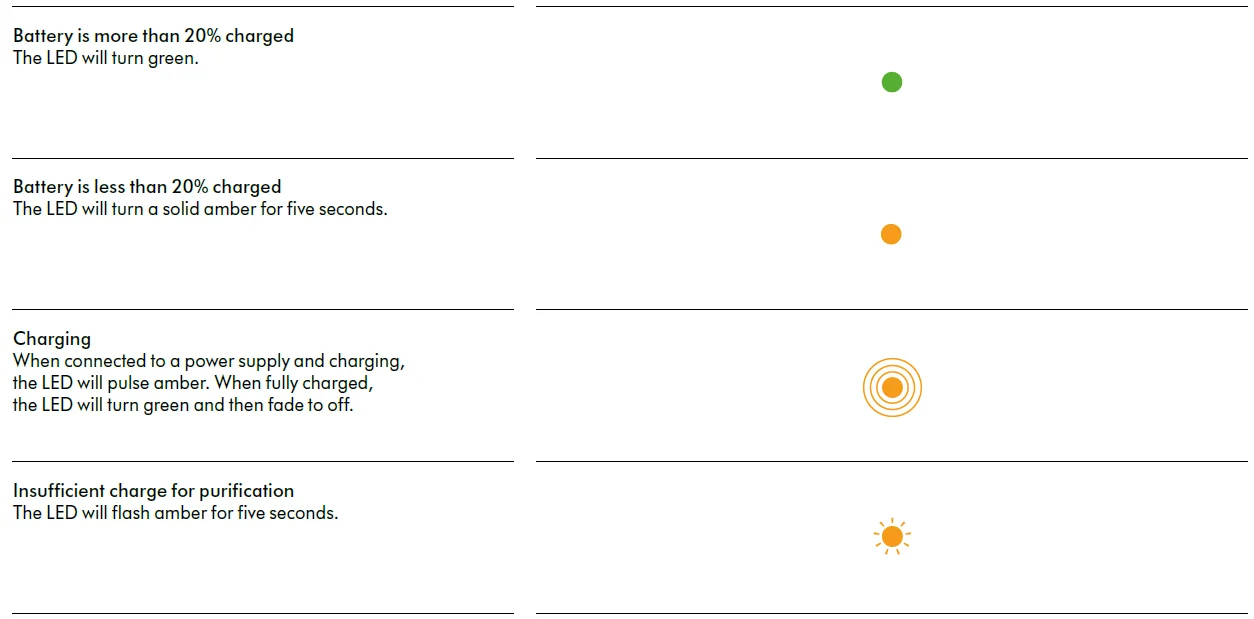
Airflow control
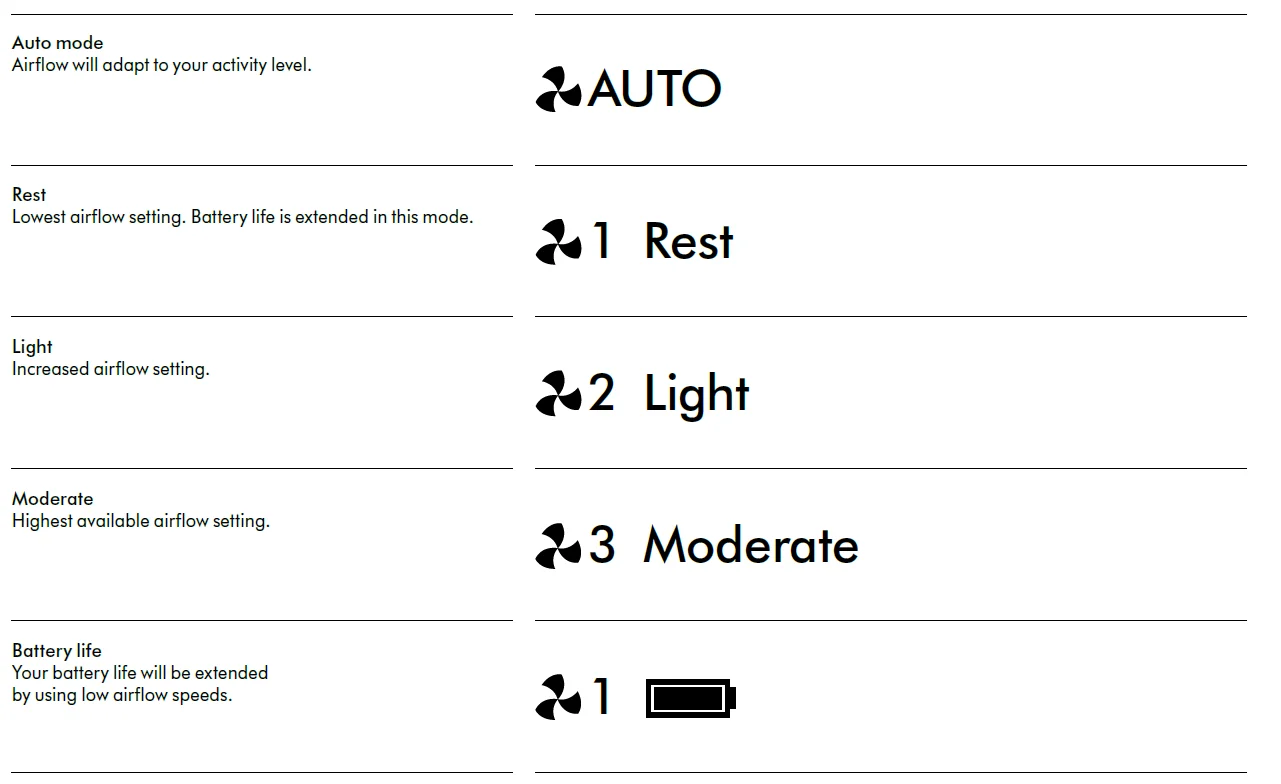
Your Dyson Zone headphones with air purification will detect your level of activity and adjust the airflow automatically. You can also choose to adjust the levels manually. Use your MyDyson app to select Auto, or adjust the modes manually. Alternatively, use the button on the back of the left ear cup to select modes.
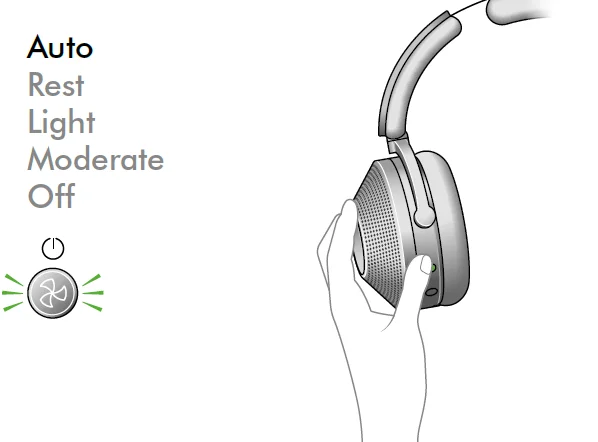
Battery life
You can extend battery life by using low airflow settings.
Using audio
- To play audio through your headphones, you’ll need to either connect them using Bluetooth or the audio cable.
- You can play audio through your headphones without the visor being attached.
- Use the audio button
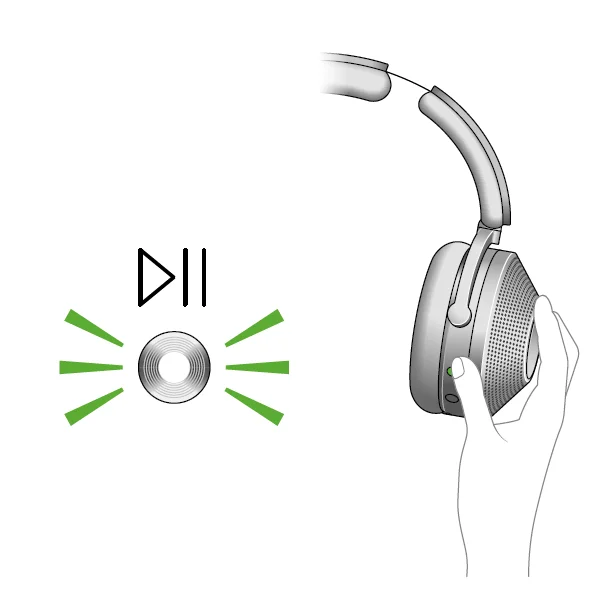
Control your audio using the MyDyson app or the joystick on the back of your right ear cup. - Play and pause
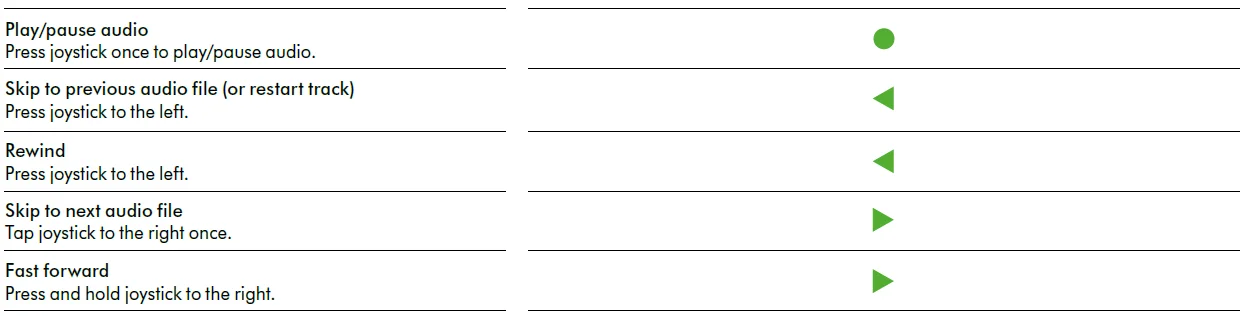
Press the middle of the joystick to play. Press it again to pause.
Active noise cancelling
Use Active noise cancelling (ANC) to reduce the background noise around you.
- Isolation mode
The maximum level of ANC reduces the surrounding and background noise. This is the default setting for your headphones.
- Transparency mode
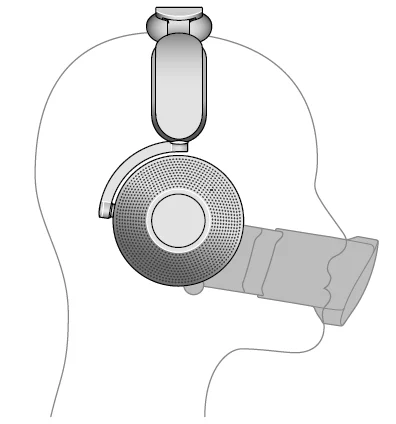
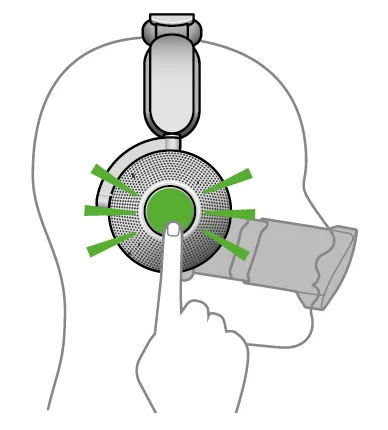
To toggle to Transparency mode, double-tap either ear cap. Surrounding sounds are amplified.
- Conversation mode
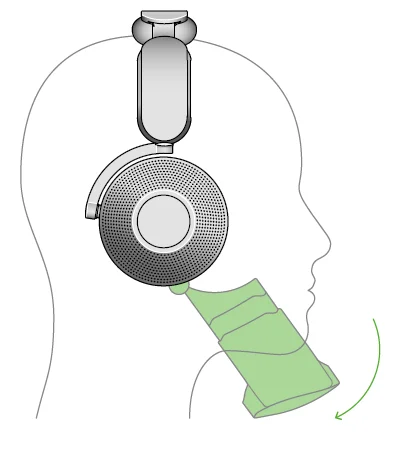
Flip the visor down to pause airflow, audio and noise cancelling. Voices are amplified so you can hear with your headphones on.
Audio joystick
- How to use the Audio joystick
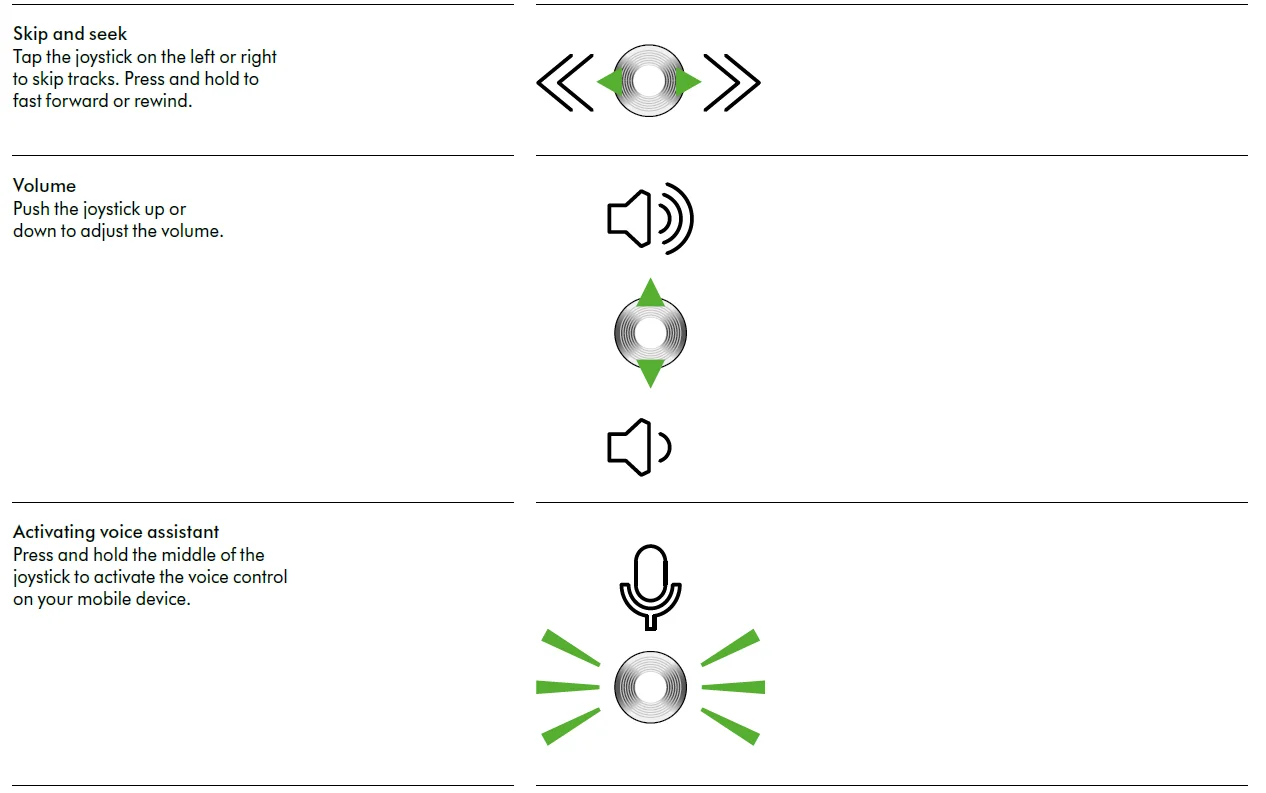
Control your audio using the joystick on the back of your right ear cup.
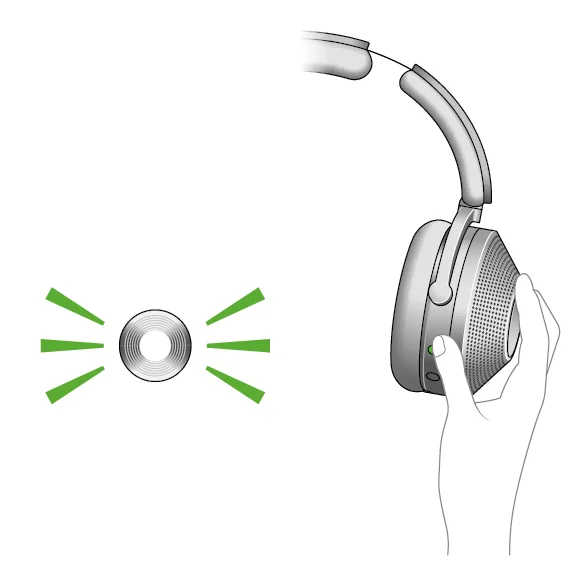
At all times
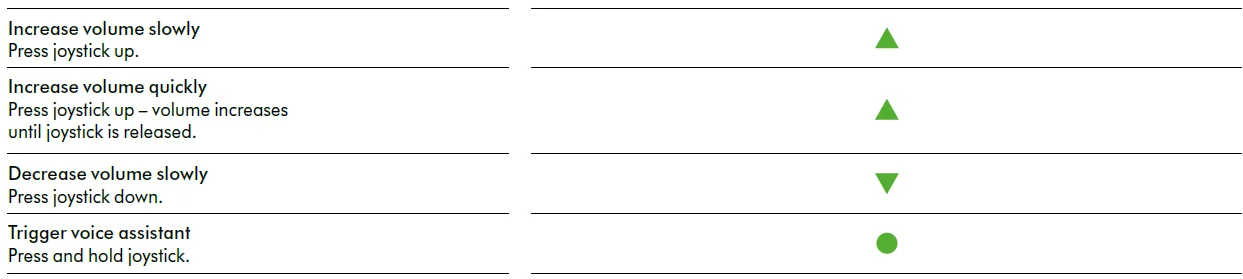
While listening to audio
While using the voice assistant on the device

While the call is ringing

While the call is in progress

LEDs
LEDs will let you know when your Dyson Zone headphones with air purification need your attention.
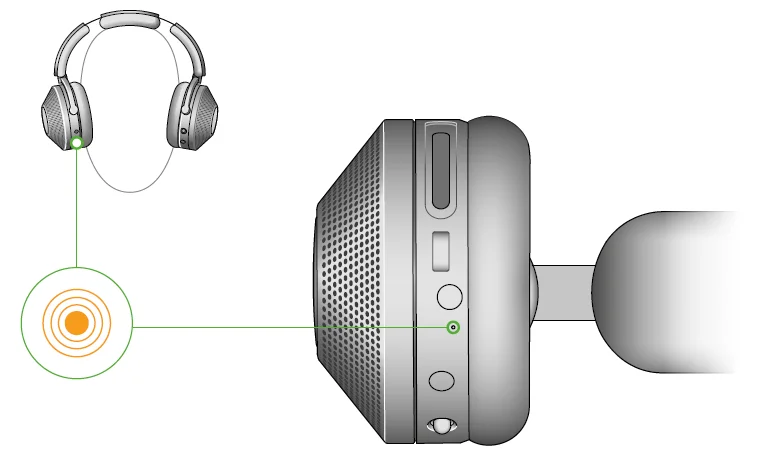
Action

Battery
Bluetooth

Filter

Alerts

In-flight adaptor
Connect the In-flight cable to the 2-pin adaptor, then plug it into the plane’s entertainment system via the audio port. The In-flight adaptor will only charge your Dyson Zone headphones with air purification when the USB-C cable is also used. Please note that the audio controls on your Dyson Zone headphones with air purification will not function when the In-flight adaptor is in use.
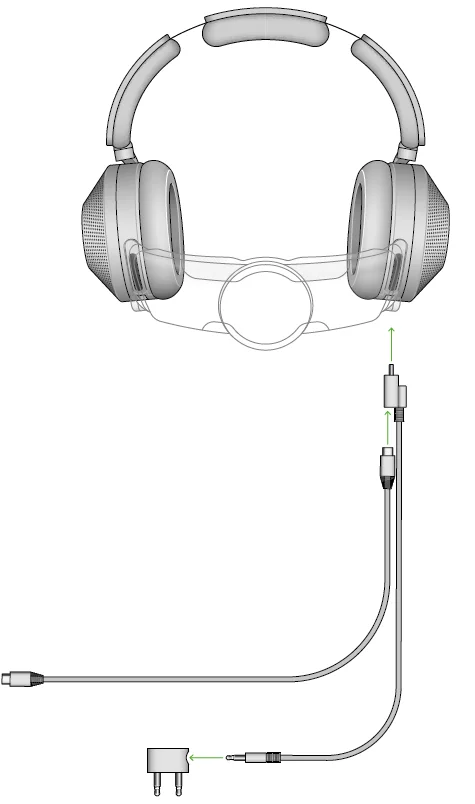
Warning: The In-flight 2-pin adaptor is for connection to an audio outlet only. Plugging in to a mains socket outlet may result in a fire or pose a risk of an electric shock.
Changing your filters
Filter life
Your MyDyson app and headphones will alert you when your filter life is running low. The filter life will depend on the amount of time you use your headphones and the level of your activity. Your filters are not washable and should be replaced once the MyDyson app has alerted you to do so.
Remove the cover
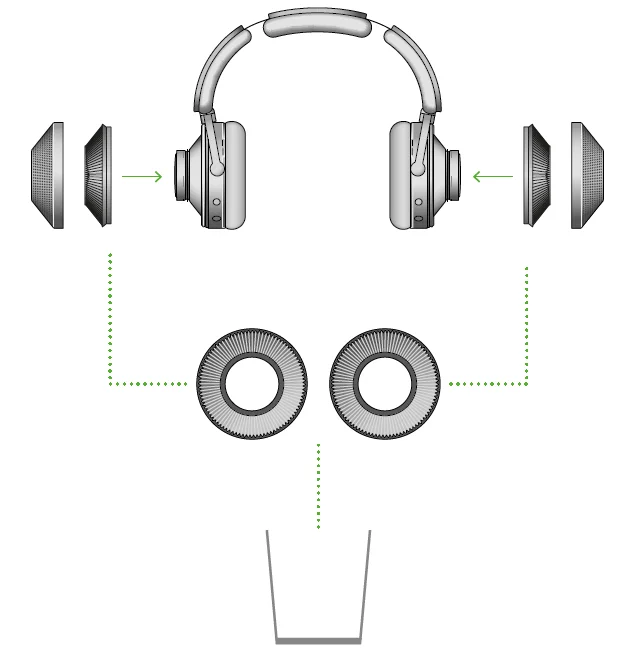
Twist the covers on the ear cups until they release.
Remove the filters
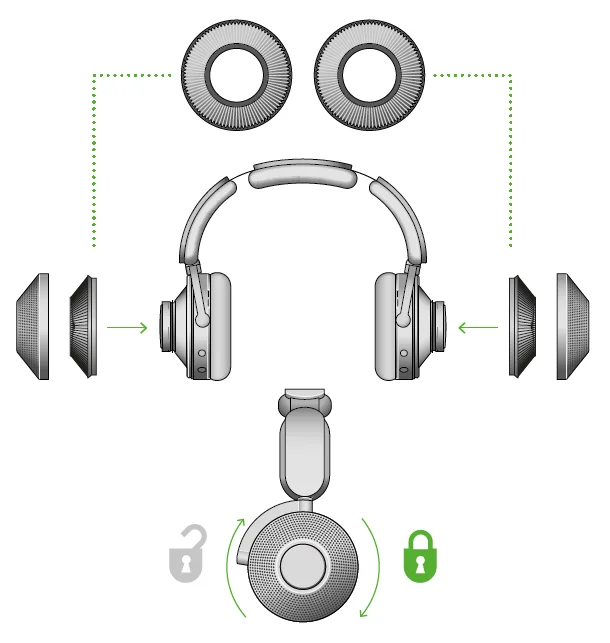
Lift out the filters carefully. Avoid dropping any dust into the ear cups. Dispose of the filters.
Insert filters
Remove the new filters from any packaging and place them in the ear cups. Replace the covers and twist clockwise to lock into position. Once you have changed your filters, it is important to remember to reset your filter life in the MyDyson app.
Cleaning your Dyson Zone headphones with air purification
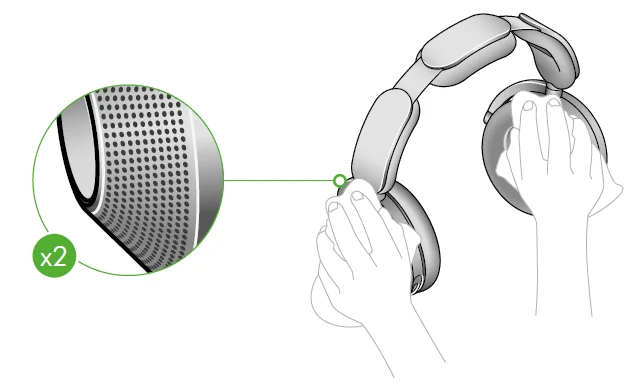
It is important to carry out regular cleaning of your headphones to maintain maximum performance. Allow enough time to dry your headphones before you need to use them again. Due to the materials and manufacturing processes used, your machine, including the packaging, may produce a slight odour.
Quick clean
- Ear covers
Wipe away dust or debris from the perforations in the ear cup covers with a soft, damp, lint-free cloth. - Ear cushions
Wipe away dust or debris with a soft, damp, lint-free cloth. - Visor
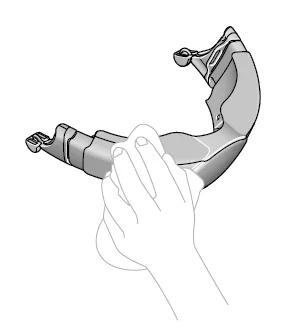
Wipe away dust or debris with a soft, damp, lint-free cloth.
Regular cleaning
Remove the visor
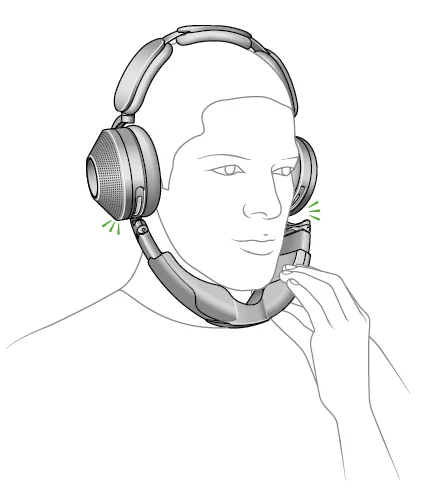
Push the visor down and gently pull it away from the ear cups.
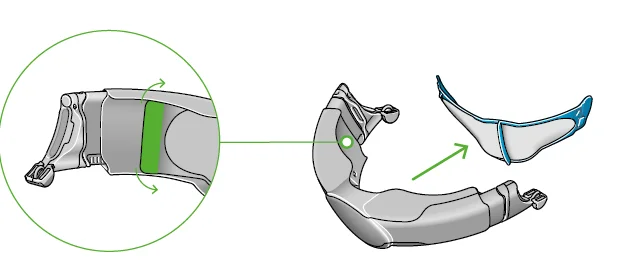
Pinch the outer edges of the mesh until it pops out of the visor.
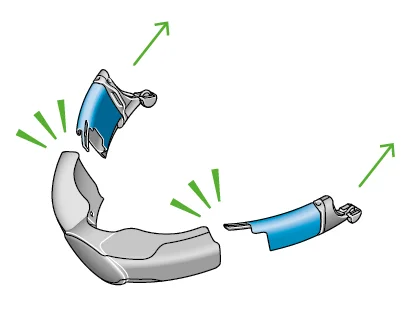
Slide the side extensions out and unclip from the visor.
Wash visor
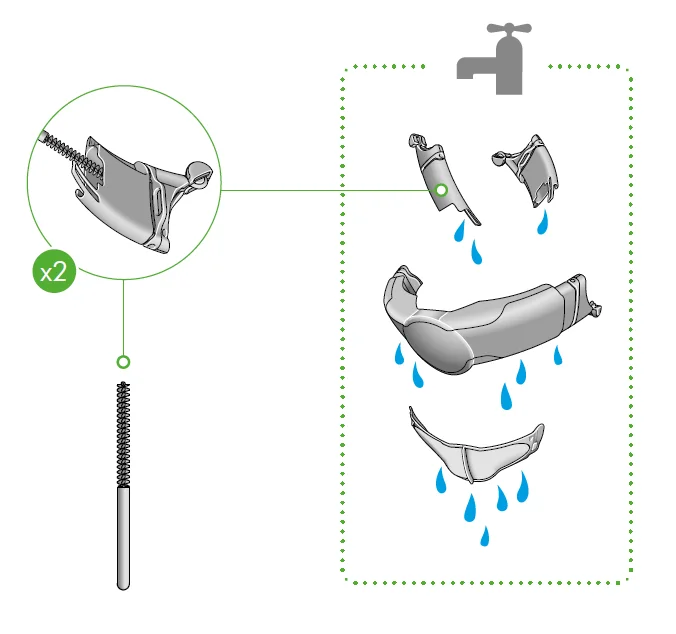
Wash the visor and mesh with warm water and dish soap. Use the Dyson visor cleaning brush to reach all areas. Rinse all parts thoroughly.
Dry visor
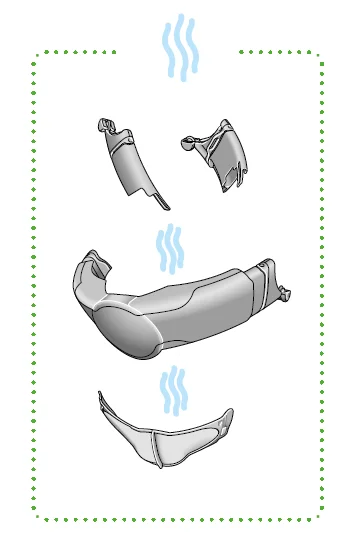
Leave your visor to dry in a well-ventilated, warm place.
Reassembling your headphones
Reassemble visor
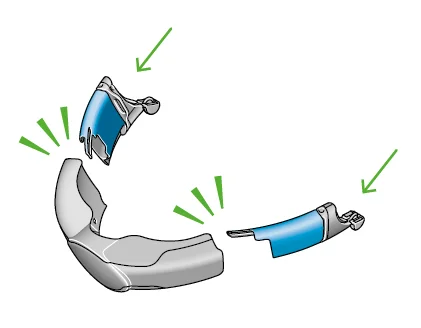
Make sure all parts of your visor are completely dry before reassembling. Slide in side extensions until they click into position.
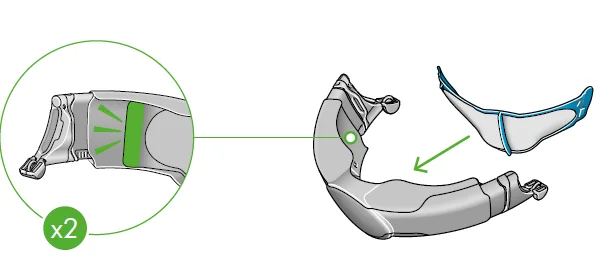
Clip in the inner mesh.
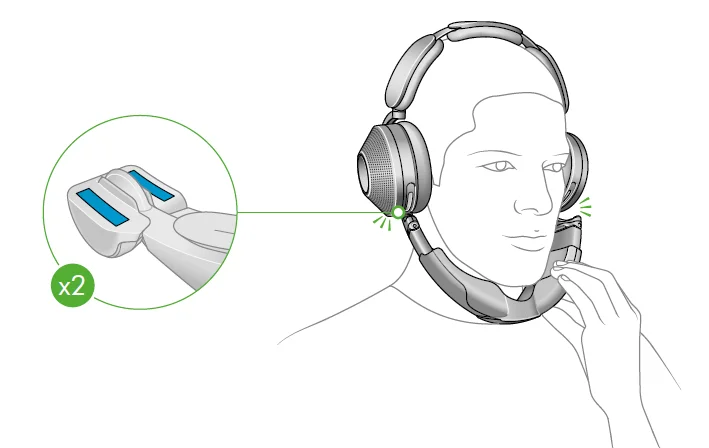
Reattach the visor to your headphones.
For more manuals by Dyson, visit ManualsLibraryy
Dyson Zone Noise-Cancelling Headphones-FAQs
What do the Dyson Zone Noise-Cancelling Headphones actually do?
The Dyson Zone is a unique device that combines active noise-cancelling headphones with a wearable air purifier. It filters pollutants like dust, allergens, and gases while delivering high-quality audio. The detachable visor directs purified air toward your nose and mouth, making it ideal for use in polluted or crowded environments while enjoying immersive sound.
Is the Dyson Zone discontinued?
No, the Dyson Zone is not officially discontinued. However, it is considered a niche product due to its specialized air-purifying feature. Availability may vary depending on demand and region, but Dyson continues to support the device with software updates and accessories through its official channels.
How long does the Dyson Zone battery last?
Battery life depends on usage. When using both air purification and active noise cancellation, it lasts around 4 hours. If you use audio-only mode without purification, it can last up to 50 hours. This flexibility allows users to extend usage time based on their needs.
Can you make phone calls with the Dyson Zone?
Yes, the Dyson Zone supports phone calls. It features built-in microphones with beamforming technology, allowing clear voice capture. You can easily answer, reject, or end calls using the onboard controls, making it practical for everyday communication.
Is the Dyson Zone comfortable to wear?
Despite being heavier than typical headphones, the Dyson Zone is designed with ergonomic cushioning and balanced weight distribution. Many users find it comfortable for extended listening sessions. The visor is optional and can be detached when air purification is not needed.
How does the air purification system work?
The Dyson Zone uses electrostatic filters and compressors to draw in air and remove pollutants before delivering clean airflow through the visor. It captures fine particles and gases, helping improve the air you breathe while on the move.
How do you update the Dyson Zone software?
You can update the device through the MyDyson app. By enabling auto-updates, your headphones will receive the latest firmware improvements and features automatically. Regular updates ensure optimal performance and compatibility with new devices.
How does the Dyson Zone compare to Bose or Sony headphones?
Traditional brands like Bose and Sony generally offer better noise cancellation and lighter designs. However, the Dyson Zone stands out with its built-in air purification, making it a unique choice for users who want both clean air and audio in one device.
Why might the Dyson Zone stop working or lose performance?
Performance issues can occur due to blocked filters, low battery, or outdated firmware. Regular maintenance, such as cleaning or replacing filters and keeping the device updated, helps prevent problems and ensures consistent operation.
Is the airflow adjustable on the Dyson Zone?
Yes, the airflow can be adjusted manually or automatically. The device includes different modes for rest, light activity, and moderate movement. This allows you to control how much purified air is delivered based on your activity level and comfort.