
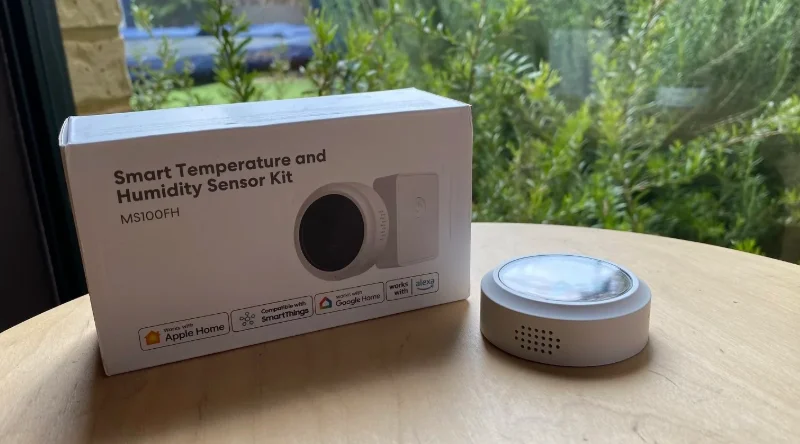

Meross MS100FH Smart Temperature and Humidity Sensor
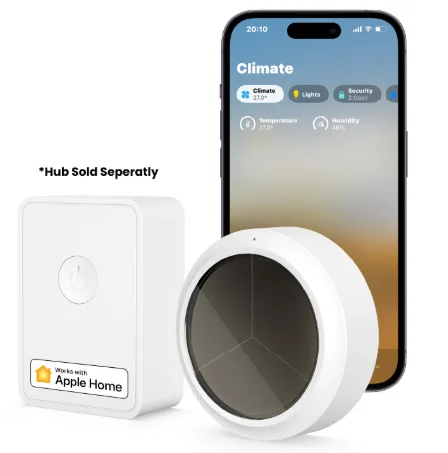
Safety Information
- Do not attempt to disassemble, repair, or modify the device.
- Please contact the seller for a replacement if there is any damage caused by transportation.
Package Contents
If you find any part missing in the package, please contact us at https://meross.com/support/Email_Support, and we will provide a proper solution for you.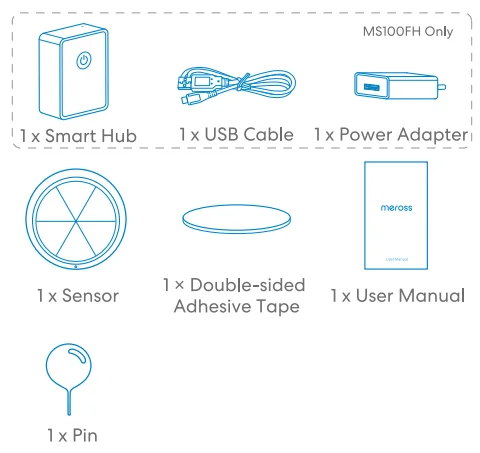
Installation Guide
- Download the Meross app.

- Set up the device.
- Connect your smartphone or tablet to a 2.4 GHz Wi-Fi network.
- Make sure your smart hub is covered by a strong Wi-Fi signal.
- The smart hub supports iOS 13/ iPadOS 13 and later. It is recommended that you upgrade your iOS or iPadOS to the latest version before pairing with the smart hub.
- Launch the Meross app and log in to your account, or if you are a new user, tap Sign up to create a new account.
- Tap the “+” icon to select the type of smart device you want to add, then you can just follow the setup wizard to finish the configuration.
- Relocation of the smart hub does not require additional operations, provided that it remains on the same network with a strong Wi-Fi signal.
NOTE:
- If this is not the first time you’ve added this smart hub, you’ll have to reset it before going any further.
- As long as you finish configuration, you’ll be able to manage the device in the Apple Home app.
- If the QR code does not work, please try to add the smart device to the Apple Home app.
- Find more at https://www.meross.com/support.
LED and Button Rules
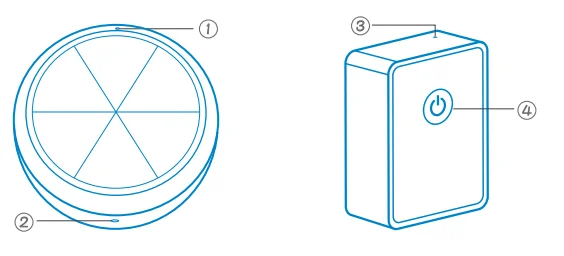
LED and Button Rules
- Flash green rapidly: Pairing mode.
- Solid green: Successfully connected. LED will be OFF automatically in 5 seconds.
Sensor Button
- Enter pairing mode: Insert a pin into the hole, press the button once, and the LED will flash.
- Restore factory settings: Insert a pin into the hole, press and hold the button for 5 seconds.
Hub Status LED
- Solid amber: Initiating/Reset/Firmware upgrading.
- Flashing amber and green: Configuration mode.
- Flashing green: Pairing mode/Connecting to Wi-Fi/Disconnected from Wi-Fi.
- Solid green: Connected to Wi-Fi with an internet connection.
- Solid red: No internet connection.
Hub Button
- Enter pairing mode: Double-click the button.
- Restore factory settings: Press and hold for 5 seconds. The LED will flash amber and green, entering pairing mode.
FAQ
At Meross, we strive to assure your satisfaction. Attached below is a non-exhaustive list of questions that users are mostly concerned about.
1. Does the black screen show anything?
The black screen on the device is a solar panel that can collect energy from ambient light to power the sensor. It is not an LCD screen and won’t display any content.
2. Under what conditions can the solar battery panel work?
According to the test results of Meross laboratory, when the ambient light reaches about 150 Lux, the solar panel will work. When working, the solar panel will provide energy for the sensor without any battery consumption, provided that the ambient light is bright enough. The sensor will be powered by the solar panel in preference to ensure a long battery life. The following is the illumination intensity of common scenes for reference: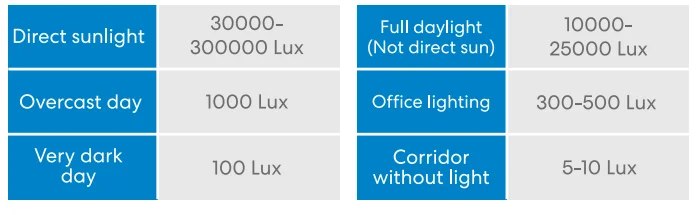
3. What should I do when my Meross app is unable to check the added smart sensor?
You can troubleshoot the following:
- Check the Wi-Fi internet connection.
- Make sure the Wi-Fi password hasn’t been changed.
- Make sure the device battery is not drained.
- Make sure the paired Smart Hub is still online by checking its LED. If it is not solid green, please power cycle it once. If it still won’t work, please reset the Smart Hub and pair it with the Smart Sensor again.
4. How to fix a HomeKit pairing failure?
Please visit https://www.meross.com/support/FAQ/230.html for a solution.
5. Why is my Meross smart device not responding in the Apple Home app?
This is an existing issue with the Apple Home app. You need to exit and reboot your Home app to fix this problem. To learn more, you can visit https://www.meross.com/support/faqs to find solutions for more frequently asked questions.
Warranty
Meross products are covered by a 12-month limited warranty from the date of purchase. Please visit https://www.meross.com/support/warranty for the detailed warranty policy and product registration.
Disclaimer
- The function of this smart device is tested under a typical circumstance described in our specifications. Meross does NOT guarantee that the smart device shall perform the same as described under all circumstances.
- By using third-party services, including but not limited to Amazon Alexa, Apple HomeKit, and SmartThings, customers acknowledge that Meross shall not be held liable in any way for the data and private information collected by such parties. Meross’s total liability is limited to what is expressly covered in its Privacy Policy.
- Damages arising from ignorance of the SAFETY INFORMATION shall not be covered by Meross’s after-sales service, nor does Meross take any legal responsibility therefrom. Customers acknowledge their understanding of these articles clearly by reading this manual.
FCC Compliance Information Statement
Changes or modifications not expressly approved by the party responsible for compliance could void the user’s authority to operate the equipment. This device complies with Part 15 of the FCC Rules. Operation is subject to the following two conditions:
- This device may not cause harmful interference, and
- This device must accept any interference received, including interference that may cause undesired operation.
Note: This equipment has been tested and found to comply with the limits for a Class B digital device, pursuant to Part 15 of the FCC Rules. These limits are designed to provide reasonable protection against harmful interference in a residential installation. This equipment generates, uses, and can radiate radio frequency energy, and if not installed and used in accordance with the instructions, may cause harmful interference to radio communications.
However, there is no guarantee that interference will not occur in a particular installation. If this equipment does cause harmful interference to radio or television reception, which can be determined by turning the equipment off and on, the user is encouraged to try to correct the interference by one or more of the following measures:
- Reorient or relocate the receiving antenna.
- Increase the separation between the equipment and receiver.
- Connect the equipment into an outlet on a circuit different from that to which the receiver is connected.
- Consult the dealer or an experienced radio/TV technician for help.
This equipment complies with FCC radiation exposure limits set forth for an uncontrolled environment. This equipment should be installed and operated with a minimum distance of 20 cm between the radiator and your body. This transmitter must not be co-located or operating in conjunction with any other antenna or transmitter.
Canadian Compliance Statement
This device contains licence-exempt transmitter(s)/receiver(s) that comply with Innovation, Science and Economic Development Canada’s licence-exempt RSS(s). Operation is subject to the following two conditions:
- This device may not cause interference.
- This device must accept any interference, including interference that may cause undesired operation of the device.
The device meets the exemption from the routine evaluation limits in section 2.5 of RSS 102 and complies with RSS-102 RF exposure; users can obtain Canadian information on RF exposure and compliance. This transmitter must not be co-located or operating in conjunction with any other antenna or transmitter. This equipment should be installed and operated with a minimum distance of 20 centimeters between the radiator and your body.
For More Manuals By Meross, Visit ManualsLibraryy.
Meross MS100FH Smart Temperature and Humidity Sensor -FAQs
What is the Meross MS100FH Smart Temperature and Humidity Sensor used for?
The Meross MS100FH is designed to monitor indoor temperature and humidity levels in real time. It helps users maintain a comfortable environment by providing accurate climate data and enabling automation, making it ideal for bedrooms, nurseries, basements, and storage spaces.
Does the Meross MS100FH require a hub to work?
Yes, the MS100FH requires a compatible Meross smart hub to function properly. It connects to the hub using low-power wireless communication, and the hub then links to your Wi-Fi network, enabling remote monitoring and control through the Meross app.
Can the Meross MS100FH provide real-time alerts?
The sensor supports real-time alert notifications when temperature or humidity levels exceed user-defined thresholds. This feature helps users respond quickly to environmental changes, such as excessive humidity or sudden temperature drops, ensuring better protection for sensitive spaces and belongings.
How accurate is the Meross MS100FH sensor?
The device uses a high-precision sensor capable of delivering accurate readings with minimal deviation. Temperature accuracy is typically within ±0.3°C under normal conditions, while humidity accuracy is within a reasonable range, ensuring reliable monitoring for everyday household use.
Can I access historical data with the Meross MS100FH?
Yes, the sensor stores historical temperature and humidity data for up to two years. Users can view trends through the Meross app and export the data, making it easier to analyze long-term environmental changes and optimize indoor conditions.
Is the Meross MS100FH compatible with smart home platforms?
The device works with popular platforms like Apple HomeKit, Amazon Alexa, Google Assistant, and SmartThings. This compatibility allows users to integrate it into existing smart home setups and use voice commands or automation routines based on environmental conditions.
How is the Meross MS100FH powered?
The sensor features a dual power system that uses ambient light in bright environments and switches to a built-in battery when lighting is insufficient. This hybrid approach helps extend battery life and reduces the need for frequent replacements.
Can the Meross MS100FH trigger smart home automation?
Yes, the sensor can trigger automations based on temperature or humidity conditions. For example, it can activate a humidifier, fan, or smart plug when certain thresholds are reached, helping maintain optimal indoor comfort without manual intervention.
Where can the Meross MS100FH be installed?
The compact design allows placement in various indoor locations such as bedrooms, kitchens, basements, or refrigerators. It can be mounted using adhesive or placed on flat surfaces, offering flexibility depending on monitoring needs and space constraints.
Is the Meross MS100FH suitable for beginners?
The device is beginner-friendly in daily use, with an intuitive app interface and simple monitoring features. However, initial setup may require pairing with a hub, which could need basic familiarity with smart home devices for a smooth installation experience.