
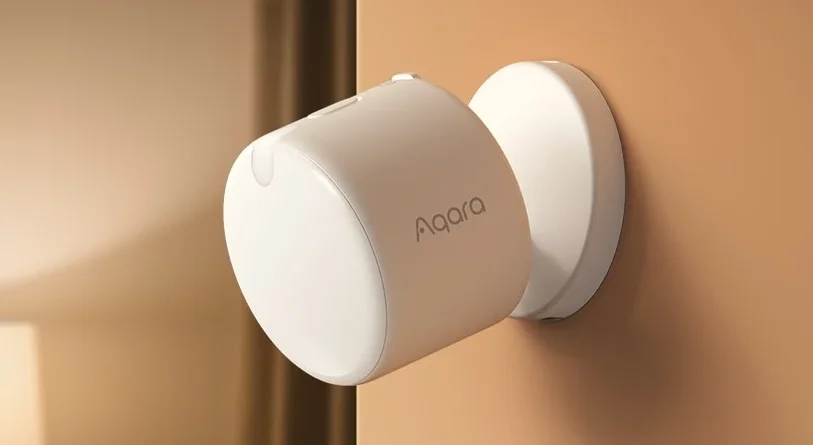

Aqara Presence Multi-Sensor FP300
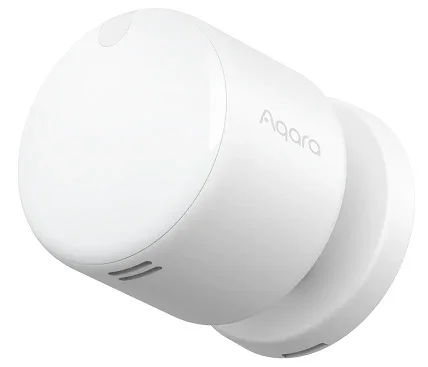
Product Introduction
The Presence Multi-Sensor FP300 is a battery-powered human presence sensor that combines millimeter-wave radar, infrared detection, and Aqara’s AI algorithms to accurately detect occupancy—even when occupants remain still, overcoming the limitations of traditional PIR sensors. With spatial self-learning and adaptive sensitivity, it intelligently adjusts to its environment while also monitoring temperature, humidity, and ambient light. Supporting both Thread and Zigbee protocols, it seamlessly integrates with the Aqara Home ecosystem or any Matter-compatible platform for versatile smart home control.
Note:
- When joining the Matter ecosystem, a Thread Border Router and a Matter Controller for the Matter ecosystem are required.
- When added to the Aqara ecosystem, this device requires the Aqara Home app and an Aqara hub supporting Zigbee or Matter protocol for operation.
- Some specific features are only available in the Aqara Home app.

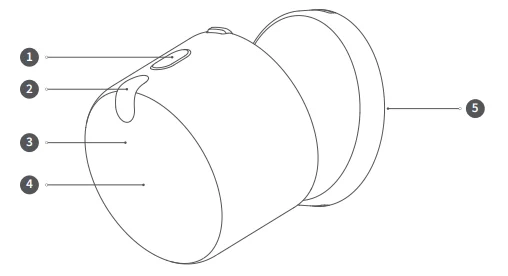
- Reset button
- Light sensor
- Infrared sensor
- Millimeter wave radar
- Wall-mounted base plate
Device access
Preparation
1. Download the Aqara Home app
Please scan the following QR code and download the latest version of the Aqara Home app.
2. Connect the device
Remove the insulation tab, power on the device, then enter the network pairing mode. The LED indicator will start flashing blue slowly. If the network pairing times out, press and hold the reset button for 5 seconds until the LED indicator starts flashing, then release it to enter the device pairing mode. To ensure the device’s airtightness, the gaps are designed to be narrow. When removing the insulating tab, please pull it out firmly. If difficulty occurs, you may open the battery cover for extraction.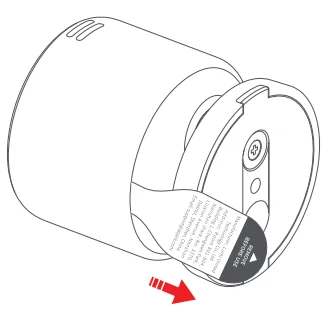
Connect via Matter (Thread protocol)
Open the Aqara Home app, after entering the “Home” tab, click the “+” in the upper right corner to enter the “Add Device” page. After choosing the corresponding device, follow the prompts in the app to complete the pairing.
Note: If you need to join the Matter ecosystem through a third-party ecosystem, you can access it in the third-party app’s “add device” process by scanning the Matter Code on the device or manually to complete the device pairing.
Connect via the Zigbee protocol.
Open the Aqara Home app, enter the “Home” tab, select the “+” in the upper right corner to enter the “Add Device” page, select the corresponding device name, scan the pairing code, and select the Zigbee protocol for the corresponding firmware download. Choose the hub you want to bind the device to.
Firmware Upgrade
To ensure the best experience, please add the device in the Aqara Home app first, then update the device firmware on the settings page to the latest version before using it.
Protocol Switching
If you want to switch protocols, you can do so in the Aqara Home app. First, remove the device from the app, then long-press the device reset button for 5 seconds to reset the device and enter pairing mode. During the device pairing process, tap Switch Protocol and select the desired protocol. Follow the app’s instructions to complete the setup.
Notice: Switching protocols is equivalent to restoring factory settings, which will clear all device settings and data.
Equipment Installation
The device can be installed anywhere detection is needed, supporting multiple installation methods such as wall mounting, desktop placement, or ceiling installation. Users can choose an appropriate location based on the desired detection area and adjust the installation angle and device tilt to fine-tune coverage. The device supports installation via adhesive, magnetic mounting, expansion screws, etc. (screws must be used if installed at a height over 2 meters).
Installation Recommendations
- Install the device on a wall, corner, or ceiling using adhesive or magnetic mounting based on your actual detection needs. Make sure the front of the device faces the area you want to monitor, and adjust the angle accordingly.
- If you need to cover a larger detection range, it is recommended to install the device at a height of about 2 meters, with the device slightly tilted downward to cover the required area of monitoring.
- For side installation on a wall or in a corner, a recommended height is 1.4–1.8 meters to ensure detection coverage in both standing and seated positions. If installing at a different height, you can adjust the bracket’s tilt angle as needed to cover the main activity area.
- To avoid detection blind spots, it’s recommended to install the device in a corner with the front facing the centerline of the corner. This helps minimize FOV blind zones on both sides of the radar during long-range detection. The base features an eccentrically designed universal joint, allowing adjustment of the mounting angle by rotating the base to achieve a greater tilt range for the device.
- When installing, please try to avoid facing large areas of metal, glass, and other strongly reflective surfaces or installing it next to air conditioner outlets, air purifiers, and fans.
- When the installation height is less than 2 meters, it can be installed with adhesive and magnetic mounting. Above 2 meters requires fixing screws.
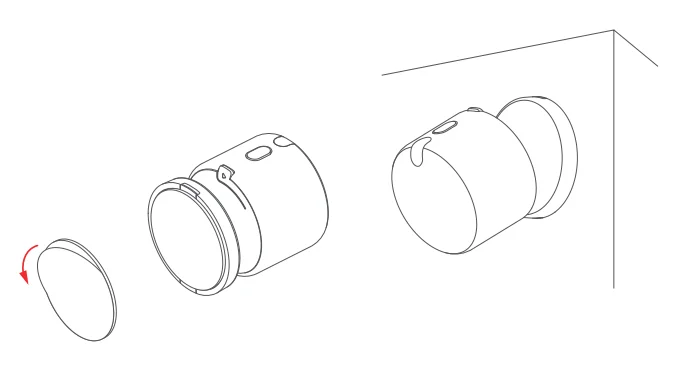
A. Adhesive installation
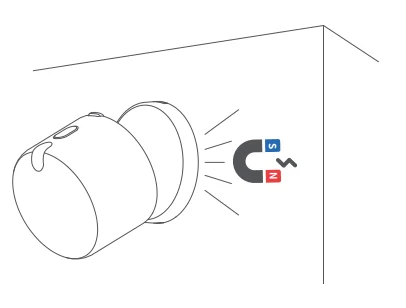
B. Magnetic installation
C. Screw installation
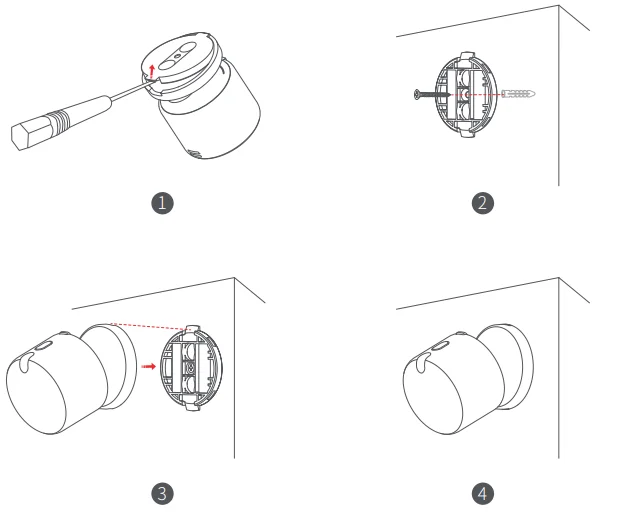
A screwdriver is not included; the provided screw installation kit is optional.
Setting the Radar Detection Range (Zigbee Mode Only)
The device has a maximum detection range of 6 meters and a detection angle of 120° (measured under ideal laboratory conditions; actual range may vary slightly depending on the environment, installation height, and angle. At wider angles, radar energy decreases, which may reduce the maximum detection distance. Users can customize the detection range on the settings page, with precision adjustments in 0.25-meter intervals. The detection range can be set as non-continuous, allowing users to exclude specific mid-range areas from detection.
When setting the detection range, the interface displays a human icon indicating the “current position,” which refers to the straight-line distance between the device and the point with the strongest human presence signal. This is not a precise horizontal distance and may differ from the perceived distance; it is intended only as a reference for setting range boundaries. If the person moves beyond 6 meters, the “current position” will display as “unknown.”
To ensure accurate range settings, users are advised to approach the device slowly from far to near, stop at the desired boundary, and wait for the displayed distance to stabilize before setting it. After setup, fine-tune the range by comparing it with the main screen’s presence detection. Detection range settings apply only when the radar is active. If the detection mode is set to infrared-only, the radar detection range cannot be adjusted.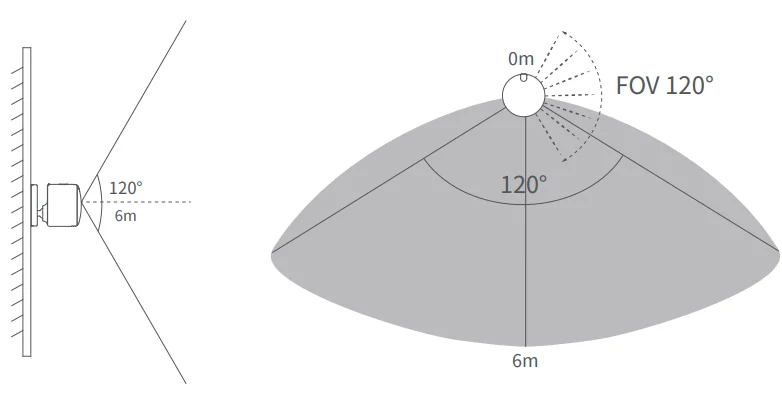
Absence Delay Timer
The absence delay timer is used to delay the confirmation of an “unoccupied” space and can also be used to postpone the execution of automations based on absence. Setting a delay helps minimize false triggers caused by environmental interference, improving accuracy. A shorter delay means the device reports absence more quickly but may be more susceptible to disturbances in complex environments. In most cases, it’s recommended to use the default value.
Note: If both an absence delay timer and an automation condition delay are set, the total delay time is the sum of both.
For example: If the no-presence delay is set to 5 seconds and the automation is configured to “turn off the light after 10 seconds of no presence,” the device will report “no presence” within 5 seconds, and the automation will trigger 10 seconds after that—resulting in a total delay of 15 seconds.
AI Spatial Learning (Zigbee Mode Only)
AI Spatial Learning intelligently analyzes the environment to filter out interference from large glass surfaces, metal objects, mirrors, and other reflective materials. This enhances detection accuracy by adapting to environmental disturbances. It is recommended to perform a manual AI spatial learning session after the device is installed. During this process, the space should remain unoccupied for about 30 seconds—please be patient.
Once set up, manual activation is no longer necessary. The device will continuously learn and adapt to environmental changes in real time, improving accuracy over time. If you notice the device mistakenly detecting presence due to environmental interference and failing to return to an unoccupied state, you can manually trigger AI spatial learning again to quickly recalibrate the space.
Note: In Matter mode, the device will automatically perform AI spatial learning without requiring manual input.
Configuring Automations
Users can go to the app’s “Automation” interface and click the “+” in the upper right corner to add automations related to the device.
Automation conditions
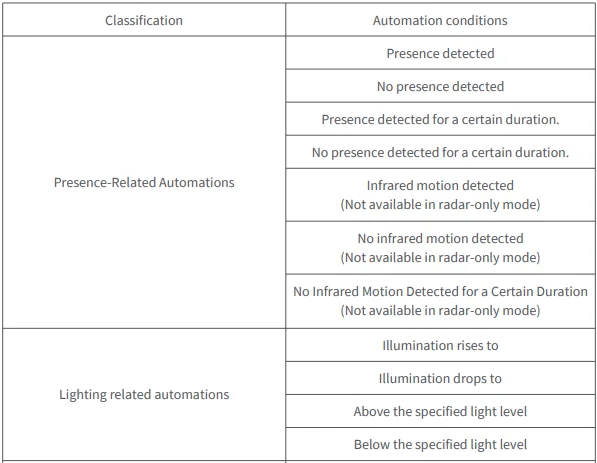
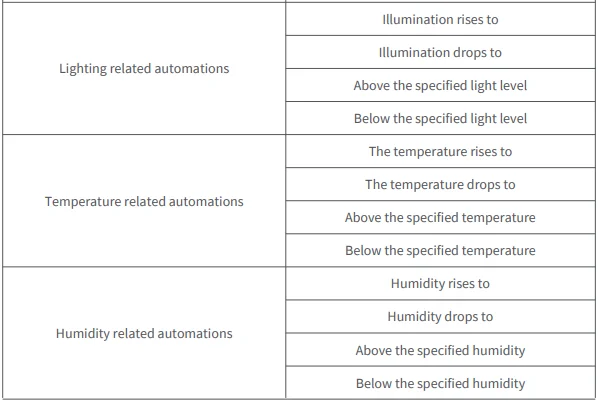
Recommended Automated Configurations
Get started in under a minute with these recommended automations:
- Turn on the lights when presence is detected.
- Turn off the lights or AC when no presence is detected for a certain duration.
- Turn on the lights when presence is detected, and the illuminance is below a set level.
- Turn on the AC, set it to cooling mode, and adjust the temperature to 24°C when presence is detected, and the temperature exceeds a set threshold.
More use tips.
- For best results, install the device facing the front of the human body to better detect subtle movements like breathing.
- The device has a detection range of up to 6 meters. Configure the range based on your actual needs to exclude unnecessary areas and improve accuracy.
- Detection from presence to absence is very fast. To enhance user experience and avoid frequent light switching, it’s recommended to set an “Absence Delay Timer” or use “No presence for a certain duration” as the trigger condition in automation rather than just “No presence.”
- If the device mistakenly detects presence when no one is around, use the AI Spatial Background Learning feature to quickly recalibrate and restore the unoccupied state (Zigbee mode only).
- The device continuously improves its accuracy through AI interference recognition and real-time background learning, but for the best performance, avoid installing it near AC vents, air purifiers, or fans.
- After installation, the device requires time to fully learn the spatial profile of the new environment. In cases of significant environmental interference, occasional false alerts may occur during initial use. Allow the device to continue autonomous learning in an unoccupied space to normalize performance. For complex environments where detection performance remains unsatisfactory, try adjusting the installation angle or position to mitigate major interference sources.
Battery Replacement
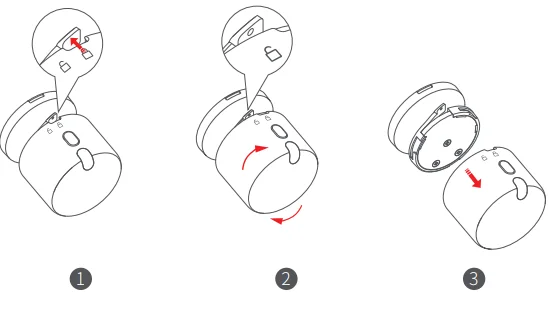
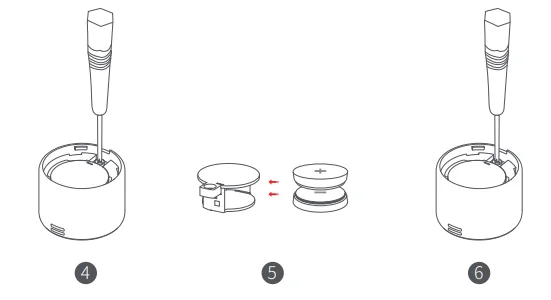
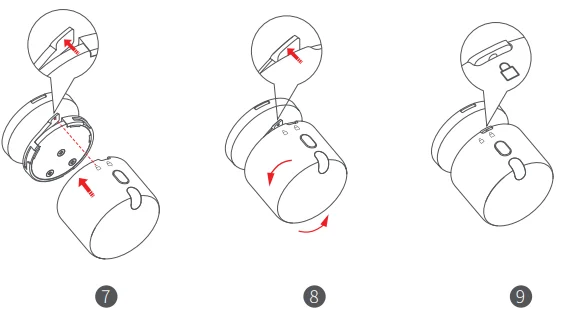
Screwdriver required (not included).
Indicator Light Description
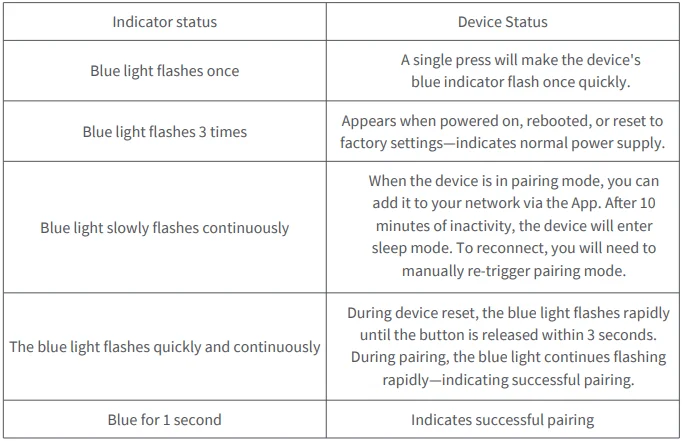
Reset Button Description
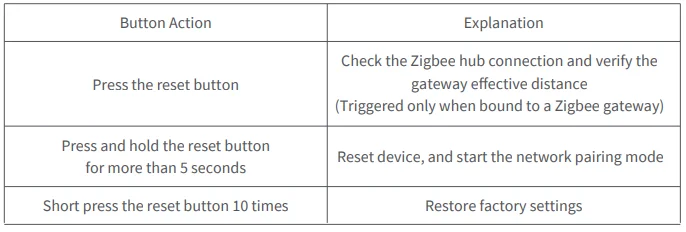
Reset the Device
Resetting the device only clears network settings and puts it back into pairing mode; local data will not be deleted.
Ensure the device is powered on, then press and hold the reset button for 5 seconds. Release it when the indicator flashes rapidly—the device will reset and enter pairing mode.
Factory Reset
Factory reset clears network settings and deletes all local and cloud data. Ensure the device is powered on, then quickly press the reset button 10 times to enter factory reset mode.
Product Specifications
- Presence Multi-Sensor FP300
- Wireless Protocol: Thread, Zigbee
- Size: 42 x 42 x 50 mm
- Working temperature: -10 ~ 55°C
- Operating humidity: 0 ~ 95% RH, non-condensing
- Power supply mode: CR2450 × 2
- KC2: RC-LUt-PSS04
- FCC ID: 2AKIT-PSS04
- IC: 22635-PSS04
For More Manuals By Aqara, Visit ManualsLibraryy.
Aqara Presence Multi-Sensor FP300-FAQs
What is the Aqara Presence Multi-Sensor FP300, and how does it work?
The Aqara Presence Multi-Sensor FP300 is a smart home device that detects human presence using a combination of mmWave radar and PIR sensors. This dual-sensing approach allows it to detect both motion and stillness accurately, helping automate lighting, climate, and other smart home functions efficiently.
What makes the FP300 different from traditional motion sensors?
Unlike standard motion sensors that rely only on movement, the FP300 can detect stationary presence using mmWave technology. This means it won’t turn off lights when you’re sitting still, making it more reliable for real-world use and reducing false absence detections in smart home automation.
What sensors are included in the Aqara FP300?
The FP300 is a 5-in-1 sensor that includes presence detection, ambient light sensing, temperature monitoring, and humidity tracking. These combined features allow it to support more advanced automations, such as adjusting lighting or climate settings based on both occupancy and environmental conditions.
How accurate is the presence detection on the FP300?
The FP300 uses AI-powered detection along with mmWave radar to deliver high accuracy, even detecting subtle movements like breathing. It can also filter out environmental interference, such as curtains or airflow, ensuring fewer false triggers and more consistent smart home performance.
What is the detection range and coverage of the FP300?
The FP300 offers a detection range of up to approximately 6 meters with a 120-degree field of view. This allows it to cover most standard rooms effectively when positioned correctly, especially when mounted in corners or elevated locations for optimal coverage.
Does the Aqara FP300 require a hub to function?
The FP300 supports both Zigbee and Thread protocols. When using Zigbee, an Aqara hub is required for full functionality, while Thread allows direct integration with Matter-compatible platforms. This flexibility enables users to choose their preferred smart home ecosystem and setup.
Which smart home platforms are compatible with the FP300?
The FP300 is compatible with major platforms, including Apple Home, Google Home, Amazon Alexa, Samsung SmartThings, and Home Assistant via Matter, Zigbee, or Thread. This broad compatibility ensures seamless integration into most modern smart home setups without requiring major changes.
How is the Aqara FP300 powered, and what is its battery life?
The FP300 is battery-powered using two CR2450 batteries, offering up to three years of battery life in Zigbee mode and around two years in Thread mode. This long battery life makes it convenient for flexible placement without frequent maintenance or charging.
Can the FP300 be used for advanced home automation scenarios?
Yes, the FP300 enables advanced automation by combining presence detection with environmental data. For example, it can trigger lights only when someone is present, and it’s dark, or adjust air conditioning based on both occupancy and temperature, improving energy efficiency and comfort.
Is the Aqara FP300 suitable for all rooms and setups?
The FP300 works well in most rooms due to its wireless design and flexible mounting options. However, its single-zone detection and lack of multi-person tracking may limit use in larger or complex spaces, where more advanced sensors might be better suited.