
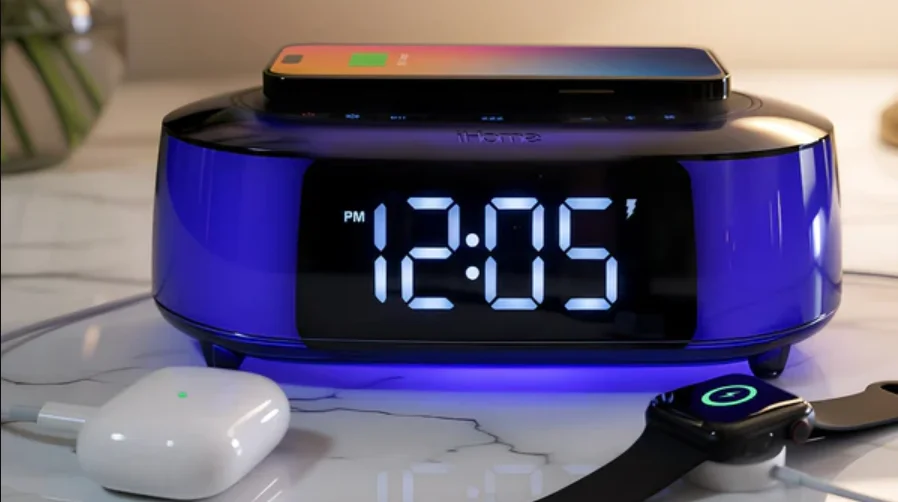

iHome iBTW282 Clock Radio
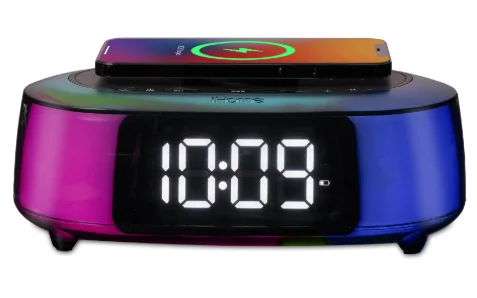
What’s Included

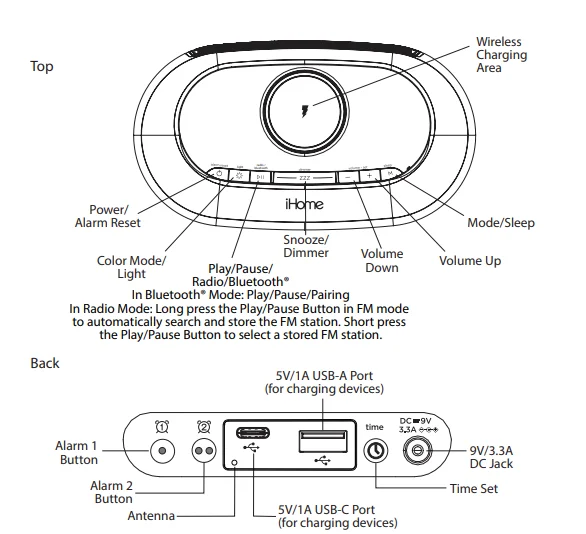
Meet Your iBTW282
Quick Set-Up:
Step One: Connecting the Unit
Connect the included AC adapter to the DC jack located on the back of the unit and connect the other end to a working wall outlet.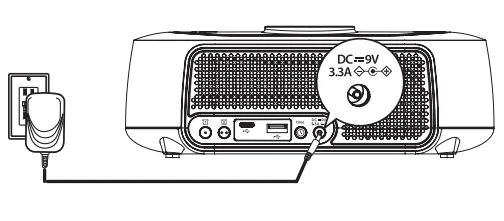
Step Two: Bluetooth Pairing
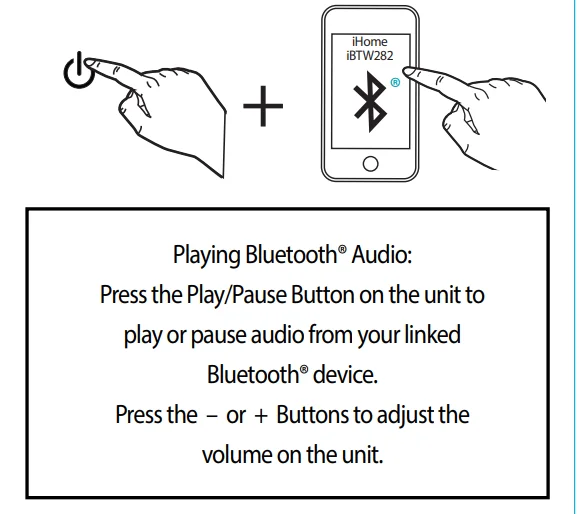
- Turn on your Bluetooth® device. Press the Power Button on the iBTW282 unit. The first time the unit is powered on, it will automatically enter pairing mode.
- Select ‘iHome iBTW282’ on your device’s Bluetooth® menu to connect. If pairing is successful, a voice prompt will announce “CONNECTED”, then the Bluetooth® indicator glows steadily.
Manual Pairing:
- Press and hold the Play/Pause/Bluetooth Button on the top of the iBTW282 for 2 seconds.
- Select ‘iHome iBTW282’ on your device’s Bluetooth menu to connect. (To reset Bluetooth settings, press and hold the Bluetooth Button for 10 seconds.)

Step Three: Setting Your Clock
This model has auto-time sync and will set the time when the device is paired to the unit. To manually set the time:
- Press and hold the Time Set Button for 2 seconds until the display flashes.
- Press the – or + Buttons to adjust selections and tap Time Set to confirm (make sure you set the correct AM/PM time).
- Do this for hour/minute/year/month/day/DST. To disable/enable auto-time sync: Press and hold the Time Set Button for 5 seconds.

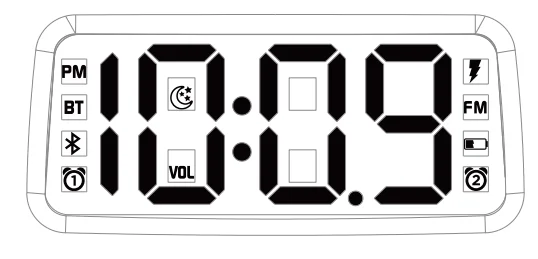
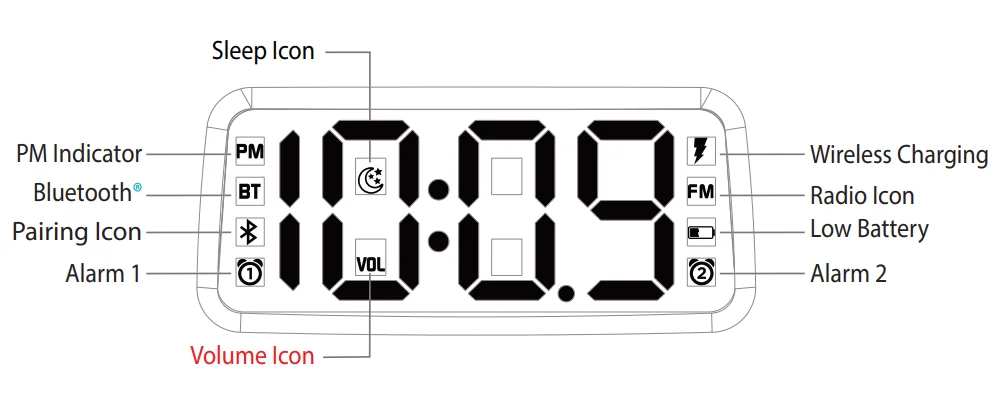
The Display
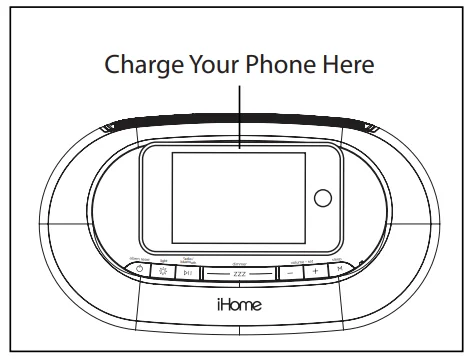
Using Qi2 Wireless Charging
This unit will wirelessly charge Qi2-compatible wireless charging phones. Place a Qi2 compatible device face up on the charging area. Check the lightning icon  on the iBTW282 display for charging status:
- Slow blinking
 icon: Device is charging properly.
 - Solid
 icon: Device is fully charged.
 - Rapid blinking
 icon: Device is not charging properly. Reposition the device.
Note: The lightning icon may continue to blink slowly when iOS devices are fully charged.
WARNING: Remove metal protective covers from the phone before charging. When charging the phone, do not place magnetic-striped or other metal objects on the charger. Doing so could damage the object or this unit. Qi2-compatible phones with metallic-looking finishes will charge normally.
Setting and Using the Alarms
This unit features dual alarms, which can be set to different times and alarm sources. Each is set in the same way. Instructions are given as “Alarm Button”; use Alarm 1 Button or Alarm 2 Button to set respective alarms.
NOTE: Each step must be completed while the display is flashing, or the setting will time out without any changes saved.
- Press and hold the Alarm Button for 2 seconds until the Hour and Alarm icon flash. A beep tone sounds.
- Press the – or + Buttons to adjust the alarm hour. Make sure you set the correct AM or PM time if it is a 12 Hour time format, and press the Alarm button to confirm. Press the – or + Buttons to adjust the alarm minute, press the Alarm button to confirm.
- Press the Alarm Button to confirm the alarm time setting. The alarm schedule will flash: 7 (every day), 5 (weekdays), or 2 (weekend only). Press the – or + Buttons to select the desired alarm schedule.
- Press the Alarm Button to confirm the alarm schedule. The wake-to source will flash.
- Press the – or + Buttons to select the desired wake-to-alarm source: Bluetooth, FM radio, Tone, or OFF.
- Wake to Bluetooth®: You will wake to the currently linked Bluetooth® device. If no device is detected, the alarm will default to the last tone selected.
- Wake to Tone: Press the Alarm Button to confirm. Press the – or + Buttons to select the desired tone to wake to (Tone 1 – Tone 4).
- Wake to Light Only: Press the Alarm Button to confirm. Select this mode to wake to a silent light-only alarm. (You will then skip volume setting and advance to step 9, Wake to Light setting.)
- Press the Alarm Button to confirm the wake-to source. The alarm volume will flash (unless Wake to Light is set as the wake-to choice, then volume setting is skipped, and you are done).
- Press the – or + Buttons to adjust the alarm volume.
- Press the Alarm Button to confirm alarm volume. The current Wake to Light mode will flash.
- Press the – or + Buttons to select the desired light mode to wake to (L 1=Slow Fade, L 2=Fast, L 3=One Color, L 4=Pulse, L 5=Sky Gradient, L 6=Nightlight, L 7=Dawn, Off).
- Press the Alarm Button to confirm the alarm settings and exit alarm setting mode. 2 beeps will confirm alarm setting is complete. The alarm icon will remain on the display to show that the alarm is armed.
Previewing the Alarm and Turning the Alarm On/Off
- Press and release the Alarm Button to view the current alarm time.
- Single press Alarm 1 or Alarm 2 Button to preview the current alarm time and arm the alarm. Single-press again to disarm the alarm.
- When the alarm sounds, press the corresponding Alarm Button (1 or 2) or the Power Button to disable the alarm and reset it to come on at the same time the next day.
Snooze/Display Dimmer
- Snooze: When the alarm is sounding, press the Dimmer/ZZZ Button to snooze for 9 minutes.
- Dimmer: Press the Dimmer/ZZZ Button (when alarm is NOT sounding) to adjust display brightness.
Programmable Snooze
Adjust the snooze duration.
- Press and hold the Dimmer/ZZZ Button.
- Use the + or – Buttons to adjust the snooze duration from 1-29 minutes. Press the Dimmer/ZZZ Button again to confirm.
Mode Button
- Short-press the Mode Button to toggle selection between Bluetooth and FM mode.
- Long-press the Mode Button to enter the sleep timer setting, then short-press the Mode Button to select the sleep timer duration (120 min, 90 min, 60 min, 30 min, 15 min, or off).
FM Radio
- Long-press the Play/Pause Button in FM mode to automatically search and store the FM station.
- Short-press the Play/Pause Button to select a stored FM station.
Color Modes
Press the Color Button repeatedly to cycle through 7 different modes: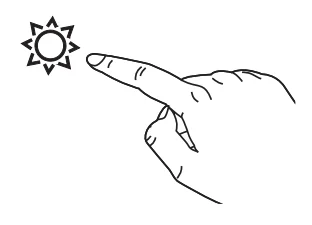
- L 1=Slow Fade
- L 2=Fast Change
- L 3=Favorite Color
- L 4=Pulse to Music
- L 5=Sky Gradient
- L 6=Nightlight
- OFF
Favorite Color Mode: When the unit is in stand-by, press +/- to cycle through the color spectrum.
Charging Devices Via USB-A Port or USB-C Port
- Connect the standard-size end of a USB cable (not included) to the USB-A port or USB-C port on the back of the unit, and connect the other end to the charging port on your device.
- Monitor the charging on your device. Some devices use a proprietary charging method and will not charge using the USB port. If this happens, you must charge your device using the charger that came with it.
NOTE: The unit must be plugged into a working outlet to charge devices.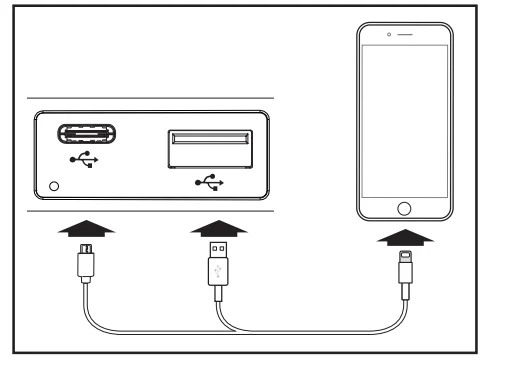
Installing the Batteries
(Batteries not included.)
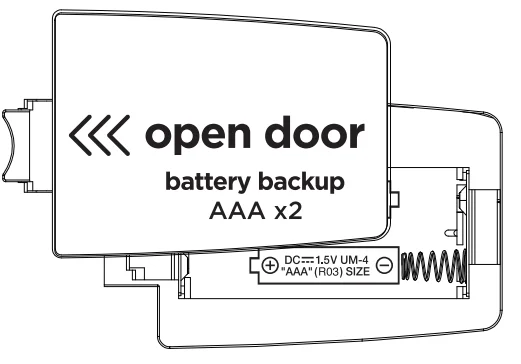
- Press in and pull the battery door to open and remove the battery door.
- Install 2 new “AAA” batteries, matching the (+/-) markings in the battery compartment.
- Replace the door.

WARNING
- Keep new and used batteries away from children. If the battery compartment does not close securely, stop using the product and keep it away from children. If you think batteries might have been swallowed or placed inside any part of the body, seek immediate medical attention.
- Attention should be drawn to the environmental aspects of battery disposal. Many electronics retailers now recycle batteries and other electronic components at no charge. To find a drop-off location near you, visit www.call2recycle.org.
Maintenance
- Place the unit on a level surface away from sources of direct sunlight or excessive heat.
- Protect your furniture when placing your unit on a natural wood and lacquered finish. A cloth or other protective material should be placed between it and the furniture.
- Clean your unit with a soft cloth moistened only with mild soap and water. Stronger cleaning agents, such as thinner or similar materials, can damage the surface of the unit.
IMPORTANT SAFETY INSTRUCTIONS
When used in the directed manner, this unit has been designed and manufactured to ensure your personal safety. However, improper use can result in potential electrical shock or fire hazards. Please read and follow all safety and operating instructions carefully before installation and use, and keep these instructions handy for future reference. Take special note of all warnings listed in these instructions and on the unit.
- Water and Moisture – The unit should not be used near water. For example: near a bathtub, washbowl, kitchen sink, laundry tub, swimming pool, or in a wet basement.
- Ventilation – The unit should be situated so that its location or position does not interfere with its proper ventilation. For example, it should not be situated on a bed, sofa, rug, or similar surface that may block ventilation openings. Also, it should not be placed in a built-in installation, such as a bookcase or cabinet, which may impede the flow of air through the ventilation openings.
- Heat – The unit should be situated away from heat sources such as radiators, heat registers, stoves, or other appliances (including amplifiers) that produce heat.
- Power Sources – The unit should be connected to a power supply only of the type described in the operating instructions or as marked on the appliance. Only use the AC adapter that came with the unit.
- Power-Cable Protection – Power supply cables should be routed so that they are not likely to be walked on or pinched by items placed upon or against them. It is always best to have a clear area from where the cable exits the unit to where it is plugged into an AC socket.
- Cleaning – The unit should be cleaned only as recommended. See the Maintenance section for cleaning instructions.
- Objects and Liquid Entry – Care should be taken so that objects do not fall and liquids are not spilled into any openings or vents located on the product.
- Attachments – Do not use attachments not recommended by the product manufacturer.
- Lightning and Power Surge Protection – Unplug the unit from the wall socket and disconnect the antenna or cable system during a lightning storm or when it is left unattended and unused for long periods of time. This will prevent damage to the product due to lightning and power-line surges.
- Overloading – Do not overload wall sockets, extension cords, or integral convenience receptacles, as this can result in a risk of fire or electric shock.
- Damage Requiring Service – The unit should be serviced by qualified service personnel when:
- A. The power supply cable or plug has been damaged.
- B. objects have fallen into or liquid has been spilled into the enclosure.
- C. The unit has been exposed to rain.
- D. The unit has been dropped or the enclosure damaged.
- E. the unit exhibits a marked change in performance or does not operate normally.
- Periods of Nonuse – If the unit is to be left unused for an extended period of time, such as a month or longer, remove batteries before storage.
- Servicing – The user should not attempt to service the unit beyond those methods described in the user manual. Service methods not covered in the operating instructions should be referred to qualified service personnel.
- Magnetic Interference – This product’s speakers contain powerful magnets which could cause interference or damage to sensitive equipment such as hard drives, CRT televisions and monitors, as well as medical, scientific, and navigational devices. Keep this unit away from these products at all times.
- Only use attachments/accessories specified by the manufacturer. This product is suitable for use in tropical and/or moderate climates.
- The unit should be serviced by qualified service personnel when the enclosure is damaged or does not operate normally.
- No naked flame sources, such as lighted candles, should be placed on the apparatus.
- WARNING: To reduce the risk of fire or electric shock, do not expose this product to rain or moisture.
- CAUTION – Danger of explosion if the battery is incorrectly replaced. Replace only with the same or equivalent type.
- Do not dispose of batteries in the household trash or fire.
- The mains plug of the power adaptor is used as the disconnect device; it shall remain readily operable.
FCC INFORMATION
FCC Radiation Exposure Statement
This equipment complies with FCC radiation exposure limits set forth for an uncontrolled environment. This equipment should be installed and operated with a minimum distance of 20 cm/8 in between the radiator and your body. This device complies with Part 15 of the FCC Rules. Operation is subject to the following two conditions:
- This device may not cause harmful interference, and
- This device must accept any interference received, including interference that may cause undesired operation.
Warning: Changes or modifications to this unit not expressly approved by the party responsible for compliance could void the user’s authority to operate the equipment.
NOTE: This equipment has been tested and found to comply with the limits for a Class B digital device, pursuant to Part 15 of the FCC Rules. These limits are designed to provide reasonable protection against harmful interference in a residential installation. This equipment generates, uses, and can radiate radio frequency energy and, if not installed and used in accordance with the instructions, may cause harmful interference to radio communications.
However, there is no guarantee that interference will not occur in a particular installation. If this equipment does cause harmful interference to radio or television reception, which can be determined by turning the equipment off and on, the user is encouraged to try to correct the interference by one or more of the following measures:
- Reorient or relocate the receiving antenna.
- Increase the separation between the equipment and receiver.
- Connect the equipment into an outlet on a circuit different from that to which the receiver is connected.
- Consult the dealer or an experienced radio/TV technician for help.
ISED Information
This device contains licence-exempt transmitter(s)/receiver(s) that comply with Innovation, Science and Economic Development Canada’s licence-exempt RSS(s). Operation is subject to the following two conditions:
- This device may not cause interference.
- This device must accept any interference, including interference that may cause undesired operation of the device.
The device complies with ISED RF exposure requirements; users can obtain Canadian information on RF exposure and compliance. This equipment complies with IC RF radiation exposure limits set forth for an uncontrolled environment. This equipment should be installed and operated with a minimum distance of 20 centimeters/8 inches between the radiator and your body. Any changes or modifications not expressly approved by the party responsible for compliance could void the user’s authority to operate the equipment. CAN ICES-3(B) / NMB-3(B), CAN RSS-216/CNR-216
1 Year Limited Warranty
For warranty and full instructions, visit https://support.ihome.com/.
For More Manuals By iHome, Visit ManualsLibraryy.
iHome iBTW282 Clock Radio-FAQs
What is the iHome iBTW282 Clock Radio?
The iHome iBTW282 is a multifunction bedside alarm clock that combines Bluetooth audio streaming, FM radio, wireless phone charging, USB charging ports, and customizable LED lighting. It is designed to serve as an all-in-one charging station and entertainment hub for bedrooms or office spaces.
Does the iHome iBTW282 support wireless charging?
Yes, the iBTW282 features a Qi-certified wireless charging pad with MagSafe compatibility that delivers up to 15W charging power for compatible smartphones. It also includes additional USB-C and USB-A charging ports for powering multiple devices simultaneously from one bedside unit.
Can the iHome iBTW282 play music through Bluetooth?
Yes, the clock radio includes Bluetooth connectivity that allows users to stream music, podcasts, audiobooks, and other audio wirelessly from smartphones, tablets, or laptops. The built-in speaker provides convenient bedside listening without needing separate audio equipment.
Does the iHome iBTW282 include FM radio functionality?
Yes, the iBTW282 includes a digital FM stereo radio with preset station memory. Users can listen to local radio stations directly from the clock radio and even use FM radio as a wake-up alarm source for morning routines.
What lighting features does the iHome iBTW282 offer?
The clock radio includes seven adjustable LED color-changing light modes that can create ambient lighting effects. Users can customize brightness and lighting styles to match their room décor or mood while also using the light as part of wake-up routines.
Does the iHome iBTW282 have dual alarms?
Yes, the device supports dual alarm settings, allowing two separate alarms for different schedules. Users can wake to alarm tones, Bluetooth audio, FM radio, or light-based wake-up modes, making it useful for couples or varying weekday and weekend routines.
Is the iHome iBTW282 easy to use and set up?
Most users find the clock radio relatively simple to set up, thanks to straightforward Bluetooth pairing and intuitive controls. The included instruction manual explains alarm setup, radio tuning, and charging functions, helping users quickly configure the device for everyday bedside use.
What are the common complaints about the iHome iBTW282?
Some users report weaker FM radio reception and average speaker sound quality compared to dedicated Bluetooth speakers. Others mention that the color-changing lights may feel too bright at night unless adjusted properly through the dimming and lighting controls.
Does the iHome iBTW282 include battery backup support?
Yes, the clock radio supports battery backup using two AAA batteries, which helps preserve alarm and clock settings during temporary power outages. However, the batteries are usually not included with the product and must be purchased separately.
Is the iHome iBTW282 Clock Radio worth buying?
The iBTW282 is a strong option for users wanting a compact bedside device with wireless charging, Bluetooth audio, FM radio, and customizable lighting. While sound quality may not satisfy audiophiles, many users appreciate its convenience, charging flexibility, and multifunctional design.