
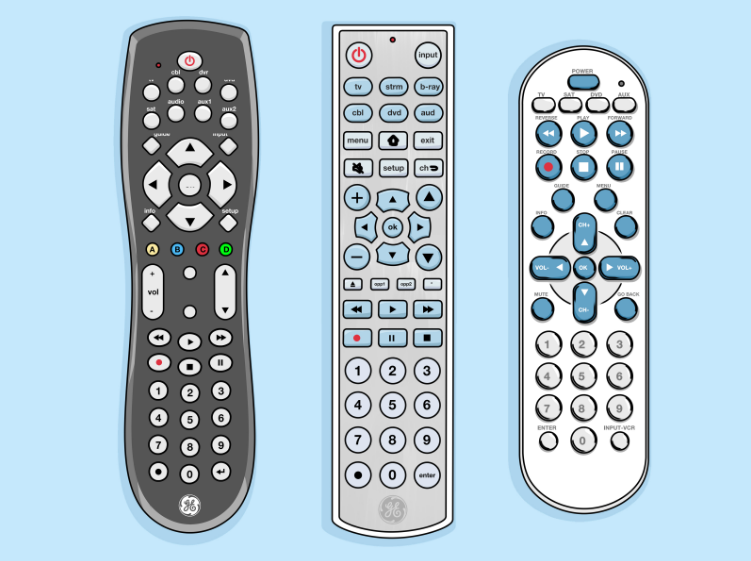
Step-by-Step Guide to Programming Your GE Universal Remote

How to program a GE universal remote with codes
Step 1: Find the code for your device
Find the code by removing the batteries of your GE universal remote and looking inside the compartment. You will find the version and remote codes there.
You can also use this site or our lists below to search for the remote codes using the type of device and brand.
Step 2: Turn on the programming mode
Next, you have to turn on the programming mode on the remote. For this, you need to press and hold the “setup” button until you see a red light.
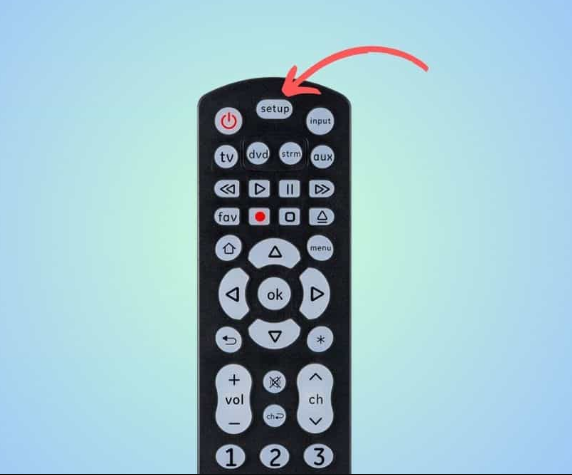
Step 3: Press the corresponding button
After you see the red light, you have to select the button of the device you want to use the remote with. For instance, if you want to use the GE remote with a TV, then press the ‘TV’ button. After the selection, the remote might blink once.
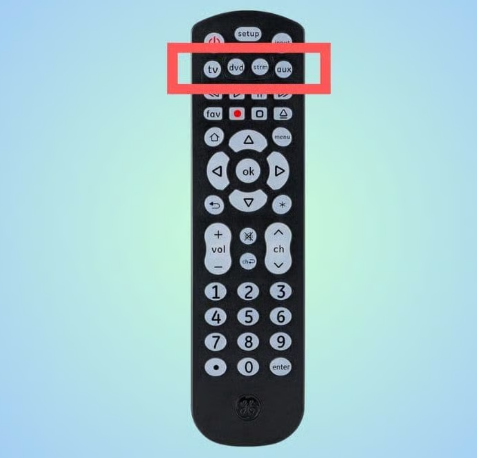
Step 4: Input the device code
After the remote blinks, input the device code that we found in step 1. Once you enter the correct code, the remote will turn off.
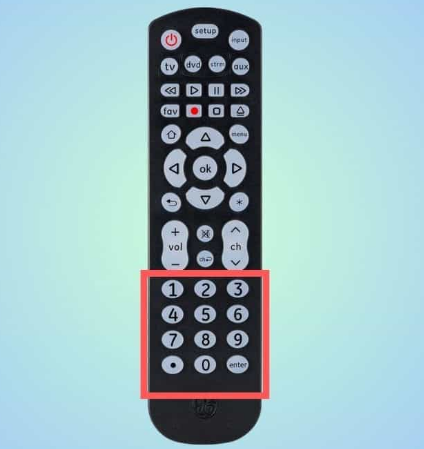
Step 5: Check if the remote works
To see if the programming was done correctly, point the remote at the device and try turning it on and using other buttons. If the device doesn’t respond, try this procedure again with a different code.
How to program a GE Universal Remote without codes
If you don’t have the remote codes, you can still pair the GE Universal Remote with the device. However, note that this process may be time-consuming and may vary slightly depending on the remote you have.
Step 1: Power on the device
The first step is to turn your desired device on (that is, the TV, the DVD, or other device).
Step 2:Turn the remote’s programming mode on
Next, you have to put the GE Universal Remote in the programming mode. To do this, press and hold the ‘setup’ button until you see a light.
Step 3: Select the device you want to pair
When you see the light, select the device you want to set up by pressing the corresponding button. For instance, if you want to set up this remote with your TV, then press the ‘TV’ button on the remote. The red light should blink once, indicating that the device has been selected.
Step 4: Point at your device and press the right button
Now, point the remote at your selected device and press the power button. For TVs, press the power button, and for DVDs, press the ‘play’ button.
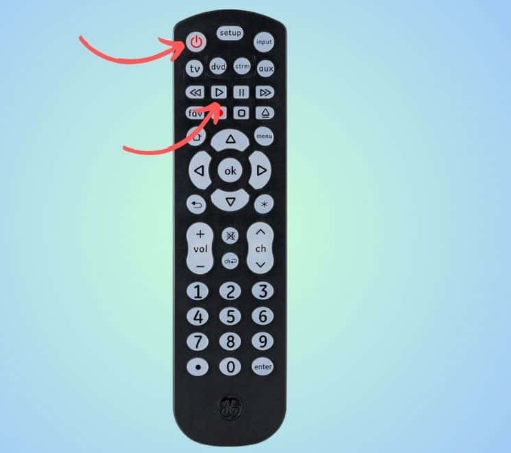
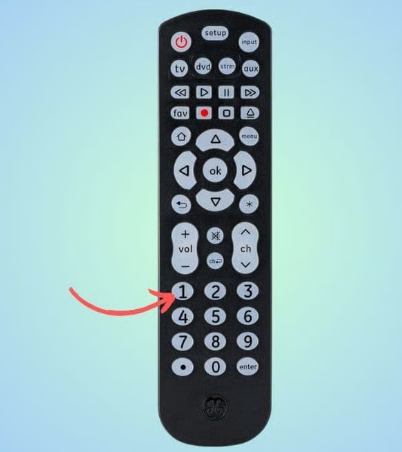
Step 5: Press the #1 button quickly
Now, you have to lock in the code quickly, so be prepared – find and place your finger on the #1 button. When the device (TV) turns off, or the DVD player start playing, press the #1 to lock the code.
Step 6: Check if the remote works
Now, point the remote at the device, turn it on, and see if it works properly. If the remote is working fine, you don’t need to program it more. However, if it is not working correctly, you will have to repeat the process from step 2.
GE Universal Remote codes
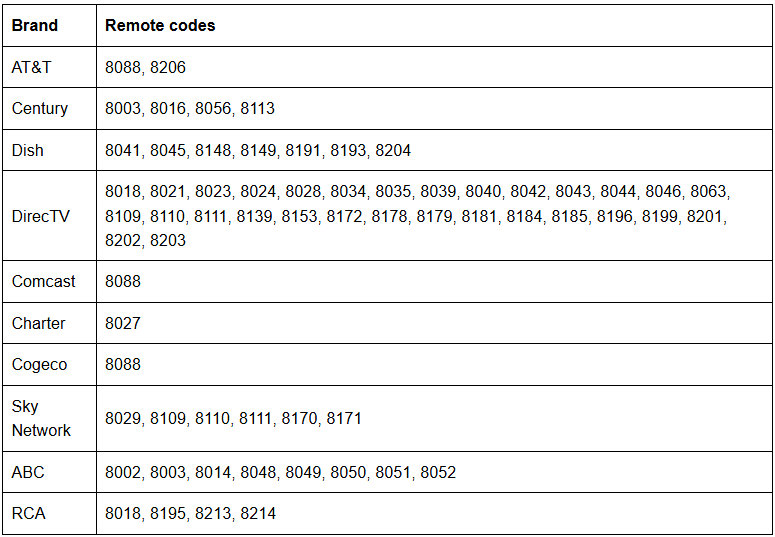
In this section, we have listed some of the most common codes for programming your GE Universal Remote. Please note that this is not a complete list, we have listed codes for some of the popular brands. For an even quicker way of finding the correct codes, we’d suggest heading to this site, which has a search by Brand and device type feature.
GE Universal remote TV codes
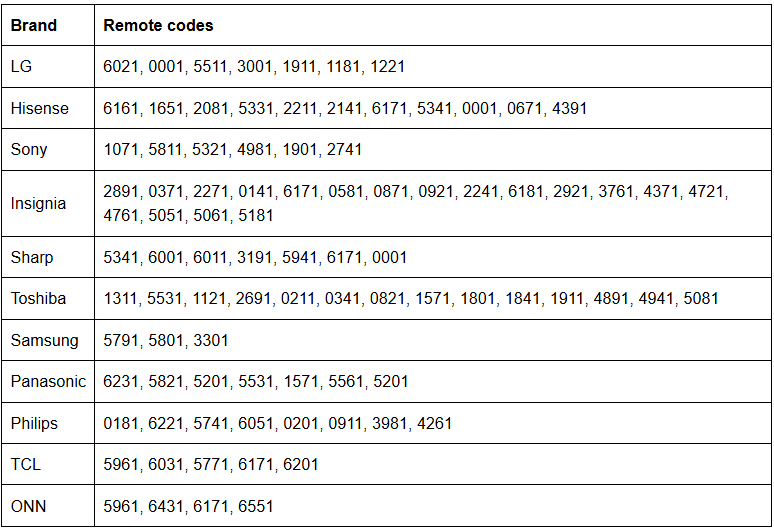
Please note that the codes are different from those of Hisense Roku TV or Toshiba Fire TV.
GE Universal remote DVD player codes
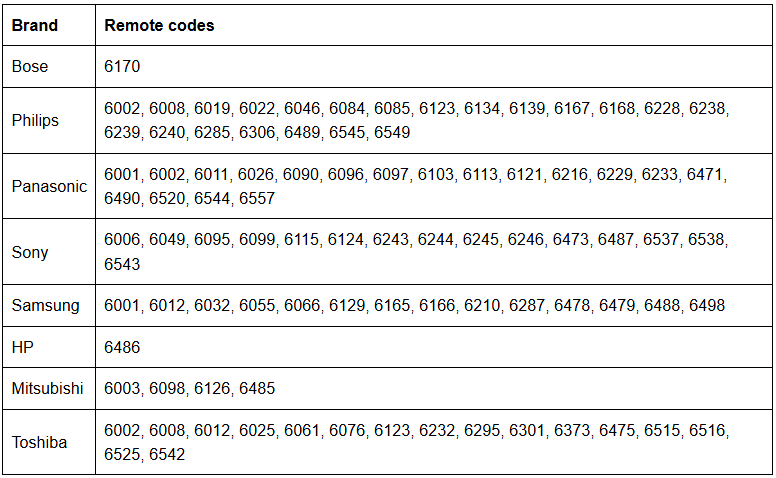
GE Universal remote cable box and satellite codes
Conclusion
So there you have it, the two main ways to program your GE universal remote. For more guides, be sure to check back in with us soon.
For more manuals by Blogs, visit ManualsLibraryy
Step-by-Step Guide to Programming Your GE Universal Remote- FAQs
How do I program a GE universal remote?
Turn on the device you want to control. Press and hold the Setup button until the red LED stays on. Select the device button (TV, DVD, AUX, etc.) and enter the 3- or 4-digit code for your brand. The LED will turn off, confirming the setup.
How do I program a GE universal remote without a code?
Manually power on your TV. Hold the Setup button until the LED turns on, then press the TV button. Next, press the Power button repeatedly every 5 seconds until the TV switches off. Finally, turn the TV back on to test.
Can a universal remote control any device?
Yes, GE universal remotes work with TVs, DVD players, streaming devices, sound systems, and more. Some advanced models can even control smart home devices.
How many digits are GE universal remote codes?
Codes are usually 3 or 4 digits, depending on your remote model and device brand.
How do I reprogram my GE universal remote to another TV?
Press and hold the Setup button until the LED stays on. Select the device button and enter the new brand code. Once the LED turns off, the remote is ready for the new TV.
What if my GE remote isn’t responding?
Remove the batteries, press any button for 20 seconds, then reinsert the batteries. If it still doesn’t work, reprogram it with the correct code.
How do I connect my GE universal remote to Roku?
Turn on your Roku device, hold the Setup button until the LED lights up, then press the Streaming or AUX button. Enter the Roku 4-digit code from the GE code list.
How many devices can a GE universal remote control?
Most GE universal remotes support up to 4 devices, though some models allow 2, 6, or 8 depending on the version.
What is the auto code search method?
Hold the Setup button until the LED turns red, press the device button (e.g., TV), and repeatedly press the Power button until the device turns off. This allows the remote to scan through available codes automatically.