
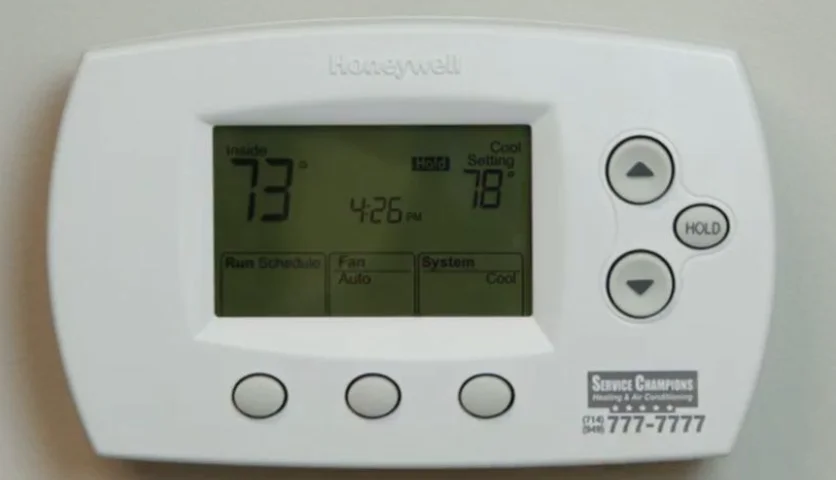

Honeywell RTH6350D1000 Programmable Thermostat
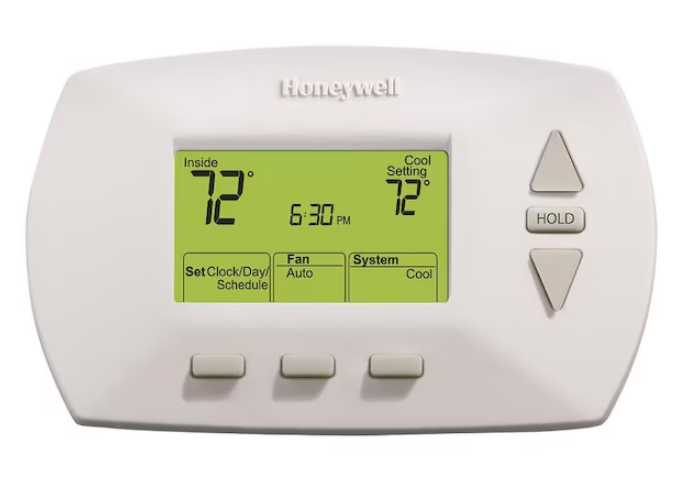
About your new thermostat
Congratulations on the purchase of your new Honeywell thermostat. It has been designed to give you many years of reliable service and easy-to-use, push-button climate control.
Features
- Easy-to-follow menu programming.
- One-touch temp control overrides program schedule at any time.
- The large, clear, backlit display is easy to read — even in dim light.
- Displays both room temperature and temperature setting.
- Removable battery holder for fast, easy replacement.
- Built-in compressor protection.
This thermostat is ready to go!
Your new thermostat is pre-programmed and ready to go. All you have to do is set the time and day. Then check the settings below and change if needed:
- Set time and day (required for proper operation)……………………. See page 6
- Select fan setting (Auto/On): Preset to Auto…………….. To change, see page 7
- Select system setting (Heat/Cool): Preset to Heat ……To change, see page 8
- Program schedules: Preset to energy-saving levels while you’re at work or asleep (assumes you wake at 6 am, leave at 8 am, return at 6 pm, and go to bed at 10 pm) …………………………………………………………….To make changes, refer to pages 9-11.
Quick reference to controls
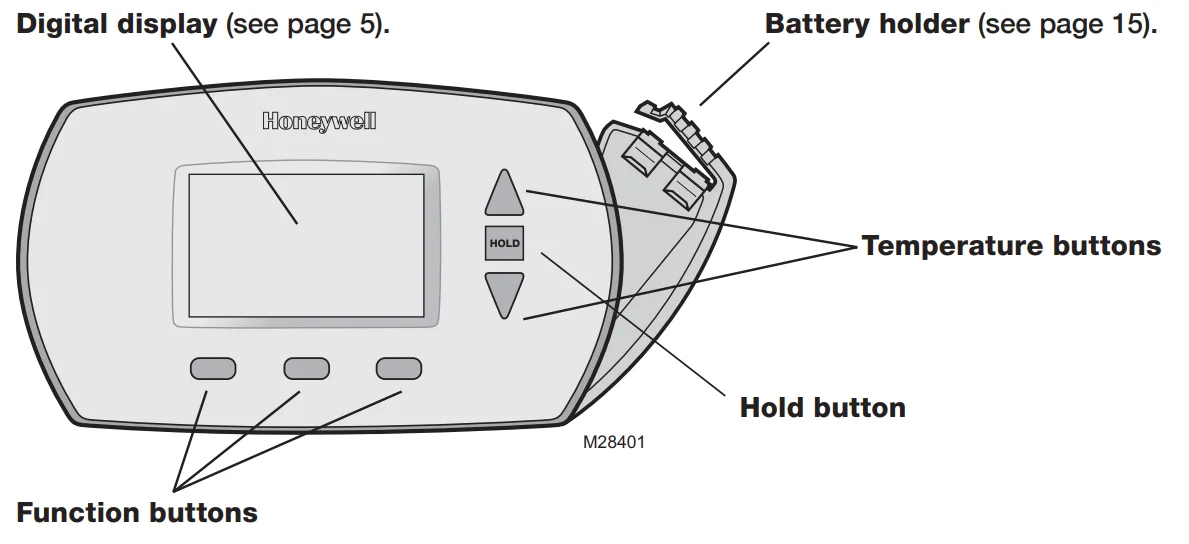
- Digital display
- Battery holder
- Function buttons: Press to select the function displayed just above each button. (Functions change depending on the task.)
- Temperature buttons: Press to adjust temperature settings (see pages 11-13).
- Hold button: Press to override programmed temperature control (see page 13).
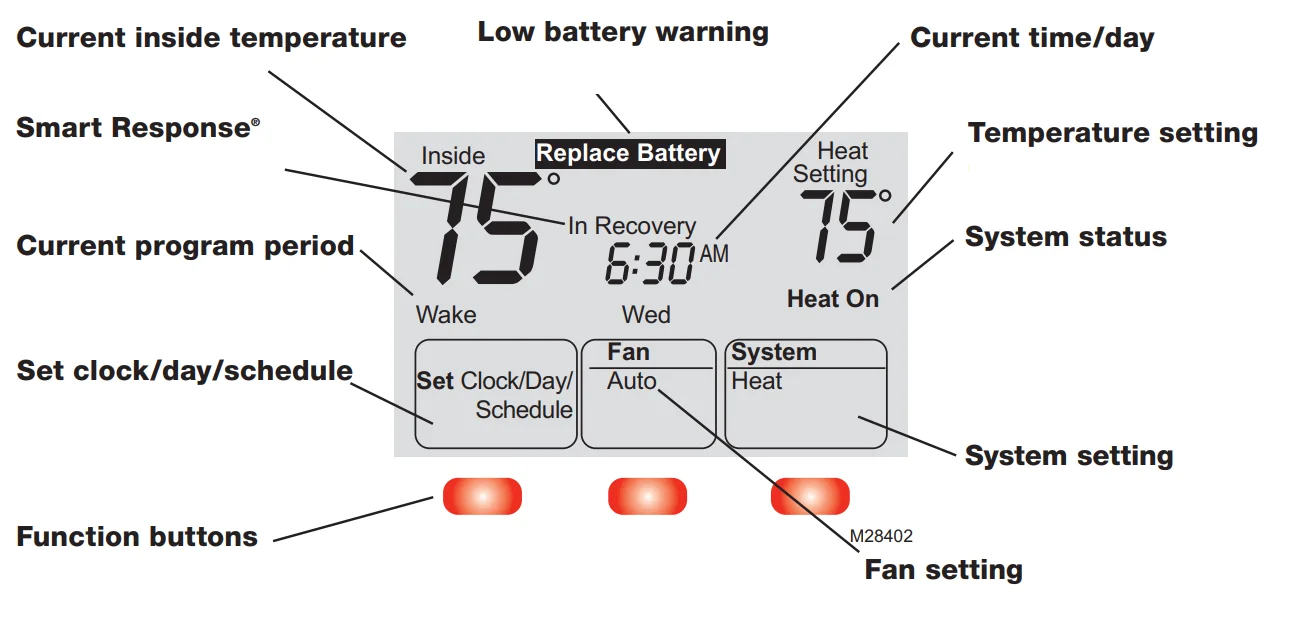
Quick reference to the display screen
Set the time and day
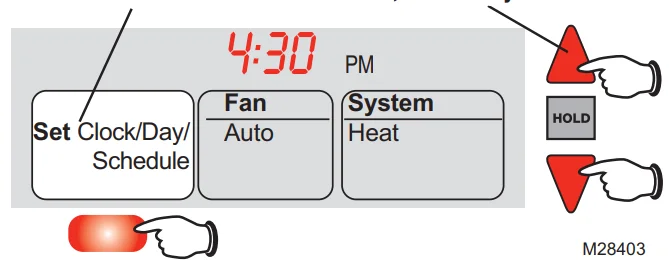
Press SET CLOCK/DAY/SCHEDULE, then adjust the time
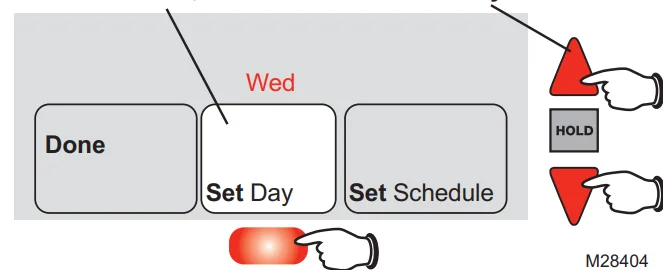
Press SET DAY, then select the current day
- Press the SET CLOCK/DAY/SCHEDULE button, then press s or t to set the clock time.
- Press the SET DAY button, then press s or t to select the day of the week.
- Press DONE to save & exit.
Select the fan setting.
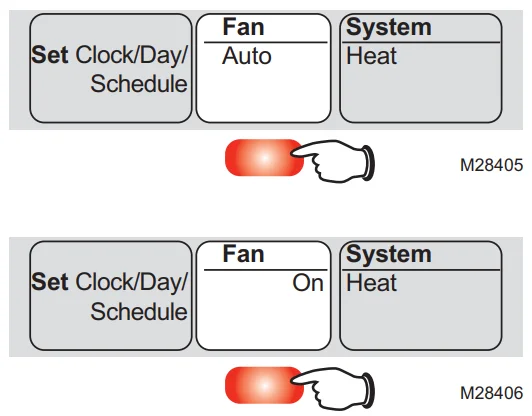
Press the FAN button to select Auto or On. In “Auto” mode (the most commonly used setting), the fan runs only when the heating or cooling system is on. If set to “On,” the fan runs continuously.
Select the system setting.
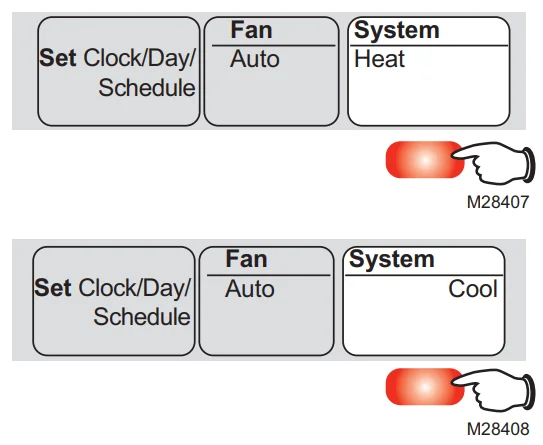
Press the SYSTEM button to select Heat, Cool, or Off.
- Heat: Thermostat controls only the heating system.
- Cool: Thermostat controls only the cooling system.
- Off: Heating and cooling systems are off.
- Auto (RTH6450 only): Thermostat automatically selects heating or cooling depending on the indoor temperature.
Save money by setting program schedules.
It’s easy to program your system for maximum energy savings. You can program four time periods each day, with different settings for weekdays, Saturday, and Sunday.
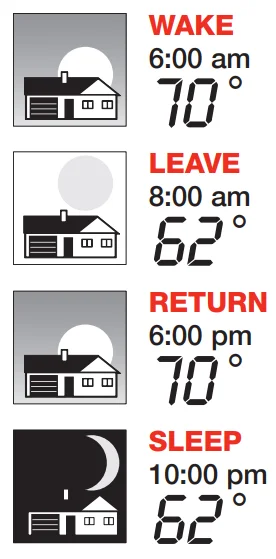
- Set the time you awaken and the temperature you want during the morning, until you leave for the day.
- Set the time you leave home and the temperature you want while you are away (usually an energy-saving level).
- Set the time you return home and the temperature you want during the evening, until bedtime.
- Set the time you go to bed and the temperature you want overnight (usually an energy-saving level).
Energy-saving settings for maximum cost savings
This thermostat is pre-set with energy-saving program settings. We recommend these settings, since they can reduce your heating/cooling expenses by as much as 33%. (See next page to adjust times and temperatures of each time period.)
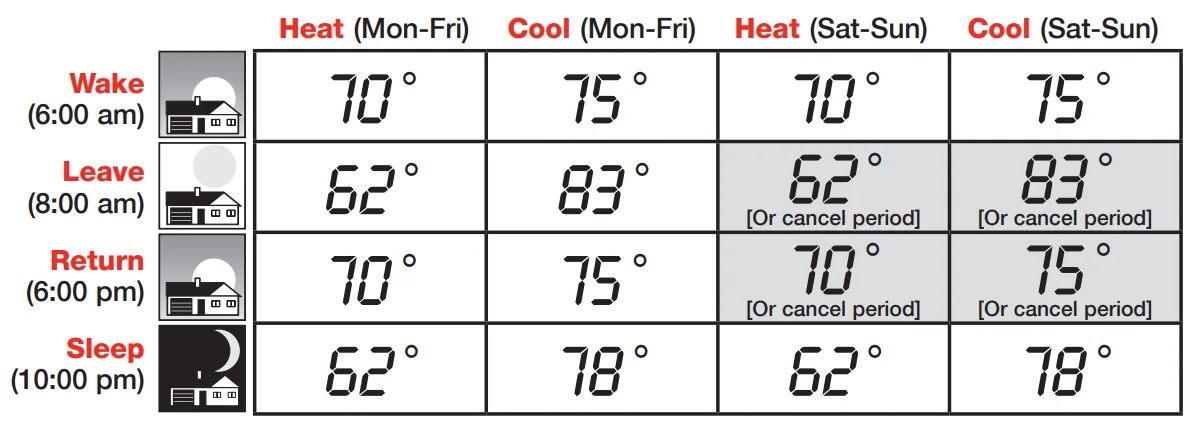
To adjust program schedules (RTH6350 only)
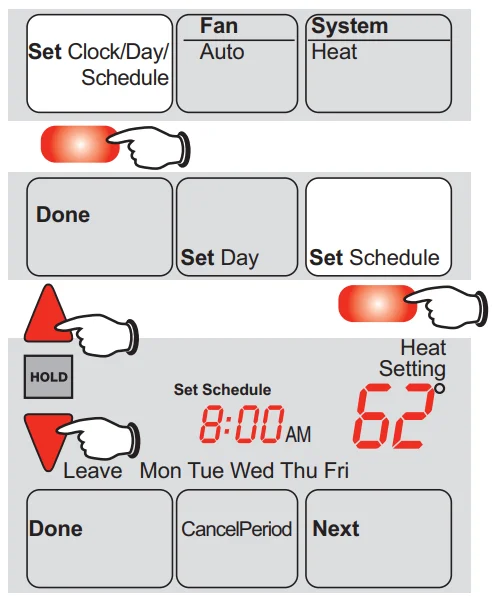
- Press SET CLOCK/DAY/SCHEDULE, then SET SCHEDULE.
- Press s or t to set your weekday Wake time (Mon–Fri), then press NEXT.
- Press s or t to set the temperature for this time period, then press NEXT.
- Set time and temperature for the next time period (Leave). Repeat steps 2 and 3 for each weekday time period.
- Press NEXT to set weekend time periods (SatSun), then press DONE to save & exit.
About your new thermostat: To adjust program schedules (RTH6450 only)
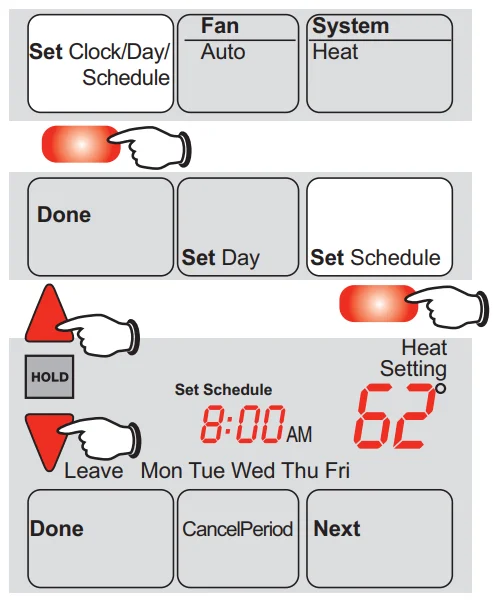
- Press SET CLOCK/DAY/SCHEDULE, then SET SCHEDULE.
- Press s or t to set your weekday Wake time (Mon–Fri), then press NEXT.
- Press s or t to set the temperature for this time period, then press NEXT.
- Set time and temperature for the next time period (Leave). Repeat steps 2 and 3 for each weekday time period.
- Press NEXT to set Saturday time periods.
- Press NEXT to set Sunday time periods, then press DONE to save & exit.
Program schedule override (temporary)
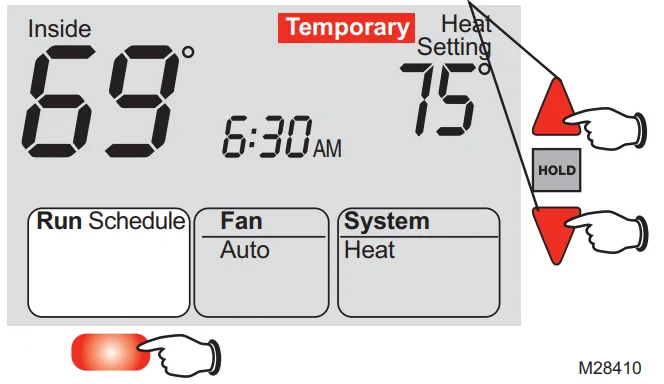
Press to temporarily adjust the temperature.
- Press s or t to immediately adjust the temperature. This will temporarily override the temperature setting for the current time period.
- The new temperature will be maintained only until the next programmed time period begins (see page 10). For example, if you want to turn up the heat early in the morning, it will automatically be lowered when you leave for the day.
- To cancel the temporary setting at any time, press RUN SCHEDULE.
Program schedule override (permanent)
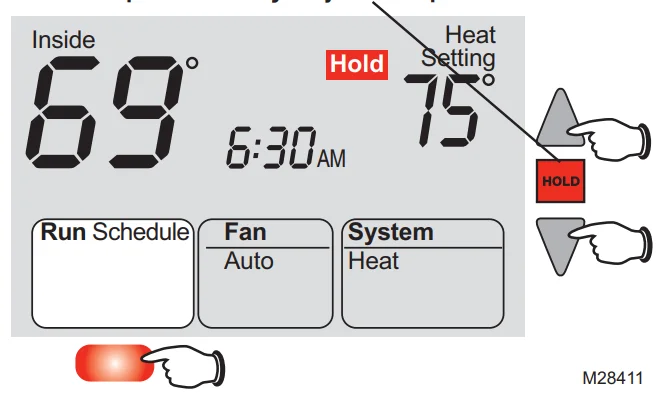
Press HOLD to permanently adjust the temperature. This will override the temperature settings for all time periods. The “Hold” feature turns off the program schedule and allows you to adjust the thermostat manually, as needed. Whatever temperature you set will be maintained 24 hours a day until you manually change it, or press RUN SCHEDULE to cancel “Hold” and resume the programmed schedule.
Auto Changeover (RTH6450 only)
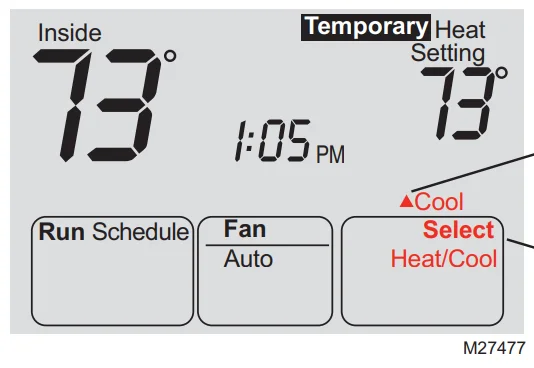
Use this feature in climates where both air conditioning and heating are used on the same day. When the system mode is in Auto, the thermostat automatically selects heating or cooling depending on the indoor temperature. While in the Auto mode, if a schedule override takes place (temporarily or permanently), the thermostat will automatically adjust the cooling and heating settings to maintain a 3-degree separation between the cool and heat settings. For example, if the heat temperature is raised to where it gets within 3 degrees of the cool setting, the display will show an up arrow next to “cool” to show the thermostat is raising the cool setting up to maintain a 3-degree separation. Press the Select Heat/Cool button to select between the heat and cool to view/adjust either mode.
Auto Changeover (RTH6450 only)
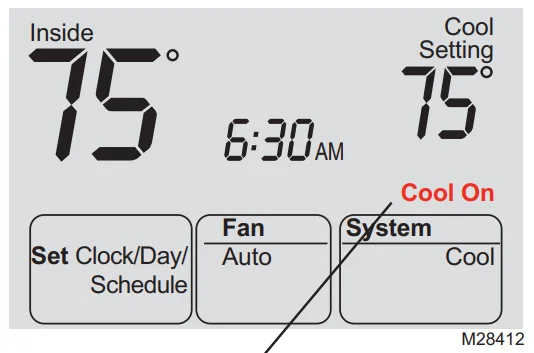
If the cool temperature is lowered to where it gets close to the heat setting, an arrow next to the heat will show that the thermostat is lowering the heat setting down to maintain a 3-degree separation.
- The triangle indicates the cool temperature is increasing to maintain 3 degrees between the heat and cool settings.
- Press Select Heat/Cool to set the heat or cool temperature.
Built-in compressor protection
Message flashes until safe restart time has elapsed.
- This feature helps prevent damage to the compressor in your air conditioning or heat pump system.
- Damage can occur if the compressor is restarted too soon after shutdown. This feature forces the compressor to wait a few minutes before restarting.
- During the wait time, the display will flash the message Cool On (or Heat On if you have a heat pump). When the safe wait time has elapsed, the message stops flashing and the compressor turns on.
Smart Response® Technology
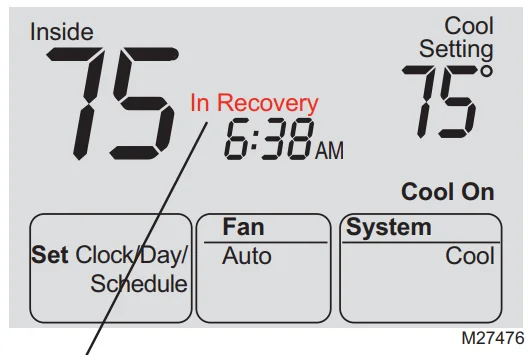
Displays when Smart Response is active.
- Smart Response® Technology: This feature allows the thermostat to “learn” how long the furnace and air conditioner take to reach programmed temperature settings, so the temperature is reached at the time you set. For example: Set the Wake time to 6 am, and the temperature to 70°. The heat will come on before 6 am, so the temperature is 70° by the time you wake at 6. The message “In Recovery” is displayed when the system is activated before a scheduled time period.
Battery replacement
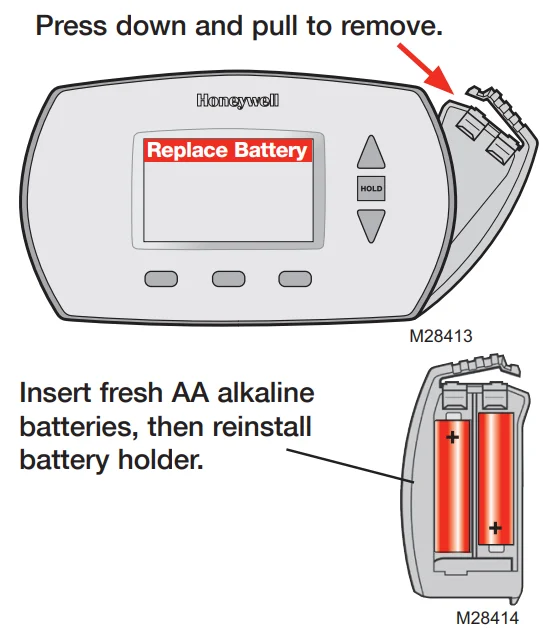
- Install fresh batteries immediately when the REPLACE BATTERY warning begins flashing. The warning flashes about two months before the batteries are depleted.
- Even if the warning does not appear, you should replace batteries once a year, or before leaving home for more than a month.
- If batteries are inserted within two minutes, the time and day will not have to be reset. All other settings are permanently stored in memory and do not require battery power.
Customer assistance
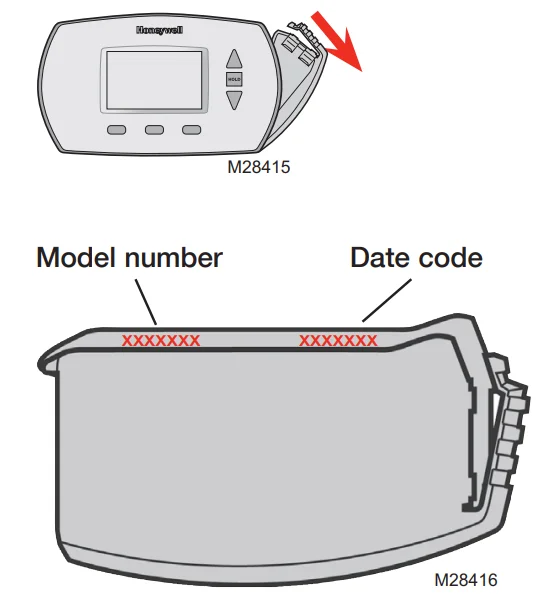
To save time, please remove the battery holder and note your model number and date code before calling.
Accessories/replacement parts
To order, please call Honeywell Customer Care toll-free at 1-800-468-1502
In case of difficulty
If you have difficulty with your thermostat, please try the following suggestions. Most problems can be corrected quickly and easily.
Display is blank: Make sure fresh AA alkaline batteries are correctly installed (see page 15).
Temperature settings do not change: Make sure heating and cooling temperatures are set to acceptable ranges:
- Heat: 40° to 90°F (4.5° to 32°C).
- Cool: 50° to 99°F (10° to 37°C).
To restore default schedule settings: Follow these steps to restore default schedule settings (see page 10):
- Press SET CLOCK/DAY/SCHEDULE.
- Press SET SCHEDULE.
- Press DONE and NEXT at the same time for 4 seconds.
The heating or cooling system does not respond.
- Press the SYSTEM button to set the system to Heat. Make sure the temperature is set higher than the Inside temperature.
- Press the SYSTEM button to set the system to Cool. Make sure the temperature is set lower than the Inside temperature.
- Check the circuit breaker and reset if necessary.
- Make sure the power switch on the heating & cooling system is on.
- Make sure the furnace door is closed securely.
- Wait 5 minutes for the system to respond.
FOR MORE MANUALS BY HONEYWELL, VISIT MANUALSLIBRARYY
Honeywell RTH6350D1000 Programmable Thermostat-FAQs
How do I operate my Honeywell RTH6350D1000 thermostat?
To operate your thermostat, use the up and down arrows to set your desired temperature. You can switch between heating and cooling modes, program daily schedules, or use the “Hold” function to maintain a specific temperature manually.
How do I set my Honeywell thermostat to manual mode?
Press the Hold button to activate manual mode. This will override your programmed schedule and maintain your selected temperature until you cancel the hold or resume the schedule.
How do I override a programmed schedule?
Press the up or down arrow to adjust the temperature manually. The display will show “Temporary Hold,” meaning your chosen temperature will stay until the next scheduled period begins.
How do I permanently hold the temperature on my thermostat?
To keep a fixed temperature, press the Hold button and select Permanent Hold (if available). This maintains your preferred temperature until you manually change or cancel it.
How do I reset my Honeywell RTH6350D1000 thermostat?
Press and hold the Menu button, then use the arrow keys to find Reset. Select Factory Reset to restore default settings. This will erase all custom programs and return the thermostat to its original setup.
How do I reboot my thermostat if it’s not responding?
Turn the thermostat off, wait a few seconds, then turn it on again. If the screen is still blank, remove and reinsert the batteries or press and hold Menu for 5 seconds to restart the device.
How do I know if my thermostat needs to be reset?
If your thermostat isn’t controlling the temperature correctly, keeps cycling on and off, or becomes unresponsive, a reset is likely needed to restore normal operation.
What is the master unlock code for a Honeywell thermostat?
To unlock the screen, add 1234 to your thermostat’s date code. For example, if your date code is 1900, the unlock code will be 3134.
Why is my thermostat showing a different temperature than the setting?
If the display temperature doesn’t match the room temperature, it may need recalibration. Check for drafts or heat sources near the thermostat and adjust settings to correct any offset.
What is the best temperature to set on my thermostat?
For comfort and energy efficiency, set your thermostat between 68°F and 72°F when you’re home. Lower it slightly during sleep or when away to save energy.