


Logitech ERGO M575 Wireless Trackball Mouse
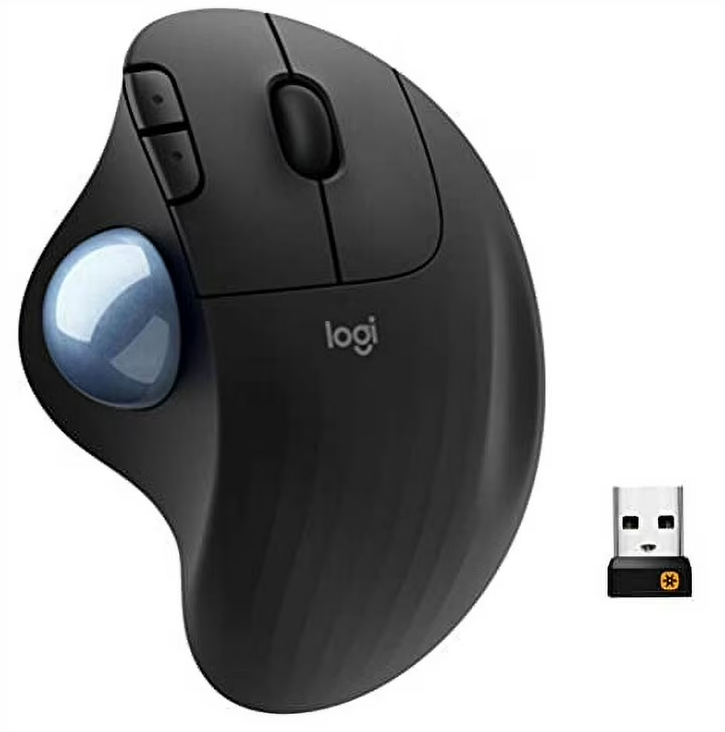
Getting started – ERGO M575.
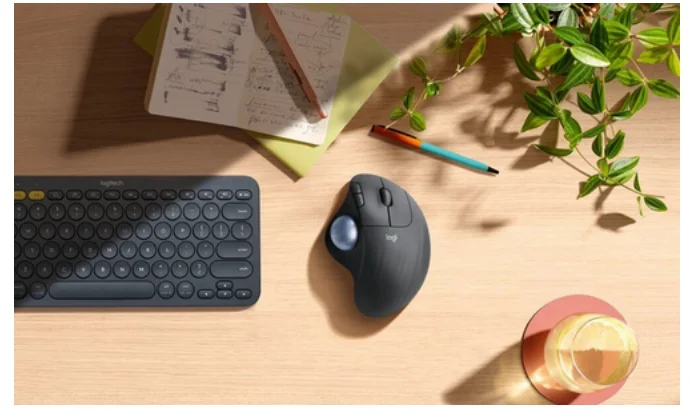
Time to make yourself comfortable!
Thank you for getting the new ERGO M575 trackball. We hope you will enjoy your new trackball.
Let’s get started.
You can connect your ERGO M575 in two different ways. Please follow the instructions below to connect wirelessly via Bluetooth or the Unifying receiver.
 Connect via Bluetooth
 Connect via Bluetooth
- Make sure ERGO M575 is turned on and the pull-tab is removed.
- Press the connect button to toggle between the Unifying receiver (Green LED light) and Bluetooth (Blue LED light). NOTE: Make sure the LED is blinking fast if you want to pair — if not, press and hold the button for three seconds.
- Open Bluetooth settings on your computer: On macOS, Open System Preferences > Bluetooth > Add ERGO M575. On Windows: Select Start › Settings > Devices > Add Bluetooth device > and Add ERGO M575.
- Connected.
 Connect via Unifying USB Receiver
 Connect via Unifying USB Receiver
- Make sure ERGO M575 is turned on and the pull-tab is removed.
- Press the connect button to toggle between the Unifying receiver (Green LED light) and Bluetooth (Blue LED light). NOTE: Make sure the LED is blinking fast if you want to pair — if not, press and hold the button for three seconds.
- Plug the Unifying USB receiver into a port on your computer.
- Connected.
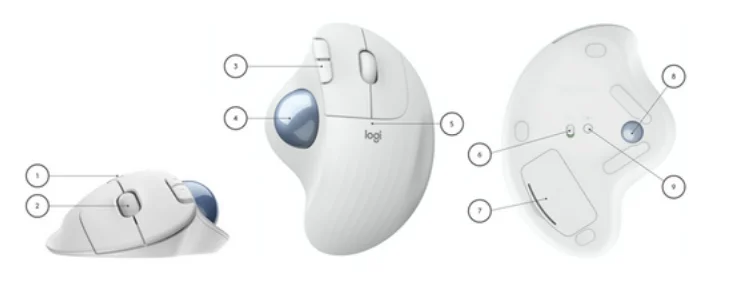
ERGO M575 at a glance
- Hand-sculpted form
- Wide, comfortable scroll wheel
- Side keys
- Precision trackball
- Power LED
- On/Off switch
- Battery door and receiver storage
- Connect button
- Trackball eject hole

To unlock the full potential of your ERGO M575, please download Logitech Options.
Overview of features
 Hand-sculpted shape
 Hand-sculpted shape
The new ERGO M575 trackball is designed to promote a more relaxed posture. The sculpted ergonomic shape naturally fits your hand, providing full palm support. ERGO M575 is thumb-operated with no need to move your arm around to move the cursor, so your hand and arm can stay rested and relaxed.
The extra-wide main clicks and scroll wheel are tilted to match the overall angled shape of ERGO M575, allowing a more natural finger movement when scrolling and overall better, more intuitive usability and comfort. Try to keep your hand and forearm well supported. Avoid resting your wrist or forearm on cold surfaces or sharp table edges to get the best and most comfortable experience using ERGO M575.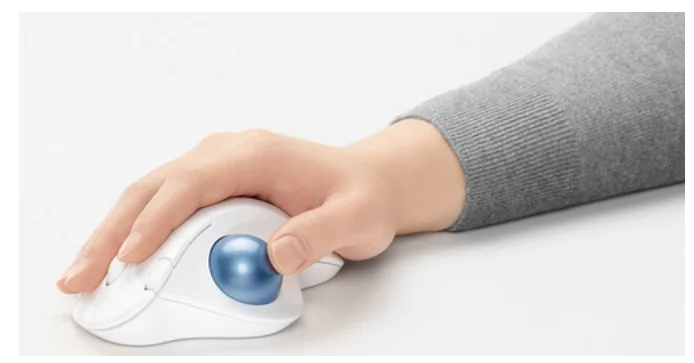
 Trackball Navigation
 Trackball Navigation
The ERGO M575 precision tracking sensor allows you to adjust the DPI setting of your trackball from 100DPI–2000DPI. You can adjust the speed in Logitech Options.
Back-/Forward buttons
The Back/Forward buttons on ERGO M575 give you quick access to shortcuts that allow you to navigate in browsers or in your favorite apps. You can use Logitech Options to customize the Back/Forward buttons to your exact preferences.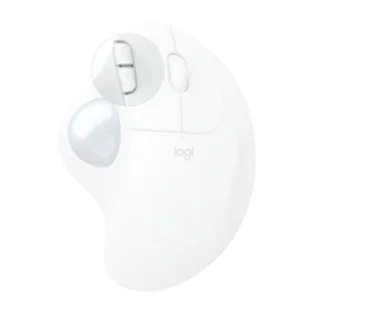
 Power Management
ERGO M575 is battery-powered. A single AA battery lasts up to 24 months with the included Unifying USB receiver and up to 20 months with Bluetooth® Low Energy. The battery indicator LED will let you know when the power is low and when you recharge. Install Logitech Options to get on-screen notifications.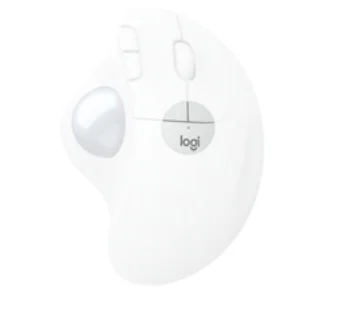
- Green: More than 10% battery life
- Red: Less than 10% battery life
 Downloads
 Downloads
Download Logitech Options for macOS and Windows.
For More Manuals By Logitech, Visit ManualsLibraryy.
Logitech ERGO M575 Wireless Trackball Mouse-FAQs
How do I set up my Logitech ERGO M575 mouse?
Turn on the mouse using the switch on the bottom. Plug in the USB receiver or connect via Bluetooth. Follow the on-screen pairing prompts on your computer. Once paired, the LED will glow steadily for a few seconds to confirm the connection.
How do I pair the ERGO M575 via Bluetooth?
Go to your device’s Bluetooth settings, turn on Bluetooth, and select “Logitech ERGO M575” from the available devices. Press and hold the Easy-Switch button on the mouse for three seconds until the blue light blinks, then follow the pairing instructions.
Why is the blue light flashing on my Logitech trackball mouse?
A flashing blue light means the mouse is in pairing mode or trying to connect. A steady blue light confirms a successful connection. If it keeps blinking and doesn’t connect, check the battery or restart the pairing process.
What is the DPI range on the Logitech ERGO M575?
The M575 offers adjustable DPI settings from 100 to 2000 DPI, allowing smooth cursor control. You can fine-tune tracking speed in the Logi Options+ app.
Where is the Bluetooth or pairing button located?
The pairing (Easy-Switch) button is on the bottom of the mouse. Press it to toggle between channels (1 or 2) and hold it for three seconds to enter pairing mode.
Can I use the Logitech ERGO M575 without the USB receiver?
Yes. The M575 supports Bluetooth connectivity, so you can connect it directly to your computer or tablet without using the USB receiver.
How do I reset my Logitech wireless mouse?
Turn the mouse off, wait a few seconds, and turn it back on. If it has a reset button, press and hold it for a few seconds. Re-pair the mouse if necessary.
What do the extra buttons on the ERGO M575 do?
The mouse includes back and forward buttons for quick navigation, a scroll wheel with tilt and middle-click functions, and an Easy-Switch button to toggle between connected devices.
How do I configure or customize the buttons?
Download and install the Logi Options+ software. It allows you to assign shortcuts, change button functions, and adjust tracking speed according to your preference.
What should I do if my ERGO M575 doesn’t connect via Bluetooth?
Make sure Bluetooth is enabled on your device. Try re-entering pairing mode by holding the Easy-Switch button for three seconds. If the issue persists, replace the battery or restart your computer before pairing again.