
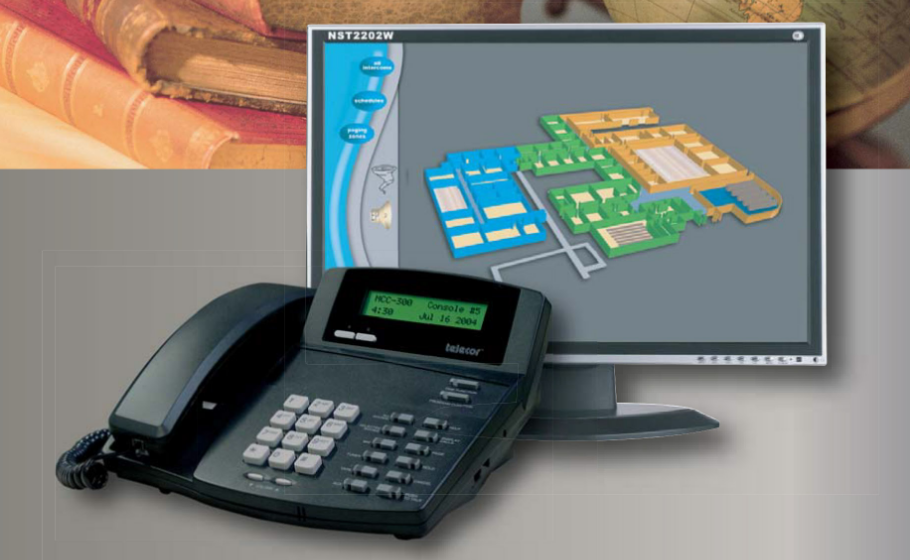

Telecor MCC-300 Master Control Console

Overview of the MCC-300 Console
The MCC-300 is a desktop telephone-style unit that allows for two-way communications to take place on the Telecor System. The diagram below illustrates the main components of the MCC-300 Console.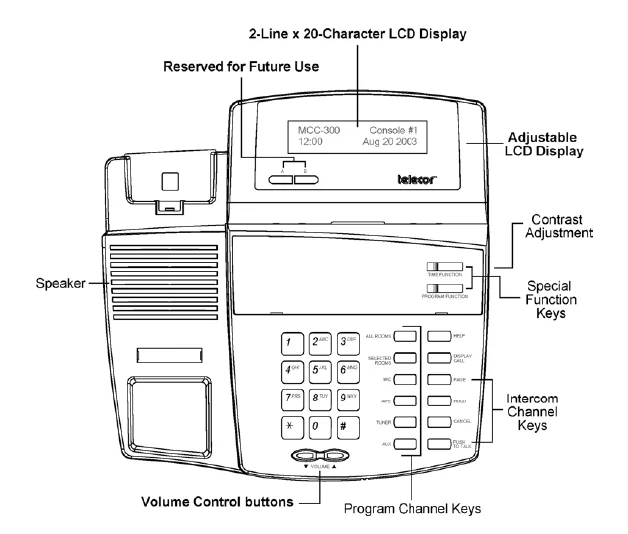
Character Display
The MCC-300 is equipped with a backlit LCD Display that makes it easy to read in low-light conditions. The display can even be tilted at different angles to allow for optimum viewing. The Console supports a 2-line by 20-character display.
When the Console is not in use, the Console model and number appear on the top line, and the time and date appear on the second line.
When a call rings at the Console, the display changes to show the call-in type and Room number.
Contrast Adjustment
The MCC-300 includes a control on the right side of the housing to adjust the contrast of the character display. Insert an appropriately sized flathead screwdriver to turn the control. Turning clockwise increases the contrast, and turning counterclockwise decreases the contrast.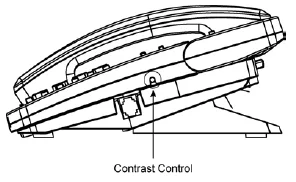
Volume Control
These keys adjust both the speaker listen and the handset’s listening volumes. To adjust the handset’s listening volume, lift up the handset and listen to the audio. Press the up arrow to increase the volume, or the down arrow to decrease the volume.
To adjust the speaker’s listening volume, while listening to the audio from the speaker, press the up arrow to increase the volume or the down arrow to decrease the volume.
Special Function Keys
The MCC-300 has two special function keys: the Time Function key and the Program Function key.
The Time Function Key allows you to:
- Change the system time
- Selected 12 or 24-hour format
- Set the year, month, and day
- Enable/disable automatic daylight-saving time correction
- Enable/disable, or clear schedules
- Distribute tones to all speakers
The Program Function Key allows you to:
- Forward console calls
- Customize the Selected Rooms List
- Monitor program distribution (e.g., music)
- Reset the system
Intercom Channel Keys
- PAGE initiates a paging announcement.
- HOLD places the current call on hold.
- CANCEL ends most Console functions.
- PUSH TO TALK places and answers calls and controls the direction of communication between Consoles and Rooms.
Program Channel Keys
- ALL ROOMS initiate Program Distribution (e.g., music) to all Rooms.
- SELECTED ROOMS initiates Program Distribution to certain Rooms.
- MIC selects the microphone as an audio source.
- TAPE selects the cassette player as an audio source.
- TUNER selects the radio as an audio source.
- AUX selects the CD player as an audio source.
Help and Display Call Keys
- HELP displays the Error Code when an error message appears on the display.
- DISPLAY CALL displays the calls that are waiting in the queue.
Operating Procedures
This section provides step-by-step procedures for operating the MCC-300 Console. Using the Console, you can manage the following activities:
- Call Processing
- Paging
- Program Distribution (e.g., Music)
- Tone Distribution
- Time Functions
- Enable/Disable Bell Schedules
Call Processing
Call Processing refers to how the Console operator makes calls, handles incoming calls, and connects calls from one Console or Room to another. Prior to performing any of these tasks, you must become familiar with the following Console practices:
- Both the speaker and handset can be used for Console-to-Room communication as well as Paging. However, for the best sound quality, using the handset is recommended.
- Only the handset can be used for Console-to-Console communication. This ensures private two-way communication between operators.
- To control the direction of communication during a call, use the PUSH TO TALK button. Press and hold it when you’re talking, and release it when you’re listening. This function is referred to as PTT mode.
- If VOX (Voice Operated Switching) mode is enabled on your Console, you can talk hands-free. The Console speaker picks up the sound of your voice and automatically transmits it without you pressing any buttons. In instances where background noise may interfere with VOX, you can easily switch to PTT mode by pressing the PUSH TO TALK button (doing this would disable VOX until the next call). Instructions provided in this User’s Guide assume that VOX is disabled.
Calling a Room
- Enter the Room dial number. The dial number appears on the display.
- Press PUSH TO TALK. A tone sounds at the Console and at the Room Station.
- Lift up the handset to talk or to use the Console speaker/mic, press and hold PUSH TO TALK (release it to listen).
- To end the call, hang up the handset or press CANCEL.
Auto Callback
When you receive a busy signal when calling a room (a repeating tone is heard through the handset), you can activate the Auto Callback feature to automatically receive a call back from the room you attempted to call when an audio channel is free.
- Upon hearing the busy signal, press the * key and then dial 66.
- Hang up the handset.
- Wait to receive a call back from the room once an audio channel is free for communications.
Calling Another Console
Both parties must use the handsets for Console-to-Console communication.
- Lift up the handset.
- Press #.
- Enter the Console number.
- Press PUSH TO TALK. A tone sounds at the other Console, and its display shows your Console number. The other Console operator must lift up the handset to answer your call.
- To end the call, either party can hang up the handset or press CANCEL.
Answering a Call-in
The system allows for six different call-in types to be made at the Console. A call-in type has a separate priority level to determine its importance in relation to other call-in types. When a call-in type is received at the Console, the Console identifies it by sounding a distinct tone and displaying the call-in type description. The table below lists the available call-in types: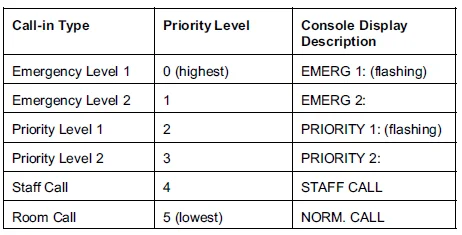
If several call-ins are made at the Console, the Console displays the call-in with the highest priority. For several call-ins with the same priority level, the Console displays them on a first-come, first-served basis. A call-in that is not displayed waits in the system queue.
To answer a call-in type:
- Lift up the handset or To use the Console speaker/mic, press and hold PUSH TO TALK to speak (release it to listen).
- To end the call, hang up the handset or press CANCEL.
Viewing and Answering Call-ins in the System Queue
Call-ins that are not immediately answered by a Console are placed into the system queue. The MCC-300 is able to display these queued call-ins and answer any waiting call-in, regardless of whether the call-in was made to another Console.
- Press DISPLAY CALL repeatedly to scroll through the calls that are waiting in the queue. Calls are displayed by priority level and on a first-come, first-served basis.
- Scroll to the call you want to answer, then lift up the handset or To use the Console speaker/mic, press and hold PUSH TO TALK to speak (release it to listen).
Note: When scrolling, press CANCEL to return to the first call in the queue.
Placing a Call on Hold
While the call is in progress, press HOLD.
The display shows ON HOLD next to the caller’s Room number. The on-hold call is placed in the queue.
Taking a Call off Hold
To take the call off hold, it must be displayed on the Console (use DISPLAY CALL if necessary).
When the call on hold is displayed, lift up the handset or use the Console speaker/mic, press and hold PUSH TO TALK to speak (release it to listen).
Transferring a Call
- Press HOLD to place the call on hold.
- Call the Console (remember to use the handset) that you want to transfer the call to.
- Inform the Console operator of the call to be transferred.
- Hang up the handset or press CANCEL to transfer the call.
Answering a Transferred Call
When a call has been transferred from another Console, it is placed in the queue where it waits to be answered.
- Press DISPLAY CALL to find the transferred call.
- Lift up the handset or Press and hold PUSH TO TALK to speak (release it to listen).
Forwarding Calls to Another Console
To have your calls forwarded to another Console, you must inform the other Console operator to take your calls. The other Console operator must then forward calls from your Console (see below) to her Console.
Forwarding Calls from Another Console
To have calls forwarded to your Console from another Console, add the Console to your Console list. Each Console in this list has its calls forwarded to your Console. The list also includes the proprietary Console number (the number of the Console that the list is being displayed on).
To add a Console to the Console list:
- Press PROGRAM FUNCTION, 9, then *. The display shows the Console list (press # and * to scroll forward and backward through the list).
- Press the Console number to add to the list, followed by *.
- Use the # and * keys to scroll through the list to see that the Console number has been added.
- Press 0 followed by * to exit the Console list.
To remove a Console from the Console list:
- Press PROGRAM FUNCTION, 9, then *. The display shows the Console list.
- Press # and * until the Console number to be removed appears on the display.
- Press CANCEL to remove the Console number.
- Press 0 followed by * to exit the Console list.
Forwarding Unanswered Priority Call-ins
If a priority call-in is not answered, this feature allows your console to automatically forward the call-in to all connected consoles, after it has gone unanswered for a preset period of time. The amount of time can be from 5 seconds to 120 seconds.
To enable this feature, perform the following steps:
- Press TIME FUNCTION, 7, then *. The feature is now activated. The display will show – – PROGRAMMING – – 120. This is the default setting of 120 seconds when the feature is first activated.
- Type the amount of delay, in seconds, for example 30, before an emergency call is forwarded, then *.
- The emergency call-in delay is now set system-wide to the number entered.
- You can check to make sure your entry has been accepted by pressing TIME FUNCTION, 7, then *. The display will show – – PROGRAMMING – – 30.
Paging
Paging allows you to broadcast announcements throughout a facility. The system allows for four types of pages:
- Single Room Page
- All Call
- Emergency
- Zone Page
Making a Single Room Page
A Single Room Page will page a single Room equipped with a speaker. It is recommended to use the handset to make the page.
- Lift the handset.
- Enter the room number to be paged.
- Press PAGE and then PUSH TO TALK.
- Make the page.
- To end the page, hang up the handset.
Making an All Call Page
An All Call Page will page every location that is equipped with a speaker, including Rooms, corridors, and outdoor areas. It is recommended to use the handset to make the page.
- Lift the handset.
- Press PAGE, 0, then PUSH TO TALK.
- Make the page.
- To end the page, hang up the handset.
Making an Emergency Page
An Emergency Page will page every location that is equipped with a speaker, including Rooms, corridors, and outdoor areas. This page has a higher system priority level than the All Call Page.
If both should occur at the same time, the Emergency Page overrides the All Call Page. For more information on system priority levels, see page C-3.
- Lift the handset.
- Press PAGE, then PUSH TO TALK.
- Make the page.
- To end the page, hang up the handset
Making a Zone Page
A building can be separated into 32 Page Zones.1 A page can be made to one or several of these Zones without disturbing other areas of the facility. It is recommended to use the handset to make the page.
To make a page in a temporary Page Zone list, complete the following steps:
- Lift the handset.
- Enter the Zone number followed by *. Repeat this step for other Zones to be included in the list (maximum 32 Zones). To remove a Zone from the list, enter its number followed by *. Note: To scroll through the Page Zones that have been added to the list, press *.
- When all Zones have been added, press PUSH TO TALK.
- Make the page.
- To end the page, hang up the handset
Monitoring a Page Zone
The system allows you to monitor a Page Zone over the Console speaker for unauthorized activity or security purposes. Complete the following steps:
- Enter the Page Zone.
- Press PUSH TO TALK. The selected Zones are open to monitoring.
- Press CANCEL to terminate the monitor function.
Note: During Zone Monitoring, the system cannot receive incoming calls from room stations, and calls cannot be initiated to room stations.
Excluding Rooms from Pages
Rooms can be placed in the Page Exclusion List so that they will not receive Zone Pages, Time Zones, and Program Distribution over the room speaker. This function does not exclude
Emergency Pages, Intercom Calls, and Remote Tones/Pages.
- Press PROGRAM FUNCTION, #. The display shows Room Numbers (2 to 4 digits) or – (list is empty).
- To scroll down the list of Rooms, press *. To scroll up the list of rooms, press #.
- To add a Room to the list, enter the Room Number followed by *. To remove a Room from the list, press CANCEL when the Room Number appears on the display.
- To save the new list, press PROGRAM FUNCTION, 20, *.
- To exit programming mode, enter 0, *.
The system features an option to have the Page Exclusion List cleared at midnight. To enable this, press PROGRAM FUNCTION, 21, *.
Program Distribution
Program Distribution refers to when an audio program is broadcast to a particular location. An audio program may originate from a radio, CD or cassette player, or microphone. It can be distributed to Rooms, Zones, or both.
There are two types of program distribution: low priority and high priority. Basically, a higher priority program distribution is less likely to be interrupted by another system action.
Distributing an Audio Program to All Locations
This procedure distributes an audio program to every location that is equipped with a speaker, including Rooms, corridors, and outdoor areas. To distribute audio to all speakers, complete the following steps:
- Press ALL ROOMS. The display shows P.
- For high-priority program distribution, press *. For low priority, do not press anything and proceed to the next step.
- Select an audio source: TAPE, TUNER, or AUX. For a microphone, press MIC and then the Microphone number (1-5).
- The audio source is heard through the Console speaker. Note: To cancel an audio source, press TAPE, TUNER, or AUX a second time. To turn a microphone off, press MIC, then 0.
- Press PUSH TO TALK to start program distribution.
To cancel a program distribution:
- For a low-priority program distribution, press ALL ROOMS and then CANCEL.
- For a high-priority program distribution, press ALL ROOMS, press *, and then CANCEL.
Distributing an Audio Program to the Selected Rooms List
The system allows you to customize a list of Rooms or Zones that can receive an audio program.
You can easily add or remove Rooms or Zones from this list at any time from the Console. To view or customize the Selected Rooms.
To distribute audio to the Selected Rooms List, complete the following steps:
- Press SELECTED ROOMS. The display shows P.
- For high-priority program distribution, press *. For low priority, do not press anything and proceed to the next step.
- Select an audio source: TAPE, TUNER, or AUX. To select a mic, press MIC and then the Microphone number (1-5).
- The audio source is heard through the Console speaker. Note: To cancel an audio source, press TAPE, TUNER, or AUX a second time. To turn a microphone off, press MIC, then 0.
- Press PUSH TO TALK to start program distribution. The program is distributed.
To cancel a program distribution:
- For a low-priority program distribution, press SELECTED ROOMS and then CANCEL.
- For a high-priority program distribution, press SELECTED ROOMS, press *, and then CANCEL.
Monitoring an Audio Program
- Press PROGRAM FUNCTION, 8, then * to monitor Program Distribution. The audio source is heard through the Console speaker.
- Repeat Step 1 to turn off monitoring.
Customizing the Selected Rooms List
- Press PROGRAM FUNCTION, then * to enter the Selected Rooms List.
- Press # or * to scroll forward or backward through the list. The display shows Room Numbers (2 to 4 digits), Program Zones (1-31), or – (list is empty).
- To add a Room/Zone to the list, enter the number followed by *. To remove a Room/Zone from the list, press CANCEL when the number appears on the display.
- Press 0 followed by * to exit the Selected Rooms List.
For more Manuals by Telecor, visit ManualsLibraryy
Telecor MCC-300 Master Control Console-FAQs
What is the Telecor MCC-300 used for?
The MCC-300 is a master control console designed to manage school intercoms, paging, and emergency communication systems efficiently.
How do I turn on the MCC-300?
Plug in the console, ensure all connections are secure, and press the power button. Wait for the startup indicators on the display panel.
How do I make a page to a classroom or zone?
Select the desired zone or classroom using the zone buttons, press the page key, and speak into the microphone. Release the key when finished.
Can I adjust the volume for different zones?
Yes, the MCC-300 allows individual volume adjustments for each zone to ensure clear communication across all areas.
How do I activate an emergency broadcast?
Press the dedicated emergency button on the console. This overrides normal paging and alerts all connected zones immediately.
Can multiple operators use the console at the same time?
Yes, the MCC-300 supports multiple operators with permission controls, allowing simultaneous paging and management.
What maintenance is required for the MCC-300?
Keep the console clean and dust-free, check microphone and speaker connections regularly, and ensure firmware or software is up to date.
What should I do if a zone is not responding?
Check the zone wiring and connections, verify the console settings, and restart the MCC-300 if necessary. Refer to the troubleshooting section of the manual for detailed guidance.