


Element ELEFW195 720p LED HDTV
PREPARATIONS
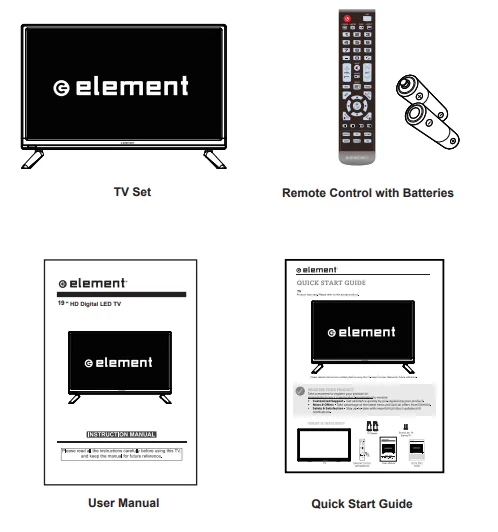
What is Included?
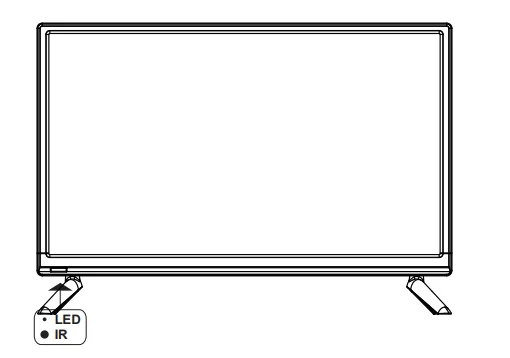
Front View
- Switch the TV between On/Standby mode.
- SOURCE: Press to select among different input signal sources.
- MENU: Display the OSD (on-screen display) menu.
- CH: Press to select a channel.
- VOL – / +: Press to adjust the volume.
- LED: The LED light indicates when the TV is activated.
- IR: Infrared receiver.

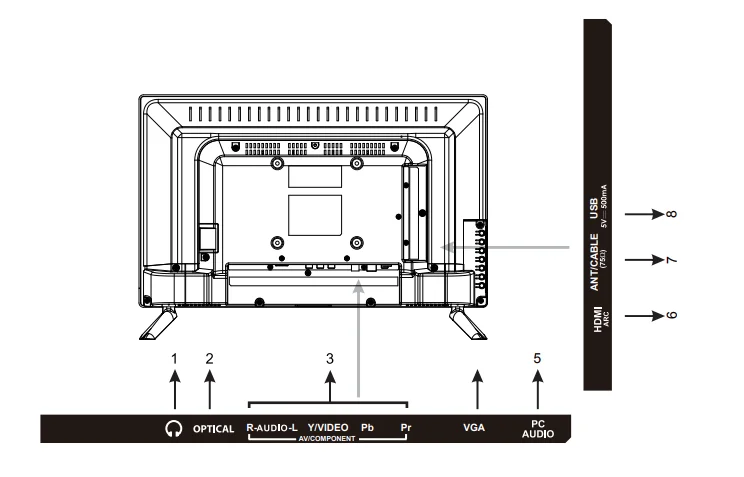
Rear View
- Headphone output
- Optical output
- COMPONENT/AV Input
- VGA Input
- PC Audio Input
- HDMI Inputs
- ANT/CABLE
- USB Input

Wall Mounting
The TV is provided with mounting holes for a VESA-approved wall mounting bracket (not supplied). Remove the screws holding the base to the base bracket and lift the base away (do not remove the base mounting brackets). Mount the VESA bracket using 4*M6*8 isometric threaded screws (not supplied).
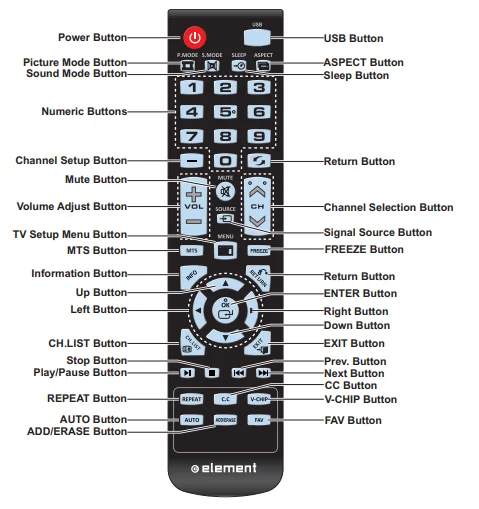
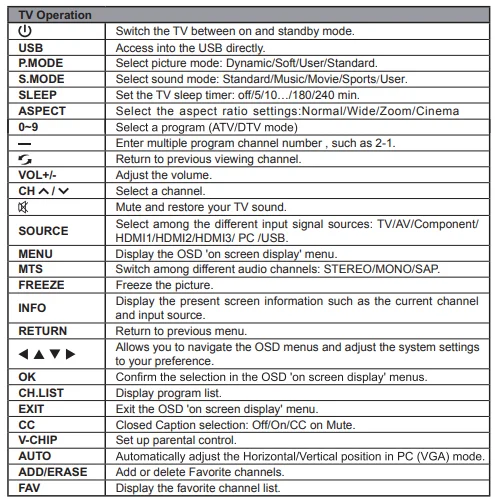
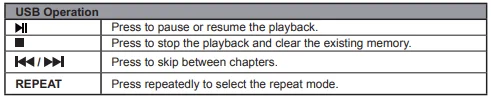
Remote Control
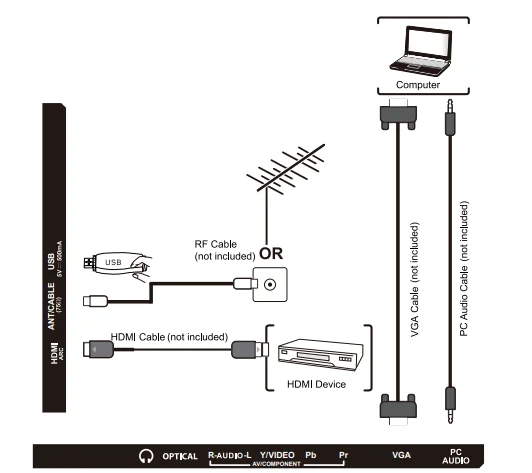
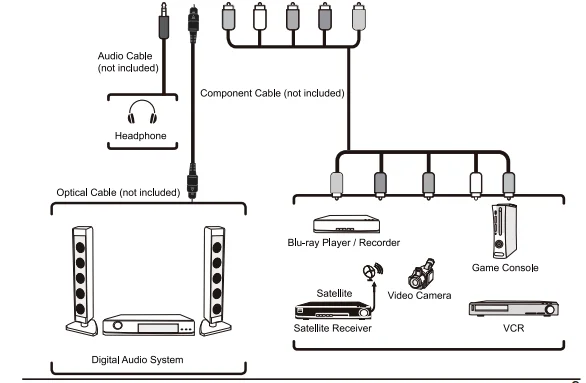
CONNECTING EXTERNAL DEVICES
OPERATING YOUR TV
Turning On/Off Your TV
- Connect the power cord to the power socket after you have completed all the physical connections. At this stage, the TV will enter Standby Mode and the red LED indicator will illuminate.
- In Standby Mode, press the button on the main unit or on the remote control to turn the TV on. The red LED indicator will turn blue.
The POWER button on the main unit or on the remote control can only switch the TV into standby. To completely turn off the TV, please disconnect the power cord from the power socket.
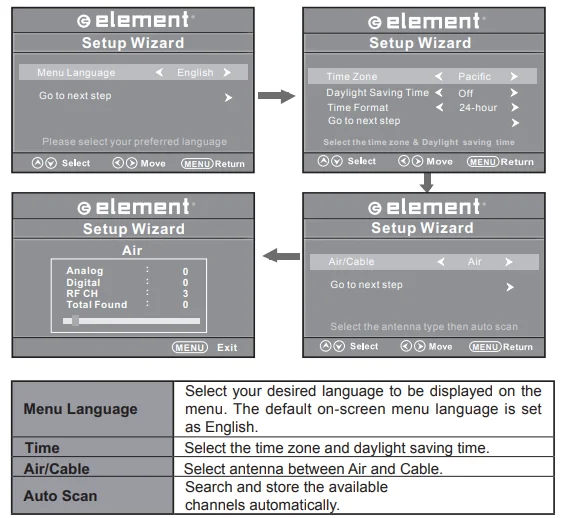
Setup Wizard
- Press the ▲/▼◀/▶confirm buttons to select your desired mode and press the OK button to confirm.

Selecting the Input Source
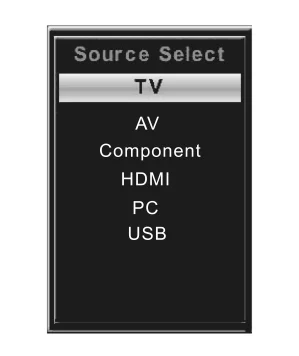
- Press the SOURCE button on the main unit or on the remote control to display the Input Source list.
- Press the buttons to select your desired input source among TV/Component/TV/AV/HDMI/PC/USB, and then press the OK button to confirm.

Channel Selection
- Press the CH∧/CH∨ buttons on the main unit or on the remote control repeatedly to select the channel.
- Press the 0–9 buttons on the remote control to select the channel directly.
Volume Adjustment
- Press the VOL+/- buttons on the main unit or on the remote control to adjust the volume.
- If you wish to switch the sound off, press the MUTE button again or the VOL+ button to resume the sound.
CUSTOMIZING TV SETTINGS
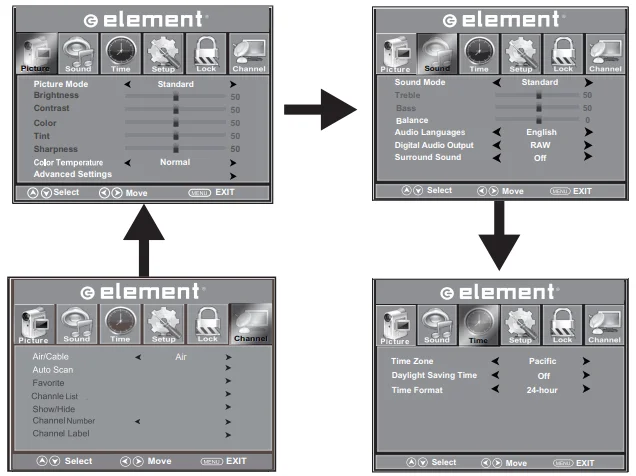
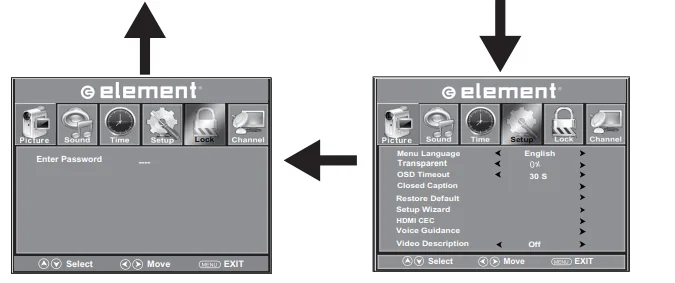
Navigating the On-Screen Display
- Press the MENU button to display the main menu.
- Press the◀/▶ buttons to navigate and select the available menus.


Picture Settings
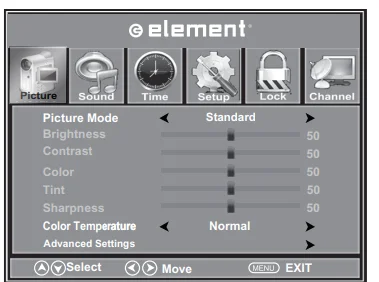
- Press the MENU button on the main unit or on the remote control, then press the◀/▶ buttons to select the Picture menu, and then press the▼ OK button to enter.
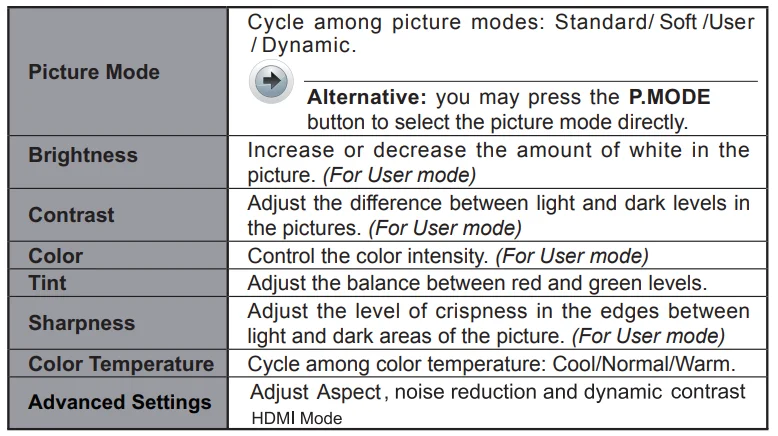
- Press the▲/▼ buttons to select the following picture options and then press the ◀/▶buttons to adjust each option’s setting.


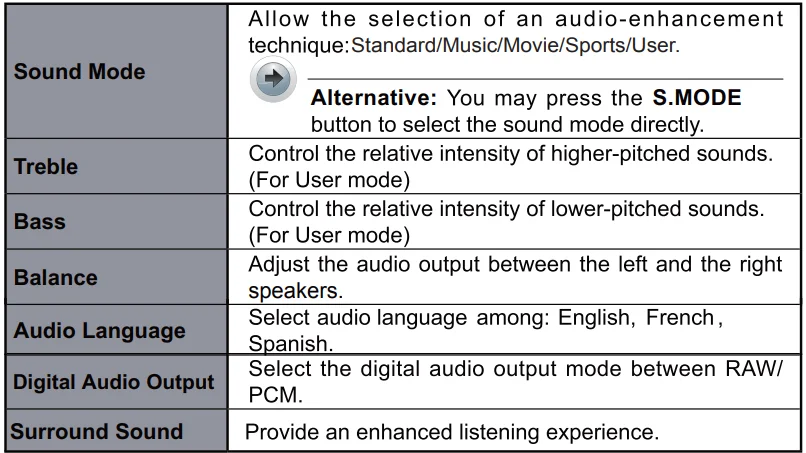
Sound Settings
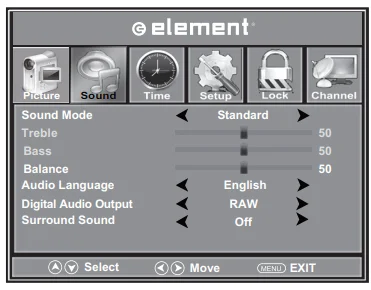
- Press the MENU button on the main unit or on the remote control, then press the◀/▶ buttons to select the Sound menu, and then press the▼ OK button to enter.
- Press the▲/▼ buttons to select the following audio options and then press the◀/▶ buttons to adjust each option’s setting.


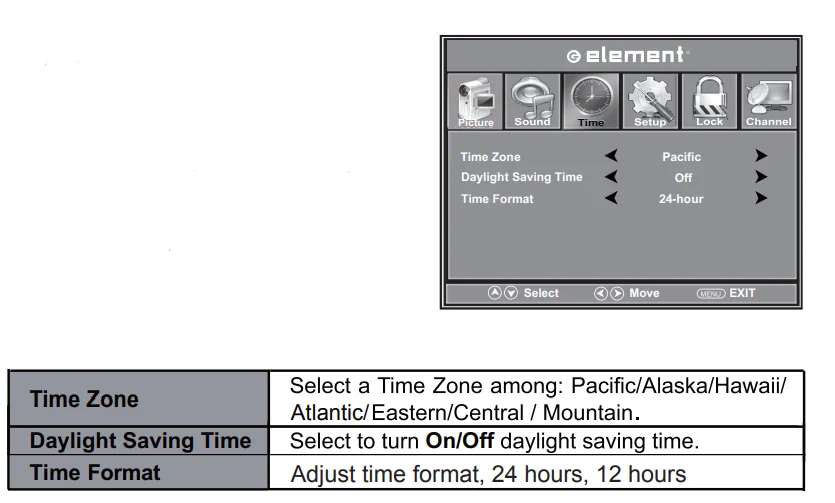
Time Settings
- Press the MENU button on the main unit or on the remote control, then press the buttons to select the Time menu, and then press the OK button to enter.
- Press the buttons to select the following time options and then press the buttons to adjust each option’s setting.

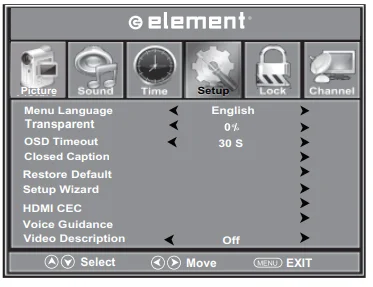
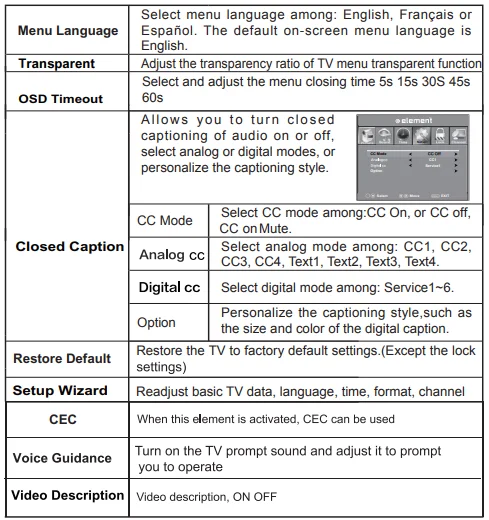
Setup Menu
- Press the MENU button on the main unit or on the remote control, then press ◀/▶ the buttons to select the Setup menu, and then press the▼ OK button to enter.
- Press the▲/▼ buttons to select the following setup options and then press the ◀/▶buttons to adjust each option’s setting.


Lock Settings
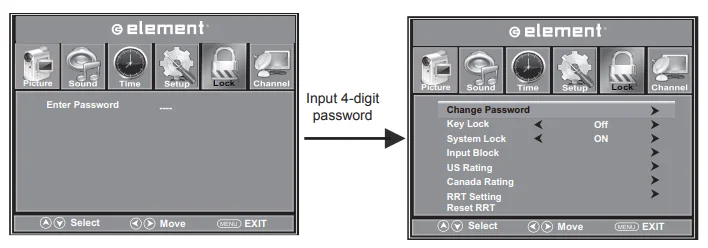
- Press the MENU button on the main unit or on the remote control and then press the◀/▶ buttons to select the Lock menu.
- Use the 0–9 buttons to input the 4-digit password to enter the Lock menu.
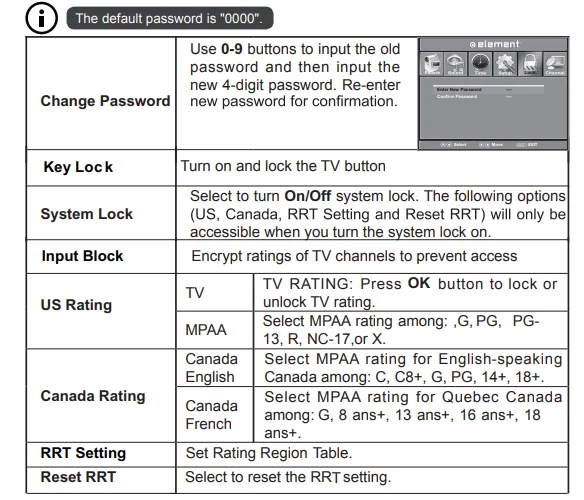
- Press the▲/▼ buttons to select the following options and then press the ◀/▶buttons to adjust each option’s setting.


Parental Control
Press the MENU button on the main unit or on the remote control and then press the◀/▶ buttons to select the LOCK menu. Use the 0–9 buttons to input the 4-digit password to enter the LOCK menu. If used, this option feature can “block” undesirable programming from appearing on the TV. Parental Control offers the user a wide variety of options and settings that restrict or “block” the programming that can appear on the TV.
Parental Control allows the user the capability of defining which program rating they consider acceptable to the younger, more sensitive viewer. It can be preset and turned either on or off by the user who specifies the 4-digit code (the password). The number of hours blocked is specified. General audiences and children’s blocks should both be programmed into the TV’s memory. Viewer ratings are specified for both the TV and the motion picture industry; both rating systems should be used for complete coverage. The ratings are based on the ages of children.
Overview
To ensure complete coverage for all TV programs (movies and regular TV shows), choose a rating for MPAA from the selections below, as well as ratings from the TV Parental Guidelines Rating Systems below, using the Age Block option for general audiences and for children. In addition to those, you may wish to add additional restrictions from the content block menu and submenus examples below.
Things to Consider Before Setting Up Parental Control
Determine which rating you consider acceptable to the viewer. (For example, if you choose TV-PG, more restrictive ratings will be automatically blocked; the viewer will not be able to see TV-PG, TV-14, or TV-MA rated programming.) Do you want to block the auxiliary video source entirely? (Blocks the signal sent by the equipment, such as a VCR, connected to the TV Audio/Video Input Jacks.)
Or leave unblocked, then choose allowable ratings. Block program “Content” based on individual parameters such as strong dialog, bad language, sex scenes, violent scenes, or fantasy violent scenes in the Content Blk option. Select a secret password in the Set Password option using the number keys on the remote control. Do not forget the password; it is the only way you can access the Parental Control menu and change rating selections or turn Parental Control off. Do you want the Parental Control to be active at all times? If not, you can turn it on or off with the Lock On/Off option.
- You can set different Parental Control viewing restrictions for general audiences and for children; both can be active at the same time.
- Simply specifying one content block, such as Sex Scenes, will not automatically restrict the programming that appears from the video sources.
- Even if you choose to leave the AUX Inputs unblocked, the ratings you specify will automatically restrict the programming that appears from the video sources.
- You cannot disable Parental Control by disconnecting the TV from power. Block hours will be automatically reset to the original block time setting specified if power is disconnected.
Channel Settings
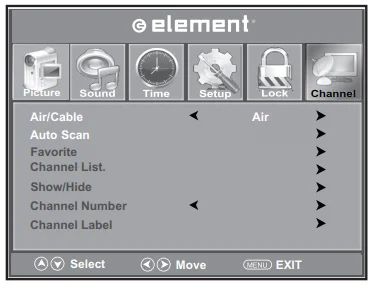
- Press the MENU button on the main unit or on the remote control and then press the◀/▶ buttons to select the Channel menu.
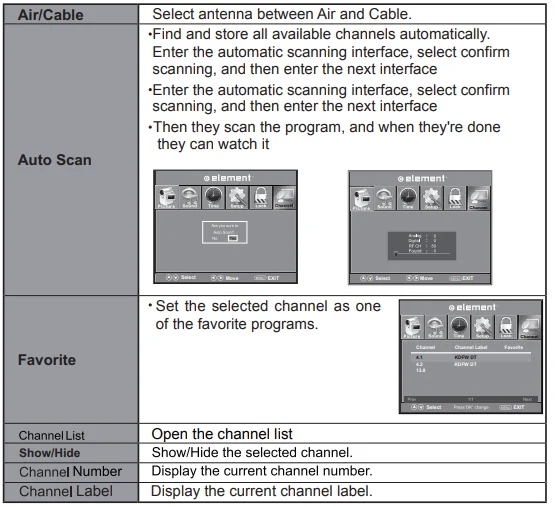
- Press the ▲/▼buttons to select the following channel options and then press the ◀/▶buttons to adjust each option’s setting.
- Channels can only be used in TV mode.


Viewing Pictures
- Press the SOURCE button on the main unit or on the remote control, then press the▲/▼ buttons to select the USB mode, and then press the OK button.
- Press the◀/▶ buttons to select Photo and then press the OK button.

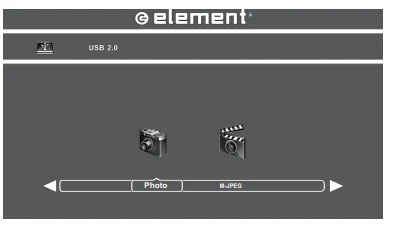
¡ File format supported: JPEG.
Viewing Video
- Press the SOURCE button on the main unit or on the remote control, then press the▲/▼ buttons to select the USB mode, and then press the OK button.
- Press the◀/▶ buttons to select M-JPEG and then press the OK button.

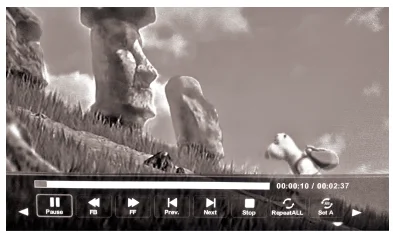
¡ File format supported: M-JPEG.
Operation Tips

TROUBLESHOOTING
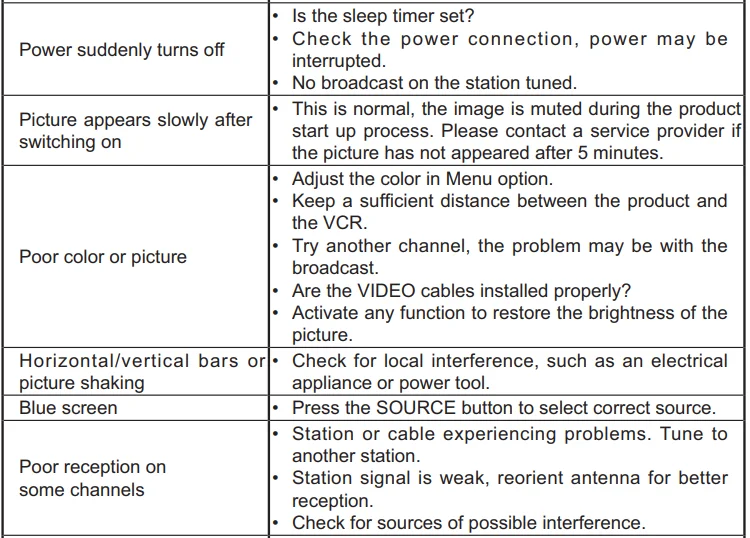
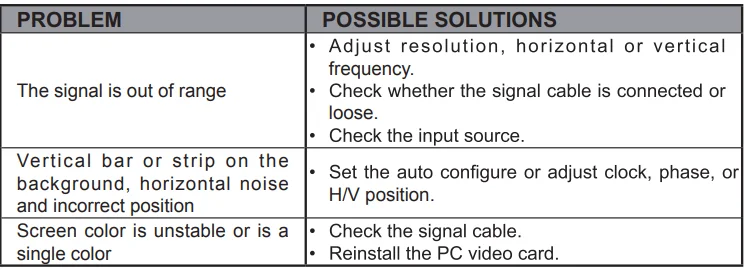
If your TV does not operate normally or cannot be turned on, please check the following troubleshooting questions. Remember also to check any other connected electronic device, such as a DVD or Blu-ray player, to pinpoint the problem. If the TV still fails to operate normally, please contact technical support (refer to the Warranty page).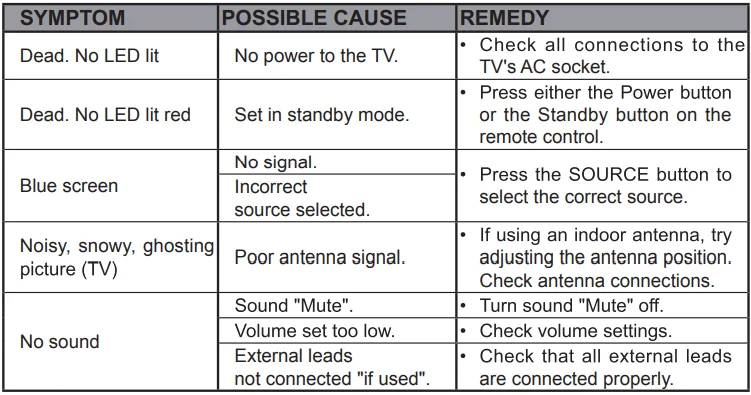
Before contacting the service technician, perform the following simple checks. If any problem persists, unplug the LED TV and call for assistance.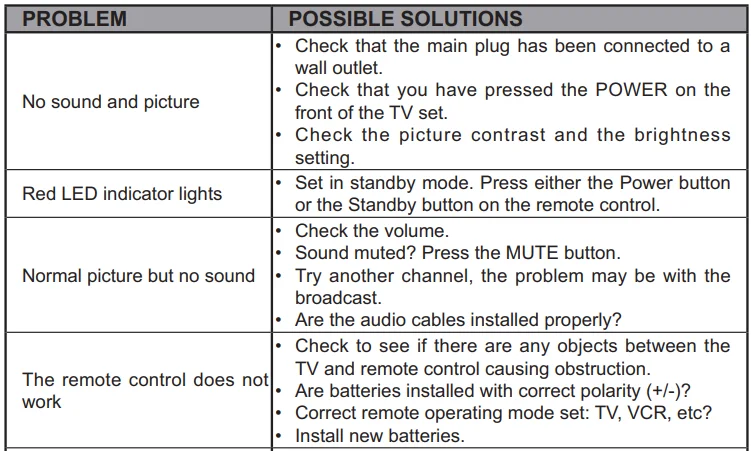

Maintenance
Early malfunction can be prevented. Careful and regular cleaning can extend the amount of time you will have with your new TV. Be sure to turn the power off and unplug the power cord before you begin any cleaning. Do not use your TV in areas that are too hot or too cold because the cabinet may warp or the screen may malfunction. Your TV works best in temperatures that are comfortable to you. Storage temperatures are 32° to 122°F (0° to 50°C). Working temperatures are 32° to 95°F (0° to 35°C). Do not place your TV in direct sunlight or near a heat source.
- Minimum 5 cm distances around the apparatus for sufficient ventilation.
- The ventilation should not be impeded by covering the ventilation openings with items such as newspapers, tablecloths, curtains, etc.
- No naked flame sources, such as lighted candles, should be placed on the apparatus.
- Attention should be drawn to the environmental aspects of battery disposal.
Clean the Screen
A great tip to dust off your screen: wet a soft cloth in a mixture of lukewarm water and a little fabric softener or dishwashing detergent. Wring the cloth until it’s almost dry, and then use it to wipe the screen. Make sure the excess water is off the screen, then let it air-dry before you turn on the TV.
Cleaning the Cabinet
To remove dirt or dust, wipe the cabinet with a soft, dry, lint-free cloth. Please be sure not to use a wet cloth.
FCC NOTES
 Warning: Changes or modifications to this unit not expressly approved by the party responsible for compliance could void the user’s authority to operate the equipment.
NOTE: This equipment has been tested and found to comply with the limits for a Class B digital device, pursuant to Part 15 of the FCC Rules. These limits are designed to provide reasonable protection against harmful interference in a residential installation. This equipment generates, uses, and can radiate radio frequency energy and, if not installed and used in accordance with the instructions, may cause harmful interference to radio communications.
However, there is no guarantee that interference will not occur in a particular installation. If this equipment does cause harmful interference to radio or television reception (which can be determined by turning the equipment off and on), the user is encouraged to try to correct the interference by one or more of the following measures:
- Reorient or relocate the receiving antenna.
- Increase the separation between the equipment and receiver.
- Connect the equipment into an outlet on a circuit different from that to which the receiver is connected.
- Consult the dealer or an experienced radio/TV technician for help.
Please send all correspondence to:
Element TV Company, LP Customer Service
1-888-842-3577
www.elementelectronics.com
[email protected]
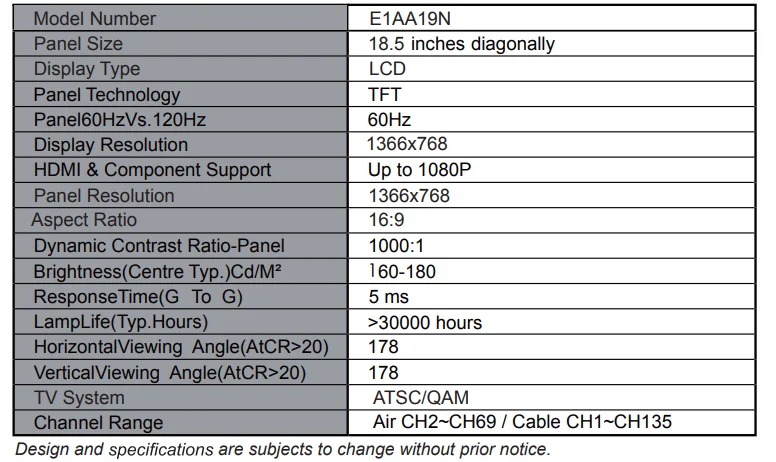
SPECIFICATIONS
WARRANTY
ELEMENT LCD TV LIMITED WARRANTY TO ORIGINAL CONSUMER
LCD TV – 40 inches and under Screen Size Models (the “Product”)
This Product (including any accessories included in the original packaging), as supplied and distributed in new condition, is warranted by Element TV Company, LP (“Element”) to the original purchaser against defects in material and workmanship (“Warranty”) as follows:
1. WARRANTY SERVICE (Parts, Labor, and/or Replacement):
For a period of one (1) year from the date of the original customer purchase (“the Warranty Period”), if this Product or any of its parts are determined by Element or an Element authorized customer service provider to be defective in material or workmanship, Element will, at its sole discretion and option: (i) supply, at no charge to the original customer, new or rebuilt replacement parts in exchange for defective parts;
(ii) repair the Product and pay the labor charges of such Element authorized service provider for same, at no charge to the original customer; (iii) replace the Product with a new or refurbished product of similar or better quality, at no charge to the original customer; or (iv) refund the original purchase price of the Product (excluding tax) to the original customer. After the Warranty Period, the customer must pay for all parts, labor, and replacement costs associated with the Product, regardless of any defects in the Product.
A. SHIPPING COSTS: Notwithstanding the foregoing, the customer is responsible for any shipping or transportation charges incurred to ship or otherwise deliver the Product or parts to Element or an Element authorized service provider for diagnosis, repair, or replacement. The customer shall not return the Product to Element without Element’s prior written consent. Element recommends that the customer insure the Product for its full replacement cost when shipping.
B. TIMING AND PROCEDURE: Before Warranty service can commence, the original customer purchaser must contact Element for problem determination and service procedures. Proof of purchase in the form of a bill of sale or receipted invoice, evidencing that the Product is within the Warranty Period, MUST be presented to an Element authorized customer service provider to obtain the requested service. Please call the Toll-Free Customer Service Line at (888) 842-3577 to obtain Warranty Service and Troubleshooting information. Please have your model and serial number available, along with your date of purchase of the Product. You can also visit us online at along with your date of purchase of the Product. You can also visit us online at www.elementelectronics.com.
2. EXCLUSIONS AND LIMITATIONS TO WARRANTY SERVICE:
This Warranty covers manufacturing defects in materials and workmanship encountered in the normal, non-commercial use of the Product and does not cover:
- Damage or failure caused by or attributable to product abuse or misuse, failure to follow instructions, improper installation or maintenance, alteration, accident, or excess voltage or current.
- (b) Improper or incorrectly performed repairs by non-authorized service facilities.
- On-site customer instruction or adjustments.
- Transportation, shipping, delivery, insurance, installation, or setup costs.
- Costs of product removal, transportation, or reinstallation the costs.
- Ordinary wear and tear, cosmetic damage, or damage due to acts of nature, including but not limited to water, floods, wind, tornado, earthquake, or fire, or due to damage caused by automobile accidents or extraordinary impact events such as dropping or crushing.
- Commercial use of the Product.
- Modification of the Product or any part of the Product.
In addition, this Warranty does not cover images “burnt” into the screen. This Warranty applies to the original consumer only and does not cover Products sold AS IS or WITH ALL FAULTS, or consumables (e.g., fuses, batteries, bulbs, etc.). The Warranty is invalid if the factory-applied serial number has been altered or removed from the Product. This Warranty is valid only in the United States and Canada, and only applies to products purchased and serviced in the United States and Canada. All replaced parts and Products, and Products on which a refund is made, become the property of Element.
The addition of equipment or features to the Product that are not manufactured or recommended by Element could affect the intended function of the Product and, therefore, may void the Warranty. The Warranty is contingent upon the proper use, maintenance, and care of the Product. The Warranty may be void if the Product has been used in a manner contradictory to or in violation of the terms of the user’s manual, warnings, or instructions accompanying the Product.
This Warranty is made instead of and supersedes all other warranties or conditions of merchantability or fitness for a particular purpose or general use, whether express, implied, collateral, statutory, or provided by common law, the Uniform Commercial Code, or otherwise. Element further disclaims all warranties after the end of the Warranty Period defined above. No other express warranty or guaranty given by any other person, firm, or entity with respect to the Product shall be binding on Element.
Repair, replacement, or refund of the original purchase price, at Element’s sole discretion, are the exclusive remedies of the customer. Element shall not be liable for any incidental or consequential damages caused by the use, misuse, or inability to use the Product. These include, but are not limited to, any damages in the form of lost profits, loss of use, legal fees, economic loss, personal injuries, or any other damages caused by circumstances beyond the control of Element.
Notwithstanding the foregoing, the customer’s recovery shall not exceed the purchase price of the Product. This Warranty shall not extend to anyone other than the original customer who purchased the Product and is not transferable. No person is authorized to alter, extend, or waive the Warranty of Element.
Some states do not allow the exclusion or limitation of incidental or consequential damages, or allow limitations on warranties, so the above limitations or exclusions may not apply to you. This Warranty gives you specific rights, and you may have other rights, which vary from state to state. The exclusions and limitations to the Warranty apply to the maximum extent permitted by law, and unless restricted or prohibited by law. Where any term of this Warranty is prohibited by applicable law, it shall be null and void, but the remainder of this Warranty shall remain in effect.
PLEASE DIRECT ALL CORRESPONDENCE TO:
Element TV Company, LP Customer Service
[email protected]
(888) 842-3577
www.elementelectronics.com
PLEASE CONTACT CUSTOMER SERVICE TO CONFIRM ADDRESSES AND PROCEDURES FOR WARRANTY SERVICE.
For More Manuals By Element Electronics, Visit ManualsLibraryy.
Element ELEFW195 720p LED HDTV-FAQs
Where are the buttons located on my Element TV?
The control buttons are usually found on the side or bottom edge of the TV. They include Power, Volume, Channel, Menu, and Input buttons.
How do I turn on my Element TV?
Plug the TV into a power outlet and press the Power button on the remote or on the TV itself. The Element logo will appear, followed by the setup screen.
How do I set up my Element TV for the first time?
When the TV turns on, follow the on-screen prompts to select your language, connect to an antenna or cable, and scan for available channels.
How can I open the settings menu?
Press the Menu button on your remote or TV panel. From there, you can adjust picture, sound, and other settings.
How do I switch inputs on my Element TV?
Press the Input or Source button on the remote or TV, then choose the input (HDMI, AV, Component, etc.) you want to view.
How can I change the input without a remote?
Use the Input button located on the side or bottom of your TV. Keep pressing it until you reach the correct input source.
Can I use my phone as a remote control?
Yes. If your Element TV has Chromecast built-in, you can cast videos, shows, or photos directly from your phone or tablet using the Google TV app.
Where is the reset button on my Element TV?
Some models have a small reset pinhole on the back. If not, you can reset through Settings > Device Preferences > Reset using the remote.
How do I manually reset my Element TV?
Unplug the TV for 1–2 minutes, then plug it back in. If the issue persists, go to Settings > About > Factory Reset.
Why is my TV not turning on even though it has power?
If the standby light is off but you hear a faint click, the backlight may have failed. Check your power cable, outlet, and remote before contacting service.