


Petwant F14-L Automatic Pet Feeder
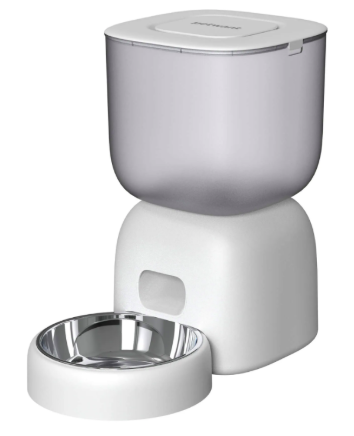
FEATURES
Main Body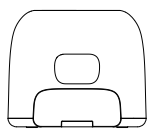
Food Hopper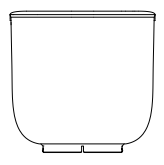
Food Bowl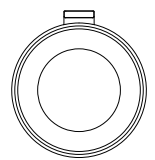
Stainless Steel Bowl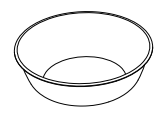
Power Adapter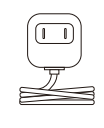
Desiccant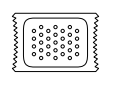
Manual
Set up and Assemble Feeder
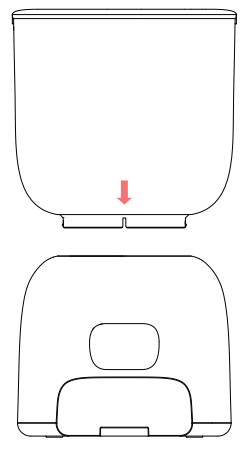
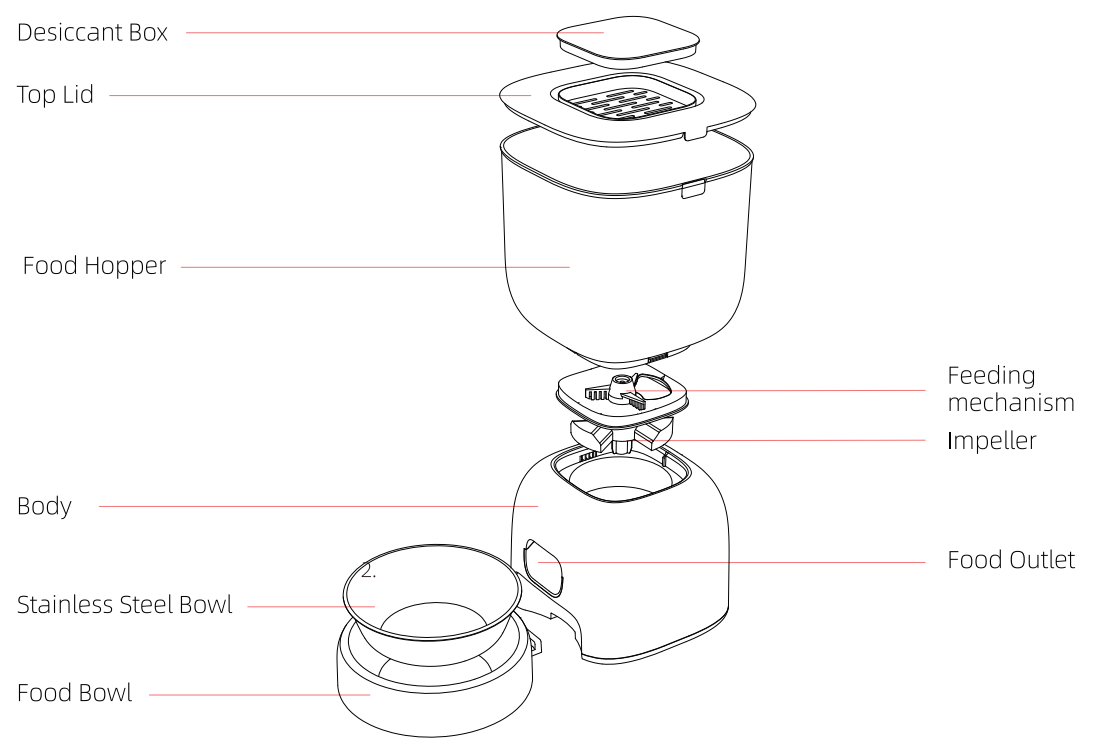
Lift The Latch: Take out the food hopper and install it by aligning the slot on the base.
Place Desiccant: Open the desiccant box on the top lid, tear off the transparent wrapping paper of the desiccant bag, place it into the box, and close it.
Plug in Power Adapter
- Battery power supply: remove the battery cover by releasing the retaining clip, insert 3 good-quality alkaline “D” batteries, and reinstall the battery cover.
- Power adapter supply: plug in the power adapter and connect the power cable into the card slot.
Install Food Bowl
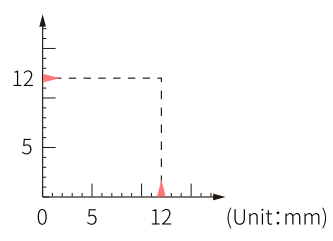
Tilt the base unit back slightly, align the buckle of the food bowl with the base unit to install; the same steps to disassemble.
Fill Pet Food: Open the top lid, pour fresh dry food into the food hopper, and close the top lid.
Product Introduction
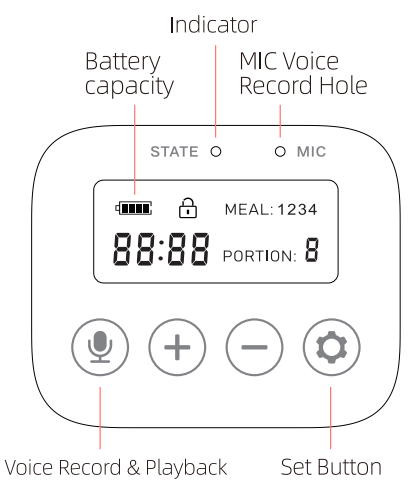
Unlock The Panel: Long-press press “ ” button for 5 seconds to unlock, 30 seconds no operation inactivity will be automatically locked.
Set Clock
- Unlock the panel, press the”
 ” button to enter settings.
 - SetClock: Press “
 ” or “
 “to adjust rs, Press “
 ” button to confirm. Press and
  adjust minutes. Press the”” button to confirm.
 “to adjust rs, Press “
Program Feeding Schedule
- Program Meal Time: “1” icon flash means setting the first meal. Press ” ” or “” to adjust hours and minutes. Press the “” button to confirm.
- Meal Size: LCD goes into meal size set mode after setting the meal time “0” icon illuminate, Press ” ” or “” to select desired, Press “” button to confirm.
- Repeat this process for as many meal times and portions desired (Up to 4 meals and 9 portions).
- If you do not need to set much feeding schedule, long-press the “” button to save and exit the set mode.
Check the feeding schedule: In the locked state, press “+ ” or “_ ” to check the 7-4 meal feeding schedule, but it cannot be set.
Manual Feed: Unlock the panel, long-press press “+ ” button to feed one.
Record: Unlock the panel, long-press “ ” to enter recording mode, the “STATE” indicator light is on, and record voice toward the “MIC” hole for up to 10seconds. If the “” button is released within 10 seconds, the recording ends immediately.
Play Record: Unlock the panel, press ” ” to play record once, no play if no record.
Cancel Feeding Schedule: Set the portion to be “PORTION: 0”, then no feed anymore.
Default Meal Settings: Unlock the panel and press the “” and “ ” simultaneously until heard “DiDi” sound is heard, which resets the time and clears the feeding schedule and recording.
Indicator Information
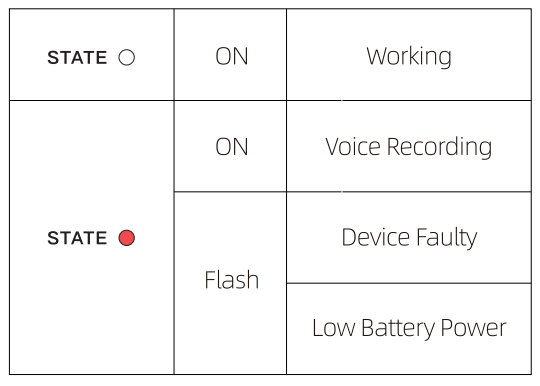
LCD Screen Icons Information
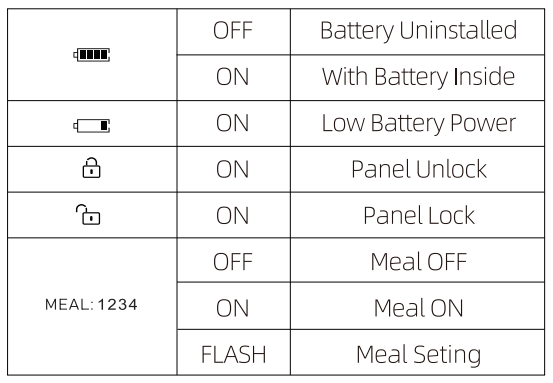
Disassemble & Clean
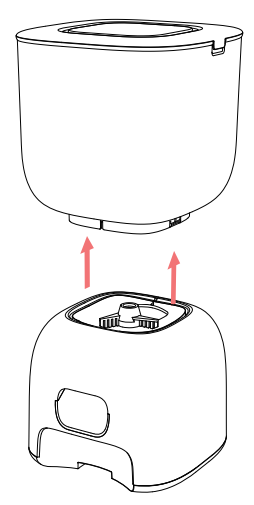
Power Off: Unplug and take out the alkaline batteries.
Clean
- Hold the fuselage steady and pull out the food hopper upward.
- Disassemble the impeller and feeding mechanism.
- The main body of the feeder is not dishwasher-safe. Do not immerse the main body in water. This could damage the internal electronics and cause the batteries to short out, create an electrical shock, or catch fire.
- Use a dry soft cloth to wipe it; the body is not waterproof; please do not use a wet cloth.
- Make sure all parts of the feeder are completely clean and dry before filling with food.
Assemble
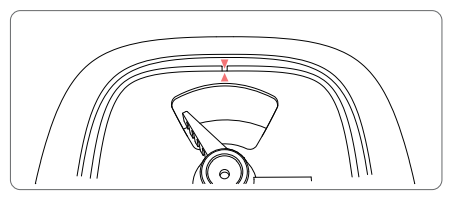
- Align the triang le mark when installing the impeller.
- Install the food hopper by aligning the slot on the base.
Replace the desiccant pack: Open the desiccant box cover and replace the desiccant. It is suggested to replace it every month.
Replace Alkaline Batteries: Unplug and open the battery lid at the bottom, then you can replace the batteries.
TROUBLESHOOTING
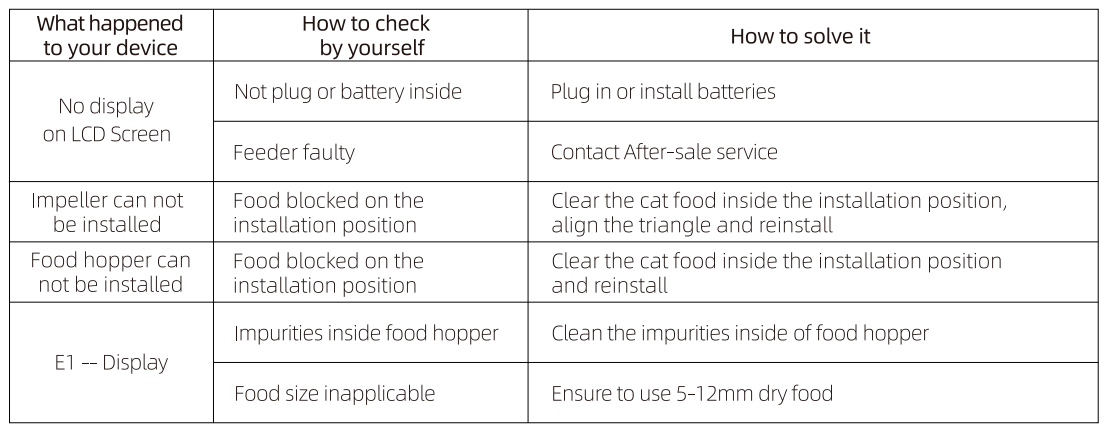
Parameters
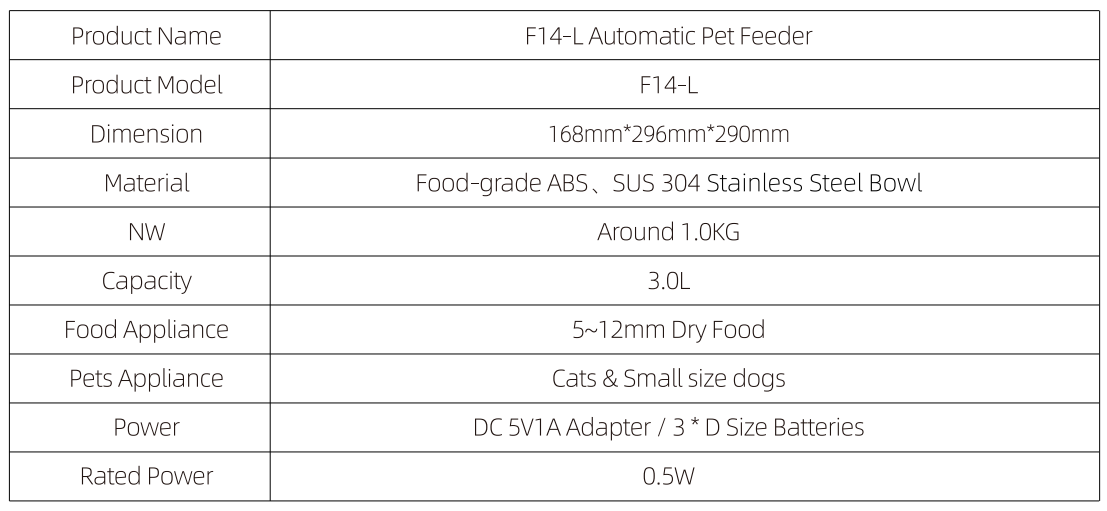
Safety Precautions
Keep Device
- For indoor use ONLY.
- The device needs to be placed horizontally and firmly; it’s not allowed to be tipped to one side or rock, or upside down.
- Keep the device placed in a dry area and do not expose the device to sunlight.
- Do not place the feeder in a high place to avoid damage from dropping.
- DO NOT place any foreign objects in the feeder.
- To avoid tripping, always keep the power cord out of the way of foot traffic.
- Do not place anything on top of this feeder.
- Ensure there are no barriers near the food outlet to allow the pets can be fed normally.
FOR MORE MANUALS BY PETWANT, VISIT MANUALSLIBRARYY
Petwant F14-L Automatic Pet Feeder-FAQs
How do I program the Petwant F14-L Automatic Pet Feeder?
Use the control panel to set meal times and portions. Follow the step-by-step instructions in the app or manual to customize feeding schedules for your pet.
How do I connect my Petwant feeder to Wi-Fi?
Open the Petwant/ROJECO app, tap “Add Device”, and select Pet Feeder. Enter your Wi-Fi password and press the feeder’s setting button until the green light blinks. The app will confirm a successful connection.
What should I do if my feeder goes offline?
Remove the feeder from the app, unplug it for about 30 seconds, then plug it back in. Hold the reset button until you hear a beep and the Wi-Fi light starts blinking. Reconnect it through the app.
Why is my feeder not dispensing food?
Check the power supply first—ensure the cord is plugged into a working outlet. If running on batteries, remember they are for backup only. Also make sure the food tray isn’t jammed.
How can I reset the Petwant feeder to factory settings?
Press and hold the feed/reset button on the feeder for about 5 seconds until you hear a beep. The LED will flash, confirming the reset.
Can I use wet food in the Petwant F14-L feeder?
Yes, this model supports wet food. Use the stainless-steel food tray provided, and clean it regularly to maintain freshness and hygiene.
How long can I leave my cat alone with this feeder?
With enough dry or wet food and fresh water, the feeder can keep your cat supplied for 2–3 days. Longer than that is not recommended without daily check-ins.
How often should I clean the Petwant feeder?
Clean the food tray and lid at least once a week. For wet food, clean after each use to prevent odors and bacteria. Wipe the main unit with a damp cloth but avoid soaking electronic parts.