
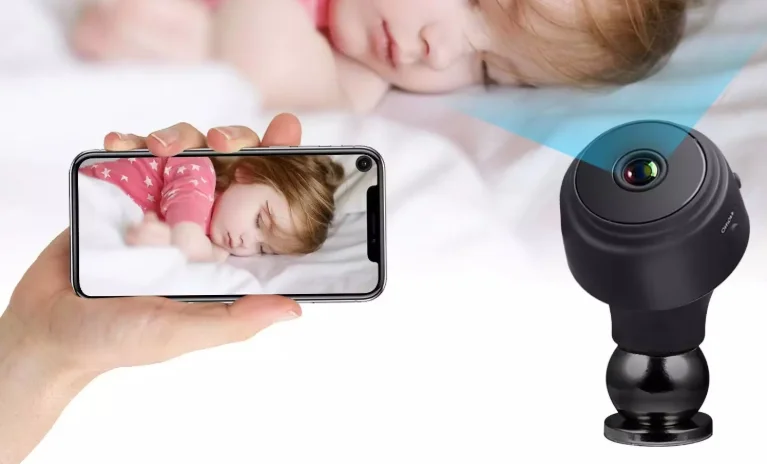
Apps 365Cam HD WiFi Camera
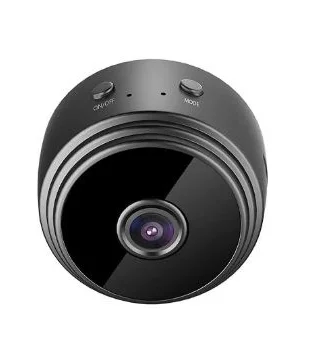
HD WiFi Camera Instruction Manual
Thank you for purchasing this product. Please read this manual carefully before use and keep it in a safe place.
Client Download
Scan the QR code below to download and install the “365cam” APP, or search “365Cam” in your cell phone manufacturer’s app store to download and install. (All permissions allowed).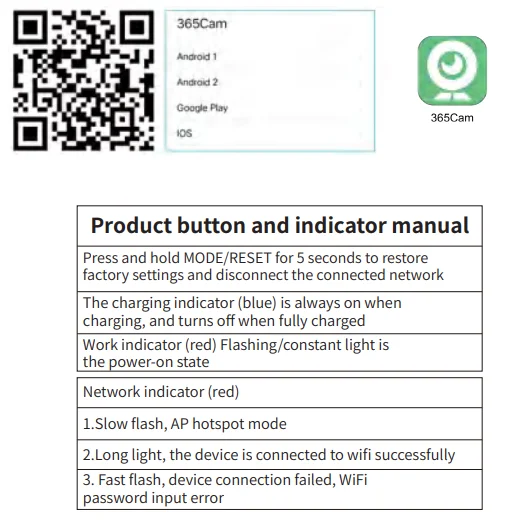
Connection method one
1. Remote WIFI connection
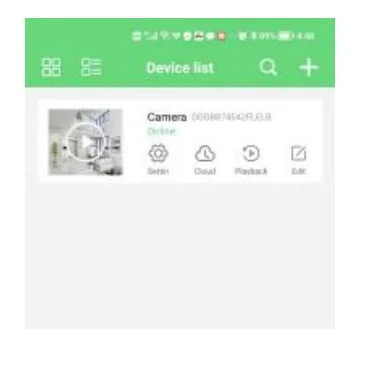
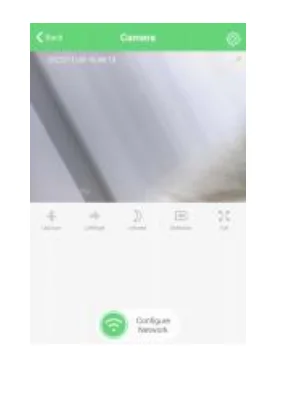
- Open the “365cam” APP (allow to turn on Bluetooth) and click the page to start binding the remote program.

- After configuring the WiFi, the red light of the camera is always on to indicate a successful connection to the remote WiFi


Connection method two
2. No network connection
- Mobile phone direct camera connection.

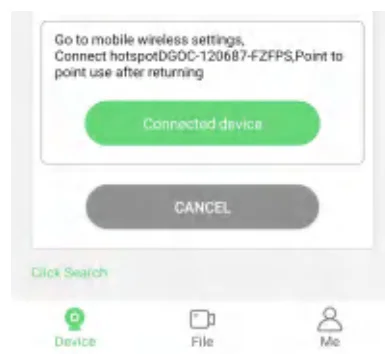
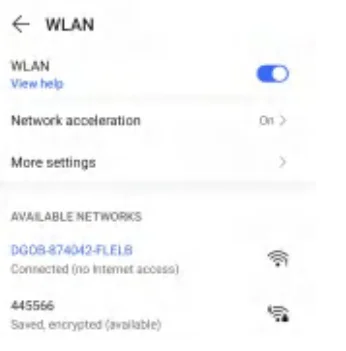
- Go to WiFi, select the camera WiFi hotspot starting with “DG”, click, and connect. Connect (If a prompt pops up, please select Trust Network and keep the link.

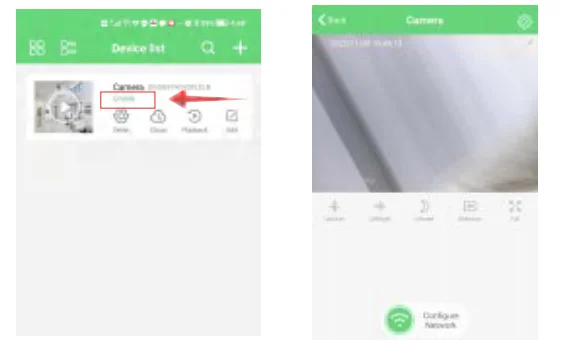
- After connecting the camera, return to the APP and refresh the page to show that the proximity me is successfully connected. (Range is only within 10 meters).

FCC Statement
This device complies with part 15 of the FCC Rules. Operation is subject to the following two conditions:
- This device may not cause harmful interference, and
- This device must accept any interference received, including interference that may cause undesired operation.
Changes or modifications not expressly approved by the party responsible for compliance could void the user’s authority to operate the equipment. This equipment has been tested and found to comply with the limits for a Class B digital device, pursuant to Part 15 of the FCC Rules. These limits are designed to provide reasonable protection against harmful interference in a residential installation.
This equipment generates uses and can radiate radio frequency energy and, if not installed and used in accordance with the instructions, may cause harmful interference to radio communications. However, there is no guarantee that interference will not occur in a particular installation. If this equipment does cause harmful interference to radio or television reception, which can be determined by turning the equipment off and on, the user is encouraged to try to correct the interference by one or more of the following measures:
- Reorient or relocate the receiving antenna.
- Increase the separation between the equipment and receiver.
- Connect the equipment into an outlet, one circuit different from that to which the receiver is connected.
- Consult the dealer or an experienced radio/TV technician for help. CT.
This equipment complies with the FCC RF radiation exposure limits set forth for an uncontrolled environment. This equipment should be installed and operated with a minimum distance of 20cm between the radiator and any part of your body.
For More Blogs, Visit ManualsLibraryy.
Apps 365Cam HD WiFi Camera -FAQs
How do I set up the 365Cam HD WiFi Camera?
First, power the camera and connect it to your router. Use the 365Cam app to pair it with WiFi, then add the camera to your phone for live viewing.
How do I connect the 365Cam to my phone?
Download the 365Cam app, turn on the camera, and go to your phone’s WiFi settings. Select the camera’s hotspot (starting with “DG”) and follow the in-app prompts.
Can the 365Cam connect to WiFi directly?
Yes. Once WiFi settings are configured, the red light will stay on, confirming a successful connection.
What features does the 365Cam offer?
The camera has night vision, motion detection, a wide-angle lens, video recording, remote monitoring, and a magnetic body with a 360° rotating bracket.
Does the 365Cam have night vision?
Yes, it supports infrared night vision, allowing clear monitoring in low-light or dark environments.
Can the camera connect to a phone’s hotspot?
Yes. Enable your phone’s hotspot, create a password, then enter these details into the camera to link it to your mobile hotspot.
What is the 365Cam app used for?
The 365Cam app lets you monitor your camera remotely, capture snapshots, record videos, and configure camera settings on your mobile device.
Is the 365Cam good for home security?
Yes. With 1080p HD resolution, motion alerts, and remote viewing, it’s suitable for monitoring your home, office, or car.
Can the 365Cam work without the internet?
Yes, it can function in LAN mode using its built-in AP hotspot, allowing you to connect your phone directly without internet access.
How do I clean and maintain the 365Cam?
Wipe the outer body with a soft, dry cloth. Avoid moisture, harsh chemicals, and direct exposure to extreme heat or sunlight.