

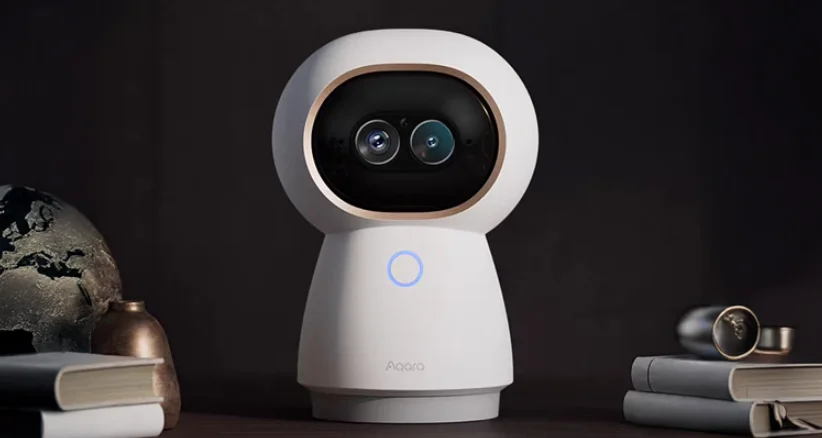

Aqara Camera Hub G350
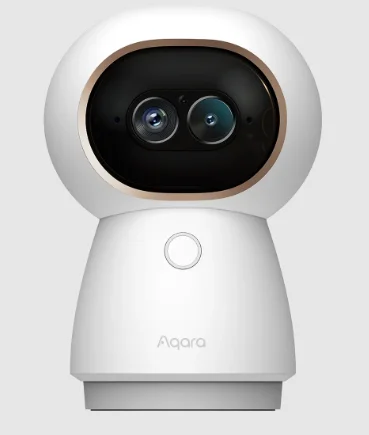
Product Introduction
Powered by dual lenses and pan-tilt-zoom, and dual-band Wi-Fi 6, the Camera Hub G350 captures ultra-clear 4K detail, tracks people and pets, and boasts visual and sound detection—covering both close-ups and wide areas with no blind spots. It can serve as the central node in your smart home, acting as Matter controller and Zigbee and Thread hub, also seamlessly integrating with popular smart home platforms such as Apple Home (including HomeKit Secure Video), Google Home, and Amazon Alexa.
What is in the Box
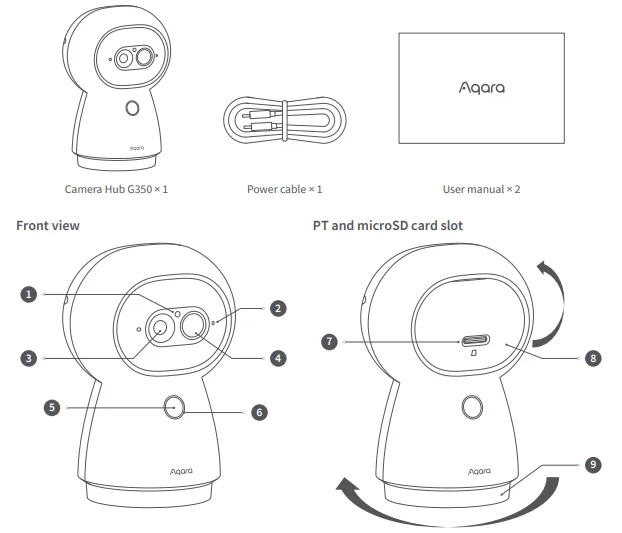
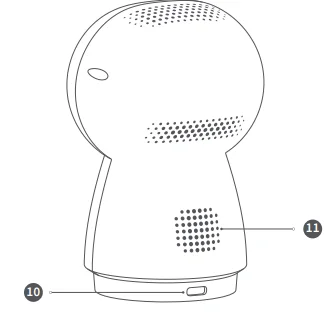
Rear view of the product
- Illumination Sensor
- Microphone
- Telephoto Lens
- Wide-Angle Lens
- Function Button
- Status Indicator
- MicroSD Card Slot
- Vertical PT Mechanism
- Horizontal PT Mechanism
- Type-C Power Port
- Speaker
Button description:
- Long-press for 10 seconds: Reset the network and unbind the device
- Press 10 times quickly: Restore the factory settings
- Press 3 times quickly: Enter sub-device pairing mode
- Press 1 time: Exit sub-device pairing mode during pairing mode. Stop the voice broadcast during the announcement. Clear alarm during alert status.
Product installation
- The packaging box of this product does not contain a bracket, but does support a 1/4-inch threaded screw. If wall mounting or lifting is required, the bracket or any other threaded screw-compatible mount shall be purchased separately.
- Please ensure that the camera is successfully added to the app before mounting it on the wall.
- The camera can be placed on a writing desk, dining room table, bookcase, coffee table, or other horizontal surfaces for use.
- After mounting the camera in the lifting position, the image needs to be flipped in the Aqara Home app to be viewed normally.
- The camera should be placed within the range of the wireless Wi-Fi signal coverage.
- Do not place it near a strong electromagnetic interference source.
- Avoid a direct light source to the camera lens at close range.
- Make sure there are no obstructions around the device.
- This product is only for indoor use.
Telephoto Lens Focusing Distance
To ensure an optimal zoom experience from the telephoto lens, place the camera at least 10 ft (3 m) away from the area to be monitored.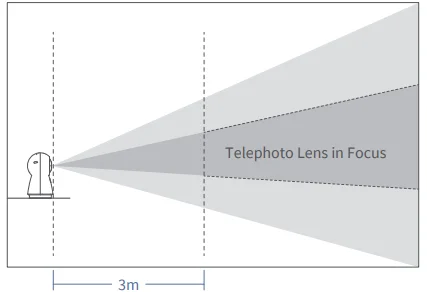
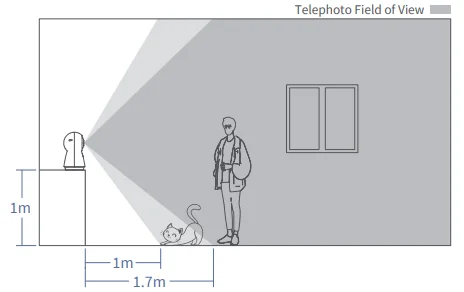
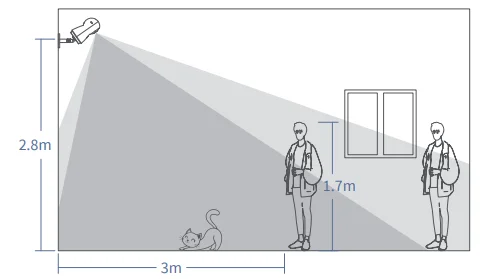
The camera can be placed on a table or shelf, or can be installed on a wall or ceiling. Select a location and height that achieves your desired view and is within reach of a power outlet.
On a Table or Shelf
On the Wall
On the Ceiling
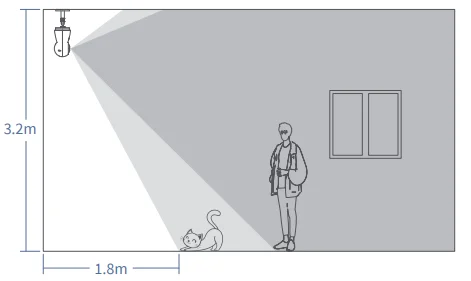
Keep the camera at least 0.7 ft/0.2 m away from any objects or walls to avoid infrared reflection, which may impact night vision performance. The above diagram shows the installation methods. In case of using a bracket/mount purchased separately, please refer to its installation guide.
Device Binding & Initialization
1. Download App
Search for “Aqara Home” in the Apple App Store, Google Play, or scan the following QR code to download the Aqara Home app.
2. Power up and turn on the camera
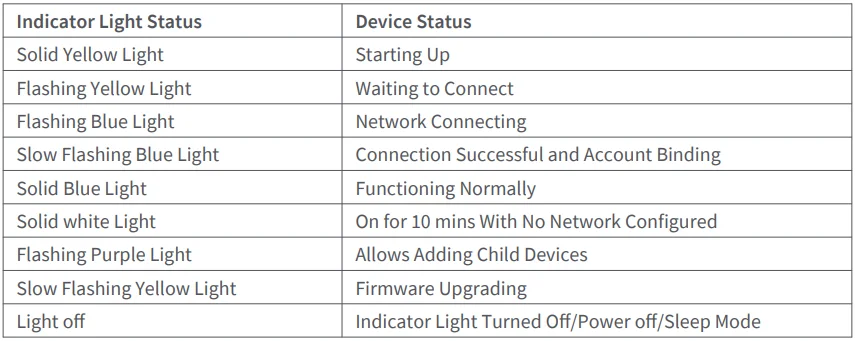
Locate the power interface at the bottom of the product and plug the Type-C power cord to connect the power adapter. When the camera is started, the status indicator will turn yellow and flash quickly. If the indicator is not yellow and does not flash quickly, please try to press the function button rapidly 10 times to restore the factory settings.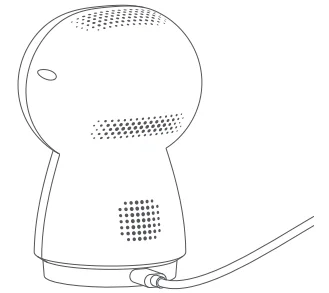
3. Add a camera
Connect to Aqara Home
When the status indicator light is flashing yellow, open the Aqara Home App, and the camera should be automatically discovered and displayed on the app. Click on the discovered camera and follow the app prompts to connect it. Or click on the “+” in the upper right corner of the app’s homepage, select “Camera Hub G350.” If successfully connected, the status indicator light will change to a solid blue light.
- If the indicator light is not flashing yellow after powering on, please long-press the function button for 10 seconds or quickly press the function button 10 times to reset the device.
- During network setup, make sure that your mobile phone is connected to the Wi-Fi network in the same LAN as the camera.
- During network setup, it may be necessary to scan the Aqara pairing QR code on the product, manual cover, or enter the 8-digit pairing code. Please follow the prompts on the app to complete the necessary steps.
Connect to Apple HomeKit
Open the Apple “Home” app, click “+” in the upper right corner to enter the Add Accessories page, scan or manually input the HomeKit setup code (HomeKit QR code) on the product or the user manual, and connect the device to HomeKit.
The following are common troubleshooting steps for HomeKit addition failures:
- Prompt “Unable to add accessory”: Repeated connection failures have left unresolved error information in the iOS cache. Please restart the iOS device (iPhone or iPad), reset the camera, and try again.
- Prompt “Accessory added” but still not working: Please restart the iOS device and reset the camera, then manually enter the HomeKit setup code to add the camera.
- Prompt “Accessory not found”: Please reset the camera, wait for 3 minutes, and add it again by manually entering the HomeKit setup code.
Note: Please do not throw away the QR code on the product or the User Manual. If unable to add device, please press and hold the function button for 10s to reset the network, and then try again.
Bind child Device
This product is a Zigbee hub, and it can also connect with Thread child devices. Please bind child devices according to the child device’s user manual.
Other Functions
For more device functions, please log in to the Aqara Home app to explore.
Description of Indicator Lights
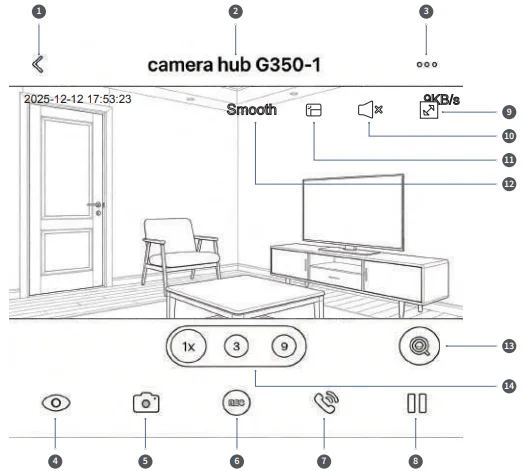
App Function Introduction
- Back: Tap to exit the current page
- Device Name
- Settings: Tap to enter the device settings page
- Sleep: Tap to put the device into sleep mode (privacy mode)
- Screenshot: Capture the current live view
- Record: Record the current live video
- Call: Tap to initiate a call with the camera
- Pause: Pause the current live video
- Full screen: Tap to enter full screen
- Mute: Tap to mute the live stream
- Floating window: Tap for pop-out playback
- Quality: Tap to switch
- Zoom Selection: After enabling, click or draw a box on the screen, and the camera will automatically point to that area and zoom in
- Zoom Shortcut: Click or slide to adjust the zoom level

 PTZ Calibration: Click to automatically calibrate the PTZ position once.
 PTZ Control: Click to control the direction of the PTZ.
- Preset Angles: Modify or set camera preset positions.
 Pan-Tilt: Click to turn PTZ-related functions on/off.
- Integrated Events: The camera can link with other Aqara smart devices. When these devices trigger an event, the camera will start recording, and the video can be played back.
 Albums: Access screenshots and videos captured by the camera.
 Cruise: Set and activate the cruise function. The camera will automatically rotate to preset positions in sequence.
 Panoramic Viewfinder: Set and activate panoramic positioning. Tap on the panoramic map to make the device point to the corresponding location.
 Person Tracking: When enabled, the PTZ will automatically track a detected human shape.
 Animal Tracking: When enabled, the device will track detected animals.
- Close-Up Tracking: When enabled, the device will track and zoom in on detected humans, cats, or dogs.
 Home Live view: Click to enter the live view interface of all cameras.
 Video Event History: Click to access the recorded event videos from all cameras.
 Live View: The live view interface of the current device.
 Playback: The playback interface for the current device.
- AI Video Search: Click to enter the smart video search interface.
 AI Features: The control interface for the camera’s intelligent algorithms.
 PTZ Calibration: Click to automatically calibrate the PTZ position once.
 PTZ Control: Click to control the direction of the PTZ.
 Preset Angles: Modify or set camera preset positions.
 Pan-Tilt: Click to turn PTZ-related functions on/off.
 Albums: Access screenshots and videos captured by the camera.
 Cruise: Set and activate the cruise function. The camera will automatically rotate to preset positions in sequence.
 Panoramic Viewfinder: Set and activate panoramic positioning. Tap on the panoramic map to make the device point to the corresponding location.
 Person Tracking: When enabled, the PTZ will automatically track a detected human shape.
 Animal Tracking: When enabled, the device will track detected animals.
 Close-Up Tracking: When enabled, the device will track and zoom in on detected humans, cats, or dogs.
 Home Live view: Click to enter the live view interface of all cameras.
 Video Event History: Click to access the recorded event videos from all cameras.
 Live View: The live view interface of the current device.
 Playback: The playback interface for the current device.
 AI Video Search: Click to enter the smart video search interface.
 AI Features: The control interface for the camera’s intelligent algorithms.
Specifications
- Camera Hub G350
- Model: CH-C14E/CH-C14D
- Wide-Angle Lens Video Resolution: 3840×2160
- Wide-Angle Lens Angle: 133° (diagonal)
- Wide-Angle Lens Focal Length: 2.8 mm
Telephoto Lens Video Resolution: 2560×1440 - Telephoto Lens Angle: 43° (diagonal)
- Telephoto Lens Focal Length: 8 mm
- Aperture: f/1.6
- Frame Rate: 20 fps
- Aspect Ratio: 16:9
- Video Codec: H.264
- Wireless Protocols: Wi-Fi IEEE 802.11 b/g/n/ac/ax 2.4/5 GHz, Zigbee/Thread IEEE 802.15.4, Bluetooth
- Power Input: 5V=2A
- Local Storage: MicroSD card (not included). CLASS 10 or above is supported, up to 512GB storage.
- Operating Temperature: -10°C~40°C (14°F~104°F)
- Operating Humidity: 0~95% RH, no condensation
- Dimensions: 124x85x65mm (4.88×3.35×2.56in)
User Information
- Use of the Works with Apple badge means that an accessory has been designed to work specifically with the technology identified in the badge and has been certified by the developer to meet Apple performance standards. Apple is not responsible for the operation of this device or its compliance with safety and regulatory standards.
- A 10-day recording history from your Camera Hub G350 is securely stored in iCloud and available to view in the Apple Home app on your iPhone, iPad, or Mac. You can add one camera to a 50GB plan, up to five cameras to a 200GB plan, or up to an unlimited number of cameras to a 2TB plan at no additional cost. Camera recordings don’t count against your iCloud storage limit.
- Communication between iPhone, iPad, Apple Watch, HomePod, HomePod mini, or Mac and the HomeKit-enabled Camera Hub G350 is secured by HomeKit technology.
- Apple, Apple Watch, HomeKit, HomePod, HomePod mini, Siri, iPad, iPad Air, and iPhone are trademarks of Apple Inc., registered in the U.S. and other countries.

Warning!
- This product is NOT a toy. Please keep children away from this product.
- This product is designed for indoor use only. Do NOT use in humid environments or outdoors.
- Beware of moisture; do NOT spill water or other liquids onto the product.
- Do NOT place this product near a heat source. Do NOT place it in an enclosure unless there is normal ventilation.
- Do NOT attempt to repair this product by yourself. All repairs should be performed by an authorized professional.
- Please select an adapter with a minimum output parameter of 5V-2A to use with the product.
- Online Customer Service: www.aqara.com/support/
- Manufacturer: Lumi United Technology Co., Ltd.
- Address: Room 801-804, Building 1, Chongwen Park, Nanshan iPark, No. 3370, Liuxian Avenue, Fuguang Community, Taoyuan Residential District, Nanshan District, Shenzhen, China.
- Email: [email protected]
- Made in China
For More Manuals By Aqara, Visit ManualsLibraryy.
Aqara Camera Hub G350-FAQs
What is the Aqara Camera Hub G3, and how does it work?
The Aqara Camera Hub G3 is a smart indoor security camera combined with a Zigbee 3.0 hub. It monitors your home with video surveillance while also connecting and controlling up to 128 Aqara smart devices, acting as a central automation system.
Does the Aqara Camera Hub G3 require a separate hub?
No, the Camera Hub G3 has a built-in Zigbee 3.0 hub, so it eliminates the need for an additional Aqara hub. It can directly connect compatible sensors, switches, and other smart devices, making it a convenient all-in-one smart home solution.
What video quality does the Aqara Camera Hub G3 offer?
The camera records in 2K resolution (2304 × 1296 pixels), delivering clear and detailed footage. However, when used with Apple HomeKit Secure Video, the resolution is limited to 1080p due to platform restrictions, while the Aqara app supports full 2K quality.
Does the Aqara Camera Hub G3 support pan and tilt functionality?
Yes, it features motorized pan and tilt with up to 340° horizontal rotation and a wide viewing angle. This allows near 360-degree coverage, enabling the camera to track movement or automatically adjust its view for comprehensive indoor monitoring.
Is the Aqara Camera Hub G3 compatible with smart home platforms?
Yes, it works with Apple HomeKit, Amazon Alexa, Google Assistant, and IFTTT. As a hub, it also enables connected Aqara devices to integrate with these ecosystems, allowing voice control, automation, and centralized smart home management.
What storage options are available for the Aqara Camera Hub G3?
The device supports local storage via microSD cards up to 128GB and also works with cloud-based options like HomeKit Secure Video. This gives users flexibility between local recording for privacy or cloud access for remote viewing and backups.
Does the Aqara Camera Hub G3 have night vision?
Yes, it includes infrared night vision with invisible 940 nm LEDs, allowing it to capture clear footage in complete darkness. This makes it suitable for 24/7 indoor monitoring without disturbing sleep or drawing attention at night.
Can the Aqara Camera Hub G3 control other devices?
Yes, beyond being a camera, it features a built-in infrared (IR) controller that can operate traditional IR devices like TVs and air conditioners. It also enables automation with connected Aqara devices, making it a full smart home control center.
How does the Aqara Camera Hub G3 protect user privacy?
The camera includes a hardware privacy mode that physically masks the lens when activated. It also uses encrypted data transmission and supports WPA3 security, ensuring that video streams and personal data remain protected from unauthorized access.