

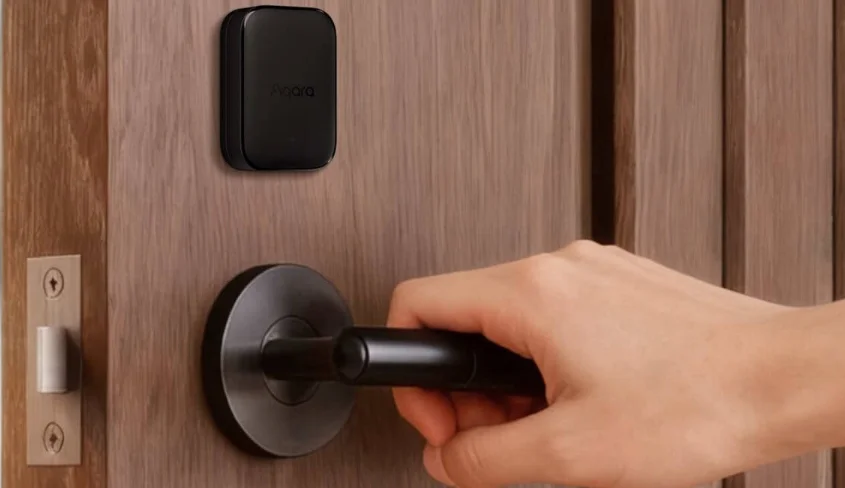

Aqara Multi-State Sensor P100
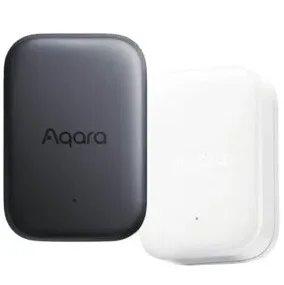
Product Introduction
The Multi-State Sensor P100 is a comprehensive device that enhances a nine-axis sensor with AI algorithms. It is suitable for various applications such as door and window opening/closing detection, valuable item protection, daily event recording, and notifying its user of appliance status changes. Through advanced sensing technology and Aqara AI algorithms, it can be attached to common types of doors and windows to detect their opening/closing status and real-time status updates. Compared to traditional dual-body magnetic door and window sensors, it can be flexibly attached to any position on the surface of doors and windows, making installation more convenient. It can also detect composite windows, detecting both outward-opening and tilting ventilation states.
In Zigbee mode, it supports switching to “Object Status Monitoring” mode, suitable for special events and status perception of stationary items. It can be attached to everyday stationary objects to detect events such as vibration, movement, falling, opening/closing, tilting, and triple-tapping. It can determine vertical/horizontal posture and vibration/static state, meeting various daily use scenarios, such as: knowing when mail is delivered through mailbox hinge tilt, determining drawer opening time and recording frequency through drawer movement, recording and providing delayed reminders for taking medicine/feeding through the tilting or movement of medicine boxes/milk powder cans, etc.
Note:
- When joining the Matter ecosystem, this device needs to be used with a hub/gateway that supports the Matter protocol.
- When joining the Aqara ecosystem, this device needs to be used with the Aqara Home App and the Aqara hub. The “Item Protection” mode is only supported in Zigbee protocol mode and in Aqara Home. “Door and Window Monitoring” mode determines the open/close status through changes in rotation angle, suitable for doors and windows that rotate on horizontal or vertical axes. It is not suitable for detecting sliding doors, sliding windows, roller shutters, 360-degree revolving doors, drawers, etc. To detect such devices, it is recommended to switch to “Object Status Monitoring Mode”, which can indirectly determine status and events by detecting movement, vibration, and flipping.

Pairing the Device
1. Download the Aqara Home App
Please scan the following QR code to download the latest version of the Aqara Home App.
2. Enter pairing mode
For new devices, please pull out the battery insulation strip. After the device is powered on, it will automatically enter the network pairing mode, and the LED indicator will start slowly flashing blue. At this time, you can discover and add the device through the app’s add device page.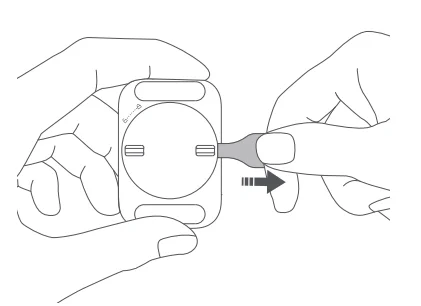
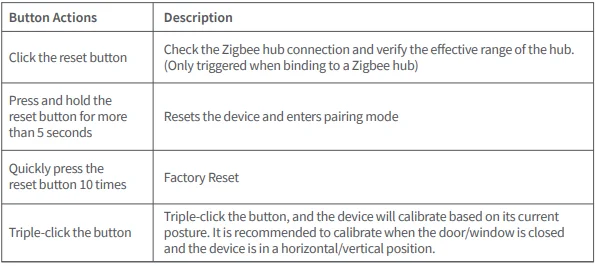
If the network pairing window has passed, you can press and hold the reset button for 5 seconds until the LED indicator starts flashing, then release it. The device will enter the network pairing mode again, and the LED indicator will start slowly flashing blue.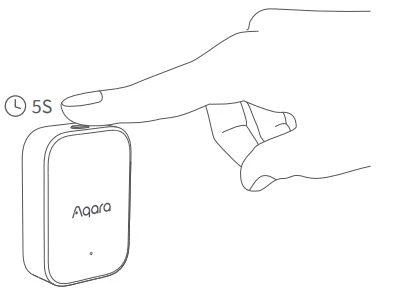
3. Add Device
You can add devices to the network using the following three methods:
(1) Join Aqara Home through Matter
Open the Aqara Home App, enter the “Home” page, and click the “+” in the upper right corner to enter the “Add Device” page. Click on the corresponding device, select the Matter hub you want to connect to, choose “Thread Protocol” on the “Device Protocol” selection interface, then follow the prompts to scan the Matter QR code on the device body to complete the addition.
(2) Join third-party platforms through Matter
To join through a third-party Matter ecosystem, you can initiate the “Add Device” process in the third-party app, and complete the device addition by scanning the Matter Code on the device itself or in the manual.
(3) Join Aqara Home via Zigbee protocol
Open the Aqara Home App, enter the “Home” page, and click the “+” in the upper right corner to enter the “Add Device” page. Click on the corresponding device, select the hub you want to connect to, and choose “Zigbee Protocol” on the “Device Protocol” selection interface. The device will start downloading firmware, and after the firmware is downloaded, it will automatically complete the protocol switch and finish adding the device.
4. Firmware Upgrade
To ensure the best user experience, after the device has been added, please update the device firmware to the latest version in the settings page of the Aqara Home App before starting to use it.
Tips:
If joining a third-party platform that does not support the latest firmware through Matter, you can add the device to the Aqara Home App. During the addition process, perform a “protocol switch” to obtain the latest firmware via Bluetooth transmission from your phone. This process does not require an Aqara hub.
5. Zigbee/Thread Protocol Switching
If you need to switch to a different protocol after adding the device to the network, first remove the device in the Aqara Home app, then long-press the device’s reset button for 5 seconds to reset the device. Enter the pairing process, and on the device pairing screen, select “Switch Protocol” and select the desired protocol. Follow the instructions in the app to complete the setup.
Note: Switching protocols is equivalent to a factory reset, which will clear all settings and data on the device.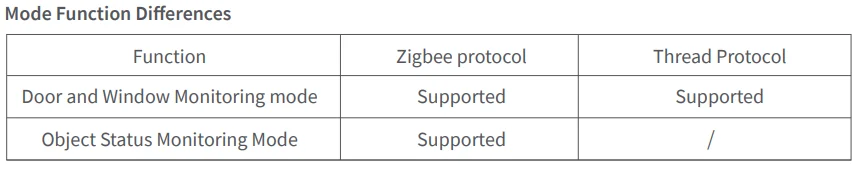
Device Installation and Calibration
“Door and Window Monitoring” mode
Function Description:
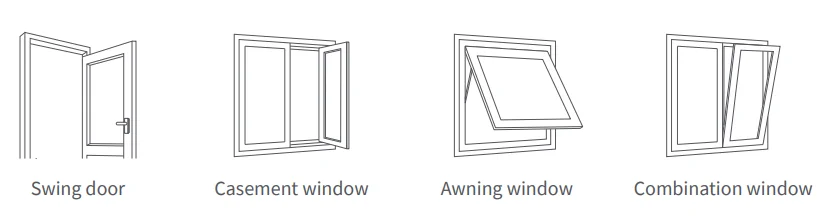
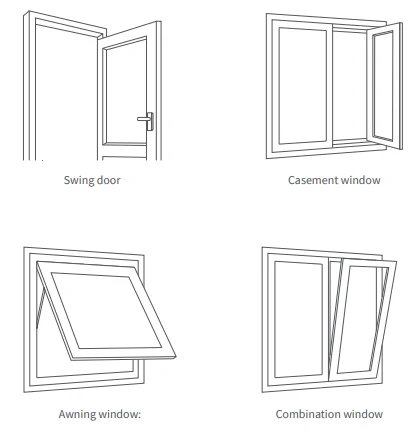
In door and window monitoring mode, the device can detect angle changes using a nine-axis sensor (three-axis accelerometer, three-axis gyroscope, three-axis geomagnetic sensor), and determine if the door/window is opening or closing. It is suitable for doors or windows that are fixed on horizontal or vertical axes and rotate around a pivot axis, typically including the following types of doors and windows:
- Swing door: A door fixed on a vertical axis that can rotate horizontally to open and close
- Casement window: A window fixed on a vertical axis that can rotate horizontally to open and close
- Awning window: A window fixed on a horizontal axis that can rotate vertically to open and close
- Combination window: A window fixed on a vertical axis that can rotate horizontally to open, and when closed, can tilt on a horizontal axis for ventilation.

Installation methods:
- Please peel off the adhesive backing of the device and vertically attach it to the surface of the door or window that needs to be monitored for opening and closing. There are no strict requirements for the installation position of doors and windows. It can be installed near the rotating axis, in the middle of the door/window, or on the opening side of the door/window.
- If a smart lock is installed on the door, please avoid installing it near the lock to prevent the current from the motor operation affecting the device’s sensor.

- If a smart lock is installed on the door, please avoid installing it near the lock to prevent the current from the motor operation affecting the device’s sensor.
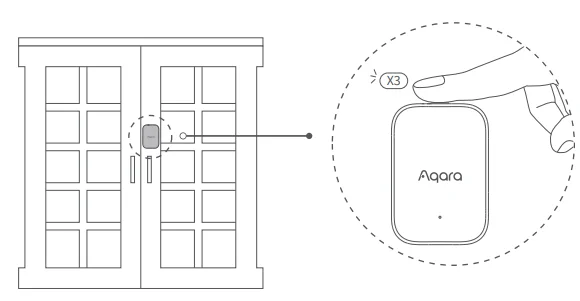
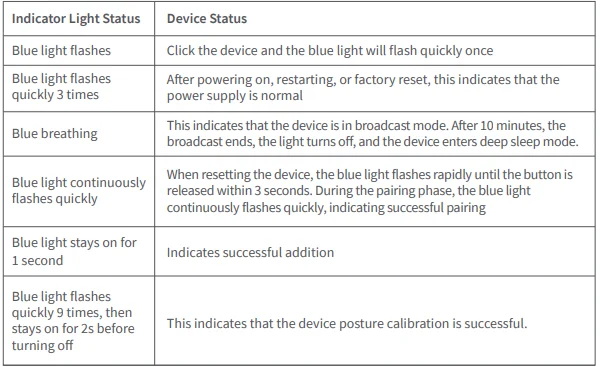
- After installation, please click the button on top of the device 3 times when the door/window is completely closed to complete the device posture calibration. The device indicator will flash quickly and then stay on for 2 seconds to indicate that the calibration is complete.
- The device’s default sensitivity is set to medium. For first-time use, please conduct a performance test. If you find that the Door and Window Monitoring status detection is inaccurate, or if frequent false triggers occur, you can adjust the sensitivity to different levels through the app to achieve proper adaptation.
- During use, if the posture has shifted or been affected by magnetic fields, it may cause an incorrect display of open/close status. Please follow the steps in step 2 to recalibrate the device.
“Object Status Monitoring” mode
Function Description:
In Object Status Monitoring mode, the device detects movement and vibration to monitor the status of stationary objects, providing alerts for events such as changes in position or unusual activity. Detectable events and postures include:
- Vibration: Detects vibration events, suitable for monitoring slight vibrations of everyday stationary items and tracking the duration of continuous stillness of the device.
- Movement: Detects movement events, suitable for scenarios such as item theft prevention and drawer detection, can trigger alarm notifications or automations in conjunction with other devices.
- Falling: Detects falling events, suitable for protecting valuable items and monitoring the safety of the elderly and children, triggers alarm notifications in conjunction with other devices.
- Tap three times: Detects triple tap events, suitable for attaching to stationary surfaces such as desktops, and triggers automation in conjunction with other devices.
- Posture: Detects horizontal, vertical, and tilted postures of the device, which can trigger automation through related posture linkage. To achieve longer device battery life and reduce power consumption caused by unnecessary event reporting, please select the events that need to be monitored according to your actual needs during the configuration process.
Installation methods:
- Peel off the adhesive backing of the device and attach it vertically or horizontally to the surface of the item that needs to be monitored.
- To detect the posture of an object, please attach the device to the surface of the object in the desired horizontal or vertical orientation, then click the button on top of the device 3 times to complete the device posture calibration. The device indicator will flash quickly and then stay on for 2 seconds to indicate that the calibration is complete. The device will calibrate the current posture as the standard horizontal or vertical posture.
- The device’s default sensitivity is set to medium. For first-time use, please conduct a performance test. If you find frequent event reporting or false triggers, you can adjust the sensitivity to different levels through the app.
- During use, if the posture has shifted or been affected by magnetic fields, it may cause an abnormal display of open/close status. Please follow the steps in step 2 to recalibrate the device.
Precautions:
- The “Door and Window Monitoring Mode” determines the open/close status through the built-in geomagnetic sensor detecting rotation angles, suitable for doors and windows that rotate on horizontal or vertical axes. It is not suitable for detecting sliding doors, sliding windows, roller shutters, 360-degree revolving doors, drawers, etc. To detect such devices, it is recommended to switch to “Object Status Monitoring Mode”, which can indirectly determine status and events by detecting movement, vibration, and flipping. (“Object Status Monitoring Mode” is only supported by the Zigbee protocol.)
- Based on the sensor detection principle, electric current and magnetic fields can affect detection accuracy. When installing, please be careful to avoid the influence of motors and magnetic fields. Please avoid installing near microwave ovens, curtain motors, or smart door locks.
- The device normally remains in a low-power sleep state and is awakened by vibration to activate its sensors for detection. Frequent vibrations will cause the device to be activated repeatedly, reducing battery life. Therefore, the device is suitable for installation on fixed and stationary doors, windows, and object surfaces in daily use. Please avoid installing it on surfaces that vibrate frequently.
- The “Object Status Monitoring” mode is not suitable for installation on frequently vibrating appliances such as washing machines, dryers, etc., or for detecting their continuous vibration state. It cannot be used in application scenarios where vibration is used to detect when appliances stop operating.
- In “Object Status Monitoring” mode, to achieve longer device battery life and reduce power consumption caused by unnecessary event reporting, please select the events that need to be monitored according to the actual needs of your scenario during the configuration process.
- During use, if you need to change the installation location, the device’s posture has unexpectedly shifted, or it has been affected by changes in the surrounding magnetic field, please click the reset button 3 times when the device is stationary, and the installed door/window is completely closed to recalibrate the device’s posture and ensure detection accuracy.
- To avoid the long-term effects of high temperature and direct sunlight on the adhesive’s stickiness, please avoid installing on glass or metal surfaces exposed to direct sunlight.
- The device is installed using adhesive. For safety, please ensure that the device’s height does not exceed 2 meters.
Device Calibration Method
During use, if the posture has shifted or been affected by magnetic fields, it may cause an abnormal display of open/closed status. When the device is stationary, please keep the device vertical or horizontal according to the use scenario, with the door/window closed (in Door and Window Monitoring mode), and calibrate the device by clicking the device button three times.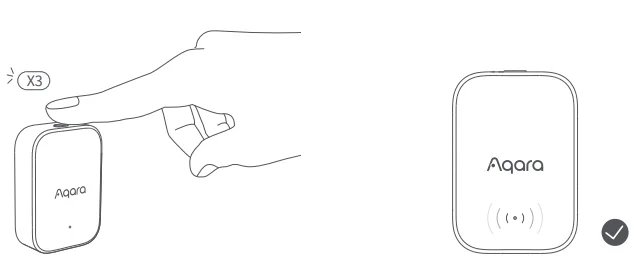
Device Removal and Adhesive Removal
After installing the device, if you need to change the installation location or remove it to replace the battery, please carefully peel off the adhesive backing on the device and remove it from the door/window or object. To maintain the device’s stable connection on various surfaces, the adhesive backing is quite strong. To avoid damaging the surface, it is recommended to use a heat gun to gently blow warm air towards the adhesive area from one side, then slowly and firmly peel off the adhesive backing.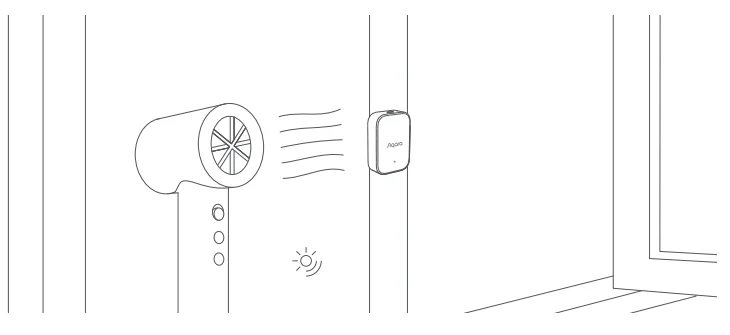
Replacing the battery
Press firmly on the battery cover on the back of the device and rotate it counterclockwise. Then, turn the device upside down and tap it forcefully to separate the battery cover from the main body of the device. Pry the old battery out of the battery compartment. Install the new battery according to the indicated positive and negative directions. Align the battery cover with the position indicated on its back, and rotate it clockwise to secure the battery cover.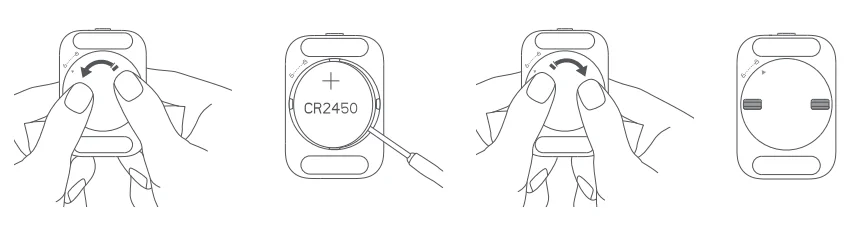
Automation Configuration
Open the “Automation” interface in the Aqara Home App, tap the “+” in the upper right corner to add device-related automations.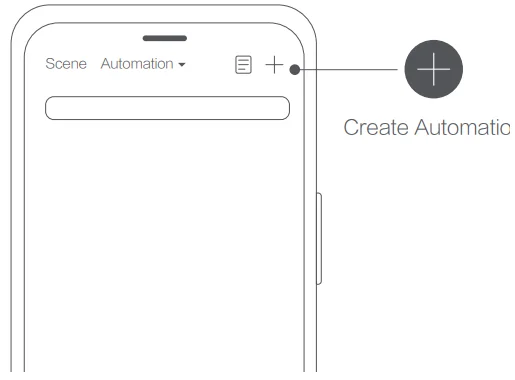
Indicator Light Instructions
Reset Button Instructions
Device Reset
If the device is reset, it only resets the network and enters the re-pairing state without deleting local data. Ensure the device is powered on, press and hold the device reset button for 5 seconds, and release the button when the light flashes quickly. The device will reset and enter the Bluetooth broadcasting stage.
Factory Reset
Factory reset means resetting the network while deleting all local and cloud data. Ensure the device is powered on, quickly press the device reset button 10 times, and the device will enter the factory reset state.
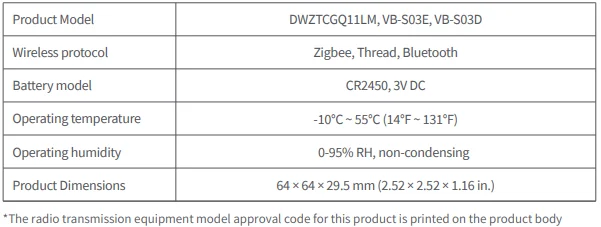
Product Specifications
For More Manuals By Aqara, Visit ManualsLibraryy.
Aqara Multi-State Sensor P100-FAQs
What is the Aqara Multi-State Sensor P100, and what does it do?
The Aqara Multi-State Sensor P100 is an advanced smart sensor designed to detect multiple physical states such as movement, vibration, tilt, and open or closed events. It uses a nine-axis sensor with AI algorithms to provide detailed monitoring for security, automation, and smart home applications.
How is the P100 different from traditional door and window sensors?
Unlike traditional two-piece magnetic sensors, the P100 uses a single-body design with motion and orientation detection. This allows it to detect more than just open and closed states, including tilt, vibration, and movement, making it more flexible for different smart home use cases.
What types of events can the Aqara P100 detect?
The sensor can detect multiple events, including door or window opening, object movement, vibration, impact, tilt, and even falls. This makes it suitable for monitoring valuables, appliances, or entry points while providing real-time alerts and automation triggers.
Does the Aqara Multi-State Sensor P100 support Matter?
Yes, the P100 supports Matter along with Zigbee and Thread protocols, allowing it to integrate with major smart home ecosystems. This ensures compatibility with platforms like Apple Home, Alexa, Google Home, and SmartThings for seamless cross-device automation.
Can the P100 be used for smart home automation?
The sensor is highly suitable for automation, enabling triggers based on movement, vibration, or state changes. For example, it can turn on lights when a drawer opens or send alerts when unusual activity is detected, enhancing both convenience and security in daily routines.
Does the Aqara P100 require a hub to function?
Yes, the P100 typically requires a compatible hub for full functionality, especially when using advanced features and Matter integration. The hub enables communication with other smart devices and allows remote control, automation, and ecosystem connectivity within a smart home setup.
What are the main use cases for the Aqara Multi-State Sensor P100?
The P100 can be used for door and window monitoring, tracking drawer usage, detecting mailbox activity, protecting valuables, and monitoring appliance status. Its ability to detect multiple states makes it useful across security, convenience, and lifestyle automation scenarios.
How accurate is the Aqara P100 sensor?
The P100 uses a high-precision nine-axis sensor combined with AI-based calibration and self-learning. This allows it to adapt to different placements and reduce false triggers over time, improving detection accuracy for various events such as motion, tilt, and vibration.
Is the Aqara Multi-State Sensor P100 easy to install?
Installation is simple due to its compact, single-body design and adhesive mounting. Unlike traditional sensors requiring alignment of two parts, the P100 can be attached directly to surfaces, offering flexible placement on doors, windows, or household objects.
What powers the Aqara P100, and what is its battery type?
The Aqara Multi-State Sensor P100 is powered by a CR2450 battery, providing reliable performance for extended periods. It is designed for low power consumption, making it suitable for long-term use in smart home environments without frequent battery replacements.