
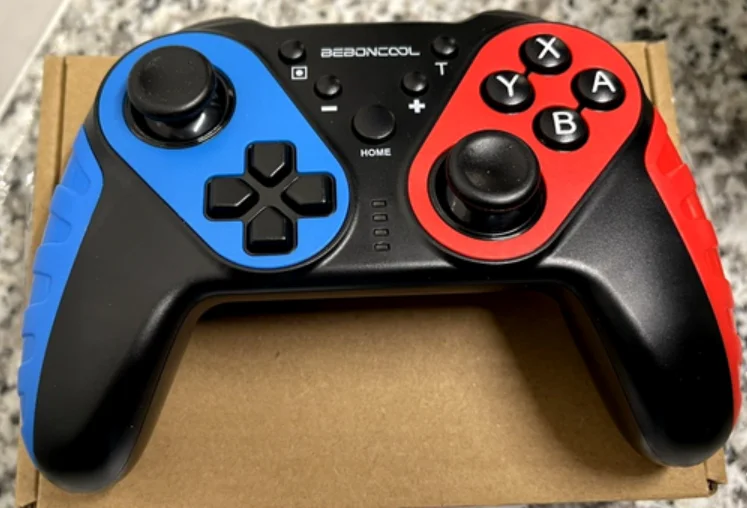

Beboncool STK-7021S Switch Wireless Gamepad
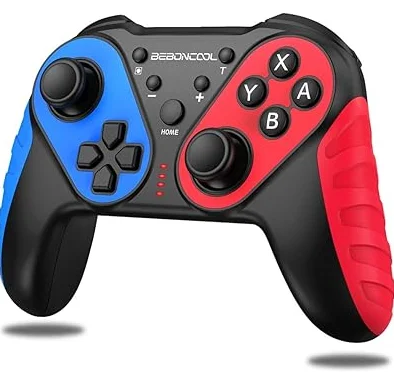
3-Year Limited Warranty:
All of our products are covered by a 3-year warranty and lifetime technology support. 4-Return and Replacement Policy: We guarantee a 45-day return and a 75-day replacement if the product has any quality issues. 15.19 “This device complies with Part 15 of the FCC Rules. Operation is subject to the following two conditions:
- This device may not cause harmful interference, and
- This device must accept any interference received, including interference that may cause undesired operation.
First Time To Pair & Connect (Y and Home) –
Pair & Connect: Press the Y and Home Button Simultaneously
- Step 1: Find Controllers Option → Click Change Grip/Order. – Image 1/ Image 2
- Step 2: Press and hold the Y and HOME buttons simultaneously until the 4 LED lights flash in turn for 2 seconds, then release your finger and wait for the connection to complete. – Image 3
NOTE: Enter the Change Grip/Order page, please complete the connection within 30 seconds as soon as possible. If you stay on this page for too long, you may not be able to connect to the NS console. – Image 3.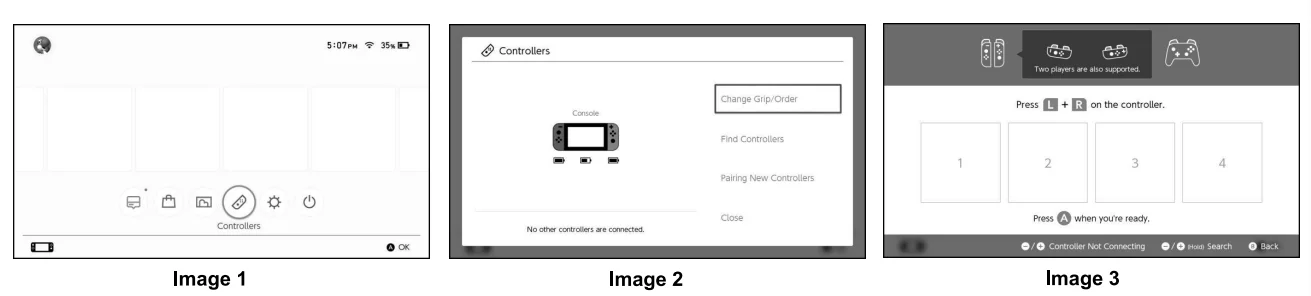
Reconnect (Home)
Reconnect: Press Home Button
If your controller was once paired and connected to your NS console, next time you can press the Home button to make it to be rapidly connect.
Note:
For reconnecting, please turn on the NS console first; it does not support pressing the Home button to wake up the console from standby mode.
Unable to connect, please follow under 3 steps below to solve:
- Turn off airplane mode.
- Delete the information of this controller in the NS console, path: system settings-controllers and sensors-disconnect controllers.
- Follow the first-time connection method and re-pair again.
Screenshot (+&-)
- Press the ‘+’ and ‘—’ buttons simultaneously, and you can capture the image of your NS console.
Adjust Vibration Intensity –
There are 2 levels of vibration intensity: weak and Strong
- Step 1: Please make sure you connect the controller to the NS console.
- Step 2: Press 4 buttons (‘L’, ‘ZL’, ‘R’, and ‘ZR’) simultaneously.
- Step 3: Then release the 4 buttons when you feel the vibration. The vibration mode can be adjusted by repeating the above operations.
Indicator Light
- Charging – 4 LED lights flash.
- Fully Charged – 4 LED lights off.
Factory Motion Controls Calibration –
- Step 1: Please make sure your controller stays in a power-off status, then put it on a flat surface.
- Step 2: Press the ‘-” B’ ‘HOME’ 3 buttons simultaneously, the Group A indicators and Group B indicators will flash alternately. (LED1&LED2/ LED3&LED4)
- Step 3: Press the button, and the 4 LED indicators will flash alternately.
- Step 4: After about 15 seconds, all indicators will turn off, which means the controller has finished calibrating.
Calibrate Control Sticks
If the characters in the games are automatically armed, please complete in “calderite motion controls” by following the steps:
- Step 1: System setting-controllers and sensors→ calibrate control sticks
- Step 2: Enter the calibrate control sticks interface, and operate it according to the guide on the NS console.
Upgrade
We promise to provide sustainable upgrade services for this controller. If the controller can not pair with the newest version of the NS console, please go to our official website to get the newest upgrade firmware. Official Website: www.beboncool.com/upgrade
NOTE:
This equipment has been tested and found to comply with the limits for a Class B digital device, pursuant to part 15 of the FCC Rules. These limits are designed to provide reasonable protection against harmful interference in a residential installation. This equipment generates uses and can radiate radio frequency energy and, if not installed and used in accordance with the instructions, may cause harmful interference to radio communications.
However, there is no guarantee that interference will not occur in a particular installation. If this equipment does cause harmful interference to radio or television reception, which can be determined by turning the equipment off and on, the user is encouraged to try to correct the interference by one or more of the following measures:
- Reorient or relocate the receiving antenna.
- Increase the separation between the equipment and receiver.
- Connect the equipment into an outlet on a circuit different from that to which the receiver is connected.
- Consult the dealer or an experienced radio/TV technician for help.
Changes or modifications not expressly approved by the party responsible for compliance could void the user’s authority to operate the equipment. This device complies with Part 15 of the FCC Rules. Operation is subject to the following two conditions:
- This device may not cause harmful interference, and
- This device must accept any interference received, including interference that may cause undesired operation
For More Manuals By Beboncool, Visit ManualsLibraryy.
Beboncool STK-7021S Switch Wireless Gamepad-FAQs
How do I connect my Beboncool Switch controller to the console?
On the Switch HOME menu, go to Controllers → Change Grip/Order, then hold the SYNC button on the gamepad until the lights flash. Once detected, select the controller to complete pairing.
How do I set up my wireless Beboncool gamepad?
Turn on the controller, press and hold the SYNC button for a few seconds, then connect it via the Switch Bluetooth pairing menu.
How do I put my Beboncool controller in pairing mode?
Press and hold the SYNC button near the charging port until the indicator lights begin flashing. This signals that the controller is in pairing mode.
Can I connect my Beboncool controller to a phone?
Yes. Enable Bluetooth on your phone, press the SYNC button on the controller, and select the controller from the list of available devices.
How do I connect the Beboncool wireless gamepad to a PC?
On your PC, go to Settings → Bluetooth & devices → Add device, then press and hold the SYNC button on the gamepad until the LEDs flash. Select “Pro Controller” to pair.
Why is my Beboncool controller not charging?
Check the charging port for dust or debris and ensure the cable is properly connected. If the port feels loose, it may require repair or resoldering.
How do I know if my Beboncool controller is charging?
When charging, an indicator light should turn on. On the Switch, you can also check the battery status under Controllers in the HOME menu.
How do I reset my Beboncool controller if it won’t connect?
Press the SYNC button once to reset the connection, then press any other button to power it back on. Try pairing again using the standard method.
Can I use the Beboncool controller with non-Switch devices?
Yes. It can connect to PCs, Android phones, and tablets using Bluetooth, but button mapping may vary depending on the device.