
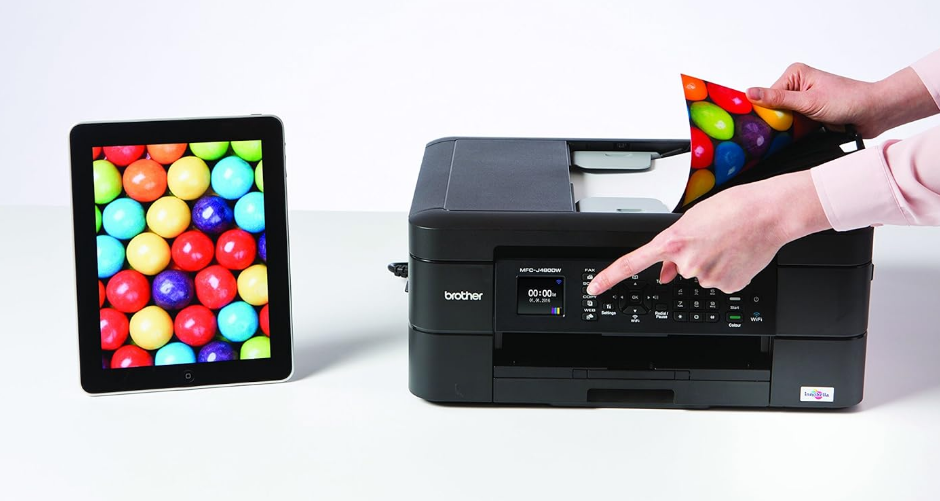

Brother MFC-J480DW Wireless Inject Printer
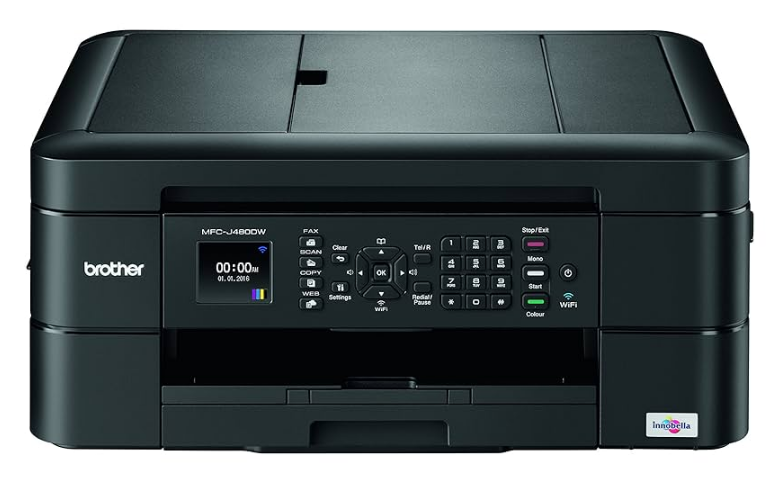
You Can Use the Following Features
Mobile Connect
Use Brother iPrint&Scan to check the machine status and access various functions from mobile devices. 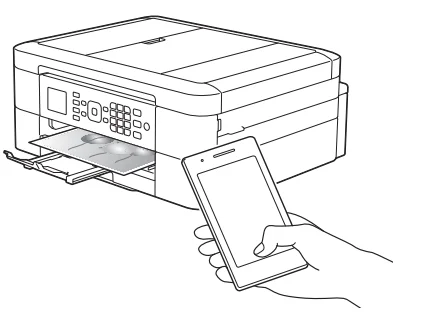 By installing Brother iPrint&Scan on your mobile device and connecting to the machine, you can use the following convenient features:
- Print: You can print photos, documents, and web pages from your mobile device. You can also print files from various web services.
- Scan: You can scan photos and documents and save them to your mobile device.
- Copy: You can use your mobile device to edit scanned images (crop and rotate images), and then print them using the machine.
- Fax: You can fax photos and documents that are stored on your mobile device. You can also view faxes, which are received by the machine, on your mobile device.
- Check the Machine Status: You can check the remaining ink levels and other information, and view error solutions.
For more information, see the Mobile Print/Scan Guide for Brother iPrint & Scan: solutions.brother.com/manuals.
Web Connect / Brother Apps
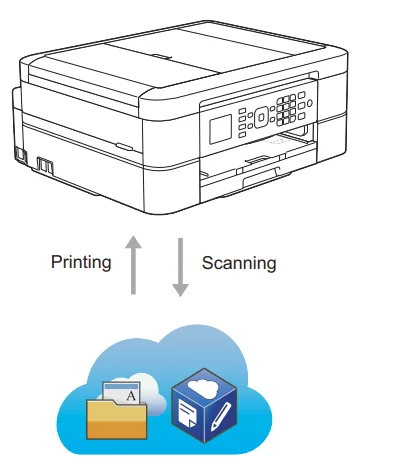
Scan and upload images and files to popular web services directly from your machine. Capture and convert information directly from your machine without using your computer. For more information, see the Web Connect Guide: solutions.brother.com/manuals.
The Online User’s Guide Helps You Get the Most Out of Your Machine
We hope that you find this guide helpful. To learn more about your machine’s features, please take a look at our Online User’s Guide. It offers:
Quicker navigation!
- Search box
- Navigation index in a separate panel
Comprehensive!
- Every topic in one guide
Simplified Layout!
- Provides step-by-step instructions
- Feature summary at the top of the page

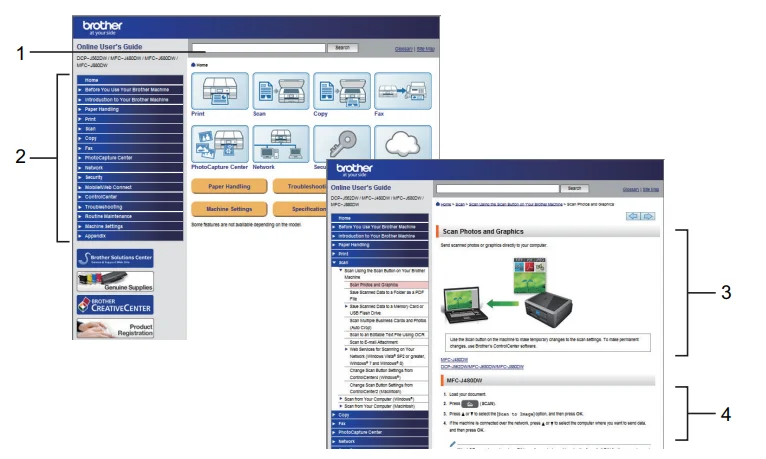
- Search Box
- Navigation
- Summary
- Step-by-Step
To View Online User’s Guides
To view the Online User’s Guide and other available guides, visit solutions.brother.com/manuals. For Windows® users only: you can also access your machine’s guides by using Brother Utilities. The Brother Utilities tool is included in the standard installation and, once installed, you can find it either as a shortcut on your desktop or from the Windows® Start menu.
Questions or Problems? Please take a look at our FAQs, solutions, and videos online.
Go to your model’s FAQs & Troubleshooting page on the Brother Solutions center at http://support.brother.com.
- Provides several ways to search!
- Displays related questions for more information.
- Receives regular updates based on customer feedback
FAQs & Troubleshooting
Since the Brother Solutions center is updated regularly, this screenshot is subject to change without notice.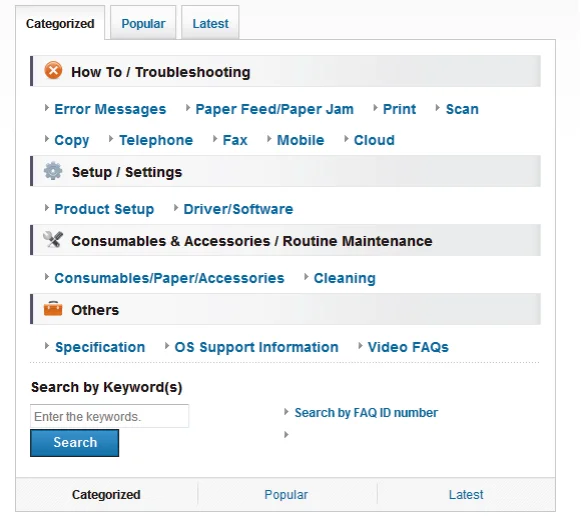
Definitions of Notes
We use the following symbols and conventions throughout this User’s Guide:
IMPORTANT
IMPORTANT indicates a potentially hazardous situation which, if not avoided, may result in damage to property or loss of product functionality.
NOTE
NOTE specifies the operating environment, conditions for installation, or special conditions of use.
Note: Tips icons provide helpful hints and supplementary information.
Bold
Bold style identifies buttons on the machine’s control panel or computer screen.
Italics
Italicised style emphasises an important point or refers you to a related topic. [Courier New] Courier New font identifies messages shown on the machine’s LCD.
Note: Most of the illustrations in this User’s Guide show the MFC-J480DW.
For the Latest Driver Updates
Go to your model’s Downloads page on the Brother Solutions Center at http://support.brother.com to download drivers. To keep your machine’s performance up-to-date, check there for the latest firmware upgrades.
Compilation and Publication Notice
This manual has been compiled and published to provide the latest product safety information at the time of publication. The information contained in this manual may be subject to change.
For the latest manual, visit us at solutions.brother.com/manuals.
General Information
Control Panel Overview
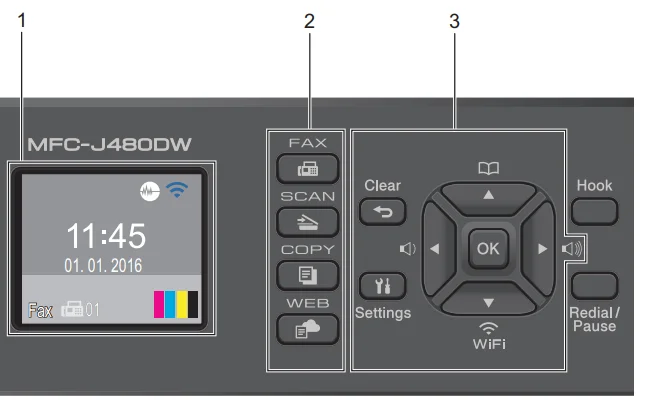
1. 1.8″(44.9 mm) Liquid Crystal Display (LCD)
Displays messages to help you set up and use the machine. Adjust the angle of the control panel by lifting it.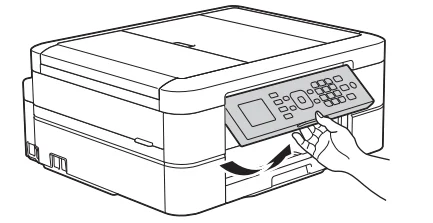
2. Mode buttons
 FAX: Press to switch the machine to FAX Mode.
- SCAN: Press to switch the machine to SCAN Mode.
 COPY: Press to switch the machine to COPY Mode.
 WEB: Press to switch the machine to WEB Mode.
 FAX: Press to switch the machine to FAX Mode.
 SCAN: Press to switch the machine to SCAN Mode.
 COPY: Press to switch the machine to COPY Mode.
 WEB: Press to switch the machine to WEB Mode.
3. Settings buttons
Clear
Press to delete characters or to go back to the previous menu level.
Settings
Press to access the main menu.
OK
Press to choose a setting.

- Press to adjust the ring volume while the machine is idle.

- Press to store Speed Dial and Group numbers in the machine’s memory.
- Press to look up and dial numbers that are stored in the machine’s memory.

Press to configure the wireless settings while the machine is idle.
▲ or▼
Press to scroll through the menus and options.
◄or▶
Press to move the cursor left or right on the LCD.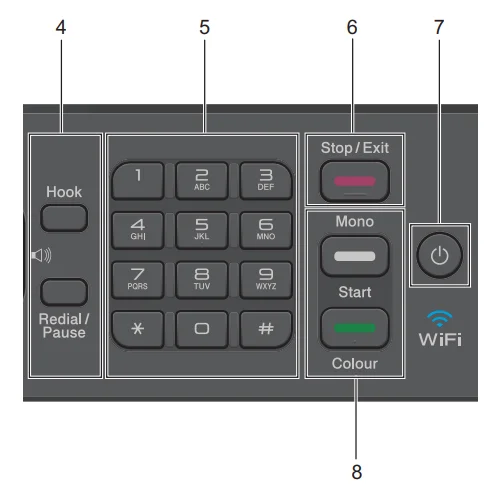
4. Telephone buttons
Hook
Press before dialing to ensure a fax machine answers, and then press Mono Start or Colour Start. If the machine is in Fax/Tel (F/T) Mode and you pick up the handset of an external telephone during the F/T ring (pseudo/double-ring), press Hook to talk.
Redial/Pause
- Press to dial the last 30 numbers you called.
- Press to insert a pause when dialing numbers.
5. Dial Pad
- Use to dial fax and telephone numbers.
- Use as a keyboard to enter text or characters.
6.  Stop/Exit
- Press to stop an operation.
- Press to exit from a menu.
7.  Power On/Off
- Press
 to turn on the machine.
 - Press and hold down to turn off the machine. The LCD will display [Shutting Down] and will stay on for a few seconds before turning itself off. If you have connected an external telephone or TAD, it is always available.
- If you turn off the machine using
 it, it will still clean the print head periodically to maintain print quality. To prolong print head life, provide better ink efficiency, and maintain print quality, keep your machine connected to a power source at all times.
8. Start buttons
 Mono Start
- Press to start sending faxes in monochrome.
- Press to start making copies in monochrome.
- Press to start scanning documents (in colour or monochrome, depending on the scan setting).
 Colour Start
- Press to start sending faxes in full colour.
- Press to start making copies in full colour.
- Press to start scanning documents (in colour or monochrome, depending on the scan setting).
LCD Overview
This screen shows the machine’s status when the machine is idle. This Home screen is also called the Ready Mode screen. When displayed, this indicates that your machine is Ready for the next command.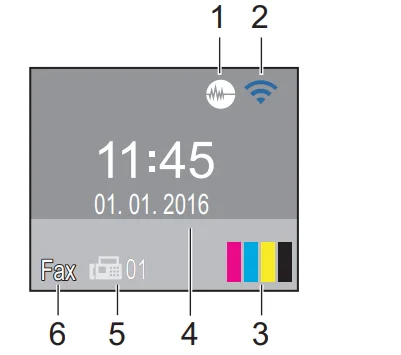
1. Quiet Mode
- The
 (Quiet Mode) icon appears when the [Quiet Mode] setting is set to [On].
 - The Quiet Mode setting can reduce printing noise. When Quiet Mode is turned on, the print speed becomes slower.
 (Quiet Mode) icon appears when the [Quiet Mode] setting is set to [On].
2. Wireless Status
Each icon in the following table shows the wireless network status.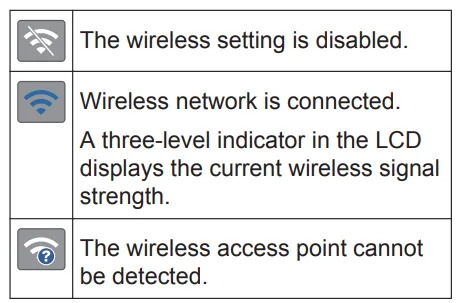
Note: You can configure wireless settings by pressing on the control panel. For more information, see the Quick Setup Guide.
3. Ink
Displays the available ink volume. When an ink cartridge is near the end of its life or is having a problem, an error icon is displayed for the ink colour.
4. Date & Time
Displays the date and time set on the machine.
5. Faxes in memory
Displays how many received faxes are in the machine’s memory.
6. Receive Mode
Displays the current Receive Mode.
- [Fax] (Fax Only)
- [F/T] (Fax/Tel)
- [TAD] (External TAD)
- [Mn1] (Manual)
Note:
- (For some countries): When the Distinctive Ring feature is turned on, the LCDs [D/R].
- (For New Zealand): When the FaxAbility feature is turned on, the LCDs [D/R].
Paper Handling
Load Paper
Load paper in the paper tray
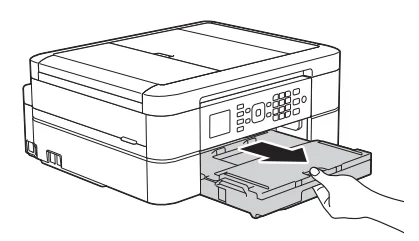
- If the [Check Paper] setting is set to [On] and you pull the paper tray out of the machine, a message appears on the LCD asking if you want to change the paper type and paper size. Change the Paper Size and Paper Type settings if needed, following the on-screen instructions.
- Load only one size and type of paper in the paper tray at a time.
- When you load a different paper size in the tray, you must change the Paper Size setting in the machine or the paper size setting on your computer.
- Pull the paper tray completely out of the machine.

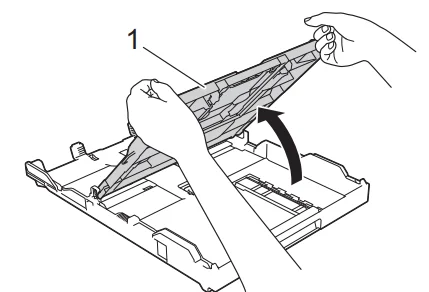
- Open the output paper tray cover (1).

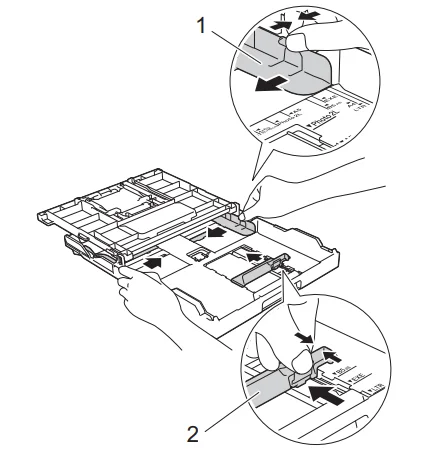
- Gently press and slide the paper width guides (1) and then the paper length guide (2) to fit the paper size.

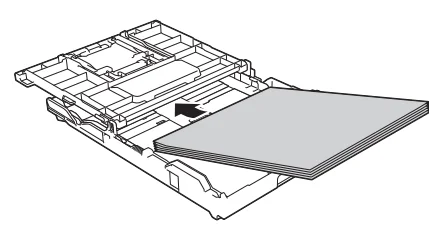
- Fan the stack of paper well.
- Gently load paper in the paper tray with the printing surface face down.

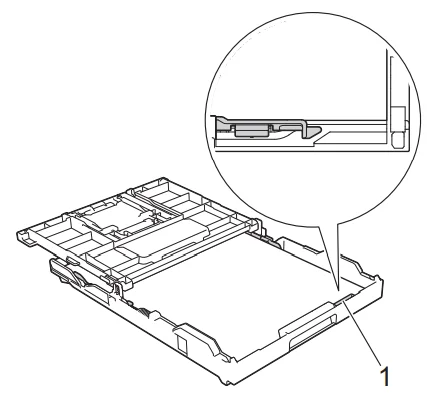
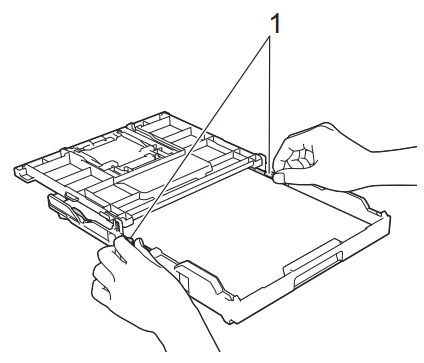
- Make sure the paper is flat in the tray, and the paper length guide (1) touches the edges of the paper.

- IMPORTANT: Be careful not to push the paper in too far; it may lift at the back of the tray and cause paper feed problems. Loading more than 20 sheets of Photo 2L (13 x 18 cm) paper may cause paper jams. To add paper before the tray is empty, remove the paper from the tray and combine it with the paper you are adding. Always fan the stack of paper well to prevent the machine from feeding multiple pages.
- Gently adjust the paper width guides (1) to fit the paper. Make sure the paper guides touch the edges of the paper.

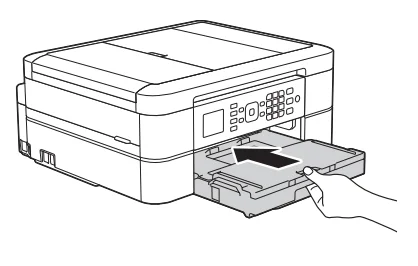
- Close the output paper tray cover. Slowly push the paper tray completely into the machine.

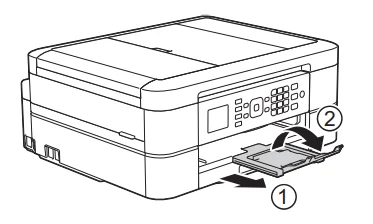
- While holding the paper tray in the machine, pull out the paper support (1) until it locks into place, and then unfold the paper support flap (2).

Change the Check Paper Size Setting
If the Check Paper setting is set to [On] and you pull the paper tray out of the machine, the LCDs displays a message asking if you want to change the Paper Size and Paper Type settings.
The default setting is [On].
- Press Settings.
- Press or to select the following:
- Select [General Setup]. Press OK.
- Select [Check Paper]. Press OK.
- Select [On] or [Off]. Press OK.
- Press Stop/Exit.
Change the Paper Size and Paper Type
Set the Paper Size and Paper Type settings for the paper tray.
- To get the best print quality, set the machine for the type of paper you are using.
- When you change the size of the paper you load in the tray, you must change the Paper Size setting on the LCD at the same time.
- Press Settings.
- Press ▲ or▼to select the following:
- Select [General Setup]. Press OK.
- Select [Paper Type]. Press OK.
- Select [Plain Paper], [Inkjet Paper], [Brother BP71], ог [Other Glossy]. Press OK.
- Select [Paper Size]. Press OK.
- Select the paper size option you want, and then press OK.
- Press Stop/Exit.
Note: The machine ejects paper with the printed surface face up onto the paper tray at the front of the machine. When you use glossy paper, remove each sheet at once to prevent smudging or paper jams.
Recommended Print Media
For the best print quality, we recommend using the Brother paper listed in the table. If Brother paper is not available in your country, we recommend testing various paper types before purchasing large quantities.
Brother paper/.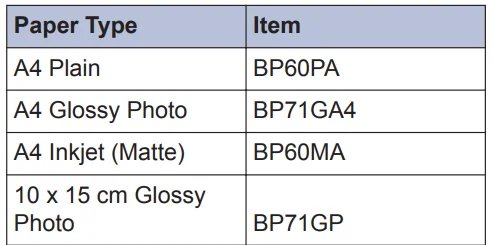
Handle and Use Print Media
- Store paper in its original packaging and keep it sealed. Keep the paper flat and away from moisture, direct sunlight, and heat.
- Avoid touching the shiny (coated) side of photo paper.
IMPORTANT
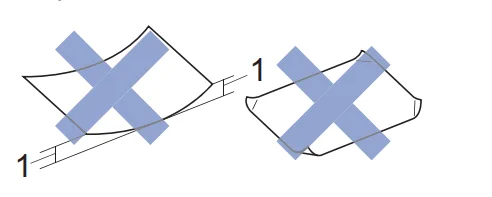
DO NOT use the following kinds of paper:
- Damaged, curled, wrinkled, or irregularly shaped.

- Extremely shiny or highly textured
- A paper that cannot be arranged uniformly when stacked
- Paper made with a short grain
Paper capacity of the output paper tray cover
- Up to 50 sheets of A4 80 gsm paper.
- Photo paper must be picked up from the output paper tray, and cover one page at a time to avoid smudging.
Print from Your Computer
Print a Document (Macintosh)
For printing instructions, see the Online User’s Guide: Print from Your Computer (Macintosh).
Print a Document (Windows®)
- Select the print command in your application.
- Select Brother MFC-XXXX (where XXXX is the name of your model).
- Click Print.
- Complete your print operation.
Note: For more information, see the Online User’s Guide: Print from Your Computer (Windows®).
Print on Both Sides of the Paper Automatically (Automatic 2-sided Printing) (Windows®)
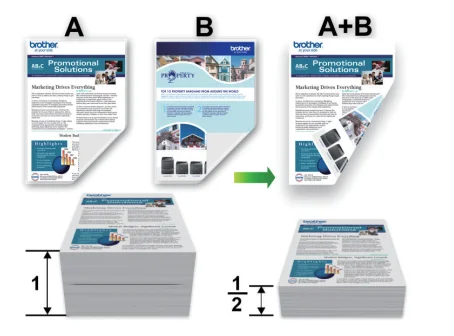
- Make sure the back cover is closed.
- If the paper is curled, straighten it and put it back in the paper tray.
- Use regular paper or thin paper. DO NOT use bond paper.
- If the paper is thin, it may wrinkle.
- Select the print command in your application.
- Select Brother MFC-XXXX (where XXXX is the name of your model), and then click the printing properties or preferences button. The printer driver window appears.
- In the Orientation field, select either the Portrait or Landscape option to set the orientation of your printout. Note: If your application software contains a similar layout feature, we recommend using the one in the application.
- Click the 2-sided / Booklet drop-down list, and then select 2-sided.
- Click the 2-sided Settings button.
- Select one of the options from the 2-sided Type menu.
Select the Binding Offset check box if you want to specify the offset for binding in inches or millimetres. - Click OK to return to the printer driver window.
- Change other printer settings if needed. Note: The Borderless feature is not available when using this option.
- Click OK again, and then complete your print operation.
Print More Than One Page on a Single Sheet of Paper (N in 1) (Windows®)
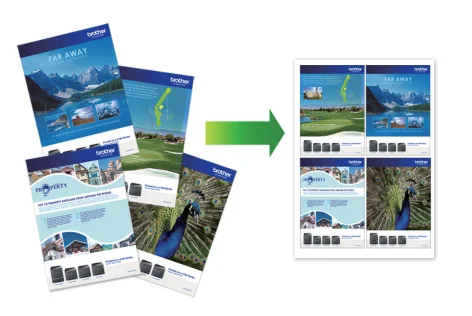
- Select the print command in your application.
- Select Brother MFC-XXXX (where XXXX is the name of your model), and then click the printing properties or preferences button. The printer driver window appears.
- In the Orientation field, select either the Portrait or Landscape option to set the orientation of your printout. Note: If your application software contains a similar layout feature, we recommend using the one in the application.
- Click the Multiple Page drop-down list, and then select the 2 in 1, 4 in 1, 9 in 1, or 16 in 1 option.
- Click the Page Order drop-down list, and then select your page order.
- Click the Border Line drop-down list, and then select your border line type.
- Change other printer settings if needed.
- Click OK, and then complete your print operation.
Print Photos from ControlCenter4 (Windows®)
You can print and edit photos using various Control Center features. In the following steps, the Control Center Home mode is used as an example.
- Make sure you have loaded the correct media in the paper tray.
- Click the
 (ControlCenter4) icon in the task tray, and then click Open.
 - Click the Photo tab.

- Select the folder that contains the image you want to print.
- Select images you want to print by clicking the image in the image viewer and selecting the check box under the image.
- Specify the number of copies you want to print (1-99) by clicking
 .
. - Click Print. The print settings window appears.
- Configure the settings for the Paper Size, Media Type, and Layout options.
- Click the Start Printing button.
 (ControlCenter4) icon in the task tray, and then click Open.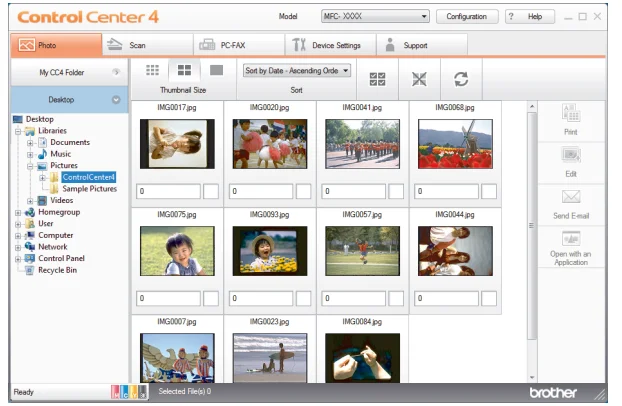
 .
.Fax
Before Faxing
Set Your Station ID
Set the machine’s Station ID if you want the date and time to appear on each fax you send.
- Press Settings.
- Press ▲ or▼ to select the following:
- Select [Initial Setup]. Press OK.
- Select [Station ID]. Press OK.
- Enter your fax number (up to 20 digits) using the dial pad, and then press OK.
- Enter your name (up to 20 characters) using the dial pad, and then press OK. Note: For more information about how to enter text, see the Appendix.
- Press Stop/Exit.
Telephone Line Interference/VoIP
If you are having problems sending or receiving a fax due to possible interference on the telephone line or if you are using a VoIP system, we recommend changing the modem speed to minimise errors in fax operations.
- Press Settings.
- Press ▲ or▼ to select the following:
- Select [Initial Setup]. Press OK.
- Select [Compatibility]. Press OK.
- Select [Normal] or [Basic (for VOIP)]. Press OK.
- [Basic (for VoIP)] reduces the modem speed to 9,600 bps and turns off colour fax receiving and ECM, except for colour fax-sending. Unless interference is a recurring problem on your telephone line, you may prefer to use it only when needed. To improve compatibility with most VoIP services, Brother recommends changing the compatibility setting to [Basic (for VoIP)].
- [Normal] sets the modem speed at 14,400 bps.
- Press Stop/Exit.
- Press Stop/Exit.
Note:
- VoIP (Voice over IP) is a type of phone system that uses an Internet connection, rather than a traditional phone line.
- Brother does not recommend the use of a VoIP line. VoIP limitations in general can cause some functions of the fax machine not to work correctly.
Receive Modes
Some receive modes answer automatically. ([Fax Only] and [Fax/Tel]). You may want to change the Ring Delay before using these modes.
Fax Only
[Fax Only] mode automatically answers every call as a fax.
Fax/Tel
[Fax/Tel] mode helps you manage incoming calls by recognising whether they are fax or voice calls and handling them in one of the following ways:
- Faxes will be received automatically.
- Voice calls will start the F/T ring to tell you to pick up the line. The F/T ring is a pseudo/double-ring made by your machine.
Manual
To receive a fax in [Manual] mode, lift the handset of the external telephone or press the Hook button. When you hear fax tones (short repeating beeps), press the Start button, and then select [Receive] to receive a fax. You can also use the Fax Detect feature to receive faxes by lifting a handset on the same line as the machine.
External TAD
[External TAD] mode lets an external answering device manage your incoming calls.
Incoming calls will be handled in the following ways:
- Faxes will be received automatically.
- Voice callers can record a message on the external TAD.
For More Manuals By Brother, Visit ManualsLibraryy.
Brother MFC-J480DW Wireless Inject Printer-FAQs
What ink cartridges does the Brother MFC-J480DW use?
The MFC-J480DW uses Brother LC201 (standard yield) and LC203 (high-yield) cartridges in black, cyan, magenta, and yellow.
Can I use third-party or generic ink in this printer?
It’s not recommended. Brother advises using genuine Brother ink because third-party ink may cause print quality issues, clogging, or reduced printer life.
Why are Brother ink cartridges expensive?
Ink quality affects print performance and helps protect the print head. High-quality ink costs more but ensures better output and longer machine lifespan.
How do I change the ink cartridges on a Brother printer?
Open the ink cover, press the release lever to remove the old cartridge, insert the new cartridge until it clicks, and close the cover. The printer will reset automatically.
How do I reset my printer after replacing ink cartridges?
Remove the new cartridge, turn off the printer, unplug it for 10 minutes, reconnect it, and reinstall the cartridge. This clears the printer’s memory so it can detect new ink.
Can Brother cartridges be refilled?
Refilling is possible with refill kits, but it may be messy and time-consuming. It can also lead to detection errors and voided warranties.
Why is my printer not recognizing a new ink cartridge?
The print head may be clogged. Run a cleaning cycle from the printer menu or clean the nozzle manually if needed.
How do I connect my Brother MFC-J480DW to Wi-Fi?
From the control panel, go to Menu > Network > WLAN > Setup Wizard. Select your Wi-Fi network and enter your password.
Do I need a USB cable for Wi-Fi setup?
Not always. You can set up Wi-Fi directly from the control panel. A USB cable is only needed for temporary setup on some computers.