
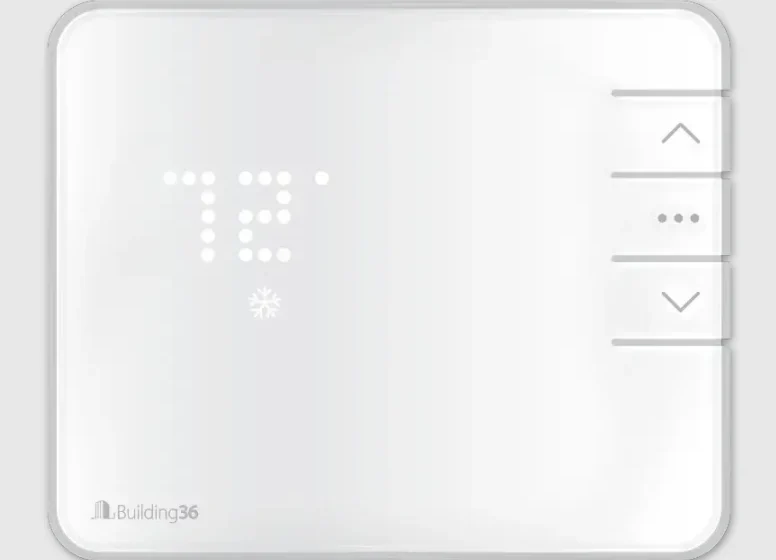
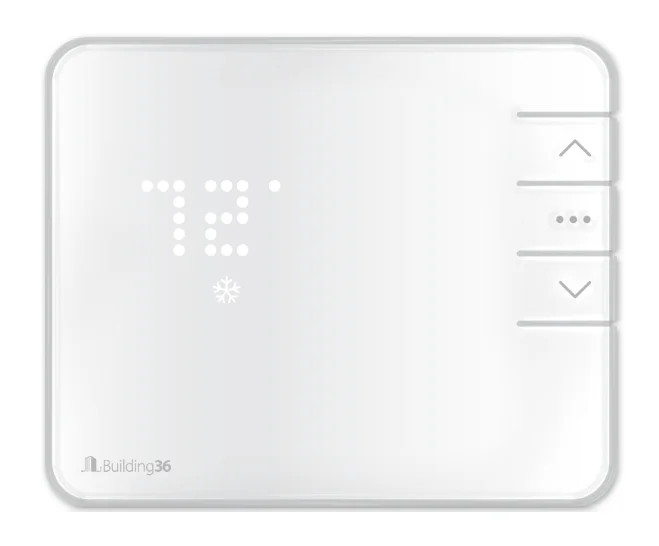
Building 36 B36T10RA Intelligent Thermostat
WARNINGS
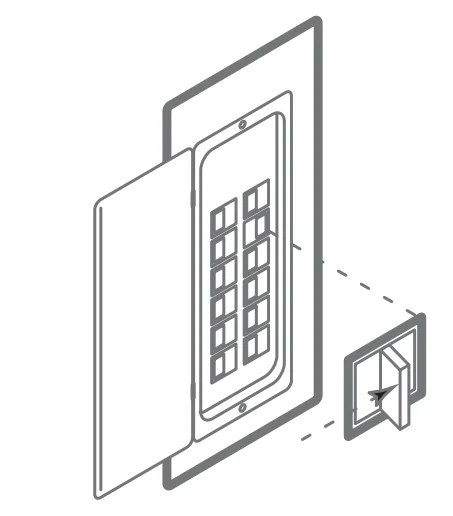
- Before installing or servicing your thermostat, turn off the power to the system at the circuit breaker.
- Leave the power off until finished installing or servicing.
- Shorting the electric terminals at the control of the heating or cooling system may damage the thermostat. Do not test the system this way.
- You must follow all local codes and ordinances for wiring your system.
- This thermostat should only be powered by 4AA alkaline batteries or a listed class 2 power supply at 24 VAC (C-Wire or wall transformer).
- An amperage higher than 1 amp to each thermostat relay load may cause damage to the thermostat.
- To avoid electrical shock and to prevent damage to the HVAC system and thermostat, disconnect the power supply before installing or servicing. It is recommended that this be done at the circuit breaker.
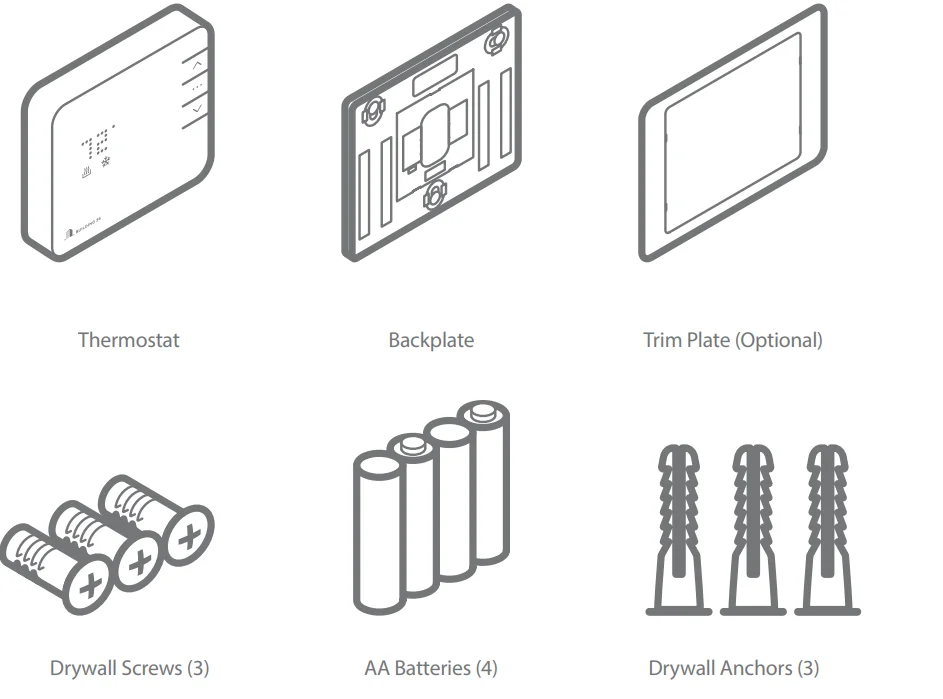
Contents:
Recommended Tools:
- Needlenose Pliers
- Phillips Screwdriver
- Power Drill
- Pencil
Operation
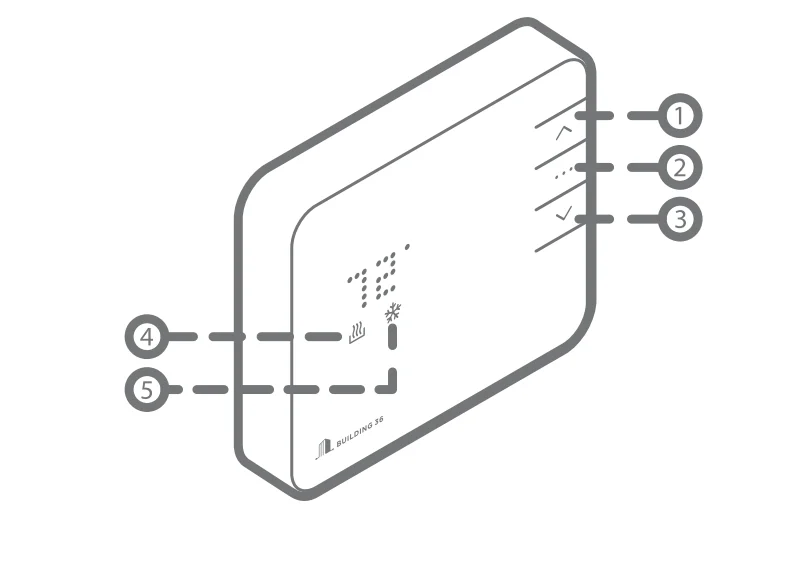
Buttons
- UP Button – Adjust target temperature up.
- MODE Button – Change thermostat from HEAT, COOL, AUTO, and OFF modes.
- DOWN Button – Adjust target temperature/ (un)Pair to and from the network.
Icons - HEAT Icon – Illuminated in HEAT or AUTO mode.
- COOL Icon – Illuminated in COOL or AUTO mode.
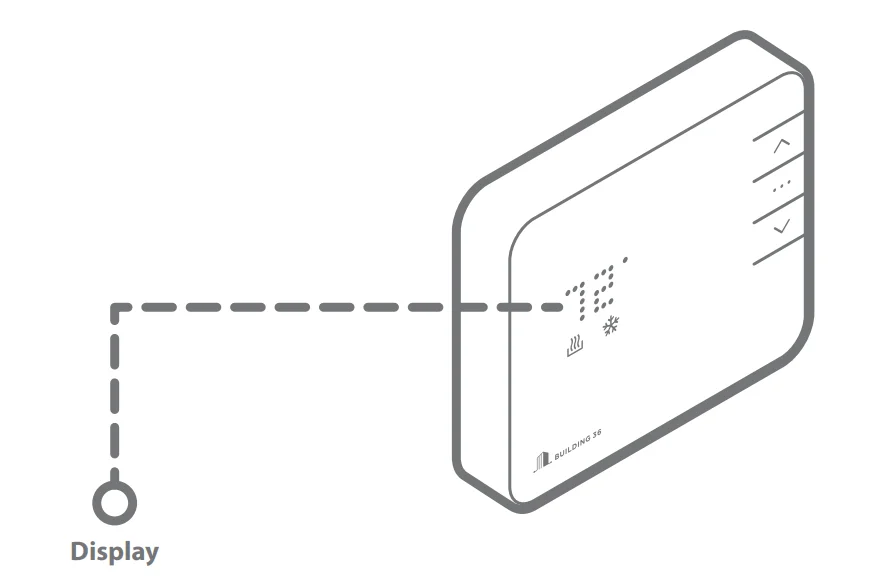
- Press any button to wake the thermostat up.
- After waking, the display will show the current mode and room temperature.
- IF the system is running, the display will go up for heating or down for cooling.
- Press the up or down button once to change to display the current setpoint.
- The currently illuminated MODE icon will begin to pulse.
- Press the up or down button again to adjust the setpoint.
- Press the mode button at any time to change the mode.
- The modes are HEAT, COOL, AUTO, and OFF.
- The thermostat will display the mode-appropriate setpoint.
- In AUTO, the brighter icon will indicate which setpoint is currently displayed and active (HEAT or COOL).
- After 5 seconds, the display will return to the current room temperature. The MODE icon will become solid to indicate this. After 5 more seconds, the display will turn off, and the thermostat will sleep.
Location:
If replacing an old thermostat, the new thermostat will be mounted in place of the old. If a new location is desired, it will be necessary to move your wiring. New installations and relocation should follow the guidelines below to ensure the most accurate temperature reading and ease of use.
- Mount the thermostat on an inside wall, approximately 5 ft. (1.5m) above the floor in a frequently used room.
- Do not install in locations near appliances or devices that affect the local temperature, such as televisions, lamps, or dryers.
- Avoid areas that are exposed to large temperature variances, such as: direct sunlight, near an AC unit, above or below auxiliary heat and air vents, and drafts from windows.
- Be aware of what is on the other side of the wall that the thermostat is being installed on. Do not install on walls adjacent to unheated rooms, stoves, or housing hot water pipes.
- Damp areas will not only affect the humidity reading of your thermostat, but could also lead to corrosion, shortening the life of your thermostat.
- Install in a location with good air circulation. Stagnant air will not accurately reflect the rate of change of temperature in the room. Avoid areas behind open doors, corners, and alcoves.
- Wait until construction and painting are finished before installing.
Removing Existing Thermostat:
Test your system
- Verify that your heating and/or cooling system is operating properly before you try to install your new thermostat.
- DO NOT do so by shorting (jumper) across electric terminals at the furnace or air conditioner. This may damage the thermostat.
Warning: DO NOT REMOVE your existing thermostat until power has been turned off at the circuit breaker.
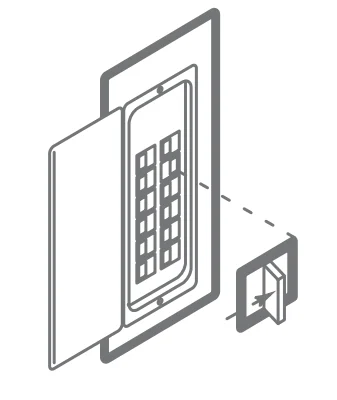
Once power to the heating AND cooling systems is off, follow these steps:
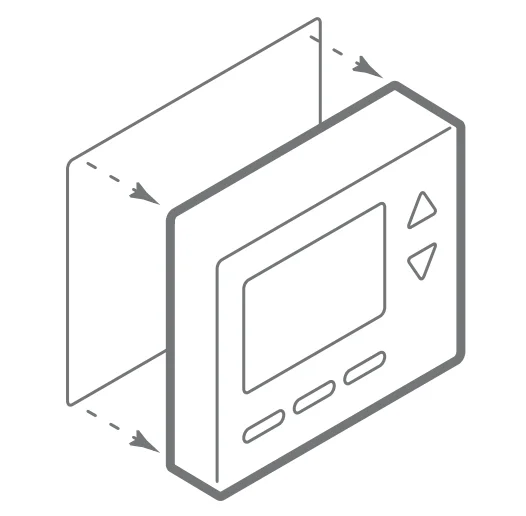
- Remove the cover from your existing thermostat. Do not disconnect the wires yet.
TIP: Take a picture of the wires before you detach them from the existing thermostat. - Label all existing wires, one at a time, with the labels provided.
Removing Existing Thermostat:
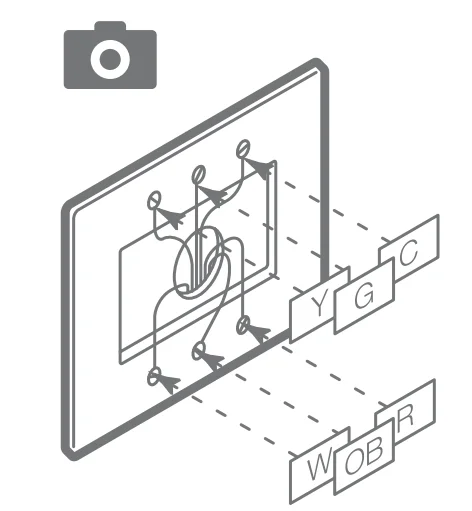
- Disconnect all of the wires and remove the existing thermostat.
TIP: Remember to secure the wires so they don’t fall into the wall.
CAUTION: Wiring can vary for each manufacturer. Label all wiring before removing it from your existing thermostat.
What wires does your system use?
Make sure your wires are labeled correctly. It may be necessary to find the ‘other end’ connection for each wire on your heating or air conditioning equipment and read the label there.
IMPORTANT: This thermostat runs on batteries and the C wire. If you do not have a C wire, you can run a new wire from the HVAC or use a standard 24VAC wall transformer
Prepare the wires
Please follow these guidelines for safe and secure wire connections:
- Ensure the wires are the proper gauge.
- Make sure wires have exposed straight ends about 1/8” long.
CAUTION: Verify that your system is 24 VAC. If your old system is labeled as 120 or 240 volts, or has wire nuts, your system is high voltage. Do not install your thermostat to a high-voltage system. Contact your local HVAC professional for help.
Install Your New Thermostat
Install the back plate
Use the bubble level provided on the back plate as a guide. Mark where the screws will go with a pencil through the screw holes on the back plate.
TIPS:
- Use the trim plate to cover up any marks or holes left from the old thermostat. Attach the trim plate before securing the back plate to the wall.
- Drill holes with a 3/16” drill bit to tap in the drywall anchors for added support.
Wire your new thermostat
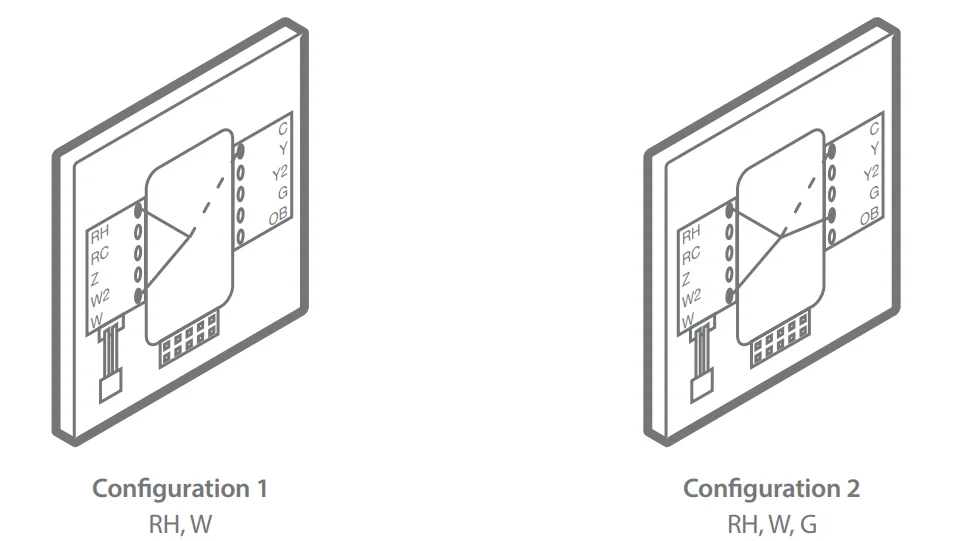
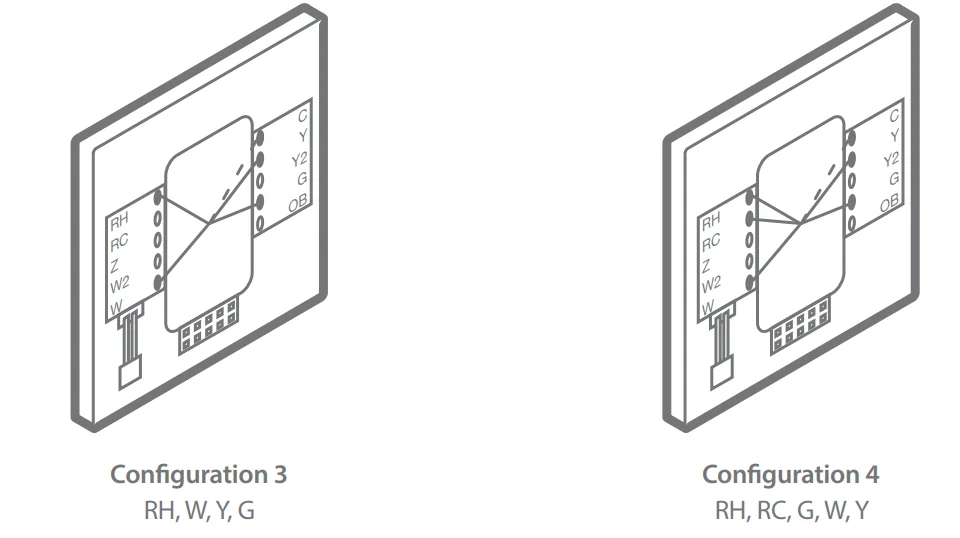
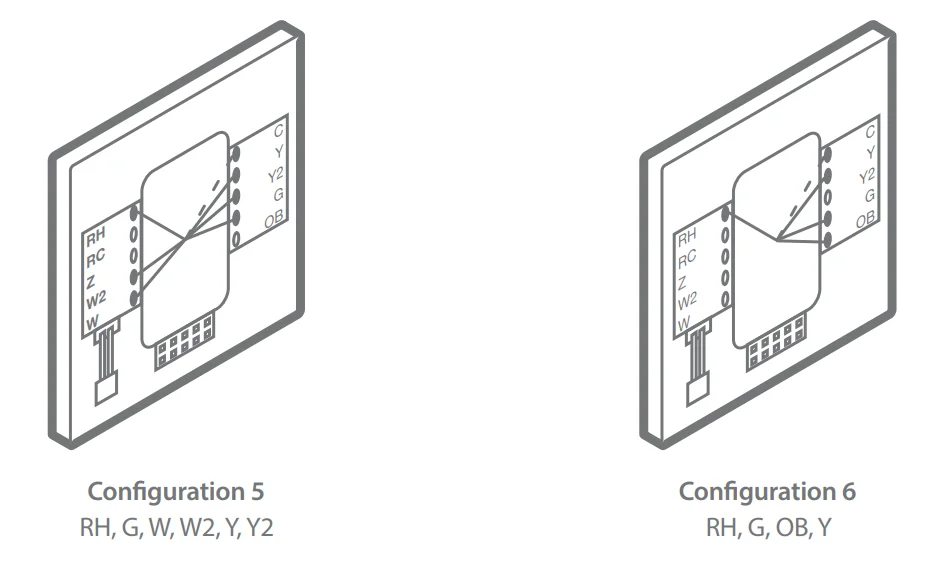
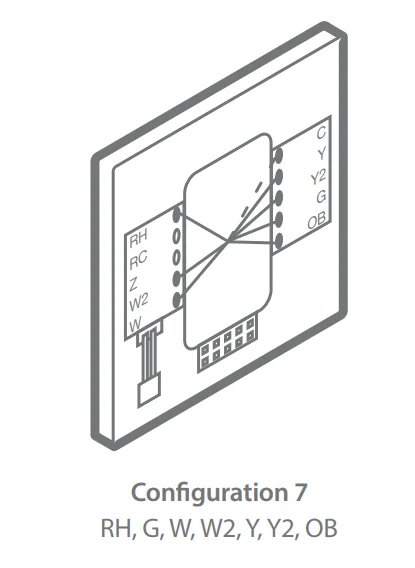
Go to page 8 to find the wiring diagram that matches your wiring and insert the wires into the back plate.
TIP: Anything that wasn’t connected to your old thermostat shouldn’t be connected to your new thermostat either. You may also have extra wires that do not match. Leave them as is.
EXCEPTIONS:
- If you have R, connect it to RH.
- If you have RH & RC, remove the black jumper in the lower left corner of back plate terminal board.
- Z can be used for W3, H, or DH.
Wiring Diagrams:
Insert batteries into the thermostat body
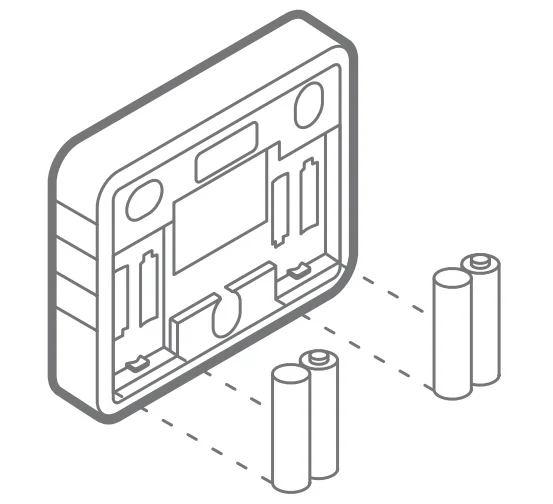
The thermostat can be powered by a battery or 24 VAC. If a wall transformer is used to power your thermostat, connect between C and RH. Ensure the batteries are installed following the specified polarity markings on the thermostat.
CAUTION: Special Battery Warning
- Always replace the batteries as soon as the ” Low Battery ” indicator is indicated. If the batteries die, your thermostat could leave the HVAC system on, overheating or freezing your home.
- Always replace the batteries at least once a year. This will protect your thermostat from damage and corrosion by leaking batteries.
- If your home is unoccupied for a month or more, such as vacation homes, you should replace the batteries as a preventive measure against battery failure while you are away.
- Use only new batteries when changing.
Connect the Thermostat to the Gateway
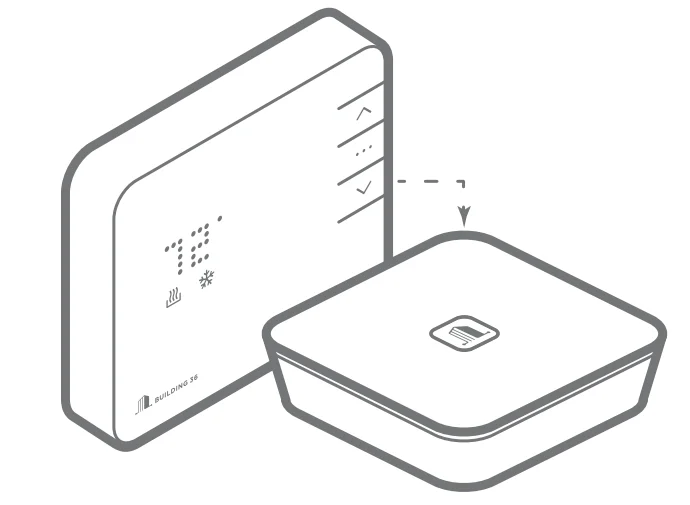
- Bring Gateway to the Thermostat.
- Put the thermostat in OFF mode (No mode icons are lit).
- Press the inclusion button on the Gateway.
- Press and hold the DOWN button the thermostat to begin pairing. The RADIO icon should start blinking.
- When the RADIO icon becomes solid, the thermostat is joined to the network.
- Log in to your account to sync your thermostat with the Building 36 system, or contact your local professional for installation setup.
Install the thermostat body to the back plate
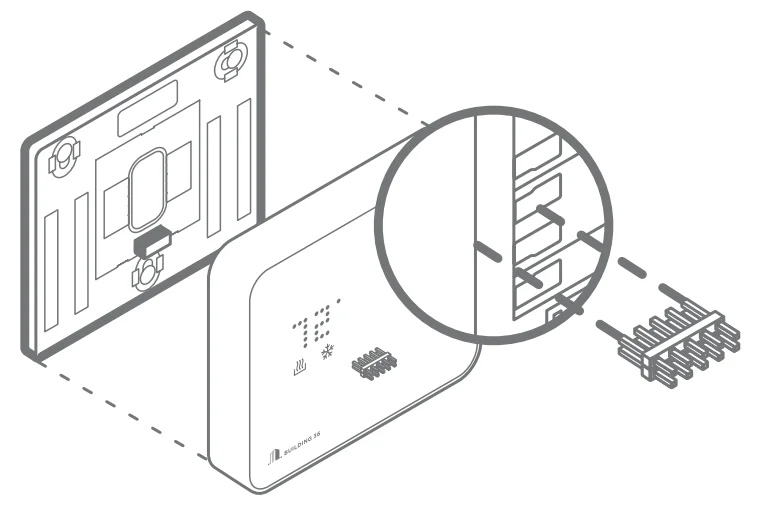
Press the thermostat body firmly into the back plate mounted to the wall. Ensure that the pins on the body are correctly aligned with the header attached to the terminal board on the back plate. Failure to do so could cause damage to the thermostat.
Turn the power on
Restore power to your heating and cooling system. This can be done at the circuit breaker.
Configure Your System
Your thermostat configuration will be done online at the customer site on your customer account page. Here you will configure the parameters of your system, such as: Heat Pump or Normal, number of heat and cool stages, heating fuel, calibration temperature, and configurable terminal (Z). Refer to your configuration number on the wiring diagrams page to see the values you should enter on the online configuration.
This is also where you have the option to change advanced configuration settings, such as: Swing, Differential, Recovery Setting, Fan Circulation Period and Duty Cycle, Maximum Setpoints, Minimum Setpoints, Thermostat Lock, Demand Response Delay, Demand Response Duty Cycle, and Modes Enabled.
WARNING: Use caution when changing advanced configuration settings. These configuration settings should only be changed by those familiar with heating and cooling systems’ parameters. Contact your local HVAC professional for help. For definitions of these settings and more information, go to www.building36.com
Check Your System
By default, the thermostat is configured to 2 heat stages and 2 cool stages (2 Heat Pump, 2 Aux).
To check heating
Press the MODE button to select HEAT mode.
- Press the UP button to raise the setpoint above room temperature.
- Wait 10 seconds for the system to turn on.
- After verifying the heating system is working, raise the setpoint to the desired temperature.
To check the cooling
Press the MODE button to select COOL mode.
- Press the DOWN button to lower the setpoint below room temperature.
- Wait 10 seconds for the system to turn on.
- After verifying the cooling system is working, lower the setpoint to the desired temperature.
Troubleshooting
Batteries die quickly
If a thermostat is paired using a C-Wire, that information is saved in the network and cannot be changed unless removed and paired again without a C-Wire connected. The same applies to inclusions on battery power. If you find your thermostat batteries are dying unusually quickly, check and make sure the C-Wire connection is still intact. If a device is paired using C-Wire, the Z-Wave communication never sleeps, and the thermostat will act as a repeater, sending messages for other devices as well. If the C-Wire is removed, this kind of activity will drain the battery very quickly.
Heating or cooling doesn’t turn on when the target is set above or below the ambient temperature
The thermostat is configured to have a minimum setting of a half-degree difference in temperature from the target before the system turns on to protect the system from damage due to excessive use. The cooling system also has a built-in compressor delay. Each time the compressor is turned on, a large amount of pressure is built up and must be equalized. This delay time prevents damage to the compressor from not allowing this pressure to equalize before being turned on again.
Manual configuration of the HVAC system on thermostat
The system type (Normal or Heat Pump) can be physically set on the thermostat if necessary by doing the following:
- Put the thermostat in OFF mode.
- Press and hold the UP button.
- Press UP or DOWN buttons to select either ‘HP’ for heat pump configuration or ‘NORM’ for normal configuration.
- Press the MODE button to confirm your selection.
Exclusion of the thermostat from the Z-Wave network
If, for some reason, the thermostat must be removed from the network, follow the steps below to do so.
- Press and hold the exclusion button on the gateway.
- Press and hold the DOWN button on the thermostat to enter exclusion mode. The RADIO icon will begin flashing red.
- When the RADIO icon becomes solid, the thermostat has now been successfully removed from the network.
The heat pump is cooling when it should be heating
Because both types of heat pump reversing valves share a single terminal on your thermostat back plate, you need to be sure you have the thermostat configured for the correct wire. Try switching your O/B selection on the customer thermostat configuration page. Contact your local HVAC professional for further assistance with this issue. The same applies to a heat pump that is heating when it should be cooling.
Notices
FCC NOTICE:
This device complies with part 15 of the FCC Rules. The operation is subject to the following two conditions:
- This device may not cause harmful interference.
–AND– - This device must accept any interference received, including Interference that may cause undesired operation.
This equipment has been tested and found to comply with the limits for a Class B digital device, pursuant to part 15 of the FCC Rules. These limits are designed to provide reasonable protection against harmful interference in a residential installation. This equipment generates, uses, and can radiate radio frequency energy and, if not installed and used in accordance with the instructions, may cause harmful interference to radio communications. However, there is no guarantee that interference will not occur in a particular installation. If this equipment does cause harmful interference to radio or television reception, which can be determined by turning the equipment off and on, the user is encouraged to try to correct the interference by one or more of the following measures:
- Reorient or relocate the receiving antenna.
- Increase the separation between the equipment and receiver. Connect the equipment into an outlet on a circuit different from that to which the receiver is connected. Consult the dealer or an experienced radio/TV technician for help.
Under Industry Canada regulations, this radio transmitter may only operate using an antenna of a type and maximum (or lesser) gain approved for the transmitter by Industry Canada. To reduce potential radio interference to other users, the antenna type and its gain should be so chosen that the equivalent isotropically radiated power (e.i.r.p.) is not more than that necessary for successful communication.
NOTE: THE GRANTEE IS NOT RESPONSIBLE FOR ANY CHANGES OR MODIFICATIONS NOT EXPRESSLY APPROVED BY THE PARTY RESPONSIBLE FOR COMPLIANCE. SUCH MODIFICATIONS COULD VOID THE USER’S AUTHORITY TO OPERATE THE EQUIPMENT.
For more manuals by Building 36, visit ManualsLibraryy
Building 36 B36T10RA Intelligent Thermostat-FAQs
What is an intelligent thermostat and how does it work?
An intelligent thermostat is a smart device that automatically controls heating and cooling based on your settings and habits. It uses sensors and scheduling to maintain a comfortable temperature while saving energy. It can also connect to Wi-Fi, allowing you to monitor and adjust settings remotely through a mobile app.
What is the main function of the Building 36 B36T10RA thermostat?
The main function of this thermostat is to regulate indoor temperature efficiently. It communicates with your HVAC system to turn heating or cooling on and off based on your desired setpoint. This helps maintain comfort while optimizing energy usage and reducing unnecessary system operation.
How do I manually adjust the temperature settings?
To manually change the temperature, access the thermostat’s display or connected app and adjust the setpoint using the controls. Increasing or decreasing the temperature will immediately signal your HVAC system to respond. This allows quick adjustments without changing your programmed schedule.
What modes are available on this thermostat?
The thermostat typically offers modes like Heat, Cool, and Auto. Heat mode activates the heating system, while Cool mode controls air conditioning. Auto mode switches between heating and cooling automatically based on indoor temperature, helping maintain a consistent and comfortable environment.
What types of thermostats are available and where does this model fit?
Thermostats generally come in manual, programmable, and smart types. The Building 36 B36T10RA falls into the smart category, offering advanced features like remote control, automation, and energy optimization. It provides more convenience and efficiency compared to traditional manual or basic programmable thermostats.
How can I reset the thermostat if it stops working properly?
To reset the thermostat, access the settings menu and look for the reset or restart option. This will restore default settings and resolve minor glitches. If the issue persists, check power connections or consult the user manual for detailed troubleshooting steps.
How can I test if my thermostat is working correctly?
To test the thermostat, set it to heat or cool and adjust the temperature above or below room level. If the HVAC system activates, it is working properly. You can also inspect wiring connections or use basic tools to verify voltage if needed.
Can the thermostat work during a power outage?
During a power outage, the thermostat may stop functioning temporarily. However, most smart thermostats retain saved settings and schedules. Once power is restored, the system resumes normal operation without needing full reconfiguration, although the time settings may need adjustment.
What do thermostat wiring colors mean?
Thermostat wires follow standard color codes: red for power, white for heating, yellow for cooling, green for fan, and blue or black for common wire. Proper wiring is essential for correct operation, so always double-check connections or consult a professional when installing or troubleshooting.