
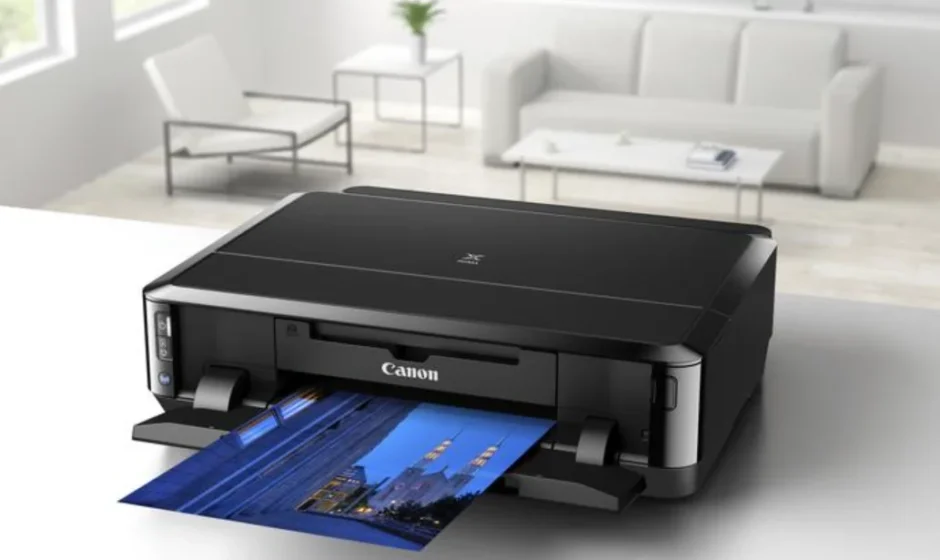

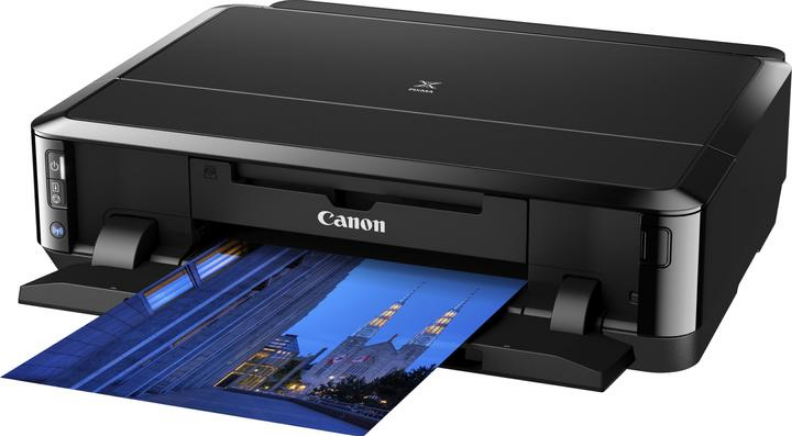
Canon PIXMA iP7250 Colour Inkjet Printer
Uninstalling the On-Screen Manuals
Follow the procedure below to uninstall all of the installed on-screen manuals from your computer.
Before uninstalling the on-screen manuals, exit all open on-screen manuals that are open.
- From the Go menu of Finder, choose Applications
- Double-click the Canon Utilities folder and then the IJ Manual folder
- Delete the on-screen manual
Drag the folder with the name of your model to the Trash.
Note: If the desktop contains an icon of the on-screen manual, drag it to the Trash.
How to Use the On-Screen Manuals, Printing Procedures
- Operating the On-Screen Manuals
- Printing the On-Screen Manuals
- Using Keywords to Find a Document
- Registering Documents to My Manual
- Symbols Used in This Document
- Trademarks and Licenses
- Uninstalling the On-Screen Manuals
Operating the On-Screen Manuals
On-screen manual operation
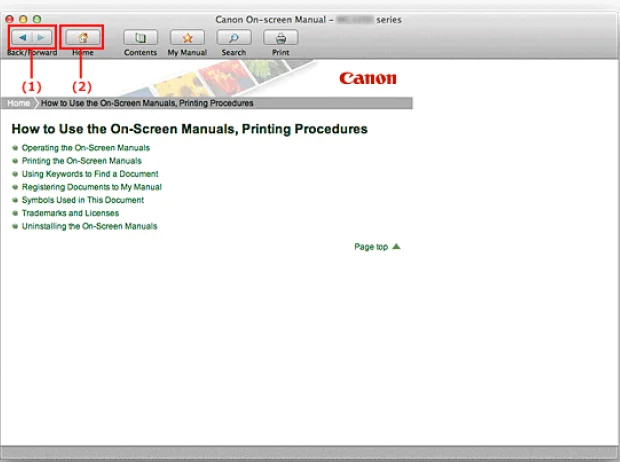
- Click Back/Forward to return to the previously displayed explanation window or to advance the explanation window that was redisplayed.
- Click Home to display the top page of the on-screen manual in the explanation window.
Content window operation
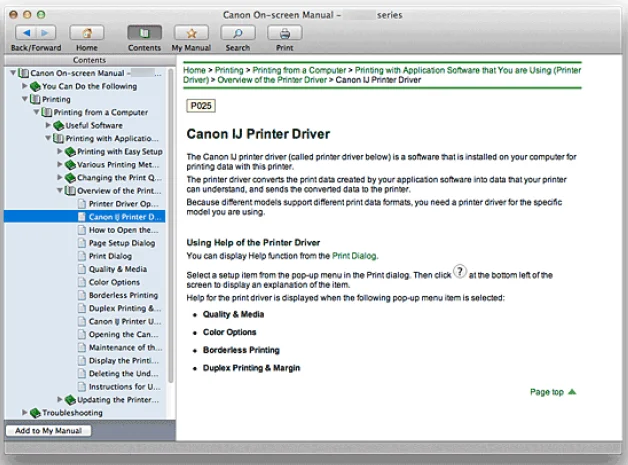
When you click a document title displayed in the contents pane found to the left of the on-screen manual, the documents of that title are displayed in the explanation window on the right side.
When you click Find to the left of (Updating the printer), the document titles found in the lower hierarchies are displayed.
Note: Click Contents to close or display the contents pane.
Explanation Window
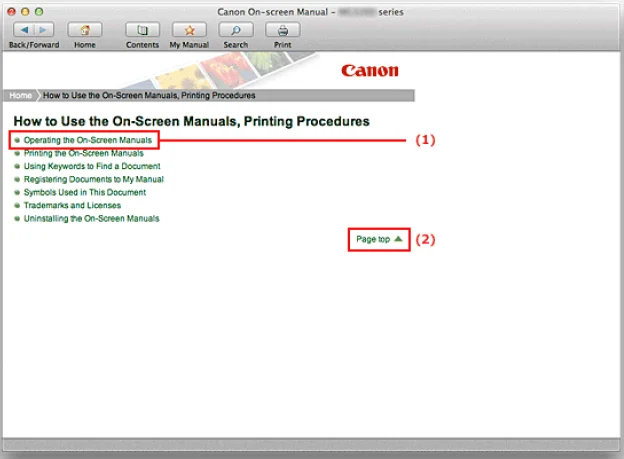
- Click the green characters to jump to the corresponding document.
- The cursor jumps to the top of this document.
Window Used in Operation Explanation
This on-screen manual describes a window displayed when Mac OS X v10.7 is used.
Test Print
This printer is now ready for printing.
Quick Menu for smooth access to Canon’s web service and to various functions for photo printing and video printing.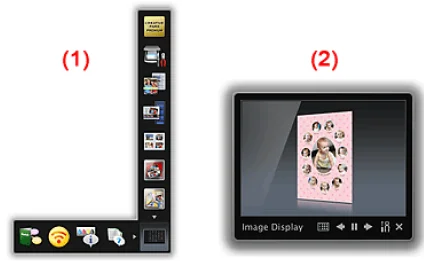
- Shortcut Menu
- Image Display
To start Quick Menu, click the icon found in Dock.
If Quick Menu is installed and the shortcut icon is not registered in the Dock, an icon will not be displayed.
When you click the (CREATIVE PARK PREMIUM) icon on the shortcut menu, My Image Garden opens. You can then download artworks of famous artists and print them for various uses.
CREATIVE PARK PREMIUM is a premium content service available exclusively to customers who use genuine Canon ink for all colors. To use this service, you must have My Image Garden installed on your computer.
When My Image Garden is installed, Image Display also opens.
Image Display displays a slide show of artwork images that were created automatically by the recommended artwork functions of My Image Garden, as well as other images saved on your computer.
Registering Documents to My Manual
Register frequently read documents as My Manual documents so that you can refer to those documents easily at any time.
Display the document
Display the document to be added to My Manual.
Click My Manual
The My Manual pane is displayed to the left of the on-screen manual.
Note: Click My Manual to close or display the My Manual pane.
Register the document in My Manual
Click Add.
The title of the currently displayed document is added to the List of My Manual.
Note
You can also add documents to My Manual by the following methods. If you add a document to My Manual, a star mark is displayed in the document icons in the contents pane.
From the Recently Displayed Documents list, double-click the document title that you want to add to My Manual or select the document title and press the Return key or Enter key to display the title, and then click Add.
Click Contents, and while holding down the Control key, click a document title displayed in the contents pane or click the explanation window. Then click Add to My Manual displayed in the shortcut menu.
In the contents pane, select the document title that you want to add to My Manual, and then click Add to My Manual at the bottom left of the contents pane.
Display My Manual
When you double-click a document title displayed in List of My Manual or select a document title and press the Return key or Enter key, that document is displayed in the explanation window.
Note: To delete a document from the List of My Manual, select that document title from the list, and then click Delete (or press the Delete key).
Troubleshooting
- The Printer Cannot Be Powered On
- Printing Does Not Start
- Paper Does Not Feed Properly/”No Paper” Error Occurs
- Print Results Not Satisfactory
- Ink Is Not Ejected
- Paper Jams
- Alarm Lamp Flashes Orange
- Cannot Print on the Disc Label
Search Each Function
- Problems with Network Communication
- Problems with Printing
- Problems with Printing Quality
- Problems with the Printer
- Problems with Installation/Downloading
- About Errors/Messages Displayed
- If You Cannot resolve the Problem
Appendix for Network Communication
- Restrictions
- Initial Values Set at Factory (Network)
- Connecting the Printer to the Computer Using a USB Cable
- About Technical Terms
- When Detecting the Printers Have the Same Name
- Connecting to Another Computer with LAN/Changing the Connection Method from USB to LAN
Printing the On-Screen Manuals
Click Print to display the print pane to the left of the on-screen manual.
Note
Click Print to close or display the print pane.
The following four methods of printing are available:
- Print Current Document
- Print Selected Documents
- Print My Manual
- Print All Documents
Print Current Document
You can print the currently displayed document.
From Select Target, select Current Document. The title of the currently displayed document is displayed in the Documents to Be Printed list.
Note
- By selecting Print linked documents, you can also print documents that are linked to the current document. The linked documents are added to the Documents to Be Printed list.
- Click Print Preview to display and check what the print results will look like before you actually print the document.
Click Start Printing. A message confirming the number of print pages is displayed. After you confirm the number of pages to be printed and click Yes, a print dialog is displayed.
Execute print. Specify the necessary items, and click Print. The documents that are currently displayed are printed.
Print Selected Documents
You can select and print the documents that you want to print.
- From Select Target, select Selected Documents. The titles of all documents are displayed in the Documents to Be Printed list.
- Select the documents to be printed. From the Documents to Be Printed list, select and check the title check boxes of the documents to be printed.
Note
- When you select the Automatically select documents in lower hierarchies. Check box; the check boxes of all document titles found in the lower hierarchies are selected.
- Click Select All to select the check boxes of all document titles.
- Click Clear All to clear the check boxes of all document titles.
- Click Print Preview to display and check what the print results will look like before you actually
- print the document.
- Click Start Printing. A message confirming the number of print pages is displayed. After you confirm the number of pages to be printed and click Yes, a print dialog is displayed.
- Execute print. Specify the necessary items, and click Print. All documents with selected check boxes are printed.
Print My Manual
You can select and print documents registered in My Manual. For details about My Manual, see “Registering Documents to My Manual.”
- From Select Target, select My Manual. The titles of the documents that have been registered to My Manual are displayed in the Documents to Be Printed list.
- Select the documents to be printed. From the Documents to Be Printed list, select and check the title check boxes of the documents to be printed.
Note
- Click Select All to select the check boxes of all document titles. Click Clear All to clear the check boxes of all document titles.
- Click Print Preview to display and check what the print results will look like before you actually print the document.
- Click Start Printing. A message confirming the number of print pages is displayed. After you confirm the number of pages to be printed and click Yes, a print dialog is displayed.
- Execute print. Specify the necessary items, and click Print. All documents with selected check boxes are printed.
Print All Documents
You can print all documents of the on-screen manual.
- From Select Target, select All Documents. The titles of all documents are displayed in the Documents to Be Printed list, and the check boxes are automatically selected.
Note
- When you uncheck the check box of a document title, that document is not printed.
- Click Select All to select the check boxes of all document titles.
- Click Clear All to clear the check boxes of all document titles.
- Click Print Preview to display and check what the print results will look like before you actually print the document.
- Click Start Printing. A message confirming the number of print pages is displayed. After you confirm the number of pages to be printed and click Yes, a print dialog is displayed.
- Execute print. Specify the necessary items, and click Print. All documents are printed.
Important: A large amount of paper is necessary to print all documents. Before printing, be sure to check the number of print pages displayed in the message.
Exif Print
This printer supports Exif Print.
Exif Print is a standard for enhancing the communication between digital cameras and printers. By connecting to an Exif Print compliant digital camera, print results suitable for the shooting conditions, shooting scenes, etc., can be obtained based on the camera information at the time of shooting.
About the On-screen Manual
Reproduction, diversion, or copying of any text, photo, or image published in this manual, in whole or in part, is prohibited.
Problems with Network Communication
- Problems with the Printer While Using on a Network
- Cannot Detect a Printer on a Network
- Other Problems with the Network
Problems with the Printer While Using on a Network
- The Printer Stopped Working Suddenly
- Printing Speed Is Slow
- Cannot Use the Printer when Replacing an Access Point or Changing Its Settings
Cannot Detect a Printer on a Network
- Cannot Detect the Printer When Setting up Network Communication
- The Printer Cannot Be Detected in the Wireless LAN
Other Problems with the Network
- Forgot an Access Point Name, SSID, or a Network Key
- The Message Is Displayed on the Computer Screen During Setup
- The Admin Password Set to the Printer Was Forgotten
- Checking Information about the Network
- How to Restore the Printer’s Network Settings to Factory Default
Problems with Printing
- Printing Does Not Start
- Paper Does Not Feed Properly/”No Paper” Error Occurs
- Paper Jams
- Cannot print on the Disc Label
- Cannot Print Properly with Automatic Duplex Printing
- Printing Stops Before It Is Completed
Problems with Printing Quality
- Print Results Not Satisfactory
- Ink Is Not Ejected
Problems with the Printer
- The Printer Cannot Be Powered On
- The Printer Turns Off Unintendedly
- Cannot connect to the Computer with a USB Cable Properly
- Cannot Communicate with the Printer with USB Connection
- Print Head Holder Does Not Move to the Position for Replacing
- If the Output Tray Extension Comes Off
Problems with Installation/Downloading
- Cannot install the Printer Driver
- Uninstalling IJ Network Tool
Using Keywords to Find a Document
You can enter a keyword to search for a target document.
All documents in the currently displayed on-screen manual are searched.
- Click Search. The search pane is displayed to the left of the on-screen manual.
Note: Click Search to close or display the search pane.
- Enter a keyword. In Keyword, enter a keyword for the item to be checked. When you want to enter multiple keywords, insert a space between the keywords.
Note
- You can enter up to 10 search keywords or up to 255 characters.
- Uppercase and lowercase are not distinguished.
- The program can also search for keywords that contain spaces.
- A convenient way of quickly finding a document to be read is to enter keywords as described
- below.
To learn how to operate a function you are using: Enter names such as the menu name displayed on the computer (for example, Contrast).
To find an explanation of the operation for a specific purpose: Enter function + item to be printed (for example, print photo).
- Click Start Searching. The search is started, and the titles of documents containing the keyword are displayed in the search results list. When you execute a search by entering multiple keywords, the search results are displayed as shown below.
Documents Containing Perfect Match
Documents containing the entire search character string (including spaces) exactly as entered (perfect match)
Documents Containing All Keywords
Documents containing all keywords that were entered
Documents Containing Any Keyword
Documents containing at least one of the keywords that were entered
- Display the document that you want to read. From the search results list, double-click the title of the document you want to read or select the title and press the Return key or Enter key. When the documents of that title are displayed, the keywords found on those documents are highlighted.
Useful Functions Available on the Machine
The following useful functions are available on the machine.
Enjoy an even more pleasant photography experience by utilizing various functions.
- Print Photos Easily
- Download Content Materials
- Print without a Computer
Print Photos Easily Using an Application
Organize Images Easily
In My Image Garden, you can register the names of people and events to photos.
You can organize photos easily as you can display them not only by folder but also by calendar, even and person. This also allows you to find the target photos easily when you search for them later on.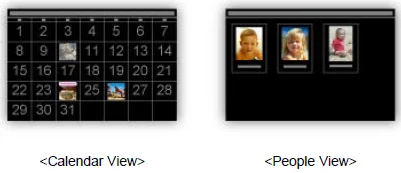
Display Recommended Items in Slide Shows
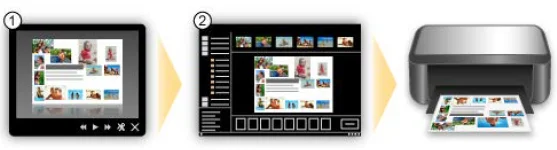
Based on the information registered to photos, Quick Menu automatically selects the photos on your computer and creates recommended items such as collages and cards. The created items appear in slide shows.
If there is an item you like, you can easily print it in just two steps.
- STEP 1 In the Image Display of the Quick Menu, select the item you want to print.
- STEP 2 Print the item with My Image Garden.

Place Photos Automatically
Delightful items are created easily as the selected photos are placed automatically according to the theme.
Other Various Functions
My Image Garden has many other useful functions. See My Image Garden Guide for details.
Download a Variety of Content Materials
CREATIVE PARK
A “printing materials site” where you can download all the printing materials for free.
Various types of content, such as seasonal cards and paper crafts that can be made by assembling paper parts, are provided.
It is easily accessible from the Quick Menu.
CREATIVE PARK PREMIUM
A service where customers using models that support PREMIUM Contents can download exclusive printing materials.
PREMIUM Contents can be downloaded easily via My Image Garden. Downloaded PREMIUM Contents can be printed directly with My Image Garden.
To print downloaded PREMIUM Contents, make sure that genuine Canon ink tanks/ink cartridges are installed for all colors on a supported printer.
For more Manuals by Canon, visit ManualsLibraryy
Canon PIXMA iP7250 Colour Inkjet Printer-FAQs
Is the Canon PIXMA iP7250 wireless?
Yes, the iP7250 includes built-in Wi-Fi, allowing you to print wirelessly with fast and high-quality results.
How do I connect my Canon iP7250 to Wi-Fi?
Press and hold the Wi-Fi button until the blue light starts flashing, then press the WPS button on your router within two minutes. The printer will connect automatically.
How do I manually connect my iP7250 to Wi-Fi without WPS?
Open the Wi-Fi setup menu, choose Manual Connect, select your network from the list, enter your Wi-Fi password, and confirm the connection.
Where do I find the WPS PIN for the Canon iP7250?
The printer itself does not provide a WPS PIN. You need to open your router’s settings page to find the WPS PIN and then enter it during the printer’s wireless setup.
How do I connect my computer to the iP7250 with a USB cable?
Make sure your phone and printer are on the same Wi-Fi network, then use the Canon PRINT app, AirPrint on iPhone, or the built-in print option on Android to send documents or photos.
How do I connect my phone to the Canon PIXMA iP7250?
Make sure your phone and printer are on the same Wi-Fi network, then use the Canon PRINT app, AirPrint on iPhone, or the built-in print option on Android to send documents or photos.
Why is my Canon iP7250 not printing wirelessly?
This usually happens if the printer is too far from the router, the Wi-Fi password is wrong, the network has changed, or the printer needs to be reconnected. Moving the printer closer and repeating the setup often solves the issue.
What does WPS mean on a Canon printer?
WPS stands for Wi-Fi Protected Setup, a feature that allows you to connect the printer to a wireless network quickly without manually entering the Wi-Fi password.
How do I reset network settings on the iP7250?
Press and hold the Resume/Cancel button until the Power lamp flashes nine times. This restores all network settings to factory defaults.