
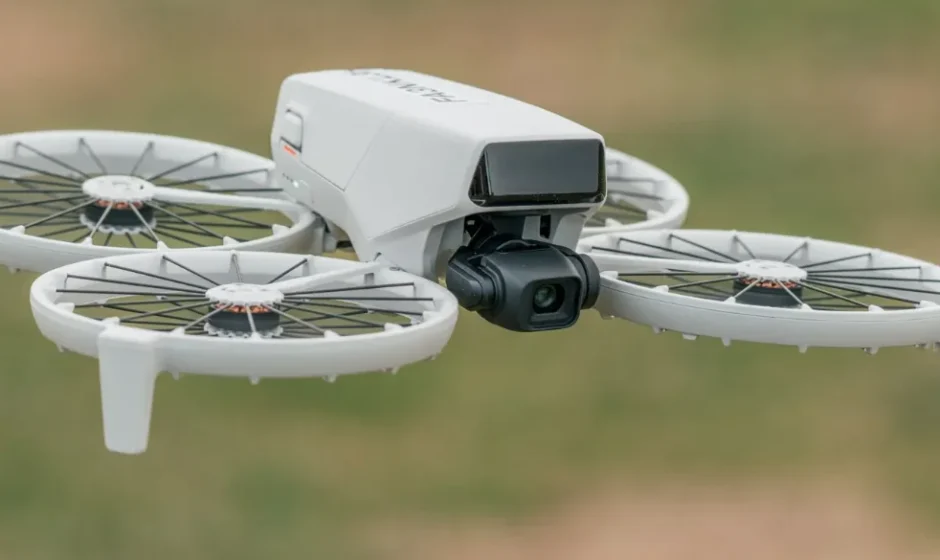
DJI Flip Drone Camera
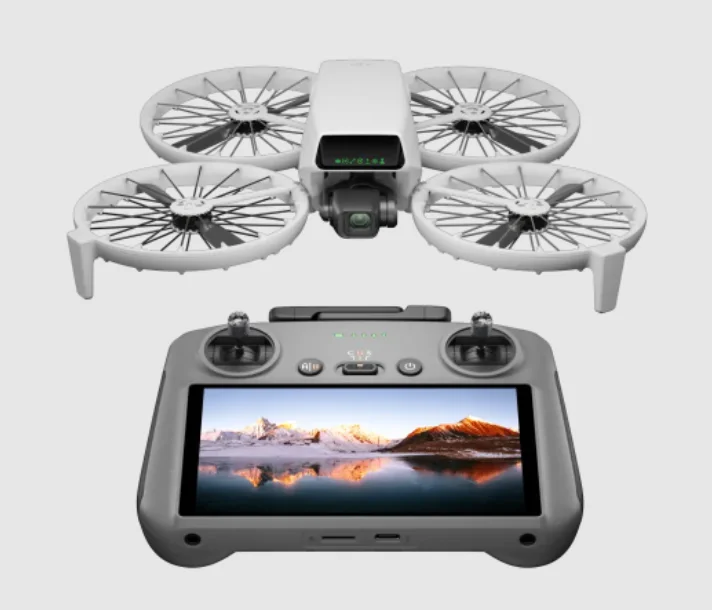
Product Profile
Using for the First Time
Click the link or scan the QR code to watch the tutorial videos.
https://www.dji.com/flip/video
Preparing the Aircraft
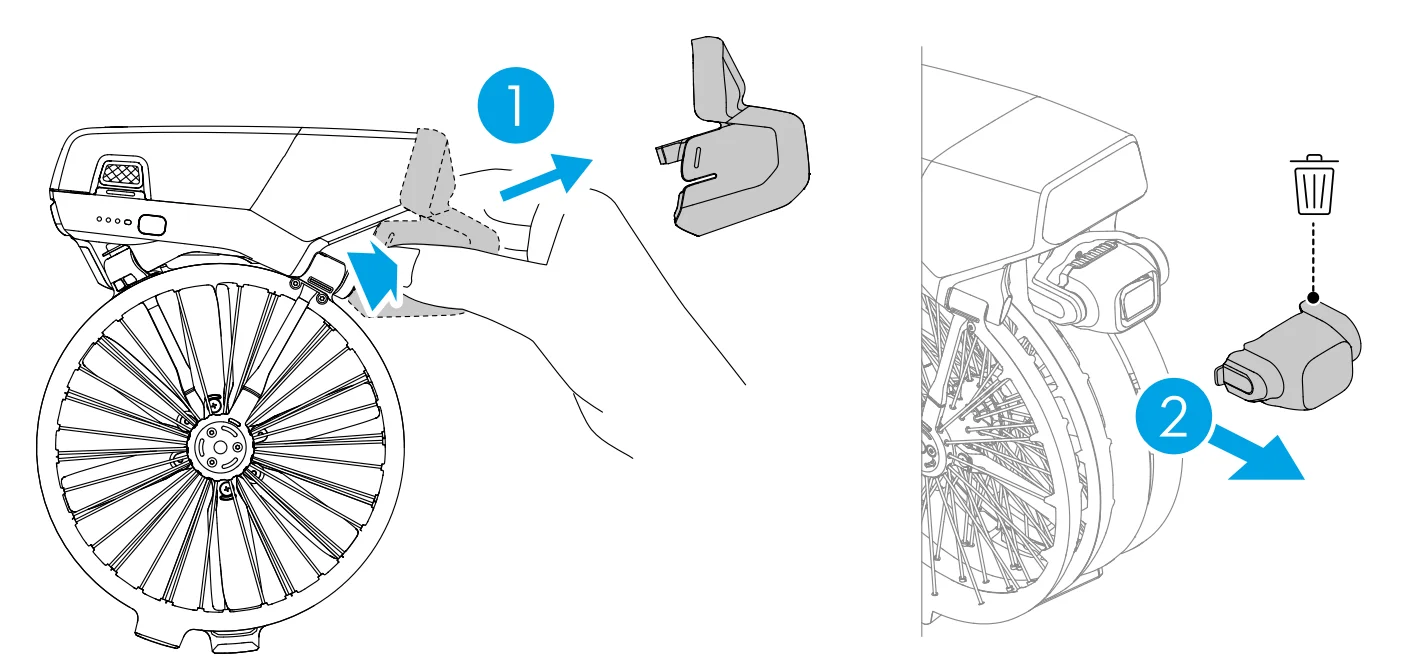
- Press both the left and right sides to remove the gimbal protector. Remove and throw away the disposable rubber cover.

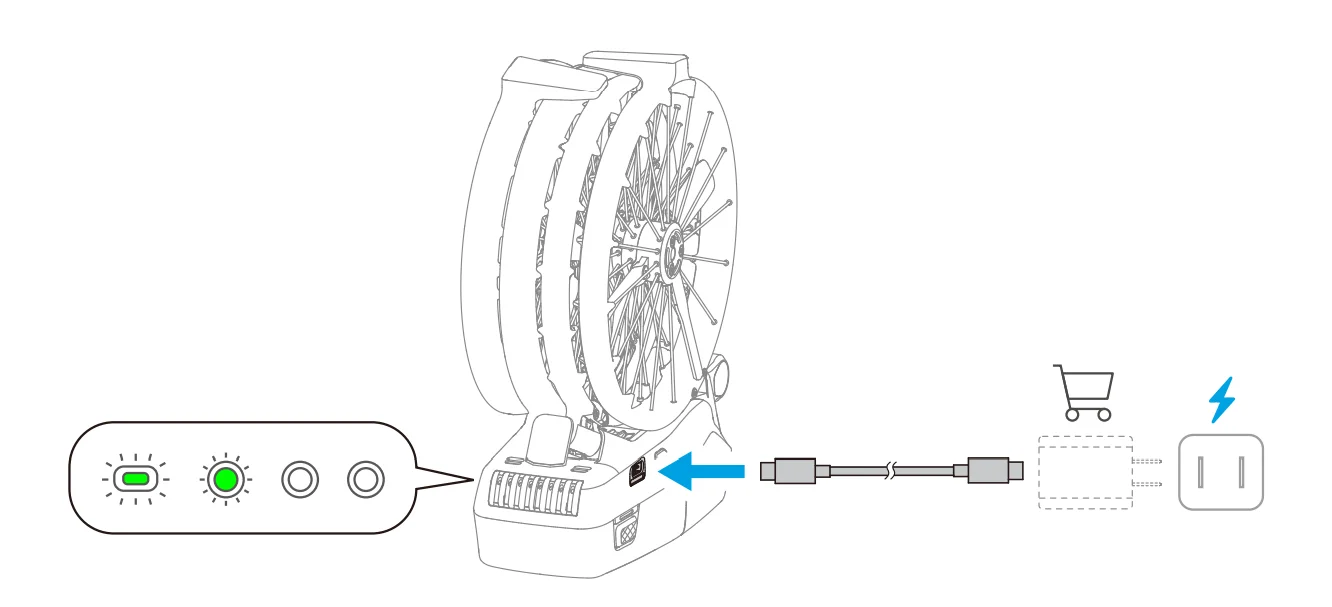
The disposable rubber cover cannot be reused. - Charge the battery until the battery level LEDs are on.

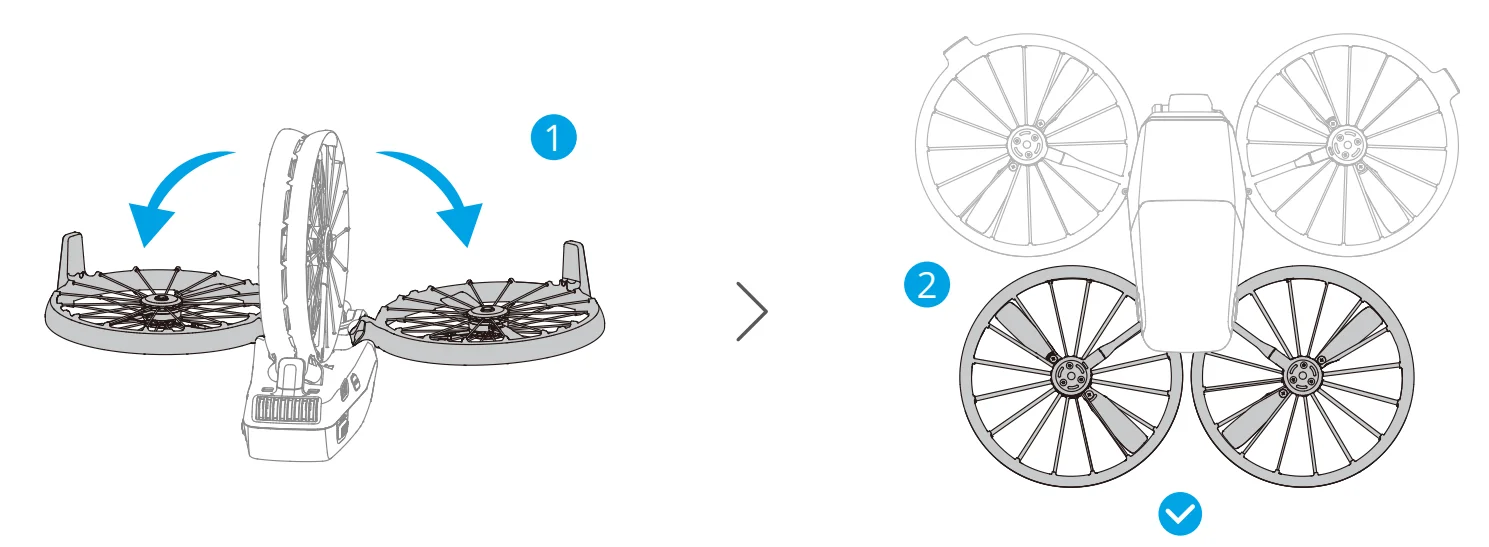
- Unfold the front arms and rear arms as shown.

- Automatic Power-On: Unfolding either one of the rear arms will power on the aircraft by default.
- Automatic Power-Off: Folding both rear arms will initiate an automatic countdown for power-off. During the countdown, pressing any button on the aircraft body can cancel the power-off.
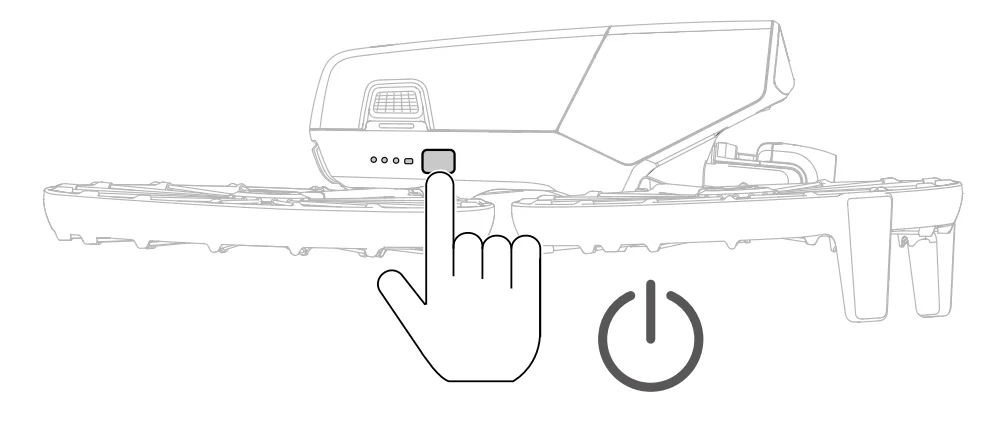
- Manual Power-On/Power-Off: Press, then press and hold the power button to power on or off the aircraft.

Hints and Tips
- The Unfold/Fold Arm for Auto on/off feature is enabled by default. You can disable the feature in DJI Fly when the aircraft is connected to a remote controller. Update the aircraft firmware and the DJI Fly app to the latest version. Otherwise, the feature may not be available.
- If the aircraft is currently accessing the album, downloading materials, or updating firmware, folding both rear arms will not power off the aircraft.
- If a collision occurs during the current flight, the automatic power-off feature will not function for this flight.
Warning
- Make sure the gimbal protector is removed and all arms are unfolded before powering on the aircraft. Otherwise, it may affect the aircraft’s self-diagnostics.
- It is recommended to attach the gimbal protector when the aircraft is not in use.
Preparing the Remote Controller
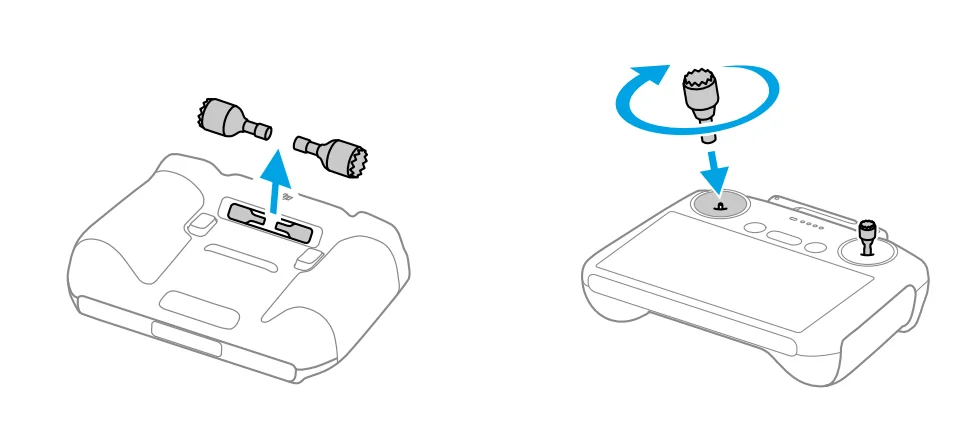
DJI RC 2
- Remove the control sticks from the storage slots and mount them on the remote controller.

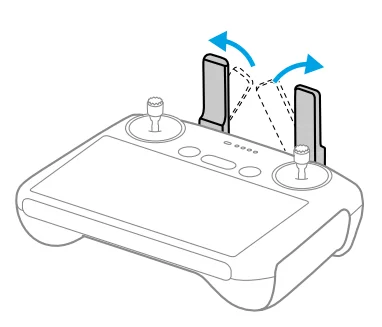
- Unfold the antennas.

- The remote controller needs to be activated before first use, and an internet connection is required for activation. Press, then press and hold the power button to power on the remote controller. Follow the on-screen prompts to activate the remote controller.
DJI RC-N3
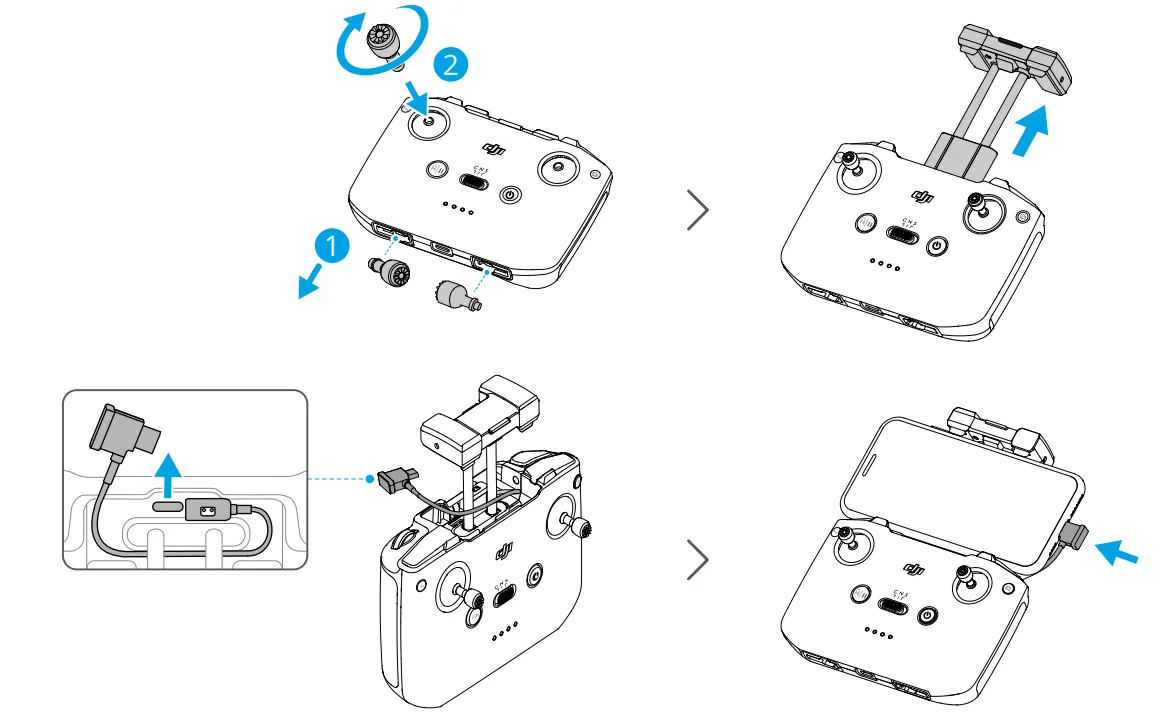
- Remove the control sticks from the storage slots and mount them on the remote controller.
- Pull out the mobile device holder. Choose the appropriate remote controller cable based on the port type of your mobile device (the cable with a USB-C connector is connected by default). Place your mobile device in the holder, then connect the end of the cable without the remote controller logo to your mobile device. Make sure your mobile device is securely in place.

Warning
- If a USB connection prompt appears when an Android mobile device is used, select the option to charge only. Other options may cause the connection to fail.
- Adjust the mobile device holder to make sure your mobile device is firmly secure.
Activation
The aircraft requires activation before first use. Press, then press and hold the power button to power on the aircraft and remote controller, respectively, and then follow the onscreen prompts to activate the aircraft using DJI Fly. An internet connection is required for activation.
Firmware Update
A prompt will appear in DJI Fly when a firmware update is available. Update the firmware whenever prompted to ensure the optimal user experience.
Overview
Aircraft
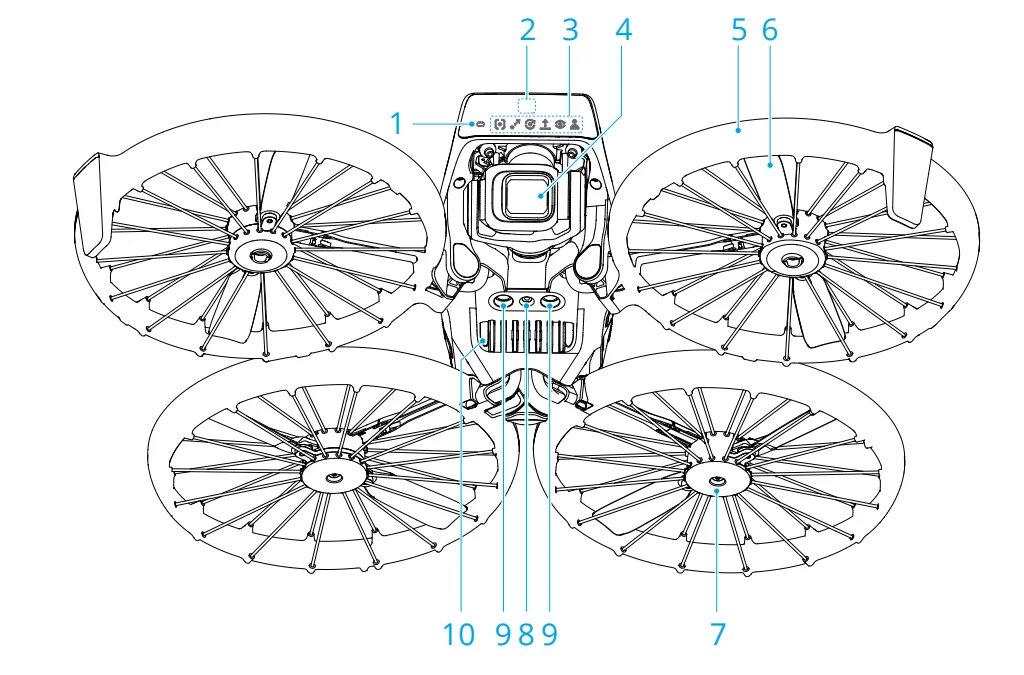
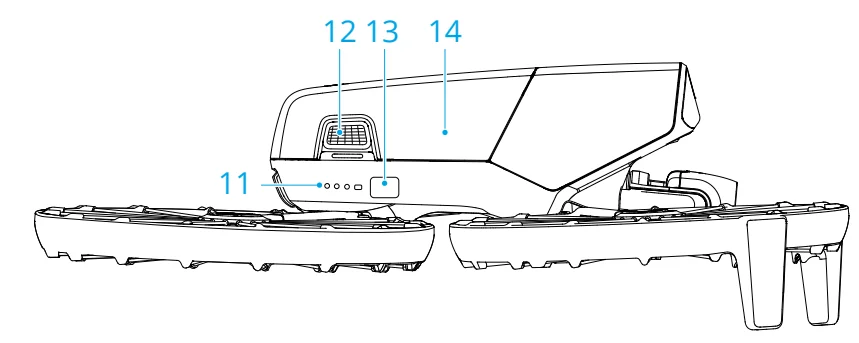
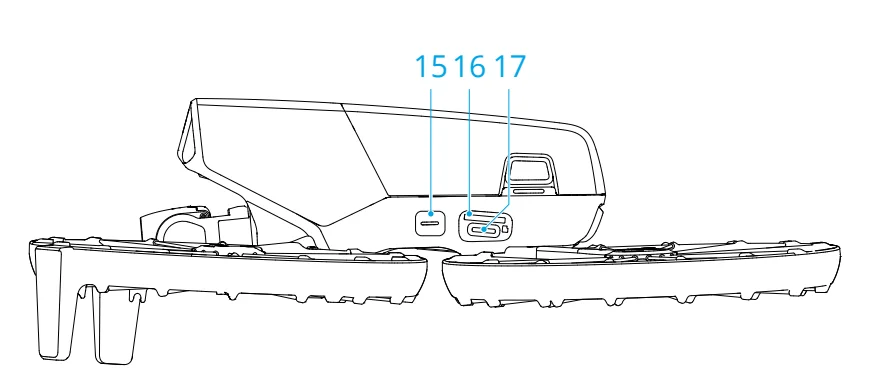
- Aircraft Status Indicator
- Forward Three-Dimensional Infrared Sensing System
- Mode Indicators
- Gimbal Camera
- Aircraft Arms
- Propellers
- Motors
- Downward Vision System
- Downward Infrared Sensing System
- Speaker
- Battery Level LEDs
- Battery Buckles
- Power Button
- Intelligent Flight Battery
- Mode Button
- microSD Card Slot
- USB-C Port
DJI RC 2 Remote Controller
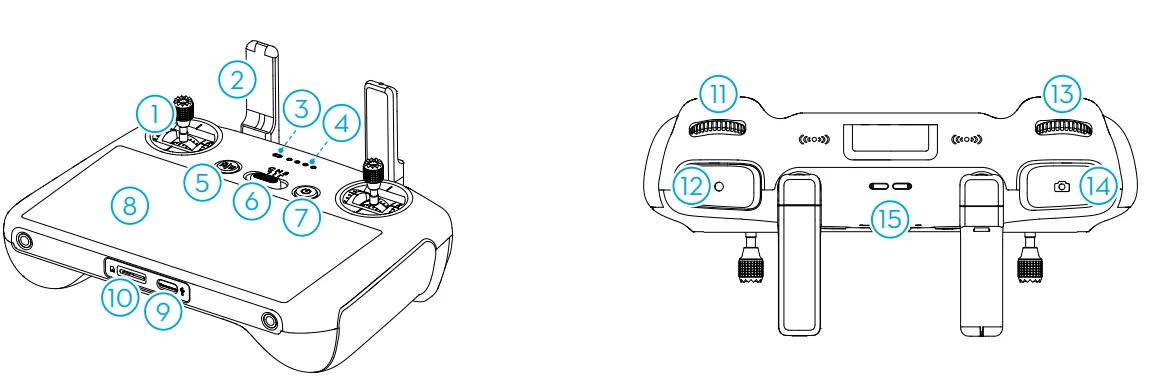
- Control Sticks
- Antennas
- Status LED
- Battery Level LEDs
- Flight Pause/Return to Home (RTH) Button
- Flight Mode Switch
- Power Button
- Touchscreen
- USB-C Port
- microSD Card Slot
- Gimbal Dial
- Record Button
- Camera Control Dial
- Focus/Shutter Button
- Speaker
- Control Stick Storage Slots
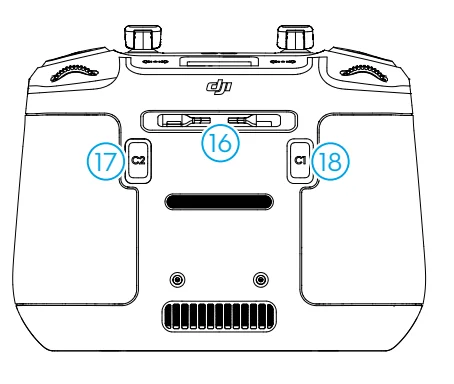
- Customizable C2 Button
- Customizable C1 Button
DJI RC-N3 Remote Controller
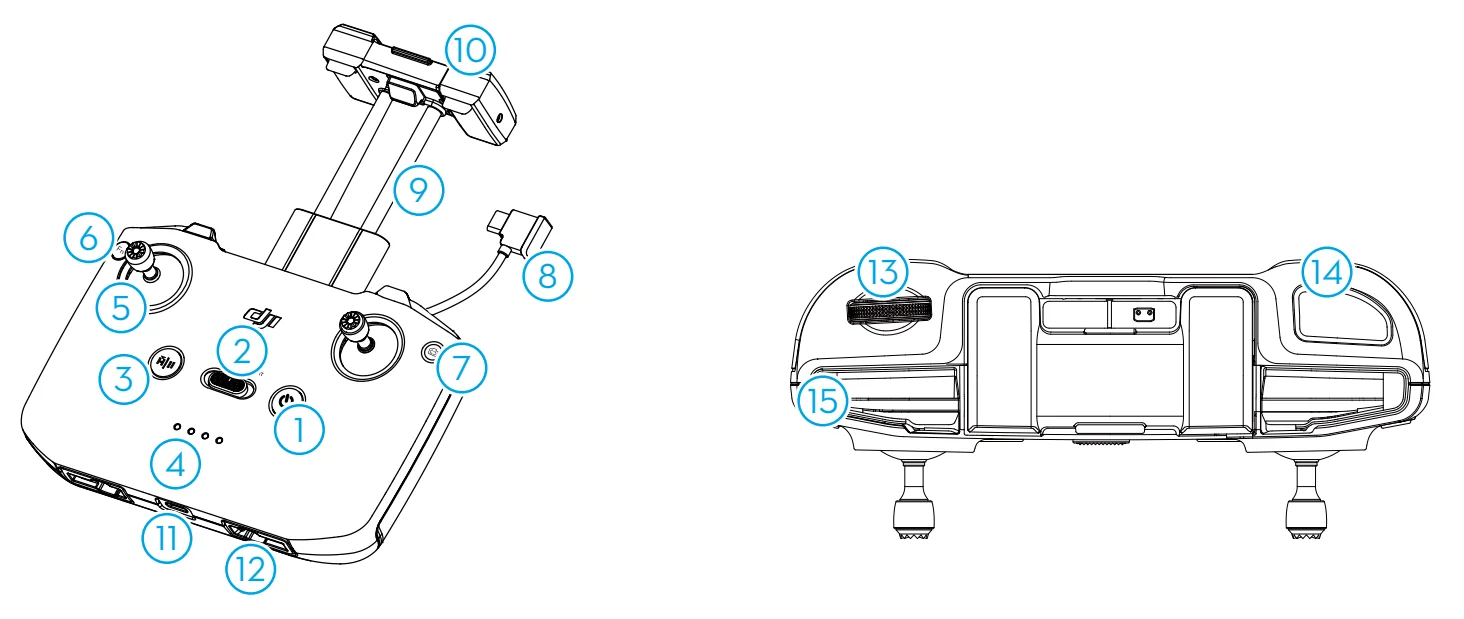
- Power Button
- Flight Mode Switch
- Flight Pause/Return to Home (RTH) Button
- Battery Level LEDs
- Control Sticks
- Customizable Button
- Photo/Video Button
- Remote Controller Cable
- Mobile Device Holder
- Antennas
- USB-C Port
- Control Stick Storage Slots
- Gimbal Dial
- Shutter/Record Button
- Mobile Device Slot
Flight Safety
After completing pre-flight preparations, it is recommended to train your flying skills and practice flying safely. Pick a suitable area to fly in according to the following flight requirements and restrictions. Strictly abide by local laws and regulations when flying. Read the Safety Guidelines before flight to ensure safe use of the product.
Flight Restrictions
GEO (Geospatial Environment Online) System
The DJI Geospatial Environment Online (GEO) System is a global information system that provides real-time information on flight safety and restriction updates and prevents UAVs from flying in restricted airspace. Under exceptional circumstances, restricted areas can be unlocked to allow flights. Prior to that, you must submit an unlocking request based on the current restriction level in the intended flight area. The GEO system may not fully align with local laws and regulations. You are responsible for your own flight safety and must consult with the local authorities on the relevant legal and regulatory requirements before requesting to unlock a restricted area. For more information about the GEO system, visit https://fly-safe.dji.com.
Flight Limits
For safety reasons, flight limits are enabled by default to help you operate the aircraft safely. You can set flight limits on height and distance. Altitude limits, distance limits, and GEO zones function concurrently to manage flight safety when the Global Navigation Satellite System (GNSS) is available. Only altitude can be limited when GNSS is unavailable.
Flight Altitude and Distance Limits
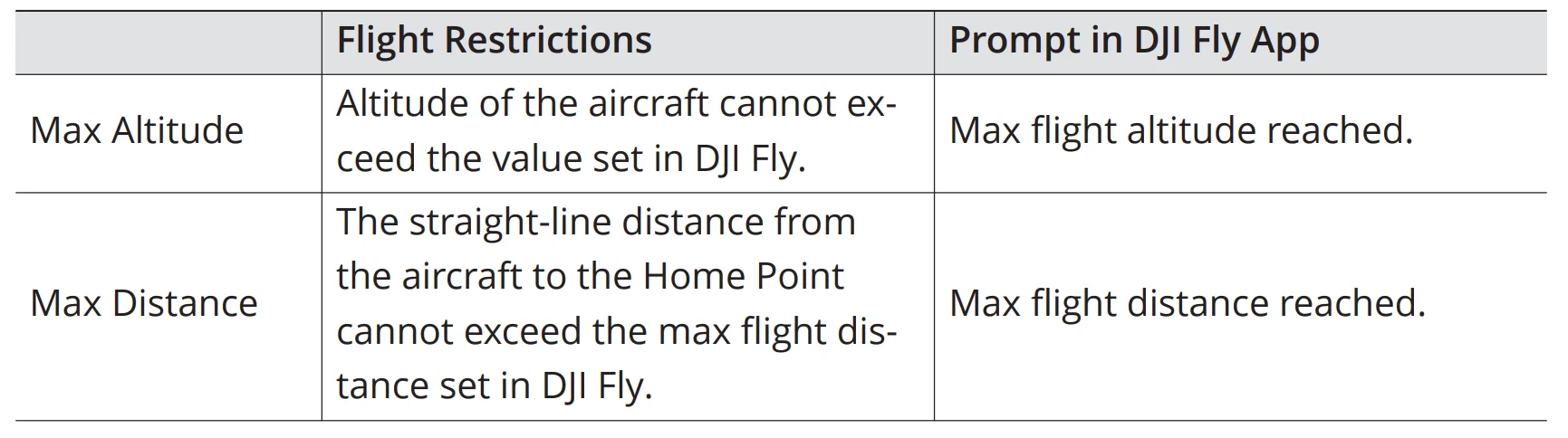
Max altitude restricts the flight altitude of the aircraft, while max distance restricts the flight radius around the Home Point of the aircraft. These limits can be changed in the DJI Fly app for improved flight safety.
Hints and Tips
- When using Palm Control and Mobile App Control, the max flight altitude is 30 m, and the max flight distance is 50 m. These limits can not be changed in the DJI Fly app. The following information is suitable for when using the aircraft and the remote control devices.
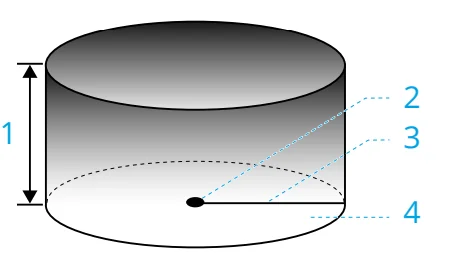
- Max Altitude
- Home Point (Horizontal Position)
- Max Distance
- Height of the aircraft when taking off
Strong GNSS Signal
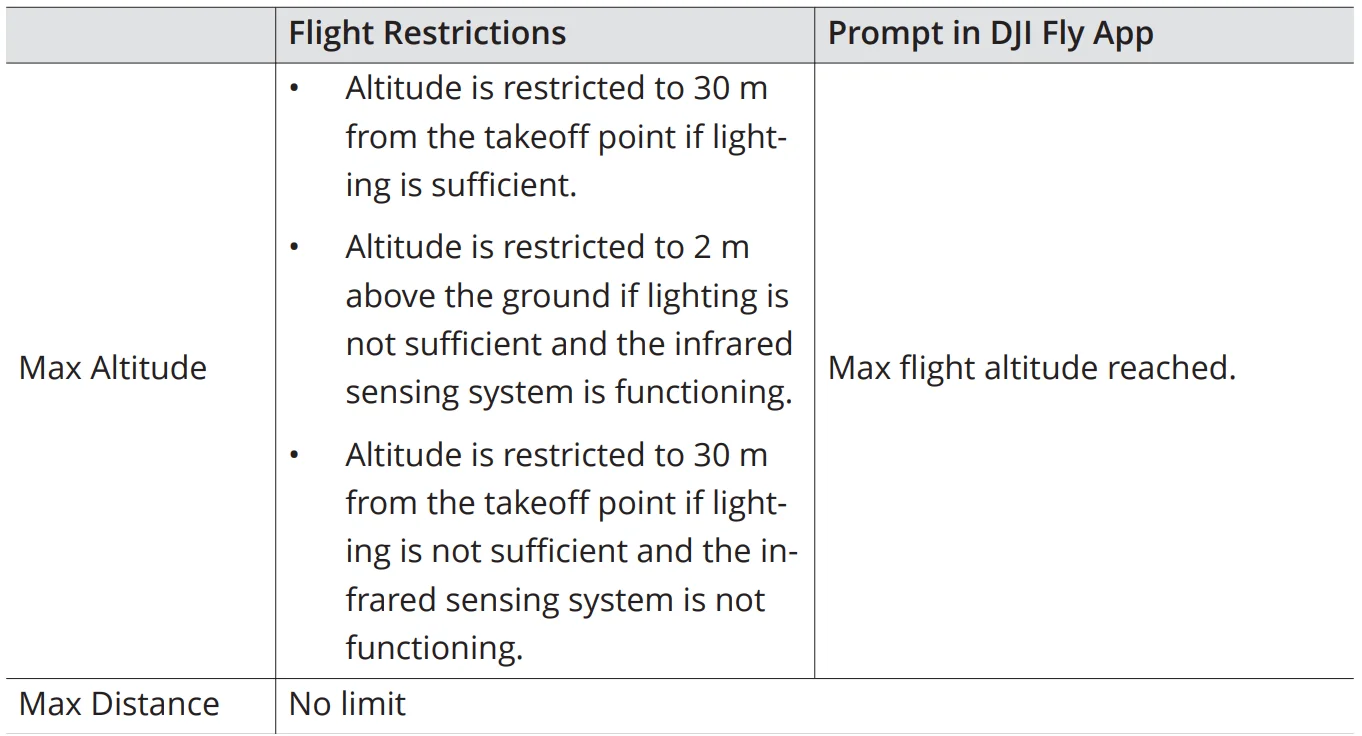
Weak GNSS Signal
Warning
- Each time the aircraft is powered on, the altitude limit of 2 m or 30 m will be automatically removed as long as the GNSS signal becomes strong (GNSS signal strength ≥ 2), and the limit will not take effect even if the GNSS signal becomes weak afterwards.
- If the aircraft flies out of the set flight range due to inertia, you can still control the aircraft,but cannot fly it any further away.
GEO Zones
The DJI GEO system designates safe flight locations, provides risk levels and safety notices for individual flights, and offers information on restricted airspace. All restricted flight areas are referred to as GEO Zones, which are further divided into Restricted Zones, Authorisation Zones, Warning Zones, Enhanced Warning Zones, and Altitude Zones. You can view such information in real-time in DJI Fly. GEO Zones are specific flight areas, including but not limited to airports, large event venues, locations where public emergencies have occurred (such as forest fires), nuclear power plants, prisons, government properties, and military facilities. By default, the GEO system limits takeoffs and flights in zones that may cause safety or security concerns. A GEO Zone map that contains comprehensive information on GEO Zones around the globe is available on the official DJI website: https://fly-safe.dji.com/nfz/nfz-query.
Unlocking GEO Zones
To satisfy the needs of different users, DJI provides two unlocking modes: Self-Unlocking and Custom Unlocking. You can request the DJI Fly Safe website. Self-Unlocking is intended for unlocking Authorisation Zones. To complete Self-Unlocking, you must submit an unlocking request via the DJI Fly Safe website at https://flysafe.dji.com. Once the unlocking request is approved, you can synchronise the unlocking license through the DJI Fly app. To unlock the zone, alternatively, you can launch or fly the aircraft directly into the approved Authorisation Zone and follow the prompts in DJI Fly to unlock the zone. Custom Unlocking is tailored for users with special requirements. It designates user-defined custom flight areas and provides flight permission documents specific to the needs of different users. This unlocking option is available in all countries and regions and can be requested via the DJI Fly Safe website at https://fly-safe.dji.com.
Warning:
- To ensure flight safety, the aircraft will not be able to fly out of the unlocked zone after entering it. If the Home Point is outside the unlocked zone, the aircraft will not be able to return home.
Flight Environment Requirements
- DO NOT fly in severe weather conditions such as strong winds, snow, rain, and fog.
- Only fly in open areas. Tall buildings and large metal structures may affect the accuracy of the onboard compass and GNSS system. Therefore, DO NOT take off from a balcony or anywhere within 15 m of buildings. Keep a distance of at least 15 m from buildings during flight. After takeoff, make sure you are notified with the DJI Flip User Manual prompt “Home Point is updated” before continuing the flight. If the aircraft has taken off near buildings, the accuracy of the Home Point cannot be guaranteed. In this case, pay close attention to the current position of the aircraft during auto RTH. When the aircraft is close to the Home Point, it is recommended to cancel auto RTH and manually control the aircraft to land at an appropriate location.
- Fly the aircraft within visual line of sight (VLOS). Avoid mountains and trees blocking GNSS signals. Avoid obstacles, crowds, trees, and bodies of water (recommended height is at least 6 m above water). For safety reasons, DO NOT fly the aircraft near airports, highways, railway stations, railway lines, city centers, or other sensitive areas, unless a permit or approval is obtained under local regulations.
- When the GNSS signal is weak, fly the aircraft in environments with good lighting and visibility. The vision system may not work properly in poor light conditions. Only fly the aircraft in the daytime.
- Minimize interference by avoiding areas with high levels of electromagnetism, such as locations near power lines, base stations, electrical substations, and broadcasting towers.
- The performance of the aircraft and its battery is limited when flying at high altitudes. Fly with caution. DO NOT fly above the specified altitude.
- The braking distance of the aircraft is affected by the flight altitude. The higher the altitude, the greater the braking distance. When flying at high altitudes, you should reserve adequate braking distance to ensure flight safety.
- GNSS cannot be used on the aircraft in polar regions. Use the vision system instead.
- DO NOT take off from moving objects such as cars, ships, and airplanes.
- DO NOT take off from solid-colored surfaces or surfaces with strong reflections, such as a car roof.
- DO NOT take off from or land on surfaces with sand, such as deserts or beaches. DO NOT take off or land on grass or surfaces with fallen leaves or other small, lightweight matter. This is to prevent sand, grass, leaves, and other foreign matter from entering aircraft parts and causing damage to the motors, gimbal, or propellers.
- DO NOT operate the aircraft in an environment at risk of a fire or explosion.
- Operate the aircraft, remote controller, battery, battery charger, and battery charging hub in a dry environment.
- DO NOT use the aircraft, remote controller, battery, battery charger, or battery charging hub near accidents, fire, explosions, floods, tsunamis, avalanches, landslides, earthquakes, dust, sandstorms, salt spray, or fungus.
- DO NOT operate the aircraft near bird flocks.
Flight Operation
DJI Flip supports multiple control methods for various scenarios to meet your needs. Make sure you are familiar with the notice and usage for each control method before flight.
Warning:
- DO NOT touch the DJI Flip mid-flight. Otherwise, the DJI Flip may drift, and a collision may occur.
- DO NOT fly the DJI Flip immediately after it has been in a collision, severely knocked, or shaken. DJI Flip may not be able to perform stable flight.
Flight Operation
DJI Flip supports multiple control methods for various scenarios to meet your needs. Make sure you are familiar with the notice and usage for each control method before flight.
Warning:
- DO NOT touch the DJI Flip mid-flight. Otherwise, the DJI Flip may drift, and a collision may occur.
- DO NOT fly the DJI Flip immediately after it has been in a collision or severely knocked, or shaken. DJI Flip may not be able to perform stable flight.
Palm Control
It is recommended to click the link below or scan the QR code to watch the tutorial video.
https://www.dji.com/flip/video
In Palm Control, palm takeoff and landing is supported. You can use the mode button on the DJI Flip to achieve multiple Smart Snaps. DJI Flip will fly while recording automatically after subject confirmation. Connect to the DJI Fly app using the Wi-Fi function to adjust the parameters for each mode. The default settings are used as an example.
Notice
Hints and Tips
- Power off the remote control devices connected to the aircraft before using Palm Control.
Warning
- Make sure that the flight environment meets the flight requirements and that you can control and retrieve the DJI Flip immediately when an issue occurs or in an emergency. In situations where DJI may not be able to analyze the cause of the incident, it may not be possible for DJI to provide warranty and other after-sales services.
- Before using Palm Control, make sure that the DJI Flip has previously connected to the DJI Fly on your smartphone via Wi-Fi. When using Palm Control without the app, if the DJI Flip malfunctions mid-flight, you can choose to connect it to DJI Fly via Wi-Fi and control it manually to avoid an accident.
- Make sure to fly in an open and unobstructed environment without signal interference.
- When using Palm Control, the max flight altitude of the DJI Flip is 30 m, and the max flight distance is 50 m.
- Return to Home (RTH) is not supported in Palm Control. Maintain visual line of sight (VLOS) within a controlled area.
- DO NOT fly over water.
- DJI Flip will land automatically in the following situations. Make sure to observe the operating environment to avoid the DJI Flip being lost or damaged due to the landing.
- Critical low battery.
- Positioning fails, and DJI Flip enters Attitude mode.
- DJI Flip detects a collision but does not crash.
- Observe the following rules when taking off from or landing on the palm of your hand:
- Operate the DJI Flip in a windless environment whenever possible.
- Hold the sides of the aircraft body from below when taking off. DO NOT place your fingers within the rotation range of the propellers. If taking off from the open palm of your hand, make sure to fully extend your fingers to avoid touching the propellers.
- DO NOT perform takeoff or landing when moving. Otherwise, the DJI Flip may drift, and a collision may occur. During landing, the DJI Flip may fail to stop the motors when your hand is moving.
- DO NOT throw the DJI Flip during takeoff.
- DO NOT grab the DJI Flip by hand.
- To land on your palm, place your hand right under the DJI Flip to prevent it from falling after landing.
- When landing, place your hand underneath the aircraft and wait for the aircraft to land. Make sure to fully extend your fingers to avoid touching the propellers. DO NOT attempt to grab the sides of the aircraft body during landing in the same manner as during takeoff.
- Take off in an environment with sufficient lighting and a richly textured surface. DO NOT fly to an environment that has a significant difference in lighting from the current location.
- If the DJI Flip fails to perform palm takeoff or landing, follow the voice prompt of the DJI Flip for troubleshooting or connect to the DJI Fly app for details. Voice prompt supports English or Mandarin according to the app language setting for the latest connection. Other languages are not supported.
Aircraft
Flight Mode
The aircraft supports the following flight modes, which can be switched via the Flight Mode switch on the remote controller.
- Normal Mode: Normal mode is suitable for most flight scenarios. The aircraft can hover precisely, fly stably, and use Intelligent Flight Modes.
- Sport Mode: The maximum horizontal flight speed of the aircraft will be higher when compared with Normal mode. Note that obstacle sensing is disabled in Sport mode.
- Cine Mode: Cine mode is based on Normal mode with a limited flight speed, making the aircraft more stable during recording.
The aircraft automatically changes to Attitude (ATTI) mode when the vision system is unavailable or disabled, and the GNSS signal is weak or the compass experiences interference. In ATTI mode, the aircraft may be more easily affected by its surroundings. Environmental factors such as wind can result in horizontal drift of the aircraft, which may present hazards, especially when flying in confined spaces. The aircraft will not be able to hover or brake automatically; the pilot should land the aircraft as soon as possible to avoid accidents.
Hints and Tips
- The flight modes are only effective for manual flight and cruise control.
Aircraft Status Indicators
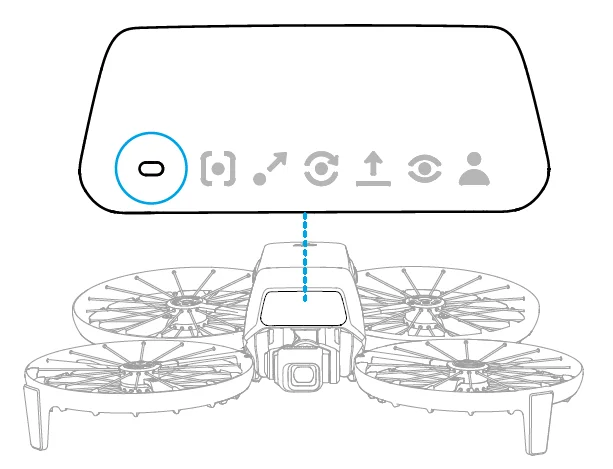
Aircraft Status Indicators Descriptions
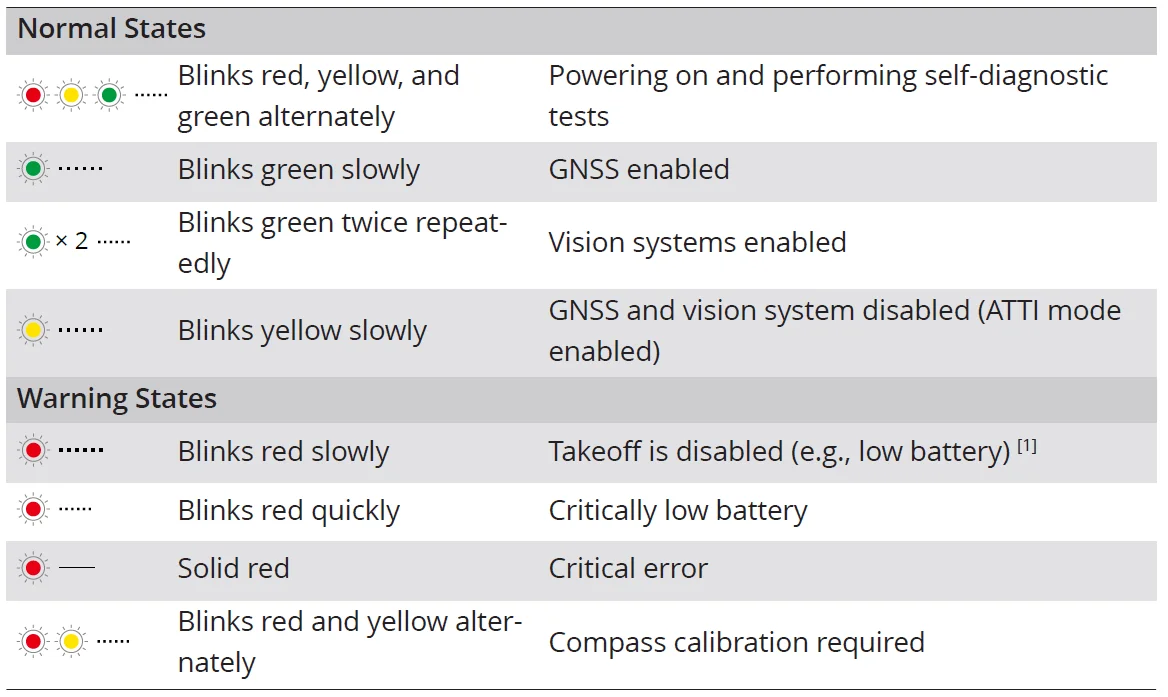
[1] If the aircraft cannot take off while the status indicators are blinking red slowly, view the warning prompt in DJI Fly.
Return to Home
Carefully read the contents of this section to ensure you are familiar with the behavior of the aircraft in Return-to-Home (RTH). The Return to Home (RTH) function will automatically fly the aircraft back to the last recorded Home Point. RTH can be triggered in three ways: the user actively triggers RTH, the aircraft has a low battery, or the remote controller signal has been lost (Failsafe RTH is triggered). If the aircraft has recorded the Home Point successfully and the positioning system is functioning normally, when the RTH function is triggered, the aircraft will automatically fly back and land at the Home Point.
During RTH, the AR RTH route will be displayed on the camera view, helping you to view the return path and ensure flight safety. The camera view also displays the AR Home Point. When the aircraft reaches the area above the Home Point, the gimbal camera will automatically flip downwards. The AR aircraft shadow will appear in the camera view when the aircraft is approaching the ground, enabling you to control the aircraft to land more accurately in your preferred location.
Maintenance Instructions
To avoid serious injury to children and animals, observe the following rules:
- Small parts, such as cables and straps, are dangerous if swallowed. Keep all parts out of reach of children and animals.
- Store the Intelligent Flight Battery and remote controller in a cool, dry place away from direct sunlight to ensure the built-in LiPo battery does NOT overheat. Recommended storage temperature: between 22° and 28° C (71° and 82° F) for storage periods of more than three months. Never store in environments outside the temperature range of -10° to 45° C (14° to 113° F).
- DO NOT allow the camera to come into contact with or become immersed in water or other liquids. If it gets wet, wipe dry with a soft, absorbent cloth. Turning on an aircraft that has fallen into water may cause permanent component damage. DO NOT use substances containing alcohol, benzene, thinners, or other flammable substances to clean or maintain the camera. DO NOT store the camera in humid or dusty areas.
- Check every aircraft part after any crash or serious impact. If there are any problems or questions, contact a DJI authorized dealer.
- Regularly check the Battery Level Indicators to see the current battery level and overall battery life. The battery is rated for 200 cycles. It is not recommended to continue using it afterward.
- Make sure to transport the aircraft with the arms folded when powered off.
- Make sure to transport the remote controller with antennas folded when powered off.
- The battery will enter sleep mode during long-term storage. Charge the battery to exit from sleep mode.
- Store the aircraft, remote controller, battery, and charger in a dry environment.
- Remove the battery before servicing the aircraft (e.g., cleaning or attaching and detaching the propellers). Make sure that the aircraft and the propellers are clean by removing any dirt or dust with a soft cloth. Do not clean the aircraft with a wet cloth or use a cleanser that contains alcohol. Liquids can penetrate the aircraft housing, which can cause a short circuit and destroy the electronics.
Troubleshooting Procedures
- How to solve the gimbal drift issue during flight?
Calibrate the IMU and the compass in DJI Fly. If the problem persists, contact DJI Support. - No function
Check if the Intelligent Flight battery and the remote controller are activated by charging. If the problems persist, contact DJI Support. - Power-on and start-up problems
Check if the battery has power. If yes, contact DJI Support if it cannot be started normally. - Firmware update issues
Follow the instructions in the user manual to update the firmware. If the firmware update fails, restart all the devices and try again. If the problem persists, contact DJI Support. - Procedures to reset to factory default
Use the DJI Fly app to reset to factory default settings. - Shutdown and power-off problems
Contact DJI Support. - How to detect careless handling or storage in unsafe conditions
Contact DJI Support.
Risks and Warnings
When the aircraft detects a risk after powering on, there will be a warning prompt on DJI Fly. Pay attention to the list of situations below.
- If the location is not suitable for takeoff.
- If an obstacle is detected during flight.
- If the location is not suitable for landing.
- If the compass and IMU experience interference and need to be calibrated.
- Follow the on-screen instructions when prompted.
For more manuals by DJI, visit ManualsLibraryy
DJI Flip Drone Camera-FAQs
How do I move or tilt the camera on the DJI Flip?
You can control the gimbal tilt using the dial on the remote controller. Turn the dial left to tilt the camera downward and right to tilt it upward. You can also adjust angles directly from the app screen.
How do I activate the DJI Flip drone?
Download the DJI Fly app, power on the drone and controller, and follow the on-screen activation steps. You’ll need to log in or create a DJI account to complete activation.
Can the DJI Flip take photos and record videos?
Yes, the DJI Flip supports high-resolution photos (12MP or 48MP) and 4K video recording. You can switch between photo and video modes using the shutter button or app controls.
Does the DJI Flip support zoom?
Yes, digital zoom is available in photo mode (depending on resolution settings). Zoom options may vary by shooting mode.
Is the DJI Flip good for photography?
Yes, it offers RAW and JPEG photo formats, Log video support, and a quad-bayer sensor for detailed shots, making it suitable for casual and creative photography.
Can the DJI Flip follow me automatically?
Yes, it features AI subject tracking (FocusTrack/ActiveTrack) that can follow people. However, tracking vehicles or fast-moving objects may be limited.
Can I control the DJI Flip with my phone?
Yes, you can control it through the DJI Fly app. It also supports palm takeoff for quick launches without a traditional remote.
Can the DJI Flip fly at night?
Yes, but sufficient lighting and strong GNSS signal are required. In very low-light environments, it may switch to ATTI mode for safety.
Is the DJI Flip waterproof or safe in rain?
No, DJI consumer drones are not waterproof. Avoid flying in rain, snow, or heavy moisture to prevent damage.