
DJI Matrice 30 Drone
Product Profile
Introduction
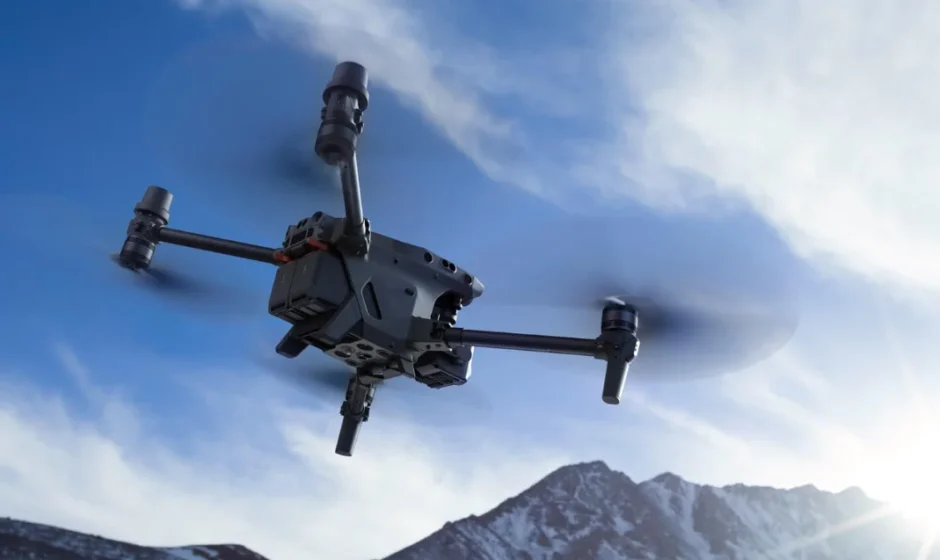
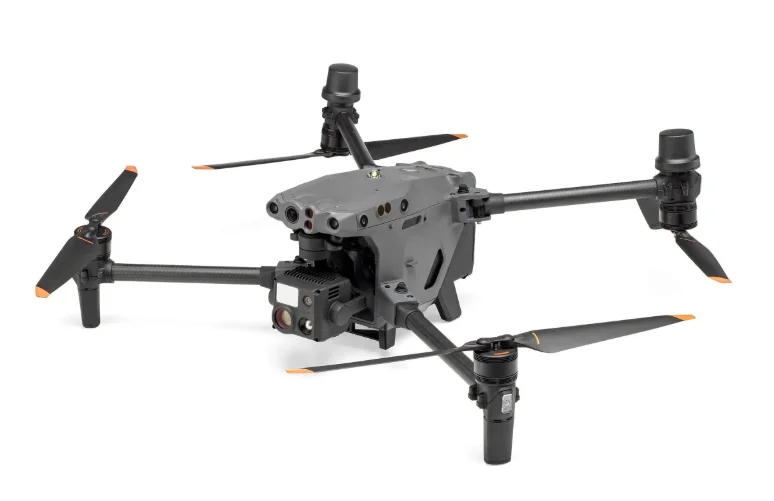
The DJI™ MATRICE™ 30 Series (M30/M30T) is a powerful industrial drone platform with a multi- redundancy fight controller system, 6-directional sensing and positioning system, precise three-axis gimbal, high-performance multi-camera load, and a new FPV camera with night vision. The DJI Pilot 2 app can be used to observe the real-time view from the cameras and take photos and videos. The aircraft boasts a flight time of up to 41 minutes thanks to the advanced power management system, along with the dual batteries that ensure power supply and enhance flight safety. Its airframe design gives it an IP55 rating, in accordance with the global IEC 60529 standard, which effectively guarantees flight in all weather. The mechanical design, along with mounted folding arms and propelers, makes it easy to transport and store. The arms can be locked directly after unfolding, which can reduce the time needed to prepare for a fight. The aircraft is also equipped with a PSDK port so users can broaden its applications. The built-in DJI AirSense system detects nearby aircraft in the surrounding airspace, providing alerts in the DJI Pilot 2 app to ensure safety. Safety during takeoff, fight, and landing are improved with the safety beacons that help to identify the aircraft during flight and the auxiliary lights allow the vision positioning system to achieve an even greater performance at night or when there is low light. The built-in RTK provides more accurate navigational data for positioning to meet accurate operation requirements and ensure safety. The DJI RC Plus remote controller features O3 Enterprise, the latest version of DJI’s signature OCUSYNG™ video transmission technology, and can transmit a live HD view from the camera of an aircraft to display on the touchscreen. The remote controller comes with a wide range of functional buttons as well as customizable buttons, which can easily control the aircraft and operate the camera. The remote controller has a protection rating of P54 (IEC 60529). The built-in 7.02-inch high brightness 1200 cd/m? screen boasts a resolution of 1920×1200 pixels. The Android operating system comes with a variety of functions such as GNSS, Wi-Fi, and Bluetooth. The remote controller supports 65W fast charging and has a maximum operating time of 3 hours 18 minutes ™ with the internal battery and up to 6 hours when used with an external WBS. intelligent battery.
Feature Highlights
- PinPoints: A PinPoint can be added for a target to select a point of interest in the gimbal camera view. Besides generating its longitude and latitude, a PinPoint can be used to search and mark points of interest, such as emergency rescues, security operations, and surveillance.
- Live Annotations: Users can add PinPoints, lines, and areas in the map view of the remote controller and DJI FlightHub 2. Share annotation data to the companion controller in the Dual Control mode and other devices logged in to DJI FlightHub 2. Data is shared in real time, which facilitates operations across the air and ground.
- AR Projection: DJI Pilot 2 supports the projection of Home Point, PinPoint, and Waypoint locations in the FPV camera view or the gimbal camera view, providing users with clear flight targets and better situation awareness.
- Cloud Mapping: When the remote controller is logged in to DJI FlightHub 2, the aircraft can perform a cloud mapping task, which enables viewing of and generates a map on DJI FlightHub 2 simultaneously.”
* For more details, refer to the DJI FlightHub 2 User Guide, which is available to download from the official DJI website https://www.dji.com/flighthub-2/downloads.
Flight Safety
Make sure to have training and practice before operating any actual flight. Practice with the simulator in DJI Assistant 2 or fly under the guidance of experienced professionals. Pick a suitable area to fly in, according to the following flight requirements and restrictions. Fly the aircraft below 120 m (400 fy. Any flight altitude higher than that may violate local laws and regulations. Make sure you understand and comply with the local laws and regulations before flying. Read the Disclaimer and Safety Guidelines carefully to understand all safety precautions before flying.
Flight Environment Requirements
- DO NOT fly the aircraft in severe weather conditions. These include strong winds exceeding speeds of 15 m/s, snow, rain, fog, hail, lightning, tornadoes, hurricanes, and other weather with low visibility.
- Place the aircraft on open and unobstructed flat ground to take off. Make sure the aircraft is at a safe distance from any surrounding obstacles, buildings, crowds, or trees. Fly the aircraft within the visual line of sight (VLOS) to ensure flight safety.
- It light conditions surrounding the aircraft are poor, the navigation information on DJ! Pilot 2 will show that the vision system or infrared sensing system is not functioning. This means the vision system and the infrared sensing system may not be working properly, and the aircraft is unable to sense obstacles. Observe the surrounding environment at all times through the live FPV camera view and maintain control of the aircraft to ensure flight safety.
- Make sure the beacons and the auxiliary lights are enabled at night for fight safety.
- DO NOT take off from a moving vehicle.
- To avoid affecting the motor service life, DO NOT take off or land the aircraft on sandy or dusty areas.
Vision System and Infrared Sensing System
Introduction
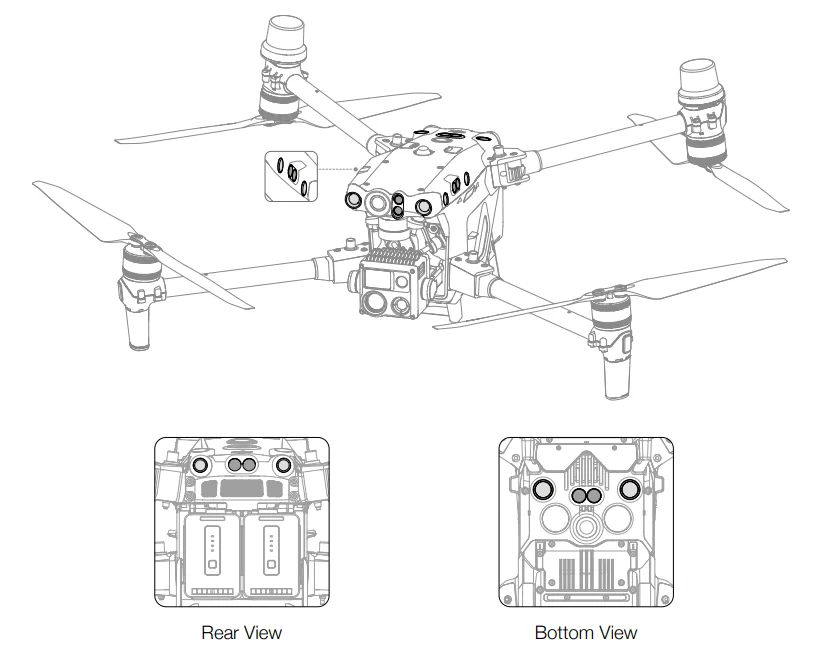
The main components of the vision system (cameras with stereo vision sensors) are located on the front, rear, left, right, top, and bottom of the aircraft. The infrared sensing system has two infrared sensors on
each side of the aircraft (front, rear, left, right, top, and bottom). The vision system constantly scans for obstacles and uses image data to calculate the aircraft’s position, and the infrared sensing system uses infrared sensors to detect obstacles and determine the flight altitude. Both systems work together to position the aircraft and sense obstacles during flight.
Warning: To ensure a safe and steady flight, DO NOT block the vision and infrared sensors.
Detection Range
Detection Range of the Vision System
The detection range of the vision system is depicted below. Note that aircraft cannot sense obstacles that are out of the detection range. Fly with caution.
Warning: The gray area is the blind spot of the vision system, where the aircraft cannot detect objects. Fly with caution.
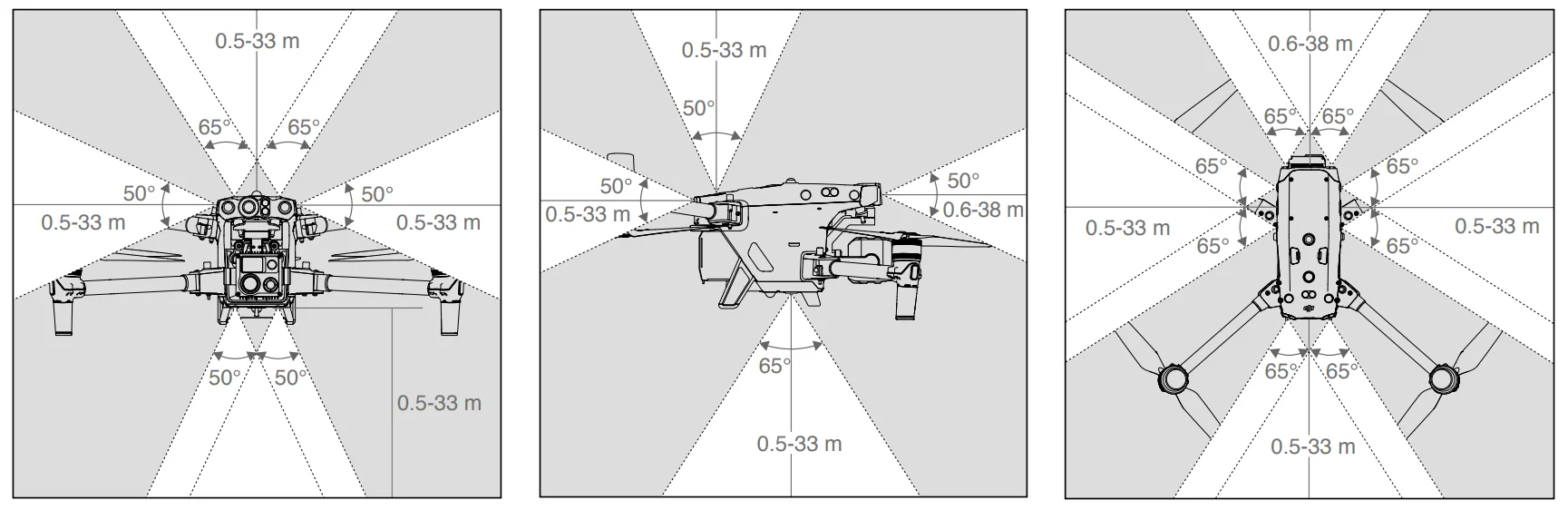
Hint & TIPS: Users can set the braking and warning distances in DJI Pilot 2. The aircraft brakes automatically when approaching the braking distance. When the aircraft is in the warning distance, DJI Pilot 2 will display an orange alert in the obstacle information. When the aircraft is close to the braking distance, a red alert will appear in the obstacle information.
Detection Range of the Infrared Sensing System
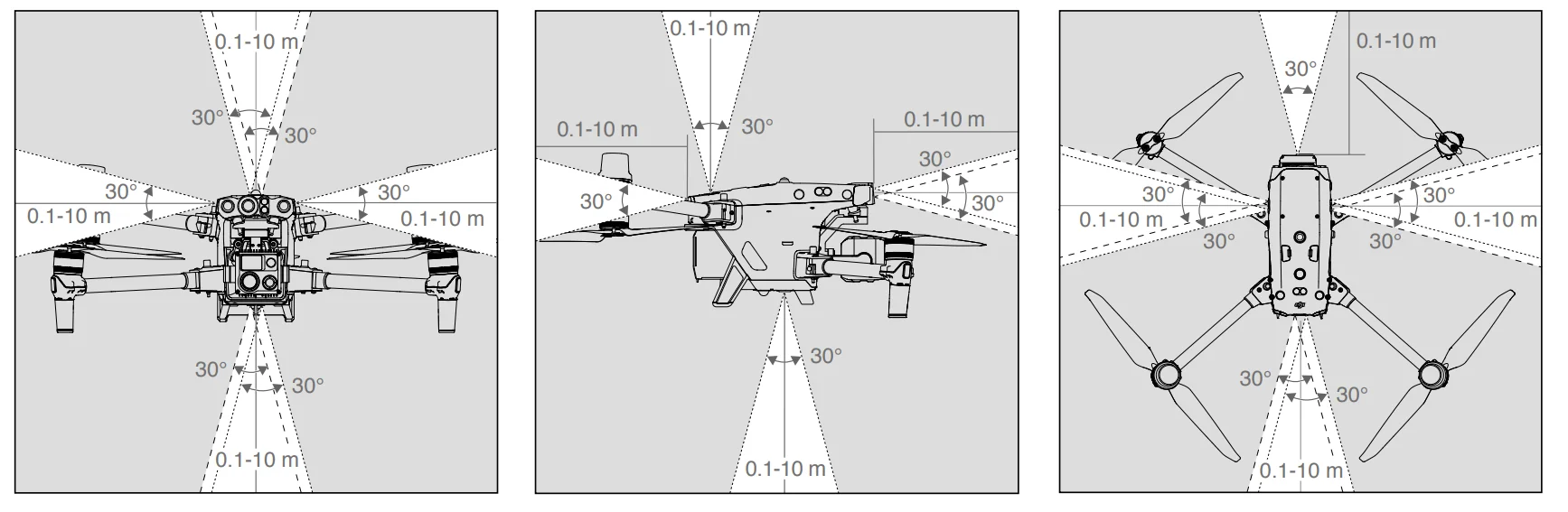
The detection range of the infrared sensors is 0.1 to 10 m (0.33 to 33 ft). Be aware of the blind spot (marked grey) of the infrared sensing system. The Aircraft cannot detect and avoid obstacles that are out of the detection range.
Calibrating the Vision System
The vision systems installed on the aircraft is factory calibrated. If the aircraft experiences a collision or a significant change in the operating temperature, calibration may be required. DJI Pilot 2 will display a prompt when calibration is required. Follow these steps to calibrate the vision system when prompted:
- Power on the aircraft.
- Connect the assistant port of the aircraft to the computer.
- Launch DJI Assistant 2 (Enterprise Series) and log in using a DJI account.
- Select the M30 Series, then click the calibration button.
- Position the aircraft with the vision system facing the dotted pattern displayed on the computer screen, and follow the on-screen instructions to calibrate the vision sensors on each side.
Aircraft
The M30 Series aircraft mainly consists of the flight control system, communication system, vision system, image processing system, propulsion system, and power and battery system. This chapter provides a detailed introduction to the aircraft components and functions.
Activating the Aircraft
After the aircraft is linked to the remote controller (make sure the remote controller is connected to the internet), the DJI Pilot 2 app will display the prompt: “There’s a DJI device not activated”. Follow the on-screen instructions to activate the aircraft. Contact DJI Support if the activation fails. Refer to the Link the Remote Controller section for detais.
Aircraft Overview
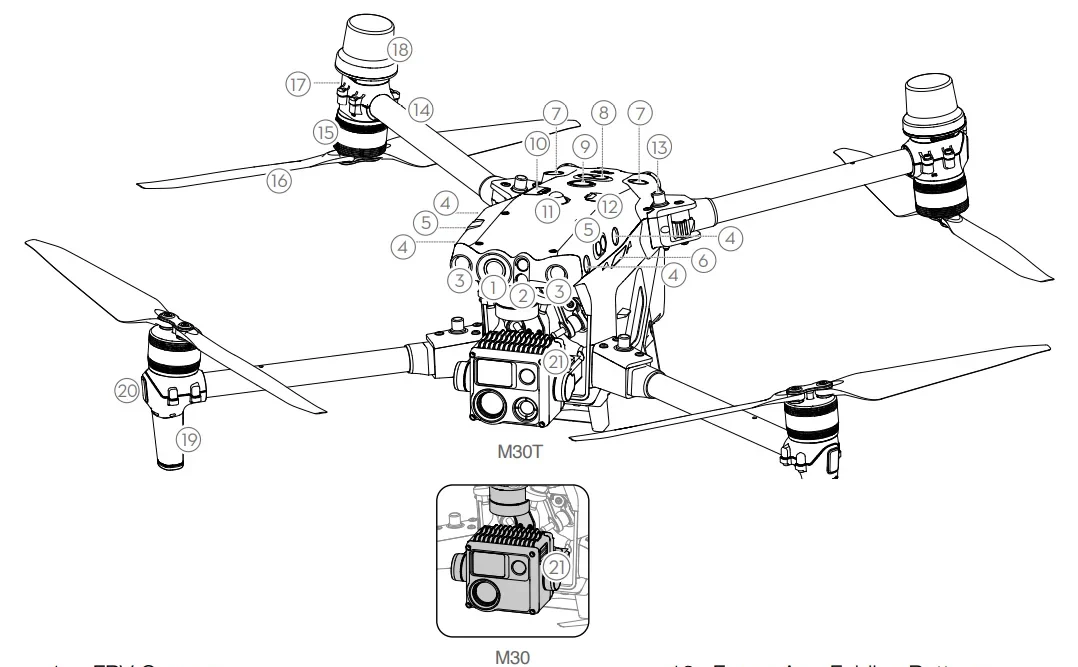
- FPV Camera
- Forward Infrared Sensing System
- Forward Vision System
- Left and Right Vision Systems
- Left and Right Infrared Sensing Systems
- microSD Card Slot
- Upward Vision System
- Upward Infrared Sensing System
- Power Button/Indicator
- PSDK Port
- Upward Beacon
- Assistant Port
- Frame Arm Folding Buttons
- Frame Arms
- Motors
- Propellers
- Aircraft Rear Indicators
- GNSS Antennas
- Video Transmission Antennas
- Aircraft Front Indicators
- Gimbal and Camera”!

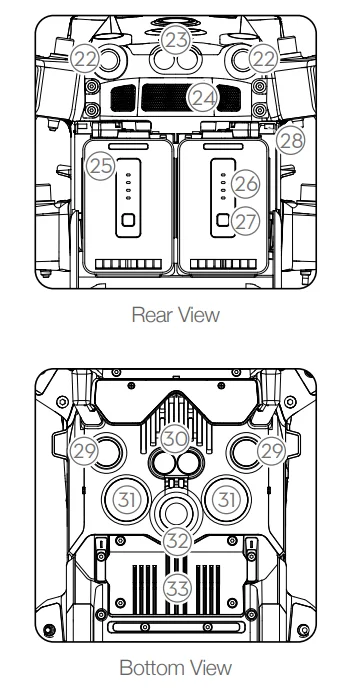
- Backward Vision System
- Backward Infrared Sensing System
- Air Vent
- TB30 Intelligent Flight Battery
- Battery Level LEDs
- Battery Level Button
- Battery Release Toggle
- Downward Vision System
- Downward Infrared Sensing System
- Bottom Auxiliary Light
- Downward Beacon
- Dongle Compartment
Warning: DO NOT disassemble the product without the assistance of a DJI authorized dealer (except for components allowed to be disassembled by users in this guide), otherwise it will not be covered under warranty.
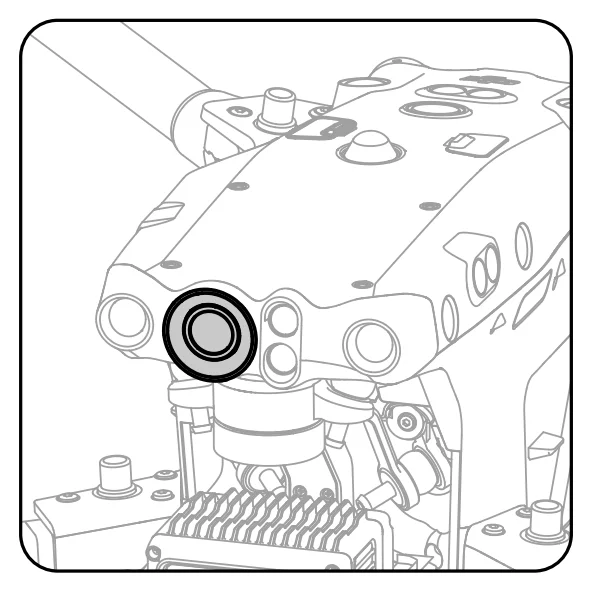
FPV Camera
The M30 Series aircraft is equipped with a starlight FPV camera, which can optimize images in poor lighting conditions at night. It helps the pilot to have better visibility of the flight environment and fly safely.
Propellers
Using the Propellers
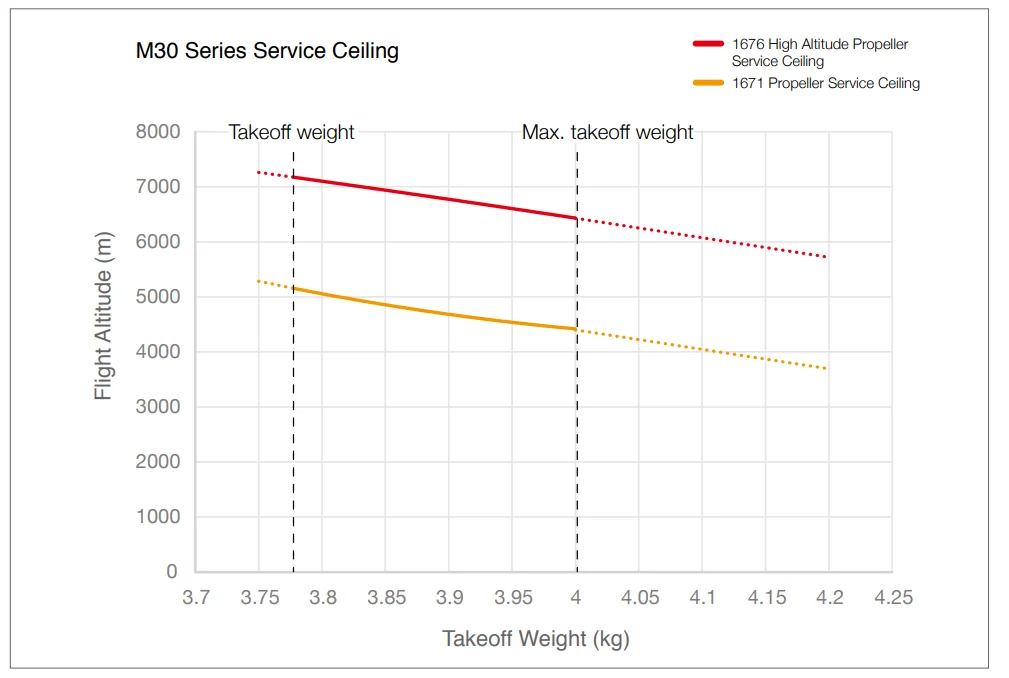
The M30 Series aircraft supports both the 1671 Propeller and the 1676 High Altitude Propeller (excluded). Refer to the diagram below to choose the appropriate propellers according to the aircraft’s takeoff weight
and the expected maximum flight altitude. The service ceiling is the theoretical maximum altitude that the aircraft can fly at normally, on the condition that the wind speed does not exceed 15 m/s when flying and 12 m/s when taking off or landing. The aircraft’s braking and acceleration capabilities will be reduced when flying near the service ceiling. Use the 1676 High Altitude Propeller when flying at altitudes higher than 3,000 m (9,842.5 ft) above sea level.
Warning:
- Using high-altitude propellers for extended periods may reduce motor life.
- Only use official DJI propellers. DO NOT mix propeller types.
- Propellers are consumable components. Purchase additional propellers if necessary.
- Make sure that the propellers and motors are installed securely before each flight.
- Make sure that all propellers are in good condition before each flight. DO NOT use aged, chipped, or broken propellers.
- To avoid injury, stay away from rotating propellers or motors.
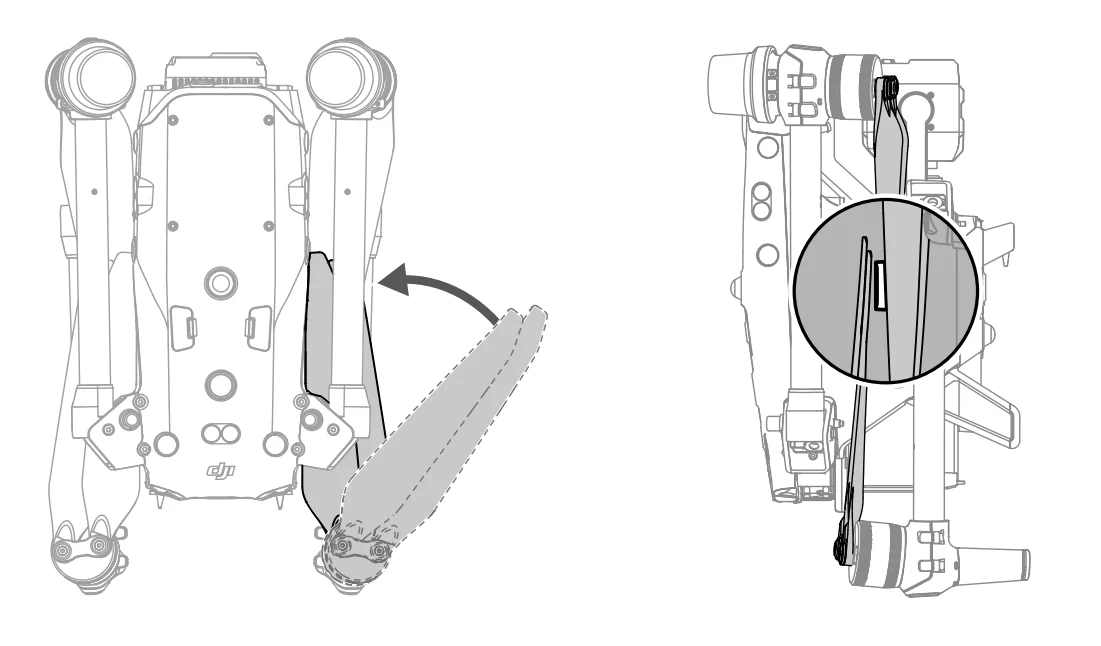
Storing the Propellers
Follow the diagram to fold and store the propellers.
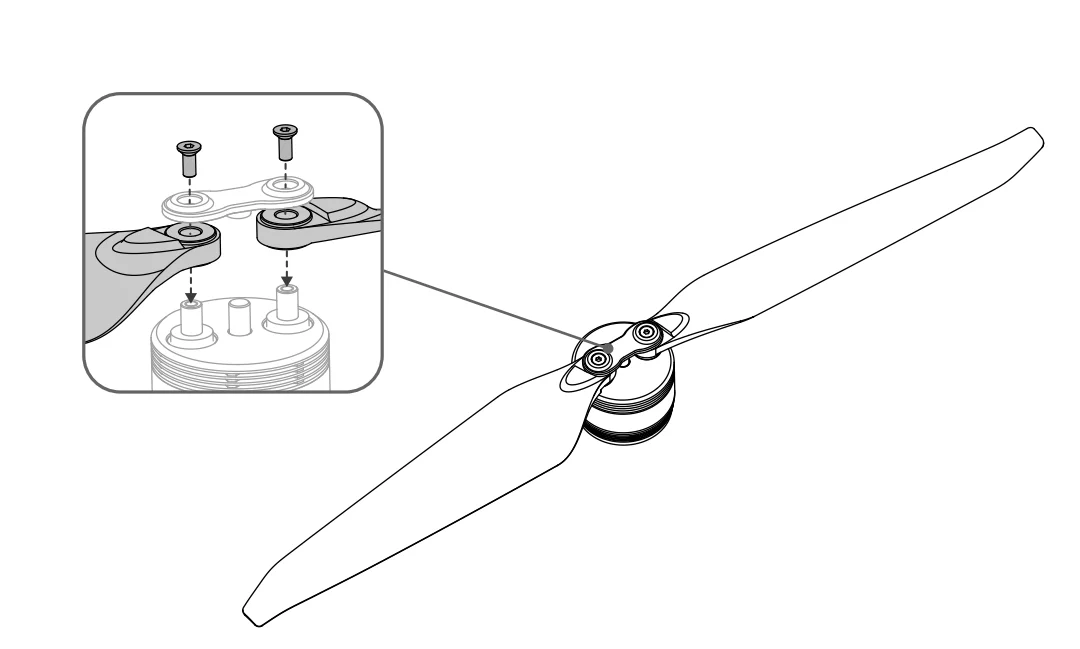
Replacing the Propellers
Use the H2.0 hex key to replace the propellers. It is recommended to replace the propellers only in an emergency situation during operations. After the flight is over, contact DJI Support or an authorized dealer for propeller check and maintenance as soon as possible.
Warning: The propeller blades are sharp. Handle with care.
Remote Controller
Starting and Activating the Remote Controller
Powering On/Off
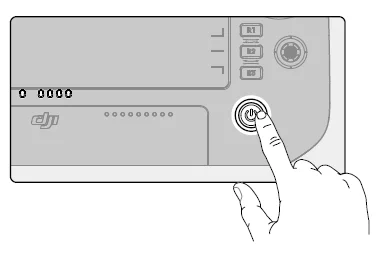
Press once and then press again and hold for two seconds to power the remote controller on or off.
Activating the Remote Controller
The remote controller needs to be activated before its first use. Make sure the remote controller has access to the internet during activation. Follow the steps below to activate the remote controller:
- Power on the remote controller. Select a language option and tap Next. Read the Terms of Use and Privacy Policy carefully and tap Agree, then select your country/region.
- Connect to a Wi-Fi network to access the internet. Then set the time zone, date, and time.
- If you have a DJI account, log in with your password. If you are a new user, create a DJI account and log in.
- After logging in, tap Activate on the activation interface.
- A prompt will appear on the screen, indicating that the remote controller is activated.
- After activating the remote controller, choose if you would like to join the DJI Product Improvement Project. Join this project to help DJI better understand your needs.
Warning: Check the internet connection if the activation fails. Make sure internet access is available and try activating the remote controller again. Contact DJI Support if the activation fails multiple times.
Remote Controller Overview
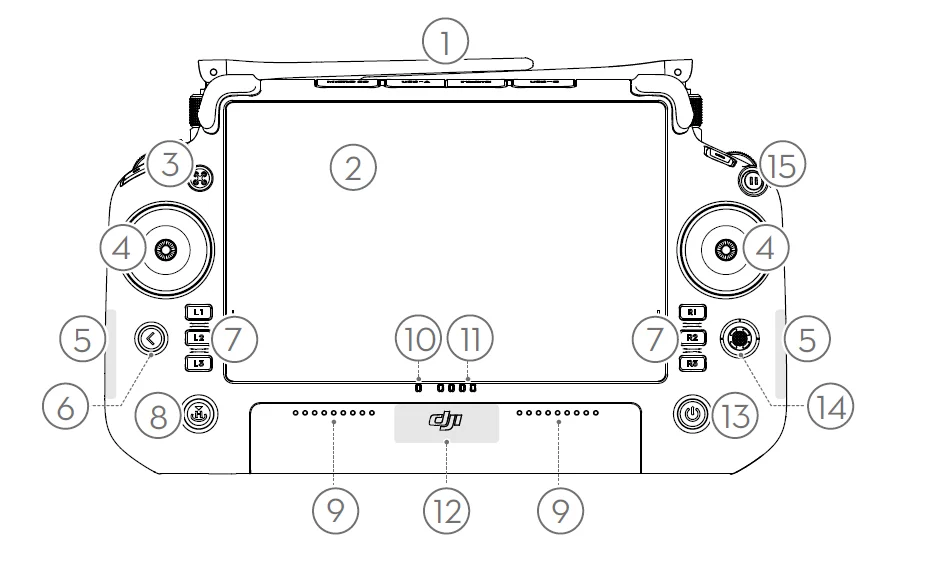
- External RC Antennas
Transmit control and video wireless signals between the remote controller and the air receiver. - Touchscreen
Displays system and app views and supports up to 10 touch points. Make sure the touchscreen is clean and completely dry before use. Otherwise, viewing and touch effects may be affected. - Aircraft Authority Button
When flying with an M30 series aircraft, the aircraft authority button is used to take control of the aircraft and indicate the aircraft’s control status. Refer to the Guide on the home screen for - Control Sticks
Flight control mode can be set in DJ! Piot 2. - Internal Wi-Fi Antennas
DO NOT block the internal Wi-Fi antennas during usage. Otherwise, the signal may be affected. - Back/Function Button
Press once 1o return to the previous screen. Press twice to return to the home screen. Use the back button and another button to activate combination buttons. Refer to the Combination Buttons section for more information. - LIN2A3/R1/R2/R3 Buttons
Go to camera view in DJI Pilot 2 10 view the specific functions of these buttons. - Return to Home (RTH) Button
Press and hold to initiate RTH. Press again to cancel RTH. - Microphone
DO NOT block the microphones during usage. - Status LED
Indicates the status of the remote controller. View detailed descriptions of the Status LED in the Remote Controller LEDs and Alert section or in the Guide on the home screen of the remote controller. - Battery Level LEDs
Display the current battery level of the remote controller. View detailed descriptions of the Battery Level LEDs in the Remote Controller LEDs and Alert section. - Internal GNSS Antennas
DO NOT block internal GNSS antennas during usage. Otherwise, the signal and the positioning accuracy may be affected. - Power Button
Press once to check the current battery level. Press once, then press again and hold for two seconds to power the remote controller on or off. When the remote controller is powered on, press once to tum the touchscreen on or off. - 5D Button
View the default 5D button functions in DJ Pilot 2. Refer to the Guide on the home screen for more information.
- Flight Pause Button
Press once to have the aircraft brake and hover in place (only when GNSS or vision systems are available). - C3 Button
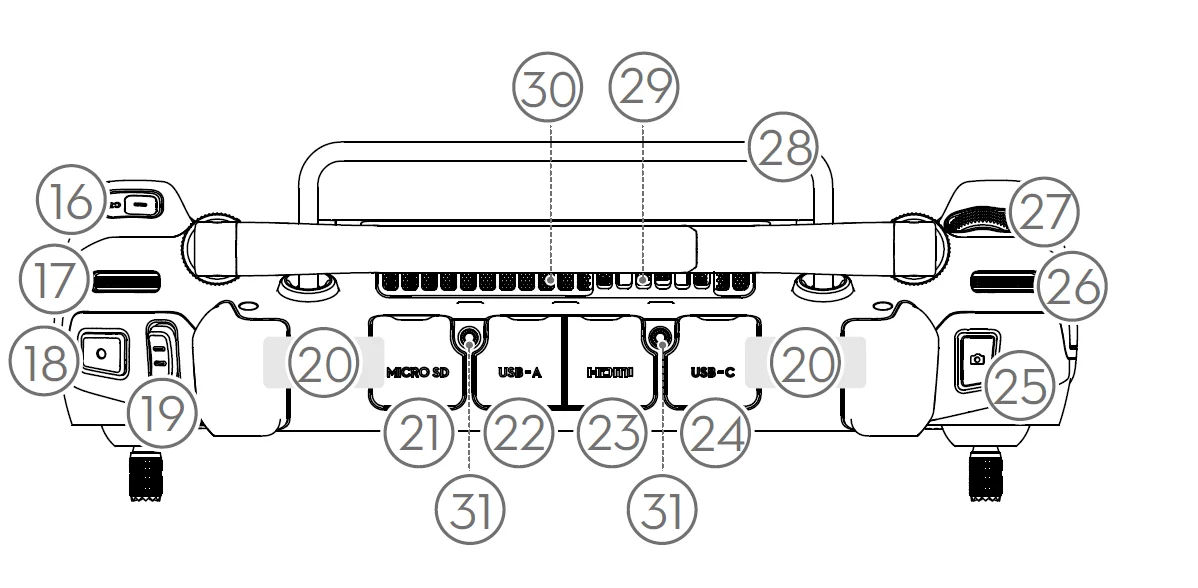
Customize functions in DJI Pilot 2. - Left Dial
Controls the tilt of the gimbal. - Record Button
Press once to start or stop recording. - Flight Mode Switch
For switching between three flight modes: N-mode (Normal), S-mode (Sport), and F-mode (Function). F-mode can be set to A-mode (Attitude) or T-mode (Tripod) in DJI Pilot 2. - Internal RC Antennas
Transmit aircraft control and video wireless signals. DO NOT block the internal RC antennas during usage. Otherwise, the signal may be affected. - microSD Card Slot
For inserting a microSD card. - USB-A Port
When flying with a Matrice series aircraft, users can connect the remote controller to a BS30 intelligent battery station for firmware updates. Users can also insert third-party devices, such as a USB flash drive or a memory card. - HDMI Port
For outputting an HDMI signal to an external monitor. - USB-C Port
For charging the remote controller. - Focus/Shutter Button
Press the button halfway down for autofocus and all the way down to take a photo. - Right Dial
Controls the pan of the gimbal. - Scroll Wheel
For adjusting the camera zoom. - Handle
- Speaker
- Air Vent
For heat dissipation. DO NOT block the air vent during usage.
- Reserved Mounting Holes
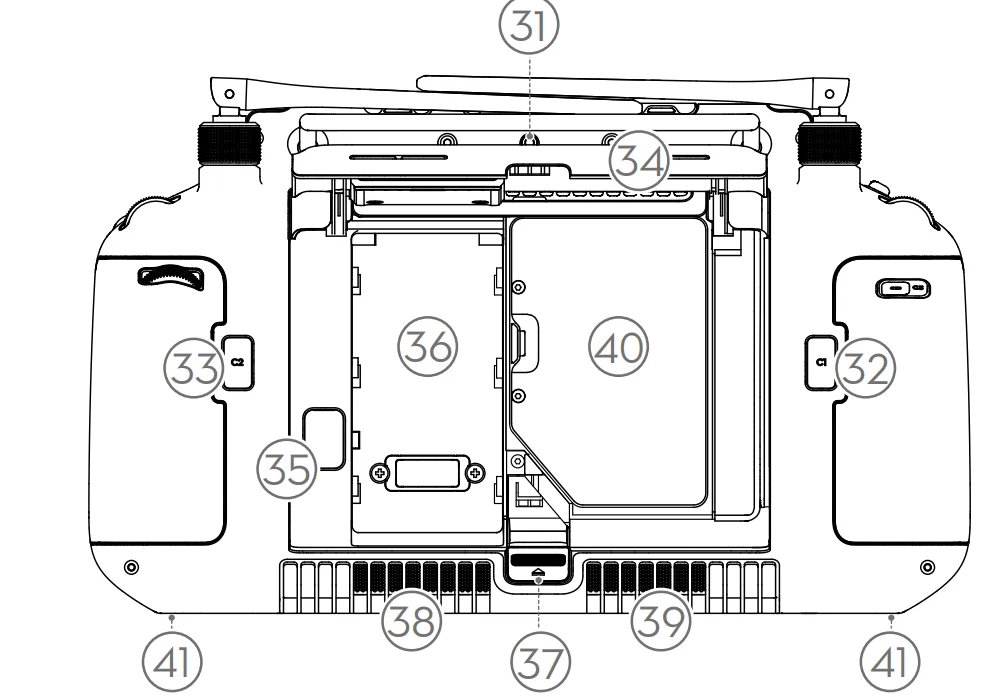
For mounting external devices. - C1 Button
Customize functions in DJI Pilot 2. - C2 Button
Customize functions in DJI Pilot 2. - Rear Cover
- Battery Release Button
- Battery Compartment
For installing the WB37 intelligent battery. - Rear Cover Release Button
- Alarm
- Air Intake
For heat dissipation. DO NOT block the air intake during usage. - Dongle Compartment
For inserting the dongle to the USB-C connector. - M4 Screw Hole
For mounting the strap bracket.
Intelligent Battery Station
The BS30 Intelligent Battery Station features eight TB30 battery ports, two WB37 battery ports, one USB-C maintenance port, and one USB-A and one USB-C charging port. It can charge two TB30 batteries and one WB37 battery simultaneously.
Battery Station Overview
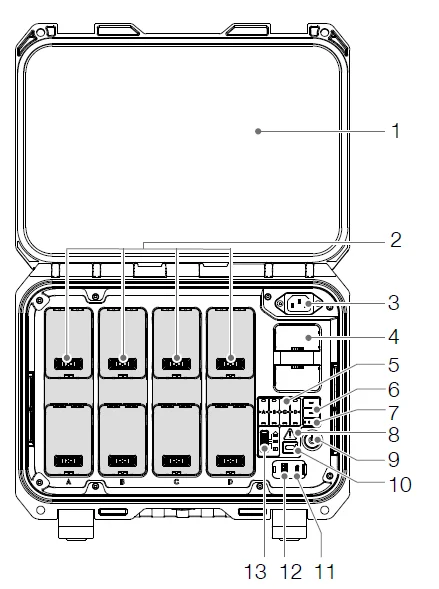
- Cover
- TB30 Battery Ports
- Power Port
- WB37 Battery Port
- TB30 Battery Status LEDs
- WB37 Battery Status LEDs
- WB37 Battery Level LEDs
- Battery Station Status LED
- Power Button/Indicator
- USB-C Maintenance Port
- USB-C Charging Port (Recommended for Remote Controller)
- USB-A Charging Port
- Charging Mode Switch

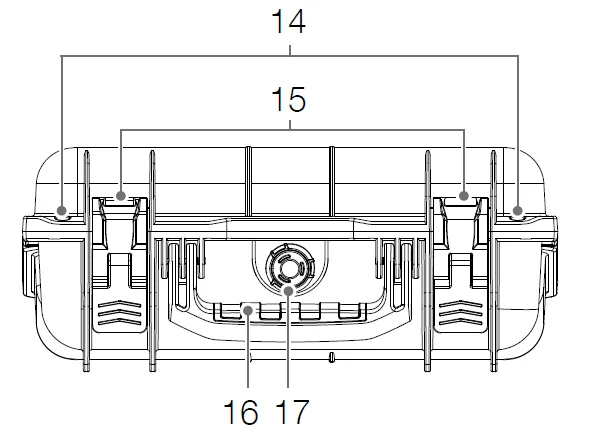
- Padlock Holes
- Lock Clip
- Handle
- Pressure Valve
Warnings
- Keep liquids away from the inside of the battery station.
- DO NOT close the cover of the battery station during charging. Make sure it is well-ventilated and able to dissipate heat.
- The battery station is only compatible with the TB30 battery and the WB37 battery. DO NOT use the battery station with any other battery models.
- Place the battery station on a flat and stable surface when in use. Make sure the device is properly insulated to prevent fire hazards.
- DO NOT attempt to touch the metal terminals in the battery station. Clean the metal terminals with a clean, dry cloth if there is any noticeable buildup after powering off.
- Take care to avoid injuring your fingers when opening or closing the battery station.
Using the Battery Station
Chaging
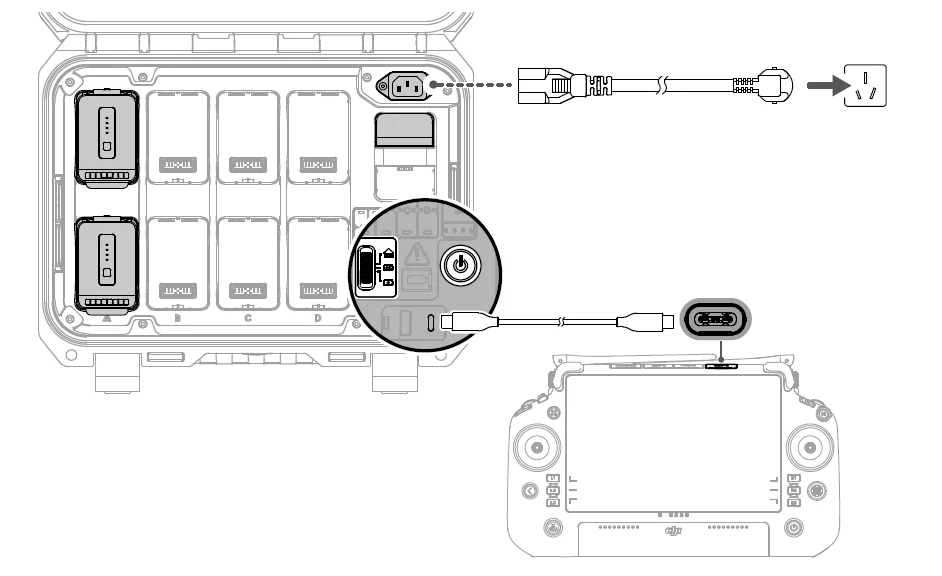
- Connect the battery station to a power outlet using the AC power adaptor cable.
- Press the power button once to power on the battery station.
- To charge the DJI RC Plus remote controller, connect the USB-C ports of the battery station and remote controller using a USB-C to USB-C cable.
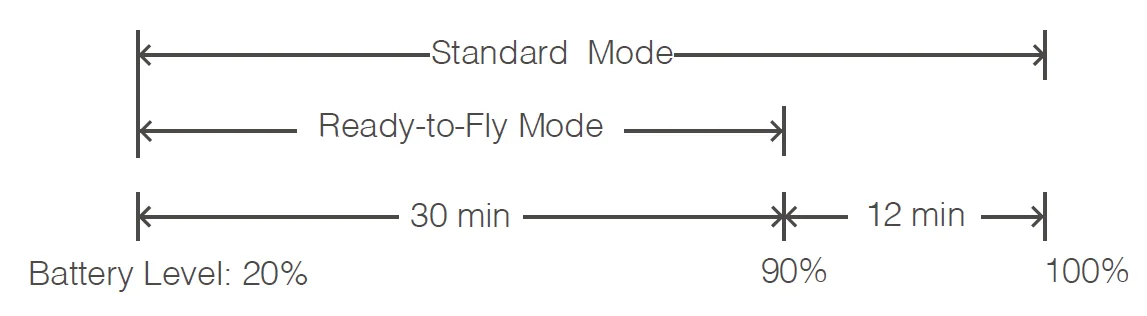
- For TB30 batteries, make sure the charging mode is set to the required mode. The charging time is shown in the diagram.
* The battery station should be powered on to maintain the battery level in Storage Mode and Ready-to-Fly Mode. Power off the battery station after charging, except for special situations such as fire emergencies. Maintaining a high power level in Ready-to-Fly Mode will affect battery life.
- Insert the batteries into the battery ports to start charging.

- For WB37 batteries, the battery station will charge the battery with the most power first.
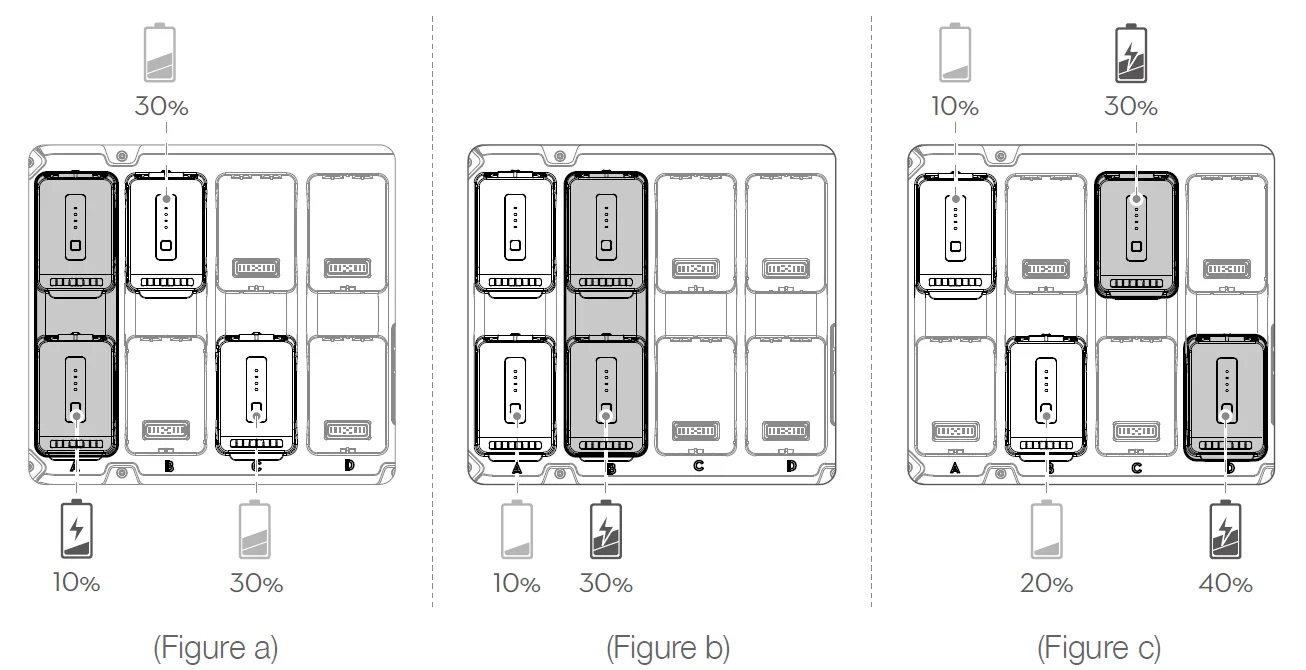
- For TB30 batteries, their charging sequence is illustrated below.
- Between paired and singular batteries, paired batteries will be charged first. (Figure a)
- Where there are multiple battery pairs (each formed by a top and bottom battery in the sequence of A, B, C and D), the pair with the highest power will be charged first. (Figure b)
- If none of the batteries are paired, the two batteries with the highest power will be charged first. (Figure c)


Intelligent Flight Battery
Introduction
The TB30 intelligent flight battery is equipped with high-energy battery cells and uses an advanced battery management system to power the aircraft. Only use a DJI-approved charging device to charge the intelligent flight battery. Make sure to fully charge the intelligent flight battery before using it for the first time. The firmware for the intelligent flight battery is included in the aircraft firmware. Make sure the firmware of all intelligent flight batteries is updated to the latest version.
Battery Features
The intelligent flight battery has the following features:
- Battery Level Display: The battery level LEDs display the current battery level.
- Battery self-discharge will be triggered if the battery level is higher than 50%. Discharging the battery level to 50% can extend battery life.
- Balanced Charging: During charging, the voltages of the battery cells are automatically balanced.
- Overcharge Protection: The battery stops charging automatically once fully charged.
- Temperature Detection: To prevent any damage, the battery only charges when the temperature is between -20° and 40° C (-4° and 104° F).
- Overcurrent Protection: The battery stops charging if an excess current is detected.
- Over-Discharge Protection: During flight, to ensure flight safety and allow users to have as much time as possible to deal with emergencies, over-discharge protection is disabled to allow continuous output. Therefore, pay attention to the remaining battery level during flight and land or return to home immediately when prompted to do so in the app. Otherwise, the battery may be dangerously over-discharged. When charging, an over-discharged battery may be a fire hazard. To prevent this, the battery will be locked and can no longer be charged or used.
- Short Circuit Protection: The power supply is automatically cut if a short circuit is detected.
- Battery Cell Damage Protection: The app will display a warning prompt when a damaged battery cell is detected.
- Hibernation Mode: The battery will be in Hibernation mode when not in use to save power.
- Communication: Information about the voltage, battery level, and current of the battery is transmitted to the aircraft.
- Heating: The feature ensures the battery operates normally at a low temperature. Refer to the “Warming the Battery” section for details.
- Waterproofing and Dustproofing: After being installed in the aircraft, the battery meets the IP55 rating standards.
For more manuals by DJI, visit ManualsLibraryy
DJI Matrice 30 Drone-FAQs
What is the DJI Matrice 30T used for?
The DJI Matrice 30T is designed for public safety, search and rescue, industrial inspections, mapping, and infrastructure monitoring. It combines thermal imaging, zoom, and wide cameras, making it ideal for emergency response teams, construction firms, and utility inspections.
What is the DJI Matrice 30 drone?
The DJI Matrice 30 is a compact enterprise drone built for professional operations. It integrates multiple high-performance sensors into one payload, offers long flight endurance, and runs on DJI Pilot 2 software for advanced mission planning.
What is the flight time of the Matrice 30 series?
The Matrice 30 series provides up to 41 minutes of maximum flight time under ideal conditions. Actual flight duration may vary depending on weather, payload, and mission type.
What is the transmission range of the DJI Matrice 30T?
With DJI’s O3 Enterprise transmission system, the drone supports a maximum range of up to 15 km, depending on regional regulations and signal conditions.
Can the DJI Matrice 30T fly in rain?
The Matrice 30 series has an IP55 rating, meaning it can operate in light to moderate rain and dusty environments. However, it is not fully waterproof and should not be submerged.
What is the price of DJI Matrice 30T in Pakistan?
The price of the DJI Matrice 30T in Pakistan is approximately Rs. 2,324,999, though prices may vary depending on the retailer and included accessories.
How far can the Matrice 30T fly operationally?
Operational range depends on local regulations, but technically it supports long-distance transmission up to 15 km. For dock-based automated missions, operational radius may be around 7 km.
Can the DJI Matrice 30T fly at night?
Yes. With its thermal camera and low-light capabilities, it is well-suited for nighttime operations such as search and rescue and security monitoring.
Why do drone batteries drain quickly?
Battery life can decrease due to wind resistance, heavy payloads, cold weather, high speeds, or continuous video transmission. Proper battery management helps extend flight performance.