
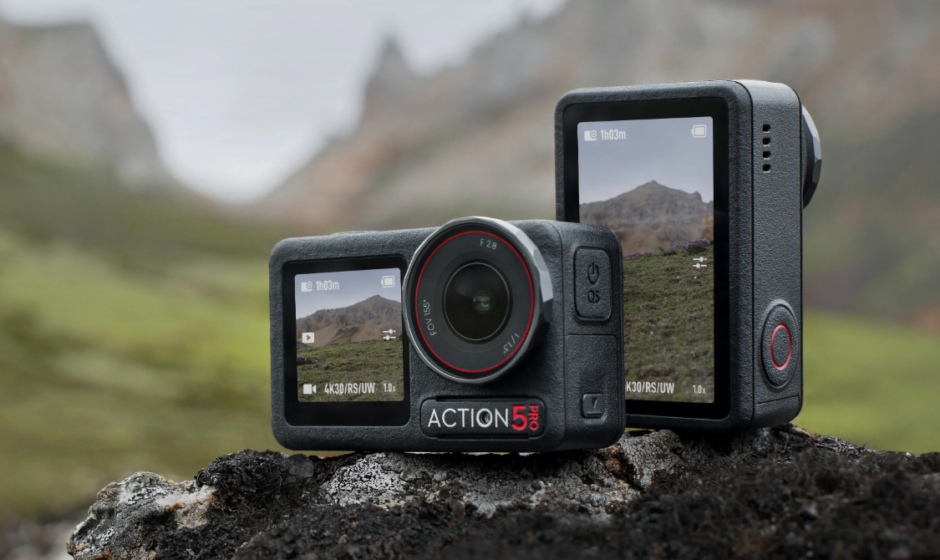

DJI Osmo Action Camera
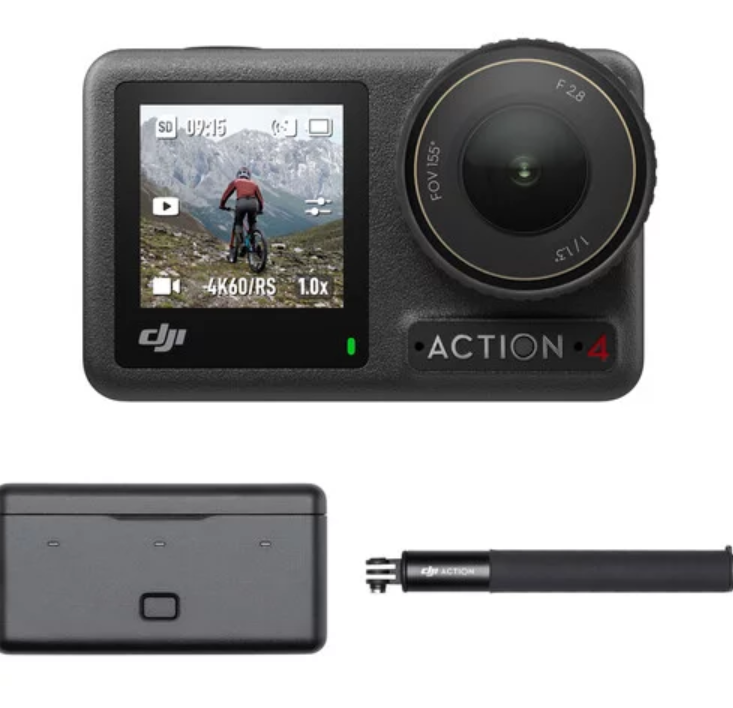
Introduction
Osmo Action is a dual screen action camera equipped with DJI’s latest RockSteady EIS technology and can shoot sharp 12MP photos, capture stable video at up to 4K/60fps, and is also able to record HDR video. The back screen is a hyper-responsive touchscreen that enables users to change settings, while the front screen helps to take the perfect selfie. Complete with voice control, custom modes, a Quick Switch button, and the SnapShot feature, users can power on and take photos and record videos within a couple of seconds. Osmo Action is also waterproof, allowing it to be used at depths of up to 11 m. It is also compatible with several accessories, so users can expand their creative possibilities using Osmo Action.
Overview
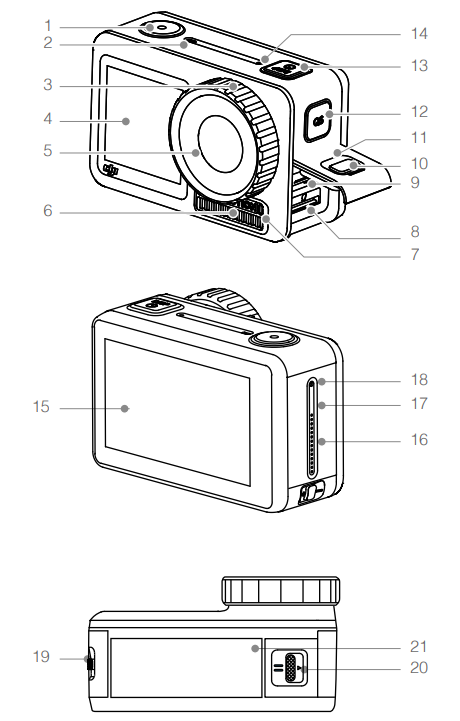
- Shutter/Record Button
- Status LED I
- Lens Filter Cap
- Front Screen
- Lens
- Ventilation Area
- Status LED II
- microSD Card Slot
- USB-C Port
- Cover Release Button
- USB-C Cover
- Quick Switch Button
- Power Button
- Microphone I
- Touchscreen
- Speaker
- Air Pressure Balance Hole
- Microphone II
- Battery Release Button I
- Battery Release Button II
- Battery
- The Lens filter cap and ventilation area may become hot during use. To avoid scalding, DO NOT touch.
- For the best waterproof performance, do not detach the lens filter cap unless necessary.
Attaching the Battery
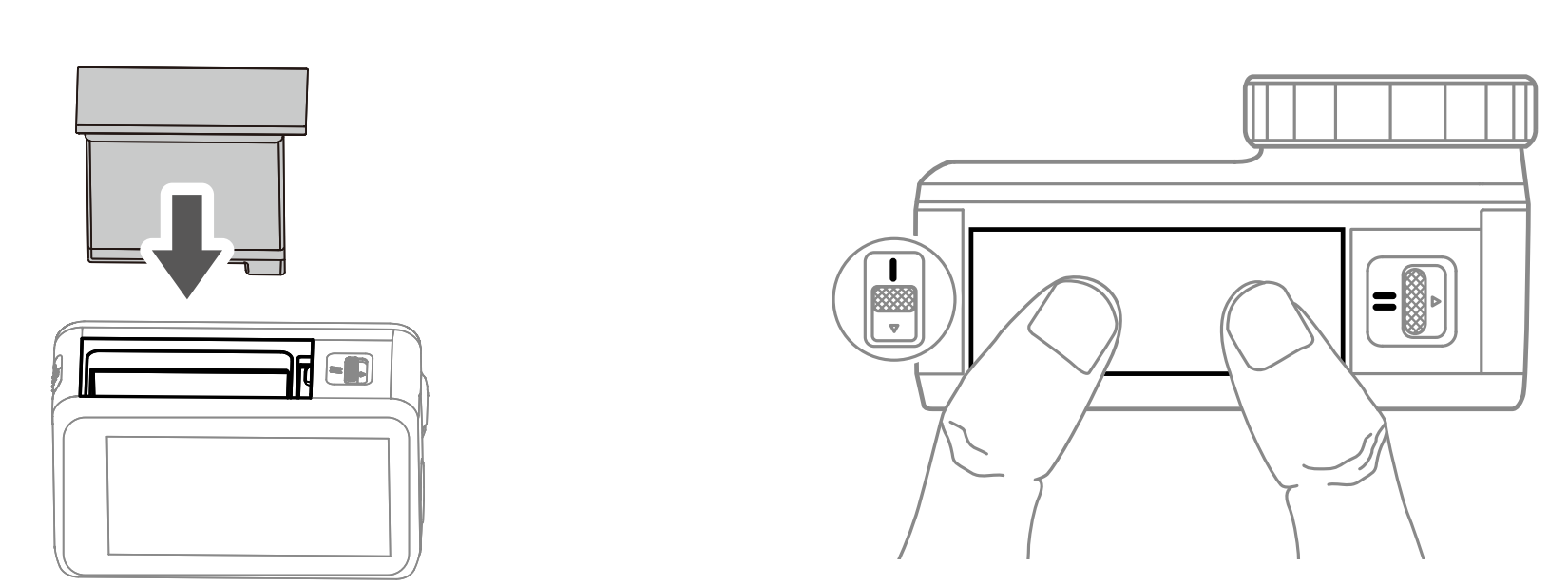
The camera frame is mounted by default and must be removed before attaching the battery.
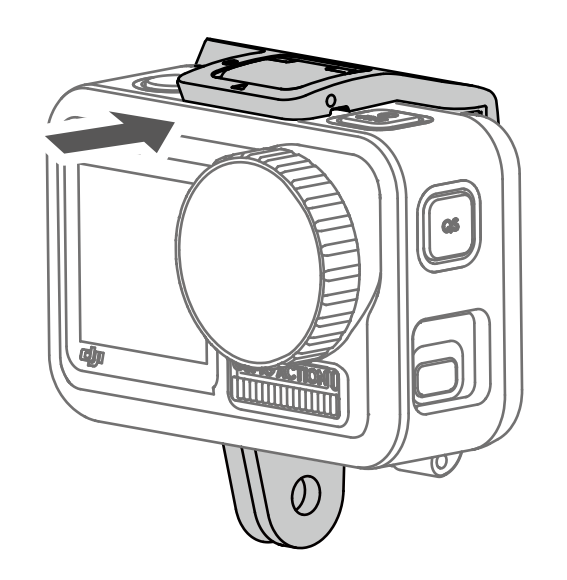
Insert the battery as shown. Press both sides of the battery to make sure it is properly inserted. Note that if the battery is properly inserted, the orange marks on either side of the battery are not visible.
Activating Osmo Action
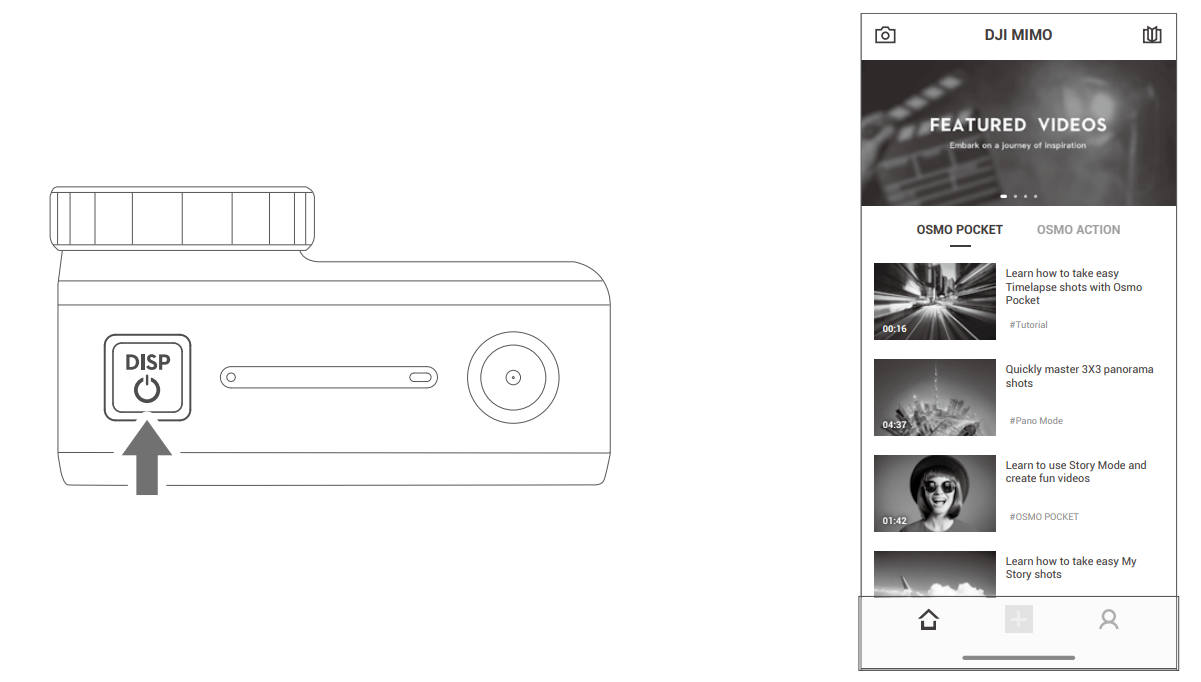
When using Osmo Action, activation is required through DJI Mimo. Follow the steps below to activate.
- Press and hold the power button to power on.
- Enable Bluetooth on your mobile device.
- Launch DJI Mimo and tap
 in the top-left corner, and follow the instructions to activate Osmo Action.
 in the top-left corner, and follow the instructions to activate Osmo Action.
Charging Osmo Action
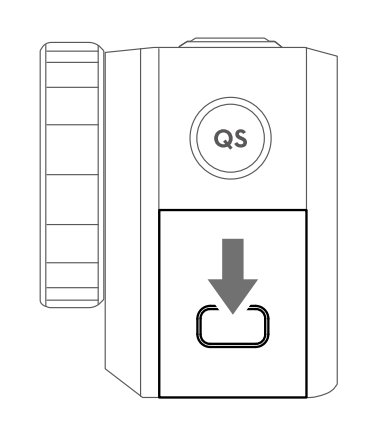
Press the cover release button on the USB-C cover and slide the cover down.
To charge Osmo Action, connect a USB adapter (not included) to the USB-C port using the power cable (included). The status LEDs are solid red while charging. The battery is fully charged when the status LEDs turn off.
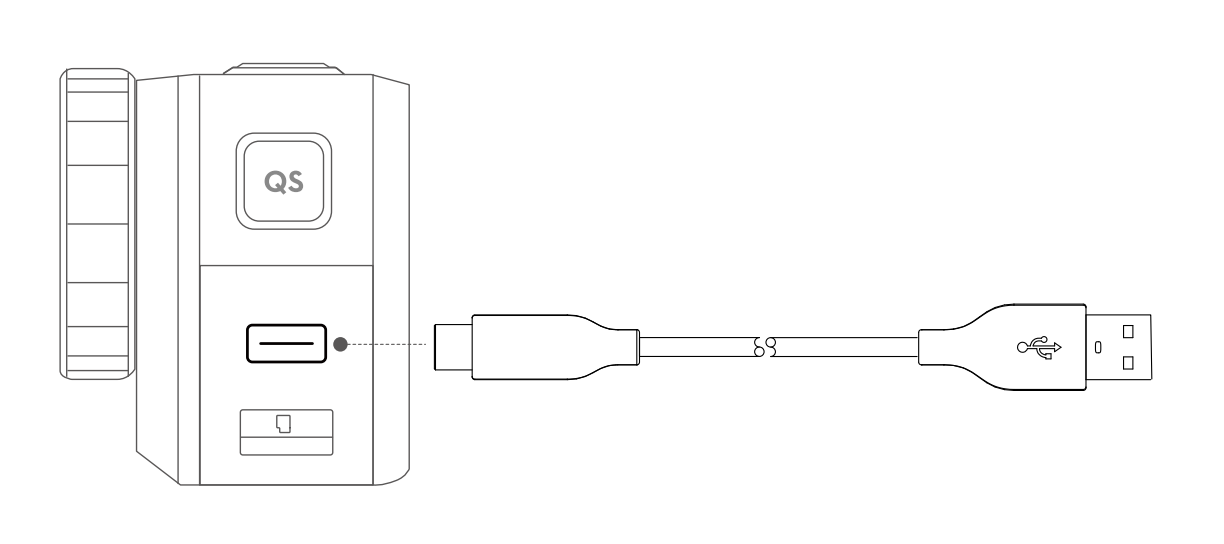
Charging time: approx. 1 hour 30 minutes (using a USB adapter of 5 V/2 A)*
If charging Osmo Action with the camera frame mounted, it is recommended to detach the USB-C cover for convenience. To remove, pull the USB-C cover towards the Quick Switch button until it
detaches.
*Charging time is for reference only.
Operation
Button Features
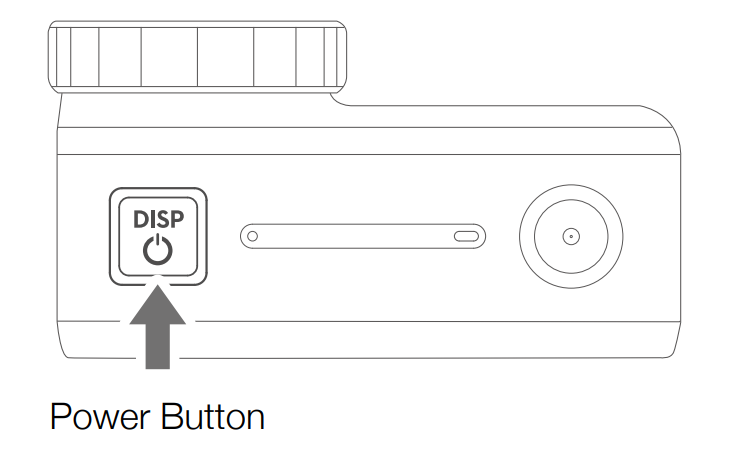
Power Button
- When Osmo Action is powered off, press the power button to power on.
- When Osmo Action is recording or connected to DJI Mimo, press the power button to turn off the touchscreen. Press again to turn on the touchscreen. Note that if Osmo Action is recording when the touchscreen is turned off, it will continue to record.
- When Osmo Action is idle while powered on and not connected with DJI Mimo, press the power button to enter sleep mode. Press again to exit sleep mode.
- When Osmo Action is powered on, press and hold the power button to power off.
Shutter/Record Button
- Press to take photos or to start or stop recording.
- SnapShot: available when the device is powered off or in sleep mode. SnapShot mode can be set in SnapShot settings. Refer to the Operating the Touchscreen section for more information.
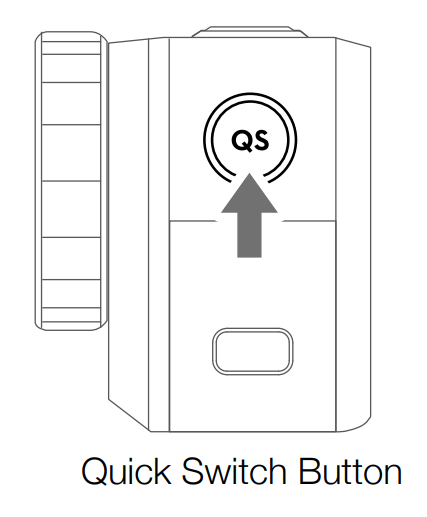
Quick Switch Button
In-camera view: press to select the shooting mode; the Quick Switch menu will appear. Tap an icon to select a shooting mode. In setting pages or playback, press to return to camera view. Press and hold to switch between the front screen and touchscreen camera view.*
* If the screen is switched while recording a video, the video will stop recording, and a new video recording will begin.
Operating the Touchscreen
The following instructions are only applicable to the touchscreen. They will not work on the front screen.
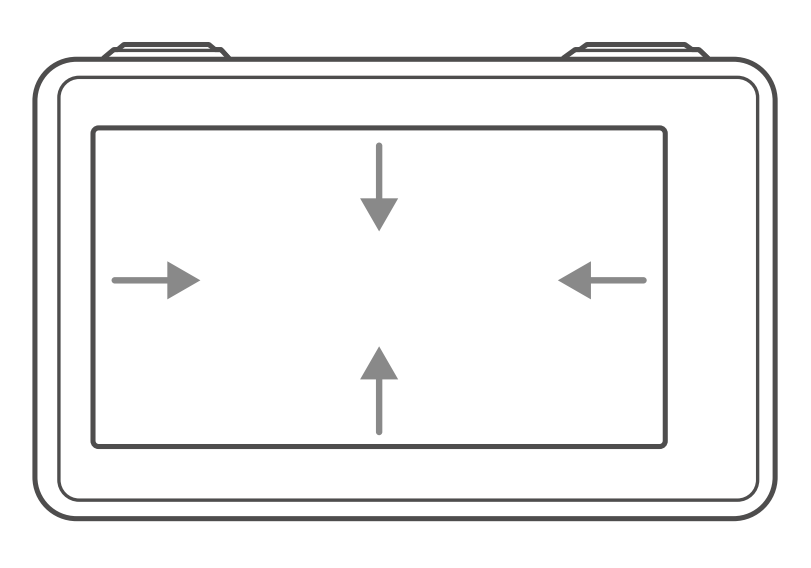
Swipe Down
- Create/Manage Custom Mode
Tap and tap the icon again to save the current configuration as a custom mode. Up to five custom modes can be saved. Swipe left and right to choose a saved custom mode. Tap Delete in the bottom-right corner to delete a mode.
 - Brightness
Tap and move the slider to adjust the brightness.
 - Screen Lock
Tap to lock the screen. To unlock the screen, tap on the screen and move the slider.
 - Settings
Quick Actions- Voice Control: enable voice control to use Osmo Action with voice commands. Voice commands include Start Recording, Stop Recording, Take Photo, Screen Switch, and Shut Down. English and Mandarin Chinese are supported.
- SnapShot: When Osmo Action is powered off or in sleep mode, use SnapShot to quickly power on and begin shooting. Supported shooting modes include Video, Photo, Slow Motion, and HDR Video, Burst, Timed, AEB, Custom mode, and Time-lapse.
- Quick Switch: Use Quick Switch to quickly swap between modes and custom settings. Shooting modes supported include Video, Photo, Slow Motion, HDR Video, Burst, Timed, AEB, Custom mode, and Time-lapse.
 and tap the icon again to save the current configuration as a custom mode. Up to five custom modes can be saved. Swipe left and right to choose a saved custom mode. Tap Delete in the bottom-right corner to delete a mode.
 and move the slider to adjust the brightness.
 to lock the screen. To unlock the screen, tap on the screen and move the slider.
General
- Wireless Connection: tap to check the camera name and password in Wireless Info, set the Wi-Fi Frequency, and reset the Wi-FI password and all connections in Reset Connection.
- Wind Noise Reduction: tap to enable or disable wind noise reduction.
- Sounds: choose from high, medium, low, and off.
- Grid: tap to enable or disable grid.
- Face-Oriented Exposure: When a face is detected, exposure on the face is prioritized.
- Anti-Flicker: Prevent the flickering of lights by selecting the frequency according to local regulations.
- Screen Auto Sleep: tap to set the time before Osmo Action enters sleep mode.
- Auto Power Off: tap to set the time before Osmo Action powers off automatically.
- LED: turn the two status LEDs on Osmo Action on or off.
- Language: set the language to English, Simplified Chinese, Traditional Chinese, Japanese, Korean, German, or French.
- Date/Time: tap to set date and time.
- Format SD Card: tap to format the microSD card.
- Factory Reset: tap to reset default settings.
- About: tap to view name, serial number, firmware version, and regulatory info.
- Screen Flip
Tap to switch the screen orientation to up, down, or automatic.
 - Spot Metering
Tap to enable or disable spot metering. Tap and hold the screen to use spot metering. Tap again to enable AE lock, and tap and hold the screen to disable AE lock.
 - Voice Control
Tap to enable or disable voice control.
 - Front Screen Settings
Tap to switch between full screen and letterbox display.
 to switch the screen orientation to up, down, or automatic.
 to enable or disable spot metering. Tap and hold the screen to use spot metering. Tap again to enable AE lock, and tap and hold the screen to disable AE lock.
 to enable or disable voice control.
 to switch between full screen and letterbox display.
Swipe Up
Swipe up and then swipe left or right to set parameters such as photo ratio, countdown time, and resolution. In Video mode, tap RockSteady* to enable or disable electronic image stabilization. Note that the parameters depend on the shooting mode and that RockSteady is unavailable in certain resolutions.
* RockSteady requires a firmware update.
Swipe Left
 Exposure Parameter Settings
 Exposure Parameter Settings
In Auto mode, the EV and Max. The ISO value can be set. The ISO value is adjusted automatically within the setting range during use. In Manual mode, the shutter speed and ISO value can be set. Note that the Max. The ISO value can only be set when the ISO value is set to auto.
 Image/Video Settings
Set white balance, select the color mode between Normal and D-Cinelike*, turn Dewarp on or off, and choose format.
* D-Cinelike provides greater data retention of color and brightness, which allows for more flexibility in post-production.
Swipe Right
Swipe right and then swipe left or right to scroll through photos and videos. Tap to playback videos. Tap the corresponding icon to add favorites or delete photos or videos. Tap at the top left top to view photo and videos by category. When viewing a photo, move the slider on the left side of the screen up or down to adjust the brightness. Tap the icon
 in the bottom-middle to view timed and burst photos. When viewing a video, move the slider on the left side of the screen up or down to adjust the brightness and move the slider on the right side to adjust the volume. Drag the progress bar to watch the video.
Tap
Tap the icon on the bottom-left corner on camera view to select shooting modes.
Double-Tap with Two Fingers
Double-tap the touchscreen on camera view with two fingers to switch between the front and the touchscreen.
Storing Photos and Videos
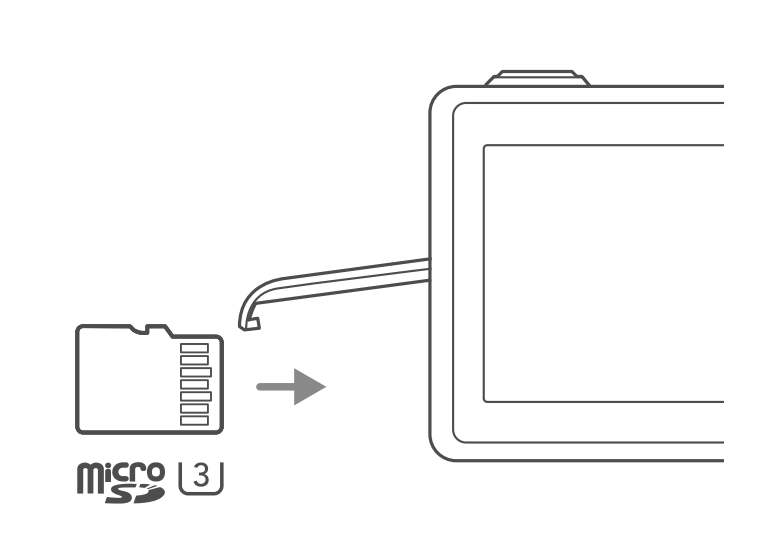
The footage shot on Osmo Action can be stored on a microSD card (not included). A UHS-I Speed Grade 3 rating microSD card is required due to the fast read and write speeds necessary for high-resolution video data. Refer to the recommended microSD card list at www.dji.com/osmo-action for more information. Insert the microSD card into the microSD card slot as shown.
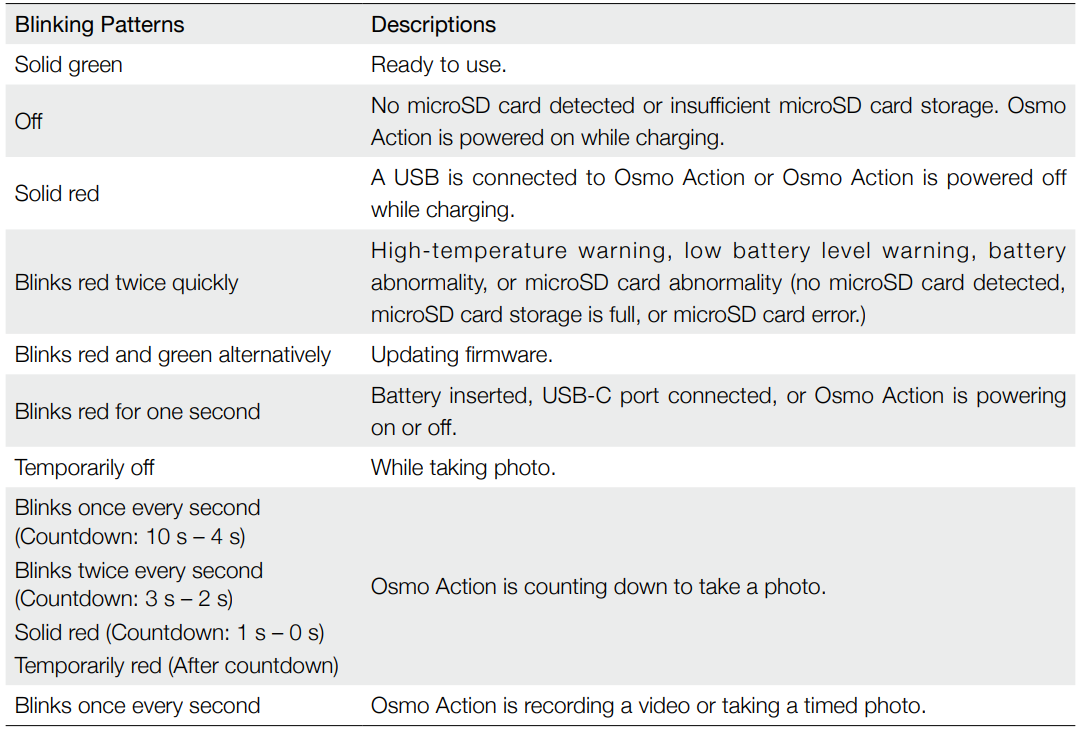
Status LED Descriptions
There are two status LEDs on Osmo Action, which indicate the same information. The status LEDs can be turned on and off.
DJI Mimo App
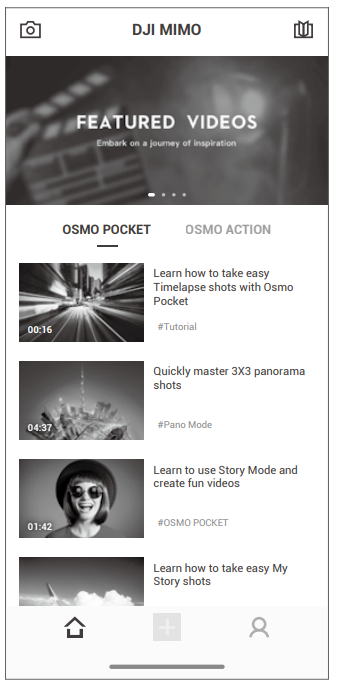
- Camera View: tap to connect to Osmo Action. Once connected, DJI Mimo enters camera view.
 Home: tap to return to Home.
 Edit: tap to edit photos or video from Osmo Action or import and edit from a mobile device.
 Profile: register or log in to a DJI account. View works and settings, check likes and followers, send messages to other users, and connect with the DJI Store.
 Academy: tap to watch tutorials and manuals.
 Home: tap to return to Home.
 Edit: tap to edit photos or video from Osmo Action or import and edit from a mobile device.
 Academy: tap to watch tutorials and manuals.
Camera View
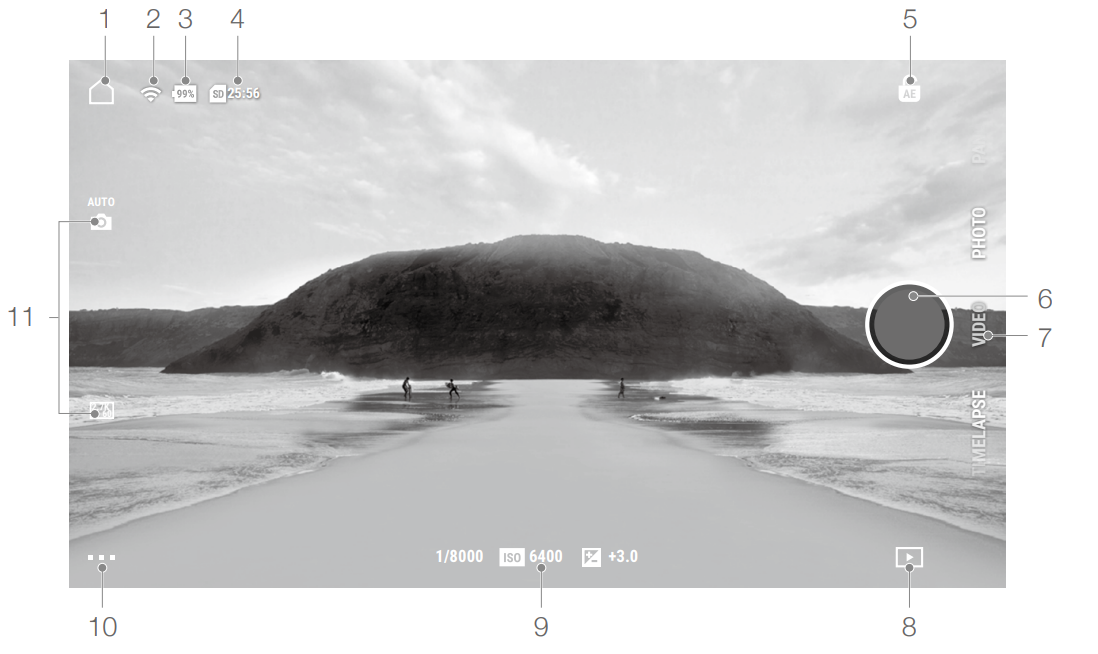
- Home
 : tap to return to the home page.
 - Wi-Fi
 : displays Wi-Fi connection.
 - Battery Level
 : displays the current battery level of Osmo Action.
 - microSD Card Information
 : According to the shooting mode, displays either the remaining number of photos that can be taken or the duration of video that can be recorded.
 - AE Lock
: tap to enable or disable AE lock after enabling spot metering. - Shutter/Record Button
: tap to take a photo or to start or stop recording video. - Shooting Mode
Scroll to select the shooting mode. Choose between Time-lapse, Slow Motion, HDR Video, Video, and Photo. - Playback
 : tap to preview photos and videos.
 - Shooting Mode Settings
1/8000 6400
6400 +3.0: display the shooting mode settings.
 - Settings
 * RockSteady requires a firmware update.
 - Camera

 : displays Wi-Fi connection.
 : displays the current battery level of Osmo Action.
 : According to the shooting mode, displays either the remaining number of photos that can be taken or the duration of video that can be recorded.
 : tap to enable or disable AE lock after enabling spot metering.
 : tap to take a photo or to start or stop recording video.
 : tap to preview photos and videos.
 6400
6400 +3.0: display the shooting mode settings.
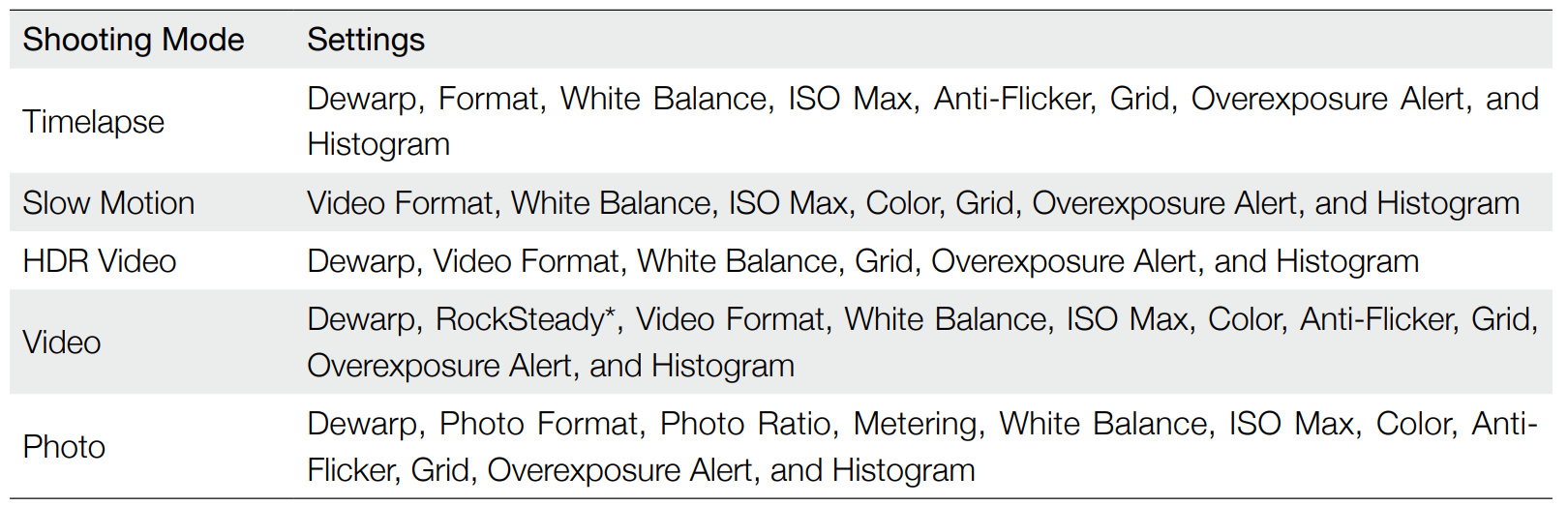 * RockSteady requires a firmware update.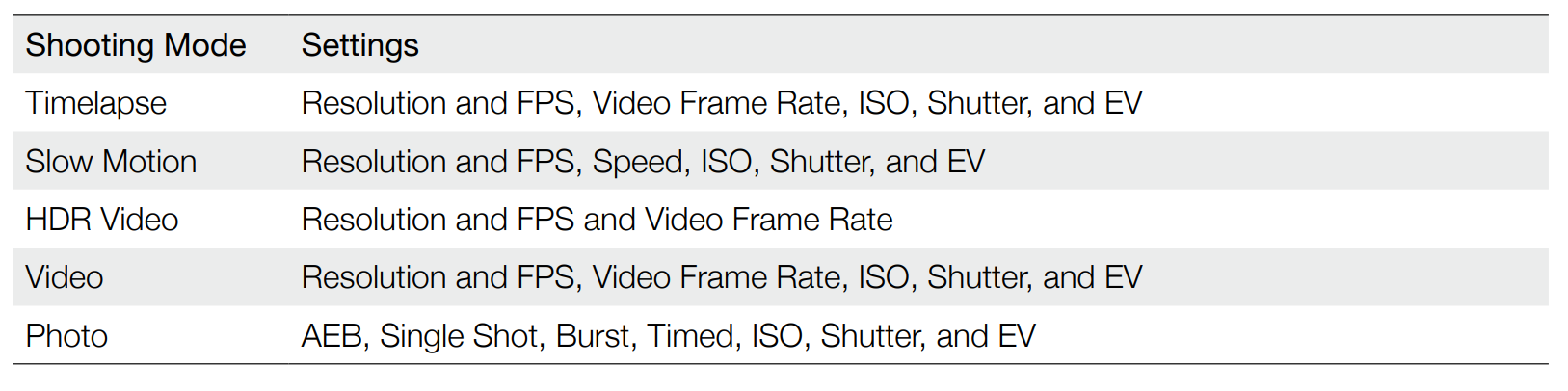
General Settings: Device Management, SD Card Capacity, Format SD Card, Screen Flip, Noise Reduction, Voice Control, Voice Language, Command List, Wi-Fi Settings, Switch Wi-Fi Frequency, Firmware Version, and About.
Camera Settings
Updating Firmware
The firmware of Osmo Action can be updated by using DJI Mimo or a microSD card.
Using DJI Mimo
An alert appears in DJI Mimo when new firmware is available. Follow the instructions to update the firmware.
Using a microSD Card
Download the latest firmware from the official DJI website to the root directory of a microSD card.
- Insert the microSD card and power on Osmo Action. The update starts automatically once a new firmware is detected.
- During the update, the status LED indicators blink red and green alternatively, and a reminder will remain on the screen. No operation is required.
- Osmo Action restarts automatically once the update is complete.
* RockSteady requires a firmware update.
A microSD card is required to update firmware. Make sure the battery level of Osmo Action is at least 15% before updating the firmware.
Maintenance
Underwater Usage Notes
- Make sure the battery and battery compartment are dry and clean before inserting the battery. Otherwise, it may affect the battery contacts and waterproofing. Make sure the battery is properly inserted during use. Note that if the battery is properly inserted, the orange marks on either side of the battery cannot be seen.
- Make sure the USB-C cover is clean and closed before using. Otherwise, it will affect the device’s waterproofing ability.
- Make sure the lens filter cap is in good condition and undamaged. If there is any damage, replace it immediately. Make sure the lens filter cap and lens are dry and clean. Sharp or hard objects may damage the lens and affect the waterproofing. Make sure the lens filter cap is properly tightened during use.
- Osmo Action is not waterproof unless the battery is properly inserted, the USB-C cover is closed, and the lens filter cap is attached.
- Osmo Action can be used underwater at depths of up to 11 m. When using a waterproof case, the maximum depth underwater is 60 m.
- DO NOT jump into the water with Osmo Action.
- DO NOT use Osmo Action in a hot spring.
- Clean Osmo Action with water after using it underwater. Allow it to dry naturally before using again.
Clean Notes
- Clean the lens filter cap with water, a lens cleaning pen, a lens air blower, or a lens cleaning cloth.
- Clean the lens with a lens cleaning pen, a lens air blower, or a lens cleaning cloth.
- Clean the holes on the camera and the ventilation area with water if there is any object inside before usage. DO NOT poke the holes. Contact DJI support if they cannot be cleaned.
- Clean the battery and battery compartment with a clean, dry cloth.
- All the holes on Osmo Action have built-in waterproof material. DO NOT remove the waterproof material or poke the holes. Otherwise, Osmo Action will no longer be waterproof.
Specifications
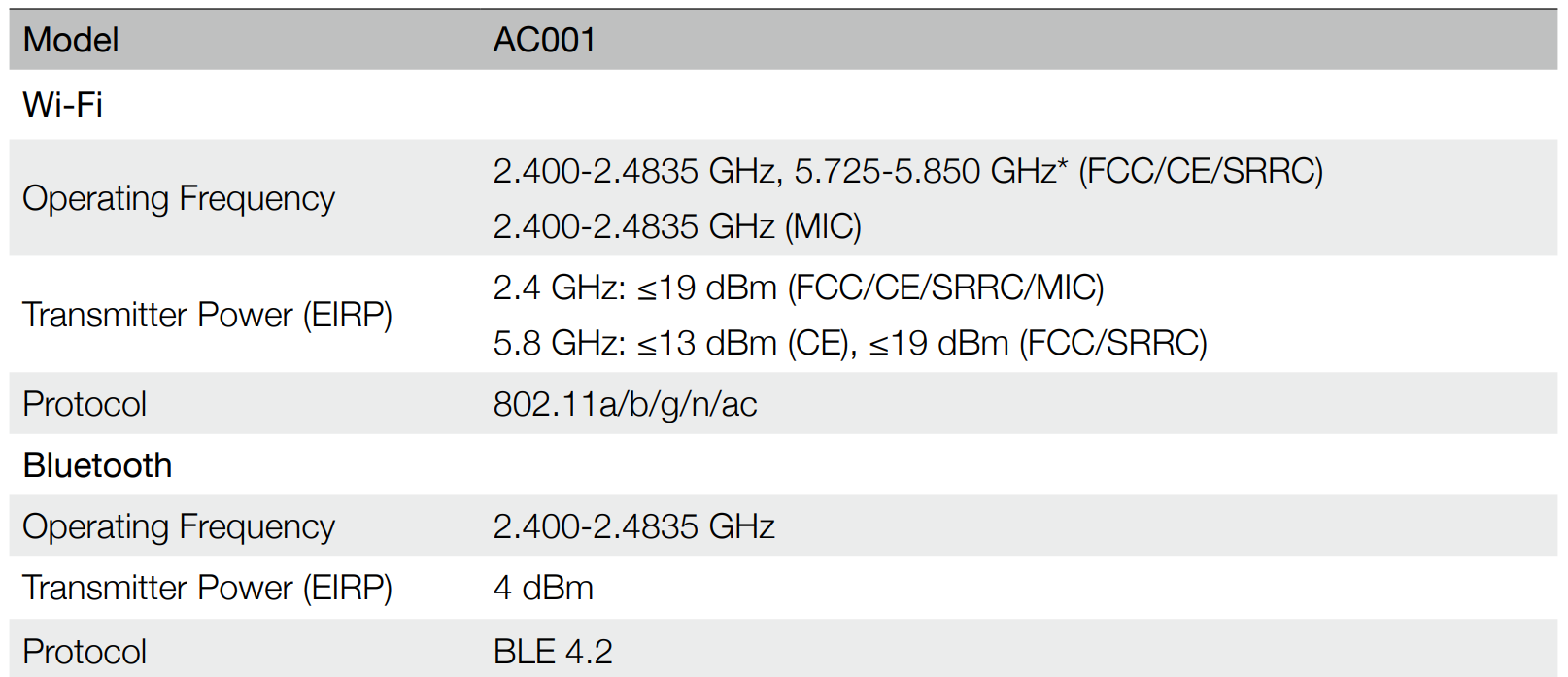
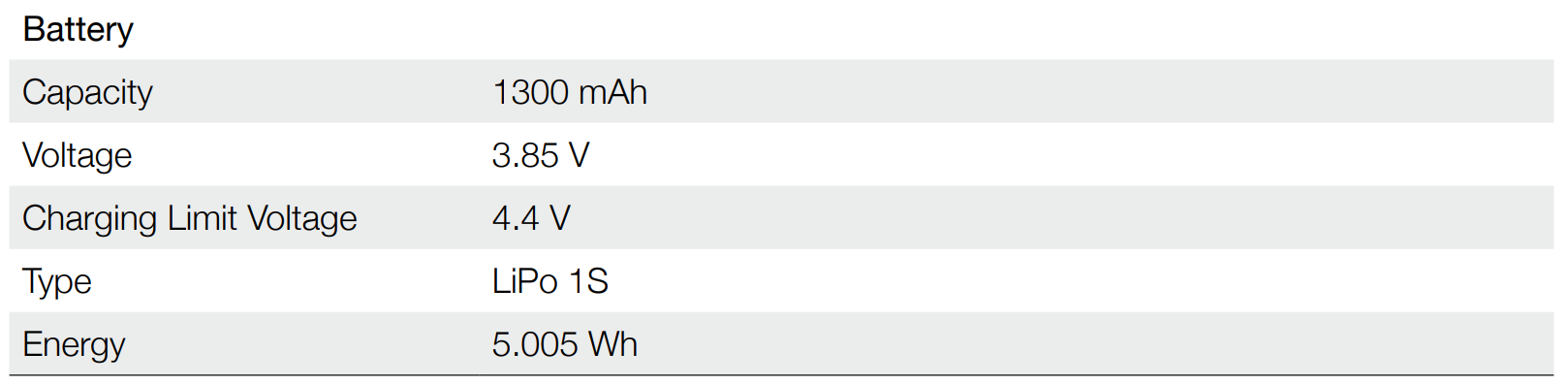
* 5.8 GHz is not supported in some regions. Observe local laws and regulations.
After-Sales Information
Visit https://www.dji.com/support to learn more about after-sales service policies, repair services, and support.
For more manuals by DJI, visit ManualsLibraryy
DJI Osmo Action Camera-FAQs
Is the DJI Osmo Action waterproof?
Yes, most Osmo Action models are waterproof. For example, Action 3 is waterproof without a case and can go deeper with a protective housing.
Does DJI Osmo Action shoot in 4K?
Yes, DJI Osmo Action cameras support 4K recording, and newer models like Action 2 and Action 3 can record up to 4K at 120fps.
Can I use DJI Osmo Action with Android or iPhone?
Yes, DJI Osmo Action works with both Android and iOS devices via the DJI app. Android 7.0+ and iOS 13.0+ are typically required.
Which country owns DJI?
DJI (Da-Jiang Innovations) is a Chinese technology company headquartered in Shenzhen, China.
How does DJI Osmo Action compare to GoPro?
Both brands offer high-quality 4K video, stabilization, and rugged designs. DJI often provides strong battery life and competitive pricing, while GoPro is known for its extensive accessory ecosystem.
Is DJI Osmo Action good for beginners?
Yes, it is beginner-friendly. The touchscreen interface, stabilization features, and automatic shooting modes make it easy to use for new content creators.
Why is DJI Osmo popular?
DJI Osmo cameras are popular due to excellent video quality, advanced stabilization (RockSteady/HorizonSteady), durability, and competitive pricing.
Can I use DJI Osmo without the mobile app?
Yes, you can record and adjust many settings directly on the camera, but the mobile app provides additional features like file transfer and firmware updates.
How long does the DJI Osmo battery last?
Battery life depends on the model and resolution. On average, it lasts 90–160 minutes, depending on settings like 4K resolution and frame rate.
Is DJI Osmo Action good for photography?
Yes, while primarily built for video, it can capture high-resolution photos and perform well in outdoor and action environments.