
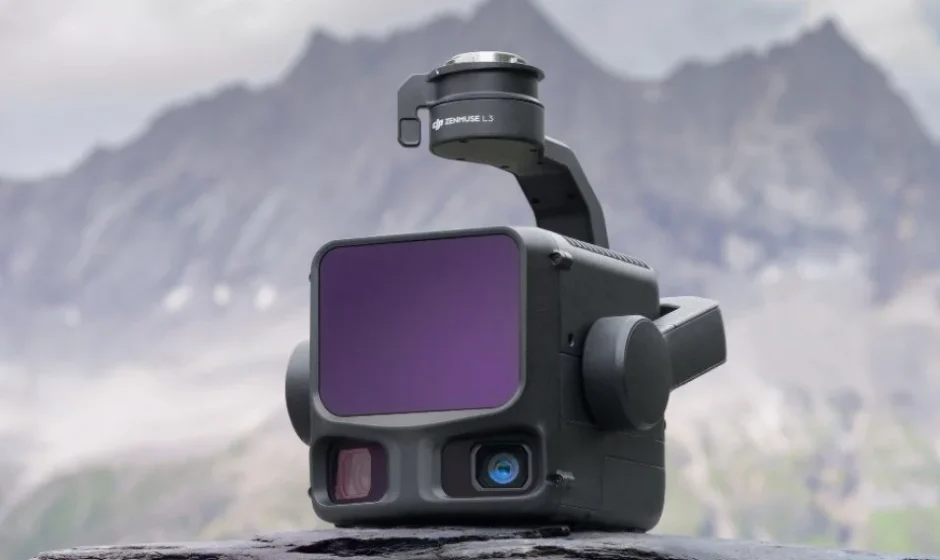

DJI Zenmuse L3 LIDAR System
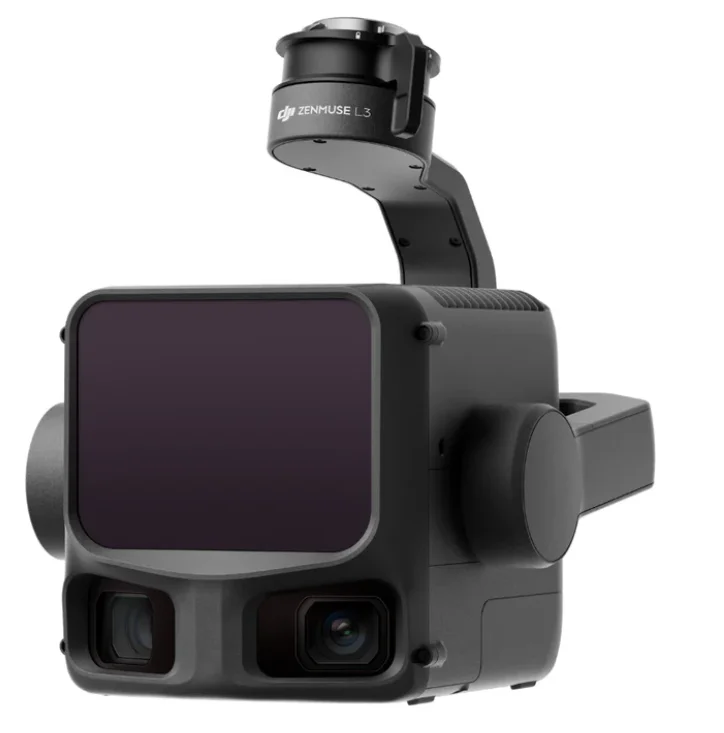
Product Profile
Overview
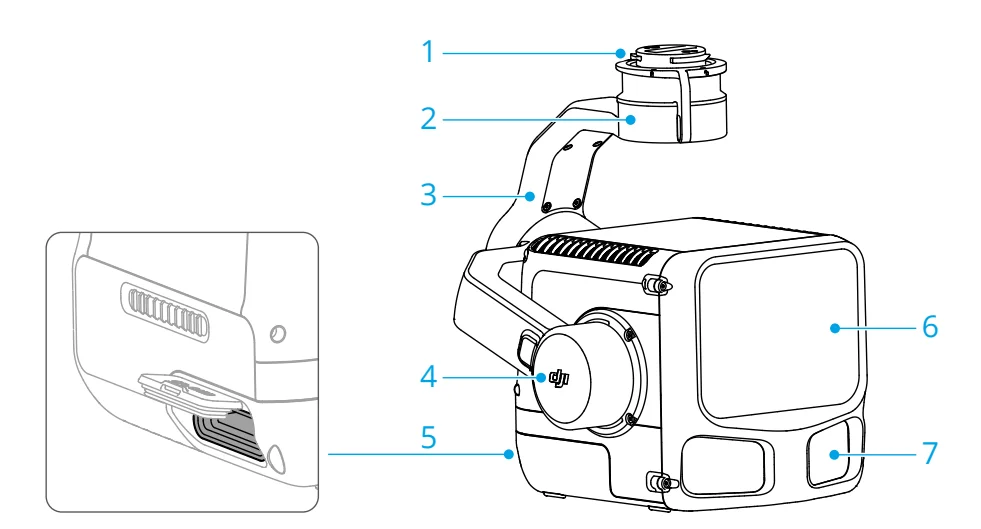
- Gimbal Connector
- Pan Motor
- Roll Motor
- Tilt Motor
- CFexpress Card Slot
- LiDAR
- RGB Mapping Camera
Product Performance
Performance Charts
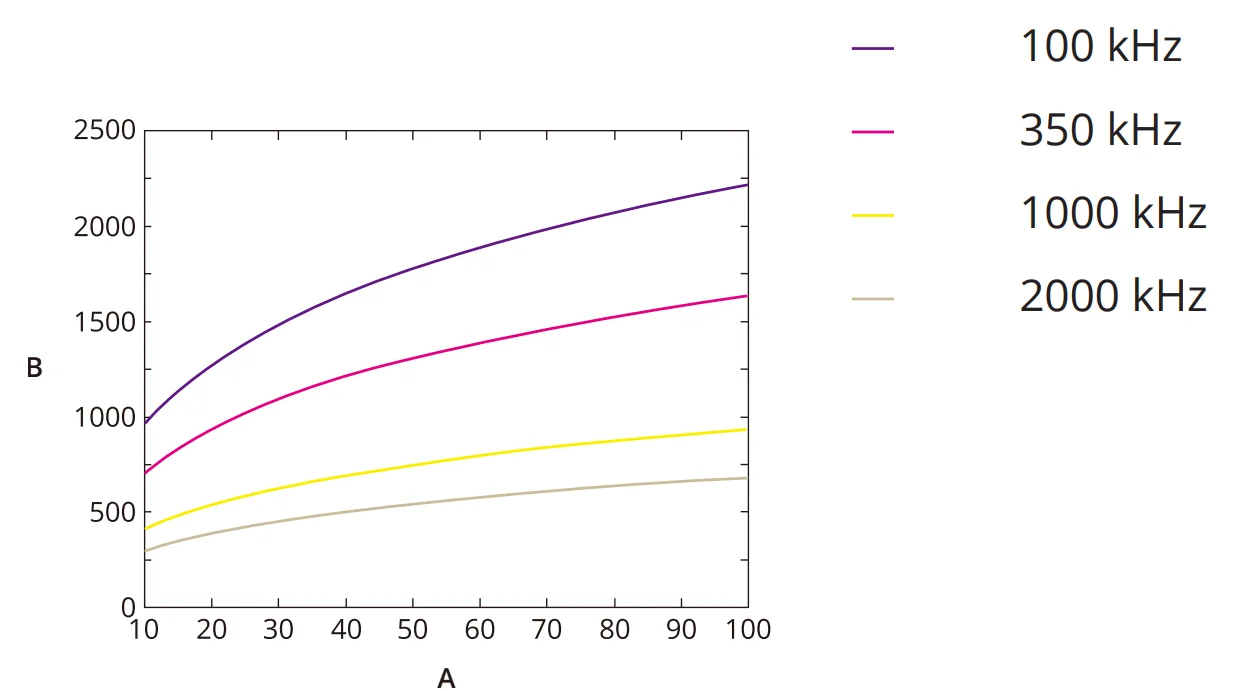
Detection Range at Different Reflectivities
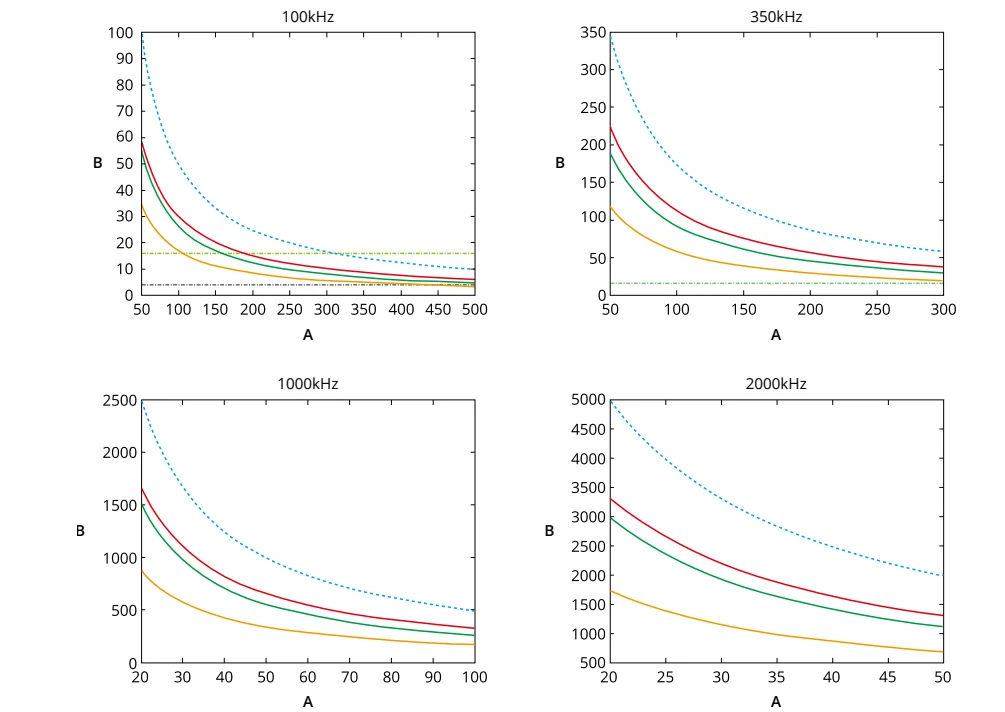
The detection range (B, in meters) at different reflectivities (A, %) and sampling frequencies is shown in the figure.
* The maximum detection range is 900 m by default. For a longer range, contact official support or an authorized dealer.
Point Cloud Density
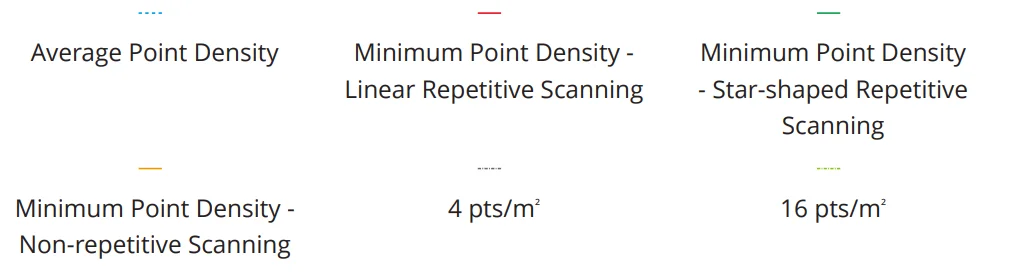
When the point cloud overlap is 20% and the flight speed is 15 m/s, the point cloud density (B, in pts/m²) at various altitudes (A, in meters) under different sampling frequencies is shown in the figure.
Measurement Error
The figure shows how the random error (B, in millimeters) for different sampling frequencies varies with target distance (A, in meters) when scanning an object with 80% reflectivity. Select appropriate sampling frequency and target distance to meet accuracy requirements.
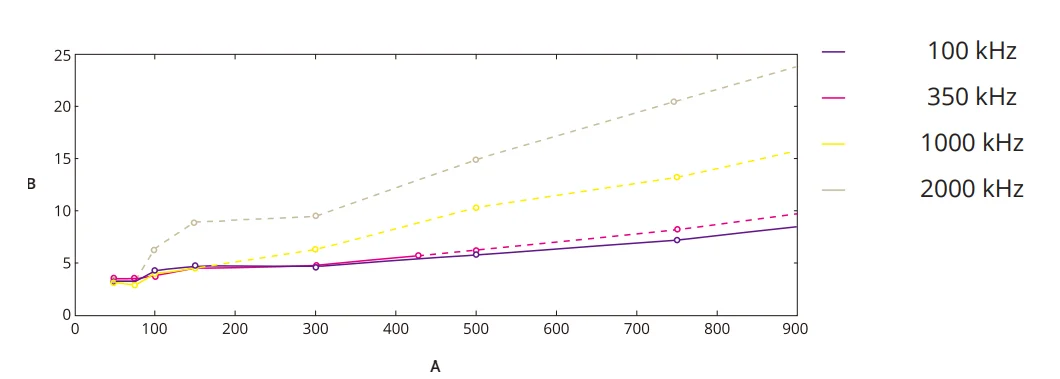
* Measured in a laboratory environment under the following conditions. Data may vary with environmental conditions. Refer to the actual measured values.
- Ambient temperature of 25°C
- Target reflectivity of 80%
- Central FOV and normal incidence
* The dashed line indicates the random error when the target distance exceeds the maximum unambiguous measurement range for the respective sampling frequency.
LiDAR Usage Scenario
Avoid using LiDAR in the following scenarios, as this may reduce the detection range and accuracy, or cause point cloud noise or voids.
- A laser beam incident on a mirror, fully reflective, or highly reflective surfaces.
- Scanning bodies of water or wet surfaces.
- Conditions with low visibility, such as rainy or foggy weather.
- The payload has just powered on and has not warmed up.
- The target distance is within 10 m.
- Excessively strong ambient light.
- Backscattering caused by tiny particles such as raindrops, fog droplets, or suspended particles (dust and haze) near the LiDAR.
- Use a high sampling frequency in scenarios with significant elevation differences.
Warnings
- This product is classified as a Class 1 laser product and is safe under all normal conditions of use. To avoid potential injury, DO NOT look directly at the LiDAR optical window for extended periods or view it through optical magnifiers, such as telescopes or magnifying glasses.
- DO NOT photograph the LiDAR while in use to prevent damage to the camera sensor.
- When the LiDAR angle approaches horizontal, the performance, such as range and accuracy, may decrease.
- Disabling RGB Coloring or operating at night may result in abnormal modeling results.
Usage
Installation
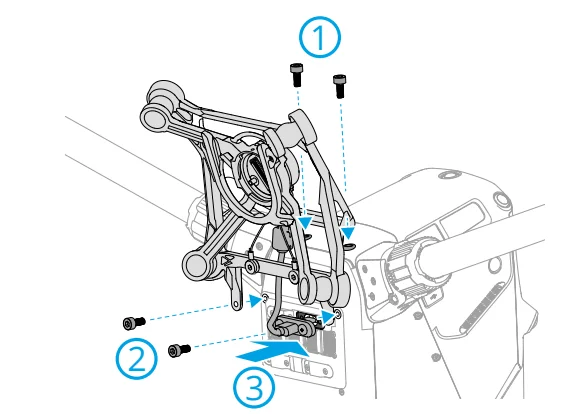
- A

- B

- C

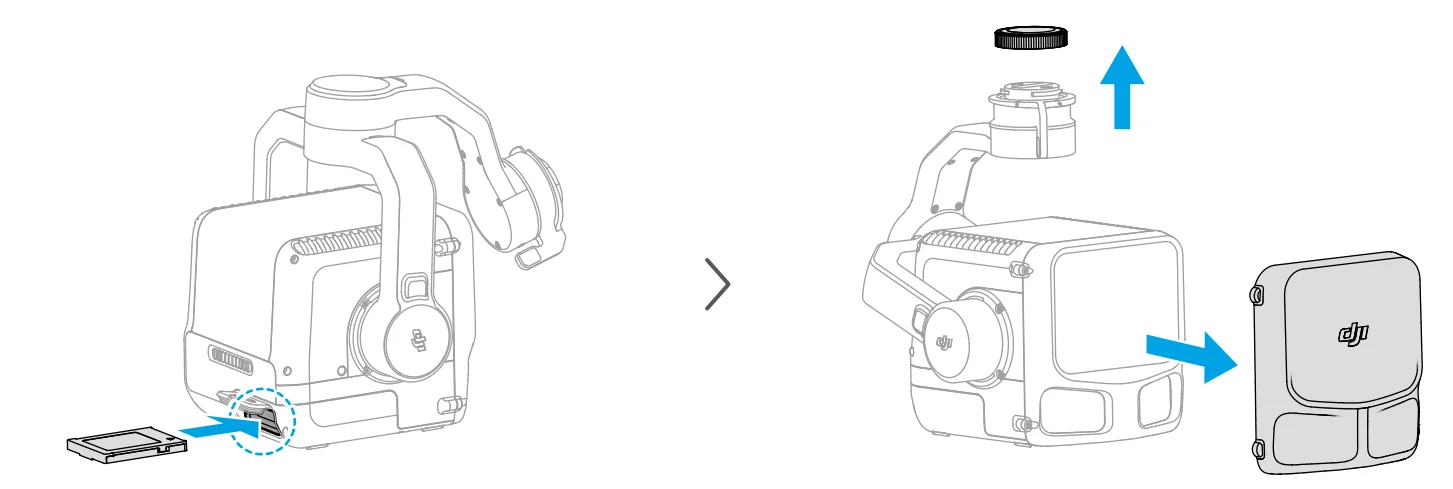
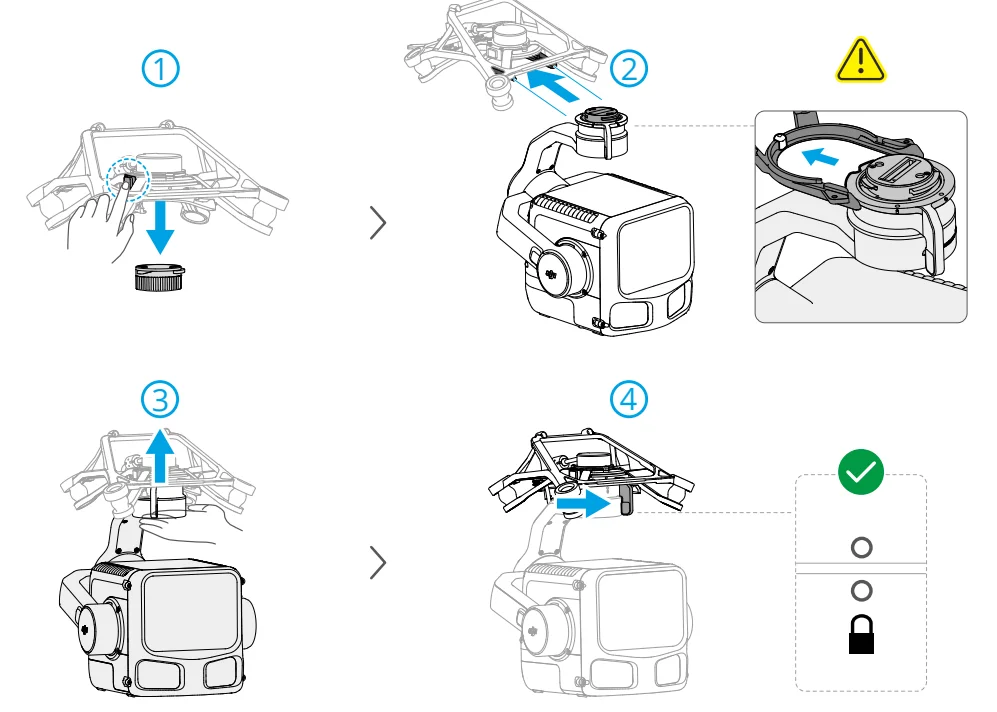
Warnings:
- Detach the payload from the aircraft during transportation or storage. Otherwise, the service life of the damper balls may be shortened or they may even be damaged.
- To remove the payload, press the release button on the aircraft and rotate the payload.
Activation
The payload requires activation via DJI PILOT™ 2 App before first use. Mount it on the aircraft, then power on the aircraft and remote controller and follow the on-screen instructions to activate using the DJI Pilot 2 app. An internet connection is required for activation.
DJI Pilot 2 App Camera View
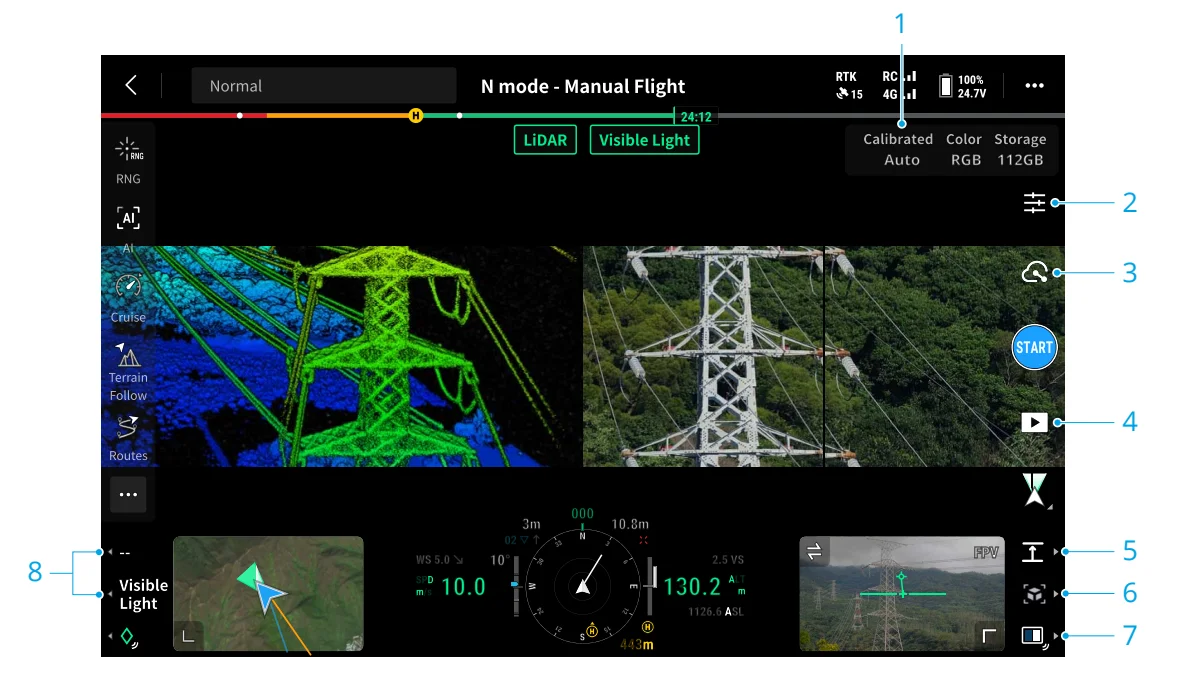
- IMU Calibration Status
- Camera Settings
Tap to set the shooting parameters for point cloud and visible light photos. - Recording Mode (Shutter/Video Record/Point Cloud Record)
- Playback
Tap to view or download photos and videos. Select the point cloud data files to preview the 3D model. Select multiple files to view the merging models. - Switch the point cloud rendering mode.
- Preview the current point cloud model.
- Side-by-Side (SBS) View Switch Button
Press and hold the R3 button, then tap to select the desired SBS view, or press the R1, R2, or R3 buttons to choose the corresponding SBS view. - Press the button to switch between the visible light view and the LiDAR view.
Field Data Collection
Preparation
- Make sure the payload is correctly installed on the aircraft, and the memory card is inserted. Power on the aircraft and the remote controller. Make sure the aircraft is linked to the remote controller.
- Go to Camera View
 >
> > in DJI Pilot 2, select the RTK service type, and ensure the RTK status is FIX.
 >
> > in DJI Pilot 2, select the RTK service type, and ensure the RTK status is FIX.
Hints & Tips
- When the mobile network or remote controller video transmission signal is weak, set up an RTK base station to obtain high-precision location information to assist with post-processing. Refer to the Office Data Processing section for more information.
- If using a third-party RTK base station, make sure the station supports at least three GNSS systems.
- When setting up a third-party RTK base station, follow the steps to set the coordinates of the origin for the RTK base station (using RINEX format as an example)
- Erect the RTK base station to a point with known coordinates and record the XYZ coordinates in ECEF format (use a third-party software for format conversion if necessary).
- Use Notepad to open the RINEX file with the .O extension and modify the APPROX POSITION XYZ coordinates in the .O file to the coordinate recorded in step one.
Payload Parameters
Set the payload parameters according to the following instructions before collecting data.

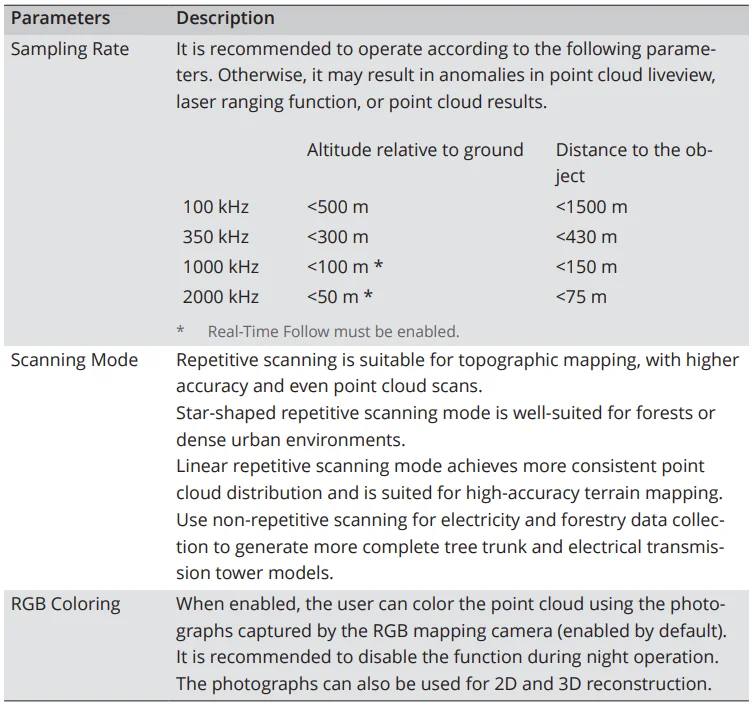
Flight Route Operation
Tap Flight Route on the homepage of DJI Pilot 2, or tap the flight route icon in the camera view or in the map view to enter the flight route library. Users can view flight tasks or create a flight task.
Planning Task
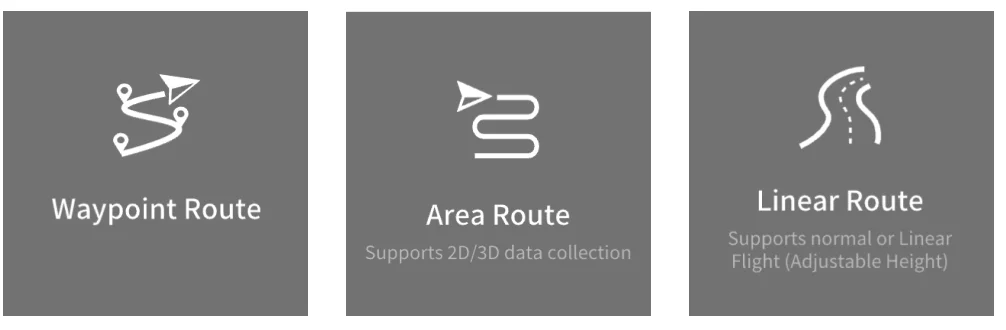
The payload supports the following types of flight tasks. Refer to the aircraft user manual for more information on flight route planning.
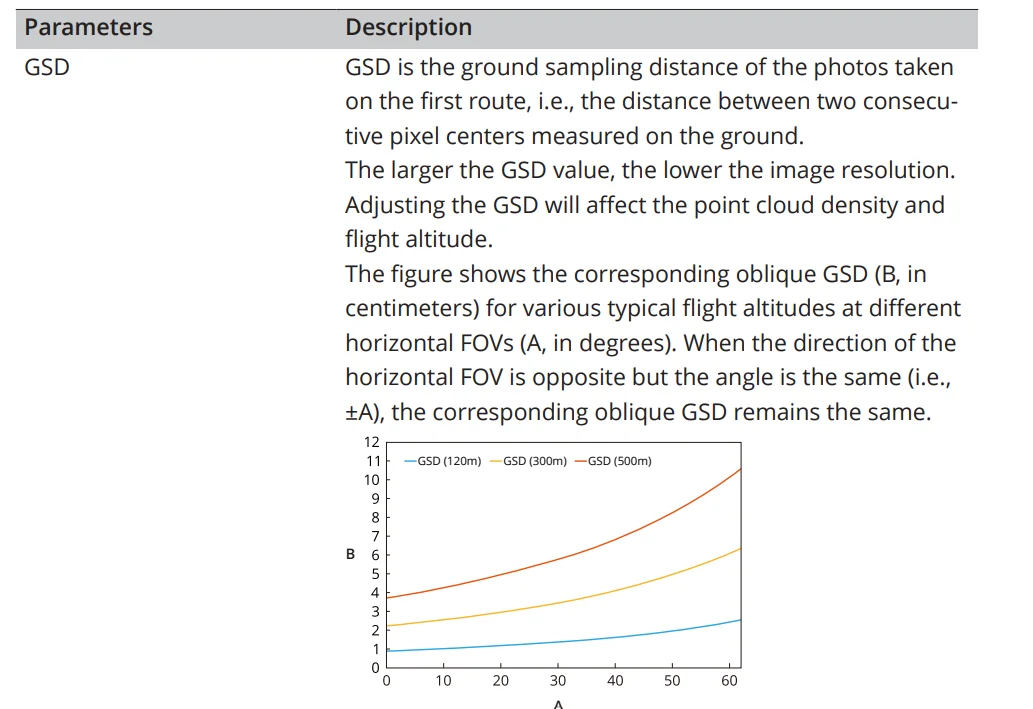
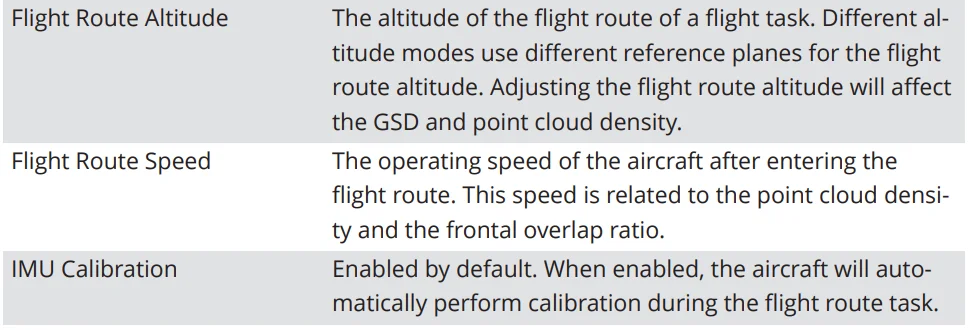
Route Parameters
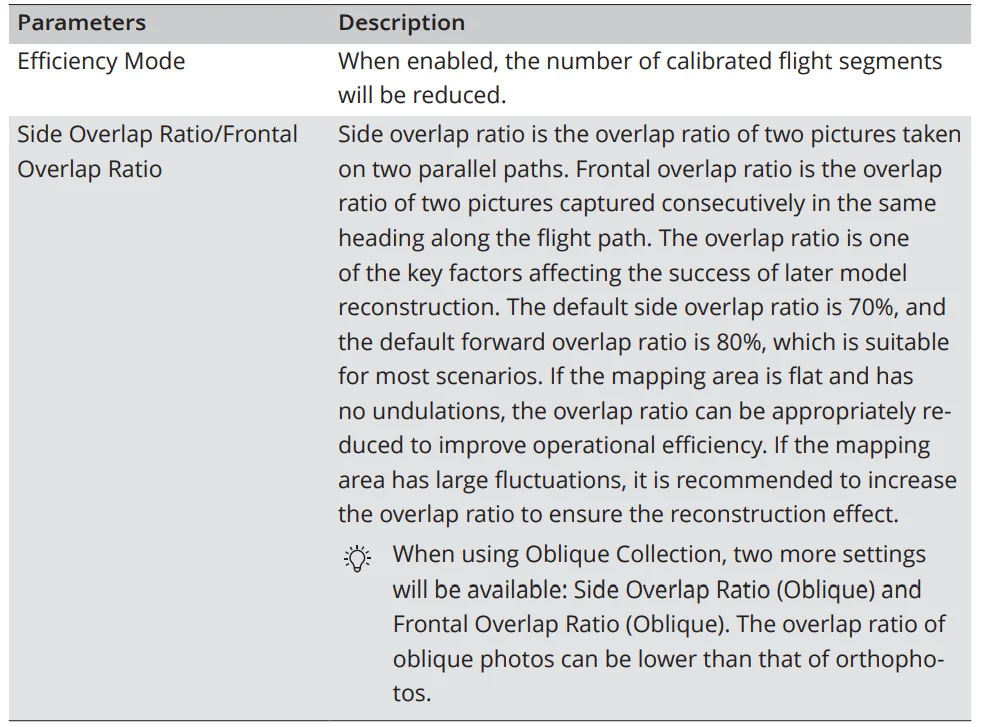
Point Cloud Result Preview
Select Area Route > LiDAR Mapping > Ortho Collection, the recommended parameters and estimated point cloud result will be displayed in the app. Users can review the point cloud quality before the task and adjust parameters based on the estimation.
- In the flight route setting panel, tap Point Cloud Task Output Estimate to view the recommended parameters, and the point cloud density profile and scatter plot generated based on the parameters.
- If the estimated result meets expectations, apply the current parameters. If not, adjust the parameters and regenerate the estimated result.
Task Quality Report
After completing an area route or linear route task, a task quality report is generated automatically to display the detailed information of the task. Users can mark the route segments with low quality in the report. Tap View Now, or select the desired route in the flight route library to view the report.
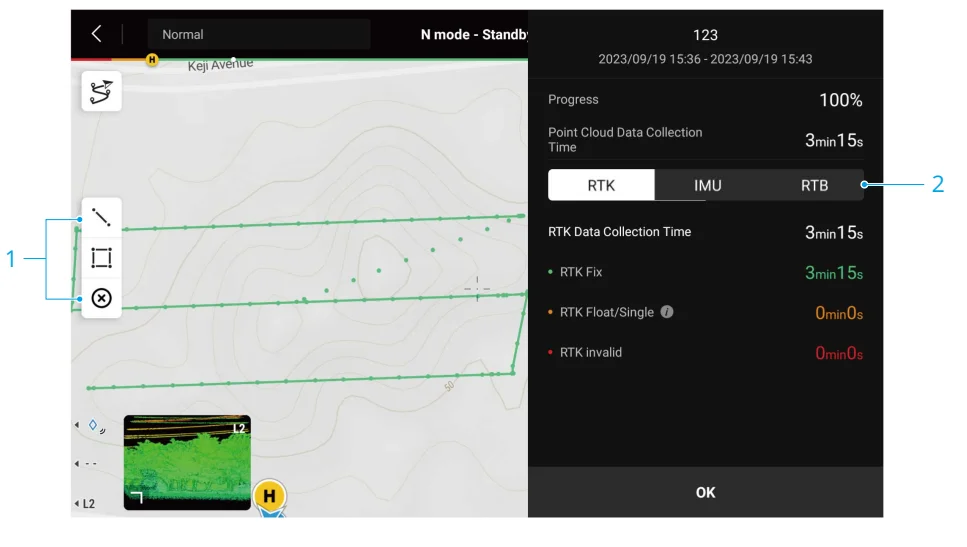
- Tap to display the Edit Line/Area View. Users can mark the flight route segments that require re-survey. Set the marked area as a mapping area and create a new flight task.
- Tap to view the RTK, POS, and RTB status of the flight route.
- RTK: Including fixed solutions, floating/single solutions, and invalid solutions. The floating/single solutions is available for PPK calculation.
- IMU: Tap to view the POS status of the flight route, including fixed solutions and invalid solutions.
- RTB: Tap to view base station data. If there is any abnormal data, post-processing may be affected and the available base station data is required.
Manual Flight
Fly the aircraft to an appropriate altitude and adjust the gimbal to the proper angle. Maintain a suitable distance from the object, and enable the obstacle sensing system to ensure flight safety. It is recommended to perform IMU calibration before and after point cloud recording. Repeat the calibration during flight when prompted. Make sure there are no obstacles in the calibration area.
Warning: If the flight speed exceeds 25 m/s, recording during sideways flight may cause gimbal vibration, affecting imaging quality and point cloud accuracy. In this case, reduce the flight speed accordingly.
Power Line Follow
Power Line Follow is designed for overhead power line scenarios.
- In the preflight check, set the max flight altitude and distance, and enable obstacle sensing. It is recommended to set the max flight altitude higher than the tallest obstacle within the task area and the maximum altitude that may be reached during the task. It is recommended to disable the distance limit, or set the distance to the maximum.
- Fly the aircraft to a certain altitude diagonally above the transmission tower. Adjust the gimbal to ensure the tower is displayed in the camera view.
- Tap to
 create a task and set the parameters.
- Select the power line type. The identification accuracy may be decreased if the selected power line type is inconsistent with the actual situation.
- Set the flight parameters.
The altitude is the height of the aircraft relative to the highest point of the power line. It is recommended to set the altitude to more than twice the flight speed value. For transmission lines, an altitude of 50-80 m is recommended, while for distribution lines, 30-50 m is suggested. - Set the point cloud recording parameters.
The sampling frequency supports 100 kHz and 350 kHz, with 350 kHz recommended. If the towers are particularly tall, use 100 kHz and reduce the flight speed accordingly. Scanning mode is set to non-repetitive scanning mode. When RGB Coloring is enabled, the user can color the point cloud using the photographs captured by the RGB mapping camera.
Hint: The results are affected by factors such as the diameter and material of the power line, and the tower width. It is recommended to adjust the parameters according to the actual situation.
- Tap Next and complete the calibration flight if IMU Calibration is enabled, the app will automatically display the identified power lines. After selecting the power lines, tap Start to begin.
- The aircraft will hover automatically when multiple power lines are detected, and then continue with the flight task after selecting the lines.
- Tap tocomplete the task. The point cloud data files will be saved to the corresponding folders. The task will also end automatically in the following situations:
- No power lines detected.
- RTH is initialized.
- The flight pause button on the remote controller is pressed.
- The flight mode is switched.
- An obstacle is detected. The aircraft will brake and enter obstacle avoidance mode.
- The aircraft is disconnected from the remote controller.
- Flight altitude/distance exceeds the maximum limit.
- The aircraft approaches restricted zones.
 create a task and set the parameters.
Warnings:
- If the aircraft fails to identify power lines, adjust the altitude and gimbal angle, then try again.
- When the aircraft’s flight altitude relative to the power line exceeds 130 m, the app will not display the AR projection. In this case, lower the flight altitude.
- The aircraft will not respond to the remote controller stick movements during the flight task. Press the flight pause button or switch the flight mode on the remote controller to exit the task and manually control the aircraft.
- Make sure to check for obstacles around the aircraft using the FPV camera view. In case of an emergency, promptly control the aircraft using the remote controller.
- The following scenarios may result in inaccurate identification or abnormal termination of the task. In these cases, you can manually end the task.
- Multiple parallel power lines in proximity, such as near substations.
- Insulated power lines.
- The power lines are close to the ground vegetation.
- The presence of numerous linear objects from the top-down perspective, such as buildings, street lamps, and billboards.
- Low visibility conditions, such as rainy or foggy weather.
View Point Cloud Results
Hints & Tips:
- Make sure the aircraft and the remote controller are connected when viewing the point cloud models.
- The model displayed in point cloud playback is generated using sparse point clouds.
Point Cloud Merging
On the point cloud playback display, press the L3 button on the remote controller to select multiple point cloud data files and view the merging model.
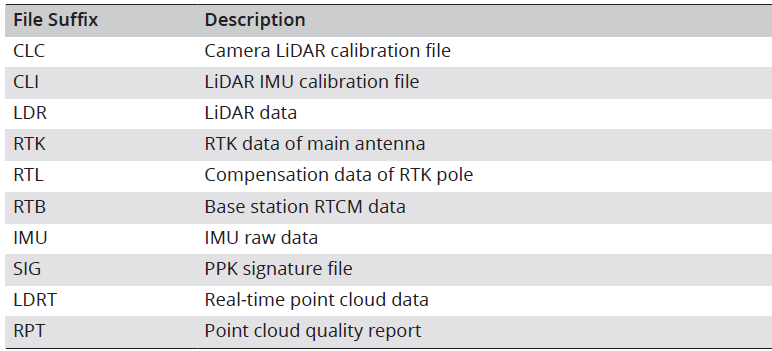
Point Cloud Data File Description
Power off the aircraft after the task is completed and remove the memory card from the payload. Connect it to a computer and check the point cloud data files in the DCIM folder.
Warning: DO NOT power off the device or remove the memory card immediately after image capture or point cloud recording. Wait at least 60 seconds to avoid reduced accuracy or data corruption.
Firmware Update
Using DJI Pilot 2
Online Update
- Ensure the payload is properly installed on the aircraft. Power on the aircraft and the remote controller. Ensure the aircraft is linked to the remote controller, and the remote controller is connected to the internet.
- Run DJI Pilot 2. A prompt will appear on the homepage if new firmware is available. Tap to enter the Firmware Update view.
- Tap Update All, and DJI Pilot 2 will download the firmware and update the device.
Offline Update
An offline firmware package can be downloaded from the DJI official website to an external storage device. Run DJI Pilot 2, tap HMS, and then Firmware Update > Offline Update to select the firmware package of the remote controller, aircraft, or payload from the external storage device and tap Update All to update.
Using a Memory Card
- Download the latest firmware from the DJI official website, and copy the file to the root directory of the memory card.
- Ensure the payload is properly installed on the aircraft, and that the aircraft battery is fully charged and powered off. Insert the memory card into the payload.
- Power on the aircraft. The payload will perform an auto-check and start to update automatically. Restart each device after the firmware updates are complete.
Notices
- Make sure that the device has sufficient power before updating the firmware.
- Do not remove accessories or turn off the device during the update process.
- During the update process, it is normal for the gimbal to go limp, the aircraft status indicators to blink, and the ESC to beep. Wait patiently for the update to complete.
- Make sure to keep the aircraft away from people and animals during a firmware update, system calibration, or parameter configuration.
- For optimal performance, make sure you are using the latest firmware version.
- After the firmware update is complete, the payload will automatically restart and perform an auto-check.
Visit the following link and refer to the Release Notes for firmware update information. https://enterprise.dji.com/zenmuse-l3/downloads
Maintenance
Storage and Transportation
- Store the payload in a dry, well-ventilated, and dust-free environment. DO NOT place the product under direct sunlight, in areas with poor ventilation, or near heat sources.
- Make sure the product is not exposed to environments containing poisonous or corrosive gases or materials.
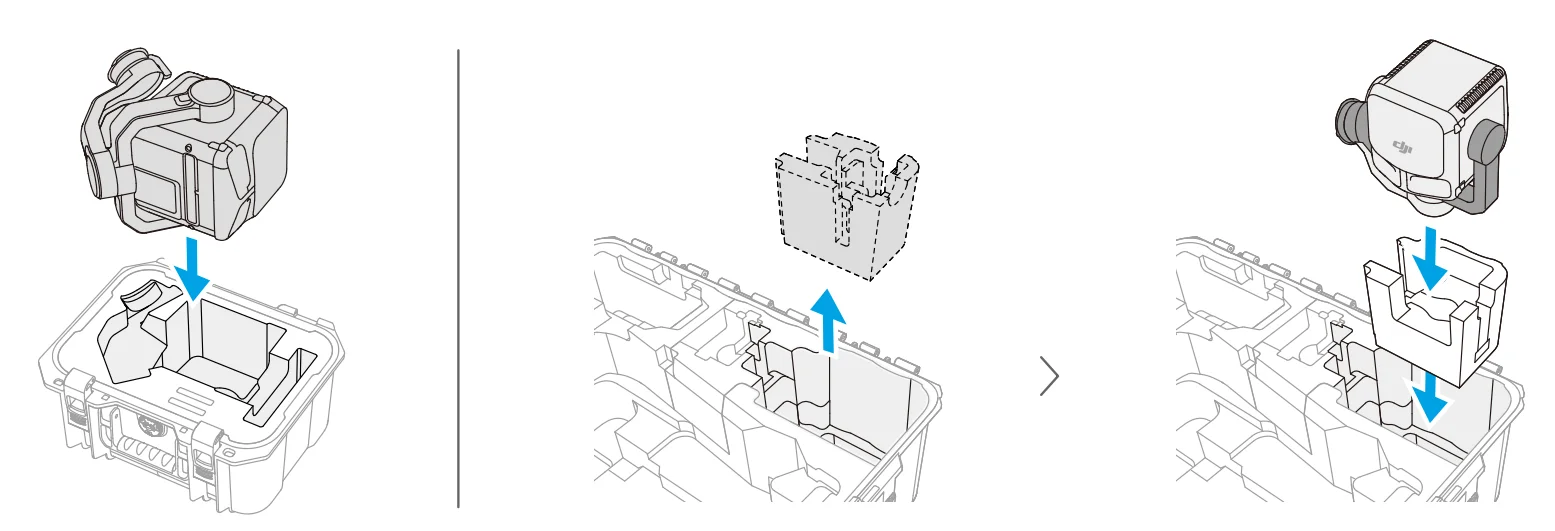
- It is recommended to transport the product with the original product packaging. If using the aircraft carrying case, ensure to replace the gimbal foam insert in the case with the dedicated foam insert provided in the original packaging. Place the payload as shown in the diagram.

- Handle with care during storage and transportation. DO NOT drop it or collide with other objects.
- DO NOT touch the surface of the camera lens with your hands or scratch it with hard objects. Otherwise, the quality of images may be effected. Clean the surface of the camera lens with a soft, dry, clean cloth.
LiDAR Maintenance
Dust and stains on the optical window can negatively affect the performance of the LiDAR sensor. If it is necessary to clean it, follow the steps below:
- Clean the optical window with compressed or canned air before wiping.
- Use a damp lens cleaning cloth to wipe the optical window in one direction. DO NOT use substances containing alcohol. DO NOT wipe with a dry cloth directly as it will scratch the surface of the optical window.
- If stains remain, use mild soap solution to clean the optical window, then remove any soap residue.
Warning: DO NOT directly wipe the granular dust or impurities on the optical window to prevent scratching the surface, which may negatively affect the LiDAR’s performance.
Point Cloud Anomaly Correction
Re-calibrating the Internal and External Parameters
Major calibration errors may result in issues such as layered point clouds and inaccurate color rendering. Select to calibrate the payload.
- Collecting Calibration Data
Make sure that there is a facade of the building in the mapping area and the area is larger than 200 m × 200 m. Using Area Route to create a route of about 5 minutes, and enable IMU Calibration, Elevation Optimization, RGB Coloring, Single return and Repetitive scanning. Set the side overlap ratio to 50%, flight route altitude to 100 m, and speed to 10 m/s. Perform the flight to collect the data. - Using DJI Terra to Export Calibration File
Use DJI Terra (v5.1.0 or later) to create a LiDAR Point Cloud Processing task, import the calibration data collected in step one, and select LiDAR Calibration. Click Export Calibration File after the processing task is completed. The generated calibration file is the .tar file in the lidars/terra_lidar_cali project folder. It is recommended to check if the point cloud data had any issues such as layered point clouds or inaccurate color rendering. Repeat steps one and two if there are issues. Proceed to step three if there are no issues. - Calibrating the Payload
Copy the calibration file to the root directory of the memory card, then insert the card into the payload. Install the payload onto the aircraft, power on the aircraft and wait for about 5 minutes for the calibration to complete. - Checking the Result
After the calibration is completed, remove the memory card, then connect it to a computer and check the .txt format log file. The calibration is successful if all is displayed. Users can also record the point cloud data to check whether the time parameter of the. CLI file is updated.
Restore Factory Settings
If the calibration results are not satisfactory, the internal and external parameters can be restored to the default settings by following the steps below.
- Creating restoring files
- Restoring the. CLI file: Create a new .txt file and name it clear_user_extri_params.txt.
- Restoring the camera parameters: Create a new .txt file and name it reset_cali_user.txt. Open the file and enter the serial number of the payload that will be reset with the format: XXXXXXXXXXXXXX. The serial number can be found in the. CLI file in the task folder or in the device version information in the app.
- Importing the files
Copy the .txt file to the root directory of the memory card, then insert the card into the payload. Install the payload onto the aircraft, then power on the aircraft and wait for about 5 minutes for the calibration to complete. - Record the point cloud data and remove the memory card from the payload, then connect it to a computer and check the .txt format log file. The restoration is successful if All succeed is displayed. It is also possible to check whether the time parameter of the . CLI file is restored to the default settings.
For more manuals by DJI, visit ManualsLibraryy
DJI Zenmuse L3 LIDAR System-FAQs
What is the maximum range of the DJI Zenmuse L3?
The Zenmuse L3 can detect objects up to 950 meters away at a 100 kHz pulse rate under ideal lighting conditions (100 klx) and 10% reflectivity. Its adjustable pulse rate allows users to balance range, density, and performance based on mission needs.
What is the Zenmuse L3 mainly used for?
It is designed for professional mapping, surveying, forestry analysis, infrastructure inspection, and powerline monitoring. The system captures precise 3D point cloud data even in complex environments.
Can the pulse rate be adjusted?
Yes. Operators can modify the pulse repetition frequency to optimize scanning density, detection range, and power consumption for different operational scenarios.
Is the Zenmuse L3 suitable for low-reflectivity objects?
Yes, it performs well even on objects with as low as 10% reflectivity, making it effective for vegetation, terrain, and darker surfaces.
Does the Zenmuse L3 support wide-area coverage?
Yes. Its long detection range and high-density scanning capability allow efficient coverage of large survey areas in fewer flights.
What drones are compatible with the Zenmuse L3?
The Zenmuse L3 is built for DJI Enterprise drone platforms that support advanced payload integration. Always verify compatibility with your specific DJI Enterprise aircraft model.
How accurate is the L3 LiDAR system?
It delivers highly accurate point cloud data suitable for professional-grade mapping and modeling when used with proper calibration and GNSS positioning systems.
Does ambient light affect performance?
The system is tested under bright ambient conditions (up to 100 klx), ensuring stable performance in daylight operations.
Is the Zenmuse L3 suitable for industrial inspections?
Yes. Its ability to “see through” vegetation and capture precise terrain details makes it ideal for utility inspections, construction monitoring, and topographic surveys.
What makes the Zenmuse L3 different from standard drone cameras?
Unlike RGB cameras that capture images, the L3 uses LiDAR technology to generate detailed 3D point clouds, enabling accurate elevation models and structural analysis even without visible light.