
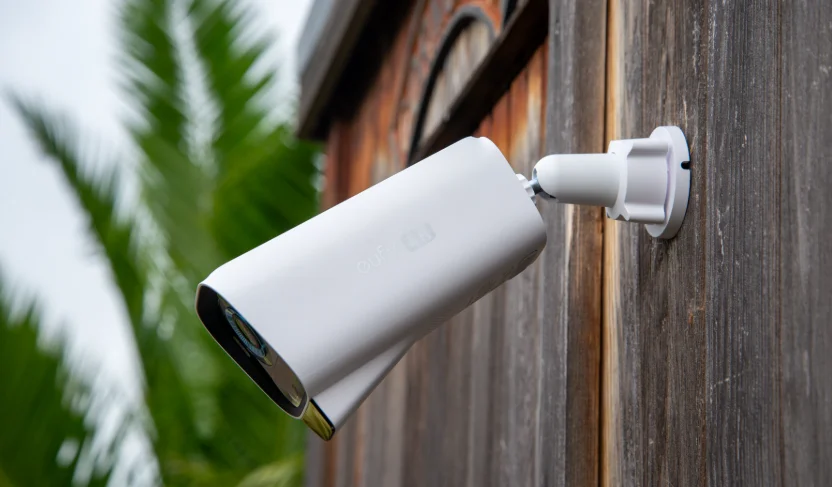

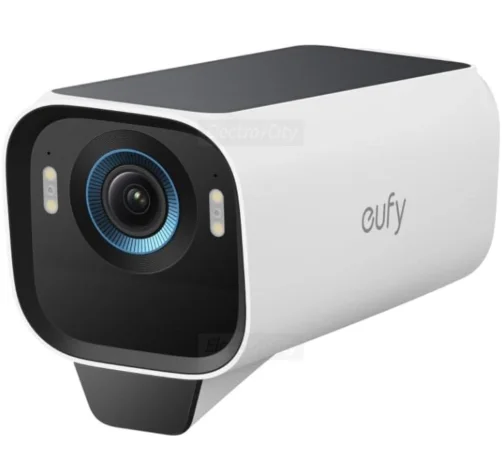
Eufy Cam S3 Pro
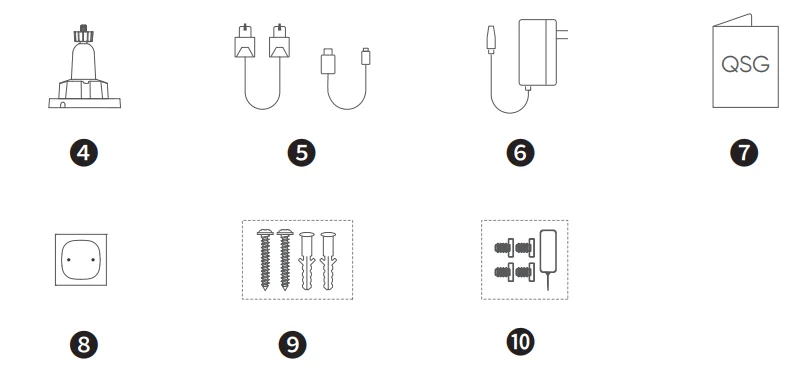
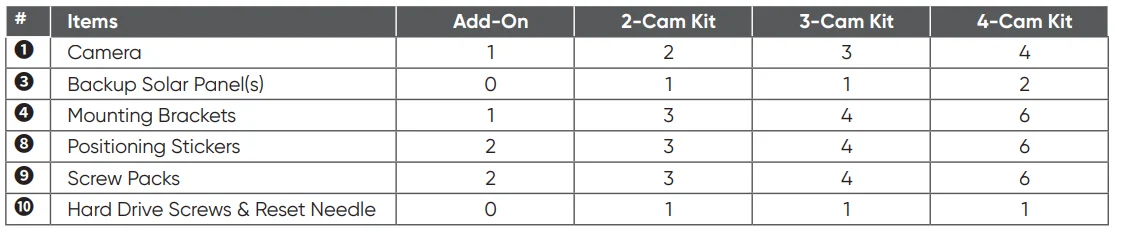
What’s in the Box
Make sure everything is included. Anything missing? Please contact [email protected].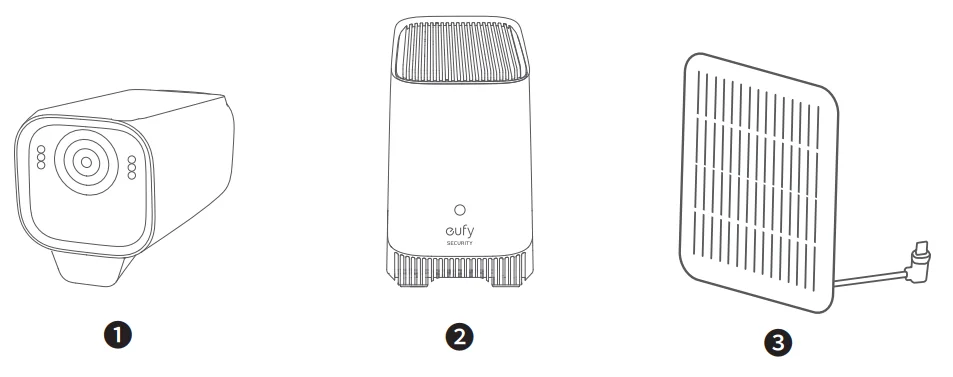
At a Glance
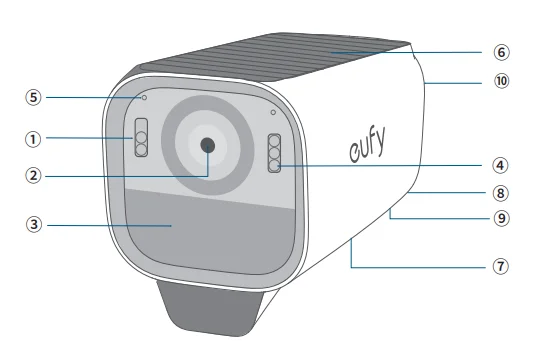
eufyCam S3 Pro (T8612)
- Spotlight
- Camera Lens
- Motion Sensor
- LED Indicator
- Microphone
- Built-in Solar Panel
- Speaker
- SYNC Button
- USB-C Charging Port
- Mounting Hole

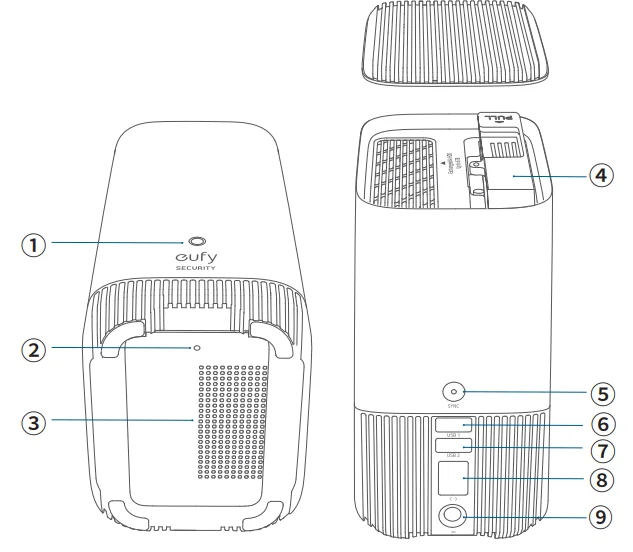
HomeBase S380 (T8030)
- Status LED
- Reset Hole
- Speaker
- Hard Drive Bracket
- SYNC / ALARM OFF Button
- USB Port 1 (Output Power: 5V/2.4A; for Charging eufyCam)
- USB Port 2 (for Data)
- Ethernet Port
- DC Power Port

Getting Started with the App
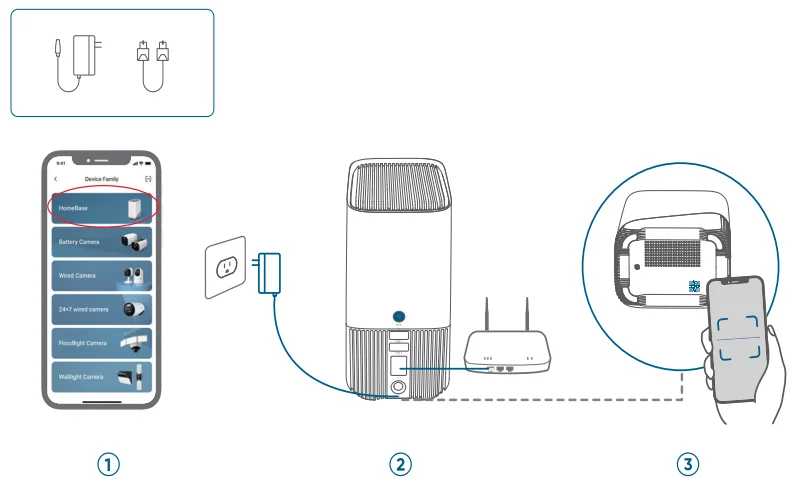
- Scan the QR code below or search for “eufy Security” to download.

- Log in or create a new account.
- Follow in-app instructions to add the HomeBase.
- Turn on the HomeBase and connect it to your router.
- Wait about 1 minute for the LED to turn blue.
- Use the included Ethernet cable to connect to your home Wi-Fi router.
- Use the included power adapter (12V/2A) to power on the HomeBase.

- Follow in-app instructions to add eufyCam S3 Pro and then sync it with the HomeBase.

- Complete other settings or skip for later setup.
- Motion Detection
- Face Management
- Video/Audio Settings

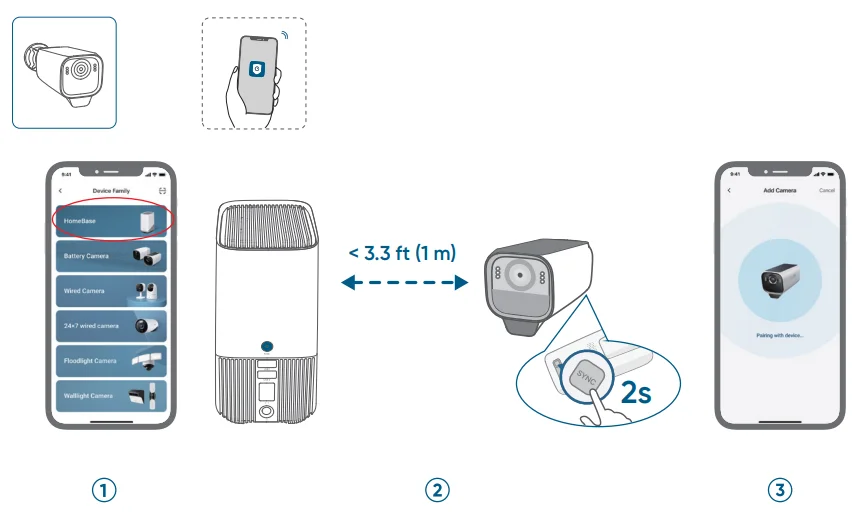
Preparing
Expand HomeBase Storage (Optional)
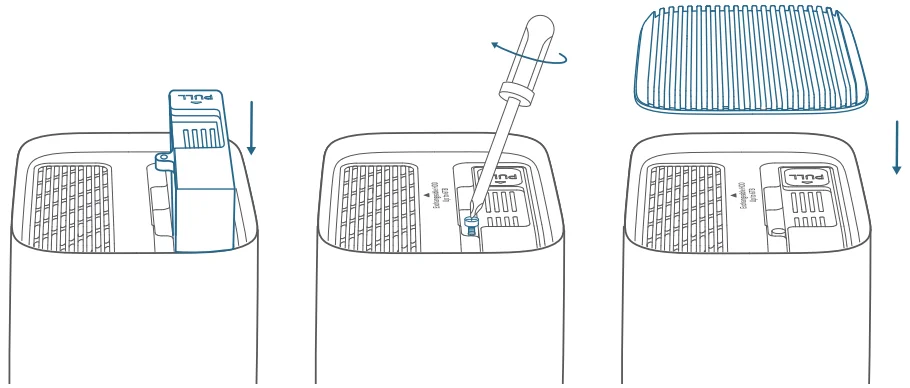
HomeBase S380 comes with 16 GB of storage for saving video recordings and allows you to add a hard drive to expand the space. Your hard drive must meet the following requirements:
- Push down the top lid to remove it.

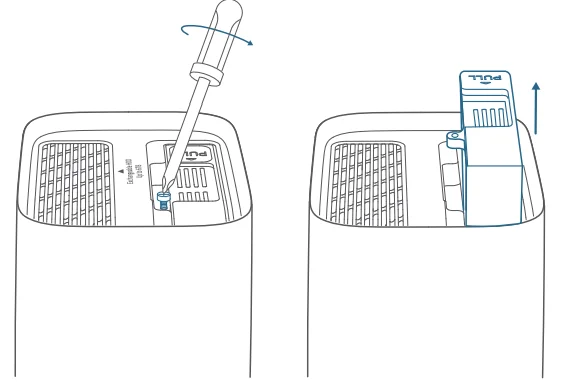
- Loosen the screw, then take out the hard drive bracket.

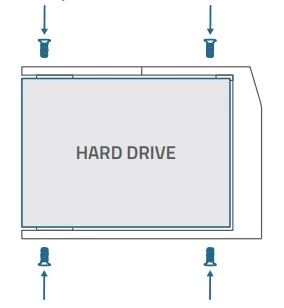
- Fix your hard drive to the bracket with the provided screws.

- Insert and screw the bracket back to the HomeBase, then put the top lid back into place.

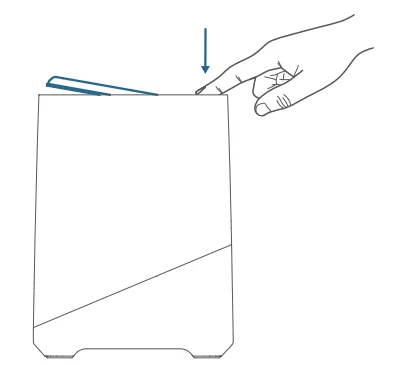
Fully Charge the Cameras before Mounting
Fully charge the cameras (to 100% battery level) before installing them outdoors.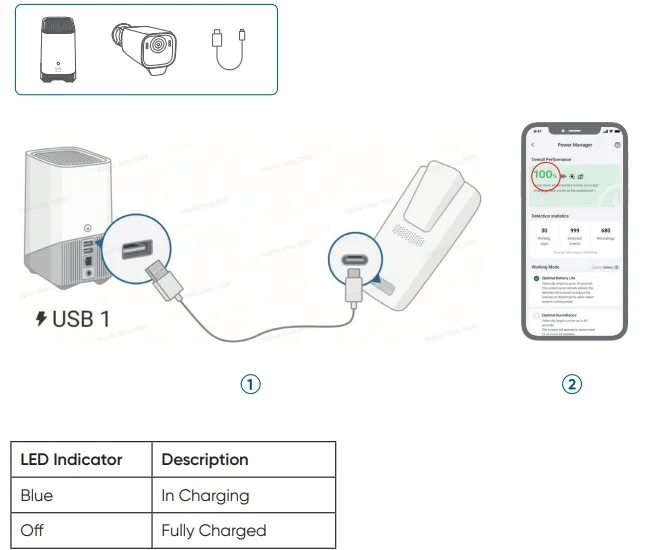
Mounting Guide
Choose a Location
Your eufyCam includes a built-in solar panel and a backup solar panel that converts sunlight into electrical energy and keeps your eufyCam charged every day.
- The charging efficiency fluctuates according to the intensity of the sunlight.
- Don’t worry when the battery level goes down. It happens when there isn’t enough sunlight or the camera is consuming more power than usual. You don’t need to charge the camera with a cable until a low battery alarm goes off.
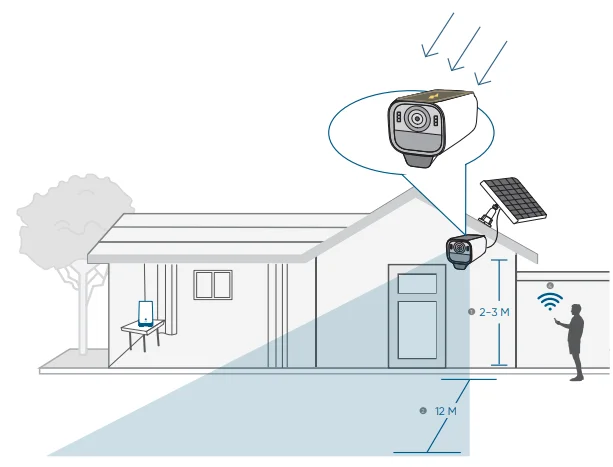
For eufyCam
Choose a location where you can get the desired view.
Best location recommended:
- Height of 2–3 m
- Field of View of 12 m
- 100% of the built-in solar panel area receives sunlight
- Fully exposed to direct sunlight for at least 1.5 hours per day
- Strong Wi-Fi signal
For Backup Solar Panel
Best location recommended:
- 100% of the built-in solar panel area receives sunlight
- Fully exposed to direct sunlight for at least 1.5 hours per day.

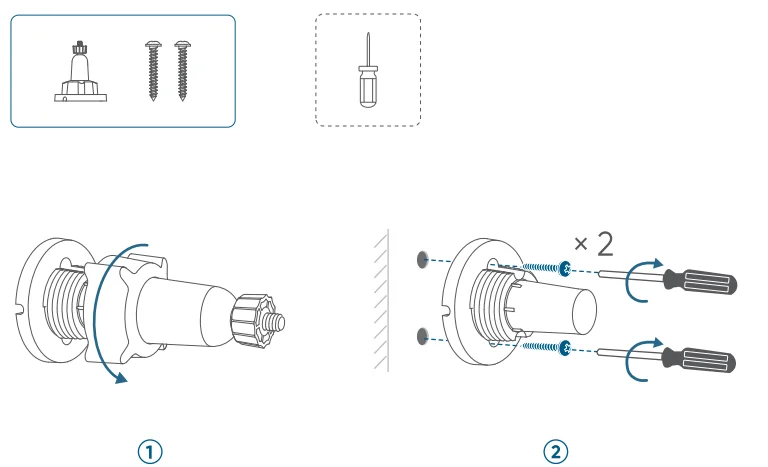
Install the Mounting Bracket
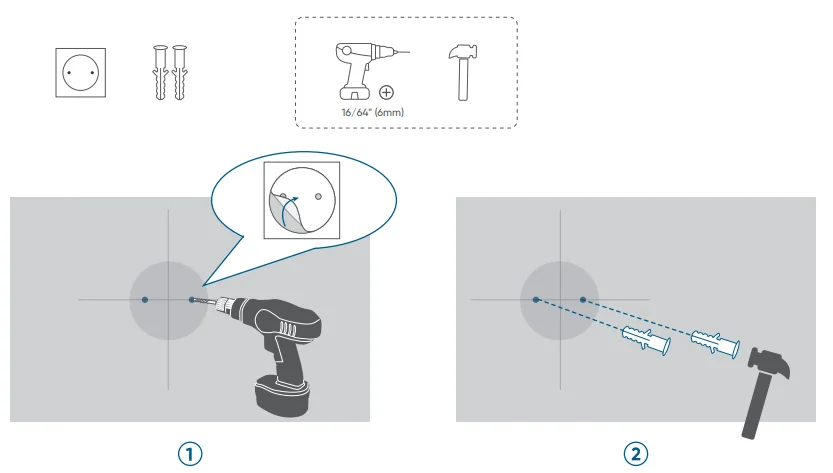
Position & Drill Holes
- Drill holes.
- Insert anchors (skip for wooden wall).

Install Mounting Base
- Take it apart.
- Install the base.

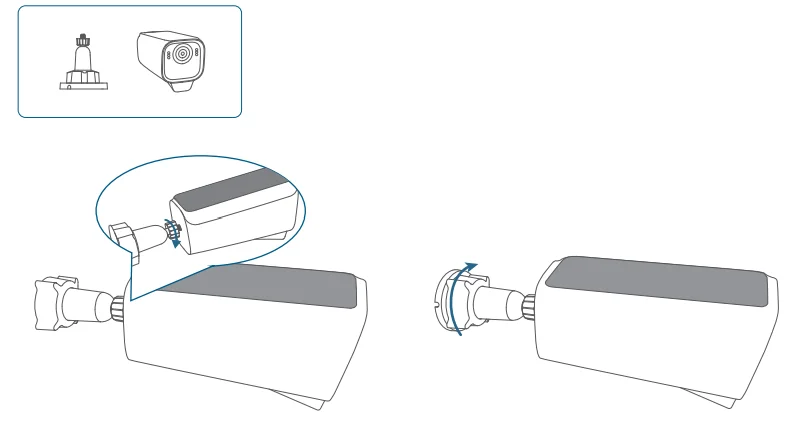
Mount the Camera
- Mount the camera.
- Tighten the small knob.

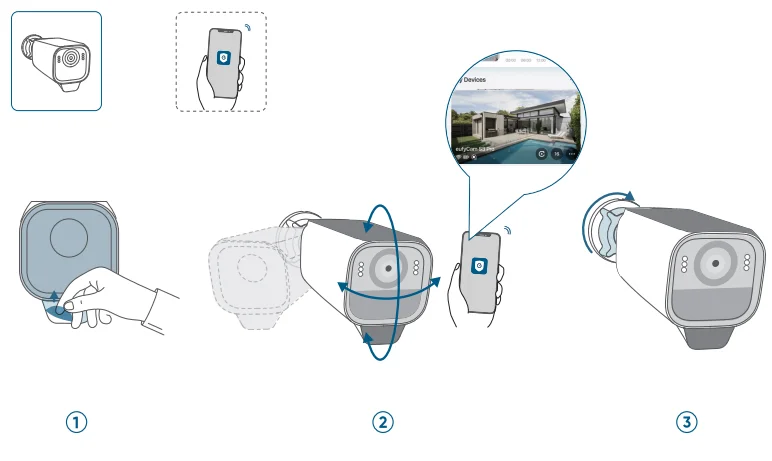
Adjust the Camera Field of View
- Remove the protective film.
- Get an optimal angle when viewing the live stream in the app.
- Tighten the large knob.

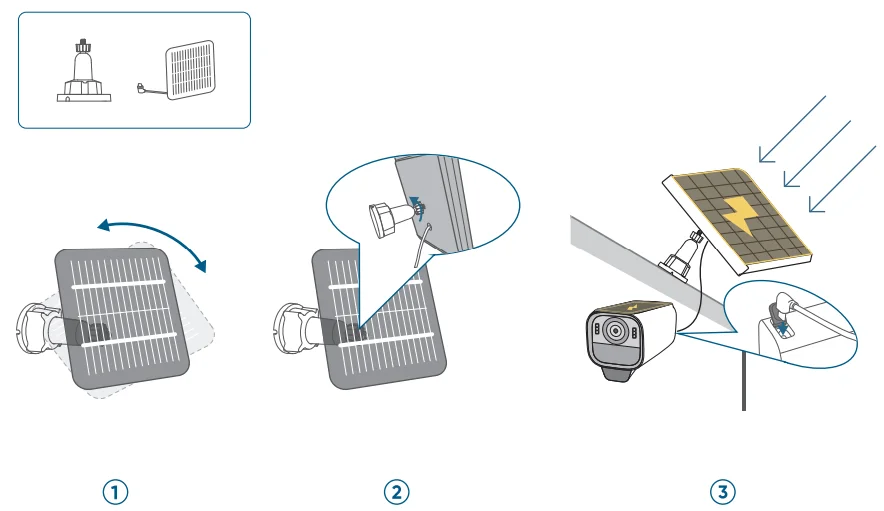
Mount the Backup Solar Panel
- Mount the solar panel.
- Tighten the small knob.
- Connect and adjust.

For More Manuals By Eufy, Visit ManualsLibraryy.
Eufy Cam S3 Pro -FAQs
Is the eufyCam S3 Pro worth buying?
The eufyCam S3 Pro is worth considering for users who want high-resolution video, long battery life, and no mandatory monthly subscription fees. It delivers sharp image quality, reliable motion detection, and local storage through HomeBase 3. For homeowners who prefer privacy-focused security with expandable storage and solar charging options, it offers solid long-term value.
Does the eufyCam S3 Pro support 24/7 recording?
Yes, the eufyCam S3 Pro supports 24/7 recording when connected to a direct power source via a compatible power cable. In battery or solar mode, it typically records motion-triggered clips to conserve energy. Wired mode enables continuous recording with features such as pre-roll capture, making it suitable for areas that require constant monitoring.
What is the viewing range of the eufyCam S3 Pro?
The eufyCam S3 Pro can clearly capture faces and license plates up to approximately 30 feet away, even in low-light conditions. Its advanced image processing enhances color accuracy, dynamic range, and clarity. While exact performance depends on lighting and placement, it is designed to provide detailed footage for driveways, entryways, and front yards.
Does the eufyCam S3 Pro require HomeBase 3?
Yes, the eufyCam S3 Pro must be connected to HomeBase 3 to function properly. It does not work as a standalone camera. The HomeBase manages storage, AI processing, and system connectivity. This setup allows centralized control, local data storage, and advanced features like facial recognition without relying on cloud subscriptions.
Can the eufyCam S3 Pro be installed in direct sunlight?
The camera is designed to handle outdoor conditions and can operate in direct sunlight. Its built-in solar panel can collect and store sufficient energy during sunny days to maintain operation. However, performance depends on sunlight intensity and duration. In optimal conditions, even limited daily sun exposure can support continuous usage.
How long can eufyCam S3 Pro recordings be?
The recording length can be adjusted through the eufy Security app if set under one minute, and the maximum duration per motion-triggered clip can be extended up to two minutes. In wired mode with continuous recording enabled, it captures ongoing footage. Clip length settings help balance storage usage and battery efficiency.
Does the eufyCam S3 Pro offer local storage?
Yes, the eufyCam S3 Pro supports local storage through HomeBase 3, with expandable capacity up to large storage limits depending on the installed drive. This means footage can be stored without monthly subscription fees. Local storage enhances privacy since video data remains within your home system rather than being stored exclusively in the cloud.
How far can the eufyCam S3 Pro be from HomeBase?
In typical home environments, the recommended placement is within about 30 feet of the HomeBase for a stable connection. The actual range can vary depending on wall thickness, interference, and obstacles. For best performance, positioning the HomeBase centrally within the home can help maintain a strong signal to outdoor cameras.
Can the eufyCam S3 Pro be wired instead of using a battery or solar?
Yes, the eufyCam S3 Pro can be connected to a power adapter for wired operation. When switched to wired mode in the app, it can support continuous recording and reduce reliance on battery charging. This option is ideal for high-traffic areas where uninterrupted surveillance is important.
How does the eufyCam S3 Pro compare to other security camera brands?
Compared to many competitors, the eufyCam S3 Pro stands out for its no-subscription local storage model and solar charging capabilities. Some brands may offer broader ecosystem integration or professional monitoring services, but eufy focuses on privacy, expandable storage, and cost efficiency. The better choice depends on whether you prioritize subscription-free ownership or a fully monitored security system.