
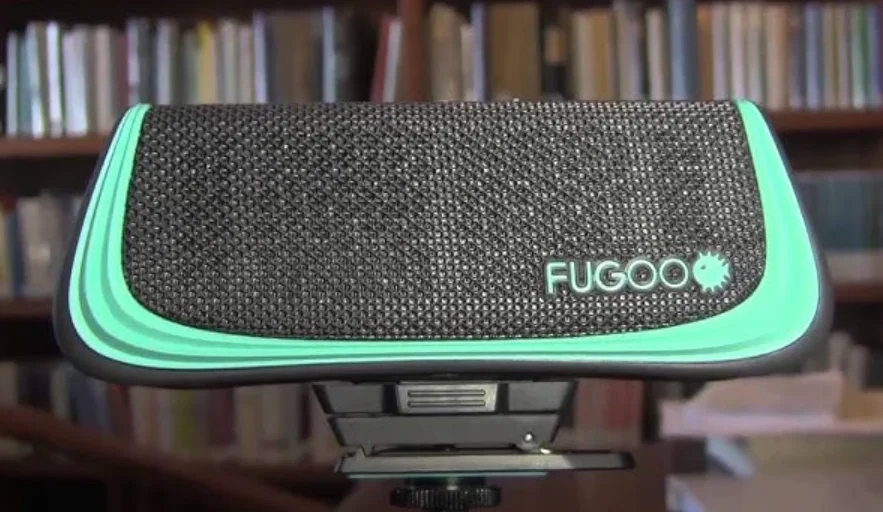

Fugoo Tough F6ST Bluetooth Speaker

In the box
- Fugoo Bluetooth Speaker
- Charger
- Micro USB cable
- Startup Guide
Fugoo Bluetooth Speaker controls

POWERING UP AND CONNECTIONS
- Power On / Off ……………….. Hold
 1 second
 - Battery status ………………………………. Click
- Pair with a device …………… Hold
 3 seconds
 - Disconnect device …………………………. Click

- Clear all paired devices …. Hold
 10 seconds
 - Reset ………………………….. Hold O 10 seconds
- TWS pair/unpair……………….. Double-click

 3 seconds
SPEAKERPHONE
- Answer/end call ………………………………. Click O
- Reject a call ………………………….. Double-click O
- Mute the microphone in a call …………. Click + and –
PLAYBACK CONTROL
- Play / Pause ………………………………… Click O
- Volume up / down ………………….. Click + / –
- Previous track ……………………. Click O and –
- Next track ………………………….. Click O and +
- Voice Control ………………….. Hold O 1 second.
PAIR TWO SPEAKERS TOGETHER
- Place 1st unit in Pairing Mode …. Click
 and +
and + - Place 2nd unit in Pairing Mode …. Click and –
- Toggle between Double / Stereo Mode …………… Click
 and + and –
Charging and battery charge status
Checking the battery level
- With the speaker powered on, click the (Power) button momentarily. The LED indicator blinks green one to six times to indicate the charge status of the battery.
- If voice prompts are enabled, the speaker responds with “Battery is low.”
- If the battery charge gets very low, the LED indicator will blink red, and after several minutes, the speaker will say, “Please recharge the battery. Powering off,” and the speaker will turn off.


Charging your speaker
- Connect the supplied Micro-USB charging cable to the speaker.
- While the battery is being charged, the LED will slowly pulse on/off green.
- When the battery has reached full charge, the LED will glow solid green.
Powering on your speaker
- Click the
 (Power) button momentarily to power the speaker on.
 - When the speaker runs from battery power, it will power itself off after a period of inactivity.
- Hold the
 (Power) button for one second to turn the speaker off.
Connecting your speaker to smartphones and other devices
You can connect your Fugoo speaker to a source device either through its audio input jack or through a Bluetooth wireless link. Only one of these inputs can be active at a time.
Connecting through an audio cable to the audio input jack
- Connect one end of the supplied 3.5 mm audio cable to your speaker’s audio input jack, then connect the other end to the headphones jack of your audio source device.
- Plugging the supplied audio cable into the speaker’s audio input jack turns off the Bluetooth wireless link to save power and maximize battery life.
Pairing and connecting with another Bluetooth device
- Make sure that a 3.5 mm audio cable is not connected to the speaker’s audio input.
- Place your Fugoo Bluetooth Speaker and your other Bluetooth device within 33 feet (10 meters) of each other.
- Turn the speaker and the source device on.
- Hold the
 (Bluetooth) button for three seconds. The LED blinks blue and red repeatedly. If voice prompts are enabled, the speaker says, “Pairing mode. Use the Bluetooth settings of your device to connect.” The speaker will remain in pairing mode for three minutes or until it pairs with your device.
 - On your Bluetooth source device, turn on Bluetooth, which will allow it to discover the speaker. (See the Bluetooth settings information for your device.)
- Select “Fugoo” on your Bluetooth source device.
- Wait briefly for the speaker to discover your Bluetooth source device. If voice prompts are enabled, the speaker will say, “Pairing successful” and “Connected.”
 (Bluetooth) button for three seconds. The LED blinks blue and red repeatedly. If voice prompts are enabled, the speaker says, “Pairing mode. Use the Bluetooth settings of your device to connect.” The speaker will remain in pairing mode for three minutes or until it pairs with your device.
If you hear “Pairing is unsuccessful,” try pairing again. If you are using an iPhone or an iPad that has been previously paired to the speaker, it may be necessary to “Forget this Device,” as follows:
- Tap Settings.
- Tap Bluetooth.
- Tap the icon to the right of “Fugoo.”
- Tap “Forget this Device.”
- Tap “Forget Device.”
As long as the speaker is in pairing mode, the iPhone should find the speaker again and pair with it.
Disconnecting from another Bluetooth device
To disconnect your Fugoo Bluetooth Speaker from a Bluetooth source device, you can:
- Click the (Bluetooth) button on your speaker.
- Move your speaker and the Bluetooth source device apart until they disconnect.
- Power off your speaker.
- Power off the source device.
- Power off Bluetooth on your source device.
- Plug an audio cable into the speaker’s audio input jack.
- Disconnecting temporarily interrupts the Bluetooth wireless link between the speaker and the currently paired source device, which permits the speaker to reconnect with another source device to which it has been previously paired.
- Click the Bluetooth button; the speaker will attempt to connect with the last source device.
- The disconnected device will still be paired with the speaker, allowing the speaker to reconnect with it later.
Reconnecting
- To reconnect to a Bluetooth source device to which you have previously paired, just power on the speaker and the source device and place them within 33 feet (10 meters) of each other. It’s also necessary that no cable be plugged into the audio input jack. Typically, the speaker and the source device will reconnect automatically.
- If voice prompts are enabled, the speaker says “Connected.”
Clearing all pairings
- To clear the Bluetooth pairings with all previously paired source devices, turn the speaker on and then hold the (Bluetooth) button for ten seconds, until the speaker says, “All Bluetooth pairings cleared. Pairing mode. Use the Bluetooth settings of your device to connect.”
Audio playback
Adjusting the volume
- Click the + (Volume up) or – (Volume down) buttons to raise or lower the volume.
Playback
- Play/pause – Click O (Action) to toggle between playing and pausing your audio.
- Next track – Click O and + to skip to the next track in the playlist.
- Previous track – Click O and – to skip to the previous track in the playlist.
Taking a call – Speakerphone mode
Your Fugoo Bluetooth Speaker can act as a very high-quality speakerphone for your cell phone or smartphone. You can receive and end calls and manage a call on hold.
Taking a call
If you take a call on your phone when it is connected to the speaker, you’ll hear it ringing through the speaker.
- Click the O (Action) button to receive (pick up) the call.
- Talk and listen through the speaker during the call.
- Click + or – to raise or lower the volume.
- Click + and – simultaneously to mute/unmute the microphone.
- Click O to end (hang up) the call.
- If you have a call on hold, press O to switch to it and to switch back to the other call.
- Double-click O to end the active call and switch to the call on hold.
- Use your phone’s controls to transfer the call from the speaker back to your phone.
Voice response mode
- While your phone or other device is paired to the speaker (and a call is not in progress), hold the O (Action) button for one second. A tone sounds through the speaker to activate a voice response service, such as Siri, Google Now, or Cortana.
- Speak voice response commands through the speaker’s microphone.
- Click + or – to raise or lower the volume.
- Click the O (Action) button to cancel voice response mode.
LED indications
The LED between the Power and Bluetooth buttons shows either the connection status or the charging status of the speaker. Charging status takes priority, so disconnect the speaker from the AC adapter to see its connection status.
- Blinking blue/red: pairing mode – The speaker is available for pairing with a source device, such as a smartphone, tablet, Mac, or PC.
- Blinking blue: ready – The speaker is not currently connected to a source device but is ready to connect to a source device with which it has been paired.
- Solid (continuous) blue: connected – The speaker is currently paired with and connected to a source device.
- Pulsing green: charging – The speaker is charging the battery. This indication overrides the connection status indications above.
- Solid (continuous) green: charged – The speaker has completely charged the battery. This indication overrides the connection status indications above.
Power Save mode On / Off.
The speaker can shut itself off to conserve power after a period of inactivity – meaning no button presses and no audio playback. Power Save mode can be toggled on and off by holding the – (Volume down) button while turning the speaker on with the (Power) button. The default state is on. If Power Save mode is on, then the speaker will shut itself off as follows …
When in BT mode:
- If the speaker is not connected to a source device and is not plugged into a power source, the speaker turns off after 15 minutes of inactivity.
- If the speaker is not connected to a source device and is plugged into a power source, the speaker turns off after 30 minutes of inactivity.
- If the speaker is connected to a source device and is not plugged into a power source, the speaker turns off after 1 hour of inactivity.
- If the speaker is connected to a source device and is plugged into a power source, the speaker will not shut off automatically.
When in Line-in mode:
- If there is no signal input and it is not plugged into a power source, the speaker turns off after 60 minutes of inactivity.
- If the speaker is plugged into a power source, the speaker will not shut off automatically.
- If Power Save mode is off, then the speaker will remain on until you turn it off by pressing the (Power) button for one second.
Resetting the speaker
- If the speaker becomes unresponsive or behaves differently than you believe it should, try resetting it. Hold the O (Action) button for about ten seconds. This will reset the speaker without clearing its pairing list.
- The speaker can be reset, whether it’s on or off.
TWS pairing
- Make sure both Fugoo speakers (Speaker A and Speaker B) are on and in proximity to each other. Speaker A is the master speaker, and Speaker B is the slave speaker.
- Long-press the Bluetooth button on Speaker B to enter pairing mode. The red and blue LEDs will alternate flashing.
- Double-click the Bluetooth button on Speaker A to enter TWS searching, and you will hear the voice prompt “du” on Speaker A.
- Once the two speakers are paired together, the “amber” LED will be solid on Speaker B to indicate that it is a slave speaker. Both speakers will prompt “connected.”
- Pair your device via Bluetooth to Speaker A, and you can play audio.
TWS unpair
- Make sure both Fugoo speakers (Speaker A and Speaker B) are on and in proximity to each other. Speaker A is the master speaker, and Speaker B is the slave speaker.
Updating your Fugoo Bluetooth Speaker’s firmware
Fugoo posts new versions of the speaker firmware from time to time to add features, improve the sound quality and loudness, and enhance the user interface. The firmware updates are installed by an Update Utility that is compatible with Windows 10, Windows 8, Windows 7, Windows Vista, and Windows XP. Please visit the product support page on our website to download the Update Utility and the latest speaker firmware. Find us at http://www.fugoo.com.
Care and maintenance
Cleaning the unit
Note: When the speaker is being used outdoors or when cleaning with water, please ensure the waterproof/dustproof port door is closed.
- After a day at the sandy beach or the muddy trail, rinse your speaker off with warm water from a sink faucet. Don’t use soap, detergents, or any chemical cleaning products. Don’t use a garden hose, compressed air, or any other high-pressure stream to clean it, as this may damage the speaker drivers. Don’t use a brush of any kind for the same reason.
Product support
- Visit Fugoo’s Support page at support.fugoo.com for help with connecting, to view our FAQs, or to ask us a question.
- Visit Fugoo’s downloads page at fugoo.com/product-support for firmware updates, alternative voice prompts, and mobile wallpaper images.
- Send us a support request at [email protected].
Legal notices
FCC Statement
NOTE: This equipment has been tested and found to comply with the limits for a Class B digital device, pursuant to Part 15 of the FCC Rules. These limits are designed to provide reasonable protection against harmful interference in a residential installation. This equipment generates, uses, and can radiate radio frequency energy, and if not installed and used in accordance with the instructions, may cause harmful interference to radio communications.
However, there is no guarantee that interference will not occur in a particular installation. If this equipment does cause harmful interference to radio or television reception, which can be determined by turning the equipment off and on, the user is encouraged to try to correct the interference by one or more of the following measures:
- Reorient or relocate the receiving antenna.
- Increase the separation between the equipment and receiver.
- Connect the equipment into an outlet on a circuit different from that to which the receiver is connected.
- Consult the dealer or an experienced radio / TV technician for help.
Changes or modifications not expressly approved by the party responsible for compliance could void the user’s authority to operate the equipment. This device complies with Part 15 of the FCC Rules. Operation is subject to the following two conditions:
- This device may not cause harmful interference, and
- This device must accept any interference received, including interference that may cause undesired operation.
IC Statement
This device complies with Industry Canada license-exempt RSS standard(s). Operation is subject to the following two conditions:
- This device may not cause interference, and
- This device must accept any interference, including interference that may cause undesired operation of the device.
For More Manuals By Fugoo, Visit ManualsLibraryy.
Fugoo Tough F6ST Bluetooth Speaker-FAQs
How do I put my Fugoo speaker in pairing mode?
Press and hold the Bluetooth button until the LED flashes, indicating it’s ready to pair with a device.
How can I check the battery level on my Fugoo speaker?
Briefly press the Power button while the speaker is on (not charging). The LED will blink to show the battery status.
How do I reset my Fugoo speaker?
Press and hold the Bluetooth and Action (O) buttons together for 10 seconds to reset the speaker.
Why isn’t my speaker pairing via Bluetooth?
Make sure Bluetooth is enabled on both devices, the speaker is in pairing mode, and the devices are within range. Restart devices if needed.
Can I factory reset the Fugoo speaker?
Yes. Turn off the speaker, then hold the Power and Bluetooth buttons together for 5–10 seconds until it resets.
How do I know if my speaker is charging?
The LED indicator shows charging status: typically red for charging and green when fully charged.
How long does it take to fully charge the speaker?
It takes approximately 3 hours to fully charge from 0% using the supplied charger.
Can I use the speaker while it’s charging?
Yes, you can play music via Bluetooth or wired connection while the speaker is charging.
How long does the battery last?
Battery life depends on usage, but under normal conditions, the Fugoo Tough F6ST can last several hours per charge.
Can the speaker battery be replaced?
Yes, the battery can be replaced, but it requires opening the speaker and may need soldering. Professional help is recommended.