
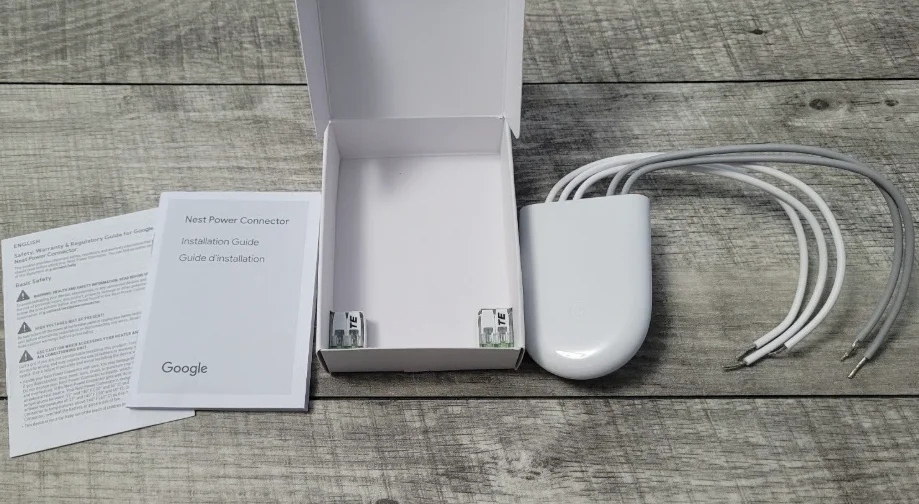

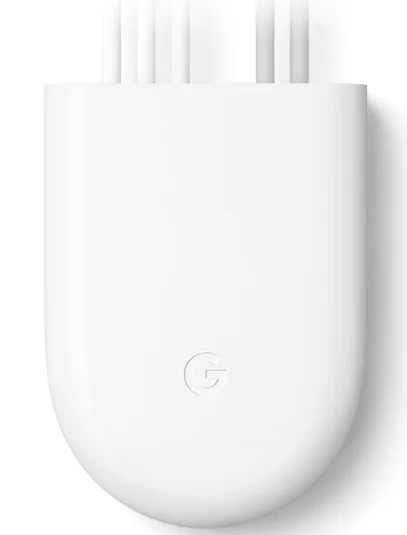
Google Nest Power Connector
Basic Safety
Read all installation instructions and the safety and warranty guide before installation.
Caution: High voltages may be present! Be sure to turn off the power at the breaker panel or unplug your heater and/or air conditioning unit before attempting installation or disconnecting any wires. Use caution when accessing your heater and/or air conditioning unit. Call a pro if you are not comfortable installing this product. Installation will require access to wiring and may require the use of ladders or working in locations with little space. Use a helper if possible and avoid installing the device when home alone.
Technical Specifications
Operating temperature: -22° to 140°F (-30° to 60°C)
Voltage rating: 20–30 VAC
Ingress protection: IP51
Setup Process
- Install your Nest thermostat
- Update your thermostat
- Turn off the power at the circuit breaker
- Open the HVAC equipment cover
- Find the HVAC control board
- Label the thermostat wiring
- Install the power connector
- Cooling and heating system
- Heating-only system
- Cooling-only system
- No C-terminal
- Close the HVAC cover and turn on the power
- Confirm power connector installation
Compatibility
Nest Thermostat, Nest Thermostat E, Nest Learning Thermostat 3rd gen. 24V VAC systems only. Millivolt or high-voltage systems are incompatible.
Before You Start
Watch an installation video at g.co/nest/powerconnectorinstall.
Professional installation recommended.
Connect with an independent installer who’s trained to install Google Nest products at g.co/nest/install. Get advanced instructions at g.co/nest/powerconnectoradvanced.
What’s Included
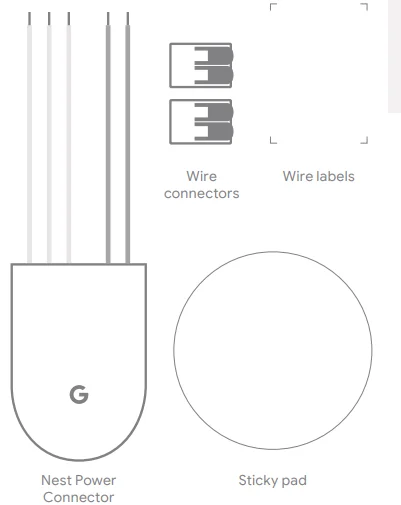
Install the power connector at your HVAC equipment, not your thermostat. If you have multiple thermostats, install one at your zone controller.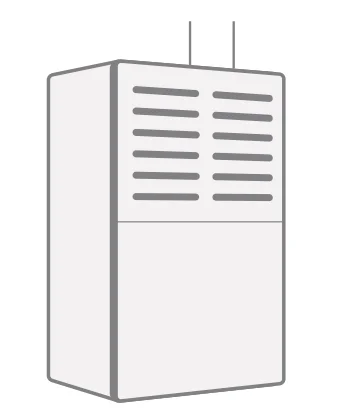
1. Install your Nest thermostat
Install your thermostat before the power connector.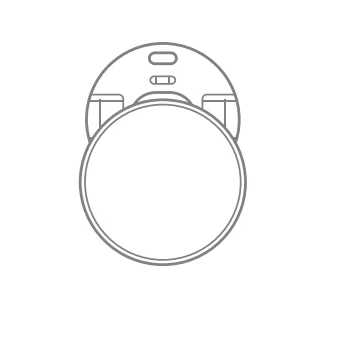
2. Update your thermostat
Nest Thermostat
Go to Settings > Version > Update and get version 1.1 or later.
Troubleshooting
- You may see a wiring error. This will go away after installing the power connector.
- Adjust your thermostat target temperature so your system isn’t heating or cooling. This can prevent some errors.
- Replace thermostat batteries if prompted.
Nest Learning Thermostat 3rd gen and Nest Thermostat E
No need to update. Find additional instructions at g.co/nest/nestpowerconnectorupdate. To check which thermostat you have, visit g.co/nest/whichthermostat.
3. Turn off the power at the circuit breaker
This protects you and your equipment.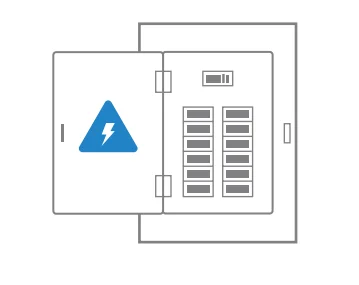
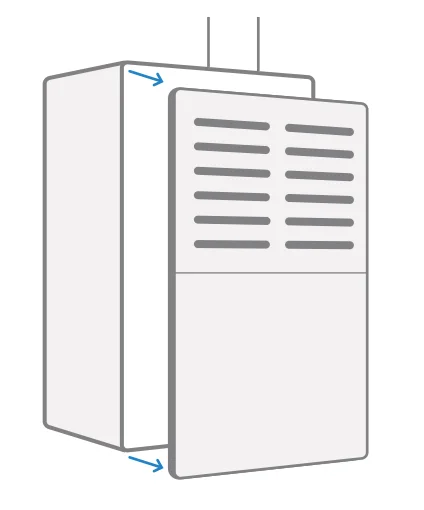
4. Open the HVAC equipment cover
5. Find the HVAC control board
This is the main circuit board in your HVAC that is wired to your thermostat. If you don’t have a control board, find the thermostat wires.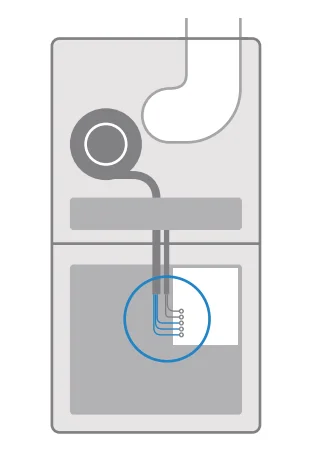
6. Label the thermostat wiring
Take a photo of the wiring. Your wiring may look different. If your HVAC terminals aren’t labeled, see advanced instructions at g.co/nest/powerconnectoradvanced.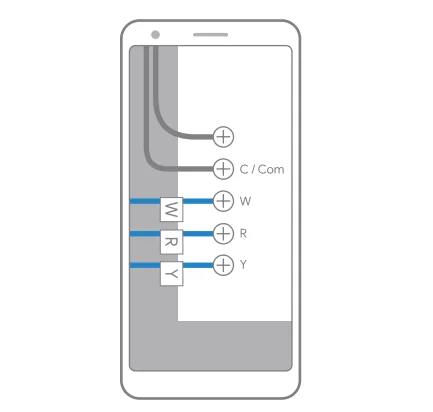
How to Use Wire Connectors
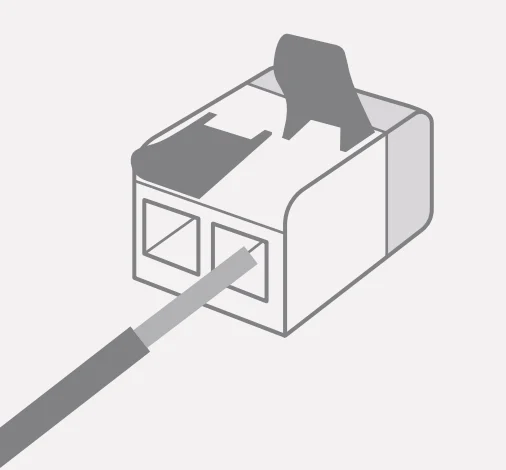
- Lift the levers to 90 degrees. The levers are stiff.
- Insert the wires and snap down the levers.
- Pull gently on the wires to check that they’re secure.

Install the Power Connector
A. Cooling and heating system
Wire the power connector to Y.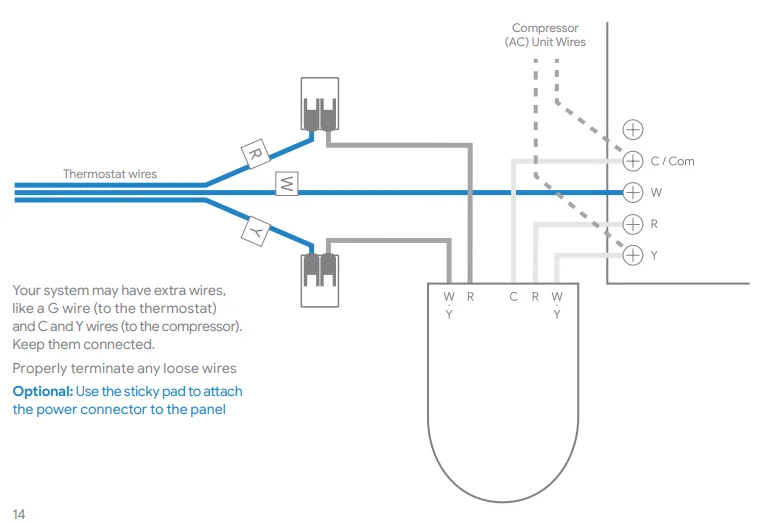
7. Install the Power Connector
B. Heating-only system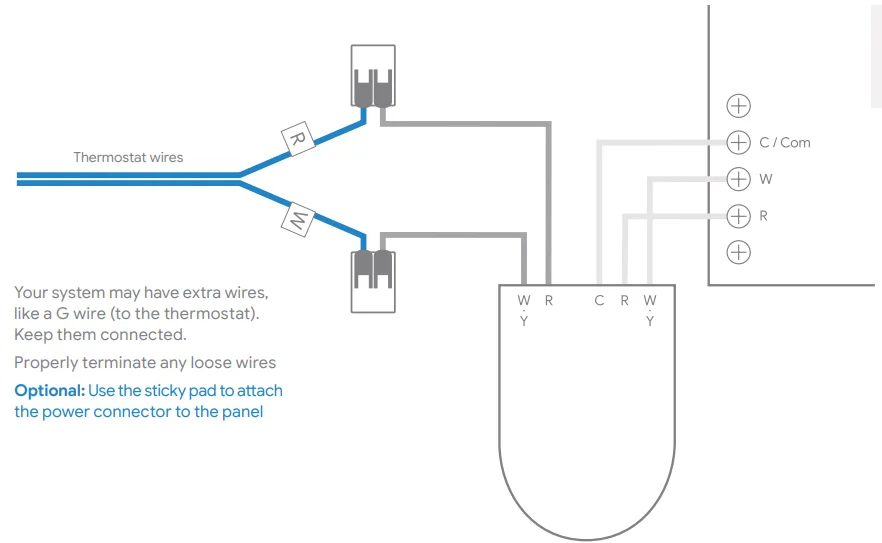
7. Install the Power Connector
C. Cooling-only system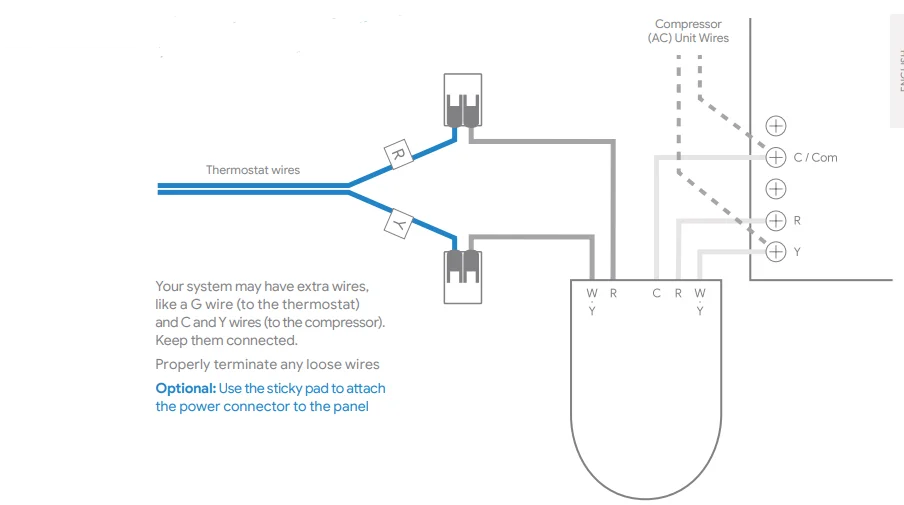
7. Install the Power Connector
D. No C-terminal
Professional installation recommended. Connect with an independent installer who’s trained to install Google Nest products at g.co/nest/install. Find advanced instructions at g.co/nest/powerconnectoradvanced.
8. Close the HVAC cover and turn on the power
To turn on your power and thermostat, the HVAC cover must be closed. Your system may not turn on with the cover open.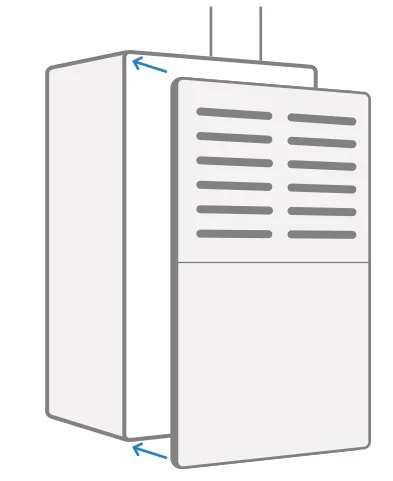
9. Confirm Power Connector Installation
For Nest Thermostat, go to Settings > Equipment to check that your power connector is installed. For Nest Learning Thermostat 3rd gen and Nest Thermostat E, there’s no need to check. For help, visit g.co/nest/checkpowerconnector.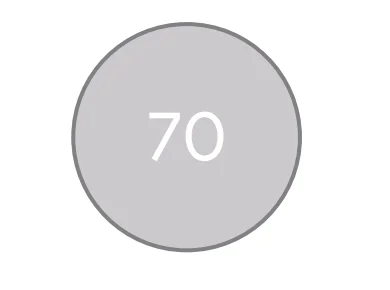
We’re Here to Help
For online help and support, visit g.co/nest/help.
For help with accessibility, visit g.co/disabilitysupport.
For More Manuals By Google Nest, Visit ManualsLibraryy.
Google Nest Power Connector-FAQs
What does the Google Nest Power Connector do?
The Nest Power Connector supplies consistent power to your Nest Thermostat when a C wire isn’t available. It acts as a simple, affordable alternative to running new wiring through your walls.
Do I need a Nest Power Connector for my thermostat?
In most cases, Nest Thermostats work without a C wire. However, if your system struggles to maintain power or frequently disconnects, adding a Power Connector ensures stable performance.
How can I tell if my Nest Power Connector is working?
On your Nest Thermostat, go to Settings → Equipment → Power Connector → Power Test.
Once the test finishes, select Done. Then check Settings → Equipment → Power Connector → Power Status.
If you see “Nest Power Connector Detected,” it’s working correctly.
How do I test the Nest Power Connector?
Perform a power test through your thermostat’s settings. If the connector isn’t detected, recheck wiring connections or reinstall it following the setup guide.
How many Nest Power Connectors do I need?
Each thermostat requires its own Power Connector. For multi-zone systems, install one connector for each zone with a Nest Thermostat.
Can Nest Thermostat work without the Power Connector?
Yes. Many systems supply enough power through heating or cooling wires. But if your thermostat frequently restarts or loses Wi-Fi, the Power Connector helps stabilize power delivery.
How much does the Nest Power Connector cost?
The Google Nest Power Connector typically costs around $24.99, making it a cost-effective option compared to professional C-wire installation.
How do I know if my Nest Thermostat is getting power?
If your thermostat displays a “No Power” or “No System Power” message, it’s not receiving enough power. Running a system check or installing the Power Connector can resolve this.
Will the Nest Thermostat work during a power outage?
Yes, but only temporarily. It runs on its built-in battery until system power returns. However, Wi-Fi and remote controls won’t function until power is restored.