
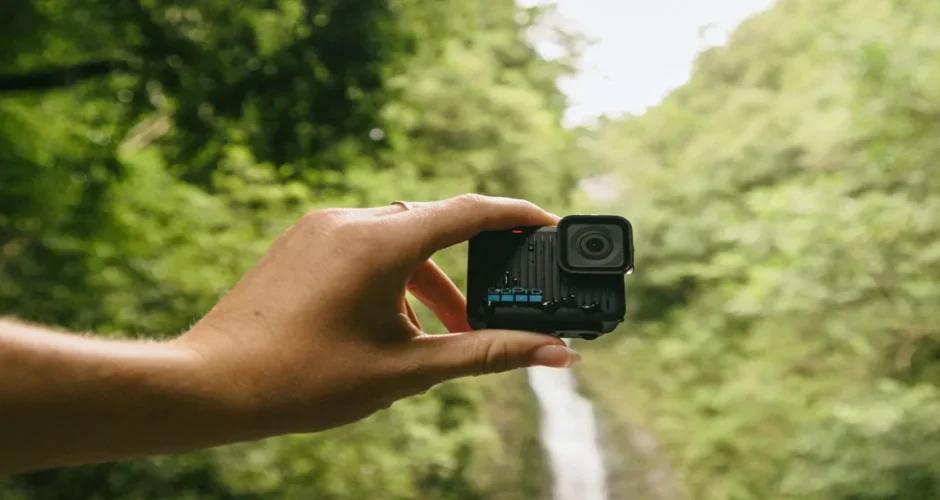

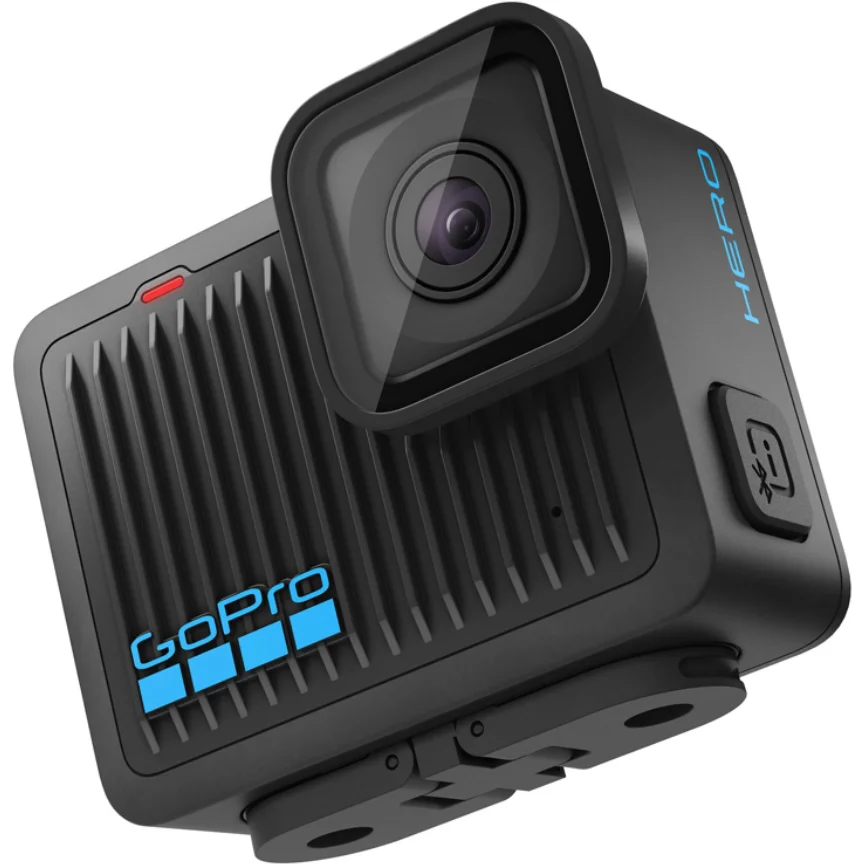
GoPro HERO Camera
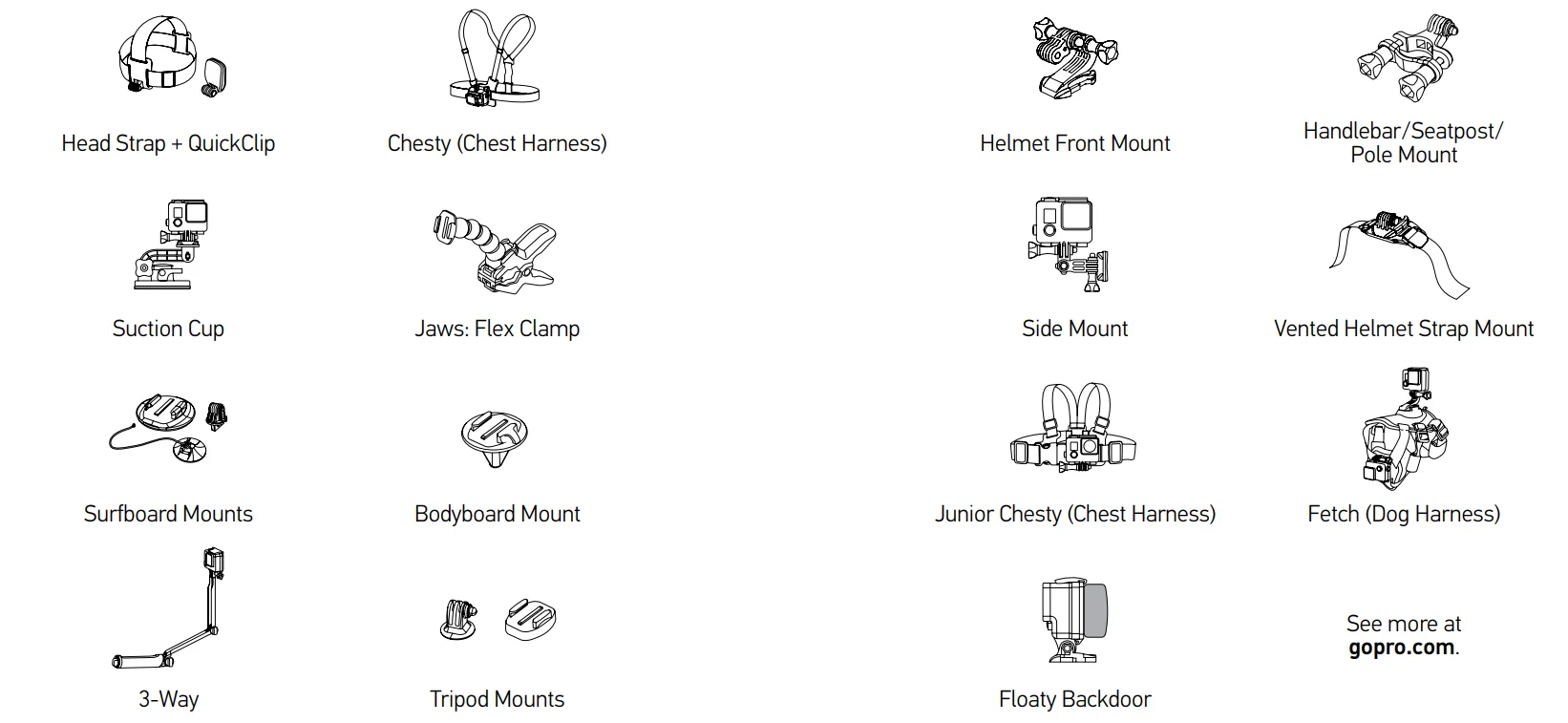
Optional Accessories
The Basics
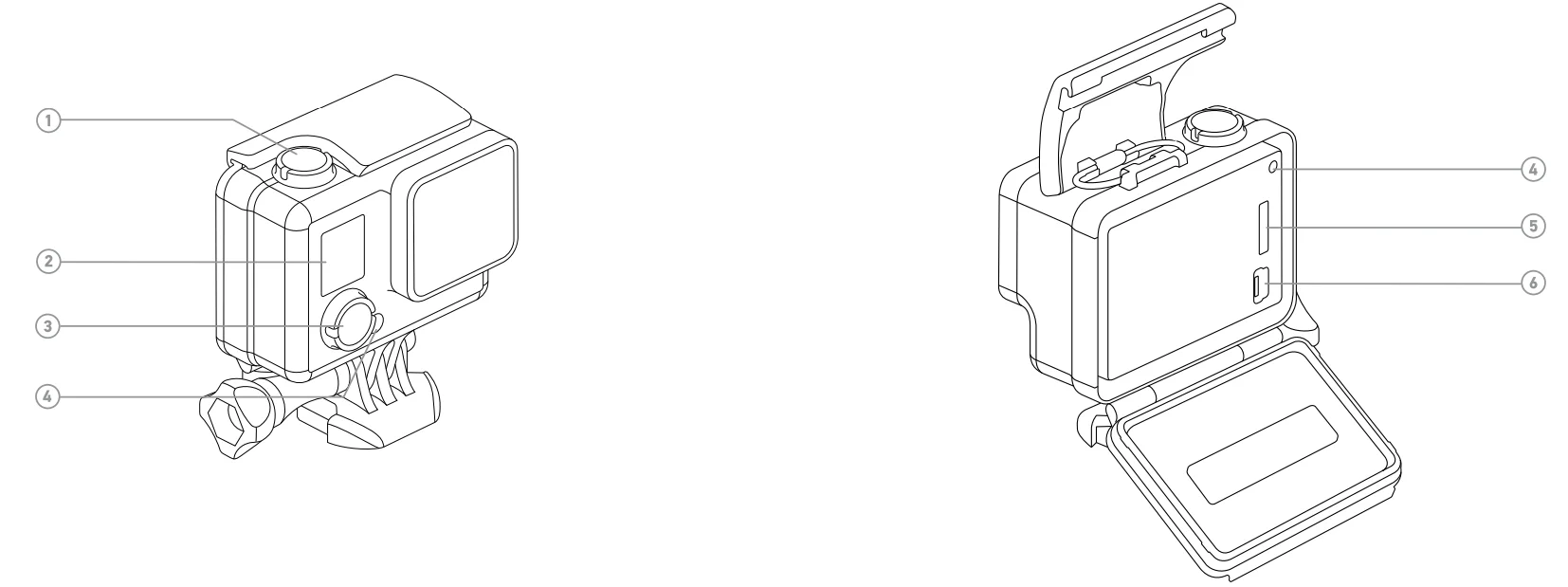
- Shutter/Select Button
- Camera Status Screen
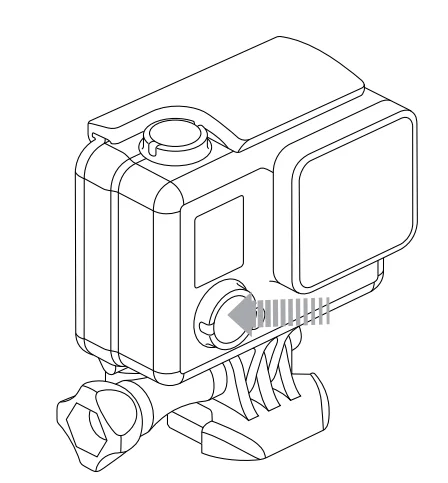
- Power/Mode Button
- Camera Status Light
- microSD Card Slot (microSD card sold separately)
- Mini-USB Port
Getting Started
CHARGING THE BATTERY
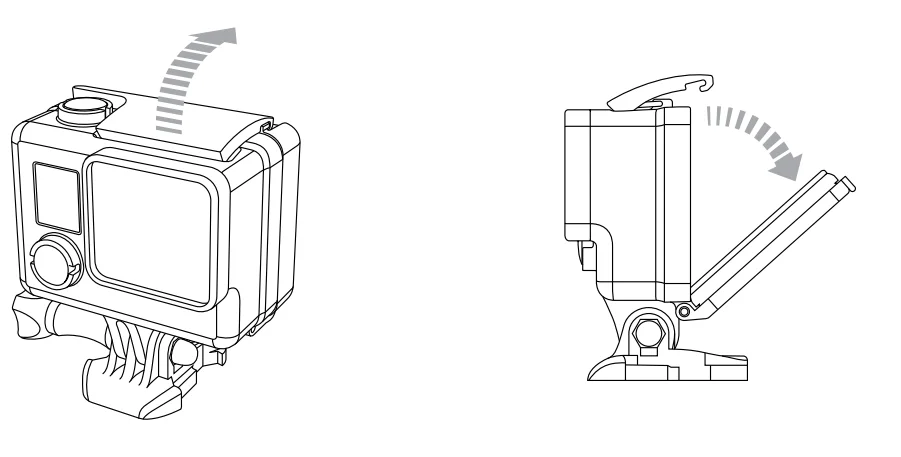
- Open the backdoor of the housing.
Note: Your HERO camera, battery, and housing are integrated. You cannot remove the camera from the housing, or remove the battery from the camera.
- Charge the battery by connecting the camera to a computer or other USB charging adapter with the included USB cable.

NOTICE: Only use USB charging adapters marked 5V 1A. If you do not know the voltage and amperage of your charger, use the included USB cable to charge the camera from your computer.
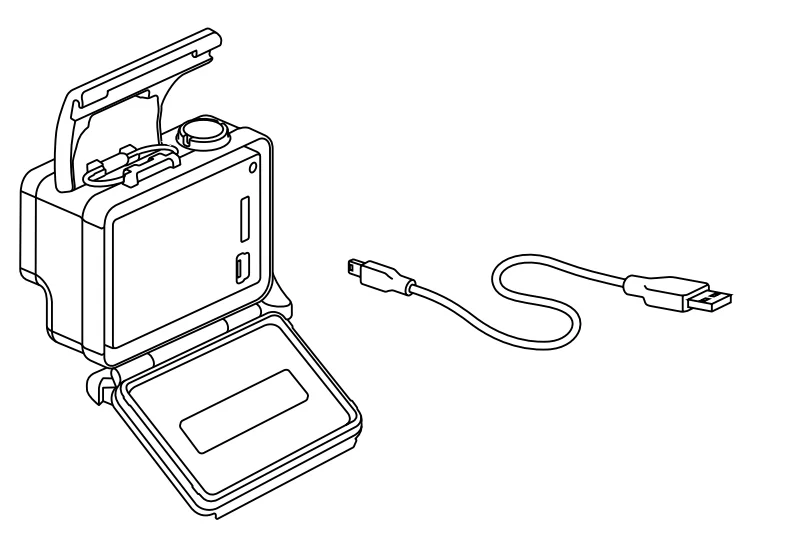
When charging with a computer, be sure that the computer is connected to a power source. If the camera status light does not turn on or you do not see the charging indicator, use a different USB port. For fastest charging, make sure the camera is powered off after connecting it to a computer or USB charging adapter. The camera status light turns on during charging and turns off when charging is complete. The integrated lithium-ion battery comes partially charged. No damage occurs to the camera or battery if used before a full charge. For more battery information, see Battery (page 34).
WARNING: Use caution when using your GoPro as part of your active lifestyle. Always be aware of your surroundings to avoid injury to yourself and others. Abide by all local laws when using your GoPro and related mounts and accessories.
INSERTING + REMOVING MICROSD CARDS
The HERO camera is compatible with microSD, microSDHC, and microSDXC memory cards (sold separately) up to 32GB capacity. You must use a microSD card with a Class 10 or a UHS-1 rating. GoPro recommends using brand-name memory cards for maximum reliability in high-vibration activities.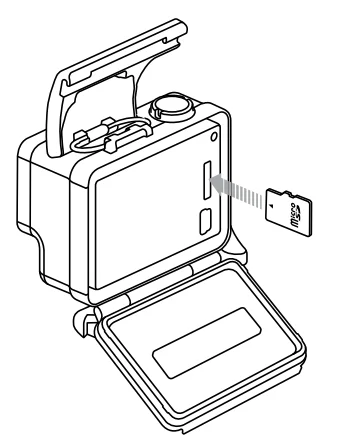
To insert the microSD Card:
Slide the memory card into the card slot with the label facing the GoPro logo on the back of the camera. When fully inserted, the card clicks into place.
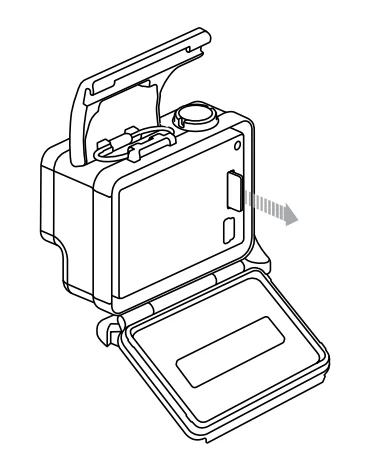
To Remove the microSD Card:
Place your fingernail against the edge of the memory card and lightly press it further into the camera. The card springs out far enough to be removed.
NOTICE: Use care when handling memory cards. Avoid liquids, dust, and debris. As a precaution, power off the camera before inserting or removing the card. Check manufacturer guidelines regarding use in acceptable temperature ranges.
POWERING ON + OFF
To Power On:
Press the Power/Mode button once. The camera status lights flash three times, and the sound indicator emits three beeps. When the camera status screen displays information, your camera is on.
To Power Off:
Press and hold the Power/Mode button for two seconds. The camera status lights flash several times, and the sound indicator emits seven beeps.
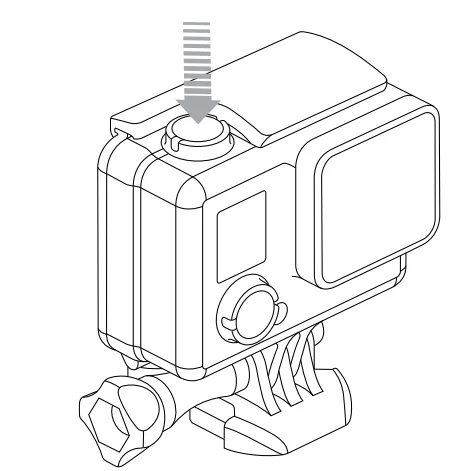
PRO TIP: You can quickly turn your camera on and immediately begin capturing video or Time Lapse photos just by pressing the Shutter/Select button. Press and release for video, press and hold for 2 seconds for Time Lapse photos. For details, see QuikCapture (page 29).
CAMERA SOFTWARE UPDATES
To get the latest features and best performance from your HERO camera, make sure you are using the most current camera software. You can update your camera software using GoPro software. For more info, visit gopro.com/getstarted.
CAMERA DEFAULT SETTINGS
The HERO camera powers up with the following default settings:
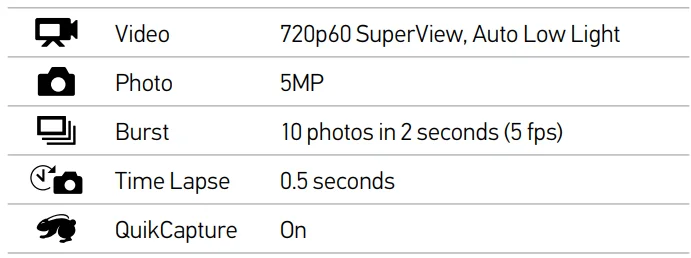
Your HERO features a status screen on the front of the camera.
CAMERA STATUS SCREEN
The camera status screen displays the following information about modes and settings:
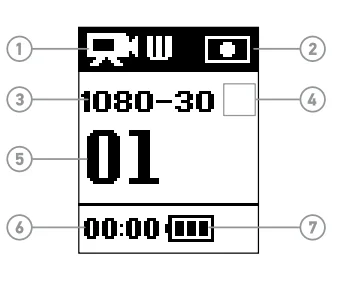
- Camera Modes/FOV (field of view)
- Spot Meter (when Spot Meter is turned on)
- Resolution/fps (frames per second)
- Time Lapse Interval Setting (not shown)
- Counter
- Time/Storage/Files
- Battery Life
Note: The icons that appear on the camera status screen vary by mode.
Camera Icons
Camera Modes
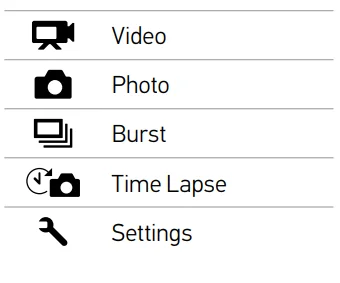
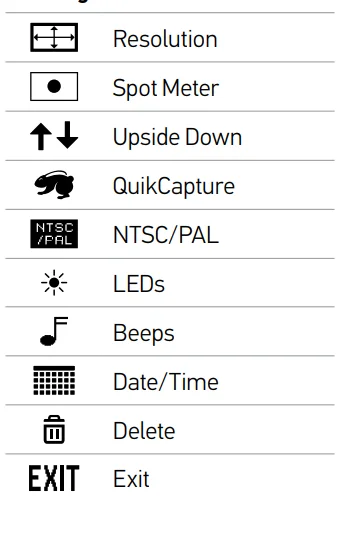
Settings
Camera Menus
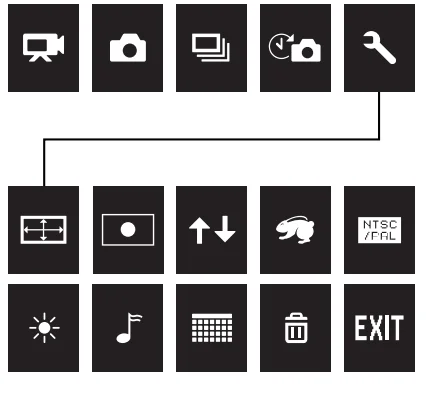
Camera Modes
The HERO features several camera modes. To display the modes, press the Power/Mode button repeatedly.
These modes appear:
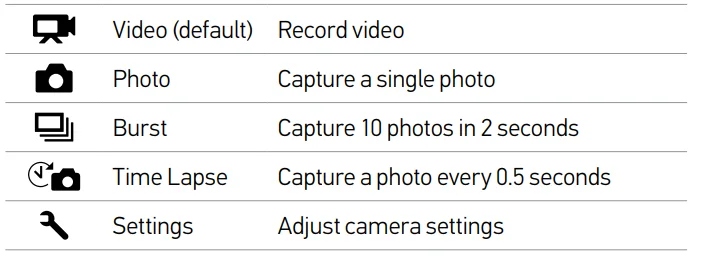
Video Mode
CAPTURING VIDEO
To capture video, verify that the camera is in Video mode. If the Video icon does not appear in the upper left on your camera status screen, press the Power/Mode button repeatedly until it appears.
- To Start Recording:
Press the Shutter/Select button. The camera emits one beep, and the camera status lights flash while recording. - To Stop Recording:
Press the Shutter/Select button. The camera status lights flash three times, and the camera emits three beeps to indicate recording has stopped. If the memory card is full or the battery is out of power, your camera automatically stops recording. Your video is saved before the camera powers off.
PRO TIP: With QuikCapture, you can quickly turn your camera on and immediately begin capturing video just by pressing the Shutter/ Select button. To turn off QuikCapture, see QuikCapture (page 29).
Photo Mode
In Photo mode, you can capture photos at a resolution of 5MP with Ultra Wide FOV.
CAPTURING A PHOTO
To capture a photo, verify that the camera is in Photo mode. If the Photo icon [] does not appear in the upper left on your camera status screen, press the Power/Mode button repeatedly until it appears.
- To Capture a Photo: Press the Shutter/Select button. The camera beeps two times, the camera status lights flash and the counter on the camera status screen increases by one.
Burst Mode
With Burst mode, you can capture 10 photos in 2 seconds (5 fps).
CAPTURING BURST PHOTOS
To capture a Burst photo series, verify that the camera is in Burst mode. If the Burst icon [ ] does not appear in the upper left on your camera status screen, press the Power/Mode button repeatedly until it appears.
- To Capture Burst Photos: Press the Shutter/Select button. The camera status lights flash, and the camera beeps multiple times. The counter on the camera status screen increases by 10.
Time Lapse Mode
In Time Lapse mode, you can capture a photo every 0.5 seconds.
CAPTURING TIME LAPSE PHOTOS
To capture a time-lapse series, verify that the camera is in time-lapse mode. If the Time Lapse icon [ ] does not appear in the upper left on your camera status screen, press the Power/Mode button repeatedly until it appears.
- To Capture Time Lapse Photos: Press the Shutter/Select button. The camera status lights flash each time a photo is taken.
- To Stop Time Lapse Photos: Press the Shutter/Select button. The camera status lights flash three times and the camera emits three beeps.
PRO TIP: With QuikCapture, you can quickly turn your camera on and immediately begin capturing Time Lapse photos just by pressing and holding the Shutter/Select button for two seconds. To turn off QuikCapture, see QuikCapture (page 29).
Settings Mode
In Settings mode [ ], you can change the video resolution and change settings that apply to all camera modes.
NAVIGATING SETTINGS MENUS
With your HERO, you can navigate the settings menus using the buttons on the camera.
To Navigate Settings Menus:
- Press the Power/Mode button repeatedly to cycle to Settings mode [
 ], then press the Shutter/Select button to select it.
 - Press the Power/Mode button repeatedly to cycle through the various settings.
- Press the Shutter/Select button to open a setting.
- Press the Power/Mode button repeatedly to cycle through the options for that setting.
- Press the Shutter/Select button to select an option.
- To exit, press the Power/Mode button to cycle to EXIT, and then press the Shutter/Select button.
PRO TIP: To exit from the Settings menu at any time, press and hold the Shutter/Select button for two seconds.
Settings Mode
RESOLUTION
The HERO includes the video capture resolutions listed below. All video is captured at an Ultra Wide FOV, which provides the largest field of view and best image stability. Ultra Wide FOV is best when you want to include as much content as possible within the frame. SuperView delivers the world’s most immersive field of view. More vertical 4:3 content is automatically stretched to full-screen 16:9 for stunning widescreen playback on your computer or TV.
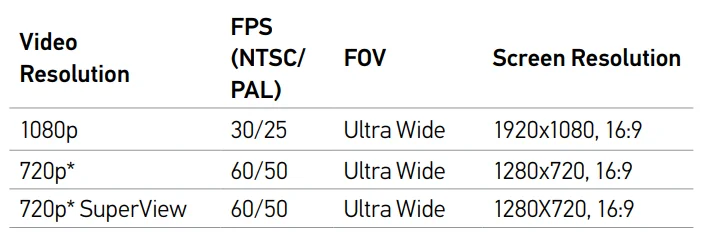
All 720p resolutions include Auto Low Light. This feature automatically optimizes fps according to lighting conditions.
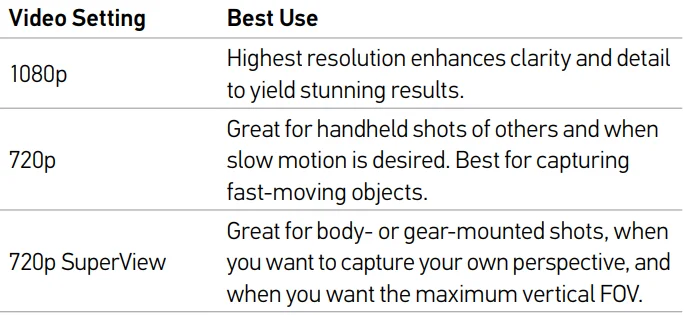
PRO TIP: Easily create epic GoPro-style videos using free GoPro software. Learn more and download this software at gopro.com/getstarted.
 SPOT METER
Spot Meter is good for filming in a setting where the lighting is different from where you are, such as filming outdoors from within a car or a shaded environment while standing in the sun. Spot Meter automatically sets the exposure based on a single spot in the middle of the image. When Spot Meter is turned on, [ ] appears on the camera status screen. The options for this setting are Off (default) and On.
 UPSIDE DOWN
 UPSIDE DOWN
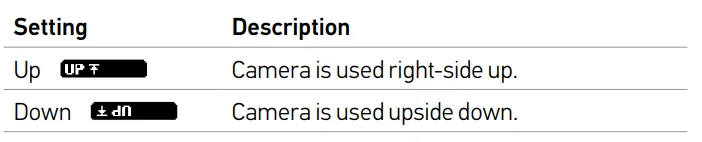
If you mount your camera upside down, you might have to rotate the files during editing. This setting eliminates the need to flip your video or photos after capture when the camera is mounted upside down. The default setting is Up.
 QUIKCAPTURE
 QUIKCAPTURE
With QuikCapture, you can quickly turn your camera on and begin capturing video or time-lapse photos. The options for this setting are On (default) and Off.
- To Use QuikCapture to Capture Video:
With the camera powered off, press and release the Shutter/Select button. Your camera automatically powers on and begins capturing video. - To Use QuikCapture to Capture Time-lapse Photos:
With the camera powered off, press and hold the Shutter/Select button for two seconds. Your camera automatically powers on and begins capturing Time Lapse photos. - To Stop Recording:
Press and release the Shutter/Select button to stop recording and power off the camera.
 NTSC/PAL
 NTSC/PAL
The Video Format settings govern frame rates for recording and playback when viewing video on a TV/HDTV.
 LED
LED
 LED
LEDThis setting determines which camera status lights to activate. The options for this setting are Both On (front and rear), Both Off, Front On, and Rear On. The default setting is Both On.
 BEEPS
BEEPS
 BEEPS
BEEPSYou can set the volume for the sound indicators to be 100% (default), 70%, or Off.
 DATE/TIME
 DATE/TIME
Your camera’s date and time are automatically set when you connect your camera to GoPro software. This setting lets you manually set the date and time, if needed.
 DELETE
 DELETE
This setting lets you delete the last file or delete all files and format the memory card. LED lights blink until the operation is complete.
NOTICE: If you select All/Format, the memory card is reformatted, which deletes every video and photo file on your card.
Minimum System Requirements
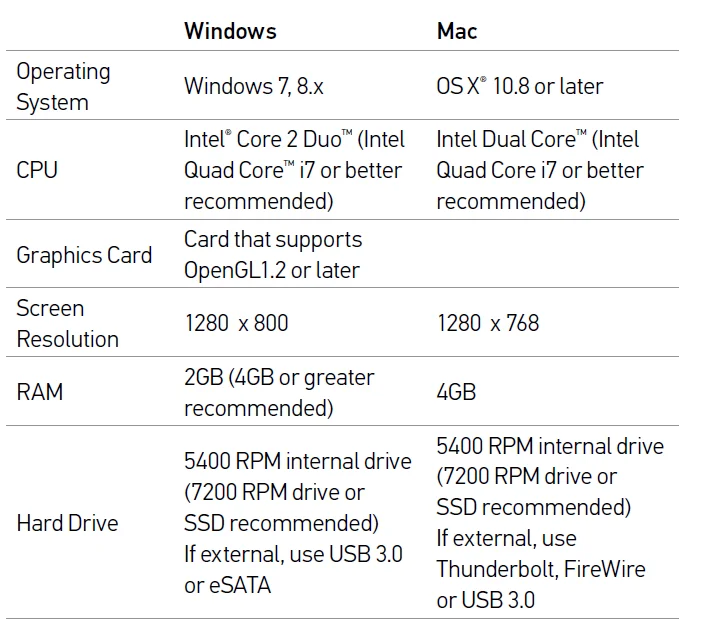
For best results, play back your content on a computer, visit gopro.com/getstarted to download the latest GoPro software. Be sure your Mac® or Windows® computer meets these minimum system requirements:
Transferring and Playing Back Files
To play back your video and photos on a computer, you must first transfer these files to a computer.
TO TRANSFER FILES TO A COMPUTER:
- Download and install the latest GoPro software from gopro.com/getstarted. The HERO camera was designed to communicate with GoPro software to help you easily locate and transfer your files.
- Connect the camera to your computer using the included USB cable.
- Power on the camera.
- Copy the files to your computer or external hard drive.
- To play back the files, use GoPro software.
PRO TIP: You can also transfer files to a computer using a card reader (sold separately). Connect the card reader to your computer and insert the microSD card into the reader. You can then transfer your files to your computer or delete selected files on your card.
Battery
Our HERO camera, battery, and housing are integrated. You cannot remove the camera from the housing, or remove the battery from the camera. The battery icon displayed in the camera status screen blinks when the battery drops below 10%. If the battery reaches 0% while recording, the camera saves the file and powers off.
MAXIMIZING BATTERY LIFE
Extreme cold temperatures can decrease battery life. To maximize battery life in cold conditions, keep the camera in a warm place prior to use.
PRO TIP: QuikCapture helps maximize battery life. For details, see QuikCapture (page 29).
CHARGING TIME
The battery charges to 80% in approximately one hour and 100% in approximately two hours when using a USB charging adapter. Some chargers might charge at a slower rate.
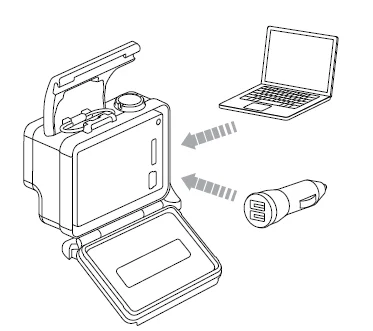
USING THE CAMERA WHILE CHARGING
You can capture video and photos while charging the camera’s battery. Plug the camera into a USB charging device using the included USB cable. Performance of non-GoPro chargers cannot be guaranteed. You cannot use your HERO while charging it through a computer.
NOTICE: Only use USB charging adapters marked 5V 1A. If you do not know the voltage and amperage of your charger, use the included USB cable to charge the camera from your computer.
BATTERY STORAGE AND HANDLING
The camera contains sensitive components, including the battery. Avoid exposing your camera to very cold or very hot temperatures. Low or high temperature conditions may temporarily shorten the battery life or cause the camera to temporarily stop working properly. Avoid dramatic changes in temperature or humidity when using the camera, as condensation may form on or within the camera. The integrated camera housing protects the camera and battery from water damage. For more information, see Camera Housing (page 39). Do not turn on your camera if the camera (inside the housing) gets wet. If your camera is already on, turn it off immediately. Allow the camera to dry thoroughly before using it again. Do not dry the camera or battery with an external heat source such as a microwave oven or hair dryer. Damage to the camera or battery caused by contact with liquid (inside the housing) is not covered under the warranty.
WARNING: Do not drop, disassemble, open, crush, bend, deform, puncture, shred, microwave, incinerate, or paint the camera. Do not insert foreign objects into any opening on the camera, such as the mini-USB port. Do not use the camera if it has been damaged—for example, if cracked, punctured, or harmed by water. Disassembling or puncturing the integrated battery can cause an explosion or fire.
Camera Housing
SWAPPING BACKDOORS
You can switch the backdoor of your HERO camera to suit your activity and shooting conditions.
Note: Your HERO cannot be removed from the housing.
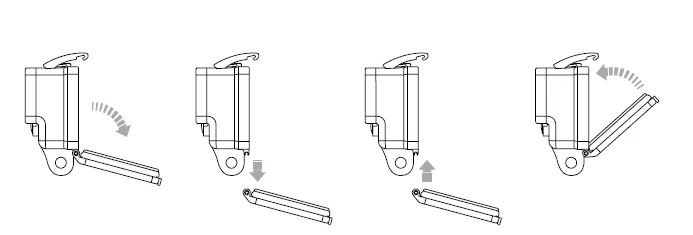
To Change the Backdoor:
- Open the backdoor of the housing so that it hangs downwards.
- Firmly pull the back door downwards until it snaps free from the main housing.
- Line up the replacement backdoor with the hinge opening.
- Push upwards on the back door until it clicks into place.
PREVENTING WATER DAMAGE TO YOUR CAMERA
The rubber seal that lines the Standard Backdoor forms a waterproof barrier that protects your HERO in wet conditions. Keep the Standard Backdoor’s rubber seal clean. A single hair or grain of sand can cause a leak and damage your camera. After every use in salt water, close the Standard Backdoor tightly, and then rinse the outside of the camera housing with non-salt water and dry. Not doing this can eventually cause corrosion of the hinge pin and salt buildup in the seal, which can cause failure. To clean the seal, remove it from the back door, rinse it in fresh water, and shake dry (drying with a cloth may cause lint to compromise the seal). Reinstall the seal into the grooves in the Standard Backdoor.
WARNING: Failure to follow these steps each time you use your GoPro can result in leaks that may damage or destroy your camera. Water will damage both the camera and the battery, which could cause an explosion or fire. Your warranty does not cover water damage resulting from user error.
Using the Mounts
ATTACHING YOUR CAMERA TO MOUNTS
To attach your HERO camera to a mount, you need a Quick Release Buckle, thumb screw or hardware, depending on the mount you are using. For more information on mounts, visit gopro.com/support.
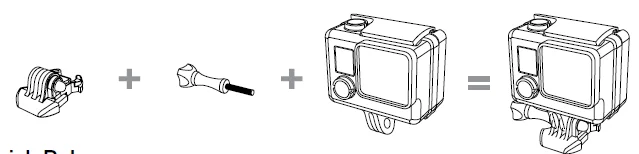
USING CURVED + FLAT ADHESIVE MOUNTS
The Curved + Flat Adhesive Mounts make it easy to attach the camera to curved and flat surfaces of helmets, vehicles, and gear. Using the Quick Release Buckle, the assembled camera housing can be clicked on and off the secured Curved or Flat Adhesive Mounts.
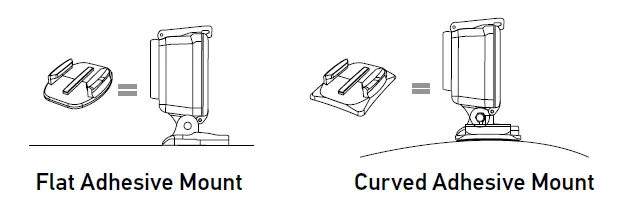
MOUNTING GUIDELINES
Follow these guidelines when attaching mounts:
- Attach the adhesive mounts at least 24 hours before use. Allow 72 hours for complete adhesion.
- Adhesive mounts must be mounted only on smooth surfaces. Porous or textured surfaces do not enable a proper bond. When applying the mount, firmly press it into place and ensure full contact over the entire surface.
- Apply adhesive mounts to clean surfaces only. Wax, oil, dirt, or other debris reduces adhesion, which can result in a weak bond and risk of losing the camera should the connection fail.
- Attach adhesive mounts in room temperature conditions. Adhesives do not bond properly if applied in cold or damp environments to cold or damp surfaces.
For more information on mounts, visit gopro.com/support.
WARNING: If using your camera with a GoPro helmet mount or strap, always select a helmet that meets the applicable safety standard. Choose the right helmet for your particular sport or activity and make sure that it is the right fit and size for you. Inspect your helmet to ensure that it is in good condition, and follow the helmet manufacturer’s instructions on safe helmet use. Any helmet that has sustained a major impact should be replaced. No helmet can protect against injury in every accident.
ATTACHING THE LOCKING PLUG
If you are using the HERO in high-impact sports such as surfing or skiing, where significant impact might occur, use the locking plug to securely lock the Quick Release Buckle fingers into place. The locking plug helps to prevent the housing from accidentally releasing from the mount.
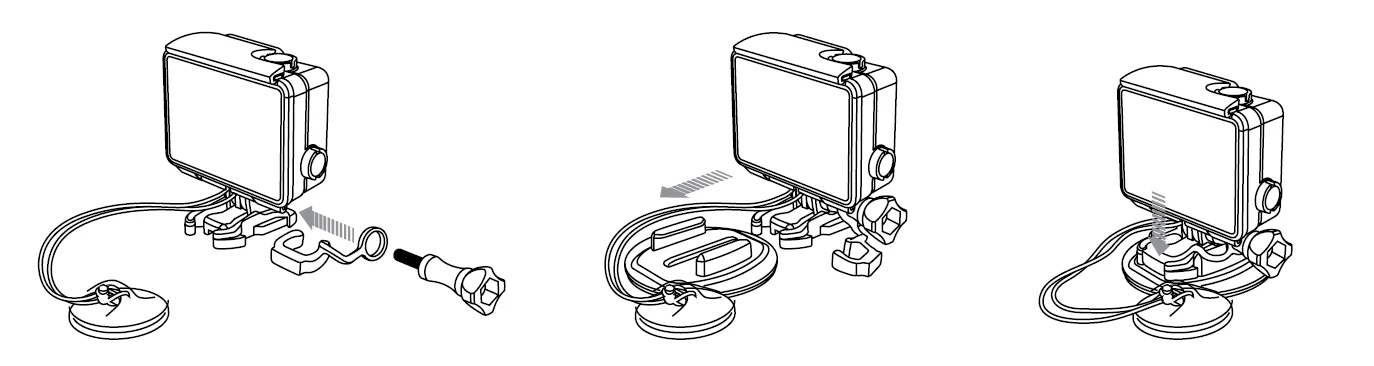
To Attach the Locking Plug:
- Loop the circular ring over the thumbscrew. The circular ring acts as a leash to prevent dropping or losing the locking plug.
- Slide the Quick Release Buckle into the mount until it clicks into place.
- Press the U-shaped part of the plug into the U-shaped space in the Quick Release Buckle.
WARNING: To avoid injury in the event of an accident, do not use the locking plug or tether when using a mounting device on a helmet or other personal protective gear.
Frequently Asked Questions
MY GOPRO WON’T POWER ON
Make sure your GoPro is charged. To charge your camera, use the included USB cable and a computer or USB charging adapter. MY GOPRO WON’T RESPOND WHEN I PRESS A BUTTON Press and hold the Power/Mode button for 8 seconds to reset your camera. This reset saves all of your content and settings, and powers off your camera.
MY PLAYBACK IS CHOPPY
Choppy playback is typically not a problem with the file. If your footage skips, one of these situations is likely the cause:
- Using an incompatible video player. Not all video players support the H.264 codec. For best results, use the latest GoPro software, available for free at gopro.com/getstarted.
- The computer does not meet the minimum requirements for HD playback. The higher the resolution and frame rate of your video, the harder the computer has to work to play it back. Make sure that your computer meets the minimum requirements listed in Minimum System Requirements (page 32).
• Playing your content directly from your camera over a USB connection. Transfer the file to the computer to play back. If your computer does not meet the minimum requirements, make sure that all other programs on your computer are closed.
For more manuals by GoPro, visit ManualsLibraryy
GoPro HERO Camera-FAQs
Can I connect my GoPro HERO to my phone?
Yes, you can connect it using the GoPro Quik app, which allows you to preview footage, control the camera remotely, and edit videos easily.
Is GoPro HERO better than a smartphone camera?
For action, movement, and outdoor shooting, GoPro HERO performs better due to its stabilization, durability, and wide field of view. However, smartphones usually perform better in low-light photography.
Can I use a GoPro HERO underwater?
Yes, the GoPro HERO is designed for underwater filming. For deeper dives, an optional waterproof housing is recommended.
Is the GoPro HERO waterproof?
Yes, modern GoPro HERO models are waterproof up to 10 meters (33 feet) without an additional housing, making them suitable for swimming and shallow underwater use.
How long can a GoPro HERO record continuously?
Recording time varies based on settings, but most GoPro HERO cameras can record 1 to 2 hours continuously on a single battery charge.
Can a GoPro HERO take photos?
Absolutely. The GoPro HERO can take still photos, though it is mainly designed for video. For casual photography and travel shots, it performs well.
Is the GoPro HERO good for beginners?
Yes, the GoPro HERO is beginner-friendly. It is easy to operate, lightweight, durable, and offers automatic settings that help new users capture high-quality videos without technical knowledge.
What is the GoPro HERO camera best used for?
The GoPro HERO is ideal for action sports, travel, vlogging, outdoor adventures, and daily life moments. Its compact size and rugged design make it perfect for capturing immersive wide-angle videos.