

Hisense 65U8K Google TV
First-Time Use
Using the E-Manual
View the embedded E-Manual that contains information about your TV’s key features.
Disclaimer: Instructions and images in this manual are only for reference and may differ from the actual product.
Launch the E-Manual
Press button on your remote control to select Settings > System > Advanced System > E-Manual. Scan the QR Code with your smartphone to open the E-Manual on your device.
Note:
- The black background icon stands for the button on the remote control.
- The grey background icon stands for the icons on the TV screen for selection.
Use the Buttons in the E-Manual
Search
You can use icon at the top of the E-Manual to search for the product feature information, and the E-Manual will provide all the titles and content that contain the search information.
Setting
You can use icon at the top of the E-Manual home screen to adjust the text size.
Home Screen
All TV functions can be accessed from the Home screen.
Display the Home Screen
Press button on your remote control to enter the Home screen.
To exit the Home screen, use your remote control or use the navigation buttons on the screen to move the cursor to other icons, press button to enter, and select your desired service.
Connecting to the Internet
To get access to the Internet using a wired connection or by connecting to an available wireless network.
Connect to a Wired (Ethernet) Network
To get access to the Internet using a wired connection, it is recommended to use a modem or router that supports Dynamic Host Configuration Protocol (DHCP). Modems and routers that support DHCP automatically provide the IP address, subnet mask, gateway, and DNS, so you do not have to enter them manually. Most home networks already have DHCP. See the illustration below.
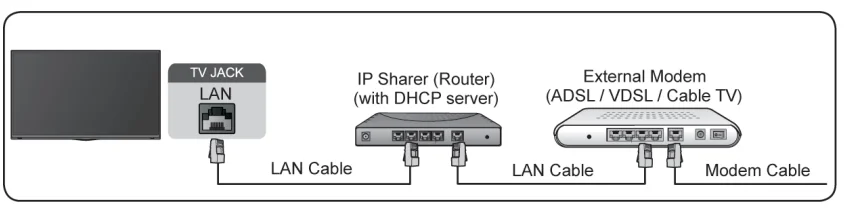
After connecting to a wired (Ethernet) network:
Pressbutton on your remote control to select Settings > Network & Internet. Go to the ETHERNET section, and set the TV network by pressingbutton to enter the submenu.
- Connection Type
Show whether the Ethernet is connected. - Proxy settings
You can set the proxy server. - IP settings
Configure the IP setting for your network connection.
Connect to a Wireless Network
To connect to an available wireless network, make sure that you turn on your wireless router and have the wireless router’s SSID and password before attempting to connect.
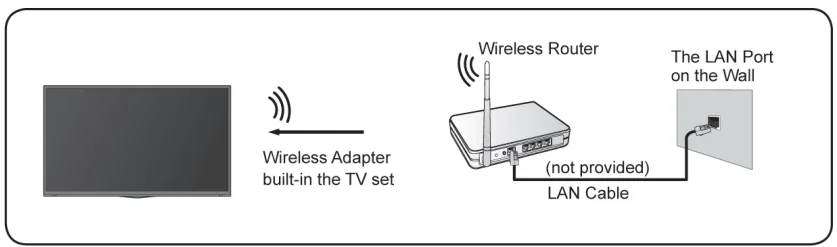
To get access to the Internet using a wireless connection:
Pressbutton on your remote control to select Settings > Network & Internet > Wi-Fi. To get access to the Internet wirelessly:
- Turn on your Wi-Fi.
- The list of networks will display automatically.
- Select a wireless network from the list, and input the password.
- If the network connection does not appear in the list, select See all to display the entire list, or select Add new network to input a wireless network name, select the type of security mode, and enter the password.
Internet Related Features
- Content Sharing
To view media content, like videos, music or photos saved in your Android/iOS/PC device on your TV screen. For more information, please refer to Benefits of Smart TV > Content Sharing in this manual. - Sharing your smartphone/Computer Screen on the TV
To mirror your mobile device or computer screen to the TV. For more information, please refer to Connecting to External Devices > Sharing your Smart Phone/Computer Screen on the TV in this manual.
Prepare Live TV
Connect the antenna/cable to the TV
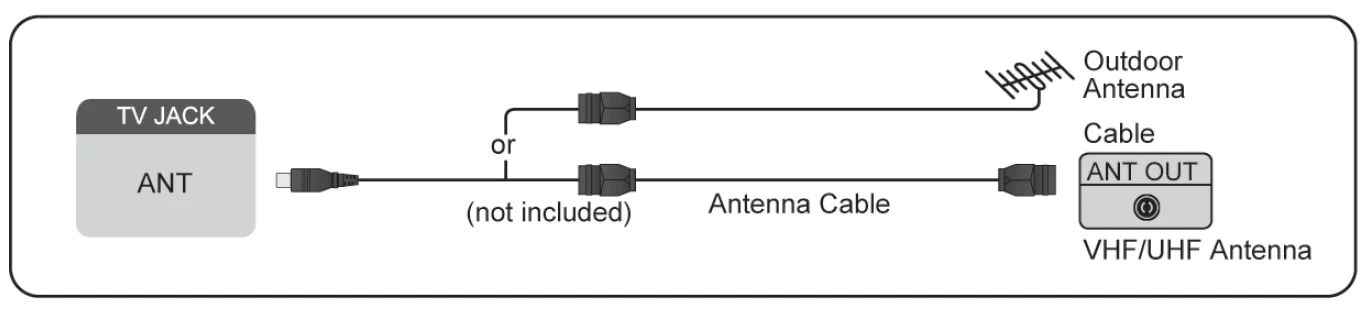
Note:
- TV jacks may vary, and antenna/cable function may not be applicable in some models/countries/regions.
- You may also connect devices that can receive broadcast signals, such as a set-top box.
Start auto scan or manual scan
 > TV
> TV- Press
 button on your remote control to select Settings > Channels & Inputs > Channels > Auto Channel Scan / Manual Scan, or Pressbutton on your remote control to select Settings > Channels & Inputs > Channels > Auto Channel Scan / DTV Manual Scan / ATV Manual Scan.
 > TV
> TVNote:
- The function above may vary depending on actual products.
Using External Devices
Switch between external devices connected to the TV
- Pressbutton on your remote control.
- Select your desired input source.
Enjoy Live TV
Live Menu
You can obtain quick access to the channel list, favorite channel list, or use relevant features with ease when watching TV programs.
Display Channel List
In Live TV, pressbutton on the remote control to display the Channel List menu.
Learn about the channel list sub-menu.
In Live TV,>
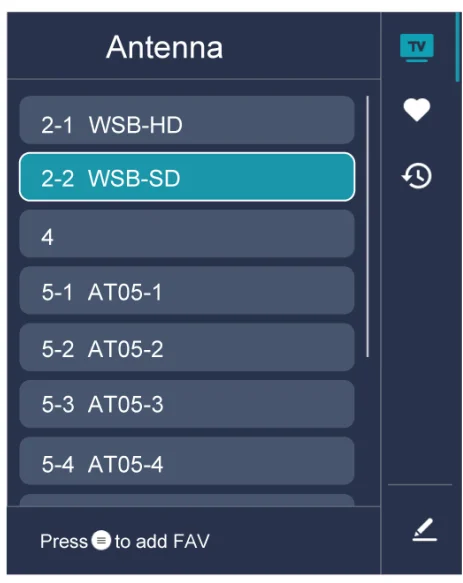
- TV List
Display Live TV channel categories, such as Cable and Antenna. - Fav
Display favourite lists. - History
Display the channels that have been watched for a period of time. - Edit
Edit the channel list.
Note:
- The sub-menu options may vary depending on models/countries/regions.
Channel Edit
Manually edit the channel list or favourite channel list to your preference.
Edit Channel List
Before you can edit the channel list, Channel Scan must be completed first.
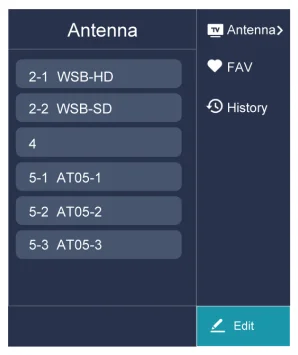
Manage the Channels
In Live TV, press>to select a Live TV channel category such as Antenna or Cable, then use the D-pad to select Edit.
- Delete:
- Select the channel you want to delete, or press to select more channels.
- Press
 button to delete.
- Restore: Press
 button to display the colour menu and select RED to enter the list of deleted channels.
Pressbutton to restore the deleted channel.
 button to display the colour menu and select RED to enter the list of deleted channels.
 button to restore the deleted channel.
Learn about Live TV Support Settings
You can set audio language or default audio output language, etc.
Audio Language (MTS)
You can choose the audio language in DTV mode, and you can set MTS for Mono, Stereo or SAP in ATV mode. Pressbutton on your remote control to select Settings > Channels & Inputs > Channels > Audio Language (MTS).
Primary Audio/Secondary Audio
- Primary Audio
Set the default audio output language for the type of digital broadcast content that you are viewing. - Secondary Audio
Set the secondary audio output language for digital broadcast content.
Note:
- If your selected Primary Audio and Secondary Audio are included in the MTS list, the MTS list defaults to Primary Audio and Secondary Audio settings after you switch channels or turn on/off the TV.
Video Description
Enables broadcasted descriptive audio for the visually impaired. Pressbutton on your remote control to select Settings > Channels & Inputs > Channels > Video Description.
Guide(EPG)
The Guide (EPG) provides a convenient way to check TV programmes for the upcoming 7 days. The information displayed by the Guide (EPG) is made available by the commercial television networks for digital channels only. The Guide (EPG) also provides a simple way to record your favourite programmes and a reminder function, which can switch channels automatically at scheduled times, so that you will not miss programmes of interest. The availability and amount of programme information will vary depending on the broadcaster.
Note:
- The Guide (EPG) function is only available for digital channels. Analogue channels are not supported.
PVR Setting
The PVR function allows you to easily record digital television content for later viewing. This function may not be applicable in some models/countries/regions. Pressbutton on your remote control to select Settings > Channels & Inputs > Channels > PVR & Time
Shift Setting.
- Format the external USB disk to support PVR and Time-Shift. When you connect more than one USB storage device to the TV, the one selected in PVR Setup or Time Shift Setup is initialised for starting recording or launching Timeshift. The recorded programme will be saved in the selected storage device. When launching Timeshift, the programme will be recorded temporarily to the selected storage device.
- You can add padding time to start recording before the event starts, or after the event has finished by delaying the end of recording. Depending on how much Padding time is added, this is set up in Start in advance or Delay Ending.
- When your TV is in standby mode, you may miss the programme you want to watch. If Reminder Power On is enabled, even when your TV is in standby mode, it can be powered on automatically by the Reminder time you have set.
- When Permanent Timeshift is enabled, the TV will start Timeshift automatically every time you begin to watch a live TV channel. If you change the channel, Timeshift will restart from when the channel was changed. When Permanent Timeshift is turned off, Timeshift will begin from the time you start the
function.
Interactive Service
You can set Interactive Service On or Off
Benefits of Smart TV
Using a Google Account
Sign in with Google to get apps, Google Assistant, and personalised recommendations.
Signing into an account
When you turn on the TV for the first time, you can select Set up Google TV to sign into a Google Account by the setup guide, if you select Set up basic TV, you can also set it later by pressingto select Set up Google TV.
- Set up with the Google Home app
- Set up on TV instead
Before signing into your Google account, make sure your TV is connected to the network. For more about network settings, please refer to Connect to a Wired (Ethernet) Network or Connect to a Wireless Network in this manual. After the network is connected, enter your email/phone and password, select Sign In.
Adding a kid’s account
You can create a personalised space for your kid with access to content they love and tools to help keep you in control.
- After the network is connected,> Settings > Accounts & sign-in > Add a kid.
- Set up Google TV for a kid in your family, and you can do the same for more kids later.
Adding another account
You can use other accounts within Google apps like YouTube, but you won’t see recommendations for those accounts on the Google TV home screen. Before creating a new account, make sure your TV is connected to the network. For more about network settings, please refer to Connect to a Wired (Ethernet) Network or Connect to a Wireless Network in this manual.
- After the network is connected,> Settings > Accounts & Sign-in > Add an account.
- Enter E-mail/phone and password.
- Press.
Using Voice Control
Set up a voice assistant to control your TV just by your voice.
Google Voice Setup
Voice Control may not be applicable in some models/countries/regions.
Google Assistant
You can ask for information, search for your favourite movies, control your TV and more, just by asking Google Assistant. Before setting up Google Assistant, connect your TV to the network and sign in to your Google account.
How to start Google Assistant
You can choose this way to start Google Assistant:
- Press
 button on your remote control.
 button on your remote control.
Note:
- To start Google Assistant, you need to pair the remote first.
- The Google Assistant function may not be applicable in some models/countries/regions.
- The setup steps above may vary depending on the actual products.
Hands-free Voice Control
Google Assistant can answer your questions or help you change TV configuration. Before using this function, connect the TV to the Internet and sign in to your Google account bypressing and selecting Settings > Accounts & Sign In.
Note:
- Hands-free Voice Control may not be applicable in some models/countries/regions.
Content Sharing
Content Sharing allows you to view media content, like videos, music or photos saved in your Android/iOS/PC device on your TV screen.
Share Media Content from your Device
- Connect your TV and Android/iOS/PC device to the same network.
- Turn on Content Sharing at> Settings > System > Advanced System > Content Sharing.
- Turn on the content sharing function in your Android/iOS/PC device.
- Find the TV name in the search list of your device and select it. Wait for the connection progress to complete.
- On your Android/iOS/PC device, choose the media content you want to share on your TV.
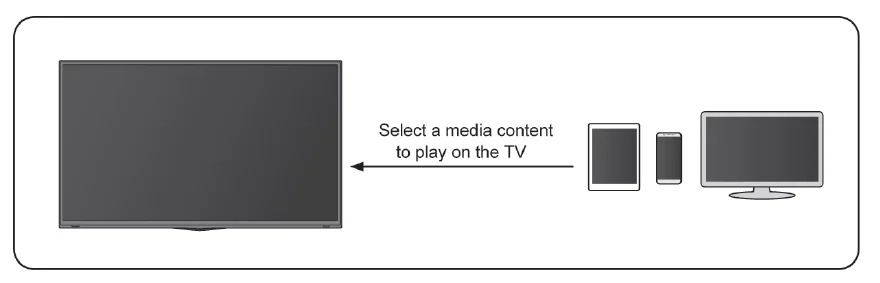
Using Apps
> Apps
From the Apps screen, there are many recommended apps for you. You can find your favourites and use them very easily. You can find popular apps by App categories, other devices, etc. Numerous factory-installed apps are available for you to choose for your entertainment preferences.
Install an App
Even though your TV has numerous factory-installed apps, there may be others that you would like to download. To install an app:
- From the Apps screen, you can use the search box to search for your apps and games that you want to install.
- Select the Install. The selected app is installed on the TV.
Note:
- To use this function, your TV must be connected to the Internet.
- Adding apps is free, but it might cost you money when using some apps.
Connecting to External Devices
Remote & Accessories
Connect remote controls or other accessories, such as keyboard, mouse and gamepad, to interact with your Smart TV easily.
Connect Remote Control
Pair the Bluetooth remote control with the TV.
- To pair the Bluetooth remote control to the TV after you power the TV on for the first time, there will be instructions on how to pair the remote control.
- If your remote control fails to pair with TV, keep the remote control within 10 feet (304.8 cm) from the TV, hold
 and
and at the same time at least 3 seconds to start pairing until you see the light pulsing on the remote control.
 and
and at the same time at least 3 seconds to start pairing until you see the light pulsing on the remote control.
Note:
- If your remote control fails to pair with the TV, check that the Bluetooth is set to On by pressingbutton to select Settings > Remotes & Accessories > Bluetooth to On.
- This function may not be applicable in some models/countries/regions.
- If an error occurred while trying to pair the remote control, it could have been caused by interference. Try to remove what is causing the interference and try pairing again.
- If an error occurred with the remote control while using sufficiently charged batteries, you can take out the batteries for 1~2 seconds, then insert them back again. Now the remote control will work normally.
- The remote control cannot be paired to the TV while the TV is in standby mode.
Use HDMI&CEC
Use the TV’s remote to control external devices that are connected to the TV by an HDMI cable. The external devices need to support HDMI&CEC function.
Connecting an external device through HDMI&CEC function
Pressbutton to select Settings > Channels & Inputs > Inputs > HDMI control.
- Set the HDMI control to On.
- Connect an HDMI&CEC compliant device to the TV.
- Turn on the connected external device. The device is automatically connected to the TV. After the connection is finished, you can access the menu of the connected device on your TV screen using your TV remote control and control the device.
Enabling device auto power off
Pressbutton to select Settings > Channels & Inputs > Inputs > Device auto power off. Set to On to turn off CEC-compatible external devices when the TV is turned off.
Enabling TV auto power on
Pressbutton to select Settings > Channels & Inputs > Inputs > TV auto power on. Set to On to turn on the TV when CEC-compatible external devices are turned on.
Note:
- HDMI cables must be used to connect HDMI & CEC compatible devices to your TV.
- The HDMI & CEC feature of the connected device must be turned on.
- If you connect an HDMI device that is not HDMI & CEC compatible, all the HDMI & CEC control features do not work.
- Depending on the connected HDMI device, the HDMI & CEC control feature may not work.
- The HDMI & CEC feature supports One Touch Play, Routing Control, System Standby, Device OSD Name Transfer, Remote Control Pass Through, Give Device Power Status, and System Audio Control.
Control the TV with a keyboard, mouse, or Gamepad
Connect a keyboard, mouse or gamepad to control your TV easily.
Connect a USB keyboard, mouse or gamepad
Plug the keyboard, mouse or gamepad cable into the USB port of your TV.
Connect a Bluetooth keyboard, mouse or gamepad
Find the Bluetooth device name in Settings > Remotes & Accessories and select it.
Note:
- Keyboard, mouse, or gamepad connected via USB or Bluetooth technology may not be usable with some Apps.
- Bluetooth function may not be supported depending on the models/countries/regions.
- For more information about how to connect a Bluetooth device, refer to the Bluetooth device’s user manual.
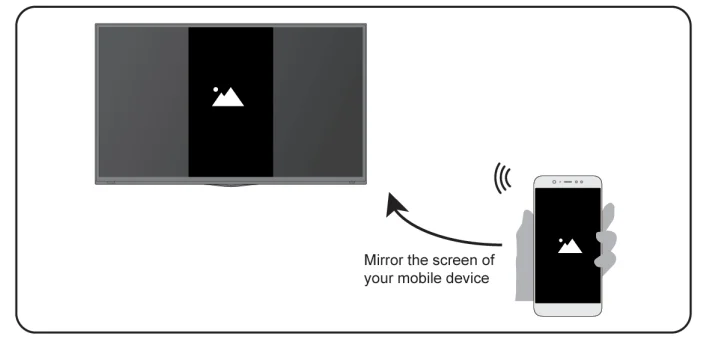
Sharing your smartphone/Computer Screen on the TV
Mirror content from your mobile device to the TV. View videos, photos and more from your device on your TV screen. Press button to select Apps, and select Screen Sharing or> Settings > Apps > Screen Sharing.
- Connect your mobile device to the WLAN network.
- Turn on the casting function of your Android/Windows10 device. The function name and location will be different according to your device. The feature may be called “Wireless display”, “Smart view”, “Wireless projection”, etc.
- Find the TV name in the search list of your device and select it to connect to your TV. Your mobile device’s screen will be mirrored once you select your TV. You can close Screen sharing application with the BACK or EXIT button.
Note:
- Some mobile devices may not support the casting feature.
Connecting USB Devices
Connect the USB devices such as hard drives, USB sticks and digital cameras for browsing photos, listening to music.
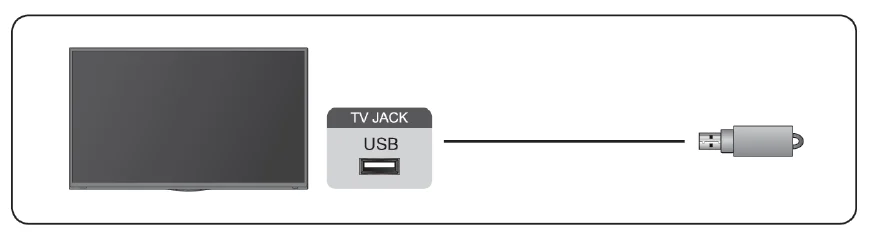
- Support the USB disk 4G, 8G, 16G, 32G, 64G, 128G and other common market size, and 8T hard drive is currently supported.
- Support format: NTFS, FAT32.
- Certain digital cameras may not be compatible with the TV.
Select the content you want to play or view. For more information, please refer to Entertainment > Media in this manual.
Settings Overview
General Settings
Pressbutton on your remote control to select Settings > Display & Sound > Picture > General.
Choose a picture mode
Pressbutton on your remote control to select Settings > Display & Sound > Picture > General >
Picture Mode.
You can select the picture mode that provides the best viewing experience.
Note:
- Options may differ depending on your model/country/region and the content you are watching. Please refer to the specific product.
When you use a normal signal
If you would like to configure the settings for your picture, then there are some types of picture modes available:
- Vivid(Dynamic)
You can enjoy a vivid experience. - Standard
Use Standard mode for watching normal content, such as News, Drama or Documentaries. - Energy Saving
Energy Saving mode can save energy. - Game
Enable Game Mode to optimise the TV’s settings to enjoy a better gaming experience with a PC or a game console connected to the TV. - Sports
Optimised picture for watching sports. - Theater Day
Theatre Day corresponds to the quality effect of different ambient brightness scenes. - Theater Night
Theatre Night corresponds to the quality effect of different ambient brightness scenes. - Auto Mode
The picture mode will be adjusted automatically. - FILMMAKER MODE
A picture quality mode.
Note:
- Auto Mode may not be applicable in some models/countries/regions.
Troubleshooting
FAQ
In this section, you will find the answers to the most frequently asked questions.
Note:
- The images are only for reference and may differ from the actual product.
There is no picture, or the picture is black and white.
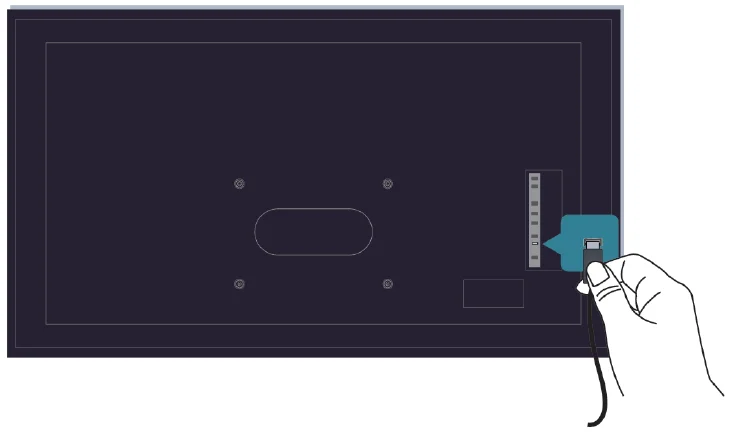
Check input cable connections.
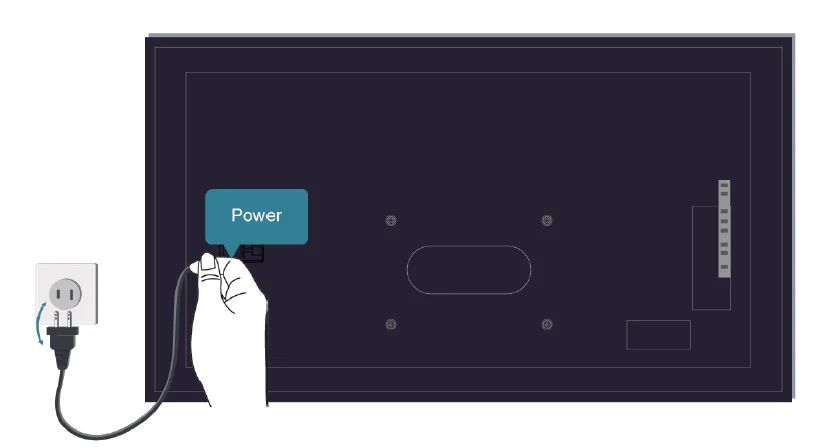
Unplug the TV power cord from the AC outlet and re-plug after 60 seconds.
There is no sound, or the sound is too low.
There is no sound, or the sound is too low at maximum volume.
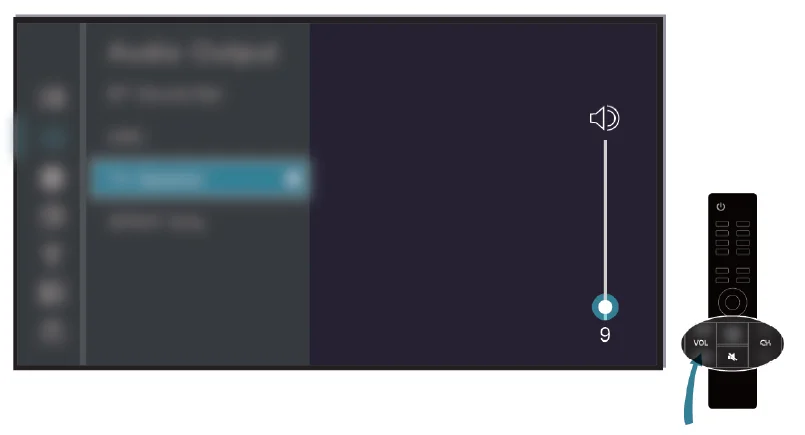
- Check if Mute mode is set to on.
- Check the volume settings.
- Check the volume control of the device (cable or satellite box, DVD, Blu-ray, etc.) connected to your TV.
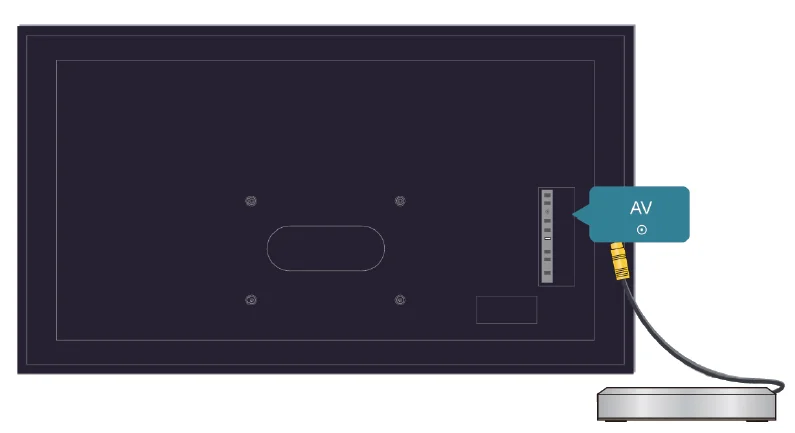
Make sure that the audio cable is connected to the correct audio output connector on the external device.
For more manuals by Hisense, visit ManualsLibraryy
Hisense 65U8K Google TV-FAQs
Does Hisense 65U8K come with Google TV?
Yes, the Hisense 65U8K features Google TV, providing access to the entire Google ecosystem, including Google Assistant, Chromecast, and the Play Store. It allows you to browse apps, stream content, and get AI-powered recommendations directly on your TV. Google TV enhances the smart experience compared to basic Smart TVs or older Android TV platforms.
How does Google TV differ from Android TV on Hisense TVs?
Google TV is a more content-focused platform with AI-driven recommendations and a user-friendly interface. Android TV offers a traditional app-based layout, while Google TV organizes streaming content across apps, making it easier to discover movies, shows, and live channels in one place.
Is the Hisense 65U8K worth its price?
Yes, it offers excellent value. Its mini-LED panel delivers bright, vibrant images and deep contrast at a price far lower than similar Samsung or Sony models with comparable features. For users seeking high-quality 4K viewing on a budget, the U8K is a strong option.
Can I watch live channels for free on Hisense Google TV?
Yes. Google TV includes Freeplay channels that let you watch live TV without subscriptions or additional apps. These free channels are accessible from the “Live” tab or the Google TV Freeplay app, giving a convenient option for casual viewing.
How does Hisense 65U8K compare to Samsung or Sony TVs?
Hisense offers solid performance, low input lag, and a high refresh rate, making it good for gaming. Samsung and Sony TVs may have brighter highlights, better HDR performance, and advanced image processing. If budget is a concern, Hisense provides excellent value without compromising essential features.
What are the common problems with Hisense TVs?
Typical issues include HDMI connection problems, freezing or flickering screens, incorrect picture settings, or audio output errors. Most problems can be fixed by checking cables, resetting settings, or updating firmware. Proper care and timely updates usually prevent major issues.
Can I install apps on Hisense Google TV?
Yes. You can install thousands of apps directly from the Google Play Store, including streaming platforms like Netflix, YouTube, Prime Video, and gaming apps. Google TV also supports Chromecast-enabled devices for screen casting from phones or tablets.
How does Hisense Google TV compare to Vidaa Smart TV?
Google TV offers a feature-rich, personalized experience with AI recommendations and broad app compatibility. Vidaa Smart TV is lightweight and fast but focuses on simplicity and quick access to major streaming apps. For advanced content discovery, Google TV is the better choice.
Is Hisense 65U8K suitable for gaming?
Yes. With low input lag, high refresh rates, and HDR support, the U8K handles fast-paced games smoothly. Its mini-LED panel provides vibrant colors and brightness suitable for gaming in bright or dim rooms, offering a good balance of performance and price.
Is Hisense a reliable brand for TVs?
Hisense is a Chinese multinational known for affordable, feature-rich TVs. While it may not match premium brands like Sony or Samsung in brand recognition, Hisense TVs provide excellent value, solid build quality, and advanced features such as mini-LED, QLED, and Google TV integration.