
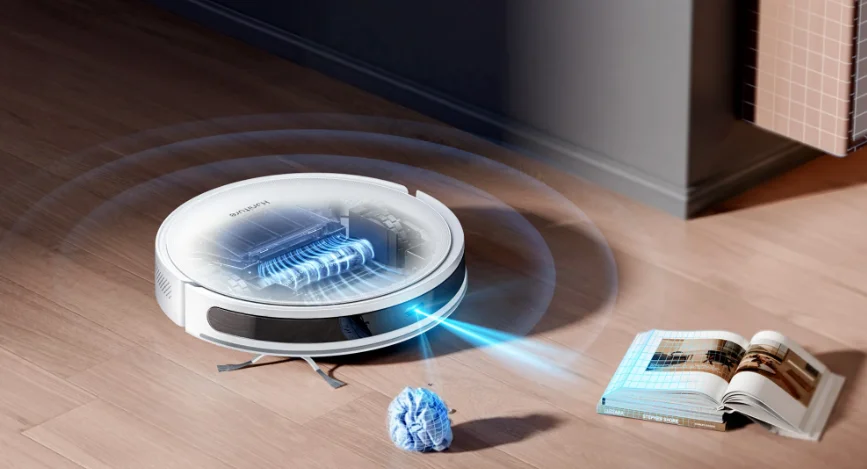

Honiture T10 Robot Vacuum
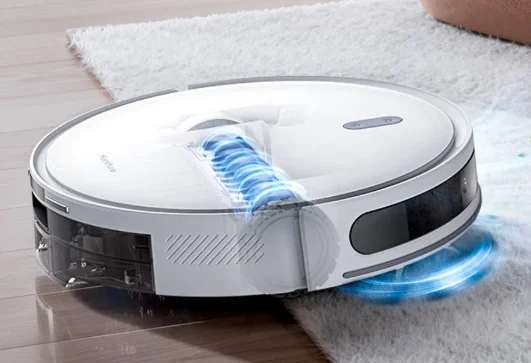
Safety Information
Use Restrictions
Please read this manual thoroughly before using the product. Warning: To avoid injury to yourself and others, as well as to prevent unnecessary property damage, please carefully read and follow the “Safety Instructions” below. The safety instructions are divided into two sections: “Warning” and “Caution.” Both sections contain critical information for the safe use of the product and must be adhered to.
Warning: Important safety instructions to prevent death or serious injury from incorrect operations.
Caution: Important safety instructions to prevent minor injury or damage to the device from incorrect operations.
Warning
- Do not use this product in wet areas, such as bathrooms or near water sources.
- Do not use it to clean up liquids, matches, or wet garbage.
- Do not unplug the power cord or touch the socket with wet hands.
- Do not use damaged power plugs or loose sockets.
- Do not use the main unit to clean flammable liquids (such as kerosene or gasoline), sparks, toner cartridges, or combustible dust. Avoid using the device near these items or in environments with flammable or explosive gases to prevent fires.
- Do not disassemble, repair, or modify the product on your own, as this could lead to fire, injury, or damage. Only replace consumables as directed in the manual.
- Do not charge non-rechargeable batteries. Please use an AC power supply with the rated voltage, and avoid using a generator or DC power supply to prevent fire hazards and electric shocks.
- Please use a dry cloth to regularly clean the dust off the plug to avoid fire hazards caused by poor insulation and other issues.
- Ensure the plug is inserted firmly to prevent electric shock, short circuits, and fire.
- Immediately cut off the power and stop using the device if any malfunction occurs to avoid smoke, fire, or electric shock.
- If the device deforms, overheats abnormally, emits a burning smell, or makes unusual noises during charging or use, disconnect the power supply and unplug the device. Place it in an open, non-flammable area to ensure safety. Faulty products should be replaced or repaired by the manufacturer or a qualified technician to avoid danger.
- Always pull the plug from the power socket before cleaning or performing maintenance to prevent electric shock and injury.
- If the rolling brush malfunctions during use, first turn off the power button and immediately check for entanglements with hair or other long fibers, cleaning it promptly.
- Do not spray water on the product body or plug, and do not immerse them in water.
- When unplugging, hold the insulated part of the power cord and do not pull the cord directly.
- The battery is a sealed unit and poses no safety hazard under normal conditions. However, if liquid leaks from the battery in extreme cases, it may cause irritation or burns. If you come into contact with the liquid, follow these instructions: (1) For skin contact: wash with soapy water. (2) For eye contact: rinse immediately with water for at least 15 minutes and seek medical attention.
- This device is not suitable for children or individuals with physical, sensory, or mental disabilities, or those lacking relevant experience and knowledge. Please supervise its use.
- Keep the robotic vacuum and mop cleaner away from electromagnetic equipment in hospitals. Instruct children not to treat the device as a toy; it should only be used with the original accessories provided.
- This power cord is only applicable for use with the robotic vacuum and mop cleaner as specified by the merchant.
- Before charging the device, check that the power cord specifications match the required voltage.
- The appliance should only be used with the power supply unit provided with it.
- This appliance contains batteries that can only be replaced by qualified personnel.
- Do not recharge non-rechargeable batteries at the charging station.
- If the supply cord is damaged, it must be replaced by the manufacturer, a service agent, or other qualified individuals to avoid hazards.
Caution
- Do not use this device outdoors, on uneven surfaces, or in commercial or industrial environments.
- Avoid using the product in areas without protective barriers (such as duplex floors, open balconies, or furniture tops).
- Do not operate the device in environments with temperatures above 35°C or below 0°C, or where there are liquids or sticky substances on the floor.
- Do not block the air outlet to prevent deformation, malfunction, or fire due to overheating.
- Avoid dragging the device to prevent scratching the floor.
- Do not swing the device or allow young children to play with it to avoid injury or damage.
- Do not drop the device, collide it with other objects, or apply pressure to it to prevent malfunctions that could result in fire or electric shock.
- Ensure the rolling brush and filter are installed before using the device to avoid damaging the motor.
- Check that the power cord is intact before charging.
- Before using the robotic vacuum and mop cleaner for the first time or replacing the designated filter, turn off the main power and ensure the filter is properly installed.
- Dispose of used battery packs properly; do not discard them carelessly.
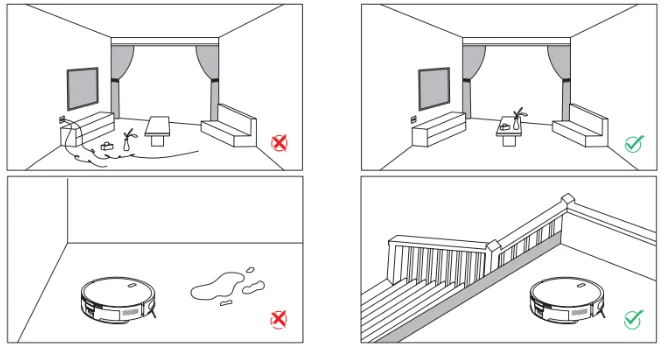
- Before using the product, arrange desks, chairs, household items, and floor objects neatly, and clear away power cords and small items to prevent blockages during cleaning.
- When the machine is running, keep curtains and tablecloths off the ground and ensure carpets are flat to prevent the product from getting stuck and causing damage to your belongings.
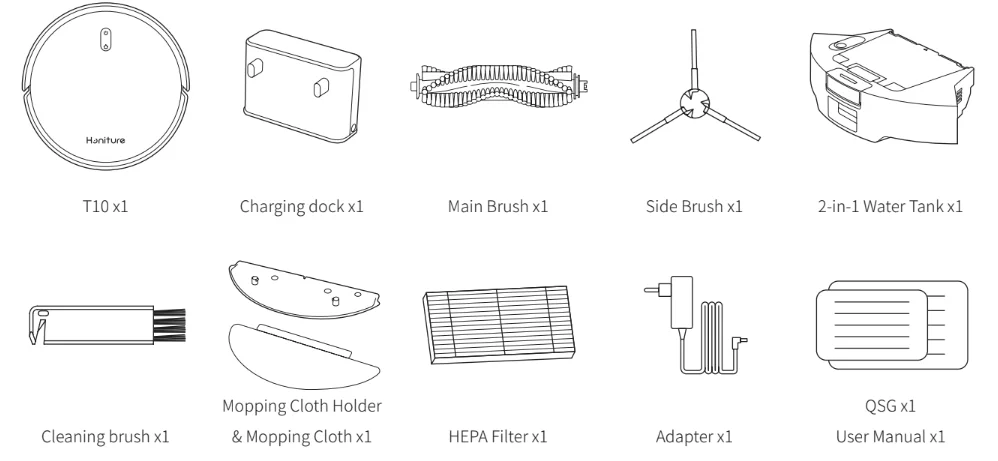
Packing List
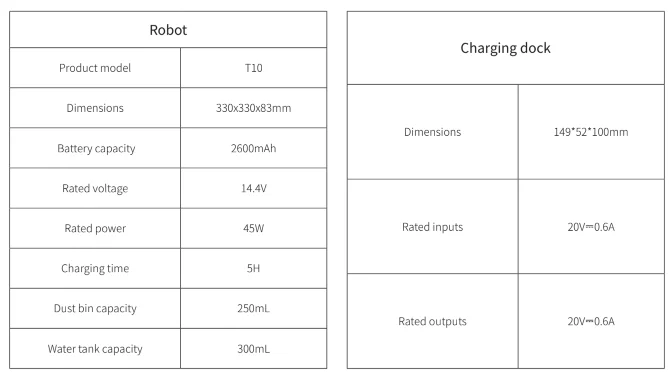
Basic Parameters
Product Introduction
Preparation
- Please clear the area of wires, hard objects, sharp items (such as iron nails and glass), and other debris before starting. Remove any delicate, valuable, or potentially dangerous items to prevent personal injury or property damage caused by entanglement, jamming, dragging, or bumping by the machine.
- If the product will be used in a suspended environment, install guardrails to prevent the device from accidentally falling or pushing items off, which could cause injury or damage.

Notes:
- During the initial cleaning process, it is recommended to follow the robot closely to help address any potential minor issues, ensuring smoother operation in future cleanings.
- If there are areas that do not need to be cleaned or may cause the robot to get stuck, you can set up no-go zones in the mobile app to prevent the robot from entering those areas.
- Avoid allowing the robot to pick up hard or sharp objects (such as construction debris, glass, iron nails, etc.), as this may scratch both the robot and the floor.
Use Instructions
6.1 Installation of Charging Station
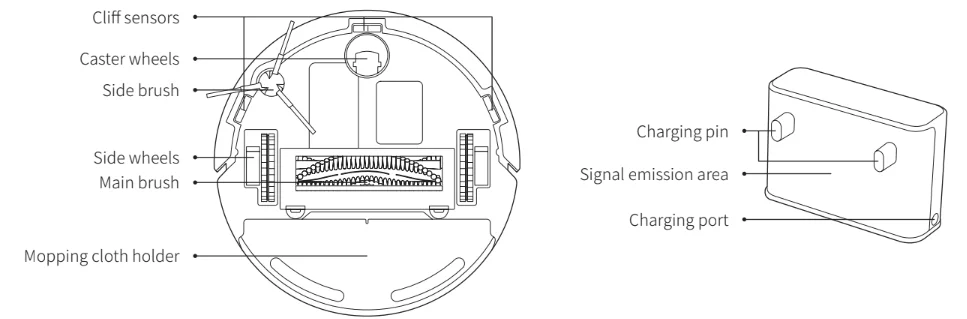
- Find a suitable location against a wall to place the charging station and connect it to a power supply.

- When using the device for the first time, press and hold the button
 to power it on, then manually place the main unit against the charging station to charge.
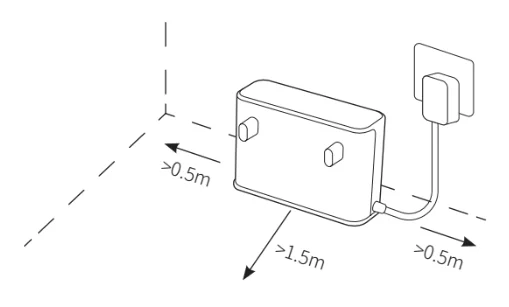
 to power it on, then manually place the main unit against the charging station to charge.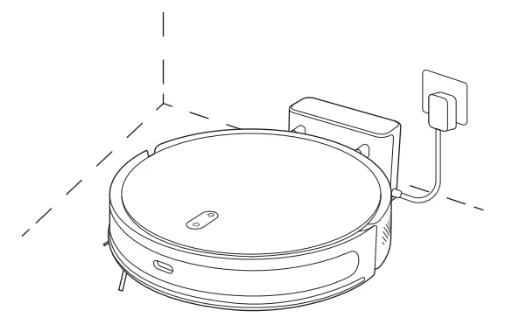
6.2 Installation of the mopping module
- Install the mop. Insert the wrung damp mopping pad into the mopping pad holder and attach it using the Velcro.

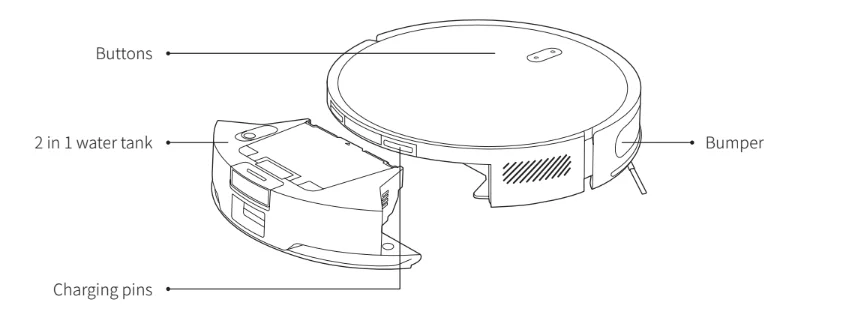
- Fill the 2-in-1 Water Tank with Water. Open the rubber cap of the 2-in-1 water tank inlet, pour clean water into the tank, and then secure the rubber cap.

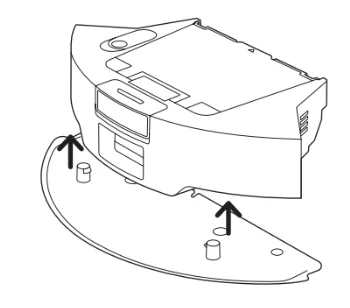
- Install the Mopping Module. Attach the mopping pad holder to the bottom of the 2-in-1 water tank according to the direction shown in the diagram.

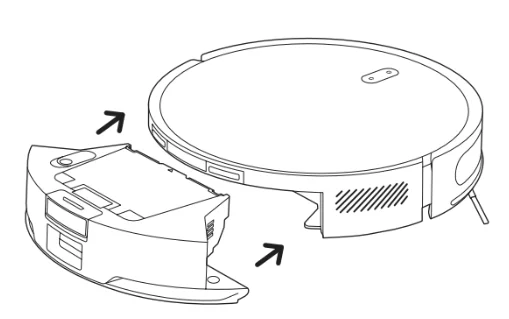
- Install the 2-in-1 water tank. Insert the 2-in-1 water tank into the main unit following the direction shown in the diagram until you hear a “click” sound.

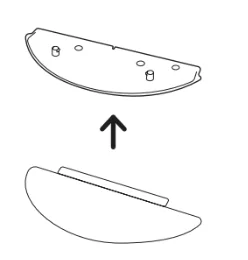
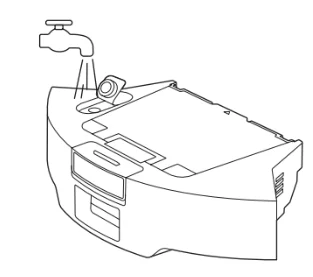
Caution
- Do not use detergents, disinfectants, solid cleaning agents, or other cleaning products, as they may corrode or block the 2-in-1 water tank.
- Do not pour hot water into the 2-in-1 water tank to avoid deformation; do not flush or soak the water tank.
- Due to production testing, there may be a small amount of water residue in the 2-in-1 water tank, which is normal.
- When mopping, set up virtual walls or no-go areas in carpeted areas to avoid using the mopping function on carpets.
- When the device is charging or not in use, remove the mopping module, empty the excess water from the tank, and clean the mopping pad to prevent mildew or odors.
- It is recommended to clean the mopping pad after each use to maintain water output speed and cleaning effectiveness. If necessary, the mopping pad can be replaced with a new one.
- When the main unit is charging on a wooden floor, promptly remove the mopping module to prevent leakage and damage to the floor.
App Connection
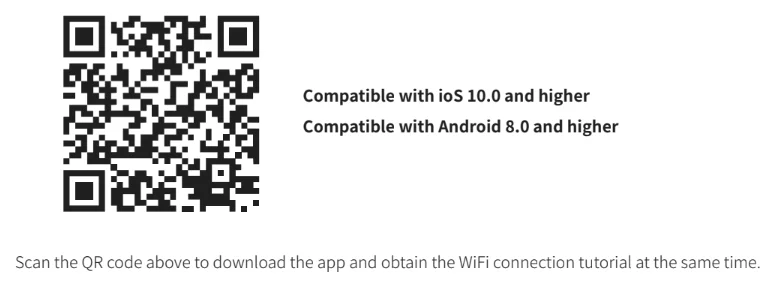
How to Use
Power on/off
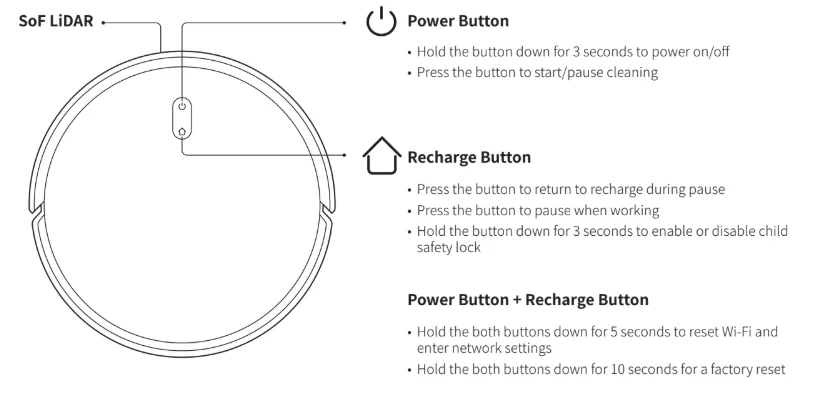
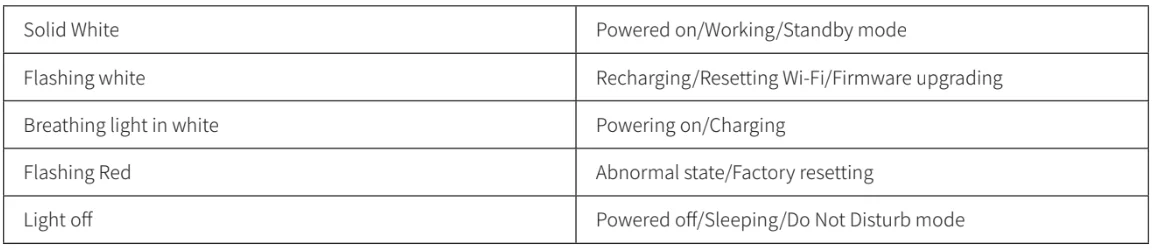
- Press and hold the power button for 3 seconds. The power button indicator will light up, and the robot will enter standby mode. When the robot is out of the charging station, press and hold the power button to turn it off; the indicator will turn off.
- While the robot is in operation, pressing any button will pause it. After pausing, press the power button again to resume cleaning.
Return to recharge
- In standby mode, press the recharge button, and the robot will return to the charging station to recharge. When cleaning is complete, it will automatically return to the charging station, and the indicator will flash white. If the battery is low during cleaning, the robot will also return to the charging station to recharge.
Reset the Wi-Fi Connection
- To reset the Wi-Fi connection, press and hold both the
 buttons simultaneously for 5 seconds until you hear a voice prompt.
 - You will hear a voice prompt indicating that the Wi-Fi connection has been reset, and the LED indicators on the robot will flash quickly in white. You can then follow the Wi-Fi instructions in the app to set up the connection.
 buttons simultaneously for 5 seconds until you hear a voice prompt.
Quick mapping
- When the robot is powered on for the first time, there will be no map in the app. Before you start cleaning, please place the robot in the charging station, select quick mapping in the app, and the robot will create a map. After the robot automatically returns to the charging station, the map will be completed and saved automatically.
Set Up No-Go Zone and Virtual Wall (Available in the App Only)
- With the app, you can set up a “No-Go Zone” or “Virtual Wall” as a restricted area. This eliminates the need for physical barriers, including boundary strips. This feature is designed for dividing cleaning zones, not for isolating hazardous areas.
- No-Go Zone: The robot will not enter this zone to vacuum.
Note:
- To set a virtual wall or No-Go Zone, the robot must first build a map.
- Although a virtual wall is set, the robot may still enter the restricted zone due to repositioning issues or sensor abnormalities.
- Moving the device or changing the environment may cause the virtual wall to be lost, resulting in mapping failure and the need to rebuild the map.
Auto-Cleaning
Start cleaning in Auto Mode through the app or by pressing the power button. Before cleaning, the robot must first build a map. It will then perform a full house cleaning by cleaning the edges first and following a Z-shaped cleaning path. After cleaning is complete, the robot will automatically return to the charging station to recharge.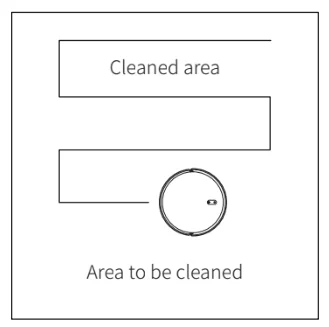
Suction adjustment
Using the mobile app, you can choose from four different suction power modes.
Zone Cleaning (Available in the App Only)
In this mode, you can set up a cleaning zone and customize its size in the app. The robot will clean only the selected zone.
Note: Enable Zone Cleaning only after the robot has created the map.
Room Cleaning (Available in the App Only)
In this mode, your house is automatically divided into several rooms for cleaning in the app. You can also customize your room settings in the app. The robot will clean only the selected rooms and return to the charging station after cleaning.
Schedule Cleaning
Use the app to set the time for scheduled cleaning, and the robot will automatically start cleaning at the specified time, returning to the charging station after the cleaning is finished.
Note:
- Enable Room Cleaning only after the robot has created the map.
- It is recommended that the robot start room cleaning from the charging station.
Use the Robot with Amazon Alexa / Google Assistant
Amazon Alexa and Google Assistant are smart voice control devices that enable you to control the robot with your voice.
Before you start, make sure:
- The robot is connected to the charging station to ensure it has enough power.
- The robot is connected to the app.
- You have an Amazon Alexa-enabled device (e.g., Amazon Echo, Echo Dot, Amazon Tap, Echo Show, or Echo Spot) or a device enabled with Google Assistant (e.g., Google Home, Google Home Mini). These devices are sold separately.
- The Amazon Alexa app or Google Home app is already installed on your phone, and you have created an account.
To control the robot with Amazon Alexa or Google Assistant:
- Open the Honysmart app and find “Third-Party Services” on the Me page.
- Follow the on-screen instructions to complete the setup.
Caution:
- It is recommended to place the main unit in the charging position of the charging station before starting cleaning.
- Before using the product, arrange desks, chairs, household items, and floor objects neatly, and clear away power cords and small items to avoid blocking the robot during cleaning.
- Do not stand in front of the device while it is operating to avoid obstructing its ability to identify the area to be cleaned.
- It is recommended not to turn off the main unit after it has finished working, but to keep it in the charging state for better performance in the next cleaning.
Indicator status description
Common Problems
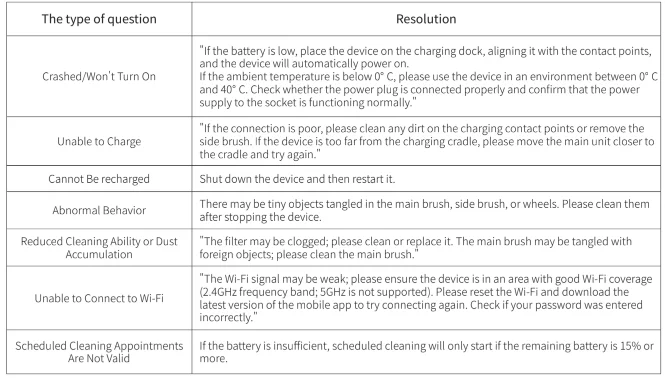
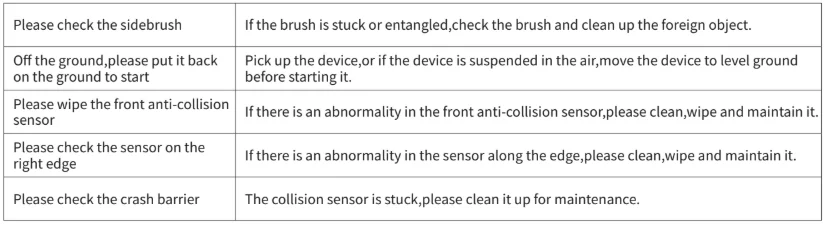
Troubleshooting
Visit www.honiture.com for more details.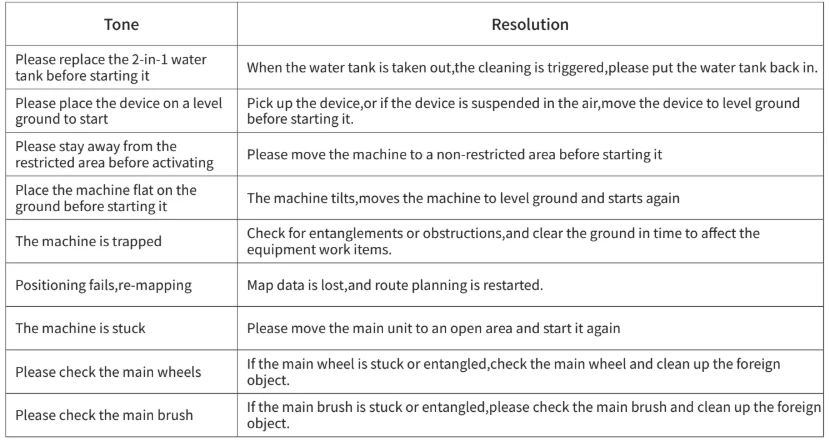
For More Manuals By Honiture, Visit ManualsLibraryy.
Honiture T10 Robot Vacuum-FAQs
What is the Honiture T10 Robot Vacuum and what does it do?
The Honiture T10 is a smart robotic vacuum designed to automatically clean floors without manual effort. It combines powerful vacuuming, sweeping, and mopping functions in one unit, offering up to 6000 Pa of suction, LiDAR navigation for precise mapping, and obstacle avoidance sensors. Users can control it via a mobile app or through voice assistants like Amazon Alexa and Google Assistant.
How does the T10 navigate and map my home?
The T10 uses advanced LiDAR navigation technology to scan your home environment, creating highly accurate maps that guide its cleaning path efficiently. It supports multi-level mapping, allowing you to store up to five editable floor plans — helpful for multi-story homes. This enables selective room or zone cleaning and avoids missed spots.
How strong is the suction, and can it handle pet hair?
With a maximum suction power of 6000 Pa, the Honiture T10 is powerful enough to pick up dust, debris, and pet hair from various surfaces, including hard floors and carpets. It also features smart carpet detection that automatically boosts suction when more power is needed, improving deep cleaning performance.
How long does the T10’s battery last, and how does recharging work?
The T10 offers up to 120 minutes of runtime on a single charge, which is ample for cleaning medium to larger living spaces. When the battery gets low, the robot automatically returns to its charging dock and can resume cleaning from where it left off once recharged, ensuring complete coverage without interruption.
Can I schedule cleanings or control the T10 remotely?
Yes, you can schedule cleanings and manage the T10 remotely through the HomeKit app on your smartphone. The app lets you start, stop, or set cleaning times, mark no-go zones, and launch specific cleaning modes. It also supports voice control via Alexa and Google Assistant for hands-free use.
What types of floors can the T10 clean effectively?
The T10 is versatile and suitable for a variety of surfaces, including hardwood, tile, laminate, and carpet. Its smart sensors recognize surface changes and adjust suction power accordingly. It also performs mopping with a detachable water tank and mop pad, making it capable of handling both dust and light stains in hard-floor areas.
How do no-go zones and obstacle avoidance work on this robot?
You can set virtual no-go zones in the app to prevent the robot from entering restricted areas like bathrooms or pet corners. Smart obstacle avoidance sensors help the T10 detect furniture, walls, and other objects in real time, minimizing collisions, preventing falls, and reducing the chances of it getting stuck during cleaning cycles.
Is maintenance of the T10 robot vacuum difficult?
Maintenance for the T10 is fairly straightforward. Emptying the dustbin and cleaning the brushes are typical upkeep tasks. The robot’s LiDAR and sensors should be kept clear of debris for optimal performance, and the mop pad can be rinsed after mopping. Routine inspection of filters and brushes helps maintain suction power over time.
Does the Honiture T10 support multi-floor homes?
Yes, the T10 is well-suited for homes with multiple levels. It lets you save up to five separate maps, so it can navigate and clean distinct floors separately without confusion. This makes it a practical choice for people living in houses with staircases or separate floors that require regular cleaning.
Are there any known user concerns with the Honiture T10?
While the T10 has strong cleaning features on paper, some users report challenges with customer support and long-term reliability on other Honiture products, noting issues getting timely assistance for malfunctions or warranty claims. When considering this vacuum, it’s worth researching the seller’s reputation and return policies alongside specs.