

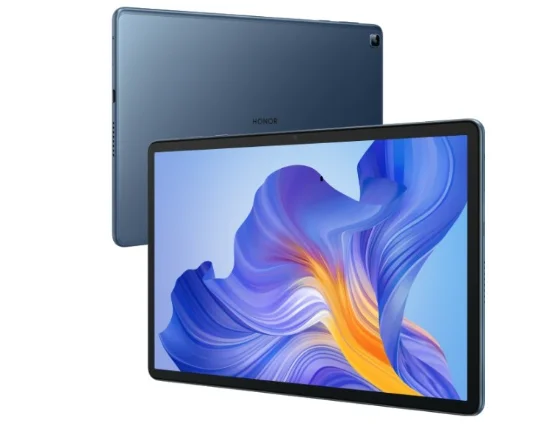
HONOR Pad 8
Essentials
System Navigation
Change the System Navigation Mode
Use gesture navigation
Go to Settings > System & updates > System navigation and select Gestures.
You can:
- Return to the parent menu: Swipe inward from the left or right edge of the screen.
- Return to the home screen: Swipe up from the middle of the bottom edge.
- Access multitasking: Swipe up from the bottom edge of the screen and pause.
- Close a task: In the multitasking interface, swipe up on a task card. Swipe down on a card to lock the task, locked tasks will not be cleared in batches by tapping
 in the multitasking
interface. - Fast app switching: Swipe across the bottom of the screen in an arc to switch between apps; or go to Settings, turn on the Slide across bottom to switch apps switch, then swipe across the bottom of the screen.
 in the multitasking
You can also go to Settings and turn on the Show navigation bar switch to enable navigation bar-assisted gesture operations.
Use Three-Key Navigation
Go to Settings > System & updates > System navigation, and select Three-key navigation.
You can then:
- Touch
 to return to the previous menu or exit the current app.
 - Touchto return to the home screen.
- Touch
 to access the recent tasks screen. You can touch Settings to configure more settings.
 - Select a navigation key combination.
- Touch
 (if available in the selected navigation key combination) to open the notification panel.
 to return to the previous menu or exit the current app.
 to return to the home screen.
 to access the recent tasks screen. You can touch Settings to configure more settings.
 (if available in the selected navigation key combination) to open the notification panel.
Device Clone
Use Device Clone to Move Data to Your New Device
Device Clone lets you quickly and seamlessly move all the basic data (including contacts, calendar, images, and videos) from your old tablet to your new tablet.
Migrate Data from an Android Device
- On your new tablet, open the Device Clone app. Alternatively, go to Settings > System & updates > Device Clone, touch This is the new device, then touch Honor or Other Android.
- Follow the onscreen instructions to download and install Device Clone on your old device.
- On your old device, open the Device Clone app and touch This is the old device. Follow the onscreen instructions to connect your old device with your new tablet by scanning a code or connecting manually.
- On your old device, select the data you want to clone, then touch Transfer to start cloning.
Device Clone is only available on tablets running Android 7.0 or later.
Migrate Data from an iPhone or iPad
- On your new tablet, open the Device Clone app. Alternatively, go to Settings > System & updates > Device Clone, touch This is the new device, then touch iPhone/iPad.
- Follow the onscreen instructions to download and install Device Clone on your old device.
- On your old device, open the Device Clone app and touch This is the old device. Follow the onscreen instructions to connect your old device with your new tablet by scanning a code or connecting manually.
- On your old device, select the data you want to clone, then follow the onscreen instructions to complete the data cloning.
- Device Clone is only available on tablets running iOS 8.0 or later.
Lock and Unlock Your Screen
Lock and Unlock Your Screen
Set the Screen Timeout Period
Go to Settings > Display & brightness > Sleep and select a screen timeout period.
Turn On the Screen
You can turn on the screen in any of the following ways:
- Press the Power button.
- Go to Settings > Accessibility features > Shortcuts & gestures > Wake screen, and enable Raise to wake or Double-tap to wake
Unlock the Screen with a Password
Once the screen is turned on, swipe up from the middle of the screen to display the password input panel. Then, enter your lock screen password.
Use Face Unlock
Turn on the screen and align it with your face. Your tablet will unlock once your face is recognised.
Display Your Signature on the Lock Screen
Go to Settings > Home screen & wallpaper, touch Lock screen signature, then type text to display on the lock screen. To remove the signature, touch Lock screen signature and delete the text.
Launch apps from the lock screen
You can launch common apps, such as Camera, Calculator, and Timer, from the lock screen.
- Light up the screen, touch and hold the Camera icon at the lower right corner and swipe up to open Camera.
- Light up the screen, swipe up from the bottom edge of the screen to open the quick operation panel, and tap an icon to launch the app. This includes Calculator, Timer, etc.
Get Familiar with the Home Screen
Explore your home screen
On the home screen, you can:
- Check the status of your tablet or view notifications on the status bar at the top of the screen.
- Swipe left and right to check apps, on-screen cards, and widgets.
Service cards
Keeping informed with important information and one touch to access frequently used features without opening apps. The multi-style cards distinguish your home screen from others. Apps supporting service cards have an indicator bar by default at the bottom (go to Settings > Home screen & wallpaper > Home screen settings to enable or disable Show card bar).
Swipe up app icons to add service cards
Swipe up app icons supporting service cards, unfold service cards (tap other areas to collapse), and tap in the upper right corner of the card to pin it to the home screen.
Add service cards by editing the home screen
Pinch two fingers on the home screen to enter the edit screen, tap Cards, select Gallery, Weather, or others, swipe left and right to select your preferred style, tap ADD TO HOME SCREEN.
Add Weather, Clock and other popular widgets
Pinch two fingers on the home screen to enter the edit screen, tap Cards, find and enter Classic widgets, tap Weather, Clock, and other widgets to add them to the home screen.
Set apps on the home screen as service cards
Take Notepad as an example: Long-press the Notepad app, select Notepad cards in the pop-up list, swipe left and right to choose your preferred style, tap SET AS EXPANDING CARD. Next time you swipe up on the app, the service card will be displayed as the selected style.
Set service card style
Take Notepad as an example, you can set and change the card style in any of the following ways:
- Long press Notepad APP, select Notepad cards in the pop-up list, swipe left and right to choose your preferred style, tap ADD TO HOME SCREEN.
- Long-press Notepad the service card, select More Notepad cards in the pop-up list, swipe left and right to choose your preferred style, tap ADD TO HOME SCREEN.
Remove service cards
Long-press the service card, select Remove in the pop-up list, then tap REMOVE in the confirmation box to remove the card.
Big folders
Store your apps in a big folder. You can access them without having to open the folder, making the home screen more efficient to interact with.
Create big folders
- Long-press a standard folder and tap Enlarge.
- Long-press the big folder to rename it.
If there are more than 8 apps in the folder, a layers icon will be displayed in the lower right corner.
Use big folders
- Tap the app icon in the big folder to open it directly.
- Tap the layers icon in the lower right corner of the big folder to expand it to view or open more apps.
Switch the display mode
Long-press the big folder, tap Shrink to restore it to a standard folder.
App suggestions
App suggestions recommend apps that you need for your daily life. Based on your current needs, making it more efficient to access the apps and services.
Add App suggestions to the Home Screen
You can select the bigger App suggestions card for more accurate recommendations and a better experience. Pinch two fingers on the home screen to enter the edit screen, tap Cards, and select YOYO Suggestions. Swipe left and select the 2*4 App suggestions card style, then tap ADD TO HOME SCREEN. If there is no space on the home screen, Cards will be added to another screen.
Stop the app from being recommended
Take Settings as an example: Go to the YOYO Suggestions card on the home screen, long-press the Settings app until the dialogue box appears, and tap > STOP. The Settings app will not be recommended any
more.
Boost Your Productivity with the Productivity Layout
Using the tablet’s new productivity layout, you can put your 10 most frequently used applications in the application bar at the bottom of the home screen and quickly open the most recently used applications, making it easy to select frequently used office software when working to improve your efficiency. The application bar in the productivity layout is divided into two parts: the left contains the permanent applications and the right contains the recent applications. You can drag the separating line between these two parts to expand the application bar and customise the number of applications shown for your convenience.
- Customise the permanent application bar: Up to 7 permanent apps can be displayed in either landscape or portrait orientation of the tablet. You can use the default apps or add/ remove them according to your needs. You may remove all permanent apps from the left application bar but the bar itself cannot be disabled.
- Customise the recent application bar: The tablet displays at least 3 recent apps in landscape and 1 in portrait. Drag the separating line to show more or hide recent apps.
- Hide the recent application bar: You can manually remove all apps from the recent application bar or go to Settings > Home screen & wallpaper > Home screen settings and turn off Show recent apps. After this, the right application bar will be disabled location.
Privacy
Permission management
Apps may require certain permissions, such as the Location permission, to provide you with corresponding services. However, some apps may obtain excessive permissions, posing potential risks to your
information privacy and security. You can check the permissions granted to each app and deny those you deem unnecessary.
Manage the Location Permission
After granting the Location permission to an app, it can obtain your location information at any time. For example, if a map app is granted the Location permission, it can provide you with location and navigation services. You can revoke the permission if you do not need these services.
- Go to Settings > Apps > Permission manager.
- On the Permission manager screen, touch Location, touch the icon of the corresponding app, then select one of the access permission options.
Review permission access logs
You can review and manage privacy access logs as needed to disable unjustified permissions and enjoy better services. Go to the Permission manager screen and select a permission to turn on or off the application’s access.
View and Eliminate Privacy Risks
You can also view the privacy risk report on the privacy screen and optimize unnecessary permissions to maintain security.
- Go to Settings > Privacy, the system will automatically scan and detect privacy risks. If privacy risks are detected, suggested optimizations will be displayed. Tap Suggested optimizations to view the privacy risk report.
- Tap OPTIMIZE to eliminate privacy risks.
Use Location Services
Some apps need to obtain your location information to provide better services. You can enable or disable location services, and grant or deny permissions to access location information for particular apps as required.
Enable or Disable Location Services
You can enable or disable location services in either of the following ways:
- Swipe down from the status bar to open the notification panel (you can swipe further to display all shortcuts), and enable or disable location.
- Alternatively, go to Settings > Location, and enable or disable Access my location.
After location services are disabled, your tablet will prevent all apps and services from collecting and using location information, with the exception of some built-in apps. When apps or services need to use location information, your tablet will remind you to enable location services again.
Allow or Forbid Apps to Obtain Location Information
You can allow or forbid an app to access location information, set to allow only while in use, allow all the time, or deny, and more.
- Go to Settings > Privacy > Permission manager, touch Location, and check which apps have been granted access to location information.
- Touch the corresponding app and follow the onscreen instructions to grant or deny permissions.
Accessibility Features
Use a Screen Reader App
Screen reader apps are designed to assist visually impaired users to use a tablet.
Enable Color Correction to Customize the Screen Color
Color correction helps people with poor eyesight see the screen content more easily.
- Go to Settings > Accessibility features > Accessibility > Color correction and enable Color correction.
- Touch Correction mode to select a color correction mode.
Magnification gestures
You can zoom in on the screen using magnification gestures. Go to Settings > Accessibility features > Accessibility > Magnification, turn on the switch for Magnification. Quickly tap the screen three times with 1 finger, then:
- Pinch 2 or more fingers together or apart to zoom the screen.
- Drag 2 or more fingers to scroll the screen.
Enable color inversion
Color inversion is used to change colors of the text and background on the screen. When this feature is enabled, your tablet will show white text on a black background. Go to Settings > Accessibility features > Accessibility, turn on the switch for Colour inversion.
Enable accessibility features by shortcut
You can enable an accessibility feature of your choice by the Volume key shortcut.
- Go to Settings > Accessibility features > Accessibility > Accessibility shortcut.
- Tap Select feature, choose the feature to be enabled by shortcut.
- Enable Accessibility shortcut. Touch and hold the volume up and down keys at the same time for 3 seconds to enable the accessibility feature.
Adjust the Long Press Duration
This feature allows you to adjust the response time when you long-press the screen. Go to Settings > Accessibility features > Accessibility, tap Long press duration, set the time as desired.
Set Scheduled Power On/Off
Use the Scheduled power on/off feature to power your tablet on and off at set times, to save power and prevent interruptions while resting.
- Go to Settings > Accessibility features > Scheduled power on/off, and enable Scheduled power on/off.
- Set the power on and off times, as well as the repeat cycle. Your tablet will power on and off automatically at the specified times. To stop using this feature, disable Scheduled power on/off.
System & Updates
Change system language and region
- Go to Settings > System & updates > Language & input > Language and region and select a language.
- If the language you want to use is not in the list, tap ADD LANGUAGE, search and add it to the language list, and then select the language.
- The system supports many languages, but not all. You might not find the language you want.
- You can also swipe up the screen to the bottom of the language list and tap Update list there to update the languages supported by the system.
- Tap Region to select your country/region. The system interface will be adjusted according to the cultural habits of your chosen country or region.
Use Another Input Method
You can download a third-party input method and set it as the default input method.
- Download the input method from an official app market.
- Follow the onscreen instructions to set it as the default input method, or go to Settings > System & updates > Language & input > Default keyboard and select the input method.
Set the System Date and Time
Your tablet is able to sync to the local date, time, and time zone over a mobile network. You can also manually set the date, time, and time zone for your tablet.
Go to Settings > System & updates > Date & time, then set the options according to your requirements.
Set the Date and Time Automatically or Manually
- Enable Automatic date & time, and your tablet will sync to the local date and time over a mobile network.
- To manually set the date and time, disable Automatic date & time.
Change the Time Zone
This feature may vary by device.
- Enable Automatic date & time, and your tablet will sync to the local time zone over a mobile network.
- To manually set the time zone, disable Automatic date & time.
Change the Time Format
- Enable 24-hour time, and your tablet will display time in the 24-hour format.
- Disable 24-hour tim,e and your tablet will display time in the 12-hour format.
Use Device Clone to Move Data to Your New Device
Device Clone lets you quickly and seamlessly move all the basic data (including contacts, calendar, images, and videos) from your old tablet to your new tablet.
Migrate Data from an Android Device
- On your new tablet , open the Device Clone app. Alternatively, go to Settings > System & updates > Device Clone, touch This is the new device, then touch Honor or Other Android.
- Follow the onscreen instructions to download and install Device Clone on your old device.
- On your old device, open the Device Clone app and touch This is the old device. Follow the onscreen instructions to connect your old device with your new tablet by scanning a code or connecting manually.
- On your old device, select the data you want to clone, then touch Transfer to start cloning.
Device Clone is only available on tablets running Android 7.0 or later.
Migrate Data from an iPhone or iPad
- On your new tablet, open the Device Clone app. Alternatively, go to Settings > System & updates > Device Clone, touch This is the new device, then touch iPhone/iPad.
- Follow the onscreen instructions to download and install Device Clone on your old device.
- On your old device, open the Device Clone app and touch This is the old device. Follow the onscreen instructions to connect your old device with your new tablet by scanning a code or connecting manually.
- On your old device, select the data you want to clone, then follow the onscreen instructions to complete the data cloning.
Device Clone is only available on tablets running iOS 8.0 or later.
Back Up with an External Storage Device
Back up data to USB storage devices
When the tablet is low on storage space, you should regularly back up large files or important data to a USB storage device (e.g., USB flash drive, card reader).
- Connect the tablet to the USB storage device with a USB OTG cable.
- Go to tablet Settings > System & updates > Backup & restore > Data backup > External storage and select USB storage on the External storage screen.
- Tap BACK UP, check the data you want to back up, and tap Back up.
- When backing up for the first time, follow the on-screen instructions to set the password and password hint. The data will be encrypted when backing up. Please remember the backup password: After the backup password is set, you do not need to enter the password for later backups, but you need to enter it for verification to recover files.
To reset the password, go to the USB storage backup screen, tap > Reset password, and follow on-screen instructions to complete the reset.
 > Reset password, and follow on-screen instructions to complete the reset.
The reset password is valid only for subsequent backups, not for previous backups.
Recover backup data from USB storage devices
- Connect the tablet to the USB storage device with a USB OTG cable.
- Go to tablet Settings > System & updates > Backup & restore > Data backup > External storage and select USB storage on the External storage screen.
- Select the appropriate backup record entry in the RESTORE FROM BACKUP list and open it.
- Select the data you need to recover, tap Restore, follow the prompts to enter the password, and then recover the data.
Restore Your Tablet to Default Settings or Factory Settings
Reset Network Settings
This operation will reset your Wi-Fi, mobile data network, and Bluetooth settings. It will not change any other settings on your tablet or delete any data. Go to Settings > System & updates > Reset, touch Reset network settings, then follow the onscreen instructions to reset network settings. Data services are not supported on Wi-Fi-only tablets.
Restore All Settings
This operation will reset all network settings, your lock screen password, and the home screen layout. If your tablet supports fingerprint or facial recognition, the enrolled fingerprints and facial data will be deleted as well. Other data or files will not be deleted from your tablet. This operation does not restore the settings of Find Device, Users & accounts, Device administrators, or app settings either. Go to Settings > System & updates > Reset, touch Reset all settings, and follow the onscreen instructions to complete the operation.
Restore Factory Settings
This operation will erase data on your tablet, including your accounts, app data ,and system settings, installed apps, music, images, all files in the internal storage, security chip contents, and locally-stored system, app, and personal data related to HONOR IDs. Make sure to back up your data before restoring your tablet to its factory settings. Go to Settings > System & updates > Reset > Reset tablet, touch Reset tablet, and follow the onscreen instructions to restore factory settings.
About Phone
Legal Notice
Copyright © Honor Device Co., Ltd. 2022. All rights reserved.
For more manuals by Honor, visit ManualsLibraryy
HONOR Pad 8-FAQs
How long does the HONOR Pad 8 battery last?
The Pad 8 has a 7,250mAh battery that delivers up to 14 hours of audiobooks, 14 hours of offline study videos, or 10 hours of online classes. Results may vary based on usage.
Does the HONOR Pad 8 support Google apps?
Yes, the HONOR Pad 8 comes with full Google support, including Google Play Store, Gmail, YouTube, Google Drive, and other GMS apps.
How do I activate the keyboard on the HONOR Pad 8?
You can enable the keyboard from Settings > System & Updates > Language & Input > Default Keyboard, then select your preferred input method.
Does HONOR Pad 8 have an App Lock feature?
Yes, HONOR devices offer App Lock, which protects selected apps using authentication to prevent unauthorized access.
How do I hide apps on the HONOR Pad 8?
You can hide apps from Home screen settings. Open the app drawer, tap the three-dot menu, go to Hide Apps, and select the apps you want to hide.
How do I access hidden apps?
Go to the app drawer > three-dot menu > Hidden apps. Any hidden apps will be listed there.
Is HONOR as good as Samsung?
HONOR devices often match Samsung in performance and features. Samsung offers stronger global availability, while HONOR is known for impressive display quality and AI-powered imaging.
What are the key features of the HONOR Pad 8?
The Pad 8 features a 12-inch 2K display, 8-speaker audio system, Snapdragon chipset, 7,250mAh battery, and full Google support, making it great for study, entertainment, and multitasking.
Can I use Gmail on the HONOR Pad 8?
Yes, you can install and use Gmail directly through the Google Play Store.
How do I restart the HONOR Pad 8?
Press and hold the Power button, then tap Restart to reboot the device.