
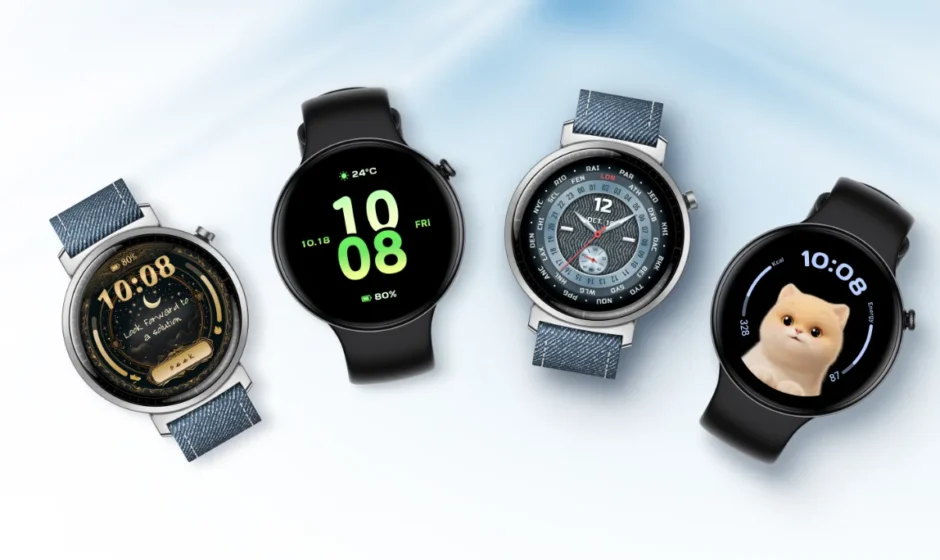

HONOR Watch Fit
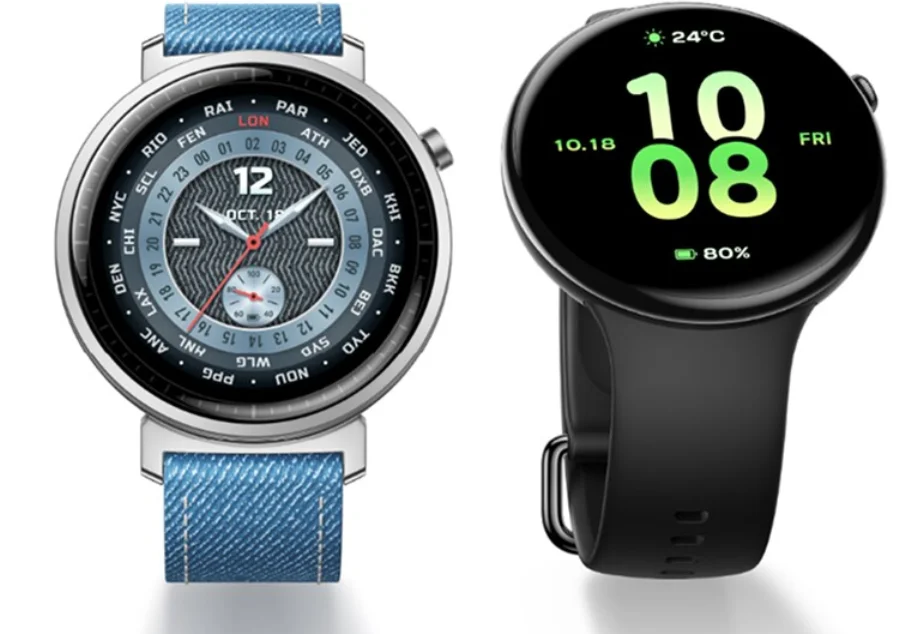
Get Familiar
Getting to know your watch
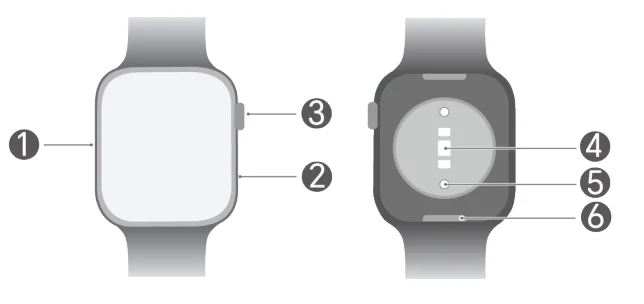
- Microphone
- Speaker
- Button
- Heart rate sensor
- Charging port
- Quick-release button
Wearing the Device Properly
Before putting on your watch, make sure the back of the watch is clean and dry. Adjust the strap so the watch sits snugly yet comfortably on your wrist. Avoid placing any film or cover on the back of the watch. This can obstruct the sensors, leading to inaccurate or failed recordings of vital monitoring data like heart rate, blood oxygen levels, and sleep patterns.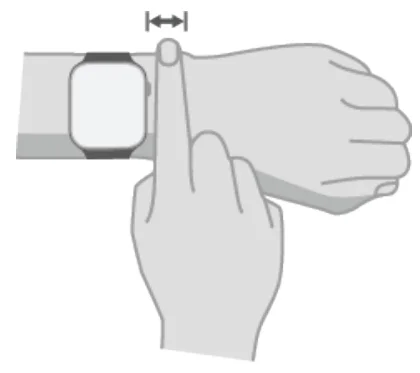

- The watch is crafted from professional, health-safe materials and has undergone rigorous skin allergy testing. You can wear it confidently. If you experience discomfort while wearing the product, discontinue use and consult a physician.
- For the best monitoring results, wear the watch just above the wrist bone. Ensure there’s at least a finger’s gap between the watch and your wrist joint, not too tight or too loose. The fit should be more secure during physical activities to prevent movement.
Power On/Off and Restart
Power on
- Long-press the button to power the device on.
- Auto power on when plugged in.
Power off
- Long-press the button and tap Power off on the restart/shutdown screen.
- Press the button and select Settings > System > Power off.
- Auto power off after ultra-low battery vibration alert.
Restart
- Long-press the button and tap Restart on the restart/shutdown screen.
- Press the button and select Settings > System > Restart.
Force restart
- Long-press the button until your watch restarts.
Gesture Control on Screen
The device supports operations of tapping, swiping up, swiping down, swiping left, swiping right, long pressing, etc.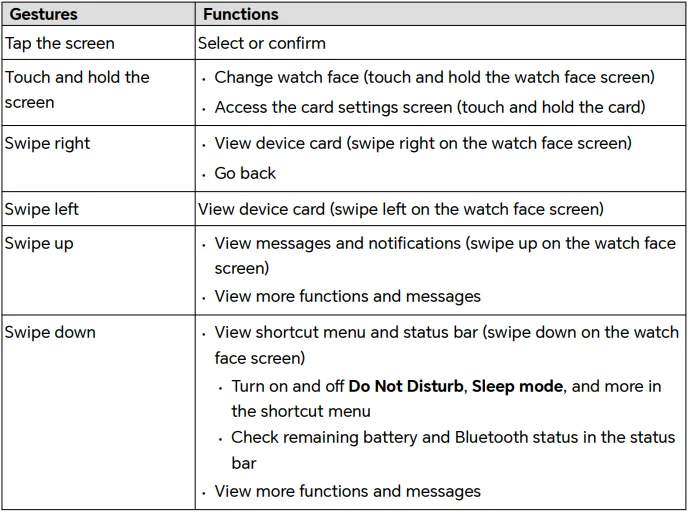
Connecting with Your Phone
For Android users:
- Install the HONOR Health app. Scan the QR code to download and install the latest HONOR Health app.

- Launch HONOR Health, tap Me > Log in to HONOR ID to log in with your HONOR ID and password.
- Power on your watch and set the language.
- Bring your watch close to your phone. Open the HONOR Health app and go to Device > Add device. Your phone will automatically scan for available devices. Tap the watch you wish to connect and follow the on-screen instructions to complete the pairing process.
- When a pairing request appears on your watch, first tap
 on the screen to accept, then confirm the pairing on your phone to complete the pairing process.
 on the screen to accept, then confirm the pairing on your phone to complete the pairing process.
- When scanning for available devices and the target watch doesn’t appear in the list, tap > Scan, then scan the QR code on your watch and follow the instructions to pair it.
- Once paired successfully, your watch shows a “Pairing successful” image, then guides you to dive into its features. If the pairing fails, your watch shows a “Pairing failed” image and reverts to the initial screen seen after turning it on.
For iOS users:
- Install the HONOR Health app. Scan the QR code to download and install the latest HONOR Health app.

- Launch HONOR Health, tap Me > Log in to HONOR ID to log in with your HONOR ID and password.
- Power on your watch and set the language.
- Bring your watch close to your phone. Open the HONOR Health app and go to Device > Add device. Select the watch you wish to connect and follow the on-screen instructions to complete the pairing process.
- For certain products, completing the Bluetooth pairing with your phone is necessary. Follow the on-screen instructions in the Bluetooth settings menu to establish a connection. When a pairing request appears on your wearable, tap
 on the screen and then confirm the pairing on your phone to finalize the setup.
Device Charging
Charge
- Connect the charging dock, charging cable, and power adapter (some watch charging cables and charging docks are one-piece), and connect the adapter to an electrical outlet.
- Place the watch on the charging dock and make sure the back of the watch fits the charging dock until the charging indicator is displayed on the watch screen.
- Use an HONOR adapter, a computer USB port, or a power adapter that complies with applicable national/regional regulations and international and regional safety standards. Other adapters and mobile power supplies (power banks) may not meet applicable safety standards and may cause problems such as slow charging, incomplete charging, and heat generation. Exercise caution while using such adapters and mobile power supplies.
- Before charging, keep the charging port and the surface of the charging dock dry and clean to prevent short circuits or other risks. Do not charge or use the product in an environment where flammable and explosive items are stored. When using the charging dock, confirm that there is no liquid residue or other foreign matter on the USB port of the charging dock. Keep away from liquids and flammable textile items when charging. It is forbidden for the human body to touch the electrode contacts of the charging dock while charging to prevent unnecessary safety hazards.
- After charging is completed, the charging indicator shows 100% and charging stops automatically; when the battery level is less than 100% and the charger is not disconnected, charging will continue automatically.
- As the charging dock contains magnets, it is prone to absorbing metal and other foreign objects. Before using the charging dock, ensure that there are no metal or other foreign objects. As the charging dock contains magnetic materials, it is forbidden to keep the charging dock in contact with high-temperature objects for a long time, which may cause demagnetization of the charging dock and other abnormalities.
Viewing Battery Left
- Method 1: Swipe down the watch face and view the battery left from the drop-down list.
- Method 2: During charging, view the battery left on the charging instruction page.
- Method 3: View the battery left in the watch face that displays the battery level.
- Method 4: In the HONOR Health app, view the battery level on the device details page.
Sports
Starting Workout
Start a workout on your watch
- On the app list on your watch, go to Workout.
- Select a course or workout. You can also tap Add to add and select other workouts.
 Tap
Tap  next to the workout type to set your goals, reminders, and metronome. The parameters you can set may vary with workout types.
- Tap the Start icon to start a workout. For an outdoor workout, wait until the GPS coordinates are found.
- During the workout, you can perform the following operations:
- Swipe left or right to switch between the settings, workout data, or music screen.
- On the settings screen, you can pause, resume, or end the workout, lock or unlock the screen, and adjust the volume of audio instructions.
- On the workout data screen, swipe up or down to view the workout data.
- On the workout data screen, touch and hold the screen, and tap the workout data type to customize the data displayed on the custom screen in real time (some data cannot be customized or edited).
- Swipe left or right and tap
 on the settings screen to end the workout.
 on the settings screen to end the workout.
Start a workout in HONOR Health.
To start running and other workouts in HONOR Health, you need to carry both your phone and watch, and make sure that your phone and watch are connected.
- Open the HONOR Health app and go to Exercise, select the target workout, and tap the Start icon.
- After the workout starts, your watch will display the heart rate, speed, duration, and other data.
Customizing Workout List
You can add a workout as needed for easy use.
Adding a Workout
On the app list on your watch, go to Workout. Swipe up and tap Add to select the workout to be added to your workout list.
Removing a Workout
On the app list on your watch, go to Workout. Tap next to the workout to be removed. On the settings page, tap Remove.
Automatically Detecting Workout Status
The watch can automatically recognize your workout status and remind you to start a workout on the watch.
- On the app list on your watch, go to Settings > Workout settings or Workout > Workout settings, and turn on Auto-detect workouts.
- When the watch detects that you are exercising, it will remind you to start a workout. You can ignore the reminder or tap it to start the workout.
- Currently, the following workouts can be automatically detected: indoor walk, outdoor walk, indoor run, outdoor run, elliptical, and rower. Refer to the screen instructions on the watch.
- If the posture, duration, and intensity requirements are met, your watch will automatically detect and remind you to start a workout.
- When you start exercising, if your actual workout intensity doesn’t match the required level for that exercise type, your watch will display a reminder asking if you’ve finished your workout. You can either dismiss this reminder or choose to end the workout.
Fat Burning with Voice Guidance
Your watch is a smart fitness coach that can help you target fat loss more effectively. By monitoring changes in body fat and the carbon-water ratio during outdoor exercises, it visualizes your fat-burning progress and offers voice guidance to keep you in the optimal zone for burning fat.
- On the app list on your watch, go to Workout.
- Tap
 on the right side of Outdoor run to enable Burn Fat Fast.
 - Go back to the application list, select Outdoor run to access the running screen, and begin your run.
- Pay attention to the voice instructions to stay within the fat-burning heart rate zone. Swipe the screen to switch views and check your fat-burning data in real time.
- After wrapping up your exercise, you can look over the fat-burning stats to view your performance.
- For an optimal user experience, update your watch to the latest version.
Running and Fitness Courses
Your watch is equipped with a variety of running and fitness courses that, with real-time voice guidance and animation, help you exercise effectively.
- On the app list on your watch, go to Workout > Courses, tap Running courses or Fitness courses.
- Select a course and follow your watch’s voice instructions to carry out your exercise session.
Run with a Virtual Running Companion
Take your outdoor runs to the next level by turning on the Smart companion feature. This virtual partner keeps you in check, showing the difference between your current speed and your target pace. Say goodbye to running too fast or too slow and hello to a consistent running rhythm tailored just for you.
- On the app list on your watch, go to Workout.
- Tap on the right side of the Outdoor run to enable Smart companion and set the Target pace.
- Go back to the application list, select Outdoor run to access the running screen, and begin your run.
- During your run, swipe left and right to switch between settings, exercise data, and other screens. Swipe up and down to explore more data.
 The virtual partner visually indicates how your current pace compares to your set goal.
Viewing workout records
Your watch keeps logging your workout sessions, allowing you to view your fitness progress across various sports. This professional data serves as a motivation tool, pushing you towards your fitness objectives.
View on your watch
On the app list on your watch, go to Workout records to dive into your detailed workout history. Each sport comes with its own set of detailed metrics.
Your watch stores up to 10 recent records in Workout records. Any new records beyond this limit will replace the oldest ones. Records cannot be deleted individually. A factory reset will clear all exercise records, but be warned, this also wipes other settings and data on your watch. Proceed with caution.
View in the app
Open the HONOR Health app and go to Health. Tap More to view and choose the specific sport record you wish to explore for more detailed insights.
Viewing the training status
You can judge the effectiveness of your current training based on the trend of the past week’s training load and maximum oxygen uptake (VO2 Max), so as to avoid exercise injuries and have a healthier life.
On the app list on your watch, go to Workout status to view data such as Fatigue, Training load, and VO2 Max.
- Fatigue: It indicates how tired you are after a workout. Exercise-induced fatigue refers to the temporary decline of the human body’s exercise ability due to physiological and biochemical changes during exercise. Your watch calculates your recovery time based on a formula.
- Training load: It is the 7-day training load that can be used to determine your level based on your fitness status. Your watch collects your training load from workout modes that track your heart rate, such as running, walking, and cycling.
- VO2 Max: It can be obtained from outdoor running. Your watch gets the VO2 Max curve if the following conditions are met:
- You run outdoors at least once a week (for 2.4 km in 20 minutes).
- VO2 Max has been calculated at least twice, with an interval of more than a week.
Viewing Daily Activity Records
Your daily activity data is meticulously recorded, allowing you to review your performance at any time.
View on your watch
On the app list on your watch, go to Activity records. Swipe the screen to view detailed metrics such as the number of steps, medium and high-intensity activity time, calories consumed, activity hours, and distance. The activity record is visually represented by three rings, each with a specific focus:
 Number of steps: Indicates the total steps you’ve taken during the day. The default goal is 8,000 steps, but you can adjust this target via the HONOR Health app.
 Exercise duration: Reflects the duration of exercise based on your step frequency and heart rate intensity. The default goal is 30 minutes.
 Activity consumption: Your watch monitors and records the calories burned during activities. This target can also be customized in the HONOR Health app.
 Number of steps: Indicates the total steps you’ve taken during the day. The default goal is 8,000 steps, but you can adjust this target via the HONOR Health app.
 Exercise duration: Reflects the duration of exercise based on your step frequency and heart rate intensity. The default goal is 30 minutes.
 Activity consumption: Your watch monitors and records the calories burned during activities. This target can also be customized in the HONOR Health app.
View in the app
Ensure your watch is properly connected to the HONOR Health app. Go to HONOR Health > Health and view comprehensive records, including steps.
Health
Health Scan
Health Scan is a tool designed to monitor various health indicators, such as heart rate and stress levels, and generate quick results. If you enable Morning Health Snapshot, you will receive your previous day’s health summary.
One-tap measurement
- On the app list on your watch, go to Health Scan.
- Tap One-tap measurement to start. Remain still during the measurement process and wait for 45 seconds for the device to generate your health results.
Morning Health Snapshot
On the app list on your watch, go to Health Scan. Swipe up from the screen and turn on or off the Morning report. When enabled, the device will show your previous day’s health summary. Tap the Morning Health Snapshot reminder in the notification panel to view details.
View history results and Morning Health Snapshot reports
- On the app list on your watch, go to Health Scan. Swipe up on the screen and tap Checkup report to view Health Scan results and Morning Health Snapshot results.
- Open the HONOR Health app and go to Me > My reports to view Health Scan results and share and download results.
Fitness Age Measurement
Your watch can automatically determine your fitness age based on your performance during outdoor workouts. This feature makes it easy to track changes in your body.
- On the app list on your watch, go to Fitness age.
- Tap Measure to verify your personal details. If you’ve previously measured your fitness age and wish to do so again, tap Measure again to initiate a new test.
- After verifying your personal information, follow the on-screen prompts to begin your workout session.
- Your fitness age is calculated using your personal data, so it’s crucial that the information in the HONOR Health app is current and accurate. Update your details in the app as needed.
- To assess your fitness age, the app needs to monitor your workout continuously for 25 minutes. For best results, we recommend an outdoor run, keeping your pace at or below 8 minutes per kilometer.
- Once your workout concludes, your watch will intelligently calculate your fitness age. For an optimal user experience, update your watch to the latest version.
Heart Rate Measurement
With continuous heart rate tracking on your watch, monitor your heart rate 24 hours. You also have the option for single measurements or to check your resting heart rate, as well as receive notifications for any high or low heart rate incidents.
Continuous heart rate measurement
Enable continuous heart rate measurement on your watch to track your heart rate.
Enable it on your watch:
- On the app list on your watch, go to Heart rate.
- Swipe up on the screen to turn on Continuous heart rate measurement.
- Choose your heart rate measurement method: Intelligent or Real-time.
- Intelligent: Automatically adjust heart rate monitoring based on your activity.
- Real-time: Provide real-time heart rate measurements, independent of activity intensity.
Enable it in HONOR Health:
- Open the HONOR Health app and go to the device details screen.
- Tap Health Alert > Continuous Heart Rate Measurement and turn on Continuous Heart Rate Measurement.
- Choose your heart rate measurement method: Smart or Real-time.
- Smart: Automatically adjust heart rate monitoring based on your activity.
- Real-time: Provide real-time heart rate measurements, independent of activity intensity.
Single heart rate measurement
- Use one of the following methods to turn off Continuous heart rate measurement:
- Launch HONOR Health, go to Device details, tap Health Alert > Continuous Heart Rate Measurement, and turn off Continuous Heart Rate Measurement.
- On the app list on your watch, go to Heart rate. Swipe up on the watch screen to turn off Continuous Heart Rate Measurement.
- On the app list on your watch, go to Heart rate and take a single heart rate measurement.
Real-time heart rate measurement during sports
Once you begin your sports, your watch will automatically initiate heart rate monitoring, tracking it in real time throughout your exercise session.
- On the app list on your watch, go to Workout.
- Select a course or sport.
- Tap the Start icon to start the exercise. Your watch will track your heart rate in real time throughout your exercise session.
For More Manuals By Honor, Visit ManualsLibraryy
HONOR Watch Fit-FAQS
How do I set up my HONOR Watch Fit for the first time?
Turn on the watch, install the HUAWEI Health app on your phone, enable Bluetooth, and follow the on-screen pairing instructions. Select your watch model in the app to complete setup.
How do I pair the HONOR Watch Fit with my phone?
Open HUAWEI Health → Devices → Add. Choose HONOR Watch Fit, confirm the pairing code on both devices, and tap Pair.
Why is my HONOR Watch Fit not pairing?
Ensure Bluetooth is ON, Airplane Mode is OFF, and your phone is connected to a stable network. Restart both devices and try pairing again through the HUAWEI Health app.
How do I change the time on my HONOR Watch Fit?
The watch syncs time automatically from your phone. Make sure it is paired; then adjust your phone’s time settings, and the watch will update instantly.
How do I restart my HONOR Watch Fit?
Go to Settings → System → Restart, and confirm.
Can I use the HONOR Watch Fit without a phone?
Yes, you can use basic features like alarms, timers, workouts, and heart rate tracking without a phone. However, smart notifications and updates require a phone connection.
How do I change the clock style or watch face?
Go to Settings → Display → Watch Face, or choose from more styles via the HUAWEI Health app.
How do I connect my Fit watch to Wi-Fi or the internet?
HONOR Watch Fit doesn’t use direct Wi-Fi. It accesses the internet through your phone when connected via Bluetooth.