

HUAWEI MatePad Pro 13.2-inch
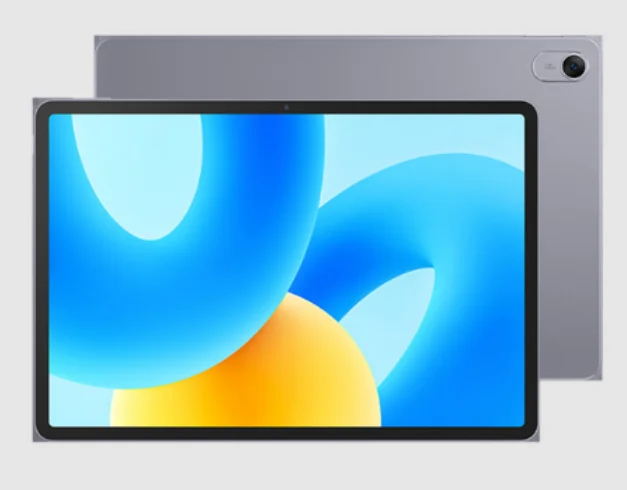
Essentials
Live Window
Display Real-Time Service Info
Live view shows you the real-time status of ongoing services and tasks. For example, you can view real-time information about tasks, such as a timer or recording, during a call.
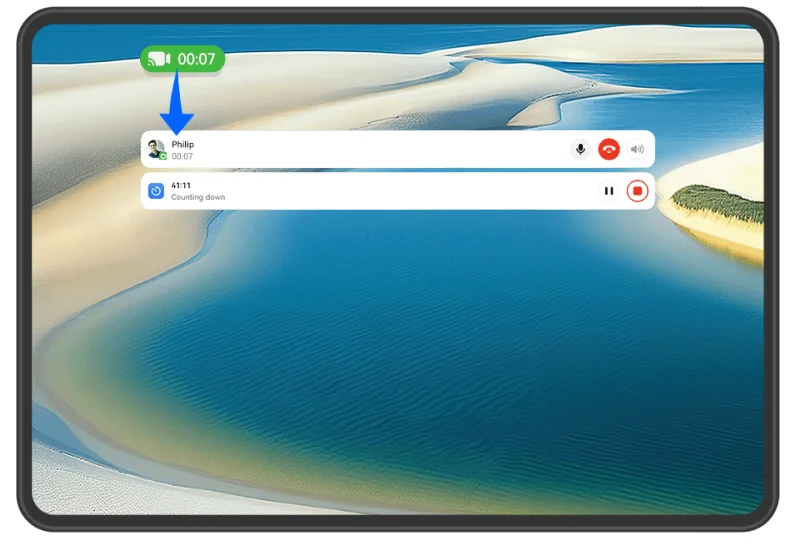
 The figures are for reference only.
- Live capsule:
When you switch from an app to the home screen or another app, a Live capsule will display in the status bar, with a brief real-time summary of the current task, for example, call duration and timer countdown duration. Tasks will be sorted by task priority and creation time in the Live capsule if there are multiple tasks. If a real-time task from an app is not synced to the Live view, go to Settings > Notifications & status bar and check whether the notification permission has been enabled for the app.
- Live card:
Touch a Live capsule to expand it into a Live card, where you can view the details or perform other operations. Touch any area in the card except for the buttons to visit the corresponding app and perform other operations. Touch any blank area or swipe up on the Live card to collapse it to the capsule. Swipe down from the upper left corner of the screen to display Notification Centre, which shows all current tasks. Once a task has completed, it will be automatically deleted.- If you do not wish to enable Live view for an app, go to Settings > Notifications & status bar > Status bar > Live view and toggle off the switch next to the corresponding app.
Basic Gestures
Basic Gestures and Shortcuts
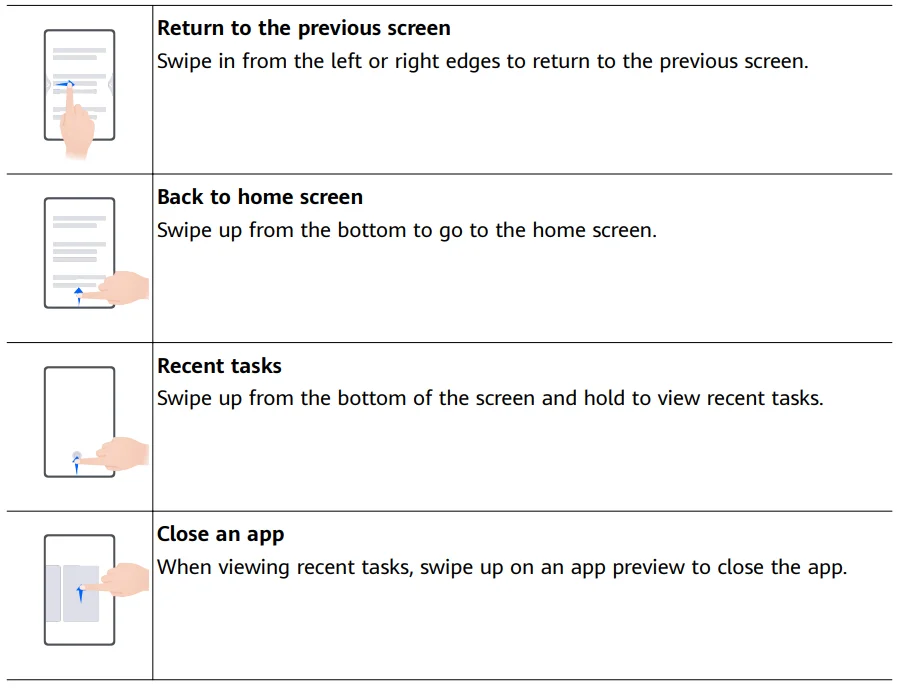
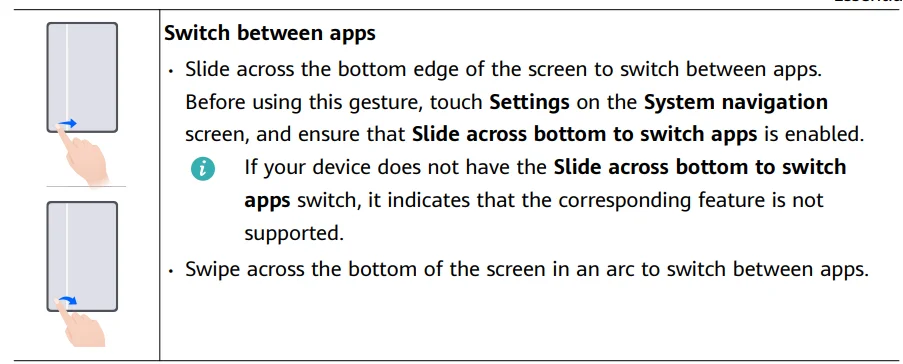
System Navigation Gestures
Go to Settings > System & updates > System navigation and make sure that Gestures is selected.
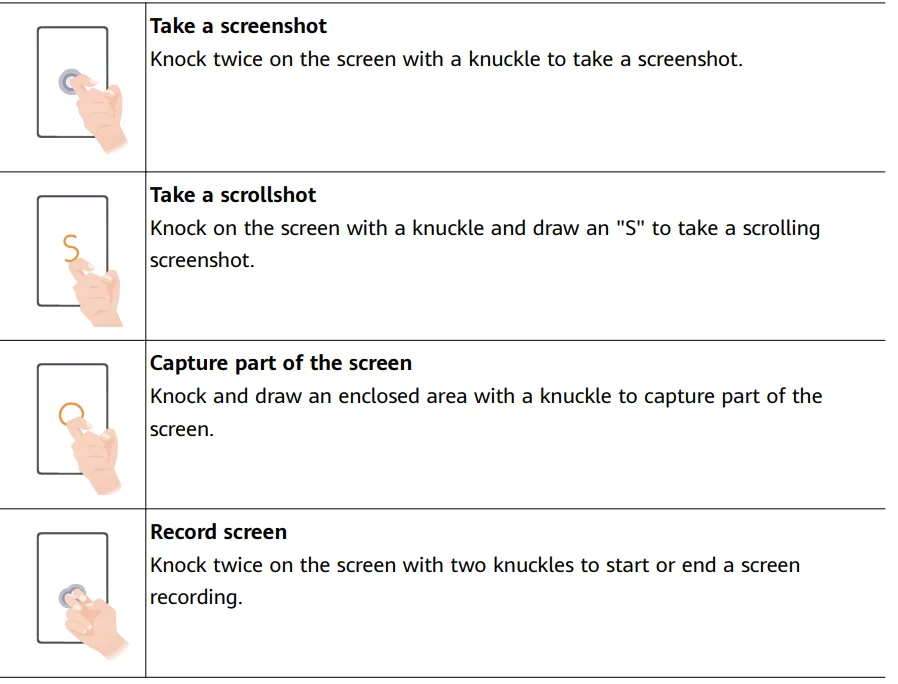
Knuckle Gestures
Before using knuckle gestures, use either of the following methods to make sure that all necessary features are enabled (depending on your device model):
- Go to Settings > Accessibility features > Shortcuts & gestures, and enable Take screenshot and Record screen.
- Go to Settings > Accessibility features > Motion control > Take screenshot, and enable Smart screenshot.


- Some products do not have volume buttons.
Lock and Unlock Your Screen
Lock and Unlock Your Screen
Lock the screen
- Auto-lock:
Your device screen will be automatically locked if you haven’t performed any operations on it for a period of time. You can go to Settings > Display & brightness > Sleep, and set the screen timeout duration. - Manually lock the screen: Press the Power button.
- Turn On the Screen
You can turn on the screen in any of the following ways (depending on your device model):- Press the Power button.
- Go to Settings > Accessibility features > Shortcuts & gestures > Wake screen, and enable and use Raise to wake and Double-tap to wake.
- If your device does not have this option, it indicates that this feature is not supported.
- Unlock Your Screen
Password unlock: Once the screen is turned on, swipe up from the middle of the screen to display a panel where you can enter your lock screen password.- Face unlock: Once the screen is turned on, bring your face in front of the screen. Your device will unlock automatically after recognising your face.
Get Familiar with the Home Screen
Home Screen Overview
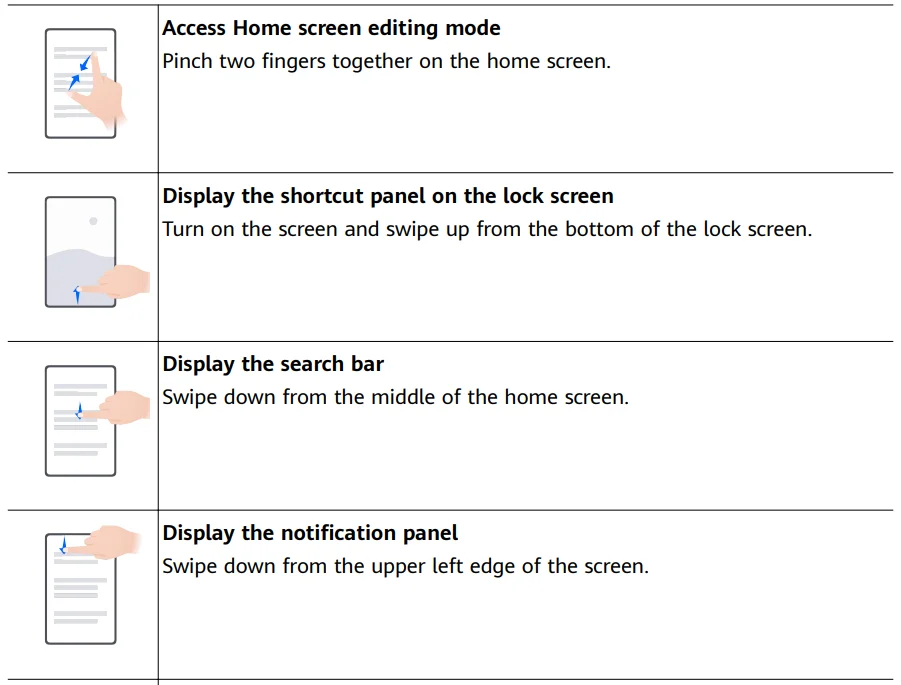
The new setup allows you to customise your device home screen and group important content in easy-to-access locations with service widgets, large folders, and other features.
Get a Grip on the Revamped Home Screen
- Status bar: Shows the status of your device and notifications at the top of the screen.
- Large folders: Directly opens an app when you touch the corresponding app icon, without expanding the folder. The folder size can be adjusted as needed.
- Service widgets: Preview services and provide direct access to frequently used app features without requiring you to open each corresponding app. You can stack or combine multiple service widgets as needed.
- Screen navigation bar: Swipe left or right to view apps and widgets on different screens. The indicator shows which screen you are currently on.
- Shortcut bar: Displays frequently used and recent apps. Drag the slider in the middle of the shortcut bar to adjust the number of recently-used apps you’d like to display.
Use Service Widgets
Service widgets allow you to:
- Preview or access apps, such as to view the weather forecast, or play music.
- Select from a range of service widget styles and layouts to customise your home screen.
- Stack and combine multiple service widgets to save space on your home screen, streamline your interface, and navigate with greater ease.
Apps with a widget bar—at the bottom support service widgets. To remove the widget bar, go to Settings > Home screen & style > Home screen settings > Show widget bars.
- This feature is not supported in certain scenarios. Actual usage shall prevail.
Add Service Widgets to Your Home Screen
You can add a service widget to the home screen in any of the following ways:
- Swipe up on an app icon to expand its service widget, and touch
 to add the service widget to the home screen.
 - Swipe up on an app icon to expand its service widget, touch and hold down on the service widget, touch More service widgets, select your desired style, and touch Add to home screen.
- Touch and hold down on an app icon, touch Service widgets, select your desired style, and touch Add to home screen.
- Pinch two fingers together on the home screen, touch Service widgets, select your desired service widget, and touch Add to home screen. You can also touch and hold down on your desired service widget, and drag it to any blank area on the home screen.
 to add the service widget to the home screen.
If there is no space available on the current screen, the widget will be pinned to the next screen. If neither screen has any space, a new screen will be created for the service widget, to the right of the current screen.
- Service widgets cannot be pinned to folders.
- Swiping up on the app icon will not expand the service widget in certain scenarios. Actual usage shall prevail.
Stack Service Widgets
Stack same-sized service widgets/widget combos to save home screen space and streamline your home screen.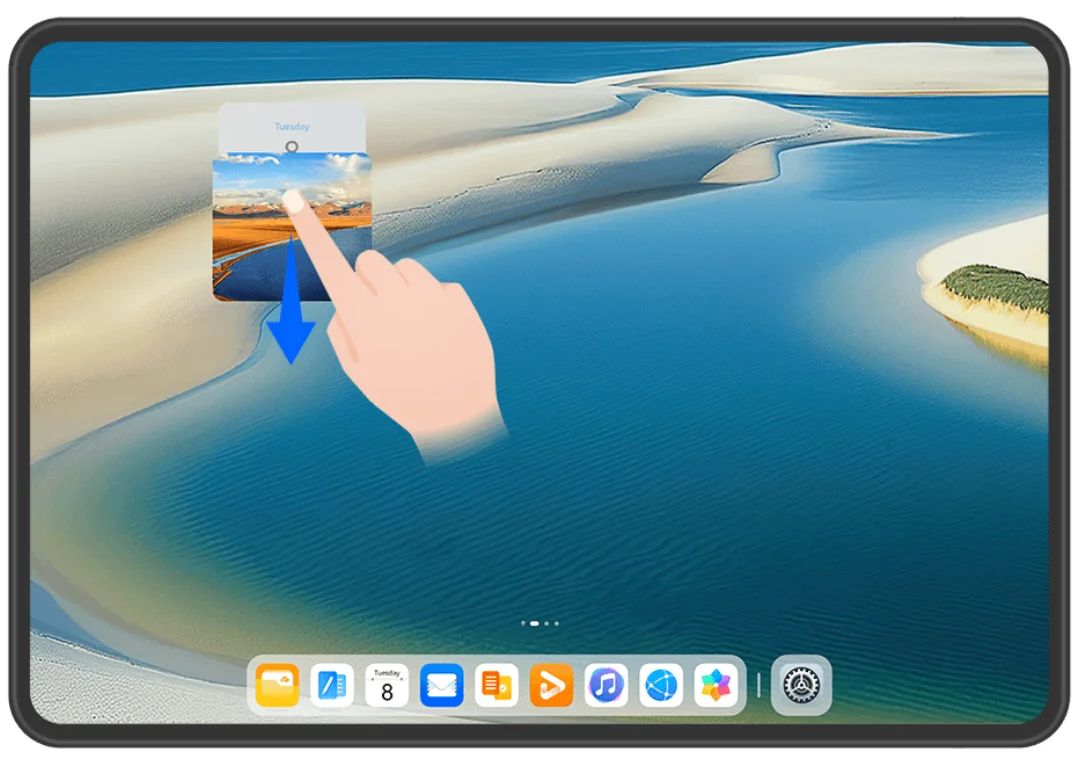
The figures are for reference only.
Stacking service widgets:
Touch and hold down on a service widget/widget combo, drag it to another service widget/ widget combo of the same size, and release to stack the two items, once they have completely overlapped.
Viewing widgets within a stack:
Swipe up or down on a stack to view all of its service widgets. Managing service widgets:
- Expand the stack in any of the following ways:
- Swipe down further to expand the stack.
- Touch and hold down on the stack, and touch Expand stack.
- Then, manage widgets in the stack as follows:
- Adjusting the position of a service widget: Touch and hold down on a service widget, and drag it to change its position.
- Pinning a service widget to the top: Touch a service widget to pin it to the top of the stack.
- Removing a service widget from the stack: Touch and hold down on a service widget, drag it to the edge of the screen and hold, wait for the service widget to be moved out of the stack, and drag the widget to any blank area on the home screen.
- Deleting a service widget: Swipe left on a service widget to delete it.
- Deleting a widget stack: Once all of the service widgets in a stack are removed, the stack will be automatically deleted.
Smart Features
AI Voice
AI Voice
AI Voice allows you to communicate verbally with your device. To operate hands-free on your device, wake up AI Voice and give a voice command.
- This feature is only available in some countries and regions.
- Please make sure your device has been updated to the latest system version.
Countries and Regions that Support AI Voice
AI Voice is only supported in certain countries and regions. You can set your location to one of these countries and regions on your device to use AI Voice.
- AI Voice can be used in countries/regions such as the UK, France, Spain, Chile, Mexico, Colombia, Italy, Germany, Saudi Arabia, UAE, Kuwait, Jordan, Iraq, Egypt, Türkiye, Thailand, the Philippines, Czech Republic, Romania, Serbia, Ukraine, Pakistan, Singapore, Poland, and Malaysia. You need to select a language supported by AI Voice during use.
- Go to Settings > System & updates > Language & input > Language & region and touch Current region to select a country/region from the above list.
- Go to Settings > HUAWEI Assistant > AI Voice, touch Conversation language, select a language, and follow the onscreen instructions to set it up.
Wake up, AI Voice
You can wake up AI Voice in multiple ways: Press and hold the Power button for 1 second to wake up AI Voice
- Go to Settings > HUAWEI Assistant > AI Voice > Wake with Power button, and enable Wake with Power button.
- Press and hold the Power button for 1 second to wake up AI Voice.
Say the wakeup phrase to wake up the AI Voice
- Go to Settings > HUAWEI Assistant > AI Voice > Voice wakeup, enable Voice wakeup, and follow the onscreen instructions to record your wakeup phrase.
- When you need to wake up AI Voice, say the wakeup phrase.
- The settings items vary by device. If your device does not provide a specific item, it indicates that the corresponding feature is not supported.
- You cannot wake up AI Voice with the wakeup phrase when your device is in a call.
- You cannot wake up AI Voice with the wakeup phrase either if you are making an audio or screen recording (with the microphone enabled). In this case, you can press and hold the Power button to wake up AI Voice.
- This feature is only available in some countries and regions.
Communicate with AI Voice
AI Voice can be in one of the following three modes: Idle, Listening, and Thinking. You can talk to AI Voice when it is in the Listening mode.
- Idle mode: AI Voice doesn’t pick up any sound in this mode.
- Listening mode: You can talk to AI Voice as it can listen to you in this mode.
- Thinking mode: AI Voice can start to execute your voice commands.
This feature is only available in some countries and regions.
AI Voice Skills
AI Voice allows you to navigate on your device with simple voice commands. You can use AI Voice to:
- Make phone calls
- Send SMS messages
- Launch apps
- Add calendar events and reminders
- Check the weather and more
- Enable AI Lens, and identify content onscreen
To use the voice assistant, wake up AI Voice and say your command, such as “Call Zichen”, “Set an alarm for 8 AM”, and “Open Camera”.
View AI Voice Skills
You can view the skills incorporated into the AI Voice feature in either of the following ways:
- Wake up AI Voice and ask: “What can you do?”. AI Voice will display the Skill centre, where its skills are listed.
This feature is only available in some countries and regions.
Please make sure your device has been updated to the latest system version.
Camera and Gallery
Take Photos
Take Photos
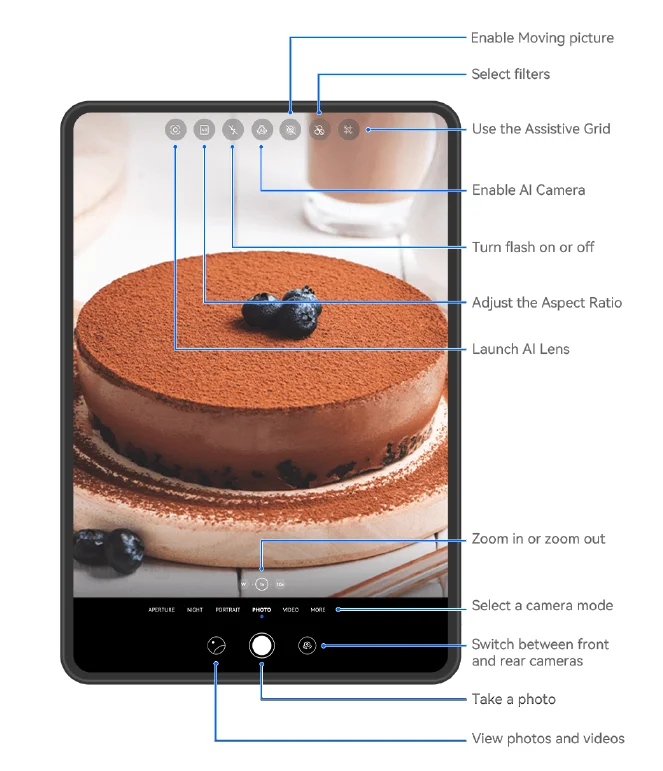
The figures are for reference only.
- Open Camera.
- You can then:
- Focus: Touch the location you want to focus on. To adjust focus and metering separately, touch and hold the viewfinder and drag the respective frame or ring to the desired location.
- Adjust brightness: Touch the viewfinder. When the
 symbol appears next to the focus frame, drag it up or down.
 - Zoom in or out: On the viewfinder, pinch in or out, or drag the zoom slider.
- Select a camera mode: Swipe up, down, left, or right across the camera mode options.
- Turn the flash on or off: Touch
 and select
 (Auto),
 (On),(Off), or
 (Always on). If you select(Auto) and the camera detects that you are in a dimly lit environment, a flash icon will appear in the viewfinder, and the flash will be automatically turned on when you take a photo. These features may not be available in some camera modes.
- Touch the shutter button to take a photo.
Adjust the Camera Zoom Level
While shooting, adjust the zoom level of the camera to zoom in or out on a scene in front of you.- Open Camera, and touch your preferred shooting mode.
- Adjust the zoom level in the viewfinder in any of the following ways:
- Pinch in or out on the viewfinder to adjust the zoom level.
- Touch the zoom level shortcuts above the zoom ring to switch between zoom levels.
- Touch and hold down on the zoom ring to expand it, and swipe left and right (in Portrait mode) or up and down (in Landscape mode) until your desired zoom level on the zoom ring matches the dot in the centre. Once you release your finger, the zoom ring and zoom level shortcuts will both display in this area.
For example, if you wish to take photos from a distance and adjust the zoom level from 1x to 5x, touch and hold down on the zoom ring, and swipe left (in Portrait mode) or down (in Landscape mode) until the 5x zoom level on the zoom ring matches the dot in the centre. You can also touch to instantly switch to your desired zoom level. - The figures are for reference only.
- Zoom level adjustment is only supported in certain shooting modes. Available zoom levels may vary depending on the product model.
 symbol appears next to the focus frame, drag it up or down.
 and select
 (Auto),
 (On),
(On), (Always on). If you select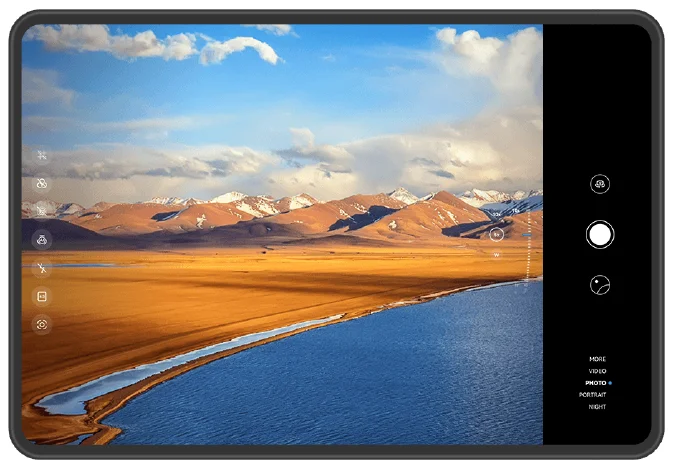
Use the Floating Shutter to Take Photos
You can enable the floating shutter to display it in the camera viewfinder, and drag it anywhere you like to take photos quickly.
- Go to Camera >
 and enable Floating shutter.
 - The floating shutter will then be displayed in the viewfinder. You can drag it anywhere you like.
- Touch the floating shutter to take a photo.
 and enable Floating shutter.
Take Burst Photos
Use Burst mode to take a sequence of photos in quick succession so you can choose the best one.
- Open Camera, select Photo mode, and make sure the rear camera is in use.
- Press and hold the shutter button or one of the Volume buttons to take burst photos. When shooting, you’ll see a number in the viewfinder, which indicates how many photos you’ve taken so far.
- Burst shooting via Volume button pressing is only supported on certain device models.
- Release your finger to stop shooting.
Select the Burst Photos You Want to Keep
- Open Gallery. Touch a burst photo (which is tagged with
 ), then touch.
 - Swipe through the burst photos, select the ones you want to keep, then touch
 and follow the onscreen instructions.
 ), then touch
 and follow the onscreen instructions.
To delete the whole burst photo, touch and hold to select the photo, then touch .
.
Take Timed Photos
The camera timer allows you to set a countdown so you can get into position after you have touched the shutter button.
- Go to Camera >
 > Timer and select a countdown.
 - Return to the viewfinder and touch the shutter button. Your device will take a photo when the countdown ends.
Use Audio Control to Take Photos
You can use your voice to take photos without having to touch the shutter button.
- Go to Camera >> Audio control, and select an option.
- Go back to the viewfinder, then say your command to take a photo.
Apps
Phone
FollowCam
During a video call (such as a Skype or Teams video call), your device can intelligently track and identify human faces and body movements, and make sure that you are always in the centre of the screen, even when you are moving or a few people are in the viewfinder.
- This feature is only supported on certain devices. The feature is also available when making video calls on some other third-party apps. You can go to Settings > Accessibility features to enable or disable FollowCam.
Smart View
During a video call, the camera will automatically track and follow you as you move to make sure that you are always in the centre of the screen. If other people enter the viewfinder, the camera will automatically pan, zoom in on, and zoom out of the screen based on the number and positions of the people. During a video call, touch to enable or disable this feature.
Spotlight Mode
During a video call when a few people are in the viewfinder, the camera will automatically zoom in on you if you raise your hand to make sure you are always in the centre of the screen. A green spot will appear and flash on your face if the camera focuses on you. The camera will also automatically follow you as you move. If you raise your hand again, the camera will exit this mode and the green spot will disappear. During a video call, touchto enable or disable this feature.
Camera Gestures
During a video call, if you stretch your arm horizontally to the left or right, the camera will follow your gestures to pan left or right and then return to the original position. This feature comes in handy when you want to show your surroundings to the other party during a video call. During a video call, touchto enable or disable this feature.
MeeTime
Use MeeTime to Make Calls
Use MeeTime to make high-quality video or voice calls with contacts who have Huawei devices (such as phones and tablets), and share your screen during calls. Thanks to the GPU Turbo technology, the video call resolution will be optimised automatically when the network signal is weak. With intelligent algorithms, the other party can see your face clearly even when making a video call at night or in dark environments.
- Please make sure your device has been updated to the latest system version.
- This feature is only available in some countries and regions.
- If your device is not pre-installed with the MeeTime app, download it from AppGallery.
MeeTime Usage Tariff Instructions
- MeeTime only uses Wi-Fi or mobile data and will not be charged as calls by your network provider. It is recommended that you use this feature over a Wi-Fi network.
- If you need to make a video call using mobile data, you can perform the following to save on the amount of mobile data you use: On the MeeTime screen, touch your profile picture in the upper right corner to access the Settings screen, then turn on the Data saver switch. Data services are not supported on Wi-Fi-only tablets.
Make a High-quality Video or Voice Call
Use MeeTime to make smooth and high-quality calls between Huawei devices, such as phones and tablets. Enjoy crystal clear video calls, even in dark environments, and adjust the beauty level during calls to look your best.
- Open MeeTime and follow the onscreen instructions to activate MeeTime.
- Open MeeTime, touch Contacts > MeeTime, and touch
 or
or next to a contact to start an HD voice or video call with a family member or friend who has enabled MeeTime.
 - During a video call, touch the screen and touch
 to access the Soften feature. Drag the slider left or right to adjust the beauty level.
- For better video calls, keep your device within 1 metre (3.3 feet) from you and make sure there is sufficient lighting.
- Beauty mode is only supported on certain device models.
- Tap the screen to display the button panel. From there, feel free to:
- To mute MeeTime, touch

- To switch between a voice and video call, touch

- To share the screen, touch

- To view or manage your call logs, touch Calls.
- To mute MeeTime, touch
 or
or next to a contact to start an HD voice or video call with a family member or friend who has enabled MeeTime.
 to access the Soften feature. Drag the slider left or right to adjust the beauty level.


For more manuals by HUAWEI, visit ManualsLibraryy
HUAWEI MatePad Pro 13.2-inch-FAQs
What are the best features of the HUAWEI MatePad Pro?
It offers a large 13.2-inch display, powerful performance, HarmonyOS, stylus support, multi-screen collaboration, and long battery life, making it ideal for productivity and entertainment.
What operating system does the MatePad Pro use?
The tablet runs HarmonyOS, Huawei’s own operating system, designed for smooth multitasking and seamless device integration.
Can I connect the MatePad Pro to a TV or monitor?
Yes. You can connect via USB-C to USB-C cable or use Wireless Projection in Settings > More Connections. This allows screen mirroring or casting to TVs, monitors, or projectors.
Can I use the MatePad Pro as a second monitor?
Yes. Using apps like Spacedesk, AirDroid Cast, or Splashtop Wired XDisplay, the tablet can function as a secondary display for your PC or laptop.
Can I install Google Chrome and other Google apps?
Yes. Through the Huawei AppGallery, you can download Google apps like Chrome, YouTube, Gmail, and WhatsApp.
Does the MatePad Pro support SIM cards and LTE?
The LTE version allows SIM card connectivity, enabling mobile data use. Wi-Fi-only versions do not support SIM cards.
Can I use the tablet while charging?
It’s not recommended to use the tablet while charging, as it may affect performance and battery health.
Why is my MatePad Pro slow sometimes?
Slowness may occur if too many apps run in the background or memory is full. Restart the device, close unused apps, and clear cache to improve speed.
How can I keep the battery healthy?
Use the 80/20 charging rule: keep the battery between 20–80% for daily use, avoid full charges unless necessary, and enable Smart Charge mode if available.