
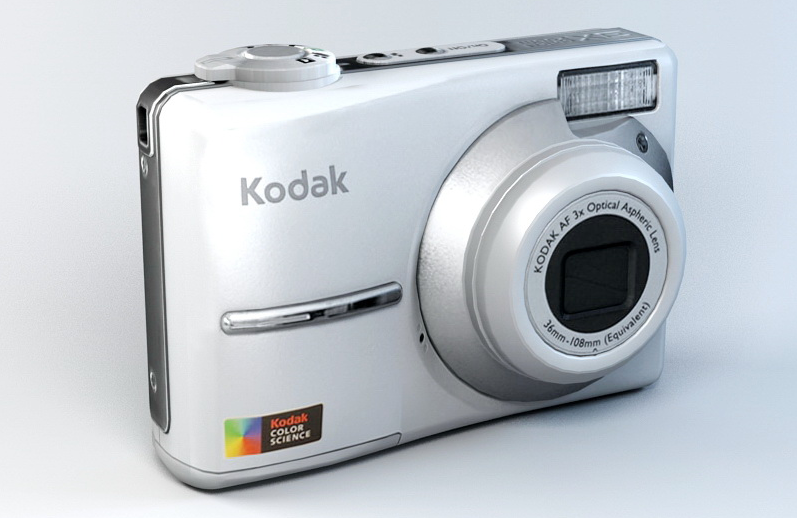

Kodak EasyShare C613 Digital Camera
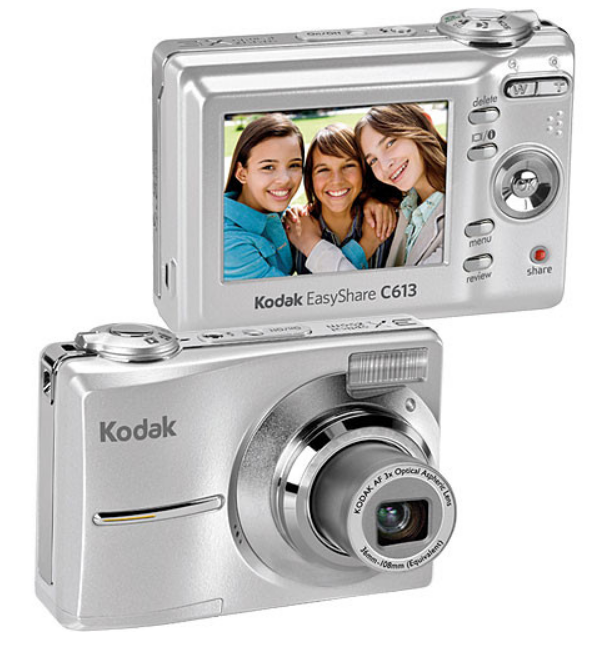
Product features
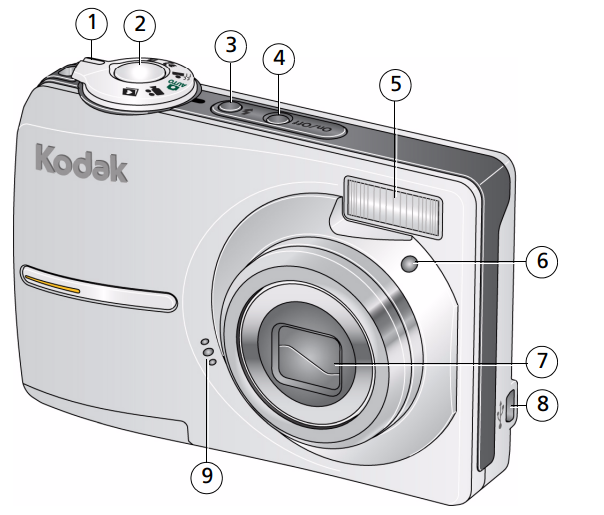
Front view
- Mode dial
- Shutter button
- Flash button
- On/Off button
- Flash
- Self-timer light
- Lens
- USB

- Microphone


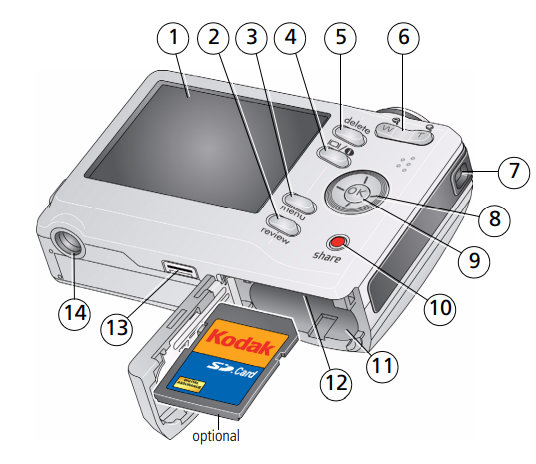
Back view
- LCD
- Review button
- Menu button
- LCD/Info button

- Delete button
- Zoom button (Telephoto/Wide)
- Strap post

- OK button
- Share button
- Battery compartment
- Slot for optional SD or MMC card
- Dock connector
- Tripod socket


Setting up your camera
Attaching the strap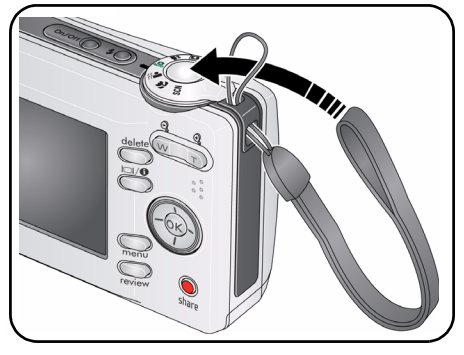
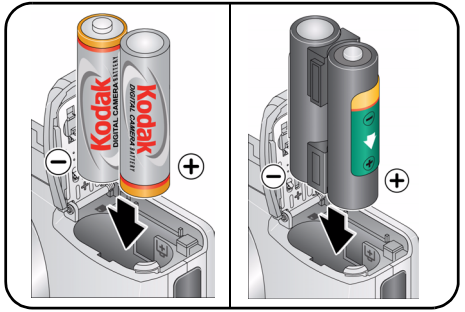
Loading the battery
- Kodak oxy-alkaline digital camera batteries AA
- Kodak Ni-MH rechargeable digital camera batteries AA
- Kodak Ni-MH rechargeable digital camera battery KAA2HR

Turning on the camera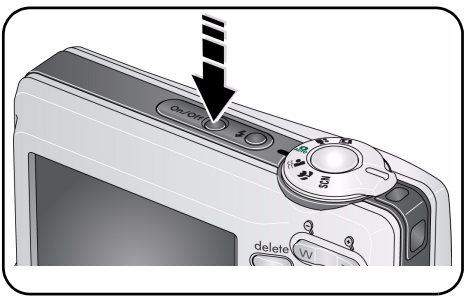
Setting the language, date/time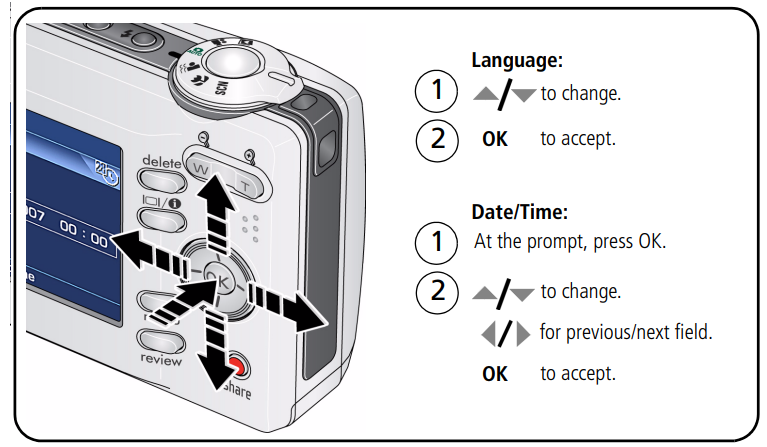
Storing pictures on an SD or MMC card
Your camera has internal memory. You can purchase an SD or MMC card to conveniently store more pictures and videos www.kodak.com/go/c613accessries. We recommend Kodak SD or MMC cards.
NOTE: When using the card for the first time, format the card in this camera before taking pictures (see page 26). To choose a storage location for pictures and videos, see page 24.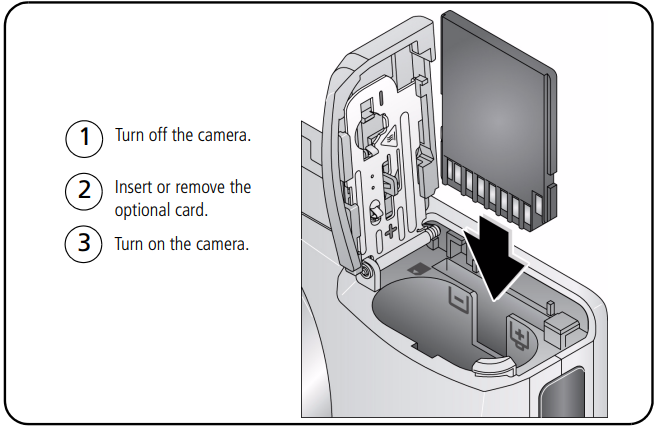
CAUTION: A card can only be inserted one way; forcing it may cause damage. If you insert or remove a card while the camera is accessing it, the card, pictures, or camera may be damaged.
Taking pictures/videos
Taking a picture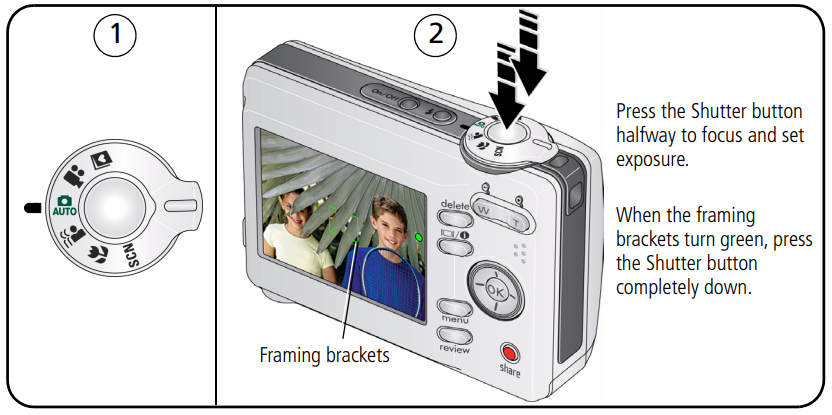
Reviewing the picture just taken
After you take a picture or video, the LCD displays a quick view for approximately 10 seconds. (To exit the quick view sooner, press the Shutter button halfway.) To review pictures/videos anytime, see page 12.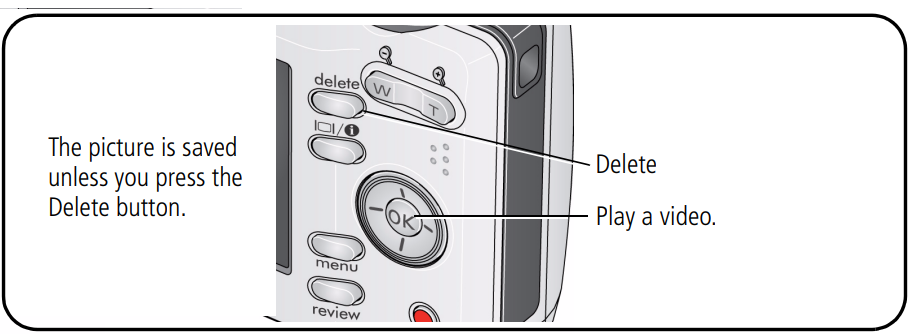
Using the framing marks to take pictures
Framing marks indicate the camera focus area. The camera attempts to focus on foreground subjects, even if the subjects are not centered in the scene.
- Press the Shutter button halfway. When the framing marks turn green, focus is accomplished.
- If the camera is not focusing on the desired subject (or if the framing marks disappear), release the Shutter button and recompose the scene.
- Press the Shutter button completely down to take the picture.

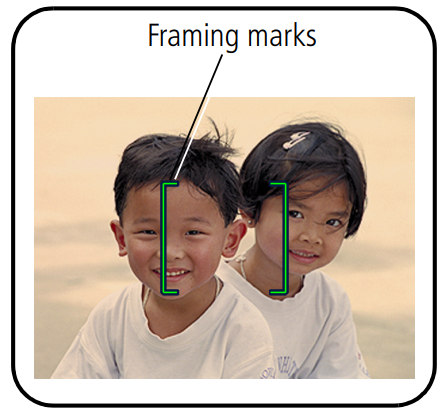
NOTE: Framing marks do not appear in all modes. When you use AF Zone and set Center Zone, the framing marks are fixed at Center Wide.
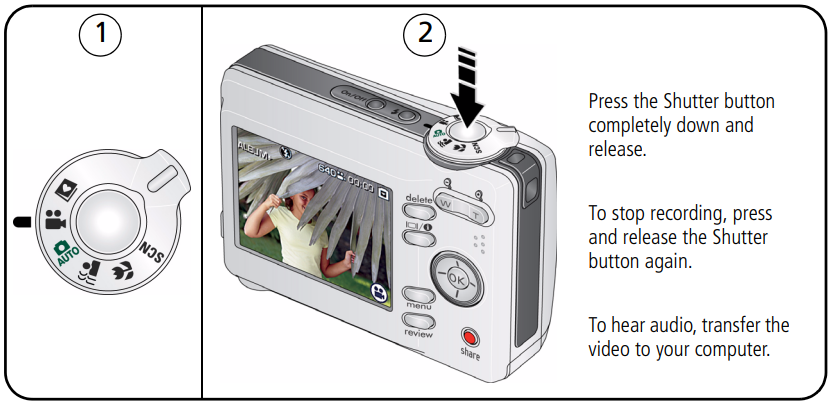
Taking a video
Using optical zoom
- Use the LCD to frame your subject.
- Press Telephoto (T) to zoom in. Press Wide Angle (W) to zoom out. The zoom indicator shows zoom status.
- Take the picture or video.

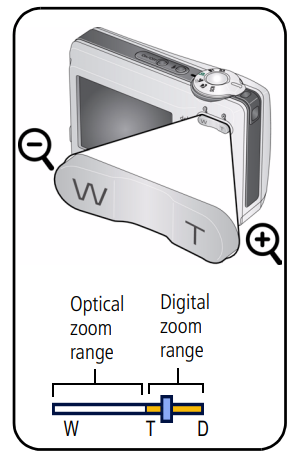
NOTE: For focus distances, see page 48.
- Always use the auto focus framing marks, page 5.
- If you are using no zoom (1X, wide angle), you can be as close as 24 in. (60 cm) to your subject.
- As you zoom, you need to move further from your subject.
Using the digital zoom
Use digital zoom in any Still mode or during video recording to get up to 5X magnification beyond optical zoom.
- Press Telephoto (T) to the maximum optical zoom limit. Release the button, then press it again.
- Take the picture.
NOTE: You may notice decreased image quality when using digital zoom. The slider on the zoom indicator turns red when the picture quality reaches the limit for an acceptable 4 x 6-in. (10 x 15 cm) print.
Using the flash
Use the flash when you take pictures at night, indoors, or outdoors in heavy shadows.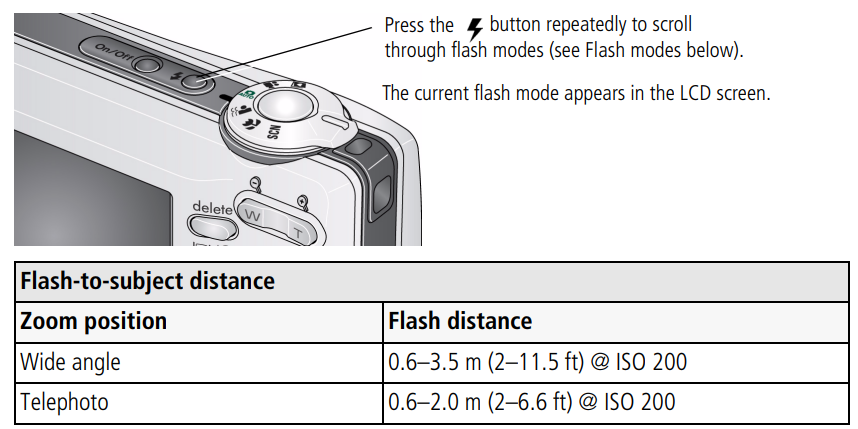
Using different picture-taking modes
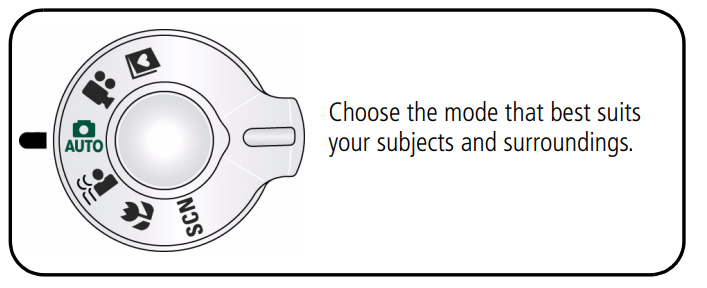
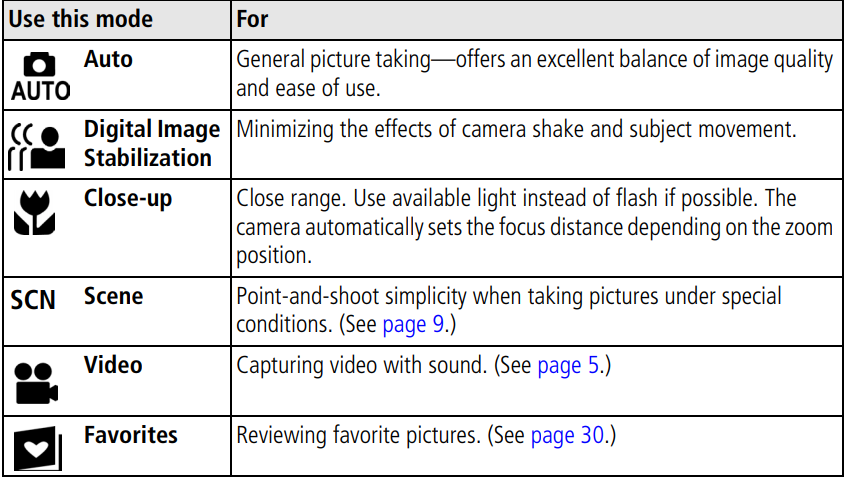
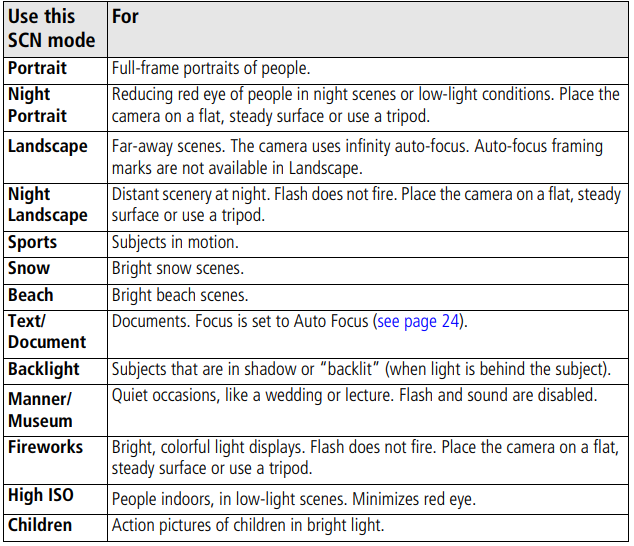
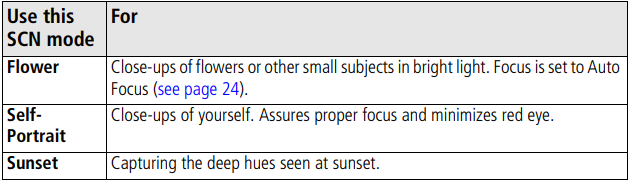
Scene modes
Choose a Scene mode—for great pictures in practically any situation!
- Turn the Mode dial to Scene
 .
. - Press to display Scene mode descriptions. If the mode description turns off before you finish reading it, press OK.
- Press OK to choose a Scene mode.


 .
.
Using camera Help
To better understand each menu option, use the camera Help. Highlight a menu choice, then press the button.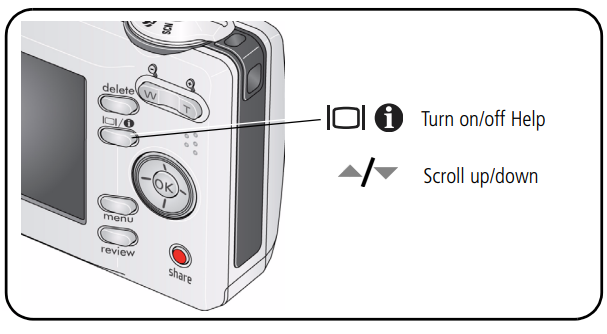
Understanding the picture-taking icons
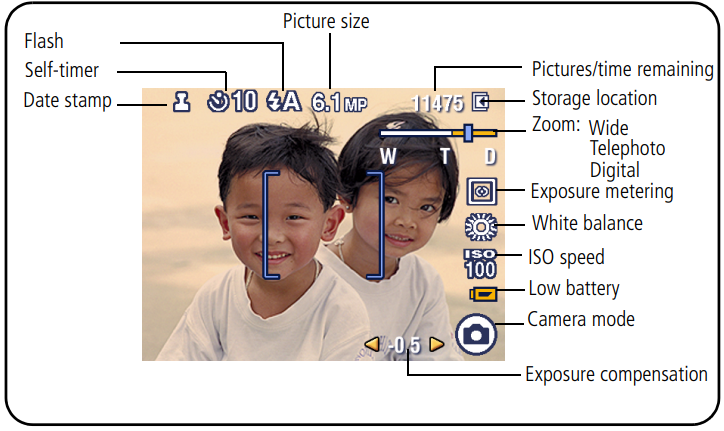
In capture mode—shutter pressed halfway
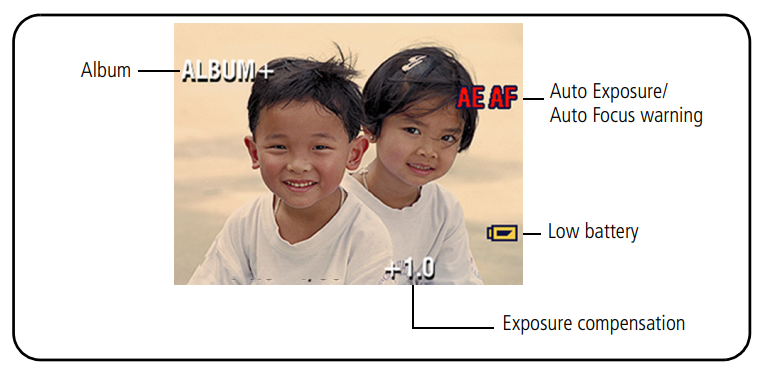
Working with pictures/videos
Reviewing pictures/videos
Press the Review button to view and work with your pictures/videos. Press Review again to exit.
- Press
 the Review button.
 - Press to view the previous/next picture/video.

 the Review button.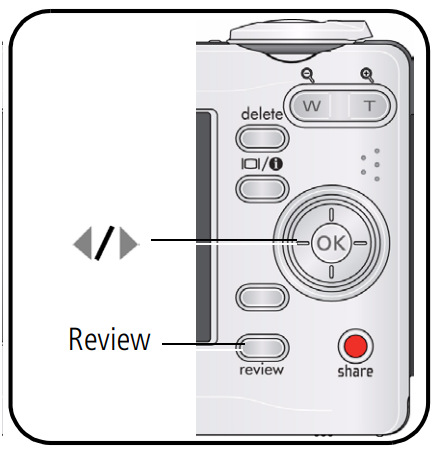
To save battery power, use an optional Kodak EasyShare dock or Kodak 3-volt AC adapter. Visit www.kodak.com/go/c613accessories.
NOTE: Pictures taken at a 3:2 picture size have a black bar at the top and bottom. Pictures taken at 16:9 picture size have a black bar on the sides. A video’s duration is displayed at the top of the LCD.
Magnifying pictures
- Press the Review button.
- Press W/T to magnify 2X–8X.
- Press
 to view other parts of the picture.
 - Press OK to return to 1X.

 to view other parts of the picture.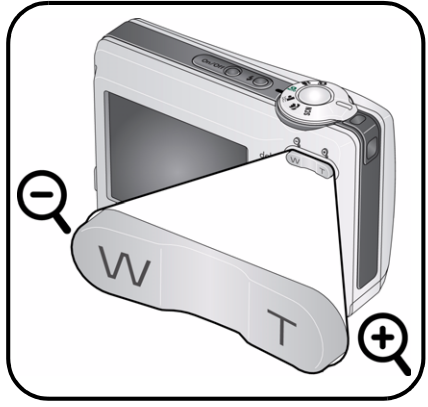
NOTE: If you press  while at 1X, the view changes from single-picture to multi-up thumbnails. (See page 13.)
Playing a video
- Press the Review button.
- Press
 to find the previous/next video.
 - Press
 to play/pause.
 - Press
 during playback to play at 2X, 4X.
 - Press
 to reverse at 2X, 4X.
 during playback to play at 2X, 4X.
 to reverse at 2X, 4X.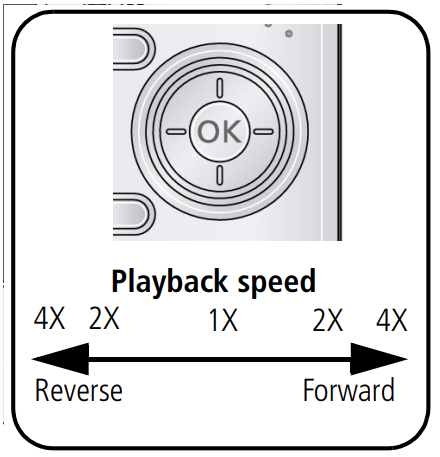
NOTE: To hear the audio, transfer the video to your computer.
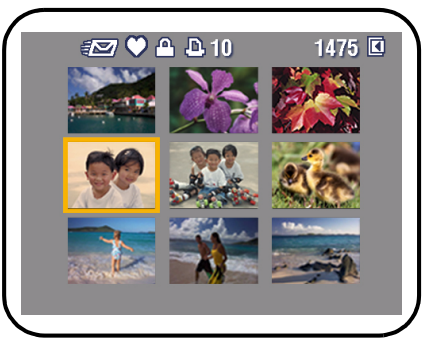
Viewing thumbnails (multi-up)
- Press the Review button.
- Press
 to change from single-picture view to multi-up thumbnails.
 - Press OK to return to single-picture view.

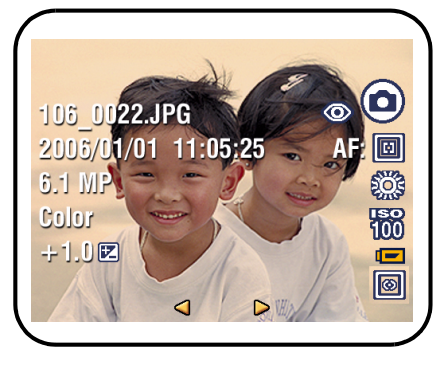
Viewing picture/video information
- Press the Review button.
- Repeatedly press the LCD/Info button
 to turn on/off status icons and picture/video info.
Deleting pictures/videos
- Press the Review button.
- Press
 for the previous/next picture/video.
 - Press the Delete button.
- Follow the screen prompts.
Protecting pictures/videos from deletion
- Press the Review button.
- Pressfor the previous/next picture/video.
- Press the Menu button.
- Press
 to highlight Protect, then press OK.
 to highlight Protect, then press OK.
The picture/video is protected and cannot be deleted. The Protect icon appears with the protected picture/video.
Using Kodak Perfect Touch technology
Kodak Perfect Touch technology helps ensure better, brighter pictures.
- Press the Review button, then
 for the previous/next picture.
 - Press the Menu button. Press
 to highlight Edit Picture, then press OK.
 - Press
 to highlight Perfect Touch tech., then press OK. The enhancement is previewed in a split screen. Press
  to view other parts of the picture.
 - Press OK. Follow the screen prompts to replace the original picture or to save the enhanced picture as a new one.
NOTE: You cannot enhance previously enhanced pictures.
- Press the Menu button to exit the menu.
Cropping pictures
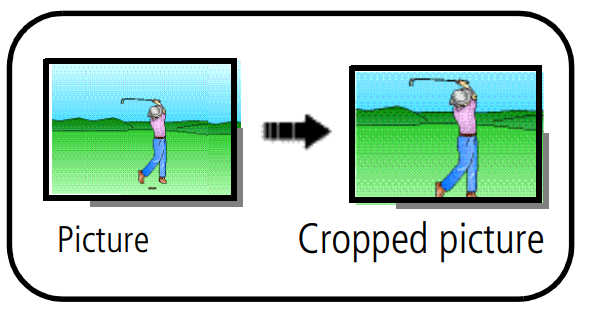
You can crop a picture so that only the desired portion of the picture remains.
- Press the Review button, then find a picture.
- Press the Menu button. Press to highlight Edit Picture, then press OK.
- Press to highlight Crop, then press OK.

- Press Telephoto (T)
 to zoom in, or to move the crop box. Press OK.
 - Follow the screen prompts. The picture is cropped. The original is saved. (Cropped pictures cannot be cropped again.)
- Press the Menu button to exit the menu.
Editing videos
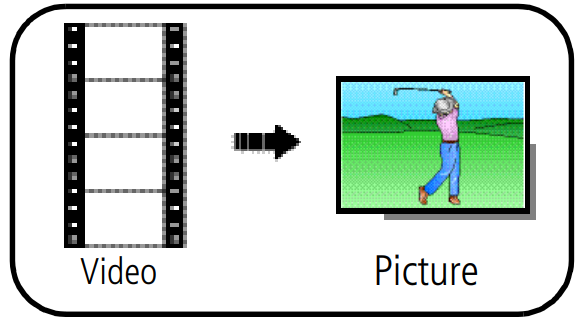
Making a picture from a video
You can choose a single frame from a video, then make a picture suitable for printing.
- Press the Review button, then
 click to find a video.
 - Press the Menu button. Press
 to highlight Edit Video, then press OK.
- Press to highlight Make Picture, then press OK.
- Press OK to select a video frame.
- Follow the screen prompts to save the picture. A picture is created. (The original video is saved.)
- Press the Menu button to exit the menu.
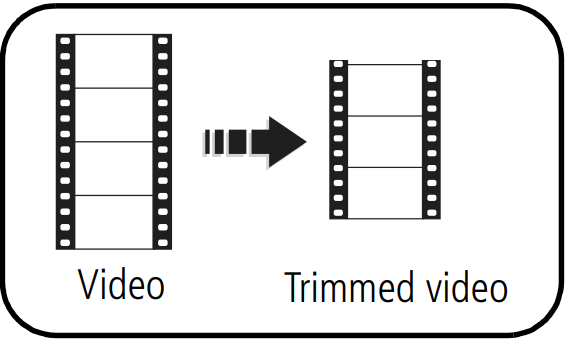
Trimming a video
You can delete an unwanted portion from the beginning or end of a video.
- Press the Review button, then
 click to find a video.
 - Press the Menu button. Press
 to highlight Edit Video, then press OK.
 - Press to highlight Trim, then press OK.

- Follow the screen prompts. (Use fast-forward and fast-reverse, if needed.) The video is trimmed. (You can save it as a new video or replace the original.)
- Press the Menu button to exit the menu.
Making a video action print
From a video, you can make a 4-, 9-, or 16-up picture, suitable for a 4 x 6-inch (10 x 15 cm) print.
- Press the Review button, then
 click to find a video.
 - Press the Menu button. Press to highlight Edit Video, then press OK.
- Press
 to highlight Video Action Print, then press OK.
- Choose an option, then press OK.
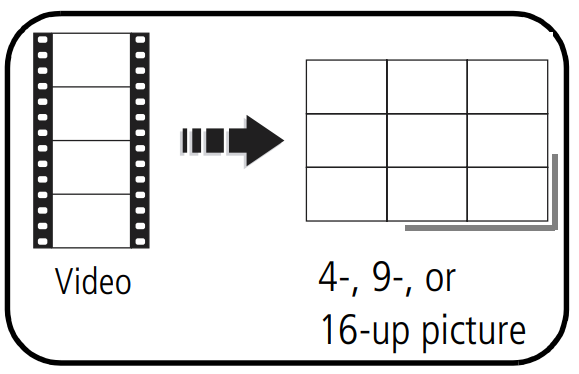
- Auto options: The camera includes the first and last frames, then 2, 7, or 14 equally spaced frames.
- Manual options: You choose the first and last frames; the camera chooses 2, 7, or 14 equally spaced frames.
- Press the Menu button to exit the menu.
Running a slide show
Use the Slide Show to display your pictures/videos on the LCD.
Starting the slide show
- Press the Review button, then the Menu button.
- Press to highlight Slide Show, then press OK.
- Press
 to highlight Begin Show, then press OK.
 - Each picture/video is displayed once. To interrupt the Slide Show, press OK.
Changing the slide show display interval
The default interval setting displays each picture for 5 seconds. You can set the display interval from 3–60 seconds.
- On the Slide Show menu, press to highlight Interval, then press OK.
- Select a display interval. To scroll through the seconds quickly, press and hold.
- Press OK. The interval setting remains until you change it.
Running a continuous slide show loop
When you turn on Loop, the slide show is continuously repeated.
- On the Slide Show menu, press to highlight Loop, then press OK.
- Press to highlight On, then press OK.
- Press to highlight Begin Show, then press OK. The slide show repeats until you press OK or until battery power is exhausted. The loop feature remains until you change it.
Copying pictures/videos
You can copy pictures/videos from a card to internal memory or from internal memory to a card.
Before you copy, make sure that:
- A card is inserted in the camera.
- The camera’s image storage location is set to the location from which you are copying (see page 24).
Copy pictures/videos:
- Press the Review button, then the Menu button.
- Press to highlight Copy, then press OK.
- Press to highlight an option.
- Press OK.
NOTE: Pictures/videos are copied, not moved. To remove pictures/videos from the original location after copying, delete them (see page 14). Tags that you applied for print, email, and favorites are not copied. Protection settings are not copied. To apply protection to a picture/video, see page 14.
Understanding the review icons
Pictures
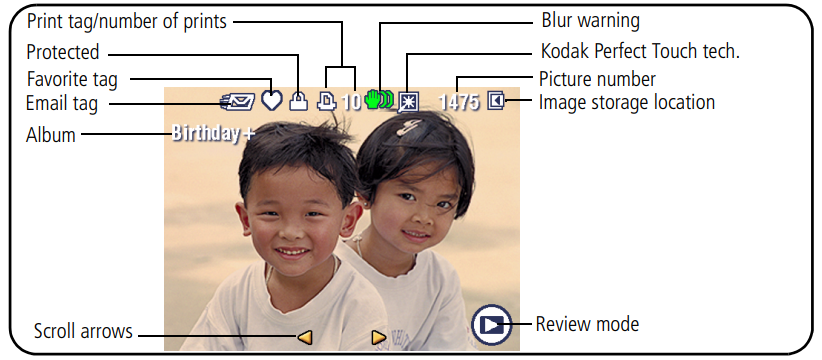
Videos
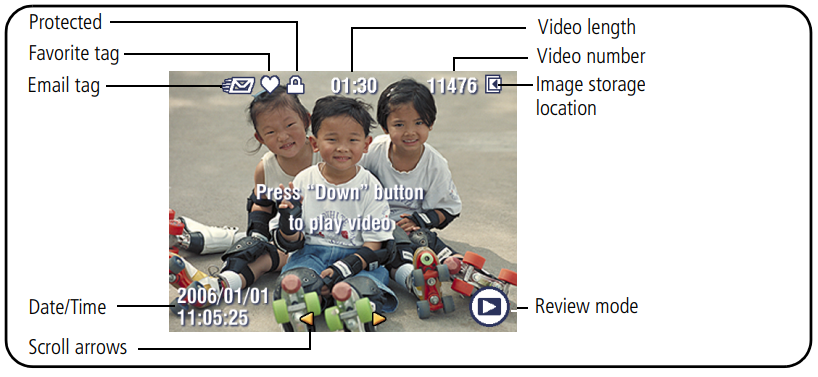
Understanding blur warning icons
A picture blur warning icon is displayed during quick view and review.
- Green — Picture is sharp enough for an acceptable 4 x 6-inch (10 x 15 cm) print.
- Yellow — Picture may be sharp enough for an acceptable 4 x 6-inch (10 x 15 cm) print, or sharpness is not determined.
- Red — Picture is not sharp enough for an acceptable 4 x 6-inch (10 x 15 cm) print.
- White — Printability is still being determined.
Doing more with your camera
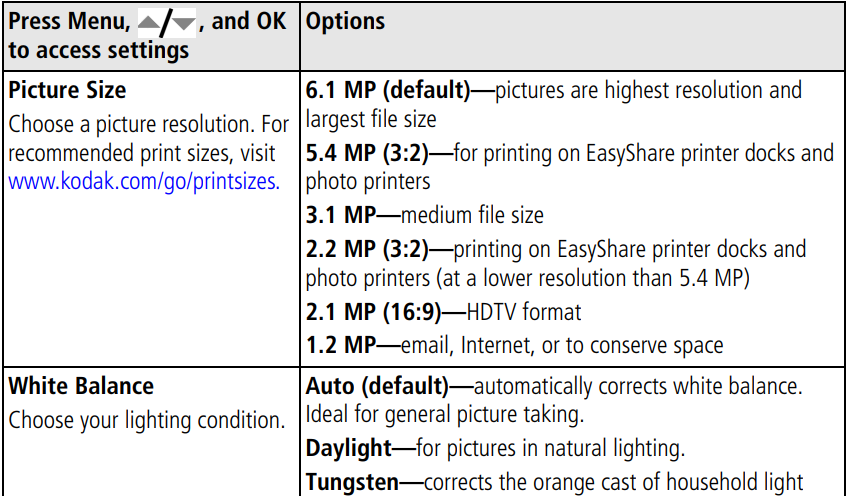
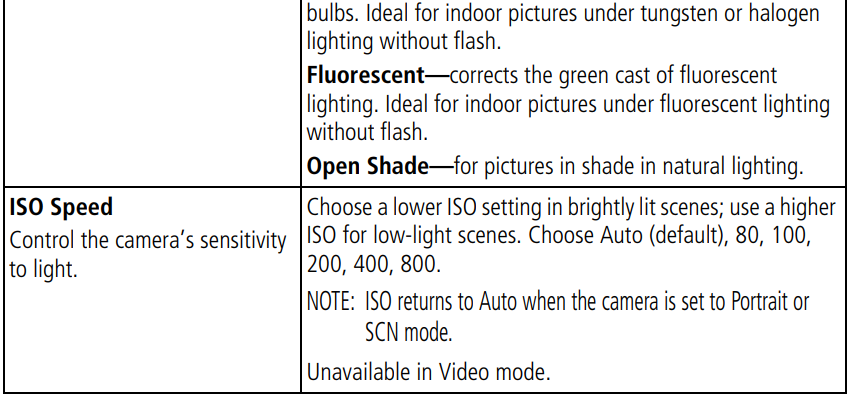
Changing picture-taking settings
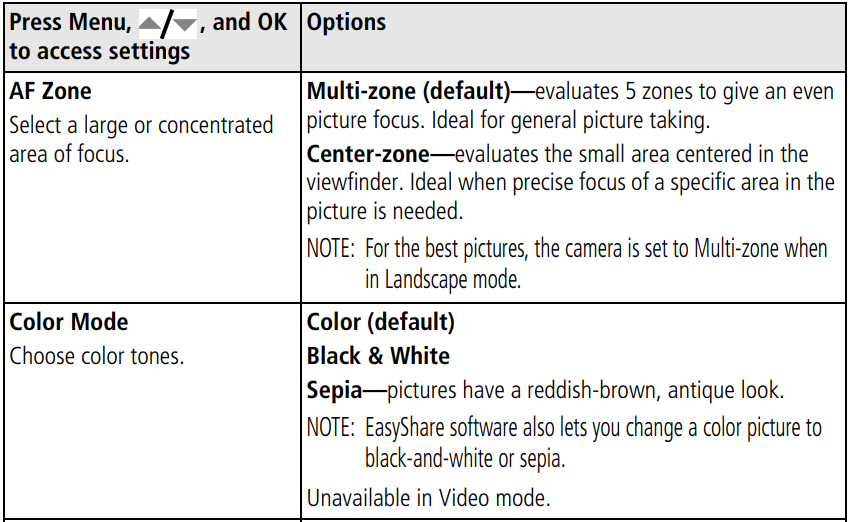
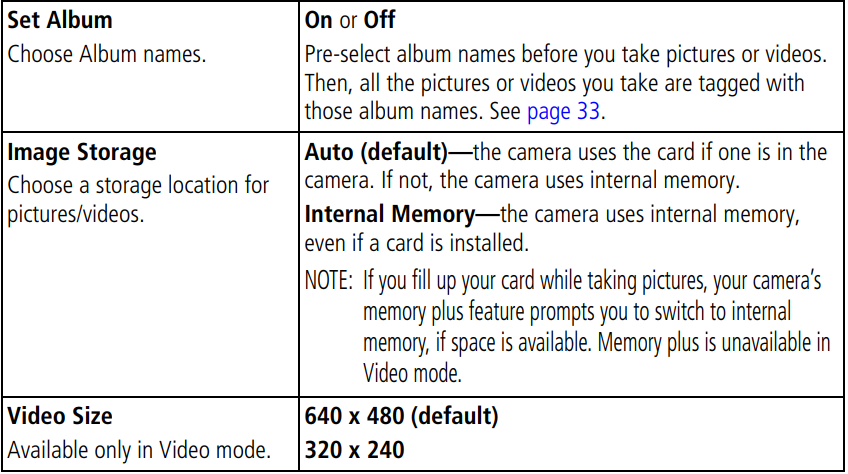
You can change settings to get the best results from your camera.
- Press the Menu button.
- Press
 to highlight a setting, then press OK.
 - Choose an option, then press OK.
- Press the Menu button to exit the menu.
NOTE: To better understand each menu option, use the camera Help. Highlight a menu choice, then press the button. Some settings remain until you change them; others, until you change modes or turn off the camera. Some modes offer limited settings.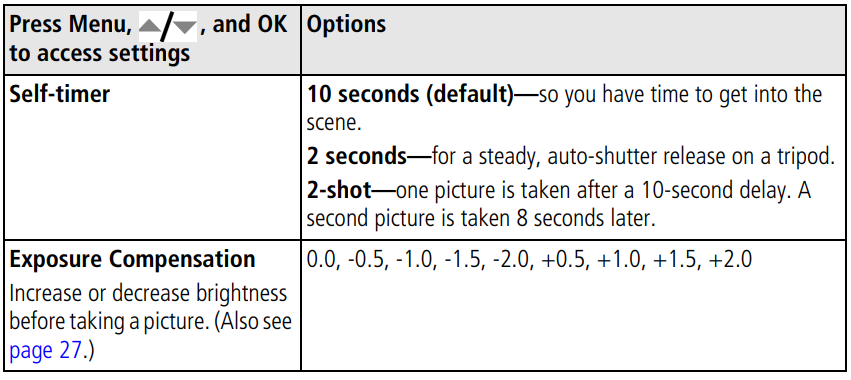

Customizing your camera
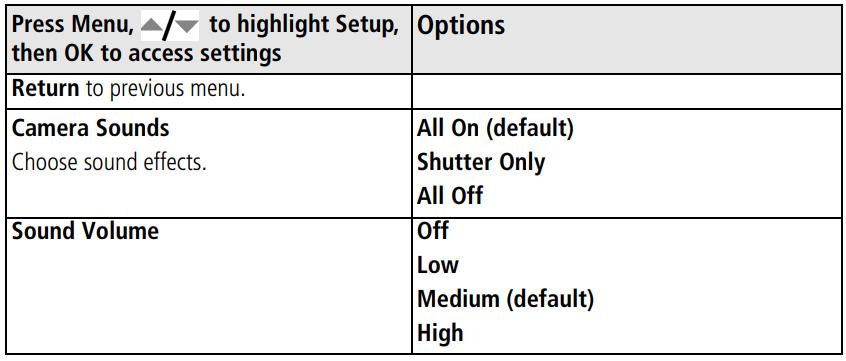
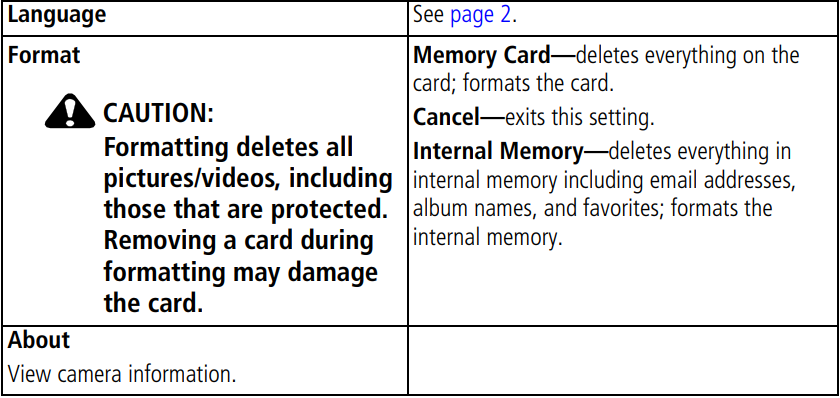
Use Setup to customize your camera settings.
- In any mode, press the Menu button.
- Press to highlight Setup, then press OK.
- Press to highlight a setting, then press OK.
- Choose an option, then press OK.
- Press the Menu button to exit.


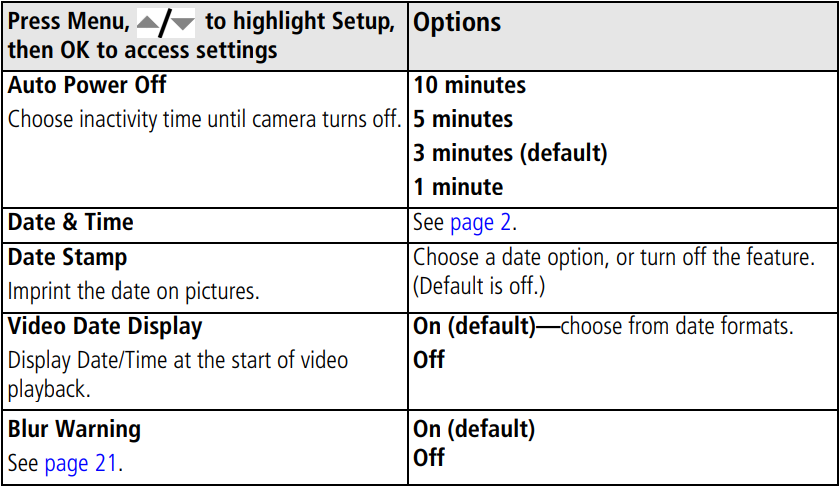
NOTE: Press the LCD/Info button for information about camera settings and options. These settings remain until you change them.
Using exposure compensation to adjust picture brightness
Before you take a picture, you can adjust exposure compensation to make the picture darker or lighter.
- Press
 to decrease exposure compensation.
 - Press
 to increase exposure compensation. The exposure compensation level is shown on the LCD; the LCD gets brighter or dimmer.
 to decrease exposure compensation.
Using the framing grid to compose a picture
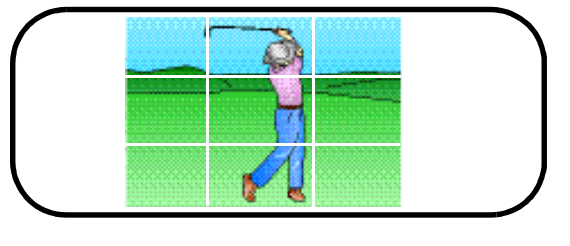
The framing grid divides the LCD into thirds vertically and horizontally. This is helpful if, for example, you want to balance a picture between water, earth, and sky.
- To turn on the framing grid in Auto/SCN modes, press the Info/Display
 button until the grid appears.
Sharing your pictures
Press the Share button to tag your pictures and videos. When they are transferred to your computer, you can share them. Use the Share button:
- Any time. (The most recent picture/video taken is then displayed.)
- Just after you take a picture/video, during quick view.
- After pressing the Review button.
Tagging pictures for printing
- Press the Share button. Press to locate a picture.
- Press to highlight Print, then press OK.
- Press to select the number of copies (0–99). Zero removes the tag for that picture. Optional: You can apply a print quantity to other pictures. Press to locate a picture. Press to change the print quantity. Repeat until the desired print quantity is applied to the pictures.
- Press OK. The Print icon
 appears in the status area.
 - Press the Share button to exit the menu.
 appears in the status area.
To tag all pictures in the storage location, highlight Print All, press OK, then indicate the number of copies. Print All is not available in quick view. To remove print tagging for all pictures in the storage location, highlight Cancel Prints, then press OK. Cancel Prints is not available in quick view.
Printing tagged pictures
When you transfer the tagged pictures to your computer, the Kodak EasyShare software print screen opens. For details, click the Help button in the EasyShare software. For more information on printing from your computer, printer dock, PictBridge-enabled printer, or card, see page 35.
NOTE: For the best 4 x 6 in. (10 x 15 cm) prints, set the camera to the 5.4 MP (3:2) picture size setting (see page 23).
Tagging pictures and videos for emailing
First — on your computer
Use Kodak EasyShare software to create an email address book on your computer. Then copy up to 32 email addresses to the camera’s internal memory. For details, click the Help button in the EasyShare software.
Second — tag pictures/videos on your camera
- Press the Share button. Press to locate a picture/video.
- Press to highlight Email, then press OK. The Email icon
 appears in the status area.
 - Press to highlight an email address, then press OK.
- To tag other pictures/videos with the same address, press to scroll through them. When the picture you want is displayed, press OK.
- To send the pictures/videos to more than one address, repeat step 3 for each address. Selected addresses are checked.
- To remove a selection, highlight a checked address and press OK. To remove all email selections, highlight Clear All.
- Press to highlight Exit, then press OK.
- Press the Share button to exit the menu.
 appears in the status area.
Third — transfer and email
When you transfer the tagged pictures/videos to your computer, the Email screen opens and lets you send them to the addresses you specified. For details, click the Help button in Kodak EasyShare software.
Tagging pictures as favorites
You can preserve your favorite pictures in the Favorites section of your camera’s internal memory, then share them with friends and family.
NOTE: When you transfer pictures from your camera to your computer, all pictures (including favorites) are stored on your computer at full size. Favorite pictures—smaller copies of your originals—are loaded back to your camera, so you can share and enjoy more.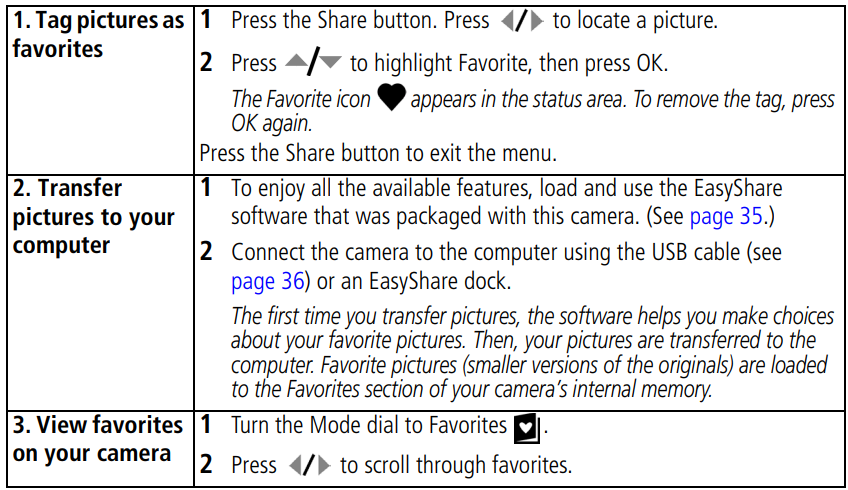
Optional settings
In Favorites mode, press the Menu button to access optional settings.
NOTE: Pictures taken at a 3:2 picture size have a black bar at the top and bottom. Pictures taken at 16:9 picture size have a black bar on the sides. A video’s duration is displayed at the top of the LCD.
Removing favorites from your camera
- Turn the Mode dial to Favorites
 .
. - Press the Menu button.
- Highlight Remove Favorites, then press OK. All pictures stored in the Favorites section of internal memory are removed. Favorites are restored the next time you transfer pictures to the computer.
- Press the Menu button to exit the menu.
 .
.Preventing camera favorites from synchronizing with the software
If you don’t want to use the favorites feature:
- Open EasyShare software.
- From the Tools menu, select Cameras/Viewers > Sync and Transfer Manager.
- Click to highlight your camera, then click Camera Favorites Album Properties. NOTE: If your camera model is not visible, use the USB cable to connect your camera to the computer.
- Drag the Internal Memory slider to 0%, then click OK.
- Close the Sync and Transfer Manager window.
Camera favorites will no longer synchronize with EasyShare software. To turn on the sync feature, select Yes, synchronize with my software. To delete favorites from your camera, press the Delete button while in Favorites mode.
Printing and emailing favorites
- Turn the Mode dial to Favorites
 . Press to locate a picture.
 - Press the Share button.
- Highlight Print or Email, then press OK.
NOTE: Favorites that were taken on this camera (not imported from another source) are good for prints up to 4 x 6 in. (10 x 15 cm).
Tagging pictures/videos for albums
Use the Album feature in Review mode to tag the pictures/videos in your camera with album names.
First — on your computer
Use EasyShare software to create albums on your computer, then copy up to 32 album names to the camera’s internal memory. See EasyShare software Help for details.
Second — on your camera
- Press the Review button, then locate the picture or video.
- Press the Menu button.
- Press to highlight Album, then press OK.
- Press to highlight an album folder, then press OK.
- To add other pictures to the same album, press to scroll through the pictures. When the picture you want is displayed, press OK.
- To add the pictures to more than one album, repeat step 4 for each album.
- The album name appears with the picture. A plus (+) after the album name means the picture was added to more than one album.
- To remove a selection, highlight an album name and press OK. To remove all album selections, select Clear All.
Third — transfer to your computer
When you transfer the tagged pictures/videos to your computer, EasyShare software opens and categorizes your pictures/videos in the appropriate album folder. See EasyShare software Help for details..
For More Manuals By Kodak, Visit ManualsLibraryy.
Kodak EasyShare C613 Digital Camera-FAQs
What kind of battery does the Kodak C613 use?
The Kodak EasyShare C613 operates on two standard AA batteries. It can use alkaline disposables or rechargeable Ni-MH batteries for extended use.
What type of memory card does the Kodak C613 support?
This camera works with SD or MMC memory cards to expand storage beyond its limited internal memory.
When was the Kodak EasyShare C613 released?
The C613 model was introduced in 2007 as part of Kodak’s EasyShare compact digital camera line.
How do I move pictures from internal memory to an SD card?
Press Review → Menu → Image Storage. Switch to Internal Memory, then select Copy to move photos either individually or all at once to the SD card.
Why does my Kodak EasyShare show a red blinking light?
A blinking red light usually means the batteries are low or the memory card is not functioning properly. Try replacing the batteries or checking the card.
Can I still use Kodak EasyShare today?
Yes, the camera itself still works, but Kodak EasyShare software has been discontinued. You can still transfer photos directly via USB without the software.
Why is my Kodak EasyShare camera not turning on?
A drained or faulty battery is the most common reason. Replace or recharge the AA batteries, and ensure they are inserted correctly.
How much internal memory does the Kodak C613 have?
The camera has about 16 MB of internal memory, so using an SD or MMC card is recommended for storing more photos.
Why is my Kodak camera not focusing properly?
Blurry images can be due to dirt on the lens, incorrect focus on the subject, or low resolution settings. Clean the lens and check focus before shooting.