
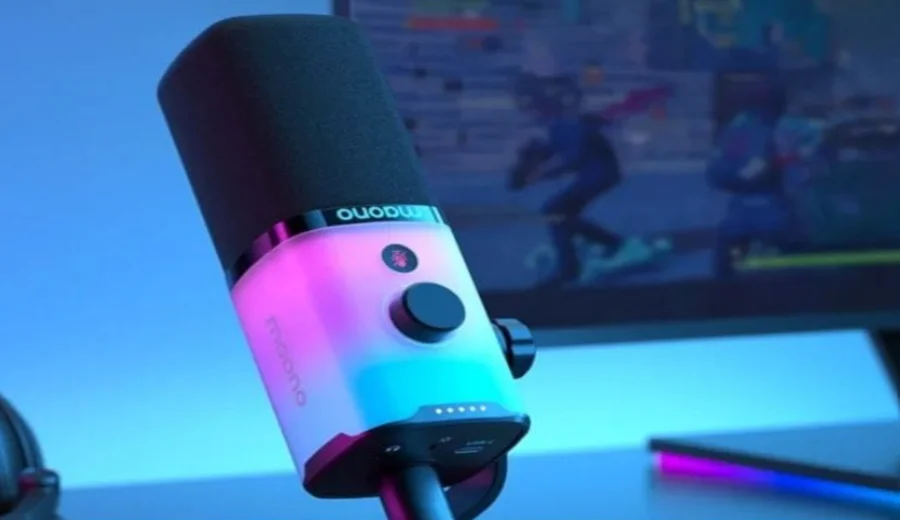

Maono PD100W Microphone
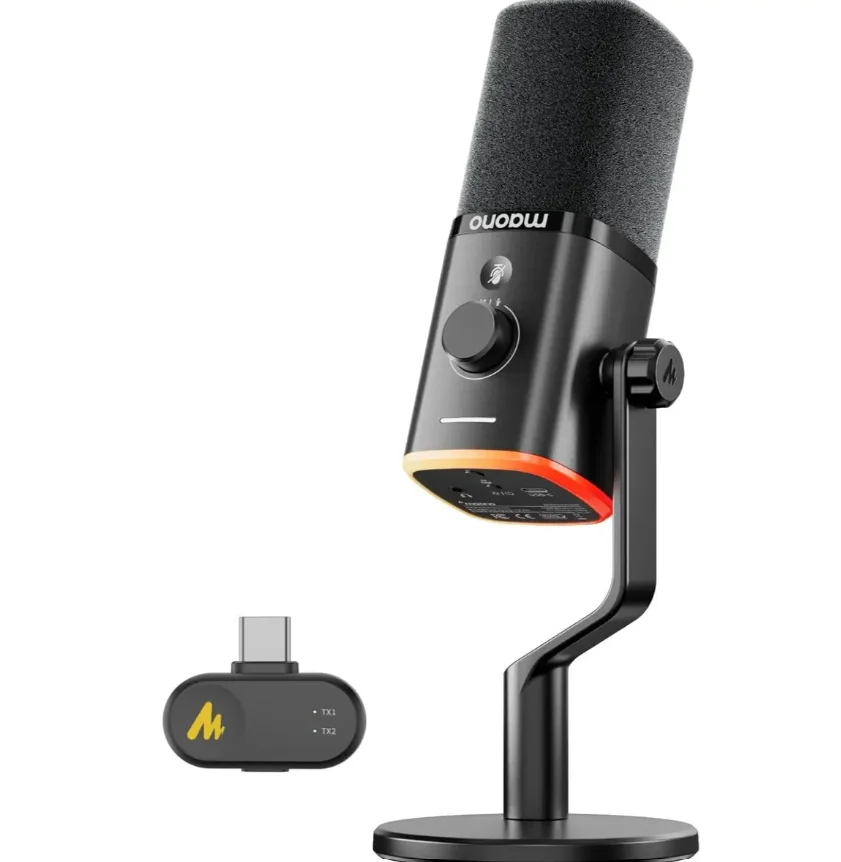
Learning Maono Link Software
The Maono Link software provides DSP controls for microphone adjustment. You can configure your microphone through its interface. The adjustment panel offers controls in three sections: Basics, Scenes, and Lights. The Basics section contains the most common settings. The Scenes section allows you to set the microphone effects with one click. The Lights section controls the mic’s ambient RGB lighting.
Product Functions
Basics
In the basic section, you can quickly adjust the most commonly used functions, such as gain, headphone volume, noise cancellation, and monitor output.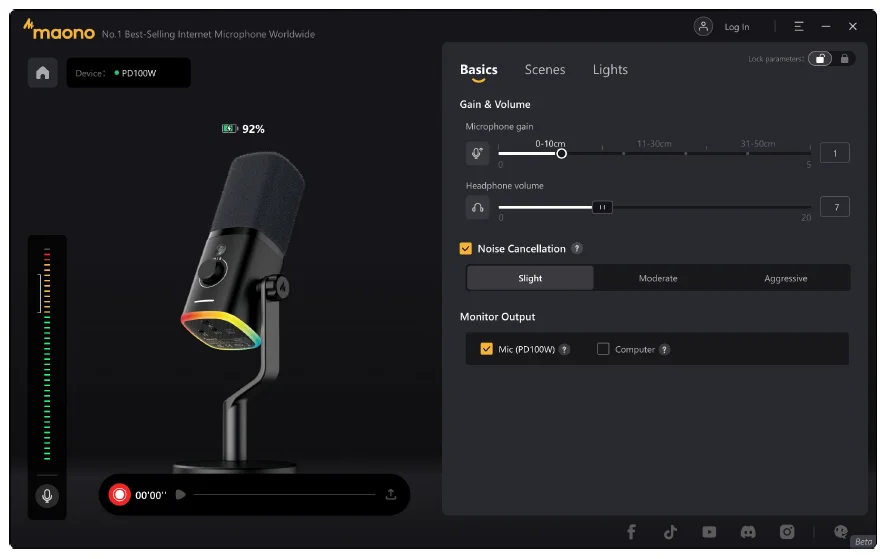
The images above are for illustration purposes only, and the software may be subject to change in future updates.
Microphone Gain
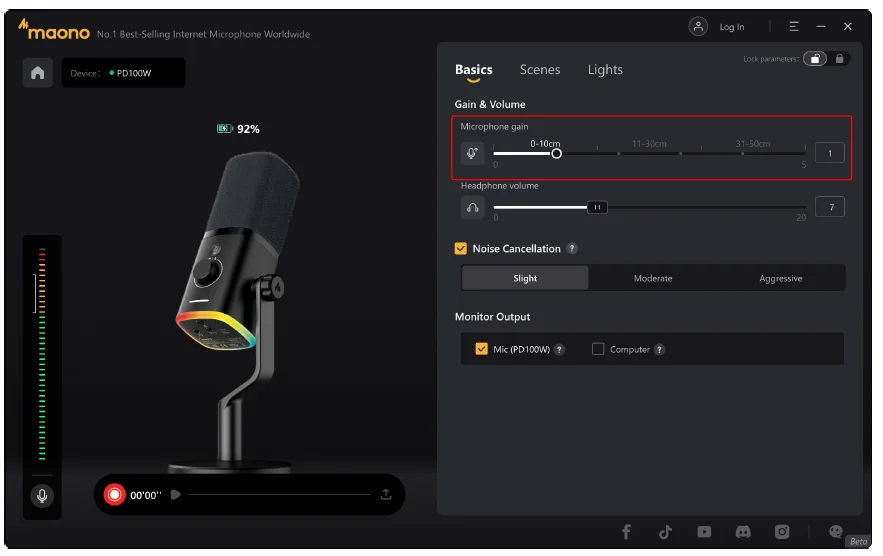
Microphone gain can be adjusted across 20 levels (0-20). We provide recommended gain ranges for optimal performance.
- Increase the gain when you are farther from the microphone to compensate for insufficient volume.
- Decrease the gain when you are closer to the microphone to ensure clarity and prevent audio distortion.

The images above are for illustration purposes only, and the software may be subject to change in future updates.
Headphone Volume
The headphone output volume can be adjusted using the knob of the microphone body or via the “Headphone Volume” option in the “Basics” section of Maono Link software.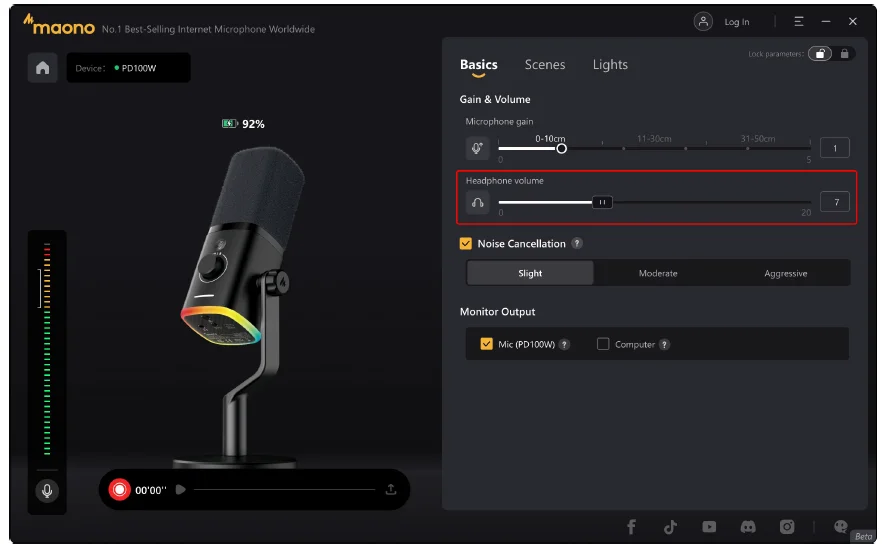
The images above are for illustration purposes only, and the software may be subject to change in future updates.
Noise cancellation
The noise cancellation function offers three modes:
- Slight
- Moderate
- Aggressive.
Adjust the setting based on your ambient noise level for optimal audio immersion.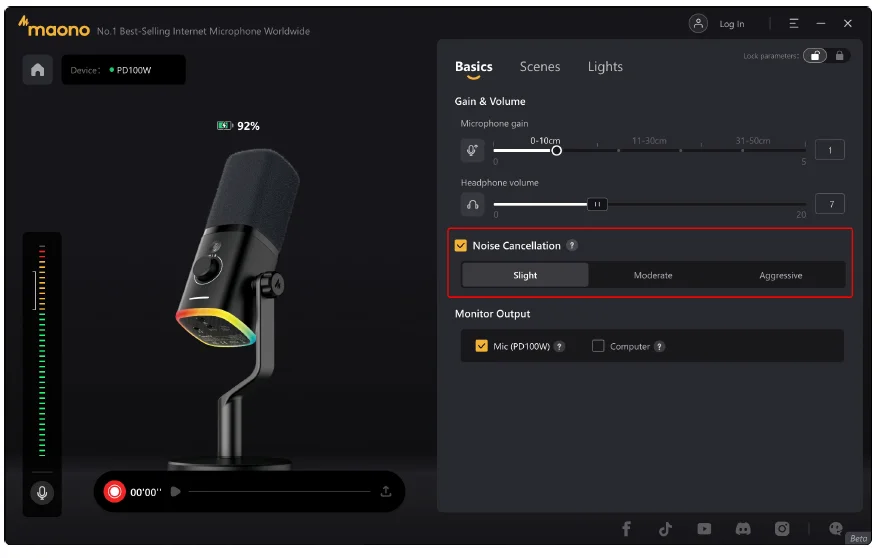
The images above are for illustration purposes only, and the software may be subject to change in future updates.
Monitor Output
By default, the headphone monitor outputs a blend of computer audio and microphone input. In different creative scenes, adjust your monitoring settings accordingly. Check/Uncheck devices to control which audio sources are routed to your headphones. For guidance, select the “?” icon beside “Monitor Output” for tips.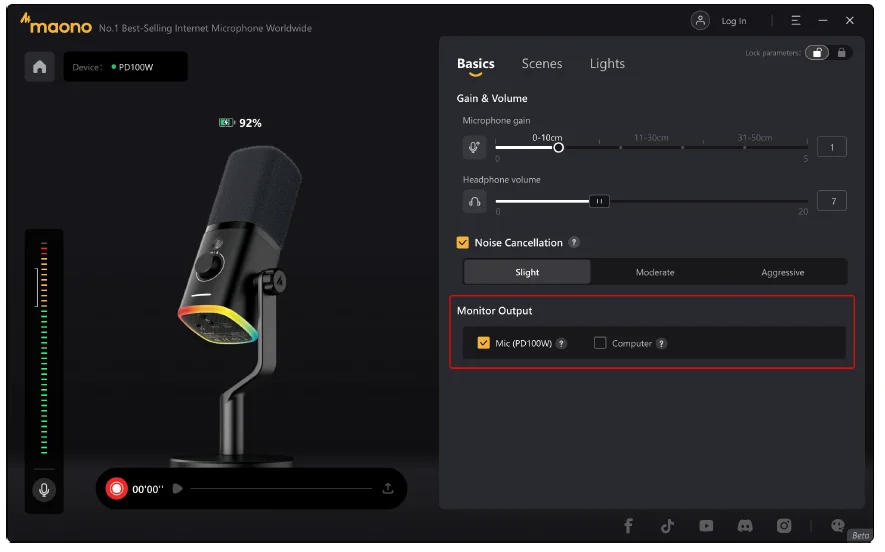
The images above are for illustration purposes only, and the software may be subject to change in future updates.
How to Set Up Monitor Output
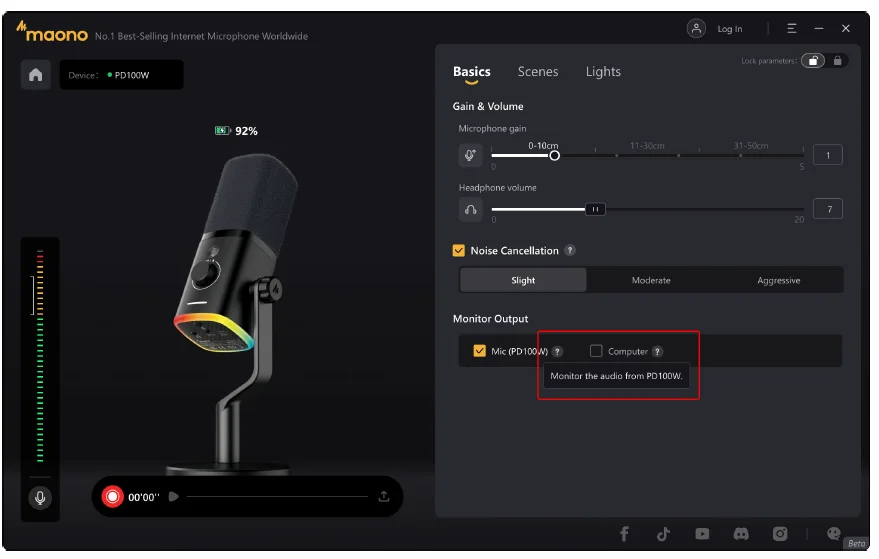
Adjust your monitoring mix per scene by checking/unchecking sources:
- Mic: Audio of the microphone.
- Computer: Output from the computer connected to your receiver (e.g., media playback/notifications).

The images above are for illustration purposes only, and the software may be subject to change in future updates.
Scenes
The software includes four preset scenes:
- Original
- Game
- Stream
- Sing.
Each scene includes optimized audio presets tailored to specific use cases. Select the scene that best matches your activity for an optimized audio experience. Clicking on any scene will automatically apply its preset sound configuration.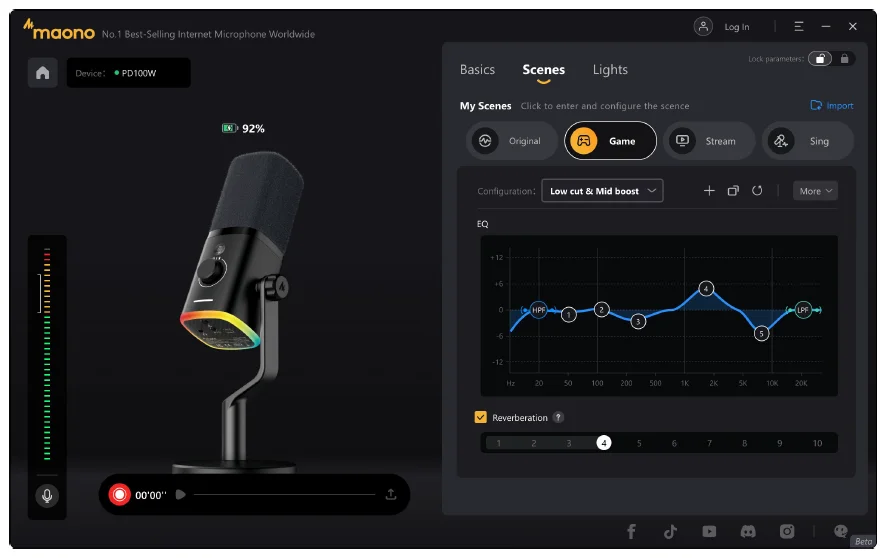
The images above are for illustration purposes only, and the software may be subject to change in future updates.
Sound Configurations
Each sound effect configuration comes with a graphical EQ adjustment.
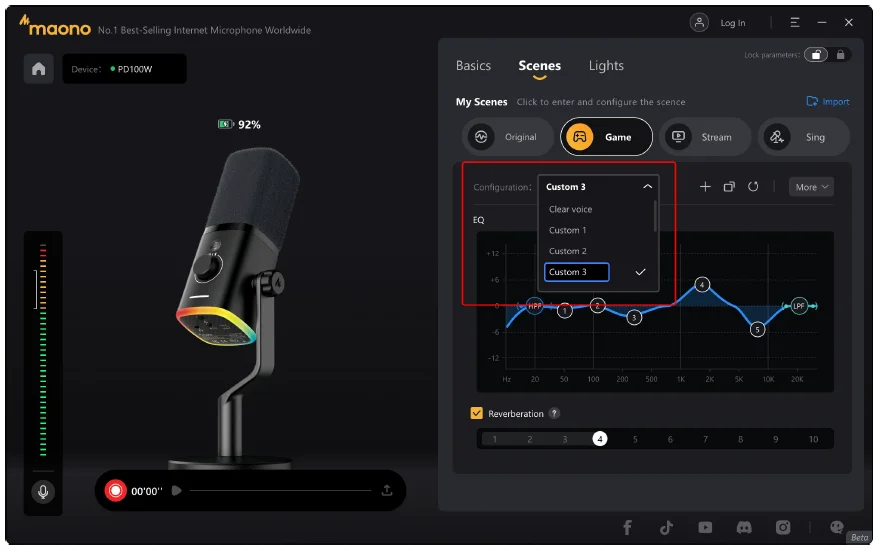
- Preset Sound Effects: Preset sound configurations cannot be modified. If the effects do not meet your expectations, click the “Copy” button to create a fully customizable copy of the current configuration. This new configuration can then be tuned in real time.
- Custom Sound Effects: Under each scene, you can create multiple custom sound configurations. You can export your own configurations to share with friends, or import sound effect files tuned for the PD100 Wireless by others. In the future, the official website will offer more scene sound effects for download, which can be used immediately with one-click import after downloading.

The images above are for illustration purposes only, and the software may be subject to change in future updates.
Copy & Create New
You can create a new custom sound configuration by clicking the “Copy” or “+” button in the menu bar below the scene.
- Duplicate: Clicking the “Copy” button instantly creates a copy of the sound effect based on the current configuration.
- Create New: Click the “+” button, set a sound effect name, and then you can create a new custom sound effect.
You can rename any custom configuration from the dropdown list of the configuration bar.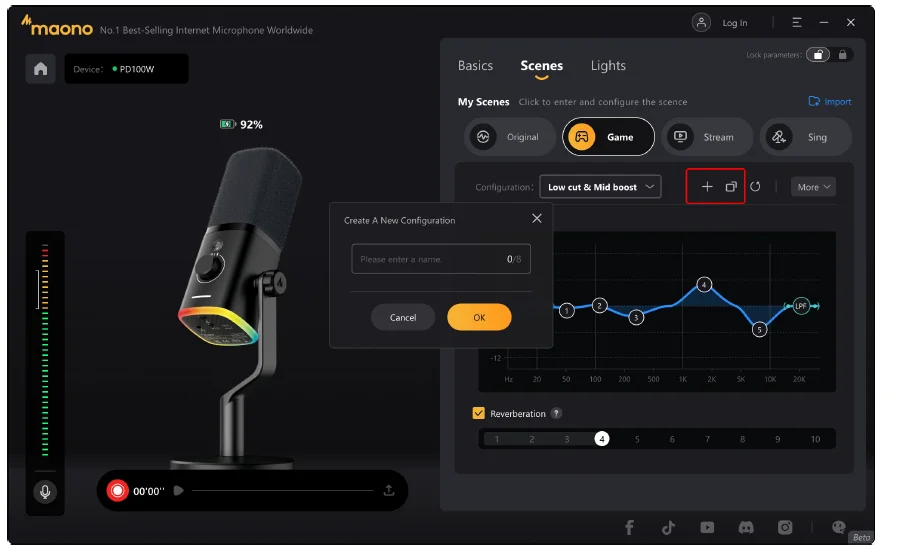
The images above are for illustration purposes only, and the software may be subject to change in future updates.
Reset
Click the “Reset” button in the sound menu bar to revert the currently selected custom sound configuration to its original parameters.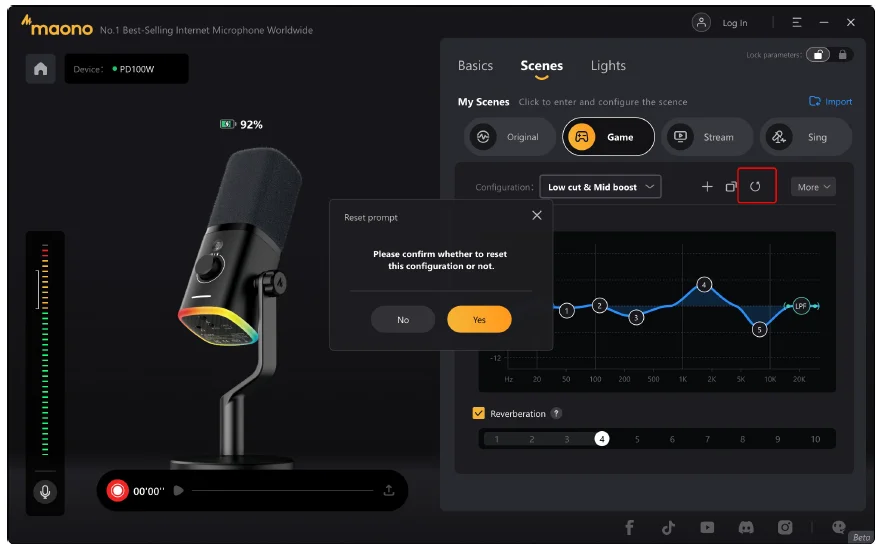
The images above are for illustration purposes only, and the software may be subject to change in future updates.
Export & Delete
Under the More menu, you will find options to:
- Export: Saves the current sound configuration data to your desired location.
- Delete: Removes user-created configurations permanently.
Sharing
You can export your finely-tuned sound profiles to share with friends who own the same microphone model. Recipients can use the import function to add the shared sound effect directly into their own scene list for use.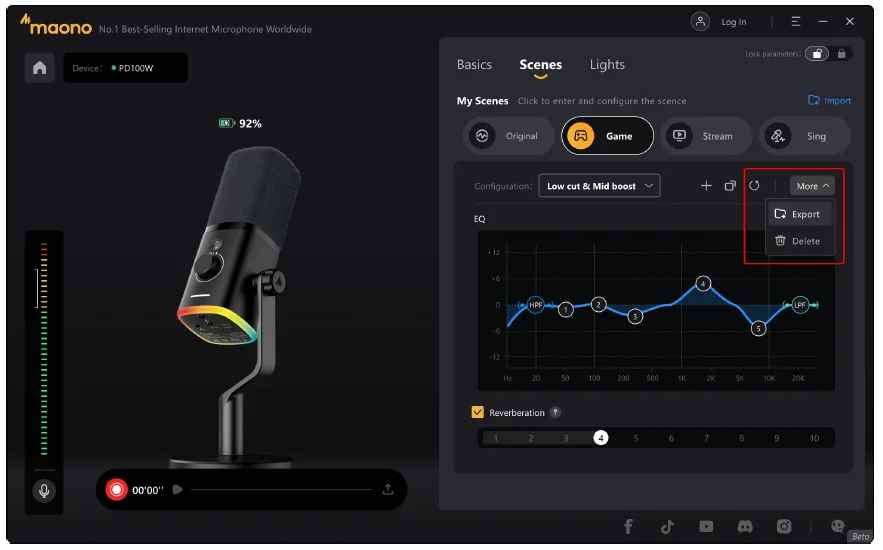
The images above are for illustration purposes only, and the software may be subject to change in future updates.
Import
An “Import Configuration” button is located on the right side of the “My Scene” title bar. Here, you can select and import sound files shared by others. Once imported, the sound configuration will be automatically added to the list of the corresponding scene. You can then apply this profile to experience the same tuning effect.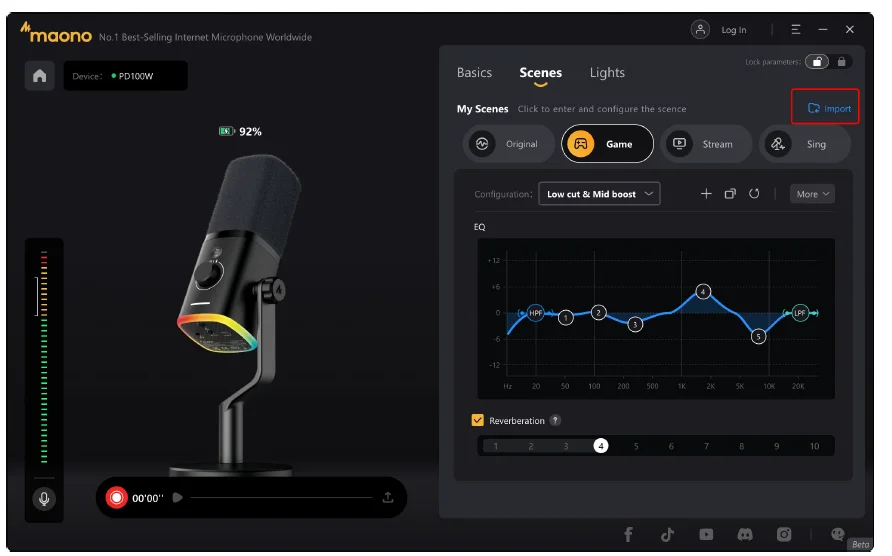
The images above are for illustration purposes only, and the software may be subject to change in future updates.
EQ Adjustment
Each sound configuration is equipped with a graphical EQ interface, which includes an HPF (High-Pass Filter), LPF (Low-Pass Filter), and five adjustable bands. You can boost or attenuate the gain at specific frequencies by simply dragging any band, allowing you to quickly optimize your microphone’s sound. Each scene comes with default presets for filter and Q-value settings. If you need to adjust it yourself, click on any band to open its properties window and manually adjust the parameters. And additional tuning parameters will be added in subsequent releases.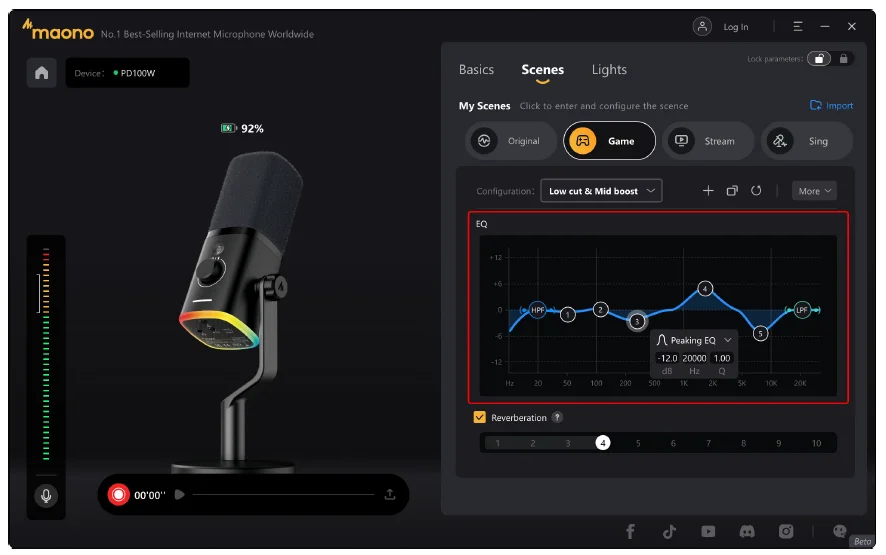
The images above are for illustration purposes only, and the software may be subject to change in future updates.
Reverberation
The reverberation provides ten levels of preset reverb effects, adjustable to suit your specific recording context. If reverb is not desired for a particular sound configuration, simply deselect the checkbox to disable the function.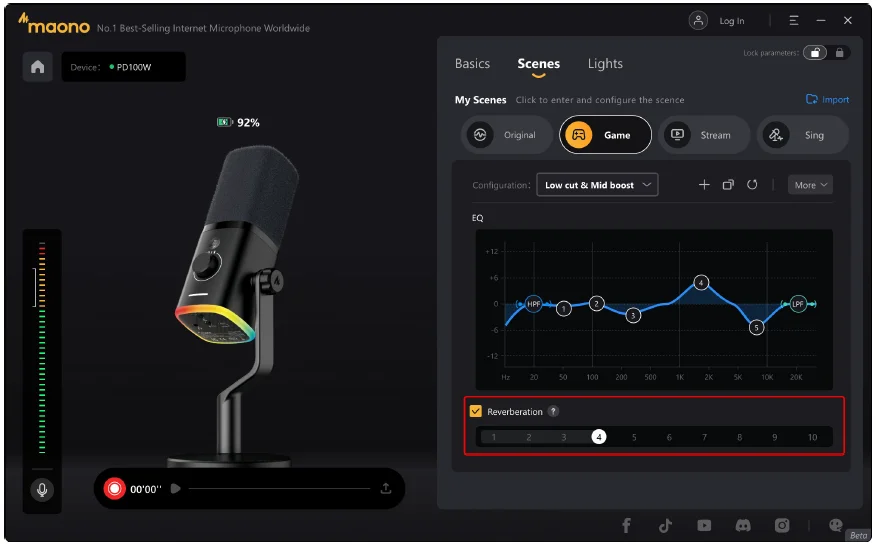
The images above are for illustration purposes only, and the software may be subject to change in future updates.
Lights
The PD100W microphone features RGB lighting controls. On the Lighting page, you can:
- Modify display modes.
- Change lighting colors.
- Adjust brightness levels.

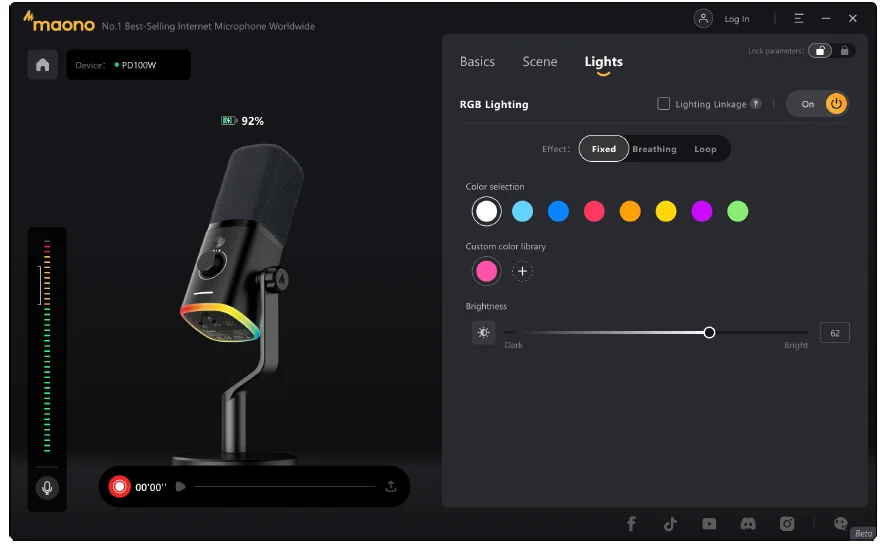
The images above are for illustration purposes only, and the software may be subject to change in future updates.
Modes
Three display modes are available: Fixed, Breathe, and Loop. You can change the lighting mode in this section.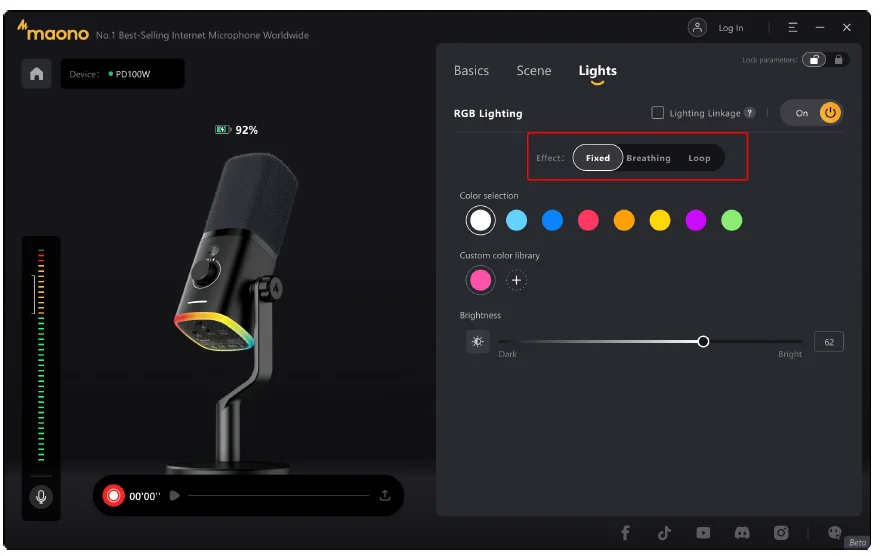
The images above are for illustration purposes only, and the software may be subject to change in future updates.
Colors
We provide eight curated preset colors. Select any color to instantly apply it, allowing seamless ambiance coordination.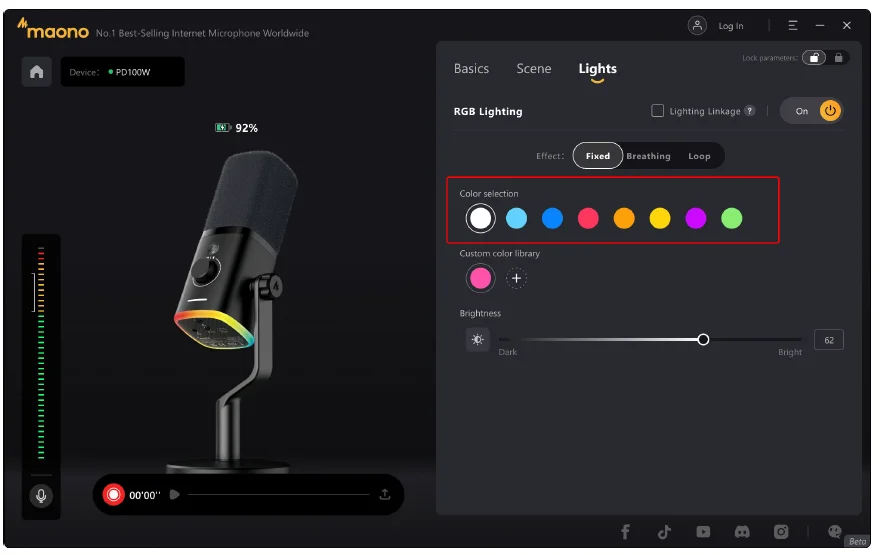
The images above are for illustration purposes only, and the software may be subject to change in future updates.
Custom Light
Additionally, we offer custom color creation. Select the “+” button to access the color palette, choose your desired color value, and save it as a reusable preset.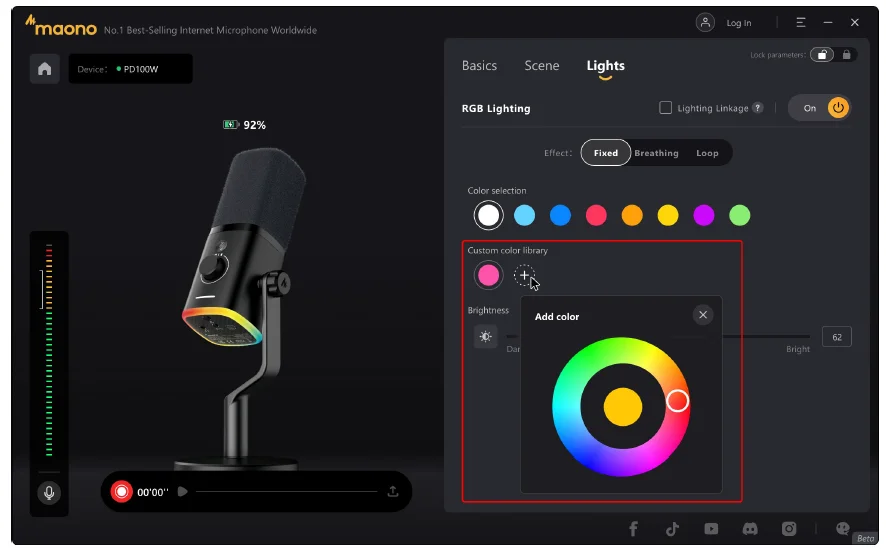
The images above are for illustration purposes only, and the software may be subject to change in future updates.
Brightness
You can adjust RGB brightness directly in the Lighting interface. Note that higher brightness levels directly impact the microphone battery runtime. For extended usage, moderately reduce brightness.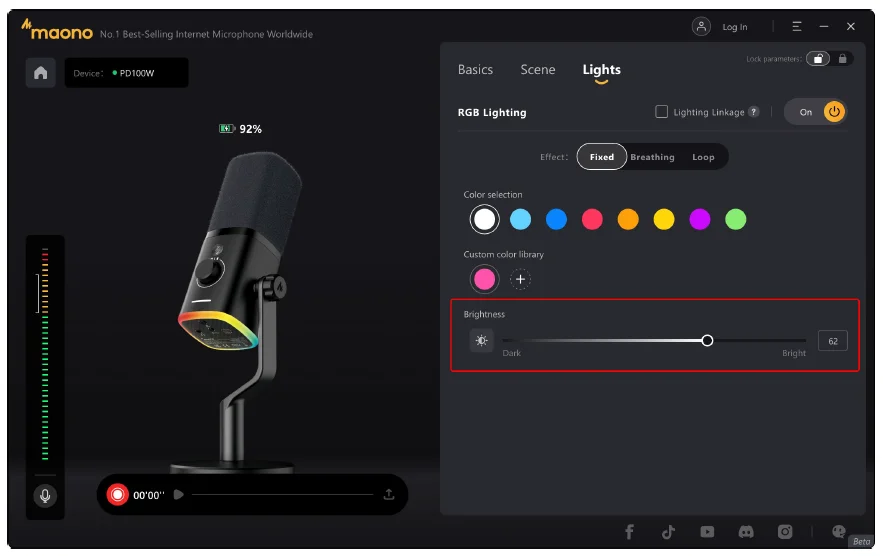
The images above are for illustration purposes only, and the software may be subject to change in future updates.
Recorder
The default recording format is 48kHz/24bit, PCM format audio. Recorded audio can be exported to your destination folder.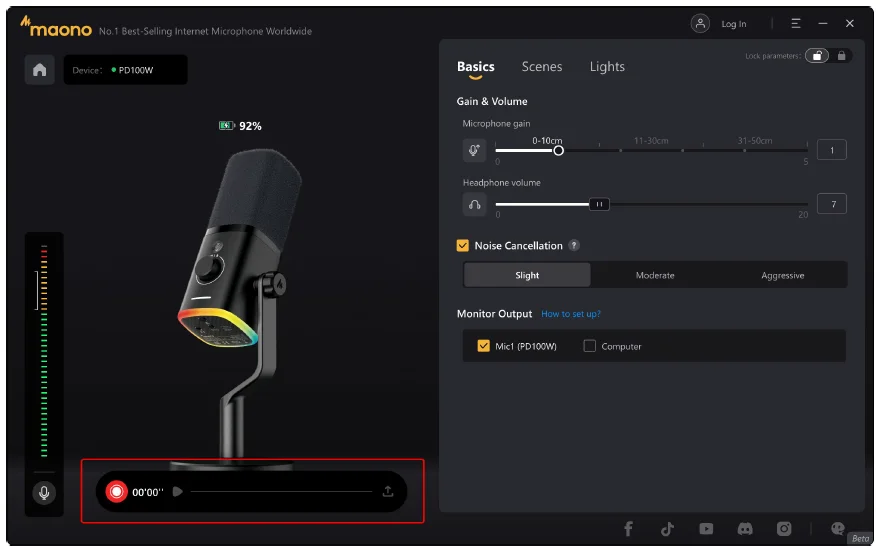
The images above are for illustration purposes only, and the software may be subject to change in future updates.
Connection and Pairing
To begin, connect the receiver to your computer. The microphone and receiver are pre-paired at the factory. When the microphone is not powered on, the Maono Link software will prompt you to wait for the microphone to connect. At this time, you can press and hold the power button till the microphone lights up to complete the startup. And then it will automatically complete the connection with the receiver. If the pairing information is cleared for some reason, follow these steps to manually re-pair them:
- Step 1: Connect the receiver to a USB port on your computer or smartphone. The receiver’s indicator light will blink slowly (awaiting connection).
- Step 2: Turn off the microphone, then press and hold the power button on the bottom of the microphone until the indicator below the knob flashes rapidly.
- Step 3: Wait for automatic pairing. After the receiver is connected successfully, the indicator light will stop flashing.
Firmware Update
Select the options icon in the top-right corner to open the menu. Tap “Firmware Update” here to check for new firmware versions.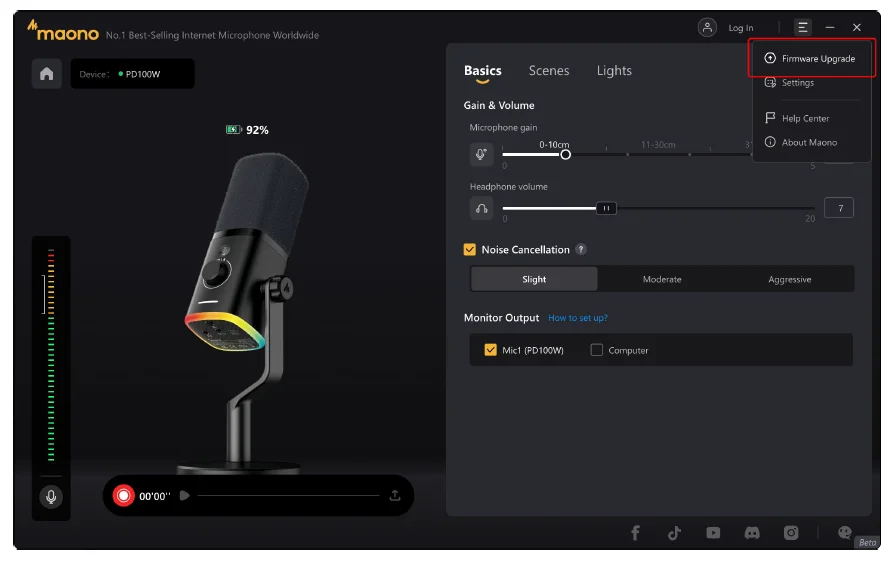
The images above are for illustration purposes only, and the software may be subject to change in future updates.
Firmware Update
When a new update is available, the target version will be displayed. Tap “Update” to install it. After completion, reconnect the microphone to activate the new firmware. The images above are for illustration purposes only, and the software may be subject to change in future updates.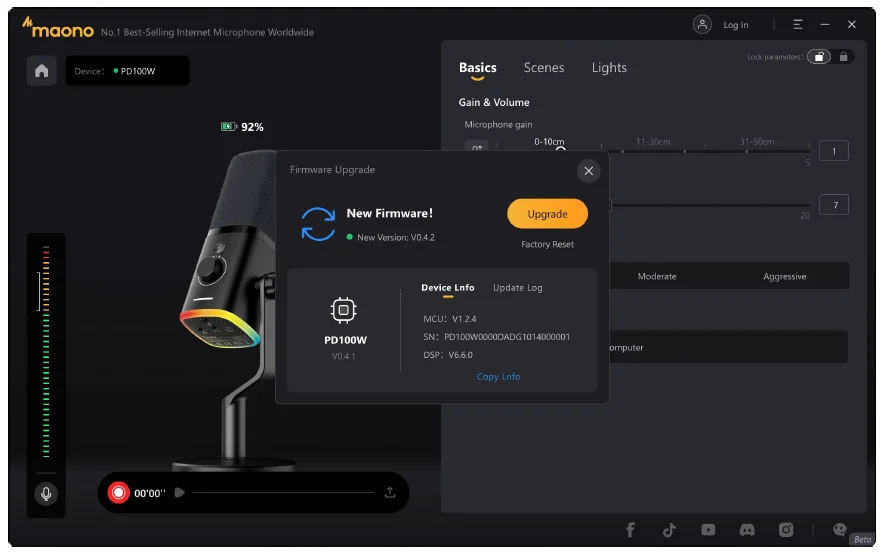
Note: Ensure sufficient battery level before firmware update. Do not disconnect the USB cable or perform shutdown operations during the process. Any abnormal disconnection may cause update failure.
If a firmware update fails, click “Retry. For unresolved issues, contact customer support via the official hotline.
Restore Factory Settings
On the Firmware Update page, we provide the Restore Factory Settings function. This function is typically used during abnormal debugging to revert all parameters to their factory-default state.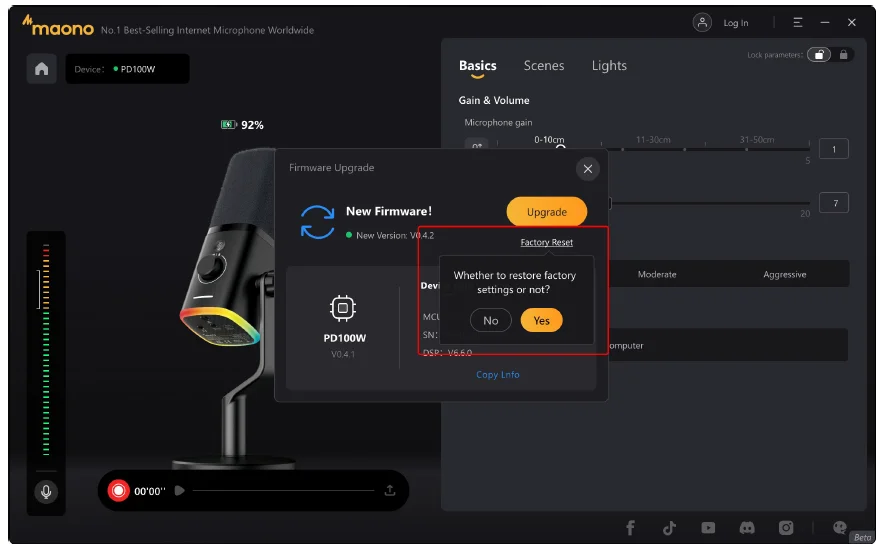
The images above are for illustration purposes only, and the software may be subject to change in future updates.
For more manuals by Maono, visit ManualsLibraryy
Maono PD100W Microphone-FAQs
How do I get the Maono PD100W microphone to work?
Go to your computer’s Sound Settings, open the Recording tab, disable the Maono microphone, then enable it again. This refresh often fixes detection issues.
Does the Maono PD100W need phantom power (48V)?
No. The PD100W is a dynamic microphone, so it does not require phantom power to operate.
What is the frequency response of the Maono PD100W?
The microphone has a frequency response range of 60Hz–14kHz, providing clear, natural voice reproduction ideal for podcasts, streaming, and voice recordings.
Does the Maono PD100W have noise cancellation?
The PD100W focuses on natural noise rejection using its cardioid pickup pattern. It reduces background noise by capturing sound mainly from the front.
What type of microphone is the Maono PD100W?
It is a dynamic cardioid microphone, designed for spoken voice, streaming, gaming, and podcasting.
How do I adjust the sound level on the Maono PD100W?
You can control mic volume through your audio interface, mixer, or computer sound settings depending on your setup.
Is the Maono PD100W good for podcasting and streaming?
Yes. Its dynamic design, pop-noise reduction, and focused pickup make it well-suited for podcasts, YouTube, streaming, and online meetings.
How far should I be from the Maono PD100W microphone?
For best results, speak from about 5–10 cm (2–4 inches) away to achieve a clear and full sound.
Should I use a pop filter with the Maono PD100W?
While it has a built-in pop filter, using an external pop filter or foam windscreen can further reduce plosive sounds.
Why can I hear my own voice through the microphone?
This happens when mic monitoring is enabled. You can turn it off in your system’s sound settings or audio software.