
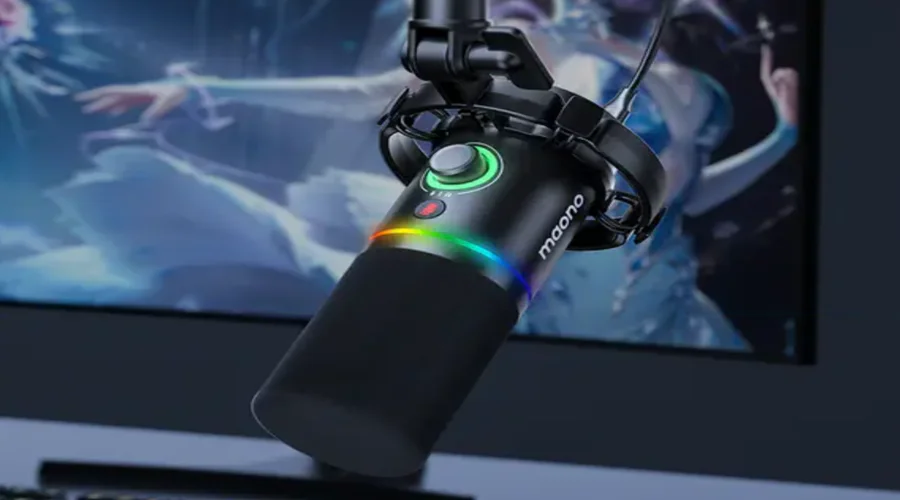

Maono PD200X Dynamic Microphone
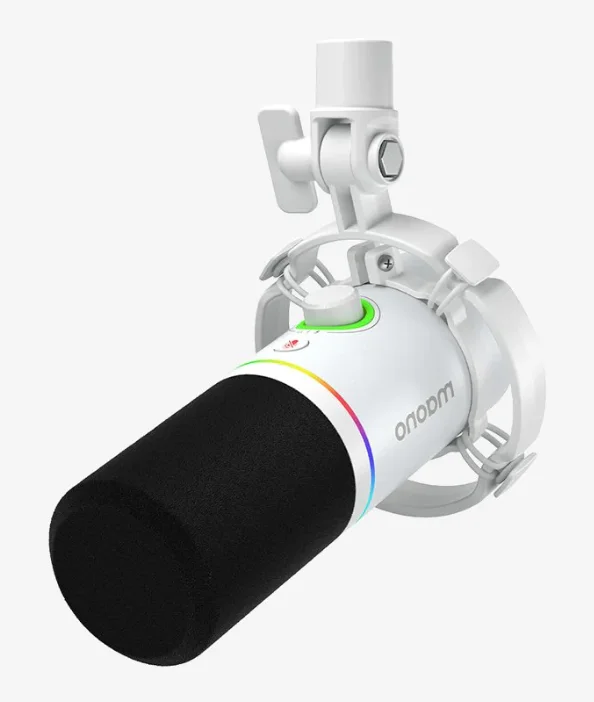
Packing List
- USB/XLR Dynamic Microphone x1

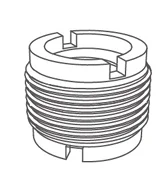
- 5/8″to 3/8″ Thread Adapter x1

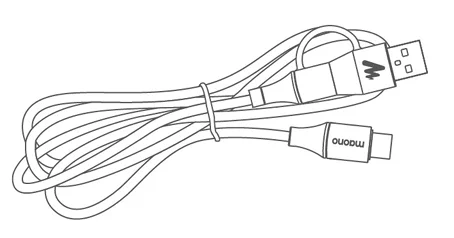
- USB A&C to USB C 2-in-1 Cable x1

- User Manual x1

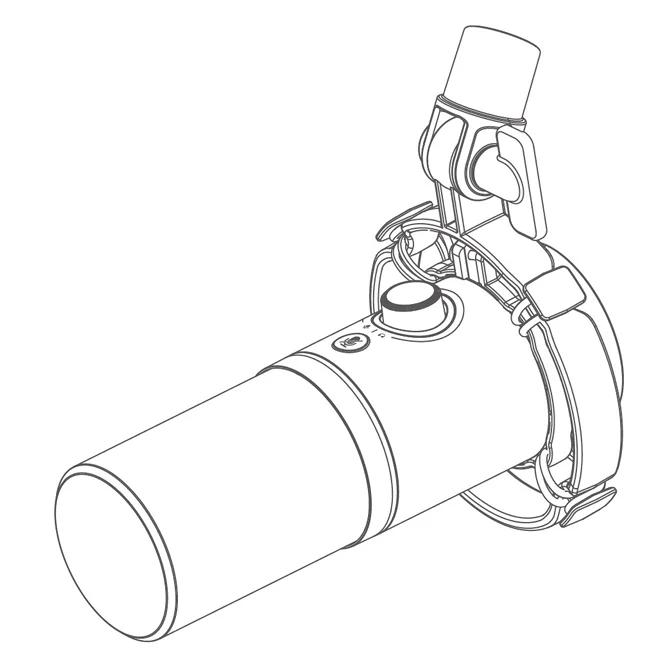
Product Overview
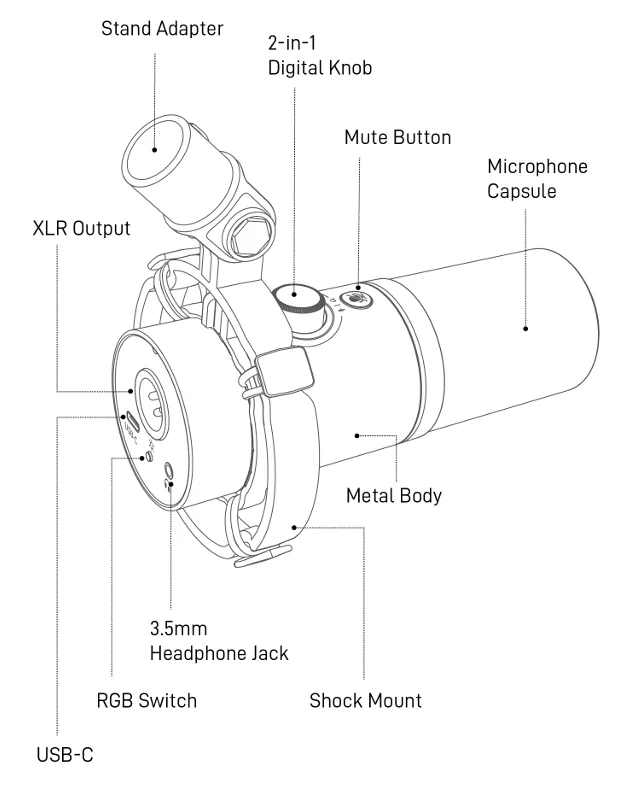
Product Description
Maono PD200X USB/XLR podcast dynamic microphone is designed for podcasters, streamers, and content creators. It has outstanding audio quality, superior noise isolation performance, and is packed with features. The dual-output design allows it to be used with professional audio devices like audio interfaces via XLR, or connect to a computer or mobile device directly via USB-C. The unique 2-in-1 knob controls both the microphone gain and the headphone volume. The custom-built shockmount and windfoam can effectively reduce unwanted noises. With the free Maono Link PC/Mac Desktop App, you can also control real-time monitoring, customize RGB lighting, and take advantage of the audio processing offered by the built-in hardware DSP.
Product Features
- Dynamic Capsule
- Cardioid polar pattern
- Mute button
- All metal body
- Shock mount
- Built-in windfoam
- Programmable RGB lights
- Mic gain and headphone volume control
- Maono Link Mac/PC and Android App
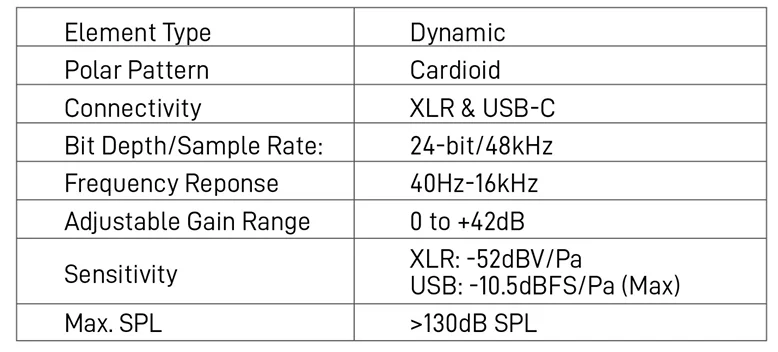
Specification
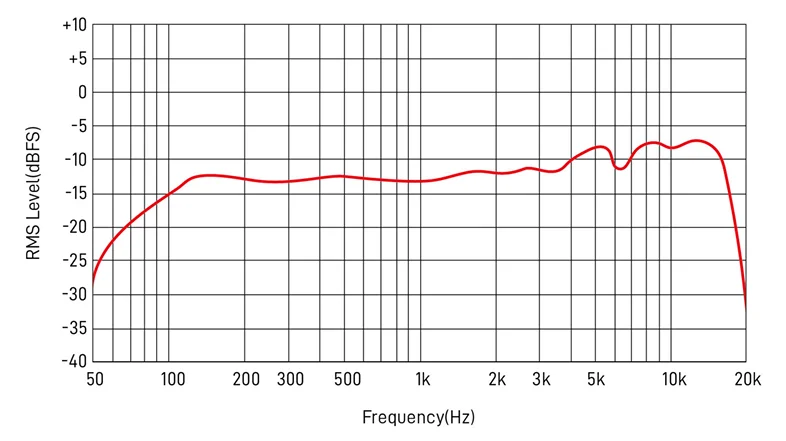
Frequency Response
Polar Pattern
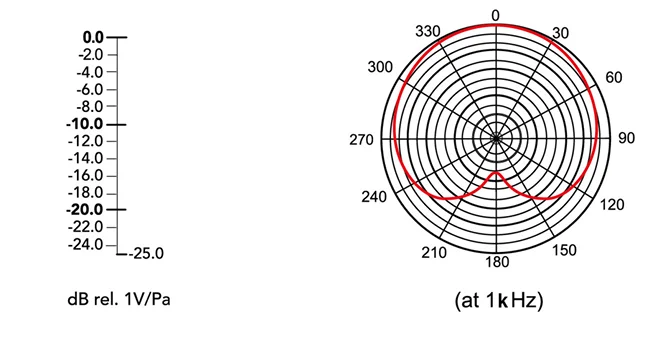
Product installation and usage
Attach the microphone to a desktop stand base. Turn the table stand base counterclockwise to install it to the microphone.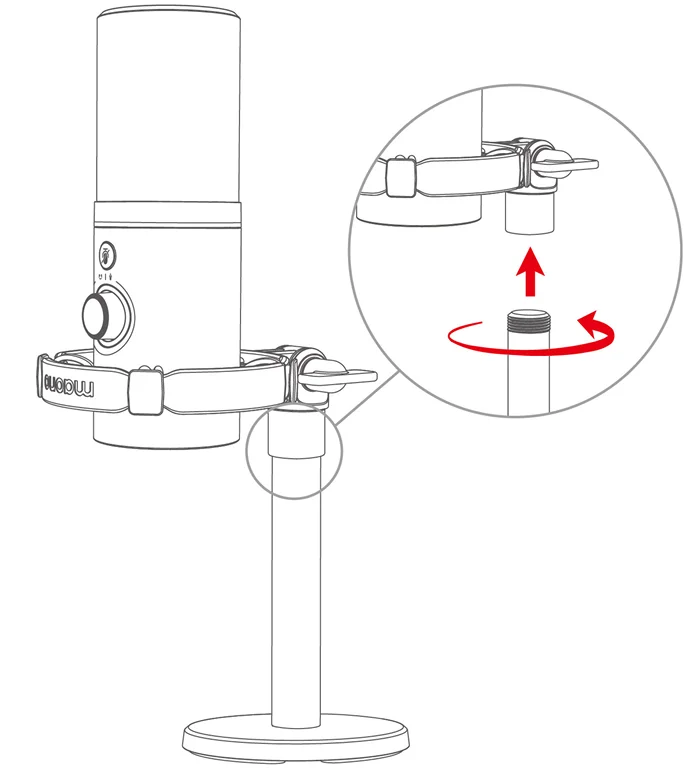
To attach to some microphone stands and boom arms, you may need to use the included thread adapter.
Attach the microphone to a boom arm
Turn the microphone counterclockwise to install the microphone to a boom arm.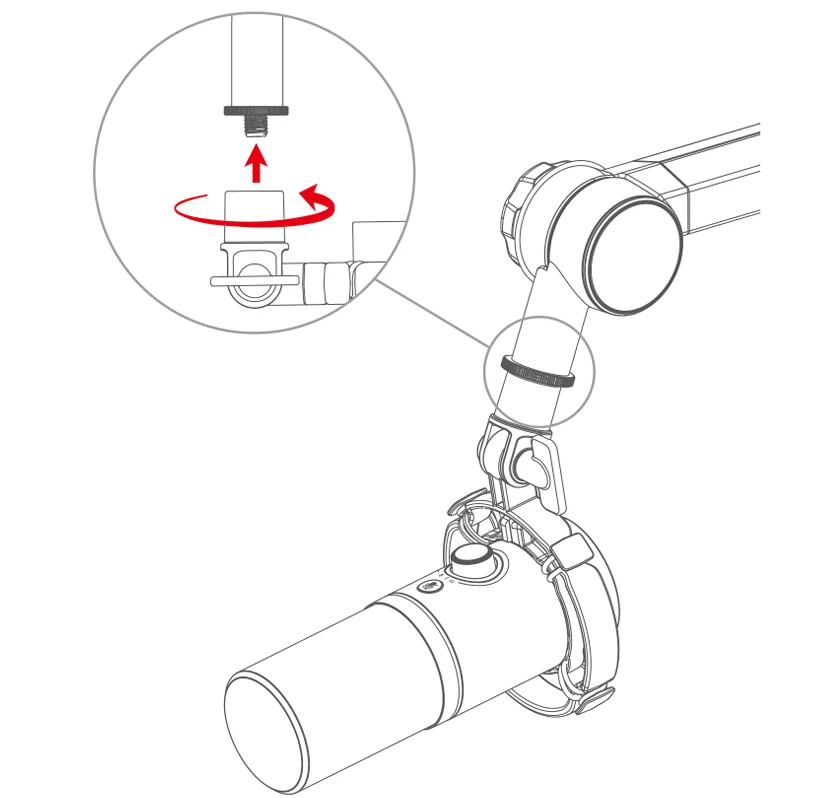 To attach to some microphone stands and boom arms, you may need to use the included thread adapter.
Connect the microphone to the computers
Connect the microphone to a computer using a USB-C cable. Connect your headphones to the 3.5mm headphonejack on the microphone if you want to take advantage of real-time monitoring.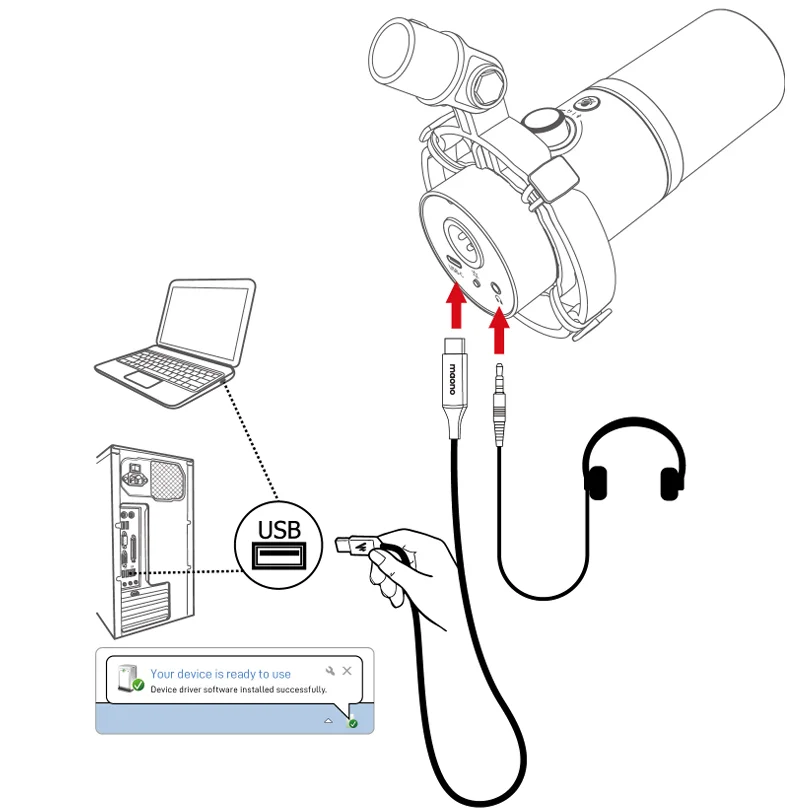
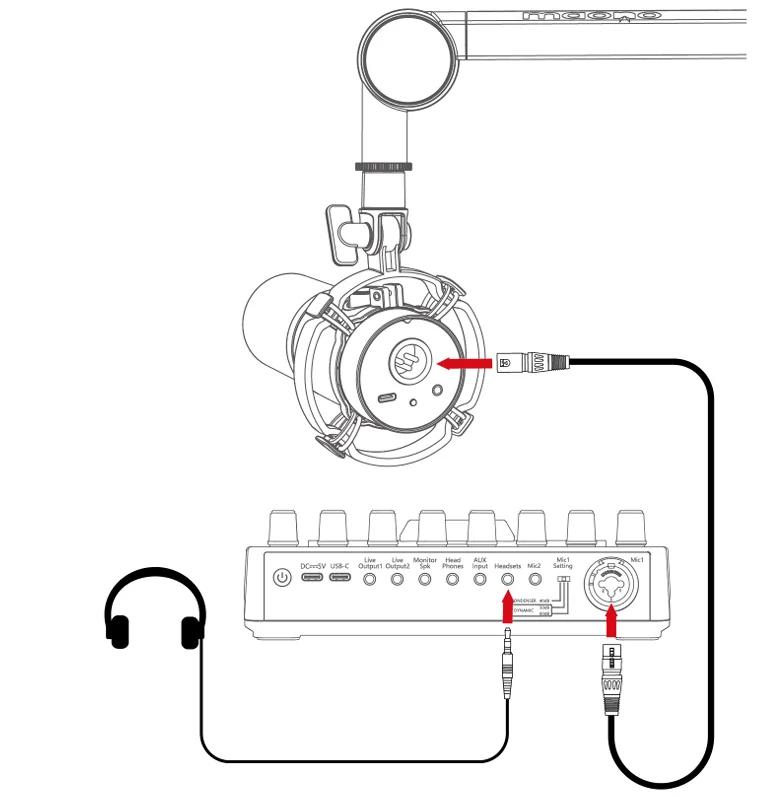
Connect the microphone to an audio interface
Connect the microphone to an audio interface with the XLR-XLR cable. Connect the headphone to the audio interface if you need to use a headphone. Connect the headphone to the audio interface if you need to use a headphone.
Buttons functions
Mute button
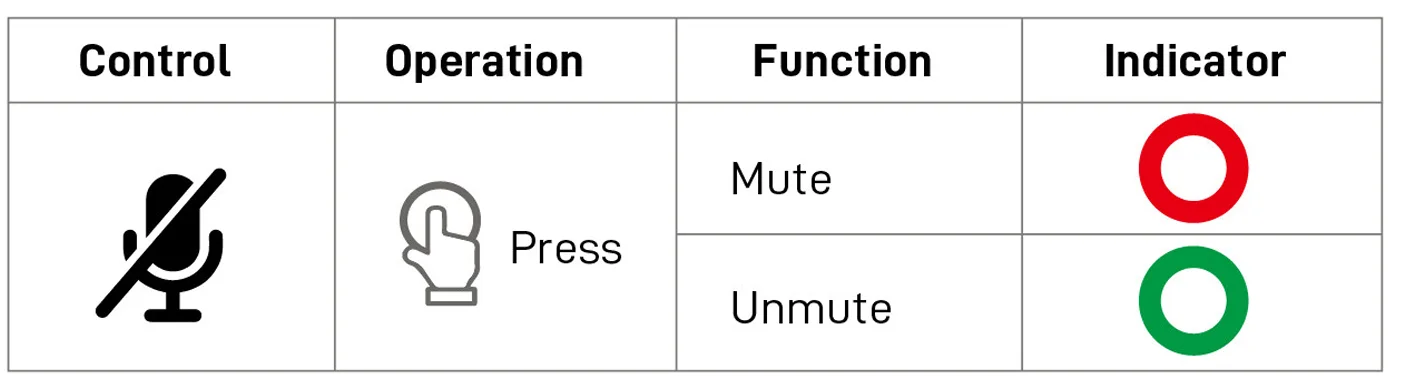 Note: Muting function is not available in XLR mode.
2-in-1 Knob Control
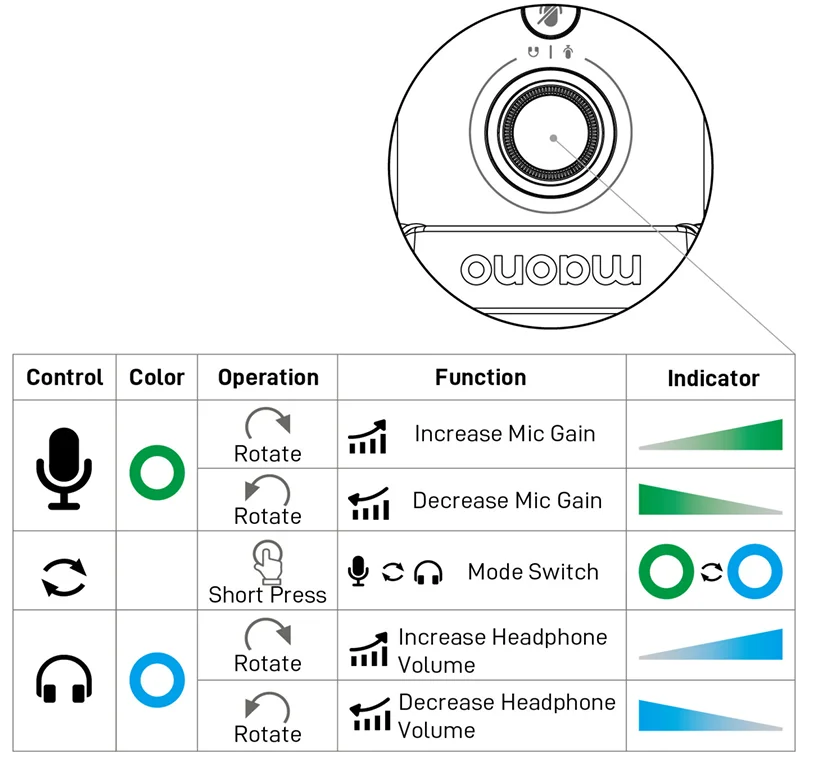
Note: Please use an external power adapter when connecting microphones to iOS devices.
RGB Switch
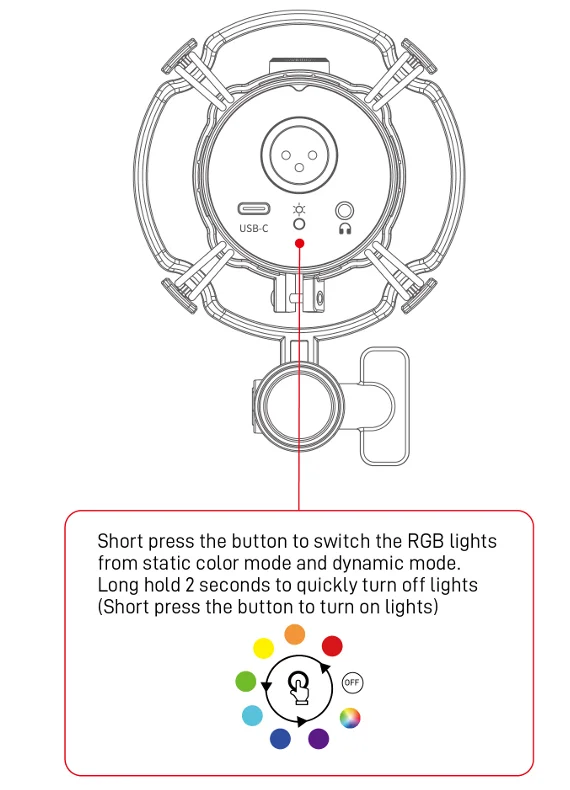
End-address microphone
Ensure the microphone grill faces the audio source.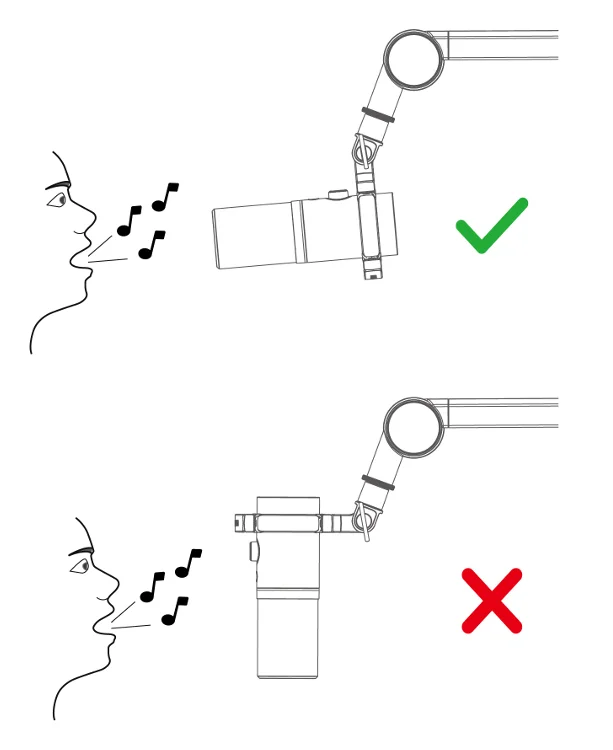
Windows Setup Guide
Windows 10,8,7
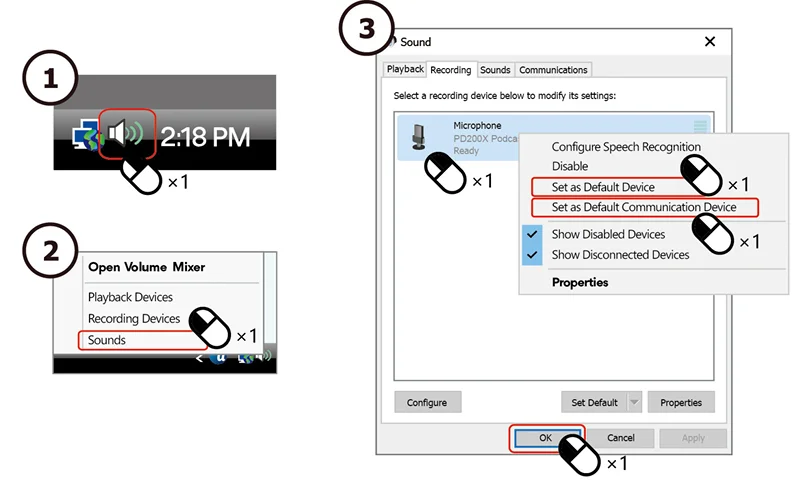
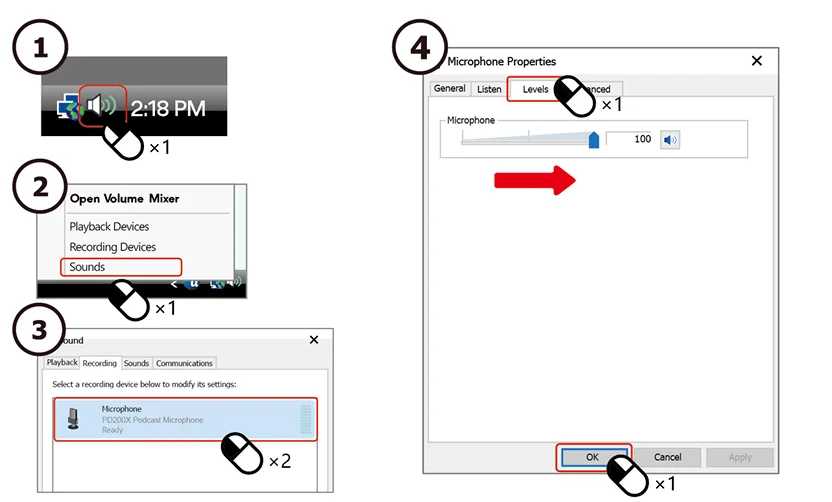
Microphone level setting
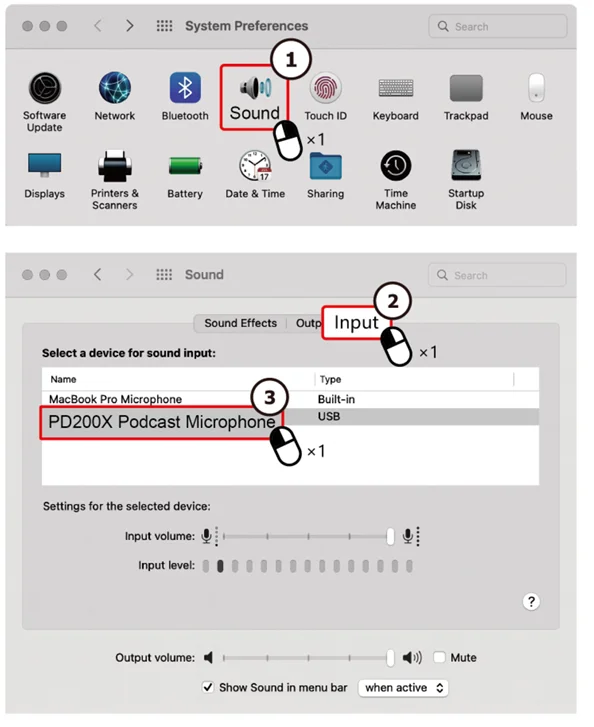
MacOS Setup Guide
Maono Link Guide
Maono Link is available for both Windows 7 or later and macOS 10.14 or later. To download the software, please go to https://www.maono.com
Settings are synced in real time between hardware and software.
Standard
Offers a simple and intuitive set of audio settings.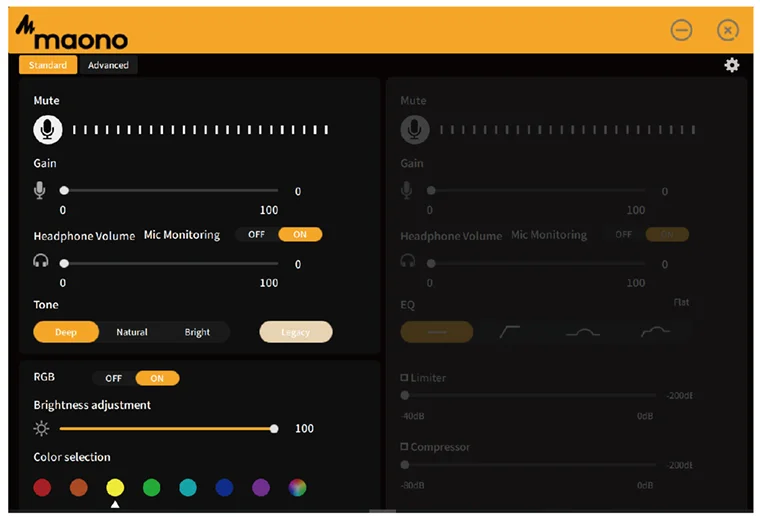
Advanced
Offers more advanced audio settings. You can use a combination of EQ, limiter, and compressor to customize your voice. You can go to the settings menu from the top right corner to check software and firmware updates.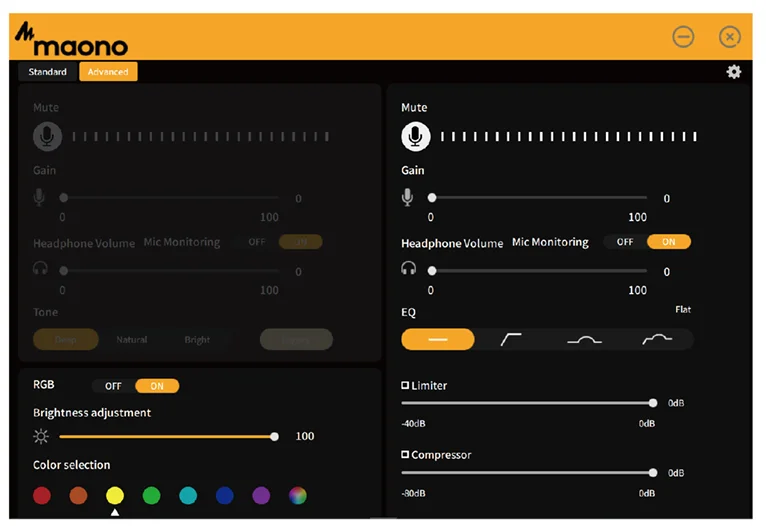
Note: The interface and feature sets of your Maono Link Desktop App may be different since we frequently update the software to introduce new features and improve performance.
Safety Precautions
- To avoid personal injury or property damage caused by factors such as high temperature, noise, radiation, fire, and machinery, please use this product in a safe environment and carefully read and follow the following precautions.
- If the product overheats, emits smoke or strange odors during use, please turn off the power and unplug the power cord immediately, and send the product to the dealer for repair.
- Do not modify, disassemble or repair this equipment by yourself, so as not to invalidate the product warranty or cause personal injury. If necessary, please contact the dealer for assistance.
- This product should be used and stored in a dry, ventilated, and safe environment. Do not use this product in a damp or dusty environment.
- Avoid rainwater, dust entering the product and causing a short circuit; being close to a heat source, collision, or severe vibration may cause irreversible damage to the product.
- Do not use this product in situations where it is explicitly prohibited by law. Comply with relevant safety regulations and use this product safely to avoid accidents.
- This product is not a toy for children. Keep it out of the reach of children.
FCC Warning
This device complies with part 15 of the FCC Rules. Operation is subject to the following two conditions:
- This device may not cause harmful interference, and
- This device must accept any interference received, including interference that may cause undesired operation.
Any Changes or modifications not expressly approved by the party responsible for compliance could void the user1s authority to operate the equipment.
Note: This equipment has been tested and found to comply with the limits for a Class B digital device, pursuant to part 15 of the FCC Rules. These limits are designed to provide reasonable protection against harmful interference in a residential installation. This equipment generates uses and can radiate radio frequency energy and, if not installed and used in accordance with the instructions, may cause harmful interference to radio communications. However, there is no guarantee that interference will not occur in a particular installation. If this equipment does cause harmful interference to radio or television reception, which can be determined by turning the equipment off and on, the user is encouraged to try to correct the interference
by one or more of the following measures:
- Reorient or relocate the receiving antenna.
- Increase the separation between the equipment and receiver.
- Connect the equipment into an outlet on a circuit different from that to which the receiver is connected.
- Consult the dealer or an experienced radio/TV technician for help.
This equipment complies with FCC radiation exposure limits set forth for an uncontrolled environment. This equipment should be installed and operated with a minimum distance 20cm between the radiator & your body.
IC Warning
This device complies with Industry Canada’s licence-exempt RSS standard(s). Operation is subject to the following two conditions:
- This device may not cause interference, and
- This device must accept any interference, including interference that may cause undesired operation of the device.

Technical support:
For more manuals by Maono, visit ManualsLibraryy
Maono PD200X Dynamic Microphone-FAQs
What is the Maono PD200X best used for?
The Maono PD200X is ideal for podcasting, streaming, gaming, voice-overs, online meetings, and singing. It delivers clear vocals with reduced background noise.
Why is my Maono PD200X not picking up sound?
Check your system’s sound settings. Disable the microphone, re-enable it, and make sure it is selected as the default input device. Also verify cable connections and gain levels.
Does the Maono PD200X need phantom power?
No. Since it is a dynamic microphone, phantom power (48V) is not required and should be turned off when using XLR.
Can I use the Maono PD200X with a computer or laptop?
Yes. It is plug-and-play via USB, compatible with Windows and macOS systems.
Is there software available for Maono microphones?
Yes. You can use Maono Link / Maono Arena software to adjust gain, volume, and other audio settings.
What is the frequency response of the Maono PD200X?
The microphone has a wide frequency response of 40Hz–16kHz, delivering deep bass, clear mids, and crisp highs.
Is the Maono PD200X good for singing?
Yes. It performs well for vocal recording and singing, especially for home studios and content creators on a budget.