
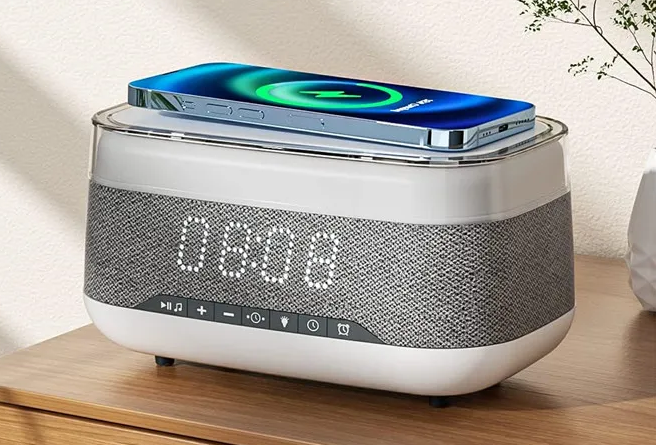

Merkury SoundCharge Bluetooth Speaker and Alarm Clock
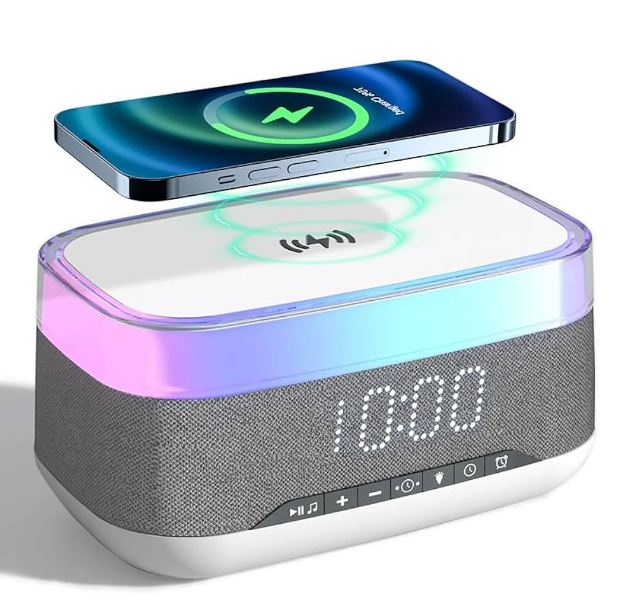
Power Connection:
- Plug the alarm clock in using the included USB-C cable to a USB power source.
Note: To use the wireless charging and USB charging features at the same time, the power source must be Quick Charge 3.0 enabled.
Wireless Charging:
- You can charge your smartphone with a protective case on it (works with most cases up to 4 mm thick).
- If your protective case has metallic studs, magnetic clasps, or a magnetic plate, you must remove the case before placing your phone on the pad.
- Also, ensure the protective case does not create a distance between the charging pad and the back of the phone that is greater than 4 mm.
Charging:
- Your smartphone will automatically begin to charge when placed on the wireless charger.
- For optimum charging, place your mobile phone in the center of the wireless charger.
- When it’s charging, the red light will be on. When fully charged, the light will be off.
LED Status Indicator:
- No Light: Standby.
- Breathing Light: Device is charging properly.
- Flashing Light: Foreign object detected. Charging is disabled.
Fast Charging:
- The wireless charger supports outputs of up to 15W (Fast Charging).
- To enable fast charging for your compatible device, the wireless charger must be powered by a USB charger with Quick Charge 3.0 technology (5V/3A, 9V/2A, 12V/1.5A).
Alarm Clock Function:
- The default setting of the product is a 12-hour clock and Fahrenheit temperature.
- When the alarm rings, the indicator light of the alarm clock will flash. Press any key to turn off the alarm, and the indicator light of the alarm clock will be on after the alarm is turned off.
Nightlight Setting:
- Click the light button on the backside of the product to turn on the nightlight.
- Click the button again to cycle through the brightness settings.
DETAILED INSTRUCTIONS AND DIAGRAMS
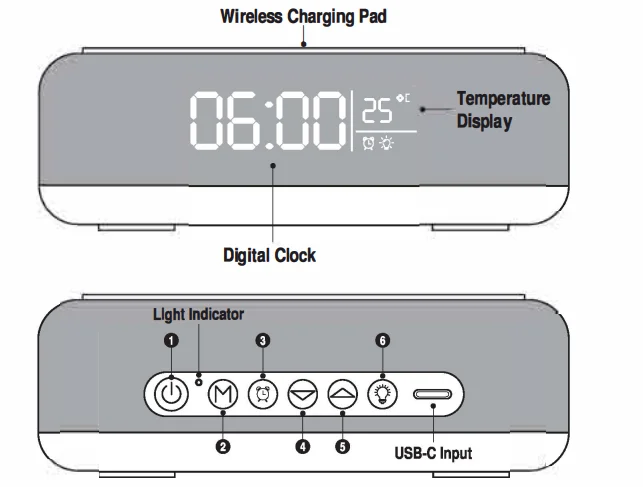
Bluetooth® Mode
- Power Button: Press and hold for 2 seconds to power on/off, to enter “Bluetooth mode.” Search the pairing name: MERKURY WCR01 and connect it to the phone.
- Mode button: No function.
- Alarm button: No function.
 Button: Press once to lower volume / Press and hold to return to the previous track.
 Button: Press once to raise volume / Press and hold to advance to the next track. If you don’t hear any audio, press to increase the volume.
- Light button: No function.
 Button: Press once to lower volume / Press and hold to return to the previous track.
 Button: Press once to raise volume / Press and hold to advance to the next track. If you don’t hear any audio, press to increase the volume.
Clock Mode
- Power Button: press and hold for 2 seconds to power on, then press once to enter “Clock mode.”
- Mode button: Press once to enter setup sequence time: 12H/24H (hour → minute → alarm clock (hour → minute → year → month & day → cycle). The two points in the middle second, and the relevant setting numbers flash at the same time. Press
 the A/V buttons to increase or decrease the hour value. In 12H settings, an LED indicator in the upper left corner indicates PM. If no button is pressed within 10 seconds, you will automatically exit settings mode, and the current settings will be saved.
 - Alarm button: Press and hold to turn on/off the alarm, and the alarm indicator icon will turn on or off.
 Button: When setting the time and alarm, press to decrease the number.
- Button: When setting the time and alarm, press to increase the number. When in clock mode, press and hold to switch the temperature display (Celsius and Fahrenheit). Press to switch the time display format (12H/24H).
- Light button: Press to toggle the nightlight brightness settings from high, medium, low, and off.
 the A/V buttons to increase or decrease the hour value. In 12H settings, an LED indicator in the upper left corner indicates PM. If no button is pressed within 10 seconds, you will automatically exit settings mode, and the current settings will be saved.
FCC Notice:
This device complies with Part 15 of the FCC Rules. Operation is subject to the following two conditions:
- This device may not cause harmful interference.
- This device must accept any interference received, including interference that may cause undesired operation.
Technical Support:
Please do not attempt to fix the product by yourself. If you are experiencing any problems with the product, please do not return it to the store you bought it from. You can contact our technical support representatives, and they will assist you with any questions you might have. For assistance operating your product, please consult the User’s Manual first, then feel free to contact Merkury Innovations’ technical support:
Merkury Innovations
45 Broadway, 3rd Fl
New York, New York 10006
www.merkuryinnovations.com
E-mail: [email protected]
Technical Specifications:
- Input: 5V/2A, 9V/1.67A
- Wireless Output: 5W, 7.5W, 10W, 15W
©2023 Merkury Innovations, LLC.
To explore our full selection of products, visit us at www.merkuryinnovations.com. iPhone is a trademark of Apple Inc., registered in the U.S. and other countries. The Bluetooth word mark and logos are registered trademarks owned by Bluetooth SIG, Inc. All other trademarks and trade names are those of their respective owners.
Made in China
This device complies with Part 15 of the FCC Rules. Operation is subject to the following two conditions:
- This device may not cause harmful interference, and
- This device must accept any interference received, including interference that may cause undesired operation.
Any changes or modifications not expressly approved by the party responsible for compliance could void the user’s authority to operate the equipment.
NOTE: This equipment has been tested and found to comply with the limits for a Class B digital device, pursuant to Part 15 of the FCC Rules. These limits are designed to provide reasonable protection against harmful interference in a residential installation. This equipment generates, uses, and can radiate radio frequency energy and, if not installed and used in accordance with the instructions, may cause harmful interference to radio communications.
However, there is no guarantee that interference will not occur in a particular installation. If this equipment does cause harmful interference to radio or television reception, which can be determined by turning the equipment off and on, the user is encouraged to try to correct the interference by one or more of the following measures:
- Reorient or relocate the receiving antenna.
- Increase the separation between the equipment and receiver.
- Connect the equipment into an outlet on a circuit different from that to which the receiver is connected.
- Consult the dealer or an experienced radio/TV technician for help.
To maintain compliance with the FCC’s RF Exposure guidelines, this equipment should be installed and operated with a minimum 20 cm distance between the radiator and your body. Use only the supplied antenna.
For More Manuals By Merkury, Visit ManualsLibraryy.
Merkury SoundCharge Bluetooth Speaker and Alarm Clock-FAQs
How do I set the time on my Merkury alarm clock?
Press and hold the Power button to turn on the device. Then press the Clock/Set button to enter the hour setting mode. Use the + / – buttons to adjust the hour, then press the Clock/Set button again to confirm. Repeat the same steps to set the minutes.
How do I set an alarm on my Merkury SoundCharge clock?
Press the Alarm button until the display flashes. Use the + / – buttons to set your preferred alarm time, then press Alarm again to confirm. Ensure the alarm icon is visible on the display to indicate it’s active.
How do I connect my Merkury speaker to Bluetooth?
Turn on the speaker and activate Bluetooth on your smartphone or tablet. From the list of available devices, select “Merkury SoundCharge” to pair. Once connected, you’ll hear a confirmation tone or see a Bluetooth indicator light.
How do I charge my Merkury Bluetooth speaker?
Plug the included micro-USB cable into the charging port at the back of the speaker, and connect the other end to a compatible USB wall charger or power outlet. The LED light will indicate charging status.
How long does it take to fully charge the speaker?
It usually takes 2 to 4 hours for a full charge, depending on the power source and battery level.
How do I know when the speaker is fully charged?
The LED indicator changes color or turns off once charging is complete. A red light typically means charging, while a green or blue light indicates a full charge.
Can I use the Merkury SoundCharge as a wireless charger?
Yes. Place your Qi-enabled phone on the wireless charging pad at the top of the speaker. Ensure it’s centered properly for efficient charging.
What should I do if my speaker isn’t charging?
Check the USB cable and power source for damage. Try a different USB adapter or outlet. Clean the charging port gently and make sure there’s no debris blocking the connection.
Is the Merkury SoundCharge speaker waterproof?
Most Merkury SoundCharge speakers are not fully waterproof, but they are designed to resist light splashes. Avoid exposing them to heavy rain or submerging them in water.